Setting up membership types
Create membership types with their own fee, renewal period, renewal date and payment options, and see which members belong to each.
Membership types are the different kinds of membership your society offers, such as full, concession, youth or family. Each type has its own fee and renewal rules. Here's how to set them up.
1. Open Membership Types
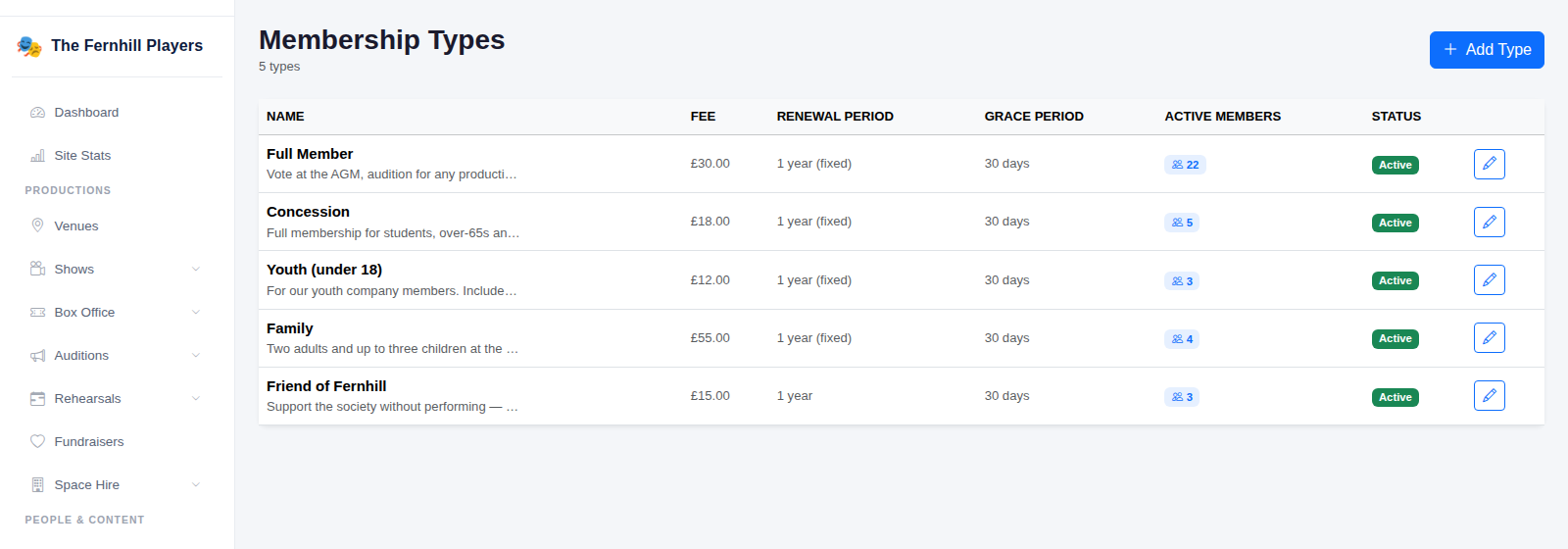
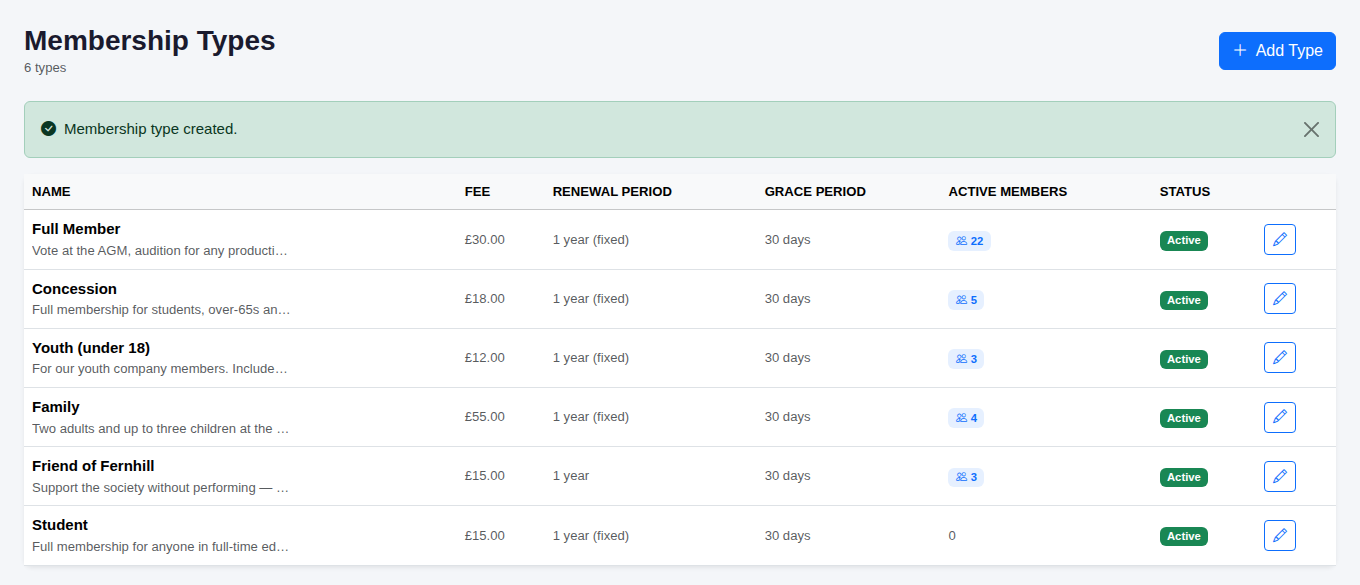
In the admin menu, go to Membership > Membership Types. You'll see each type with its fee, renewal period, grace period, how many active members it has and whether it's active. Click Add Type to create a new one.
2. Enter the type details
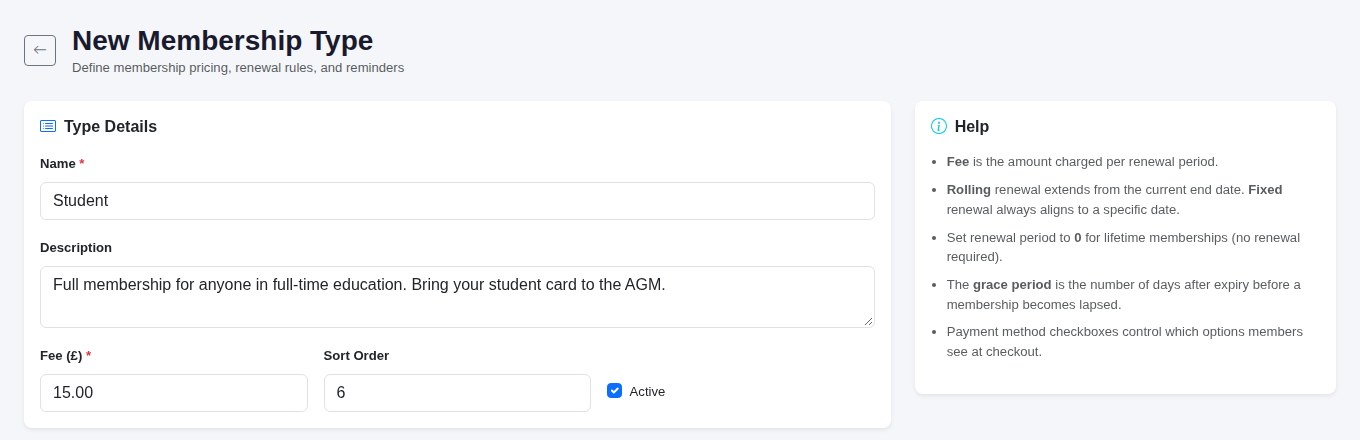
Give the type a Name and a short Description. Enter the Fee (£), which is the amount charged for each renewal period. Sort Order controls where the type appears in lists, and the Active box lets you switch a type off without deleting it.
3. Choose the renewal settings
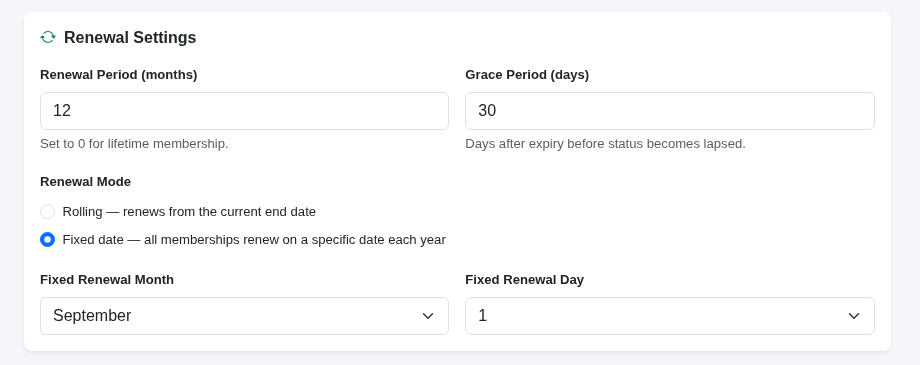
Set the Renewal Period (months). Use 12 for an annual membership, or 0 for a lifetime membership that never needs renewing. The Grace Period (days) is how long after expiry a membership stays in good standing before it's marked as lapsed.
Then pick a Renewal Mode. Rolling renews from each member's current end date. Fixed date renews everyone on the same day each year, which you choose with Fixed Renewal Month and Fixed Renewal Day. This is handy if your membership year runs from your AGM or the start of the season.
4. Pick the payment methods
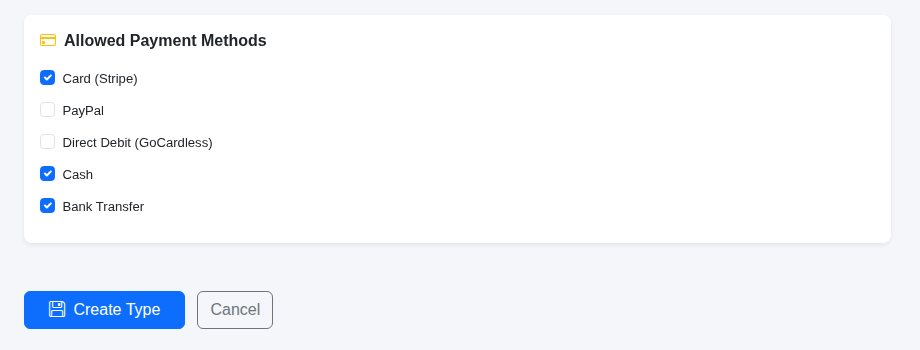
Under Allowed Payment Methods, tick the ways members can pay for this type: Card (Stripe), PayPal, Direct Debit (GoCardless), Cash or Bank Transfer. These boxes control which options members see when they pay. Click Create Type to save.
5. Check your new type
You'll go back to the Membership Types list, where your new type now appears. You can edit it at any time with the pencil button.
6. Review the renewal reminders
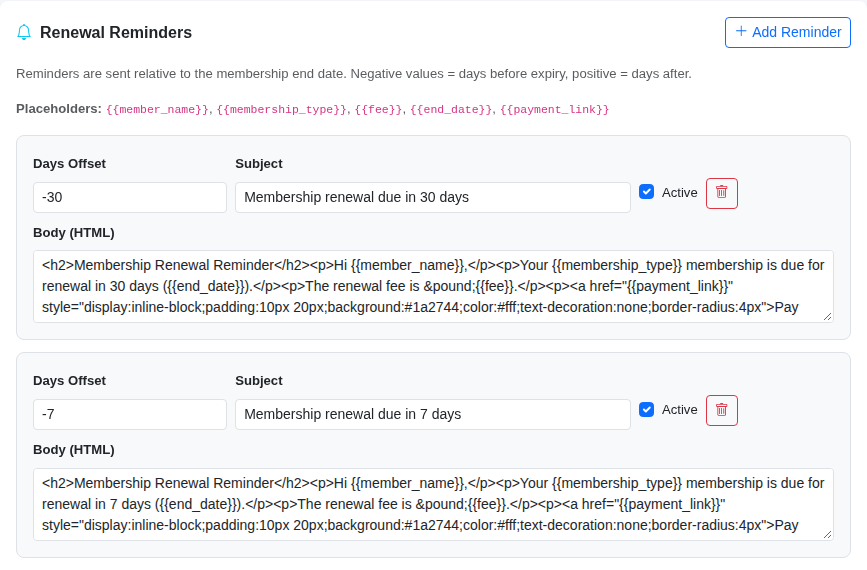
When you edit a type, you'll find a Renewal Reminders section. TheatreHQ adds a set of reminders for you when you create a type: 30 days and 7 days before expiry, on the day, and 7 days after.
Each reminder has a Days Offset (negative numbers are days before expiry, positive numbers are days after), a Subject, a Body (HTML) and an Active switch. You can use placeholders such as {{member_name}}, {{fee}}, {{end_date}} and {{payment_link}}. Click Add Reminder to add another.
7. Add members to the type
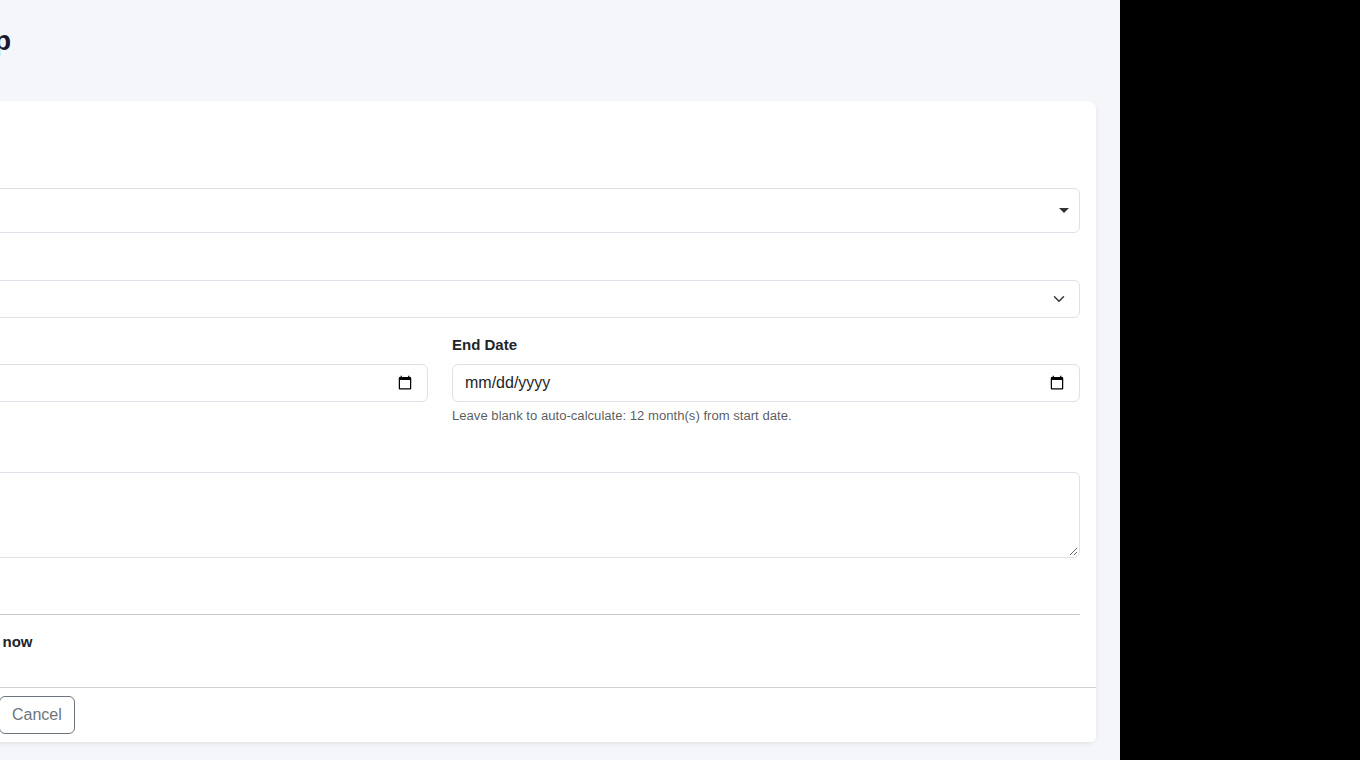
To give someone a membership, go to Membership > All Members and click Add Membership. Choose an existing Member (or switch on Create New Member), pick the Membership Type and set the Start Date. If you leave the End Date blank, it's worked out from the type's renewal period.
8. See members by type
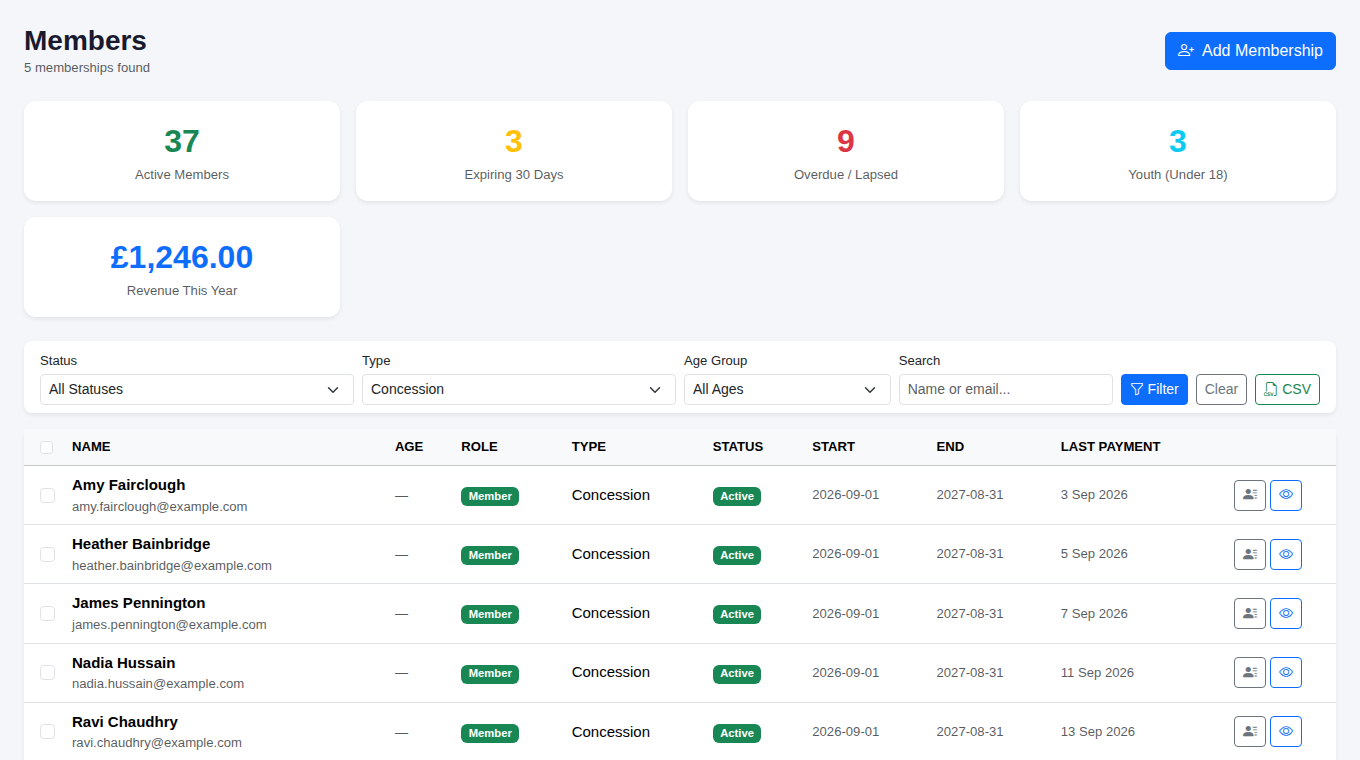
On the All Members page, use the Type filter and click Filter to see everyone on a particular membership type, along with their status, start and end dates and last payment. Click CSV to download the list.
Tip: if you stop offering a type, untick Active rather than deleting it. Existing members keep their history and the type stays out of the way.