Running auditions online
Set up auditions for a show, list the roles, create audition days and slots, and manage applicants as they move through the process.
TheatreHQ lets people apply to audition through your website, and gives you one place to manage roles, audition days and applicants. Here's how to set it up for a show.
1. Set up auditions for a show
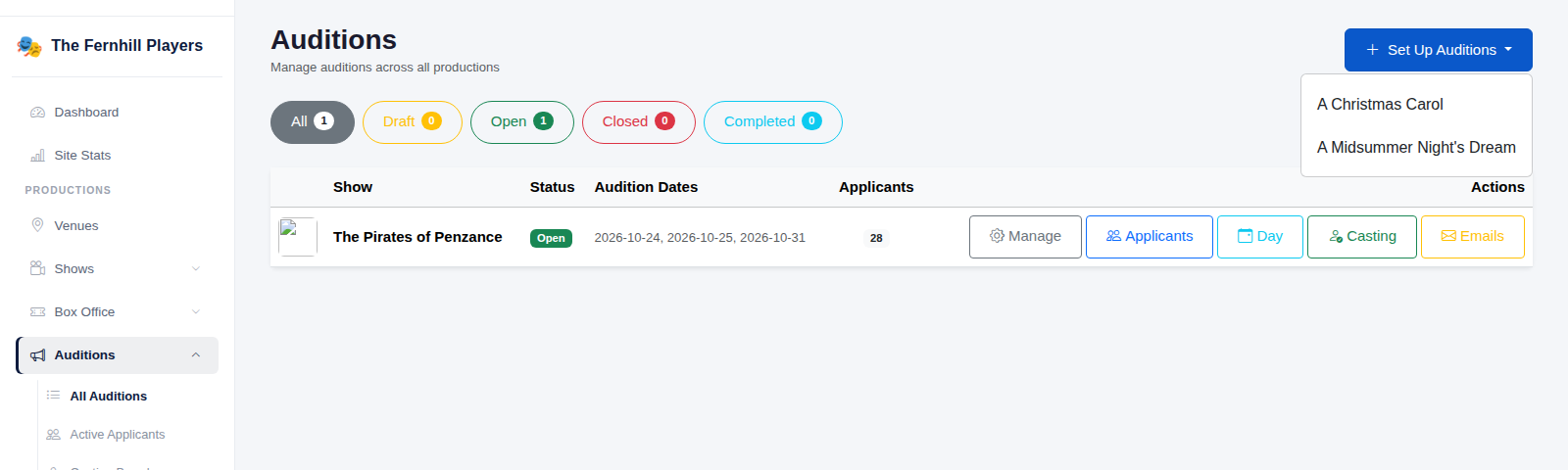
In the admin menu, go to Auditions > All Auditions. Click Set Up Auditions and choose the show from the list. Shows that already have auditions are listed below, with buttons for Manage, Applicants, Day, Casting and Emails.
2. Fill in the settings
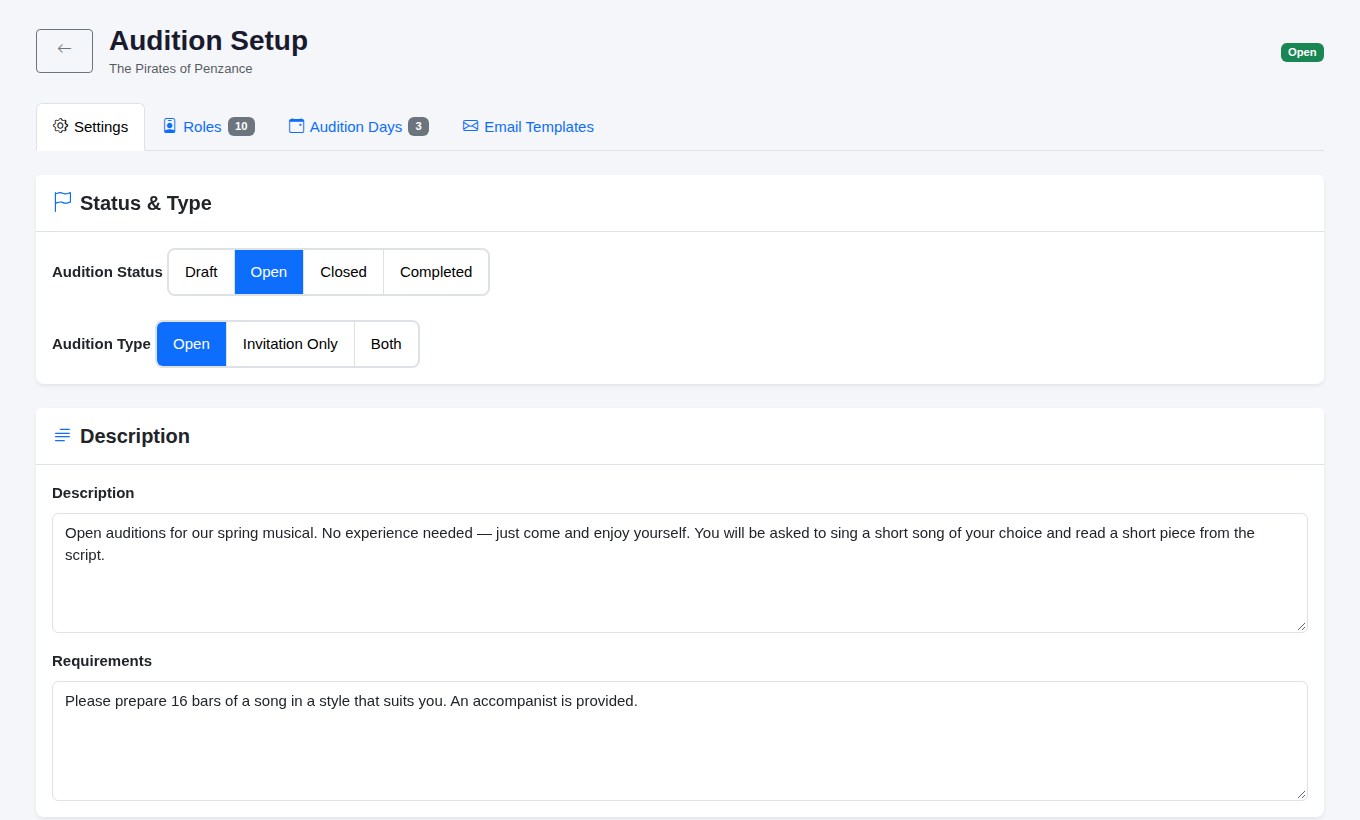
The Audition Setup page has four tabs: Settings, Roles, Audition Days and Email Templates. On Settings, choose the Audition Status (Draft, Open, Closed or Completed) and the Audition Type (Open, Invitation Only or Both).
Then add a Description and any Requirements (such as what to prepare), and the venue details under Location.
3. Choose your scheduling options
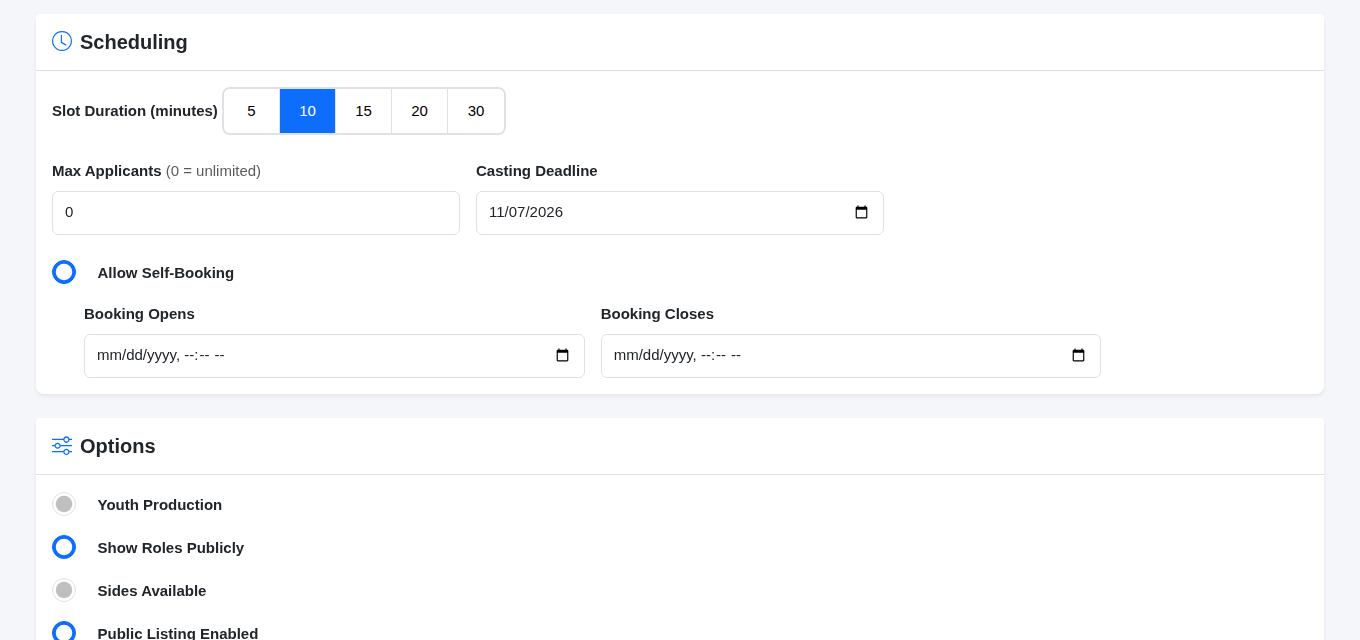
Under Scheduling, pick a Slot Duration (minutes), set Max Applicants (0 means unlimited) and a Casting Deadline. Switch on Allow Self-Booking if you want applicants to book their own slot, and set when booking opens and closes.
Under Options, you can mark it as a Youth Production, choose to Show Roles Publicly, say whether Sides Available, and turn on Public Listing Enabled so the audition appears on your website. Click Save Settings.
4. Add the roles
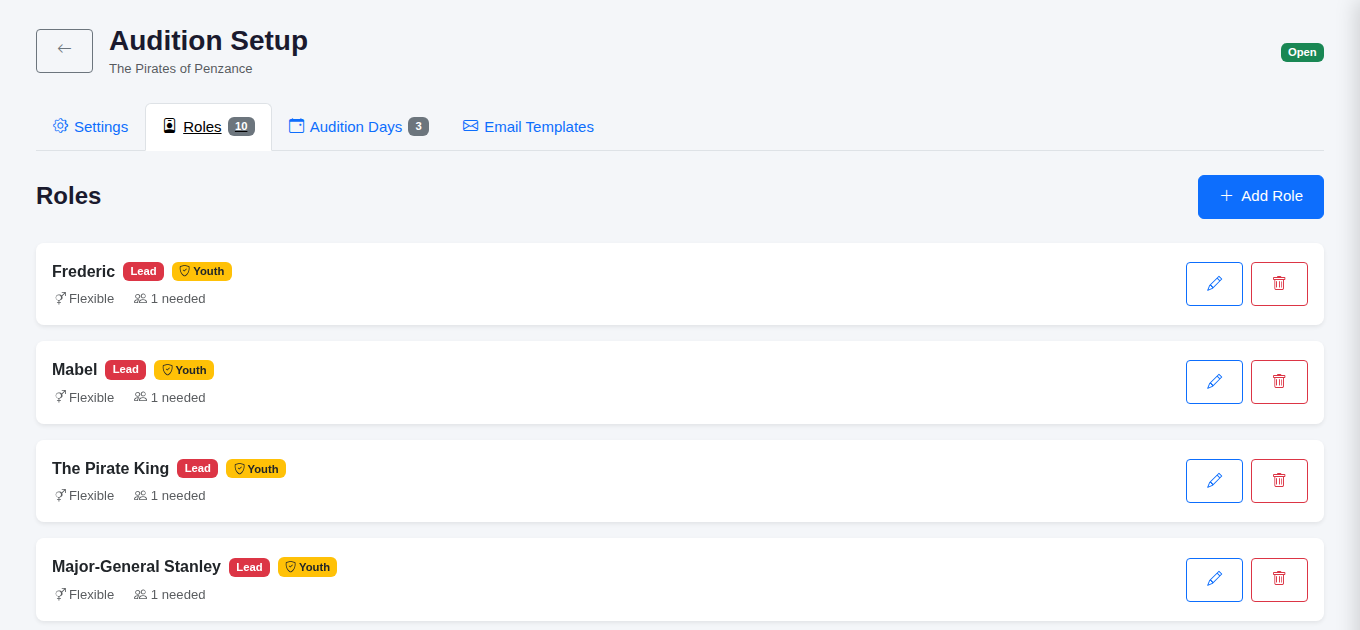
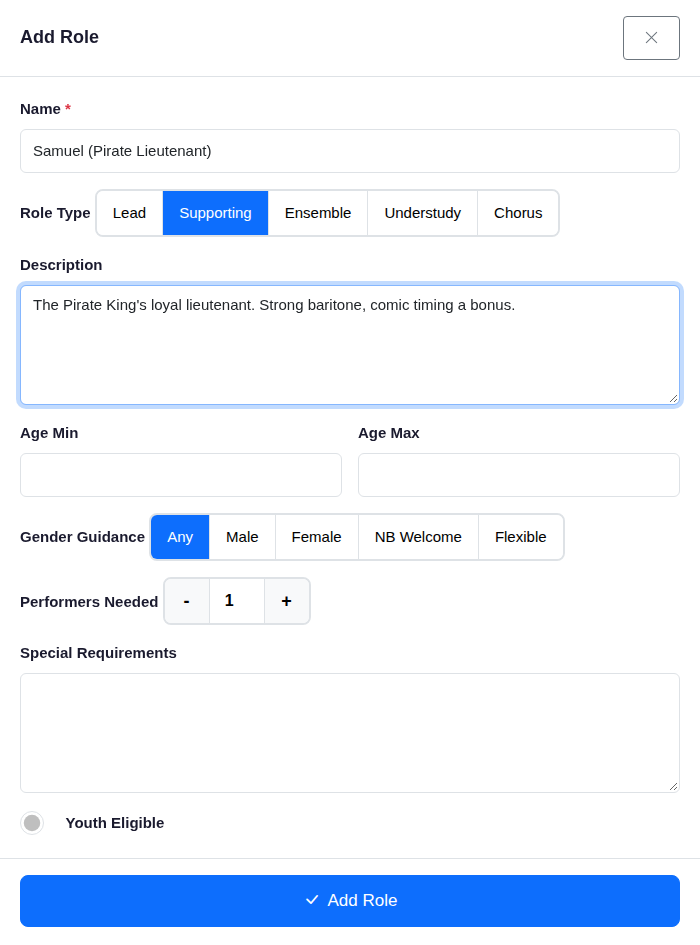
Open the Roles tab to see the parts you're casting. Each role shows its type, gender guidance and how many performers you need. Click Add Role to add another.
Give the role a Name, choose a Role Type (Lead, Supporting, Ensemble, Understudy or Chorus) and add a Description. You can also set an age range, Gender Guidance, the number of Performers Needed, any Special Requirements, and whether the role is Youth Eligible. Click Add Role to save it.
5. Create audition days and slots
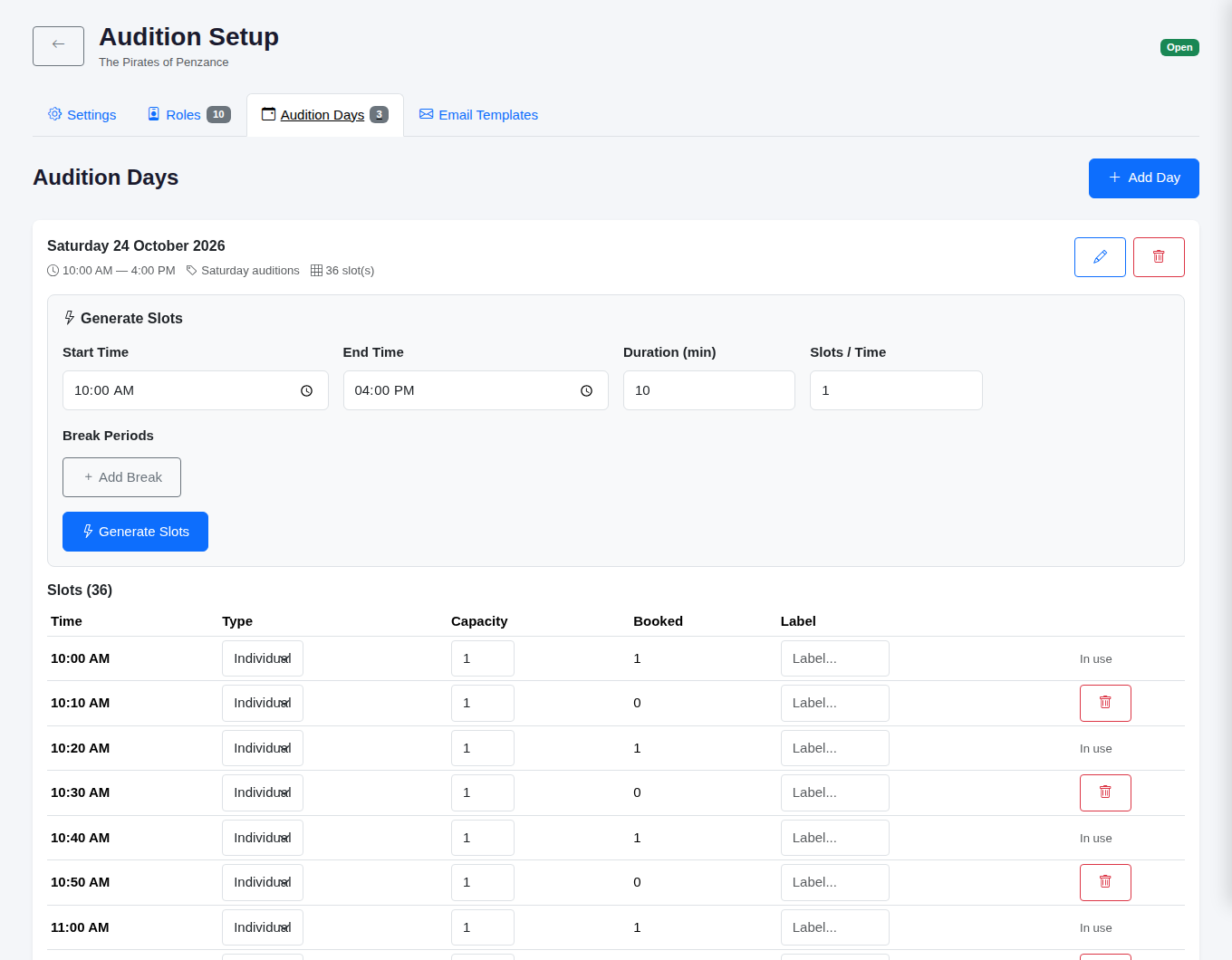
On the Audition Days tab, click Add Day and enter the Date, Start Time, End Time and an optional Label. Switch on Recall Day for recalls.
Each day has a Generate Slots panel. Set the start and end times, the slot length and how many people per slot, add any break periods (such as lunch), then click Generate Slots. The slots appear underneath, showing their capacity and how many are booked.
6. Take applications on your website
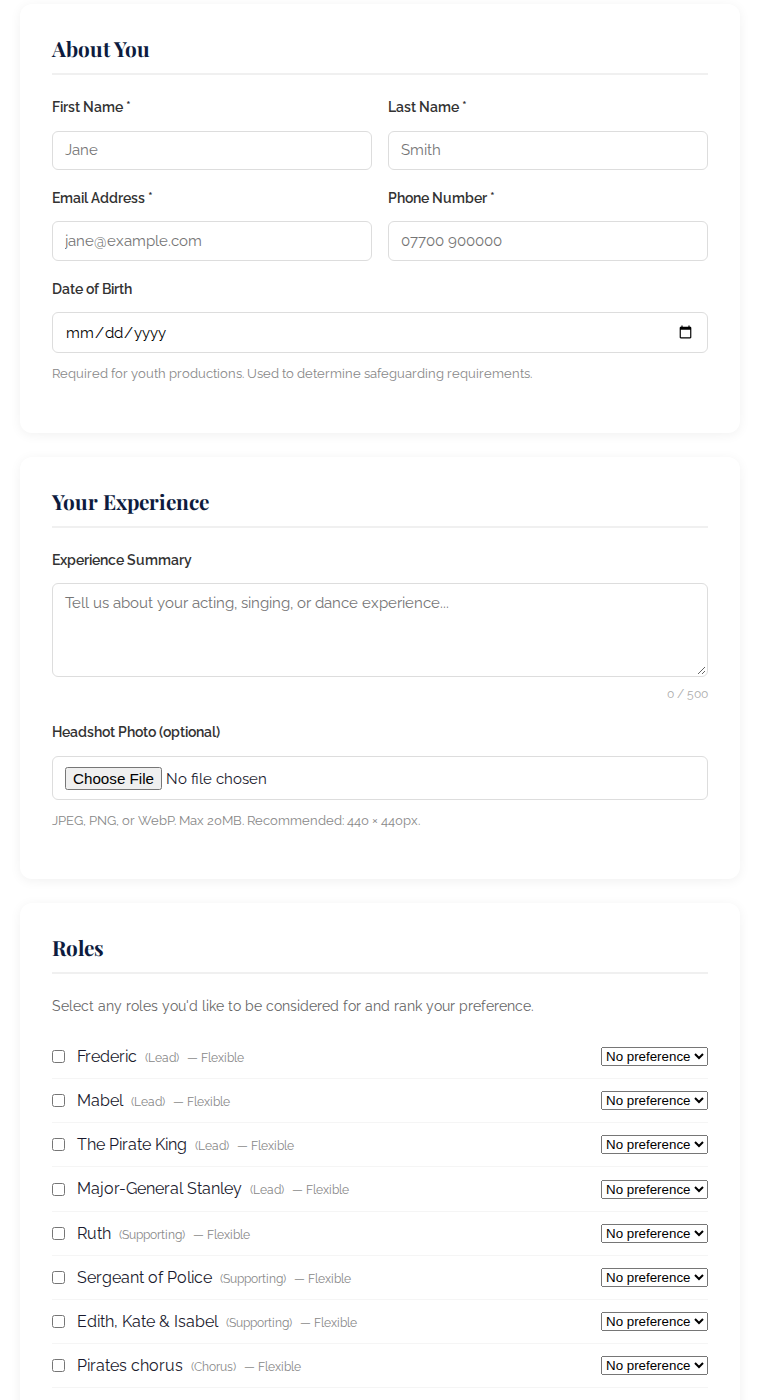
When the audition is open, people apply through your website. The form asks for their details and experience, lets them choose which roles they'd like to be considered for and rank their preferences, and asks about their availability.
7. Manage your applicants
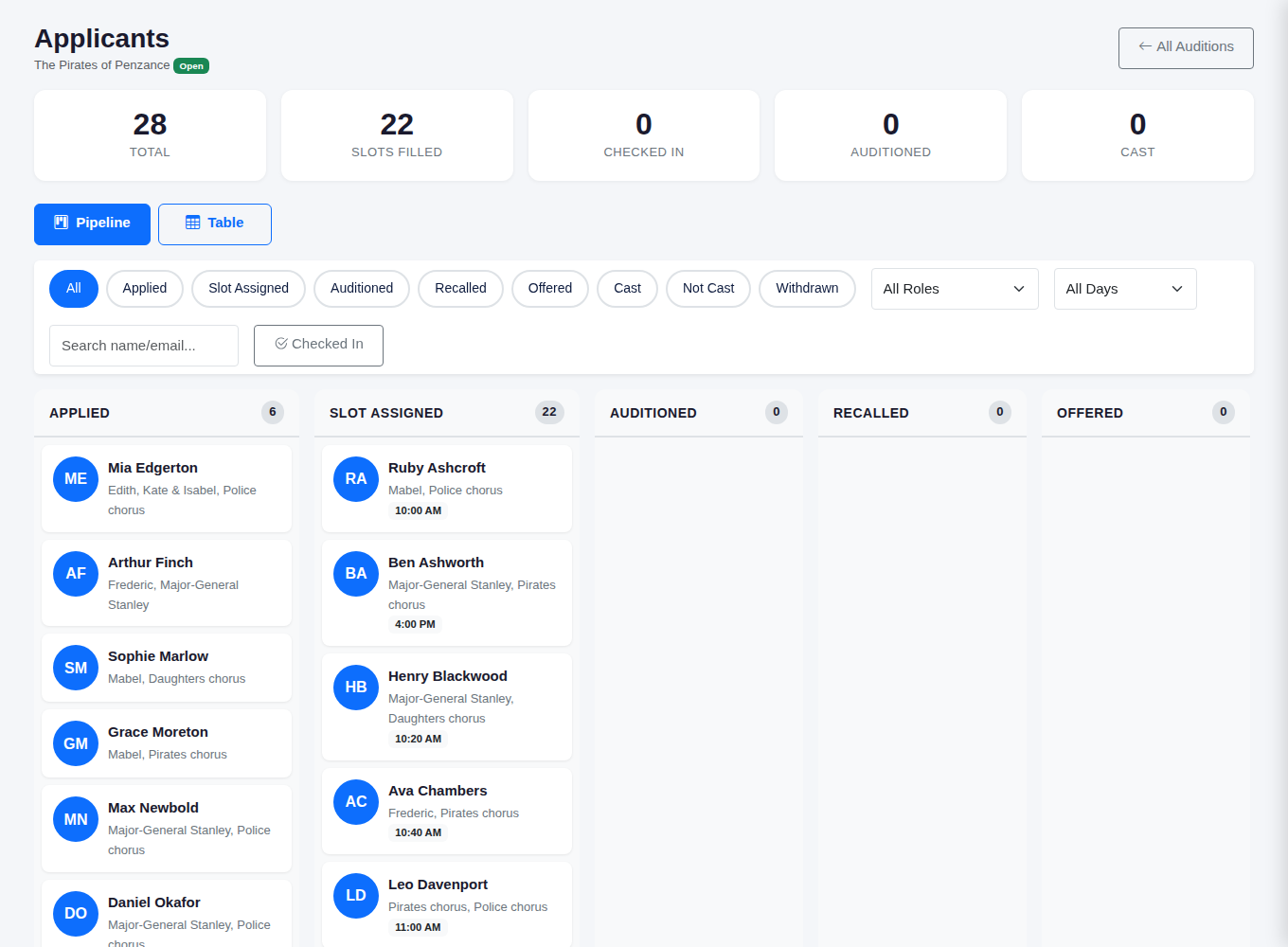
Click Applicants on the All Auditions page (or go to Auditions > Active Applicants). The totals at the top show how many have applied, how many slots are filled, and how many have checked in, auditioned and been cast.
The Pipeline view groups applicants by stage, from Applied and Slot Assigned through to Auditioned, Recalled and Offered, with the roles they're interested in and their slot time. Switch to Table for a list, and use the filters to show one stage, role or day, or to search by name or email.
What next: on audition day, open the Day view to see the schedule slot by slot. When you're ready to cast, use the Casting board to record your decisions.