Email Campaigns
Design newsletters and season announcements in a drag-and-drop editor, choose who receives them, and see who opened and clicked.
Key Features
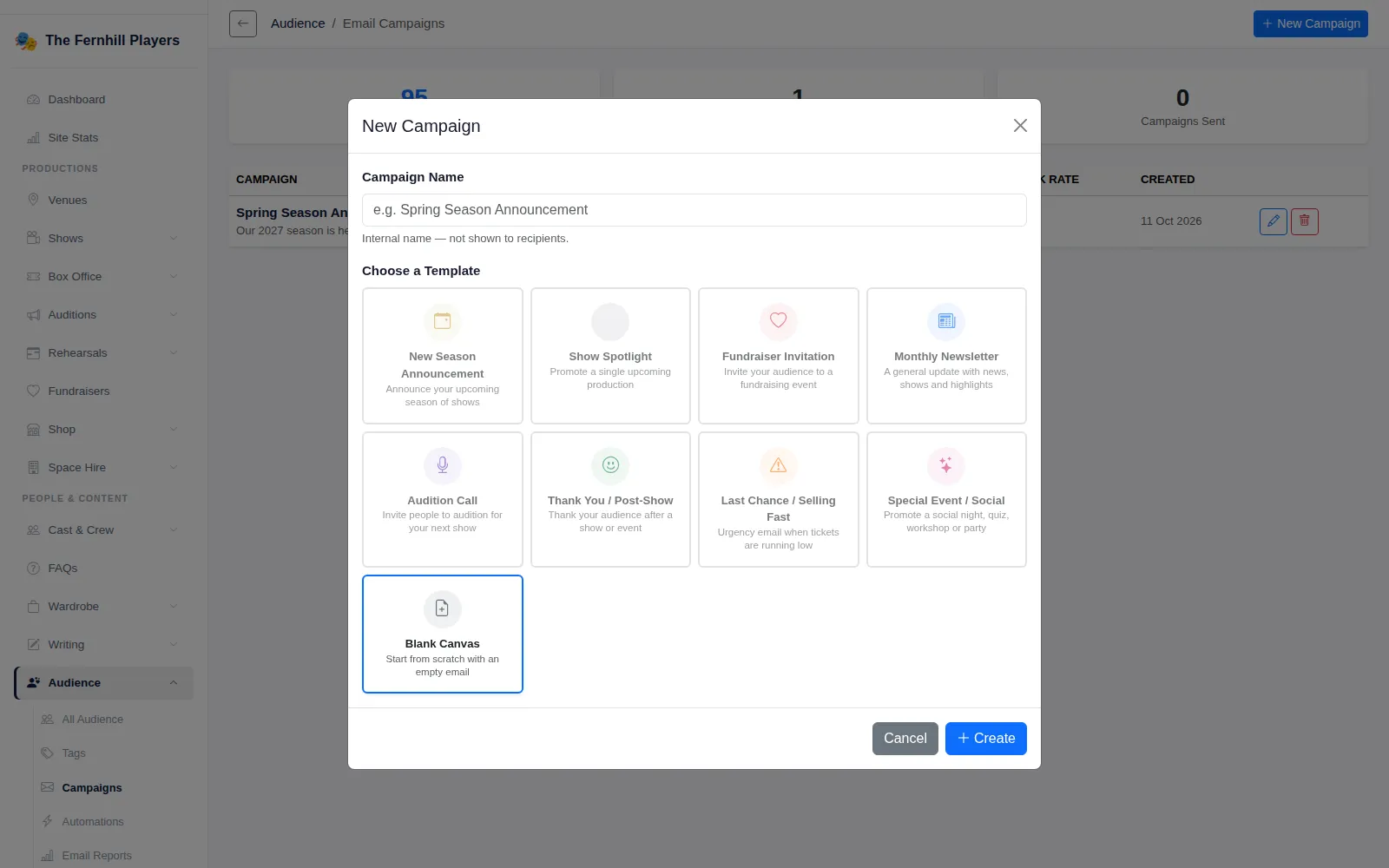
Nine starting templates
New Season Announcement, Show Spotlight, Monthly Newsletter, Audition Call and more, or a Blank Canvas.
Visual email editor
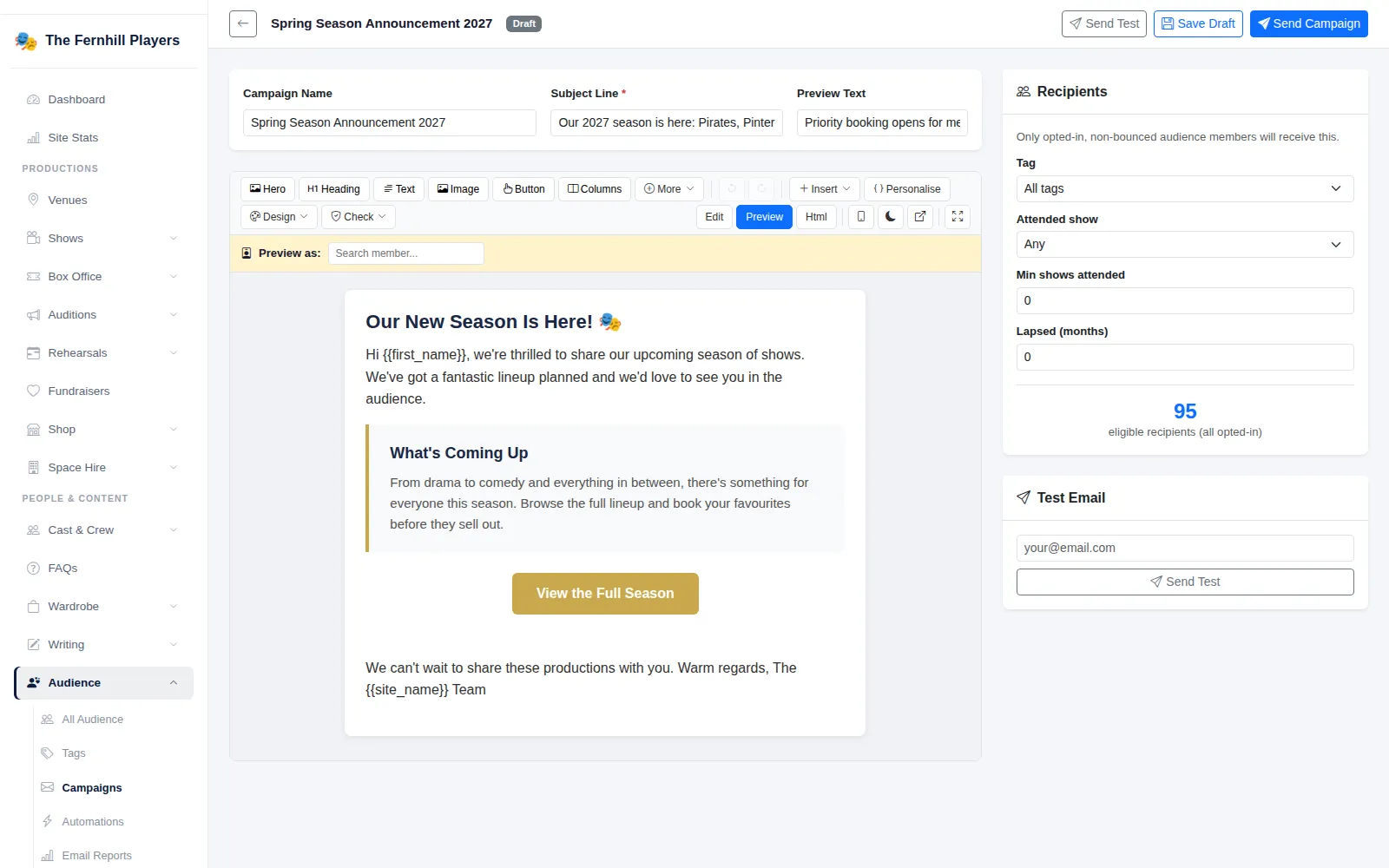
Add headings, text, images, buttons and columns, then switch to Preview to see the finished email.
Personal touches
Merge tags drop in each person's first name, last show and more from your audience records.
Send to the right people
Narrow the list by tag, by a show they attended, by how many shows they have seen, or by how long since they last booked.
Consent built in
Only opted-in audience members whose email has not bounced are included, and every email carries an unsubscribe link.
Opens and clicks
See open and click rates per campaign and which recipients opened or clicked.
Start from a template, not a blank page
Click New Campaign, give it an internal name and choose a starting point. There are templates for a New Season Announcement, Show Spotlight, Fundraiser Invitation, Monthly Newsletter, Audition Call, Thank You / Post-Show, Last Chance / Selling Fast and Special Event / Social, plus a Blank Canvas if you would rather build your own. Each one opens as a draft, already laid out and written in a friendly tone, ready for you to make it yours.
Build it visually
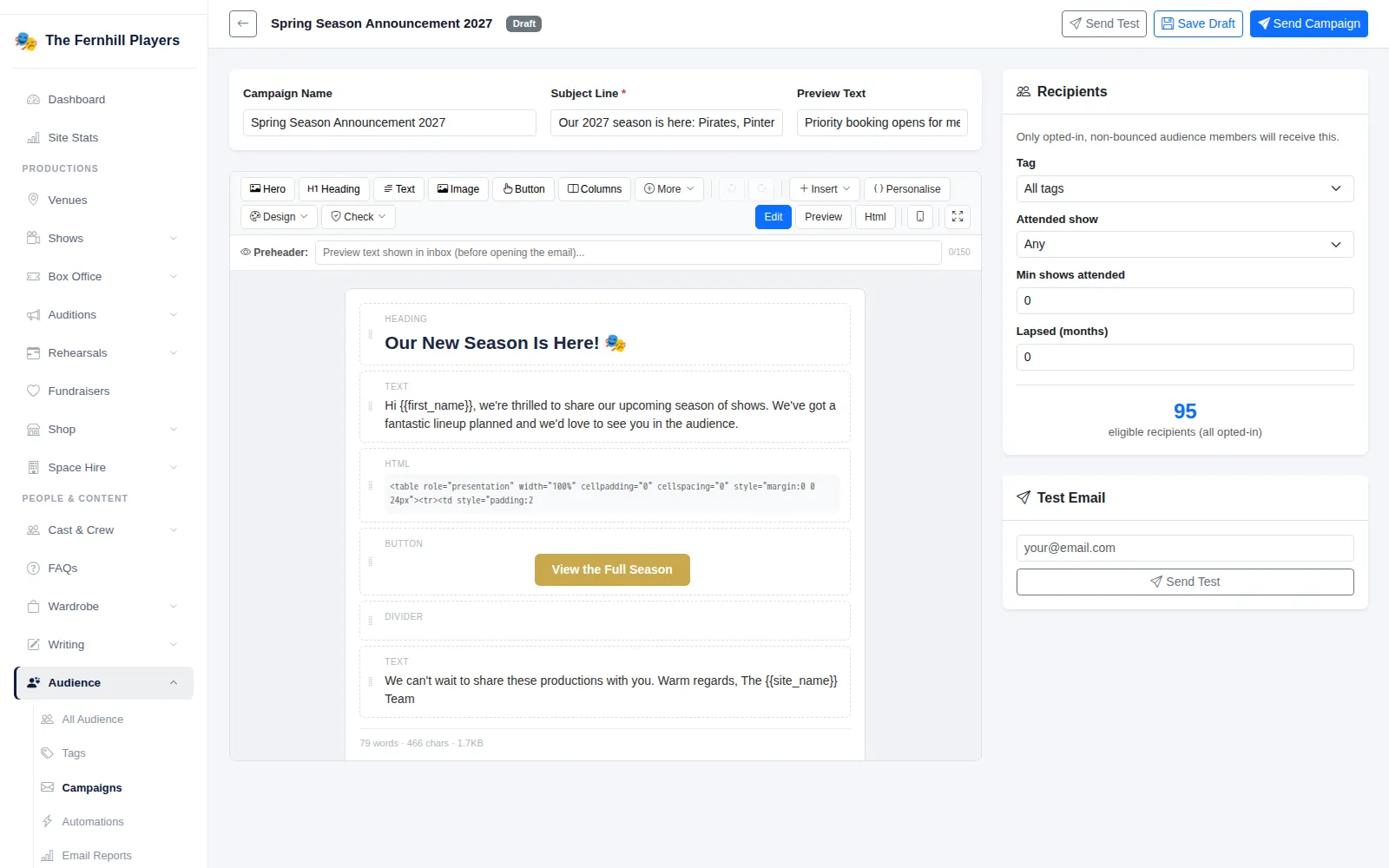
The editor works in blocks. Add a hero, heading, text, image, button or columns from the toolbar and drag them into order. Images can be uploaded straight into the email. Set a Subject Line and Preview Text for the inbox, and use Personalise to insert merge tags such as {{first_name}}, {{last_show}} or {{shows_attended}}, which are filled in for each person when the email goes out.
When you are ready to check it, switch from Edit to Preview to see the email as your audience will, or use the mobile view. Save Draft keeps your work, and Send Test sends a copy to an address you choose before anything goes to your audience.
Send it to people who want it
The Recipients panel lets you narrow a newsletter down. Choose a Tag, an Attended show, a Min shows attended figure or a Lapsed (months) value, for example to invite everyone who saw last year's panto, or to win back people who have not booked for a year. Only audience members who have opted in to marketing and whose address has not bounced are included, and each email gets a personal unsubscribe link automatically.
When you press Send Campaign and confirm, the emails are queued and sent in the background, so a large list does not tie up your browser.
See what worked
The campaigns list shows each campaign's status, recipients, open rate and click rate. Open a sent campaign to see each recipient and whether their email was sent, opened and clicked. The Email Reports page brings every send together with open, click and bounce rates, link-by-link click counts and an engagement timeline, so you can see which subject lines and buttons get your audience booking.
Frequently asked questions
Ready to get started?
Join groups across the UK already on TheatreHQ. No card, no commitment.
Start your trial →