
This round of updates is about two things: selling more tickets, and getting through show week without a dozen phone calls and a spreadsheet nobody can find. Here are the five new features, what each one is for, and how to start using it.
1. Promo codes
Discounts used to mean a complimentary ticket, a cash sale or a quiet word on the door. Now you can make a code your audience types when they book.
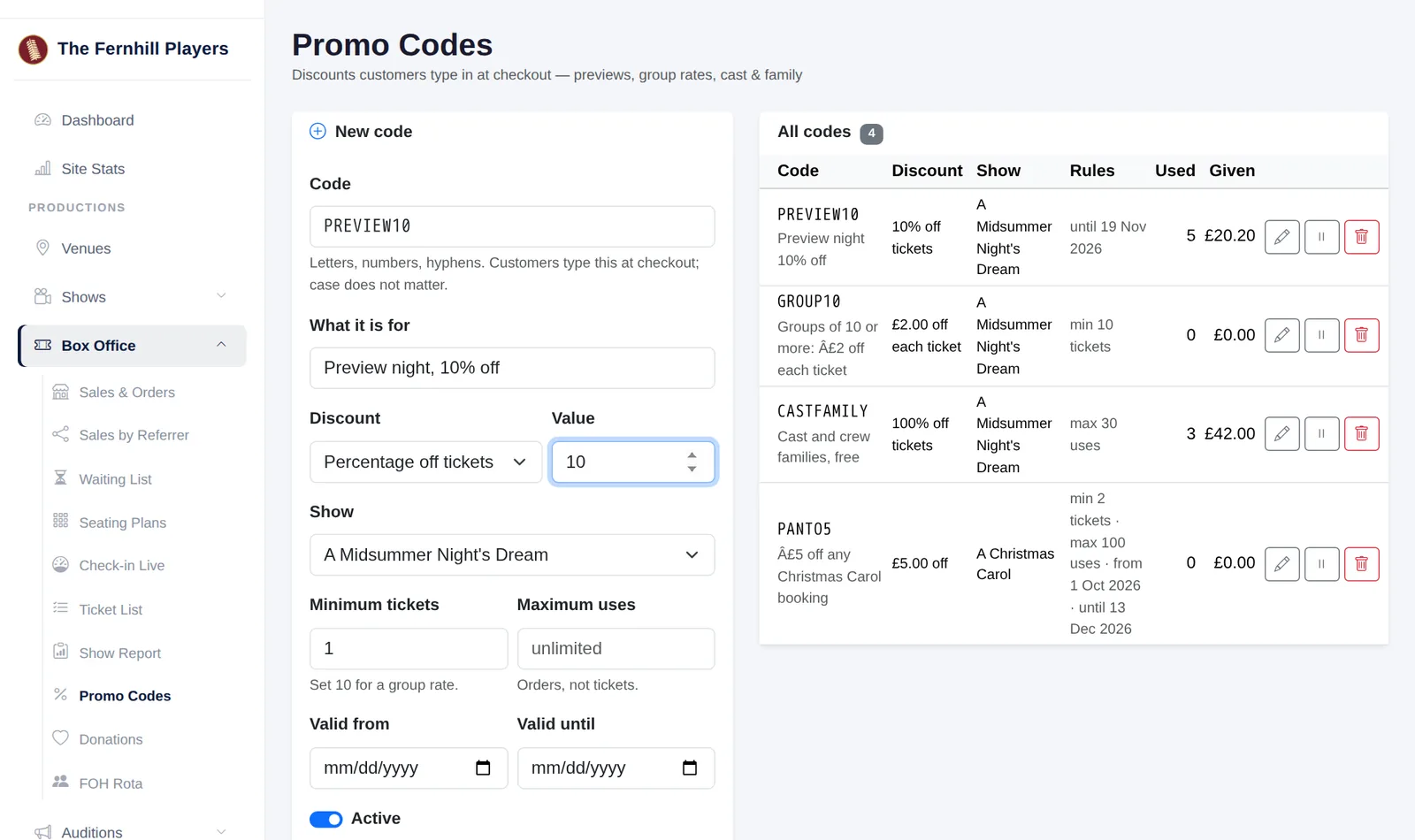
Go to Box Office, then Promo Codes. Type the code, say PREVIEW10, and choose the kind of discount: a percentage, a fixed amount off the booking, or an amount off each ticket. You can keep a code to one show, set a minimum number of tickets so it works as a group rate, limit how many times it can be used, and choose the dates it works between. The list shows how often each code has been used and how much it has given away.
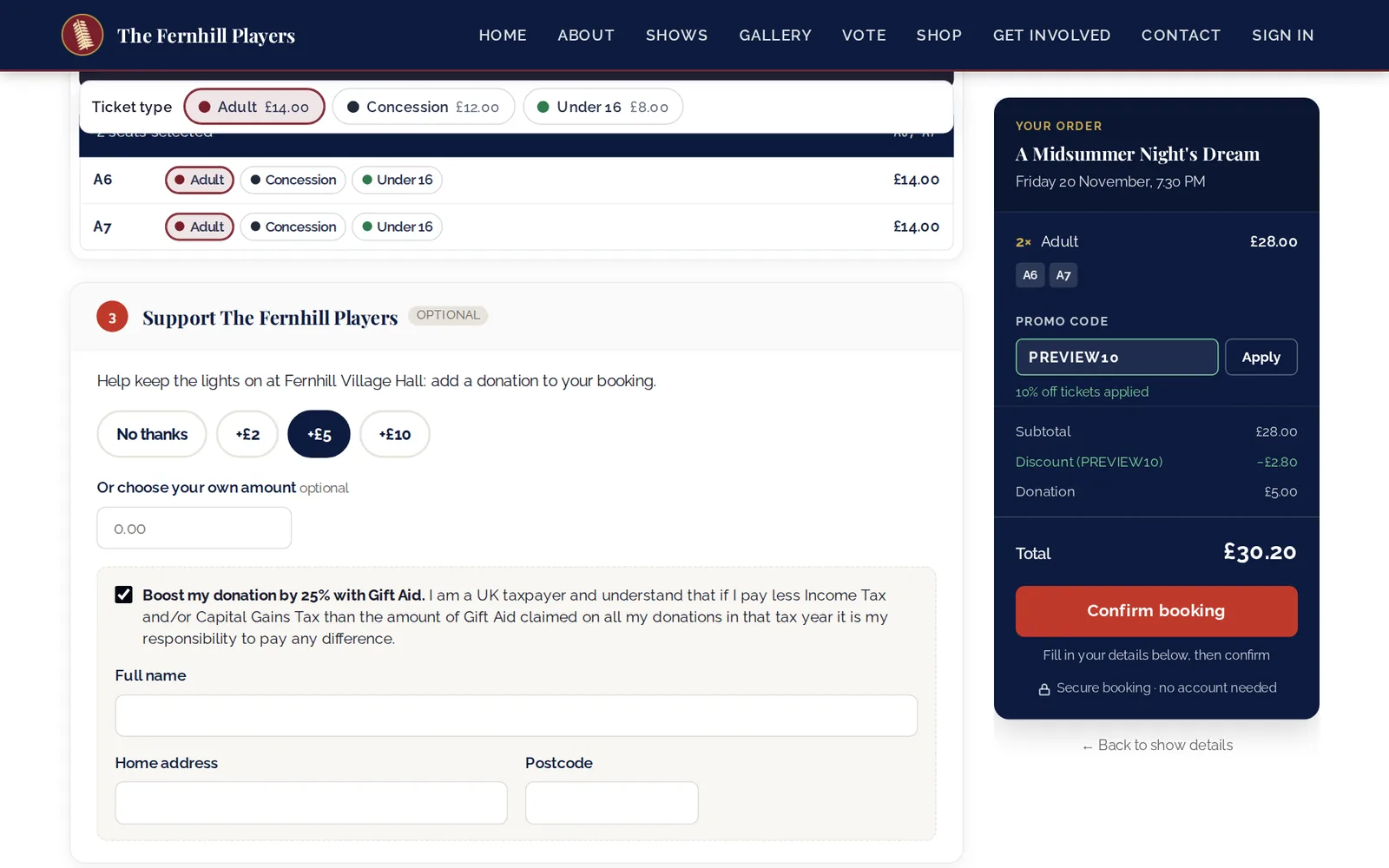
On the booking page, customers type the code and press Apply. It's checked straight away, so they see the discount in their total before they pay, and it's checked again when they confirm. The discount only ever comes off the tickets, never off add-ons like programmes. A 100% code books the tickets for free, which is a tidier way to look after cast and family than handing out comps.
2. Donations at checkout
People who've just booked to see your show are the people most likely to support you. Now you can ask them at the moment they book.
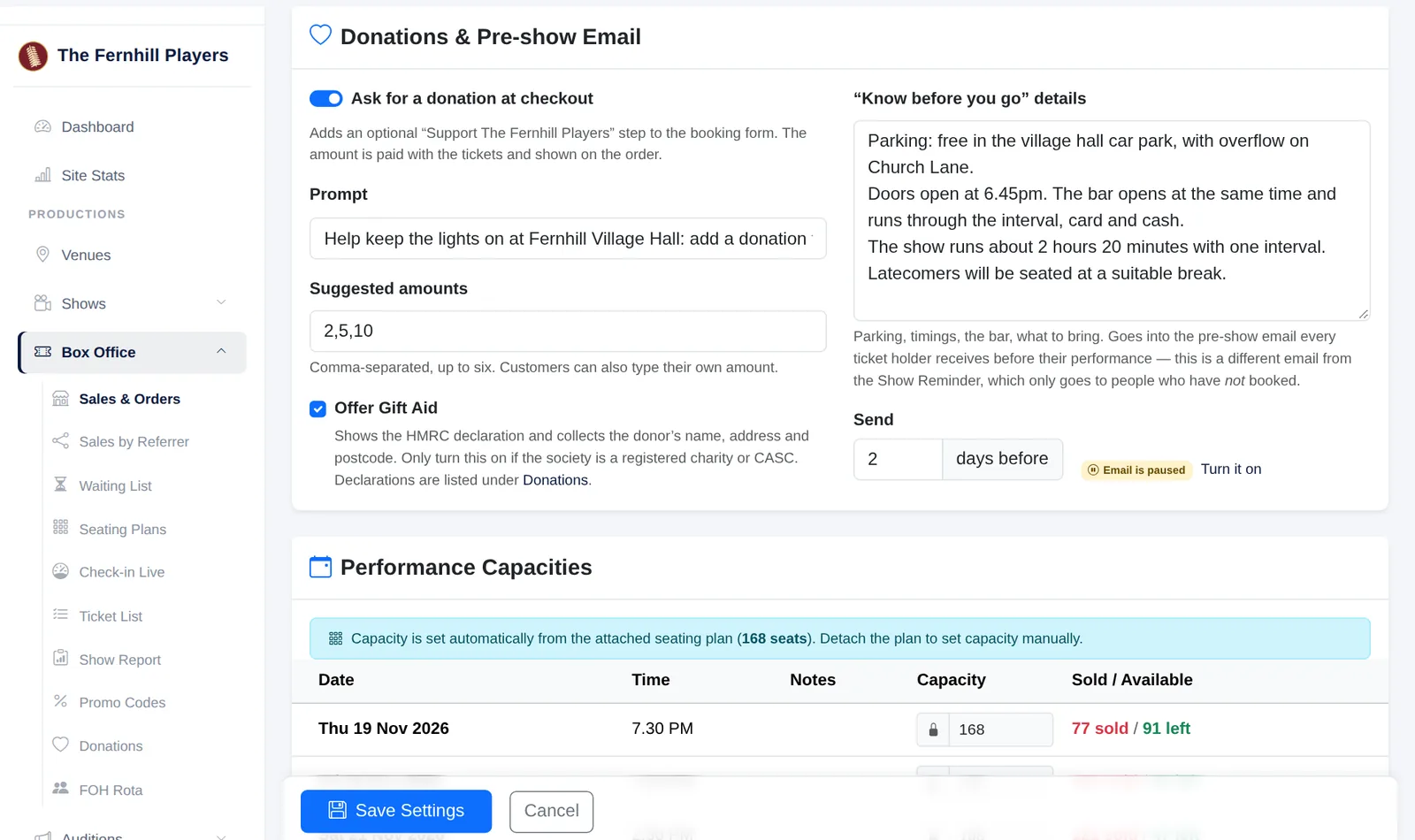
Open a show's Box Office Setup and find Donations & Pre-show Email. Switch on Ask for a donation at checkout, choose your suggested amounts and write a short prompt. If you're a registered charity, tick Offer Gift Aid too.
As they book, your audience can pick one of your suggested amounts or type their own. UK taxpayers can tick Gift Aid and give their name, home address and postcode, which is what HMRC needs. The donation is added to their order total.
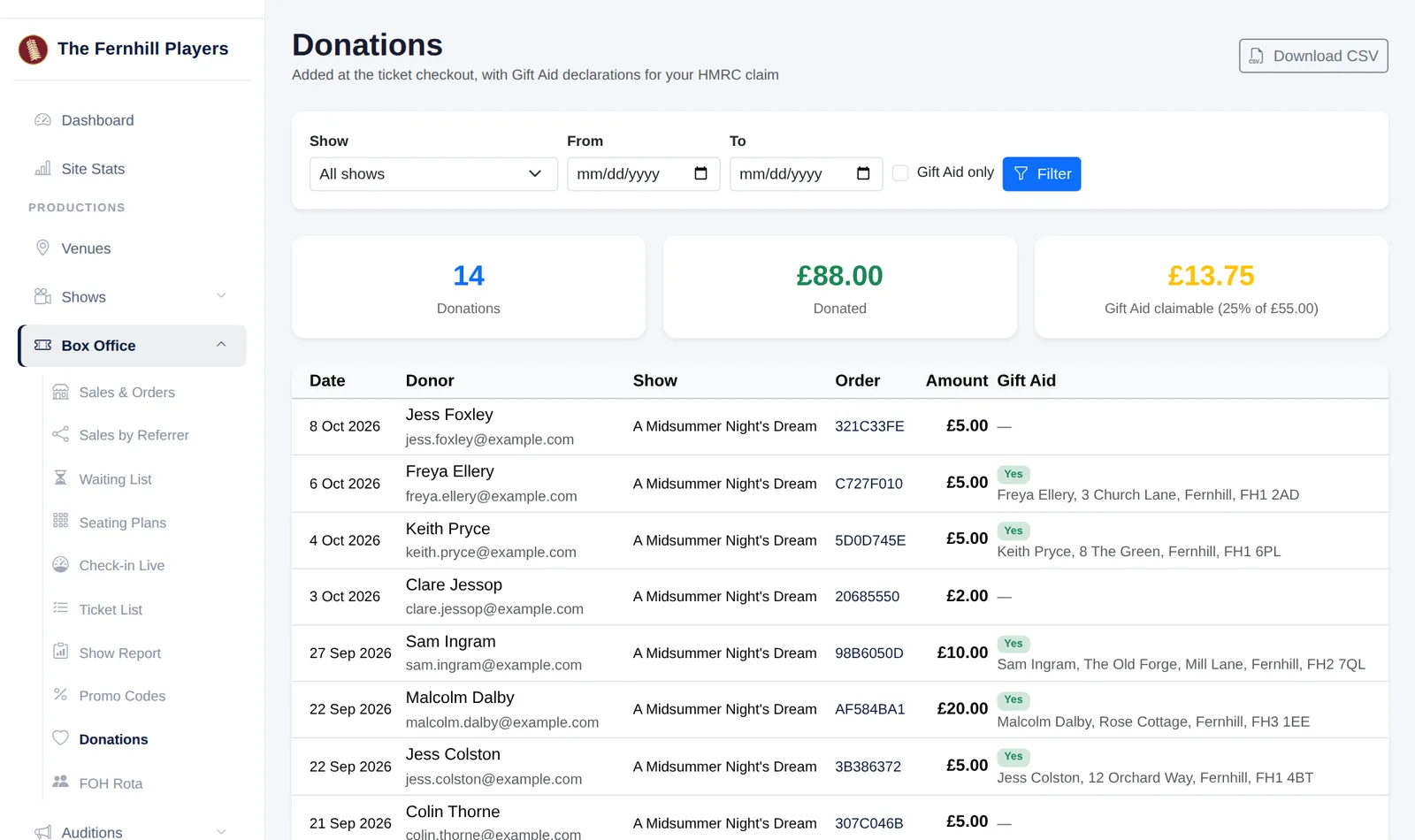
Every donation appears under Box Office, Donations, with the total given, how much Gift Aid you can claim, and a CSV download your treasurer can use for the Gift Aid claim.
3. A "know before you go" email
Where do I park? When do the doors open? Is the bar open at the interval? These are the questions that fill your inbox in show week. Now you can answer them before anyone asks.
In the same Donations & Pre-show Email section of Box Office Setup, write what people need to know on the night: parking, when the doors and bar open, how long the show runs. Then choose how many days before the performance it should go out.
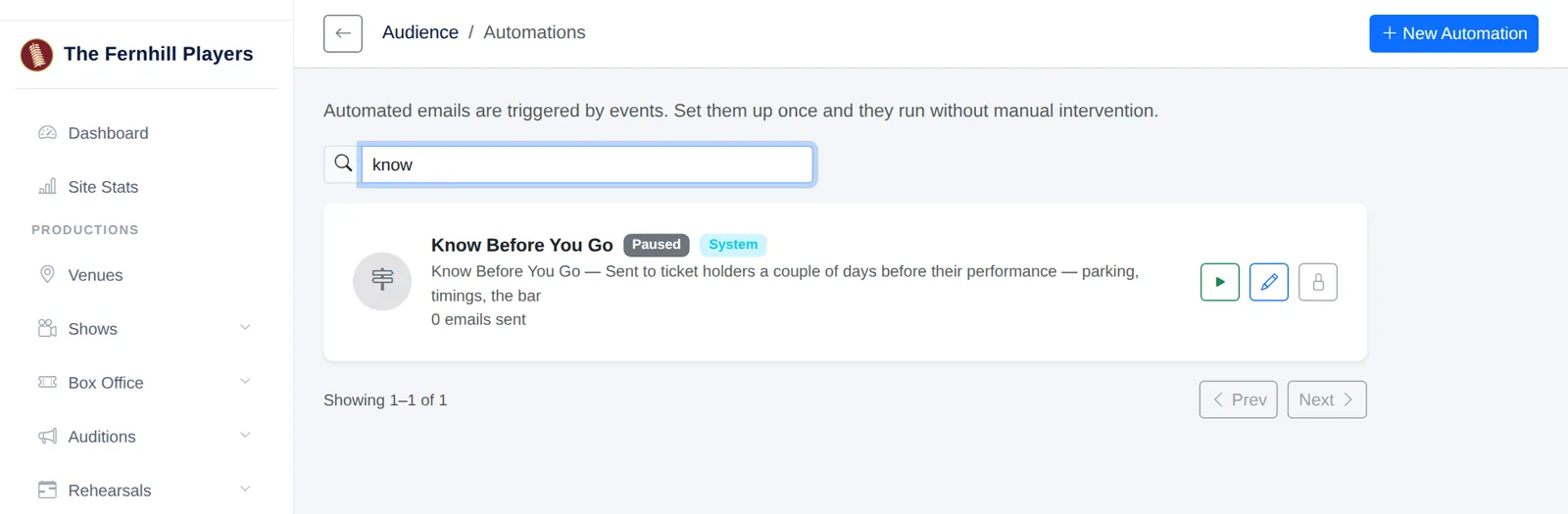
Then turn on the Know Before You Go email under Audience, Automations. It starts paused, like the other automations, so nothing goes out until you're ready. Each ticket holder gets one email, with the date, start and door times, the venue and address, their seats, and your notes.
4. A front of house rota
Ushers, the bar, the raffle, the box office. Show week needs a lot of hands, and the rota usually lives on paper or in a group chat. Now it lives with your shows.
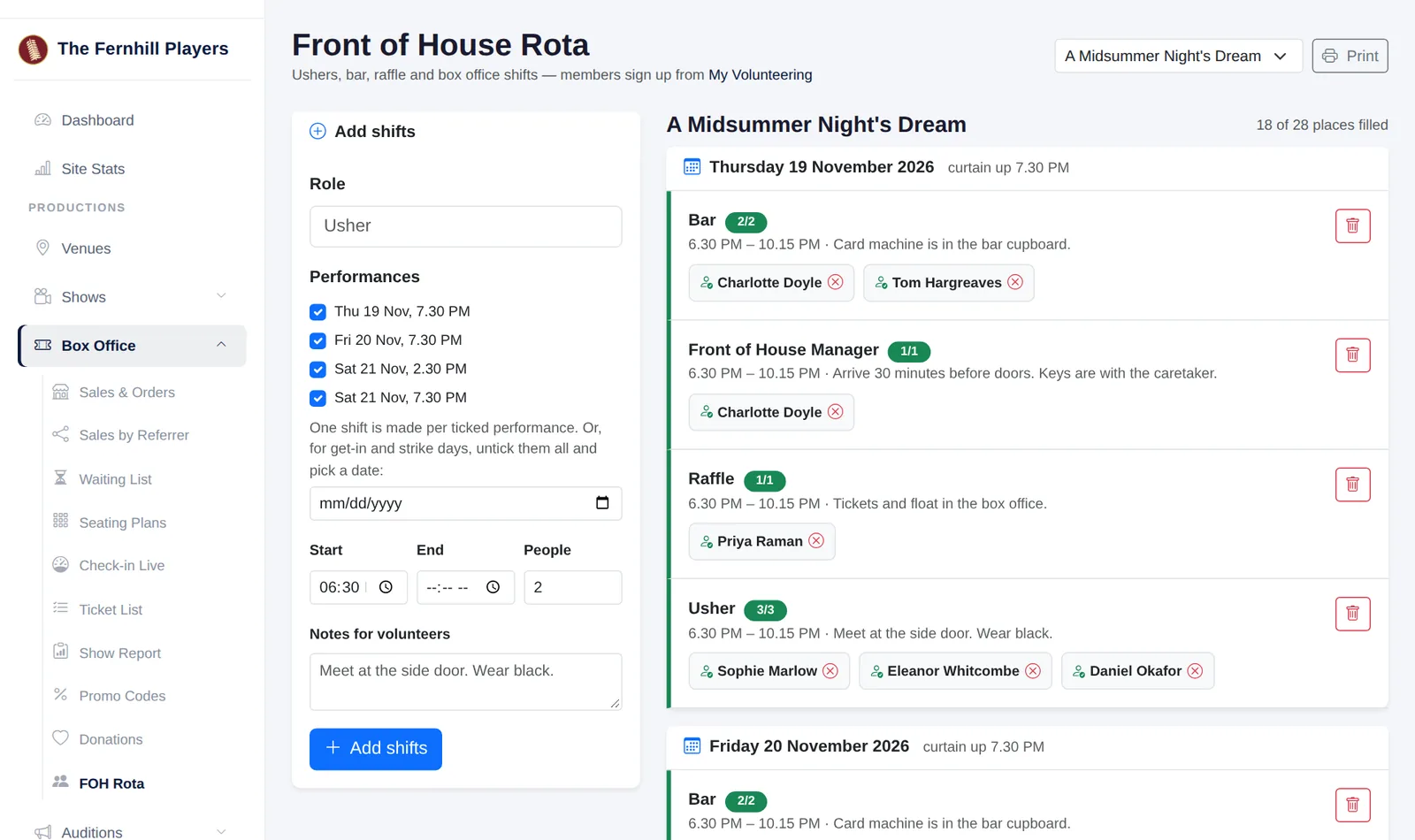
Go to Box Office, FOH Rota, and pick the show. Choose a role, such as Usher or Bar, tick the performances it's for, set the times and say how many people you need. One shift is made for every performance you ticked. You can see who's on each shift and which places still need filling, add a member yourself, and print the rota for the noticeboard.
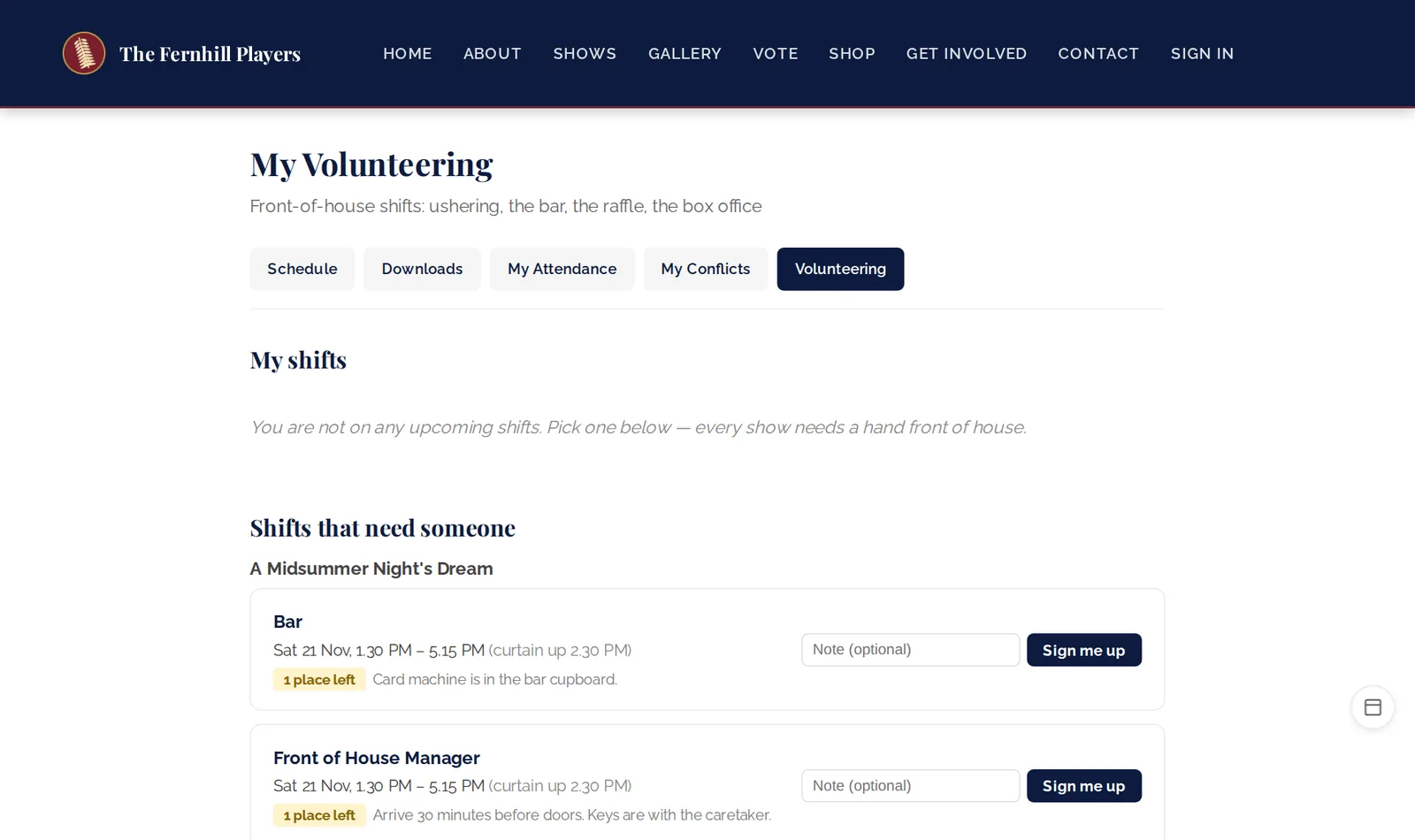
Members can also sign themselves up. Under My Volunteering they see their own shifts and every shift that still needs someone, and they sign up with one click. They get a confirmation email, and a reminder 48 hours before the shift.
5. Access needs on the door list
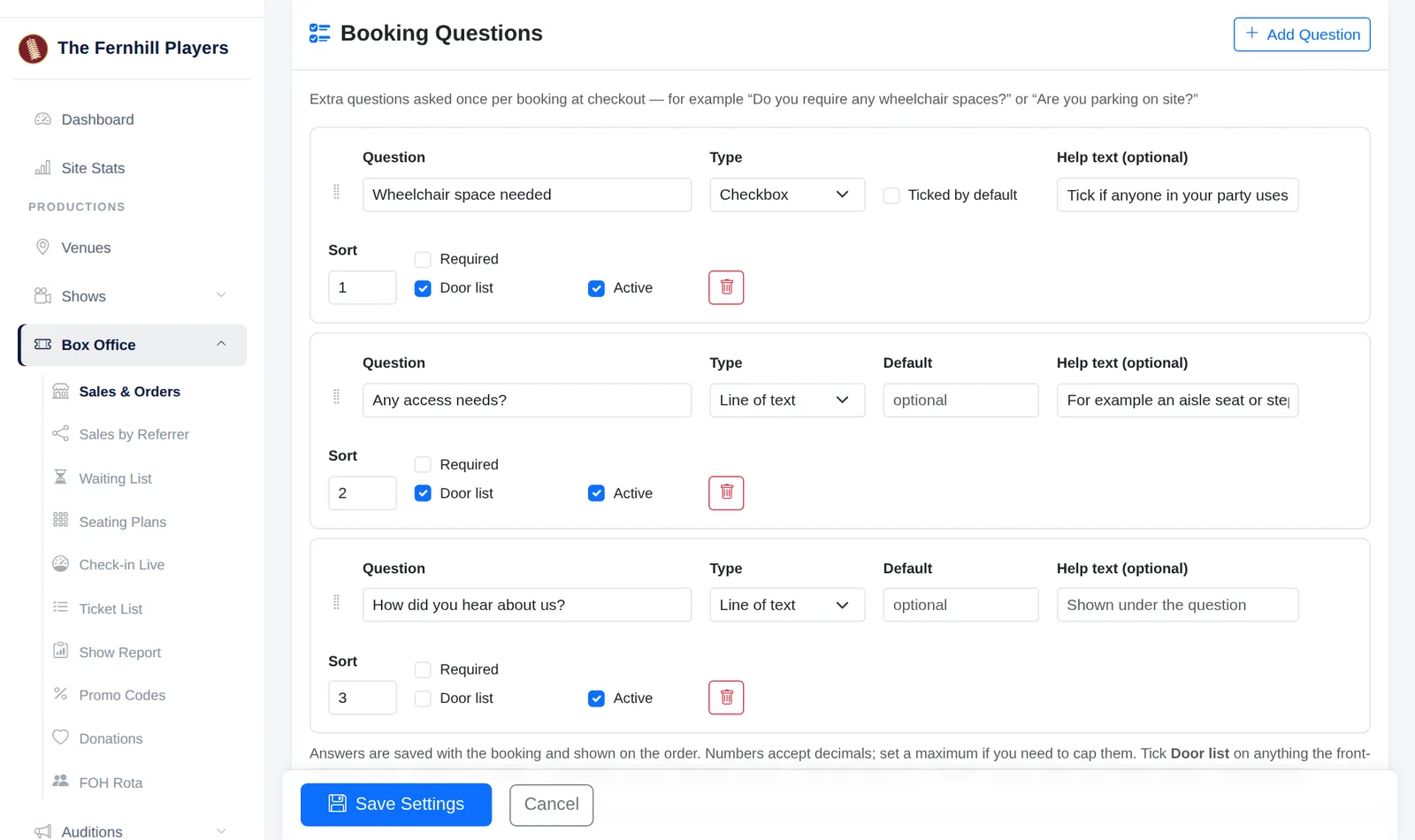
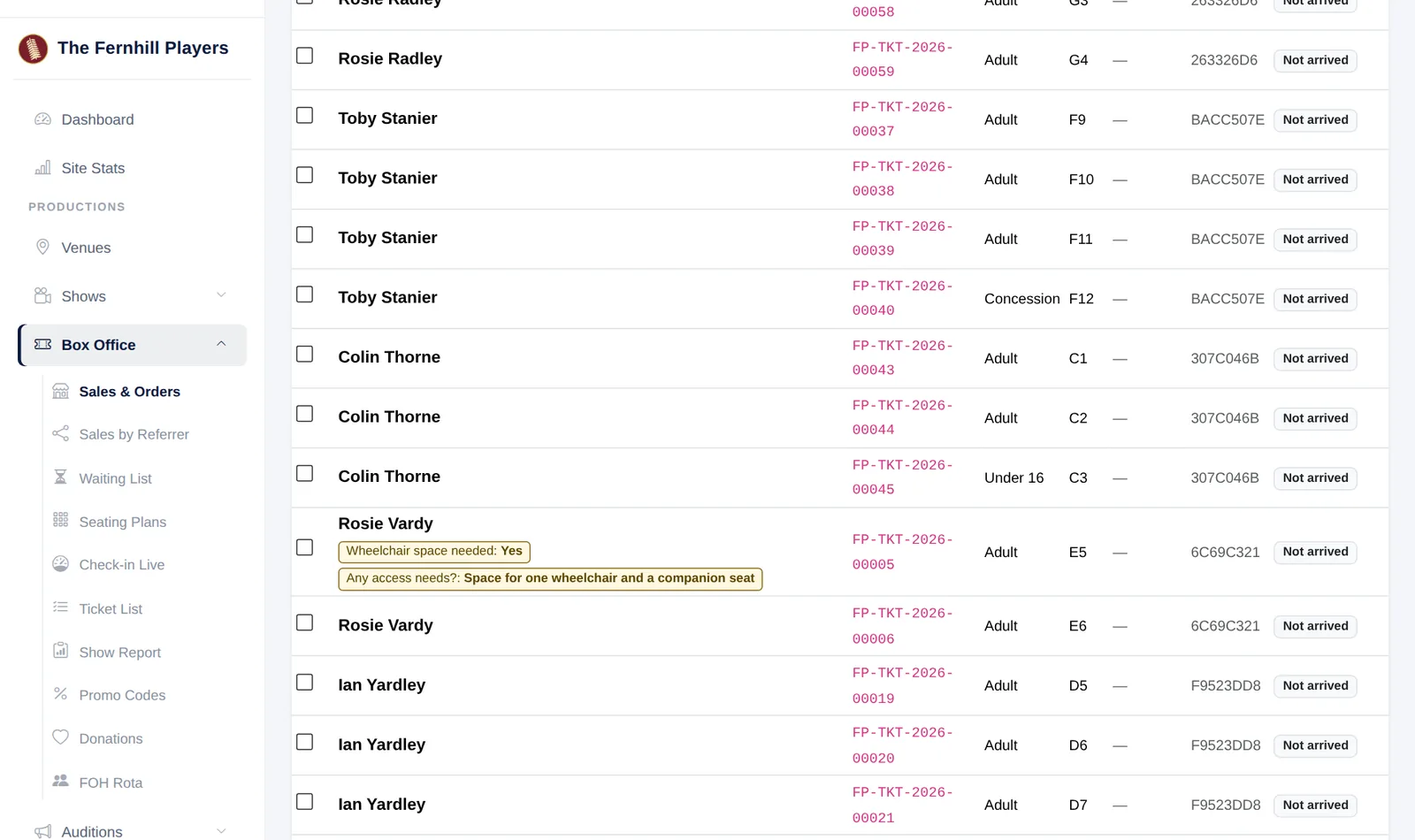
If you ask a booking question like "Do you need a wheelchair space?", the answer is only useful if your front of house team can see it on the night.
In Box Office Setup, each booking question now has a Door list tick. Tick it, and the answer prints under the customer's name on the ticket list. Leave it unticked for questions like "How did you hear about us?" that the door doesn't need.
Getting started
All five are in your TheatreHQ admin now. Promo codes and the front of house rota are ready as soon as you add your first code or shift. Donations and door list answers are switched on show by show in Box Office Setup. The Know Before You Go email needs turning on under Audience, Automations.
If you have a question about any of them, or an idea for what we should build next, get in touch.