Adding a member by hand, and inviting them to their account
Add a member yourself: pick or create the person, choose their type and dates, record Gift Aid and their payment, and send them a link to set up their account.
Not everyone joins online. Some members pay cash at the AGM, and some, like honorary members, you'll want to add yourself. This guide is part of the free course Running membership in TheatreHQ.
1. Start a new membership
On All members, click Add new membership. If the person is already in TheatreHQ (they've bought tickets, or they're on the committee), choose them from the Member list. If not, switch on Create new member and fill in their First name, Last name, Email and Phone.
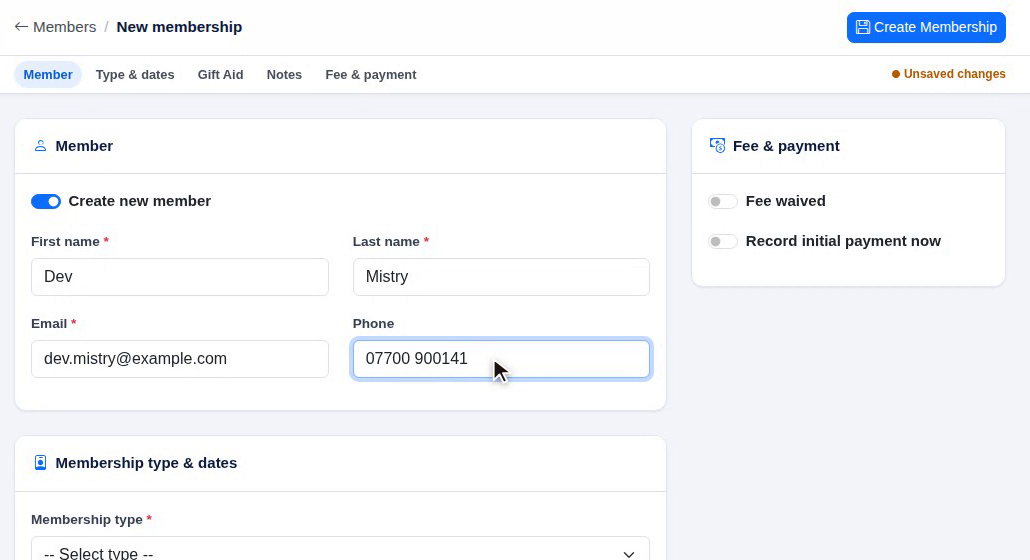
2. Type and dates
Under Membership type & dates, choose the Membership type and the Start date. Leave the End date blank and it's worked out from the type; for a fixed-date type, that's your next renewal date.
3. Gift Aid
If the type offers Gift Aid and the member has made a declaration (on paper or by email), tick Gift Aid declaration and add their Full name, Home address and Postcode. Date declared can be left blank for today.
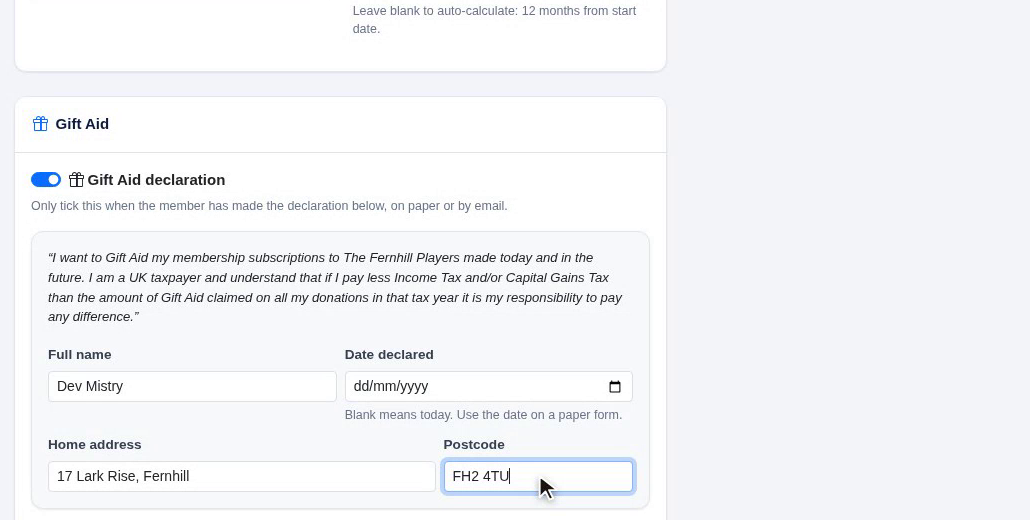
4. Fee and payment
- Record initial payment now: if they've already paid, choose the Payment method, who the cash was received by, and an optional Reference. A receipt is emailed.
- Fee waived: for an honorary or life member, with a Waiver reason.
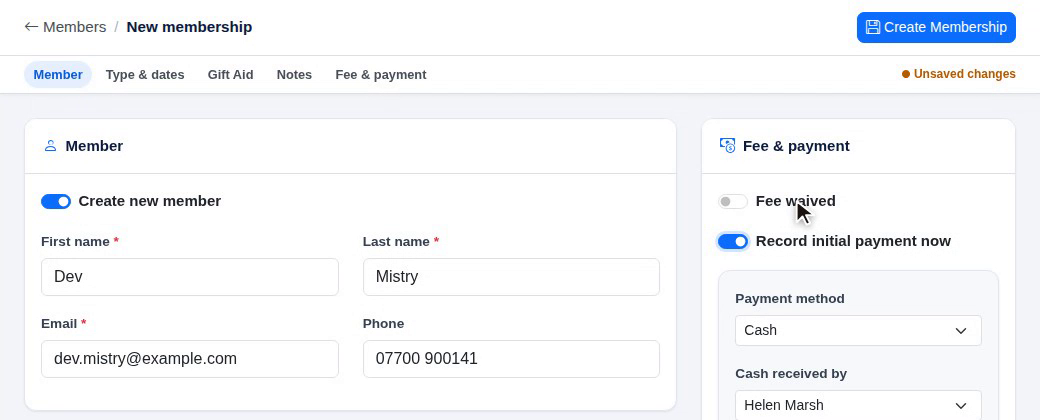
5. Create it
Click Create Membership. For a new member, an email goes to them with a link to choose a password, so they can sign in to My membership. Their profile opens, showing any missing details as Profile warnings.
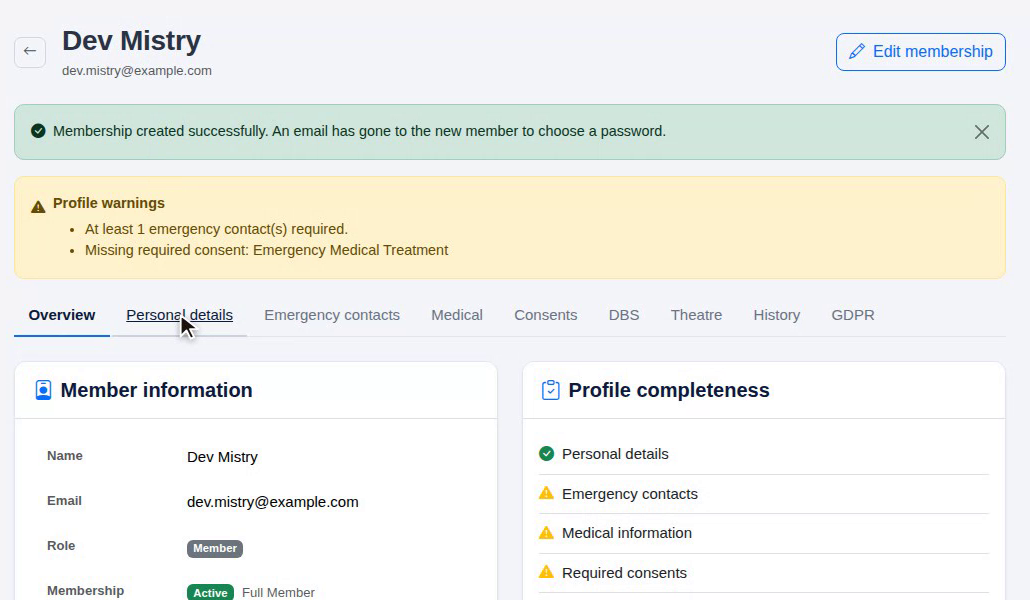
6. Invite them later
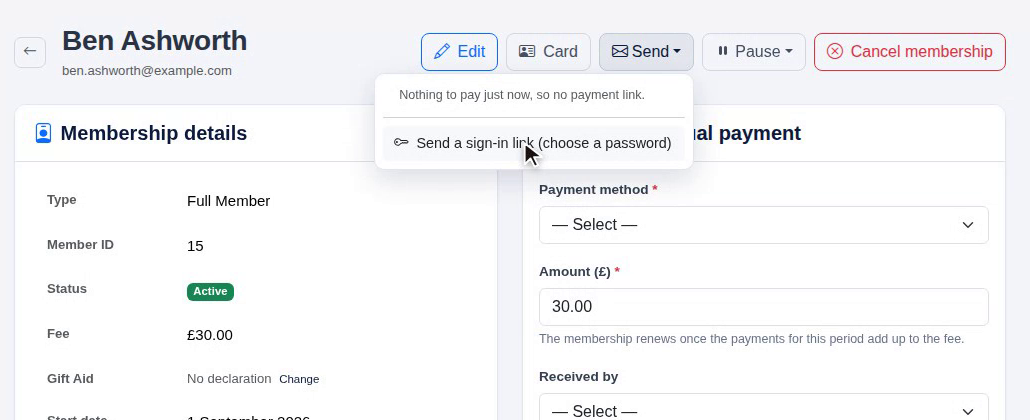
To send the link again, open their membership page, click Send and choose Send a sign-in link (choose a password). If they still owe money, Email their payment link is there too, or copy it to send yourself.
Track your progress
Make a free account to take the quick quiz after each guide, keep your place in the course and get a certificate when you finish.