Adding equipment for hire, and room hire reports
Let hirers add a PA, projector or other equipment to their booking, and see how your rooms are being used and what they earn.
If you have a PA system, a projector or a stack of folding tables, hirers will often want them too. Adding them as equipment lets people choose them when they book, with the price added to their booking automatically, so nobody has to remember to ask or invoice separately.
1. Open Equipment
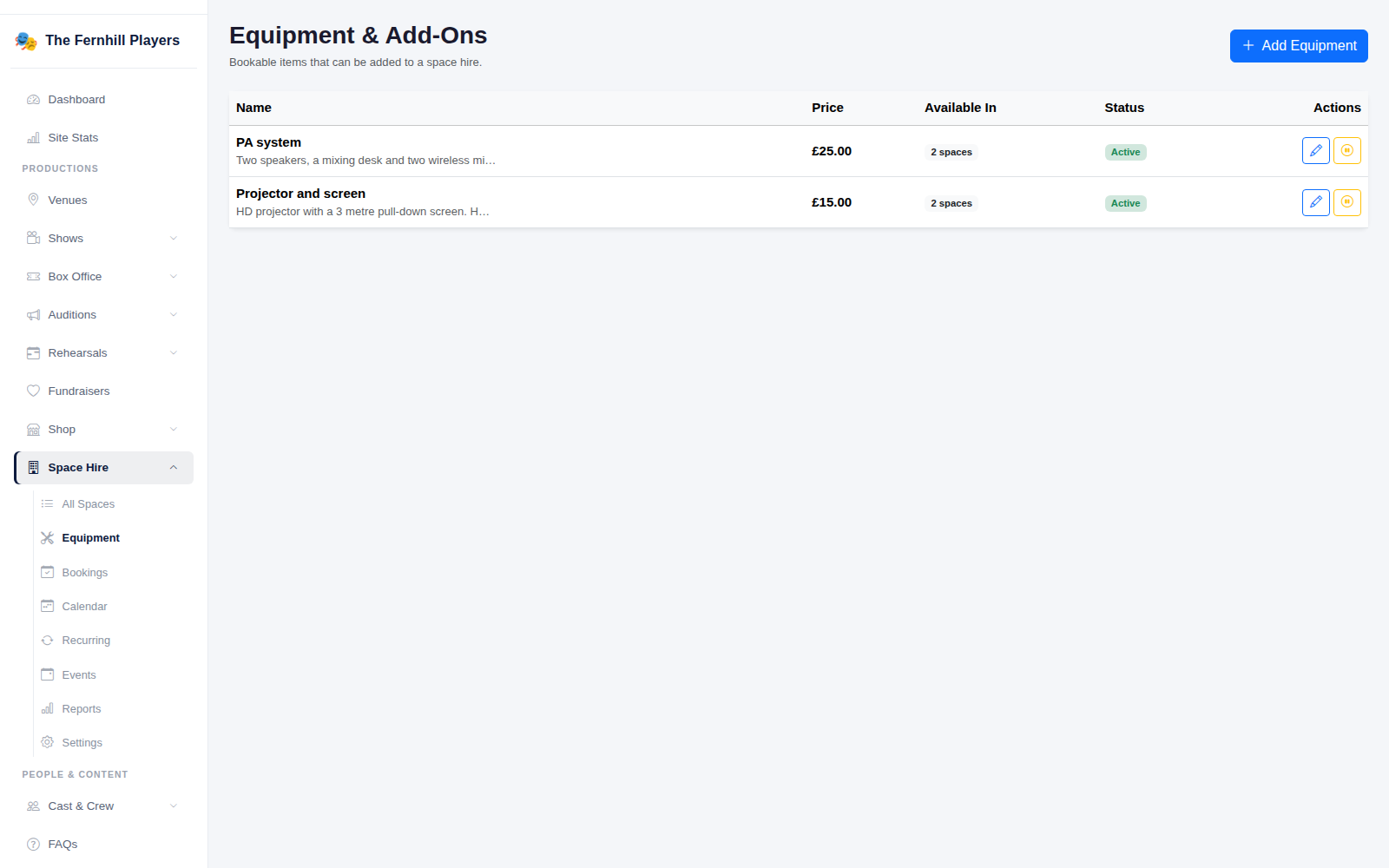
Go to Space Hire > Equipment. Everything you offer is listed with its price, how many rooms it's available in and whether it's active. Click Add Equipment to add something new.
2. Add an item
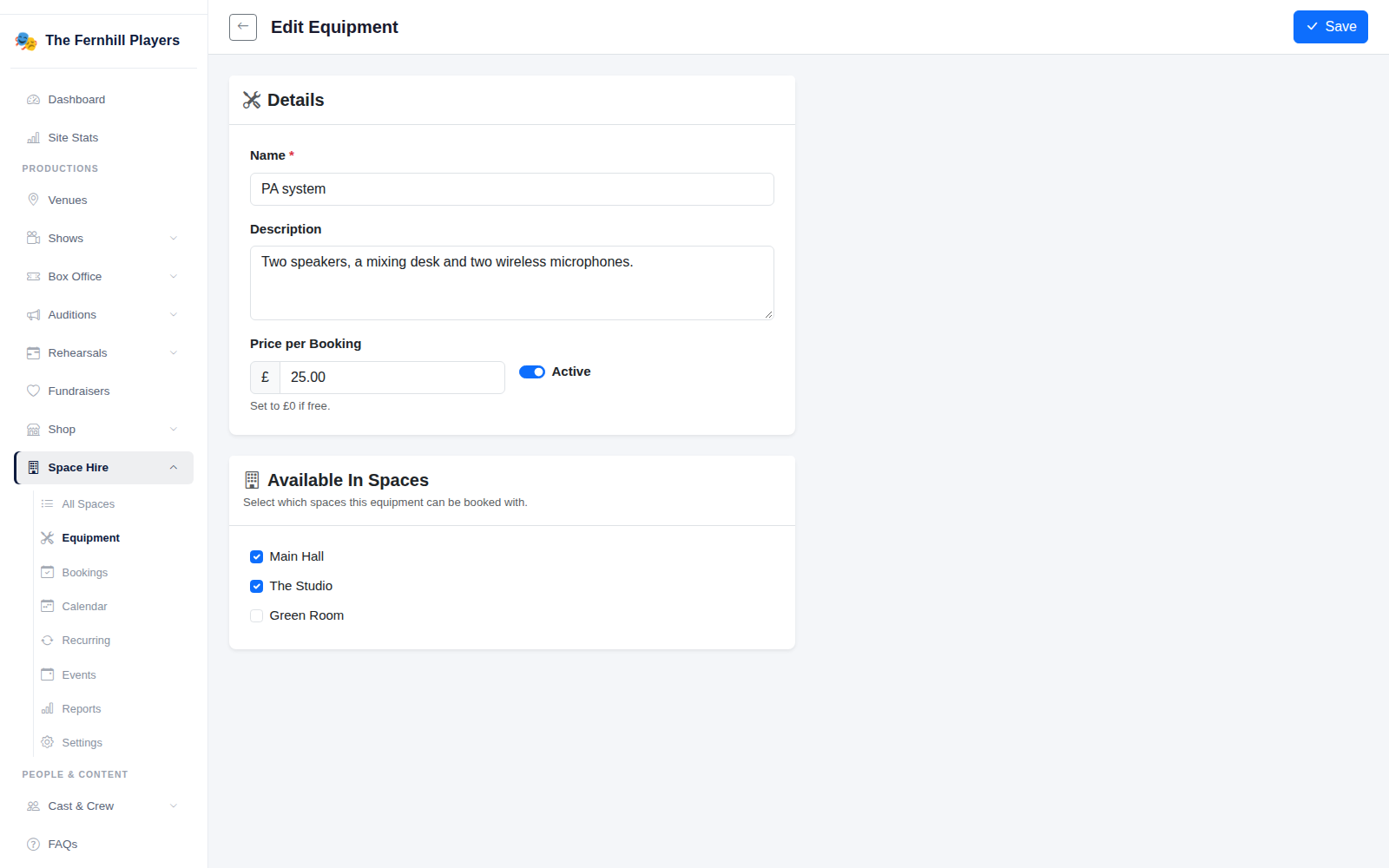
Give it a clear Name and a short Description saying exactly what's included, for example "two speakers, a mixing desk and two wireless microphones". That saves a lot of questions later.
Set the Price per Booking. Use £0 for things that come free with the room but that you still want people to ask for, like tables and chairs, so you know to set them out. Under Available In Spaces, tick the rooms it can be used in; the projector might only be for the main hall, for instance. Make sure Active is on, and click Save.
To stop offering something for a while, perhaps while it's being repaired, switch off Active rather than deleting it.
3. See how your rooms are doing
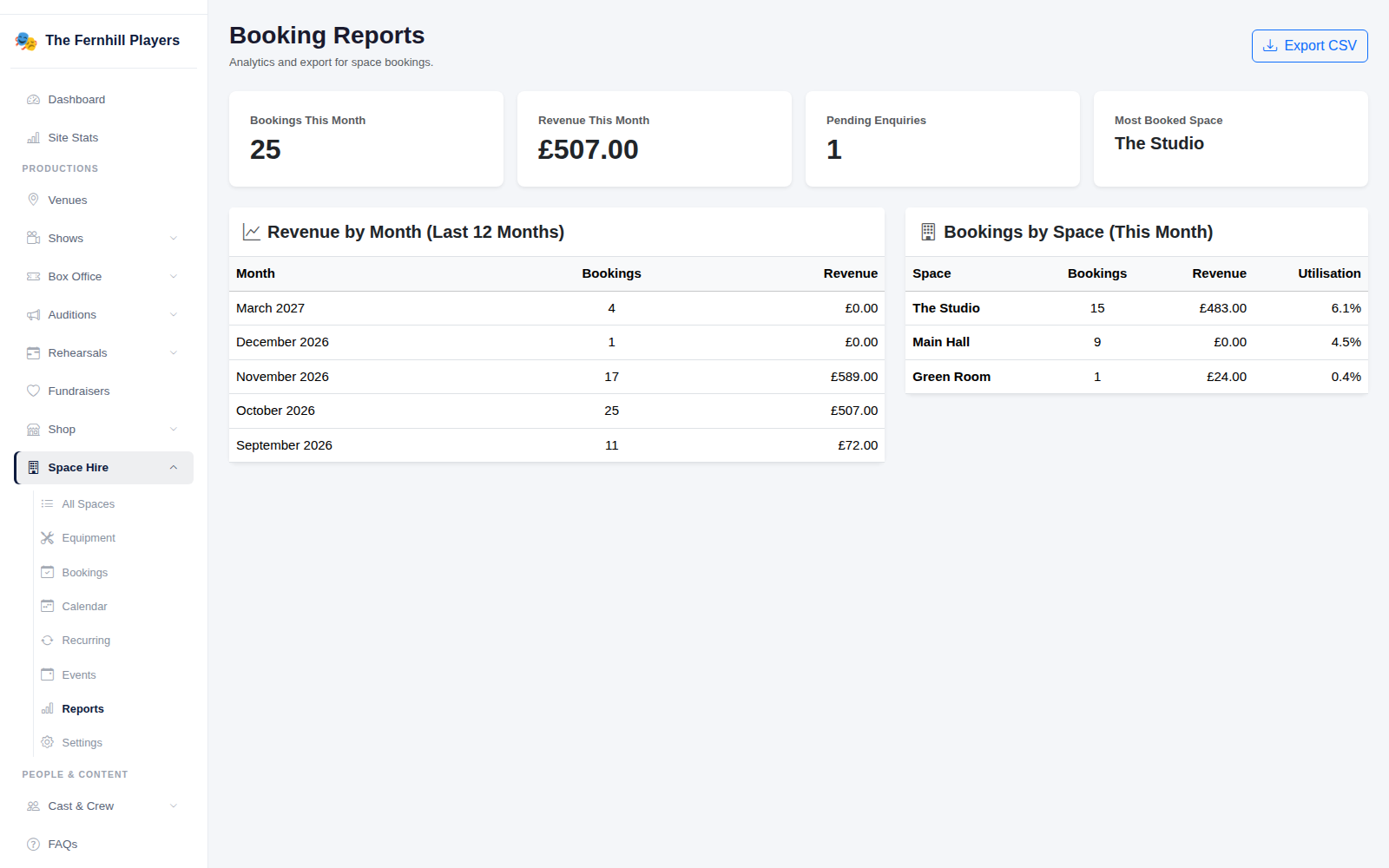
Space Hire > Reports shows this month's bookings and hire income, any enquiries waiting for a reply and your most booked space. Below that, Revenue by Month covers the last twelve months, and Bookings by Space shows each room's bookings, income and Utilisation, the share of its available hours that are booked.
Click Export CSV to download the bookings for your treasurer or to use in a spreadsheet.
Using the reports
- A room with low utilisation might need better photos, a lower price or a mention to local groups.
- Production bookings show at £0. That's expected; they're your own rehearsals blocking the room.
- Compare the same month across years to see whether hire income is growing.
Tip: check your equipment works before each booking that's asked for it. A dead microphone on the night is the quickest way to lose a regular hirer. See Hiring out your hall and rooms for the rest of Space Hire.