Hiring out your hall and rooms
Let dance schools, choirs and clubs see your rooms, check when they're free and book or enquire online, with everything on one calendar.
If your society runs its own hall, hiring it out to dance schools, choirs, clubs and families is one of the steadiest sources of income you can have. Space Hire puts your rooms on your website with prices and availability, lets people enquire or pay online, and keeps every booking, including your own rehearsals, on one calendar so nobody turns up to find the room already taken.
1. Check your spaces
Go to Space Hire > All Spaces. Each room is listed with its capacity, hourly rate, how many bookings are coming up and how it can be booked. The rooms themselves come from your venues, so if one is missing, add it there first (see Adding your venues and rooms).
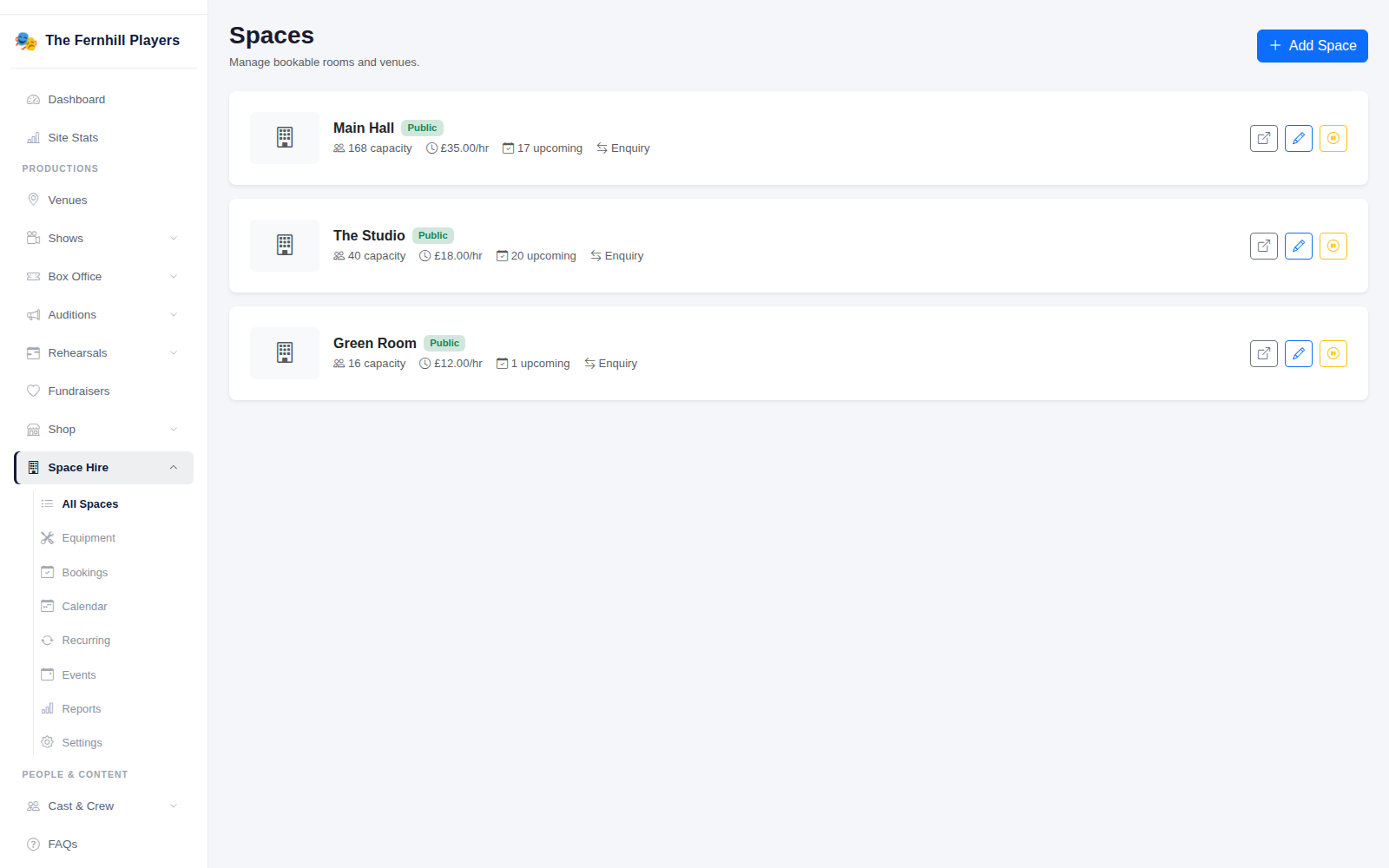
2. Set up each space
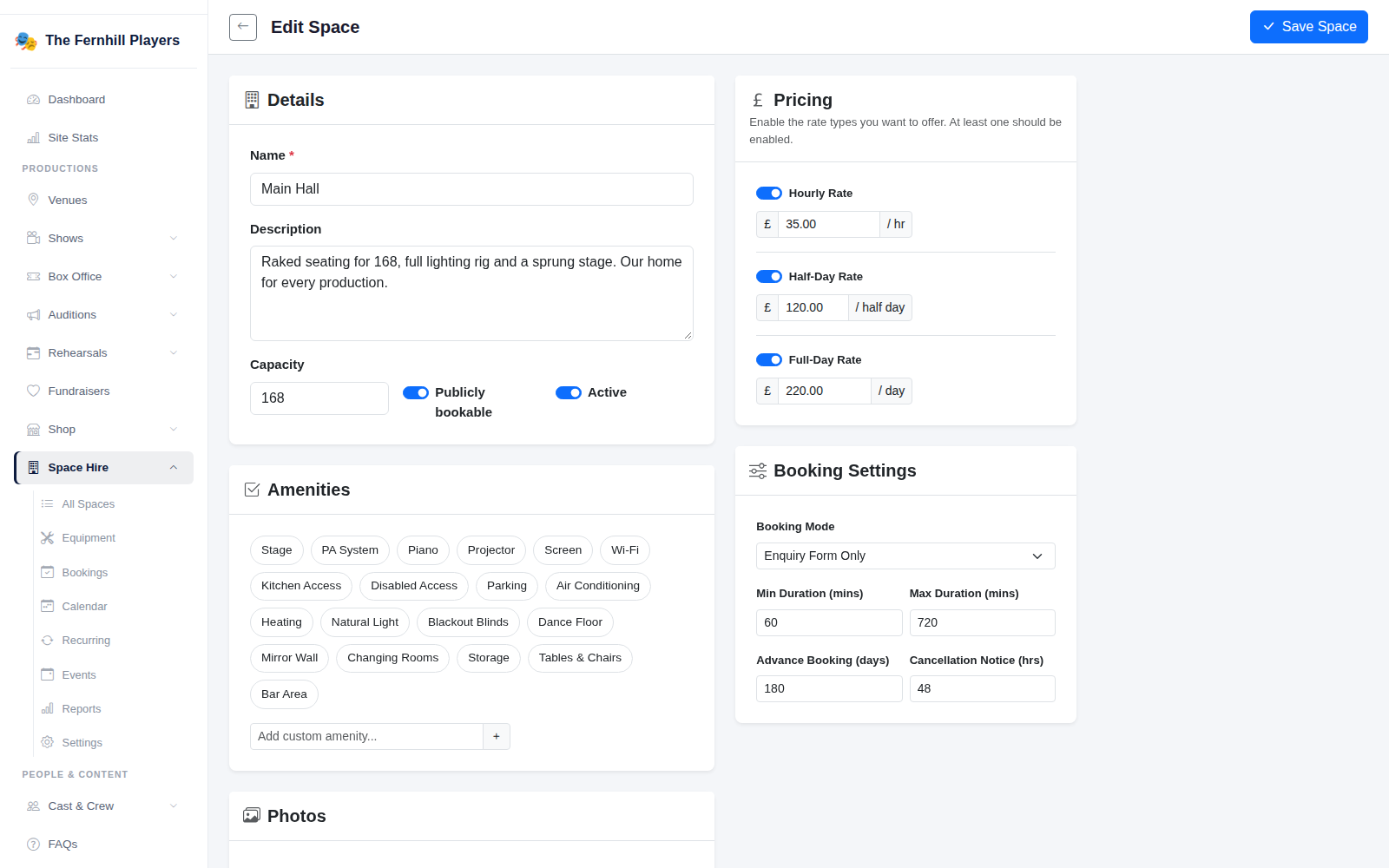
Click the edit button on a space. Give it a clear Description and the right Capacity, and make sure Publicly bookable and Active are switched on. Tick the Amenities it has, such as a stage, piano, kitchen access, disabled access or parking, and add your own if something's missing. Photos help a lot here; add a few under Photos.
Under Pricing, switch on the rates you want to offer: hourly, half day or full day. Then choose the Booking Mode: Enquiry Form Only means you approve every booking yourself, Online Payment Only means people pay as they book, and Both lets the hirer choose. You can also set the shortest and longest booking, how far ahead people can book and how much notice they need to give to cancel. Click Save Space.
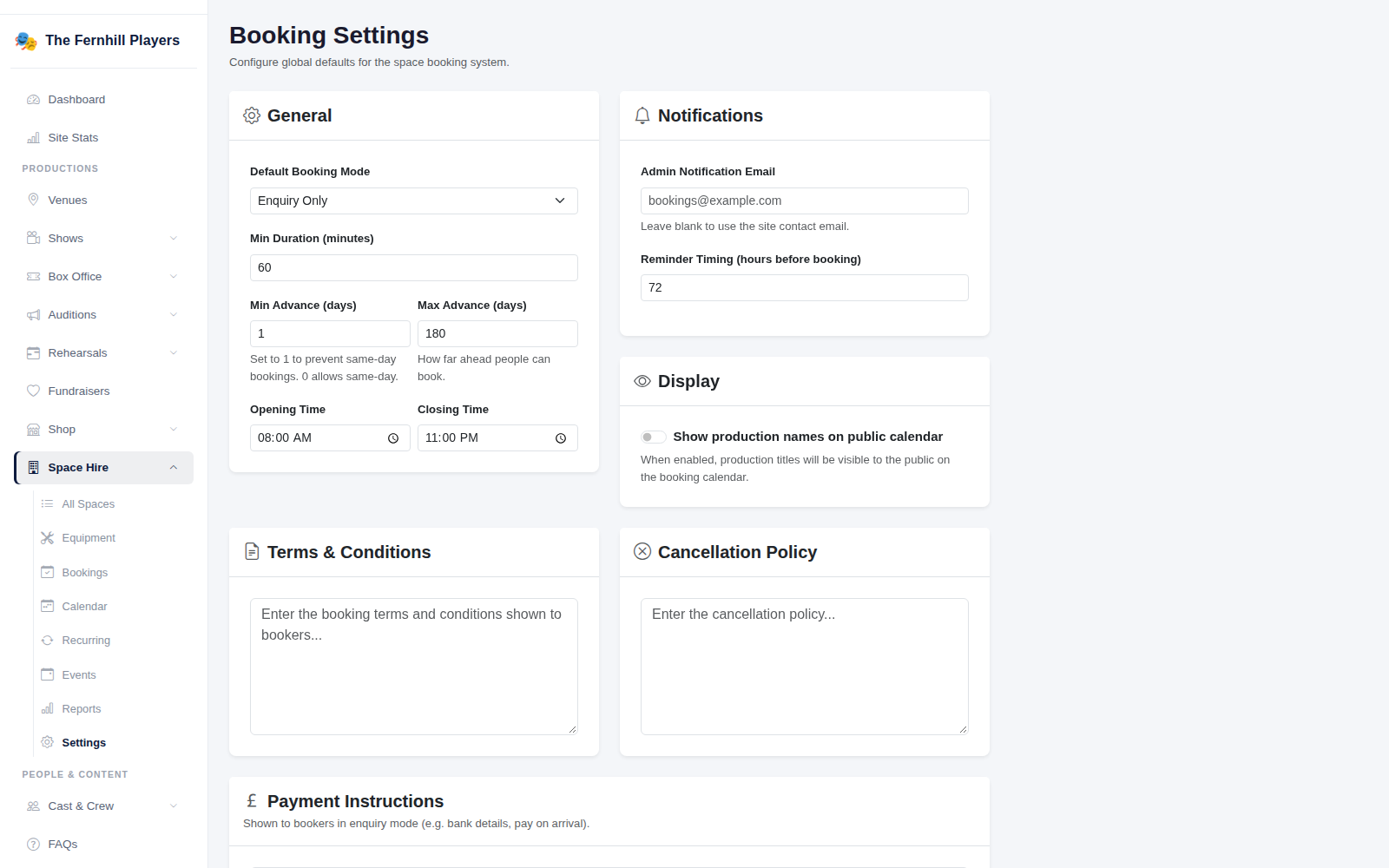
3. Set the rules for every booking
Space Hire > Settings holds the defaults for all your spaces: the usual booking mode, your opening and closing times, the minimum and maximum notice (set Min Advance to 1 to stop same day bookings), who gets told about new bookings and when reminders go out. Add your Terms & Conditions, Cancellation Policy and Payment Instructions; the last one is shown to people who enquire, so put your bank details or "pay on arrival" there.
If you'd rather the public didn't see what you're rehearsing, leave Show production names on public calendar switched off. The time will still show as booked.
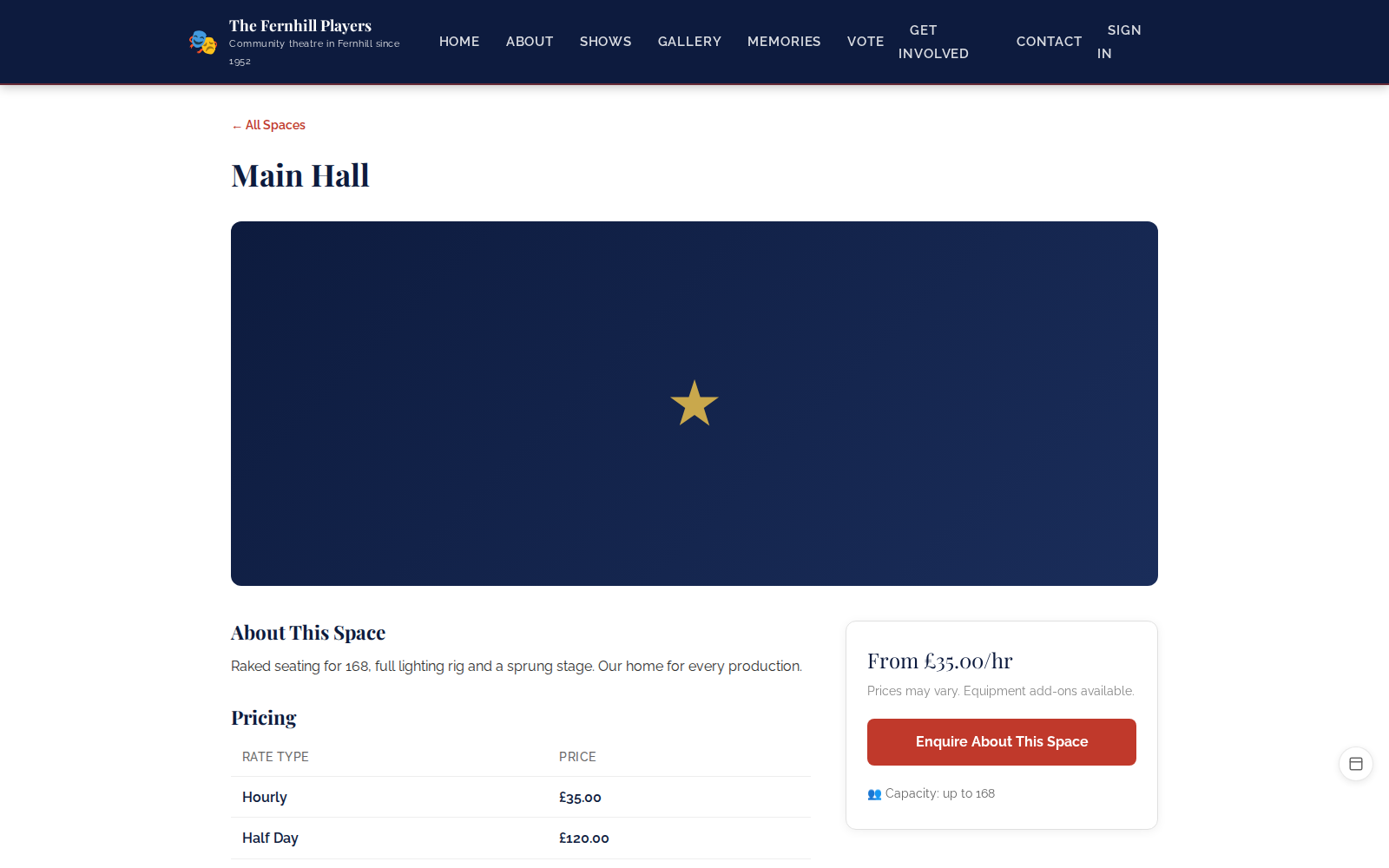
4. What hirers see
Your website gets a Hire Our Spaces page listing each room with its prices. Each room has its own page with the description, a price table and an availability calendar, so people can see straight away whether the date they want is free before they click Enquire About This Space.
5. Deal with enquiries and bookings
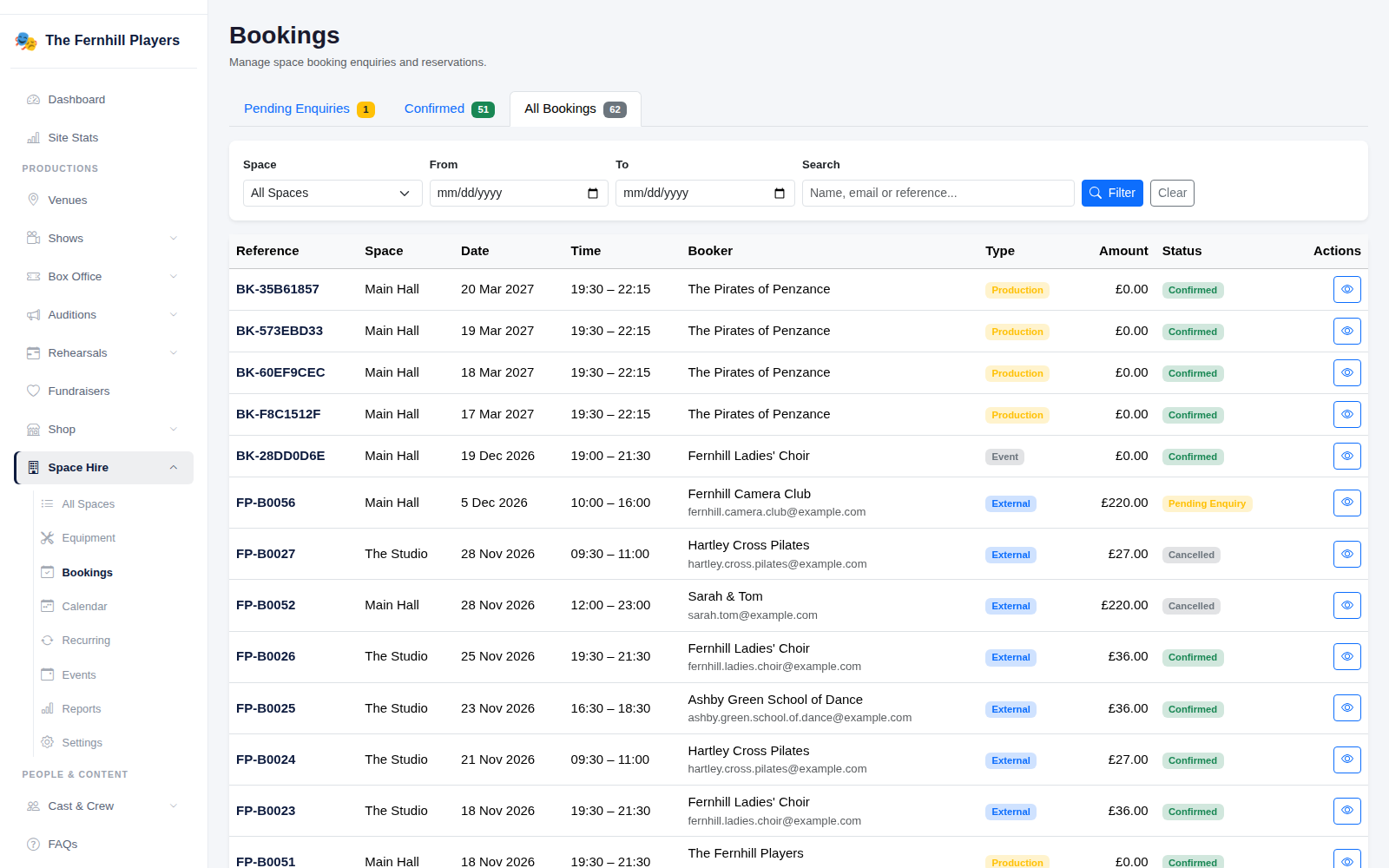
New enquiries appear under Space Hire > Bookings in the Pending Enquiries tab. The other tabs show confirmed bookings and everything together, and you can filter by space and dates or search by name, email or reference.
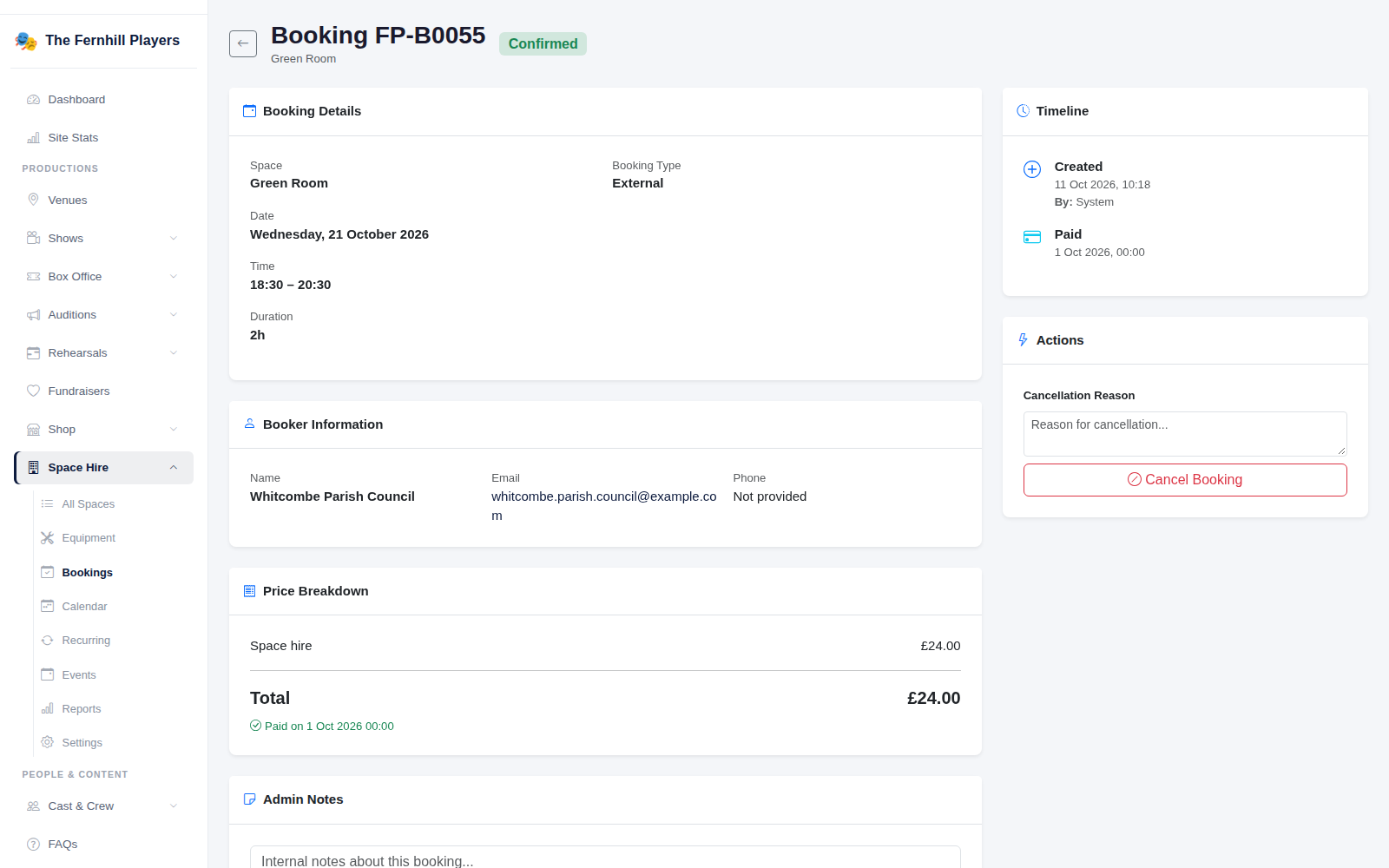
Open a booking to see the date and time, who booked it, the price and a timeline of everything that's happened to it. For an enquiry you can Approve it with a short message or Reject it with a reason, and the hirer is emailed either way. Once someone has paid by bank transfer or cash, click Mark as Paid. If plans change, Cancel Booking asks for a reason so there's a record. Use Admin Notes for anything the committee should know, like who's holding the key.
6. See the week at a glance
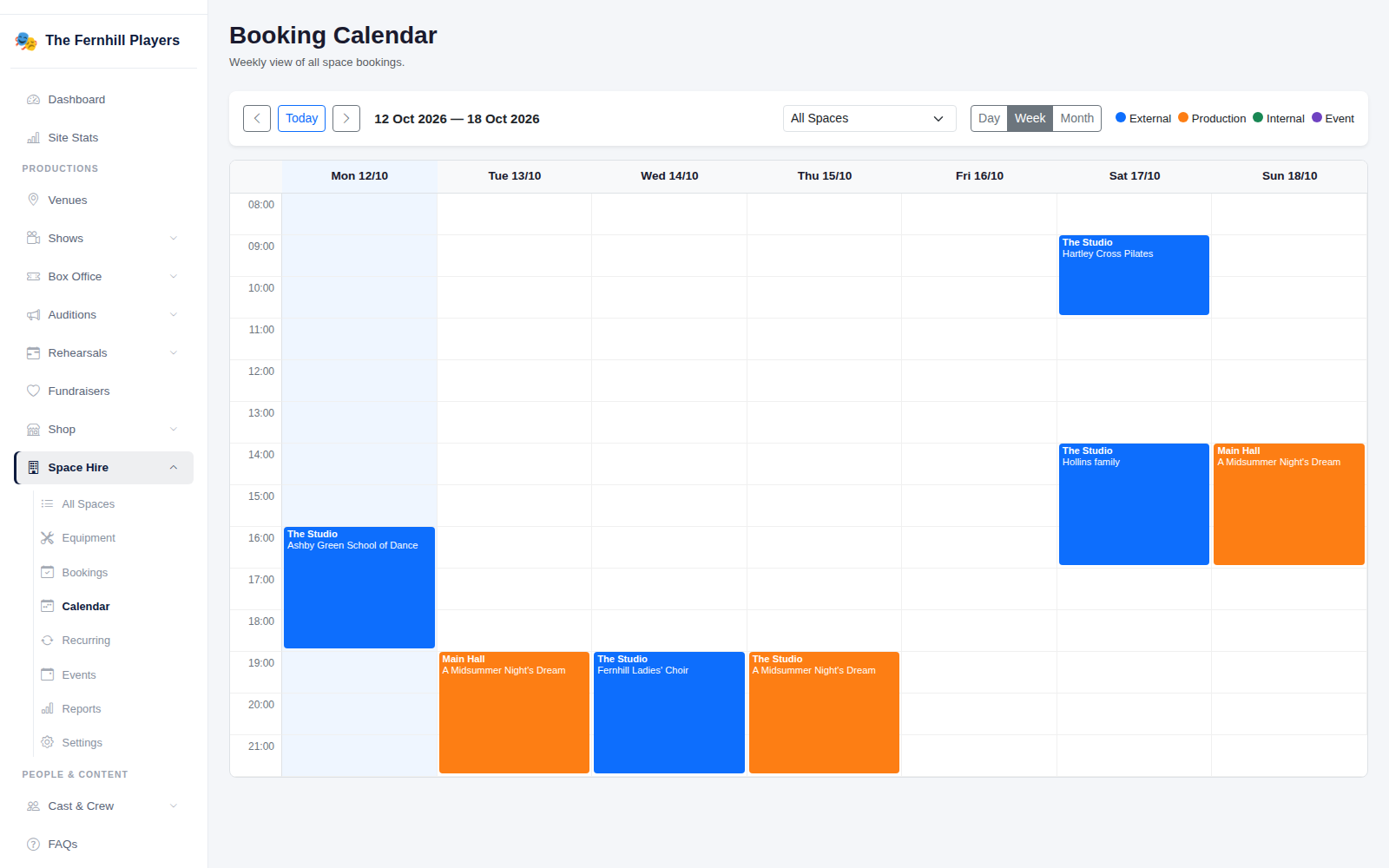
Space Hire > Calendar shows every booking by day, week or month, coloured by type: outside hirers, your own productions, internal use and events. Filter it to one room when you're trying to fit something in.
7. Add regular hirers in one go
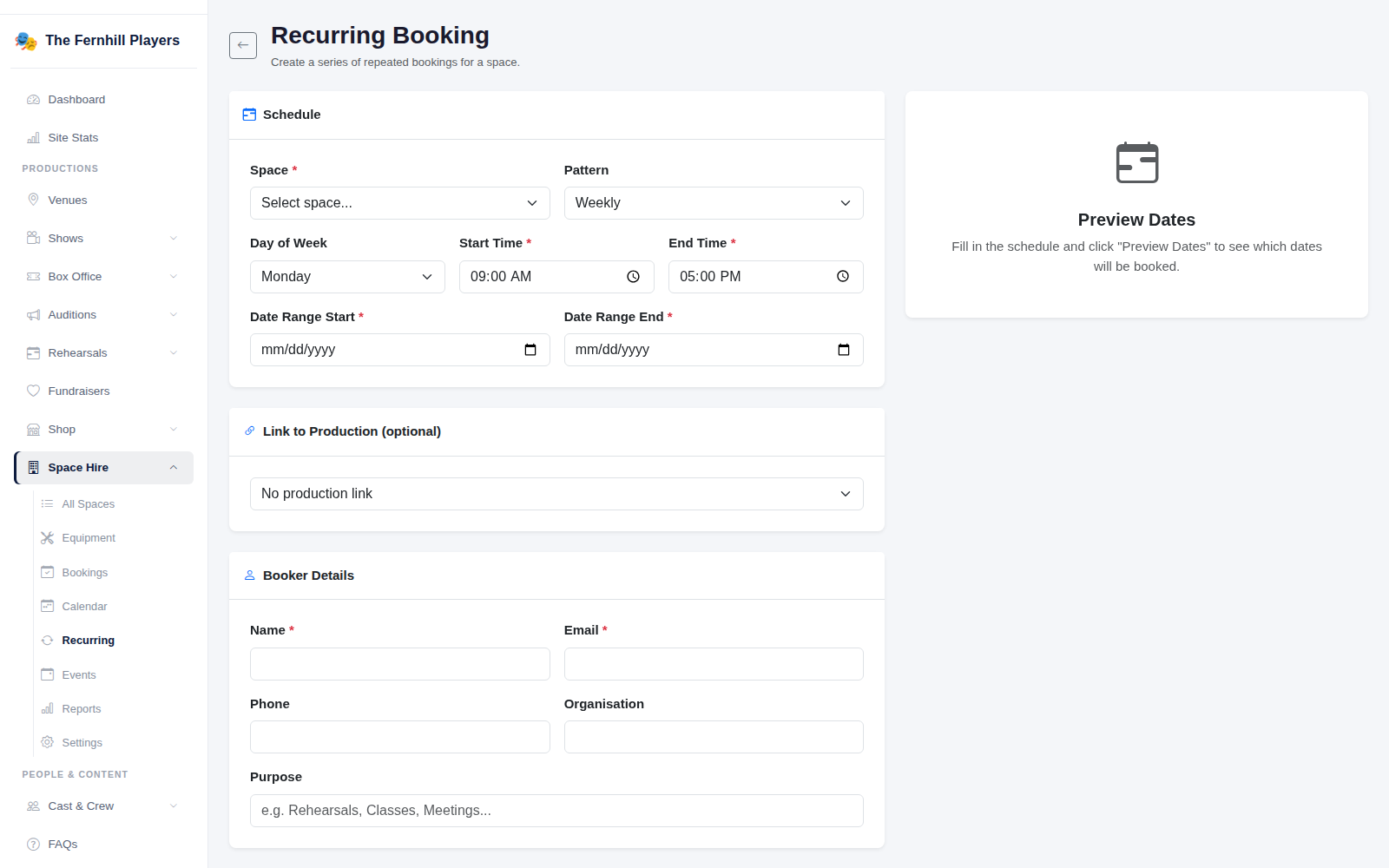
Most hire income comes from regulars: the Monday dance class, the choir on Wednesdays. Rather than adding each date, use Space Hire > Recurring. Pick the space, choose weekly, fortnightly or monthly, the day and times and the date range, and fill in the booker's details. Click Preview Dates to check the list before you book them all.
You can link a series to a production too. That's the easiest way to block out your own rehearsals so the room can't be hired over them.
Tip: put your rehearsal schedule in as soon as it's agreed. It's much easier to say no to a hirer at the start than to move a class that's already booked.