Running a fundraising event
Set up a quiz night, gala dinner or auction with tickets, a fundraising goal, donations, Gift Aid and a raffle.
Quiz nights, gala dinners, barn dances and auctions keep many societies going. TheatreHQ's fundraisers handle the tickets, the fundraising goal, donations and the money taken on the night, and give you a report at the end. This guide sets one up.
1. Create the fundraiser
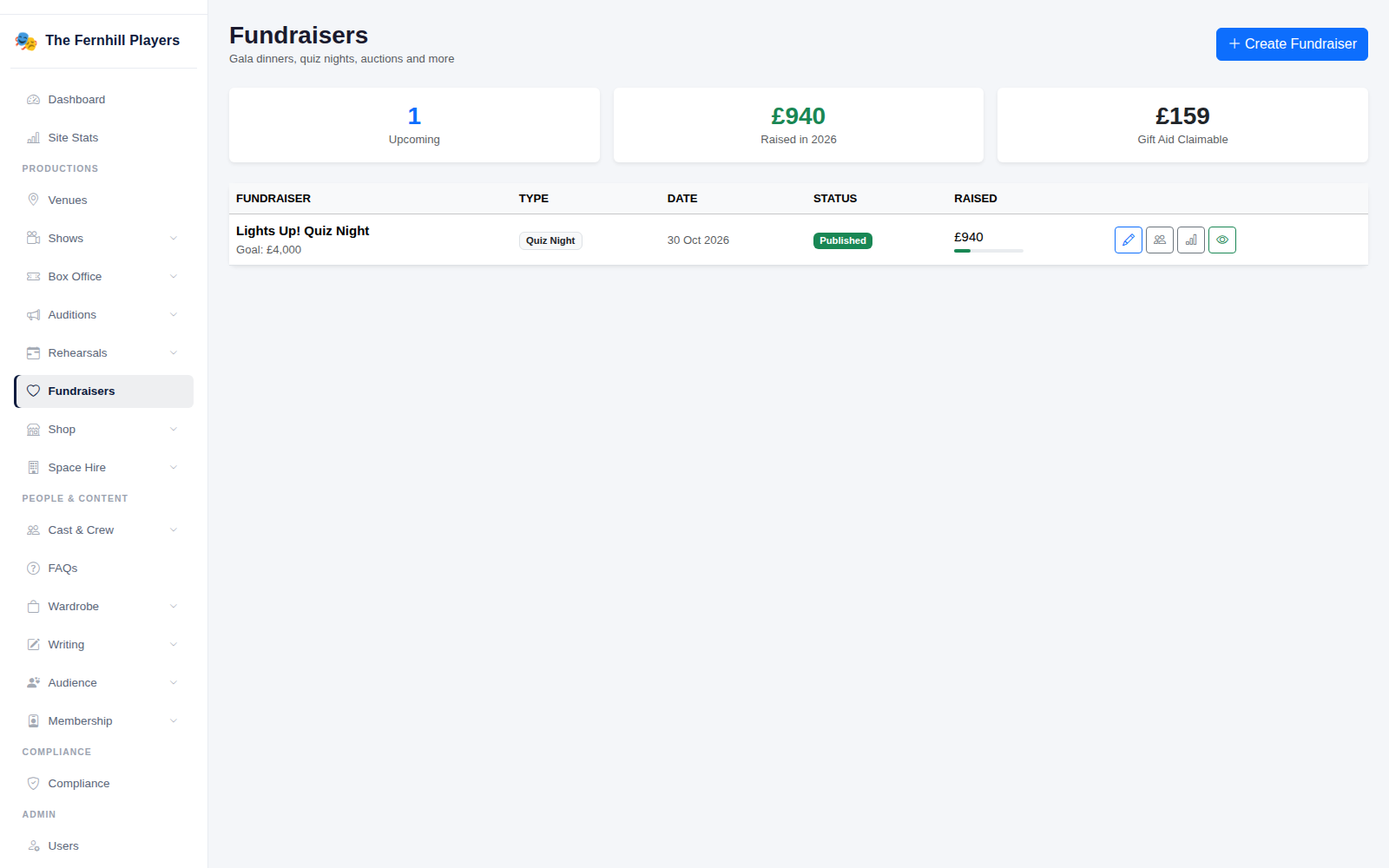
Go to Fundraisers. You'll see your events with their type, date, status and amount raised, plus the total raised this year and the Gift Aid you can claim. Click Create Fundraiser.
2. Fill in the event details
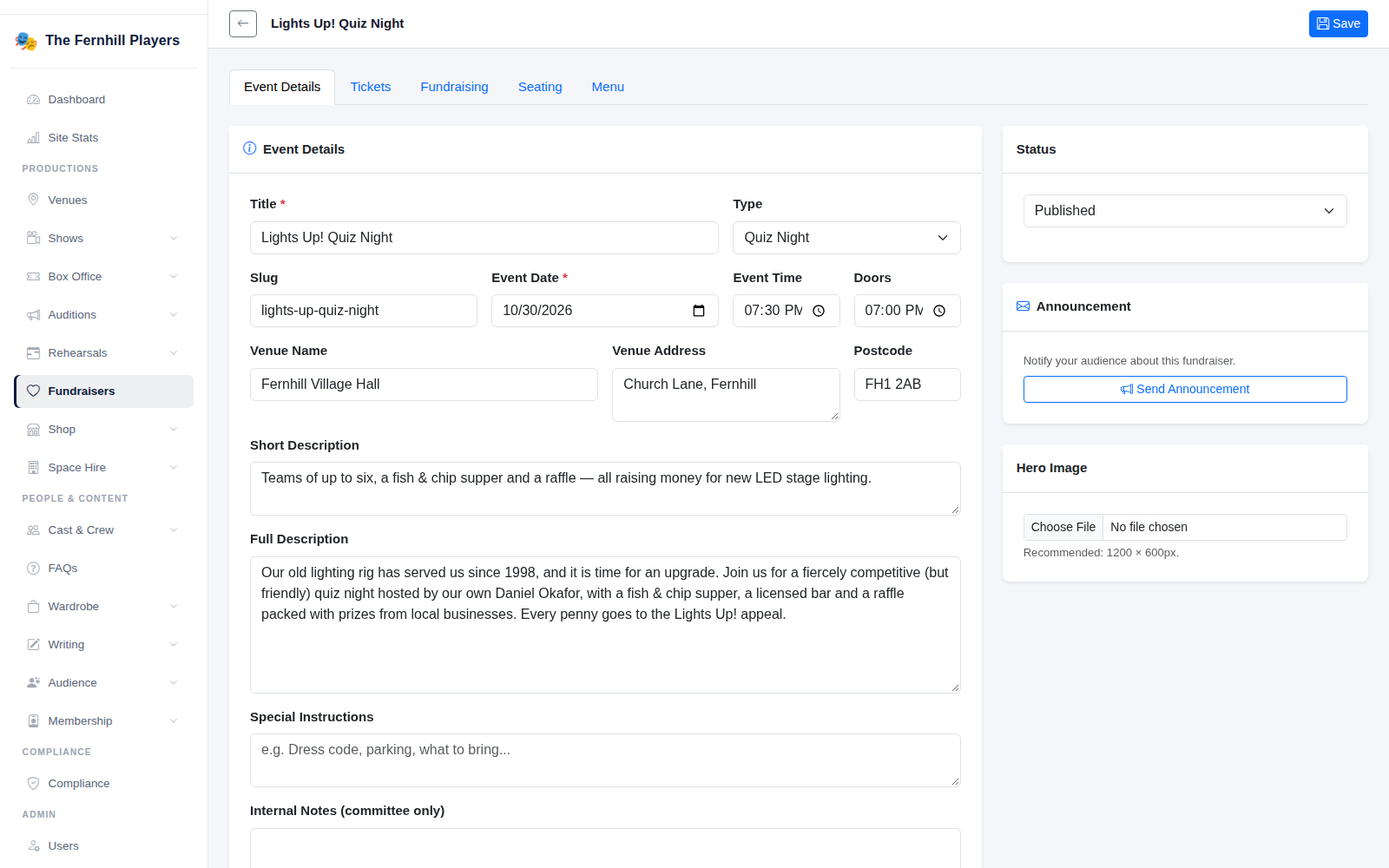
On the Event Details tab, give it a Title, choose a Type (Gala Dinner, Quiz Night, Barn Dance, Auction, Concert, Garden Party or Fundraiser), and add the date, time, doors, venue and descriptions. Set the Status to Published when you're ready for it to appear on your website, and add a hero image.
3. Set up tickets
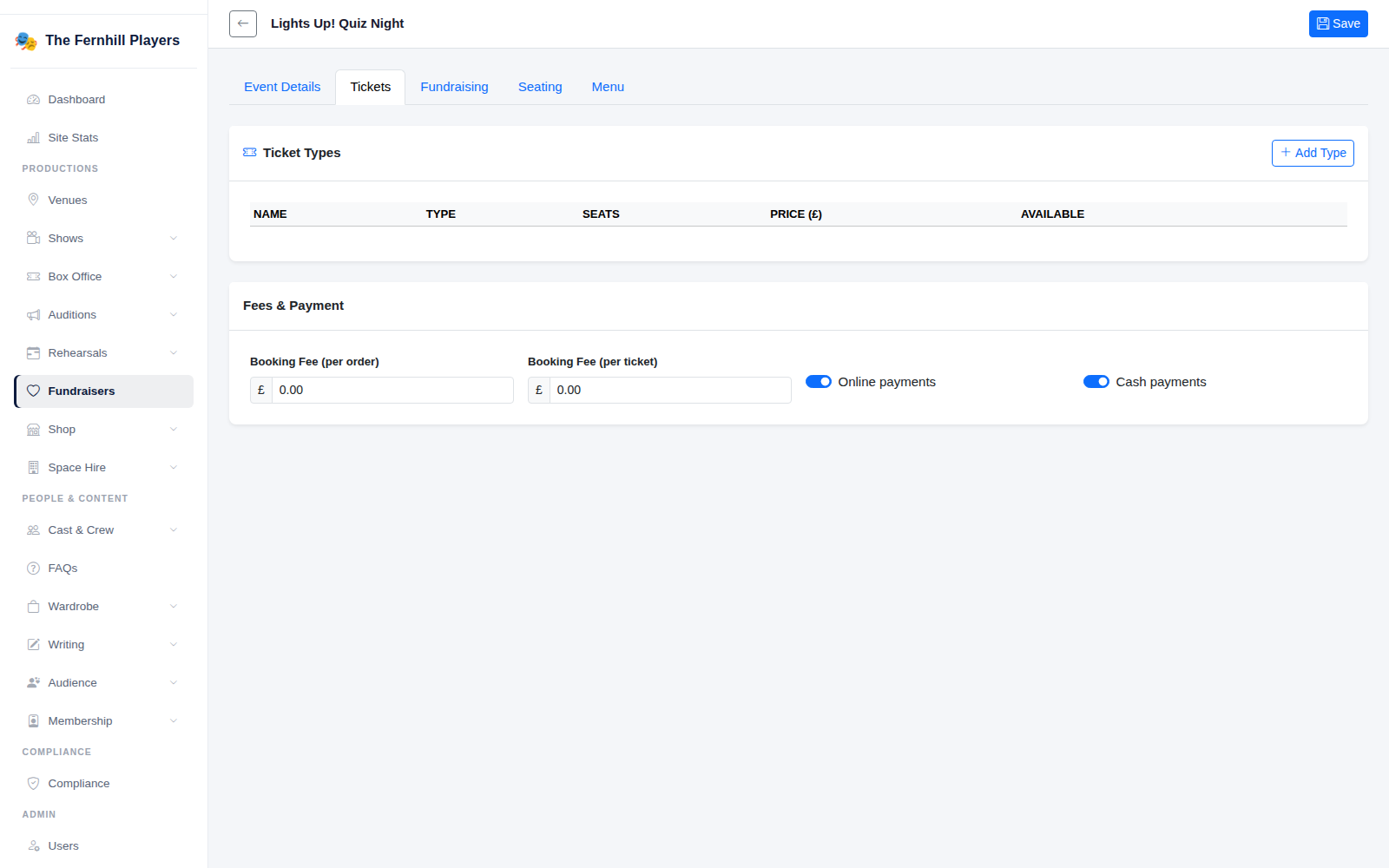
On the Tickets tab, click Add Type for each kind of ticket — for example a team of four for a quiz. Under Fees & Payment, choose whether to take Online payments, Cash payments or both.
4. Turn on the fundraising extras
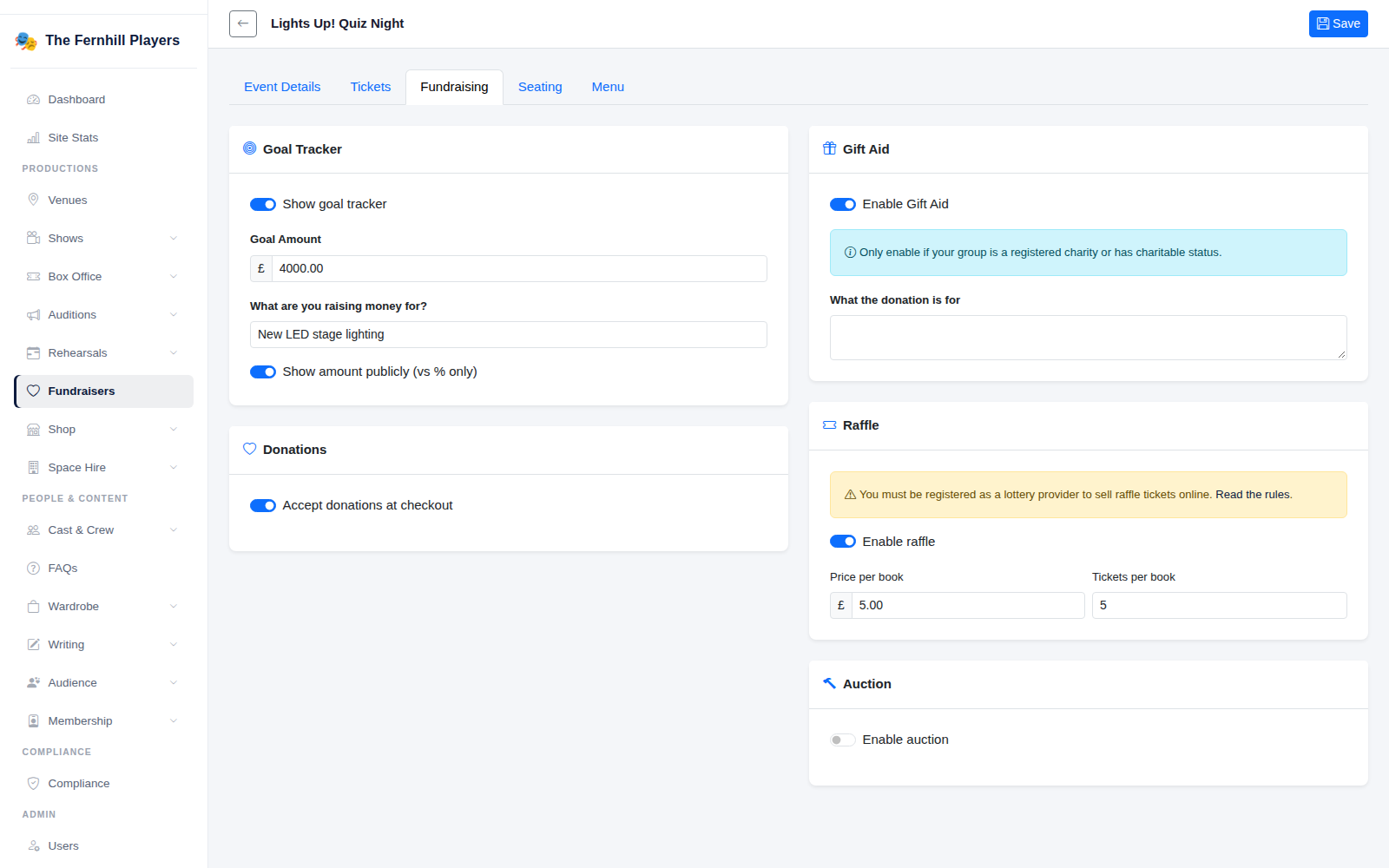
On the Fundraising tab you can:
- Show a Goal Tracker with your target and what you're raising for — publicly as an amount, or as a percentage only.
- Accept donations at checkout when people buy tickets.
- Enable Gift Aid — only if your group is a registered charity or has charitable status, as the screen reminds you.
- Run a Raffle with a price per book and tickets per book. To sell raffle tickets online you must be registered as a lottery provider.
- Run an Auction.
5. Record money taken on the night
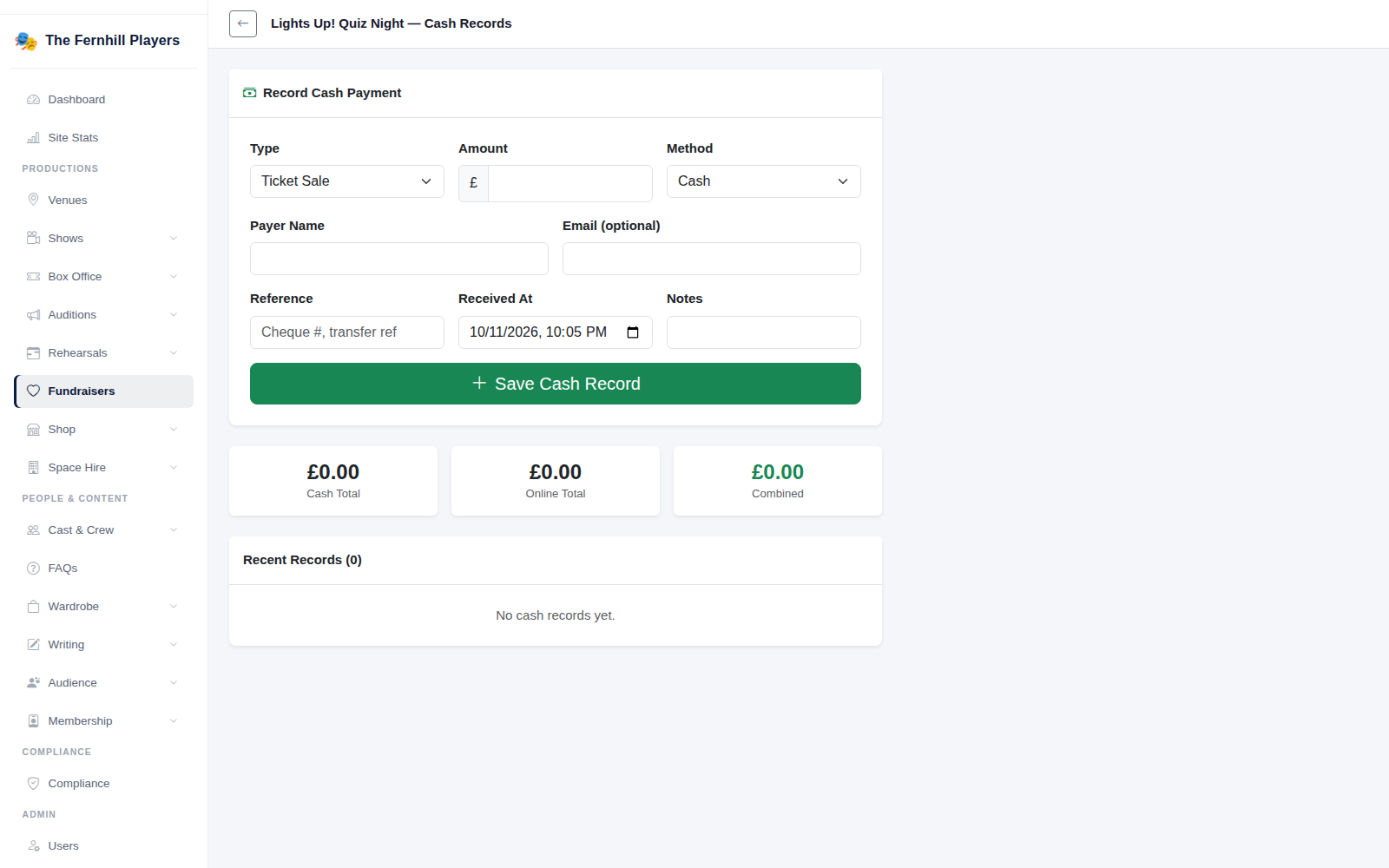
Use Cash Records to log anything paid in person — ticket sales, donations, raffle, auction or sponsorship — by cash, cheque or bank transfer. The page keeps a running cash total alongside the online total.
6. See what you raised
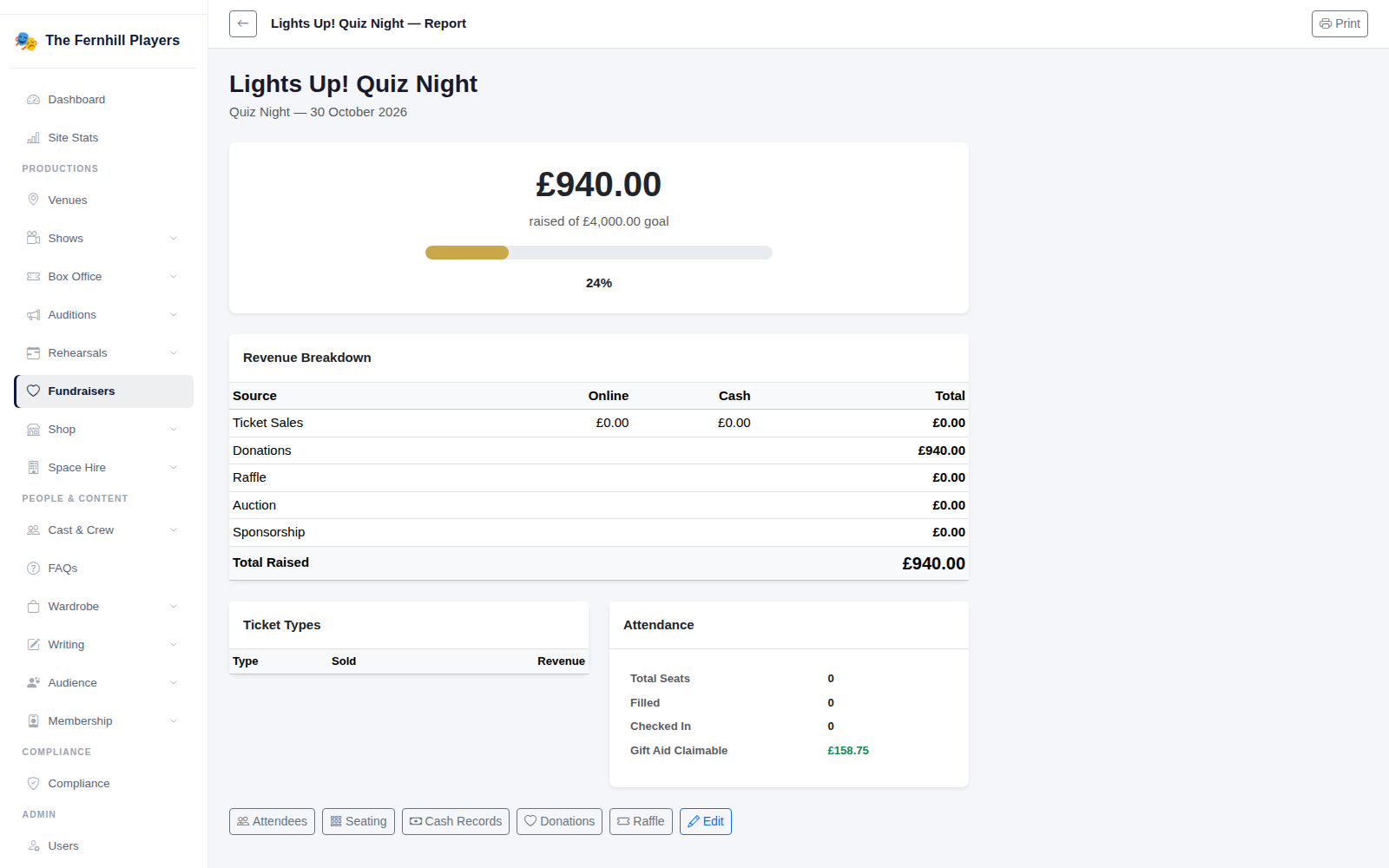
The Report shows the total raised against your goal and a breakdown by source — tickets, donations, raffle, auction and sponsorship — split into online and cash, plus attendance and the Gift Aid you can claim. Use Print for the committee.