Selling tickets on the door
Record walk-in, pay-on-the-night and complimentary ticket sales from the box office, seat by seat.
Not every ticket is sold online. When someone buys at the door, rings up to reserve seats, or you're giving tickets away, record it as a box office sale so your seat plan, ticket list and takings stay accurate. This guide walks through a sale from start to finish.
1. Start a new sale
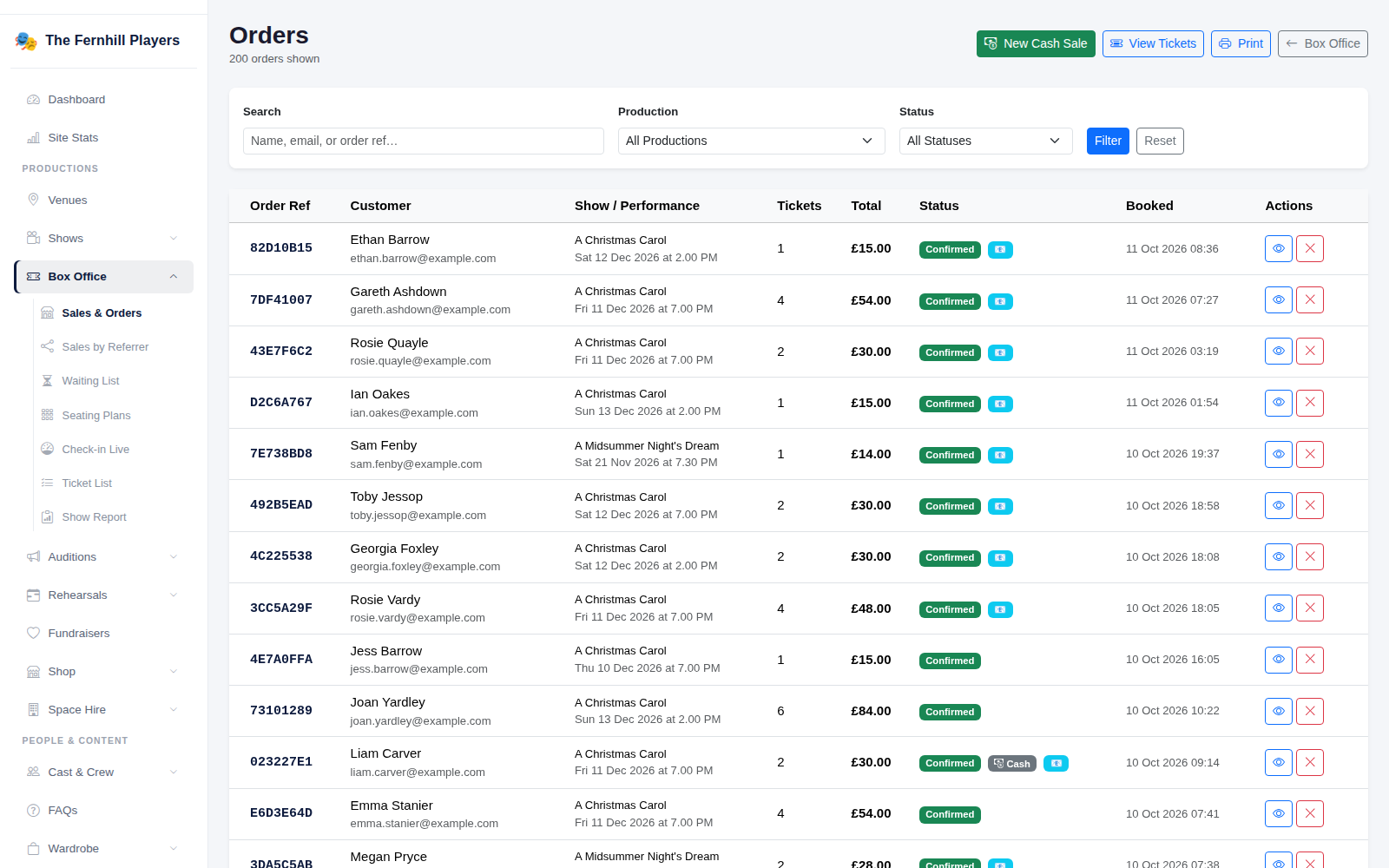
Go to Box Office > Sales & Orders. This lists every order, online and in person, with search and filters. Click New Cash Sale to start one.
2. Choose the performance and seats
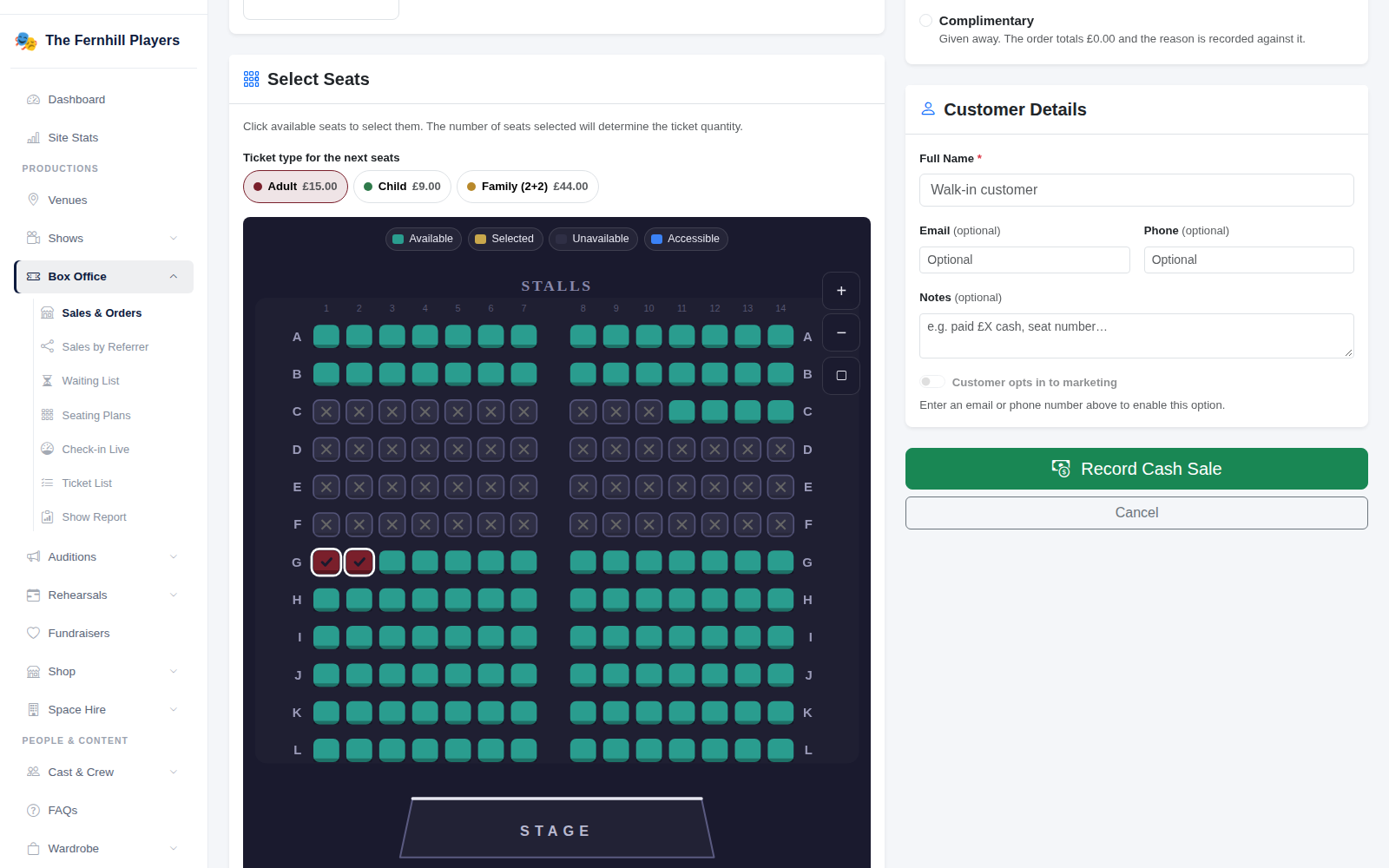
Choose the Production, then click the Performance; each one shows how many seats are still available. Under Select Seats, pick a ticket type (for example Adult or Child) and click the seats on the plan. Seats already sold are crossed out, and the Order Total updates as you go.
3. Choose how it's being paid
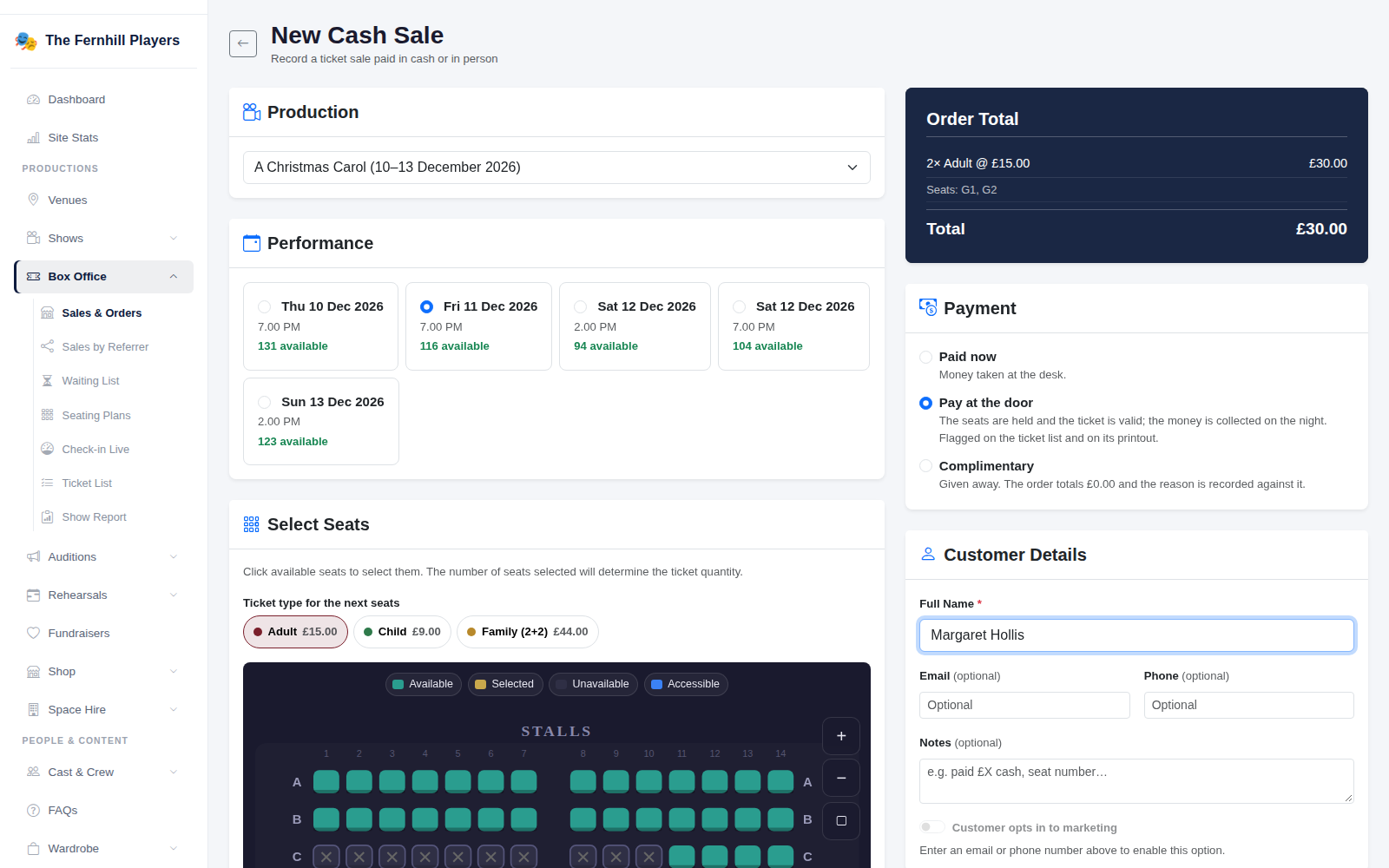
Under Payment, choose one of three options:
- Paid now — the money has been taken at the desk.
- Pay at the door — the seats are held and the ticket is valid, and the money is collected on the night. These are flagged on the ticket list and its printout so front of house knows to collect.
- Complimentary — given away. The order totals £0.00 and the reason is recorded against it.
4. Add the customer and record the sale
Enter the customer's Full Name; email, phone and notes are optional. If you add an email or phone number you can also tick Customer opts in to marketing when they've asked to hear about future shows. Click Record Cash Sale.
Tip: cash sales appear in Sales & Orders and in the show's sales figures alongside online orders, so your totals always add up.