Checking tickets in at the door
Use the Door Scanner on any phone to check tickets in by QR code or name, and watch arrivals live.
TheatreHQ's Door Scanner turns any phone into a ticket scanner for front of house. It reads the QR code on each ticket, lets you find people by name when they haven't got their ticket to hand, and keeps a live count of who has arrived. This guide shows how to use it on the night.
1. Open the check-in list for the performance
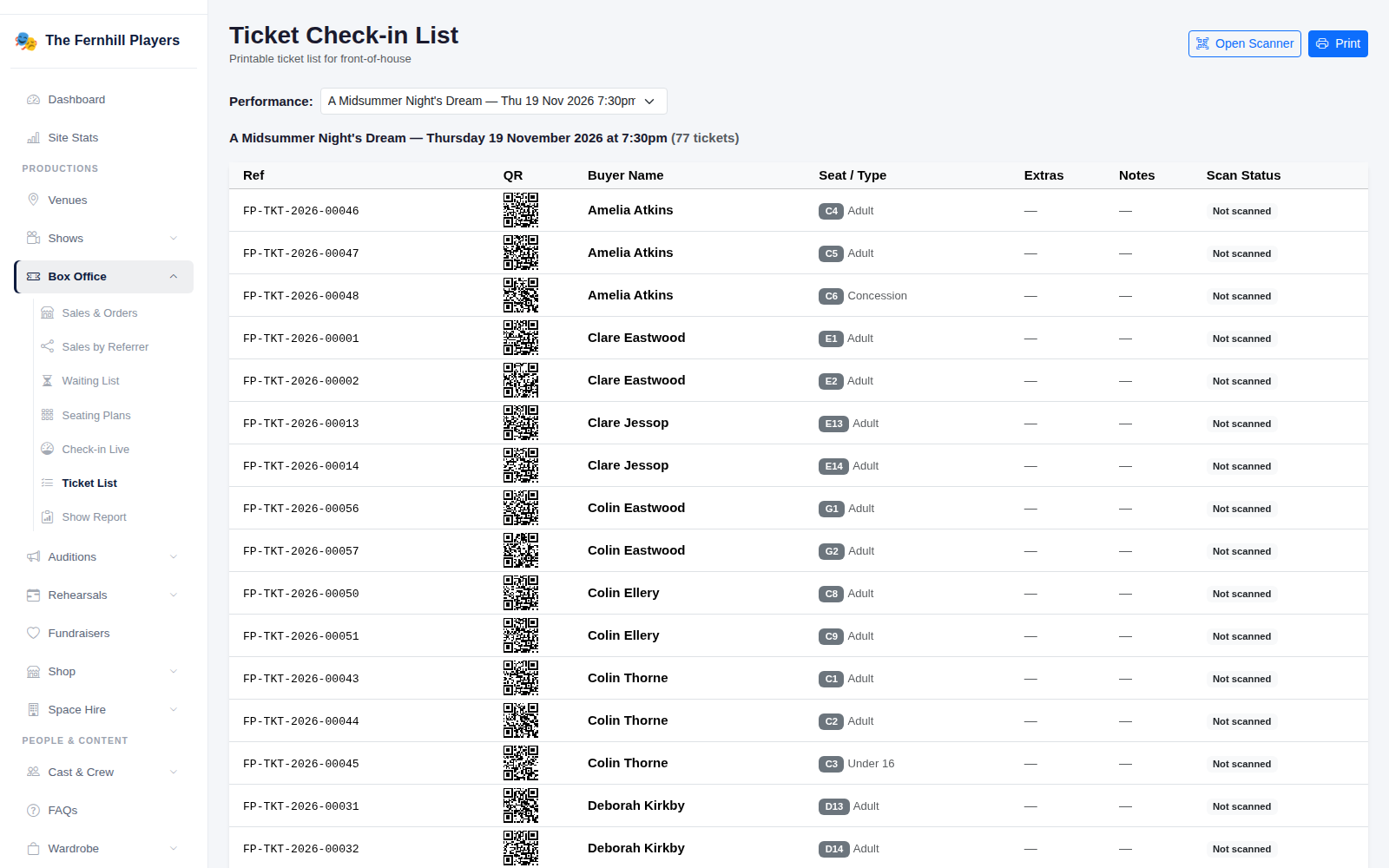
In the admin, go to Box Office > Check-in List and pick the performance from the Performance menu. You'll see every ticket for that night with its reference, QR code, buyer, seat and scan status. Use Print to take a paper copy to the door as a back-up, and Open Scanner to launch the scanner for this performance.
2. Open the scanner on a phone and install it
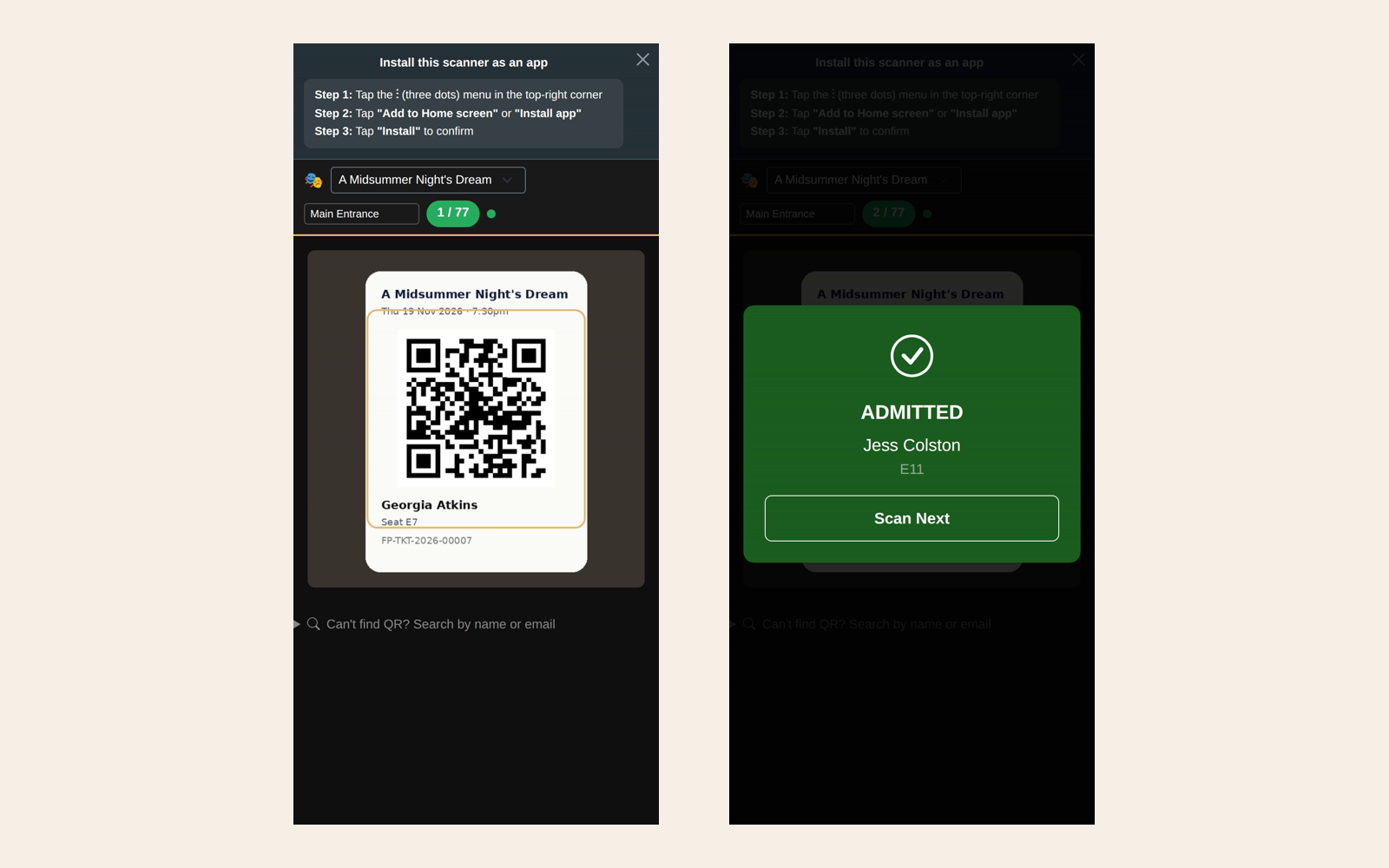
Open the scanner on the phone you'll use at the door. The first time, it shows Install this scanner as an app with the steps for your phone — add it to your home screen and it opens full-screen like any other app, no app store needed.
Check the performance at the top is the right one, give the entrance a name if you have more than one door (for example Main Entrance), and tap Allow Camera when asked. The counter shows how many people have been admitted out of the tickets sold.
3. Scan each ticket
Point the camera at the QR code on a printed or phone ticket. A valid ticket shows a green ADMITTED screen with the ticket holder's name and seat; tap Scan Next for the next person.
If a ticket has already been used, the scanner shows ALREADY SCANNED in orange. You can then Reject it or, if you're happy it's genuine, choose Override & Admit.
4. Find someone without their ticket
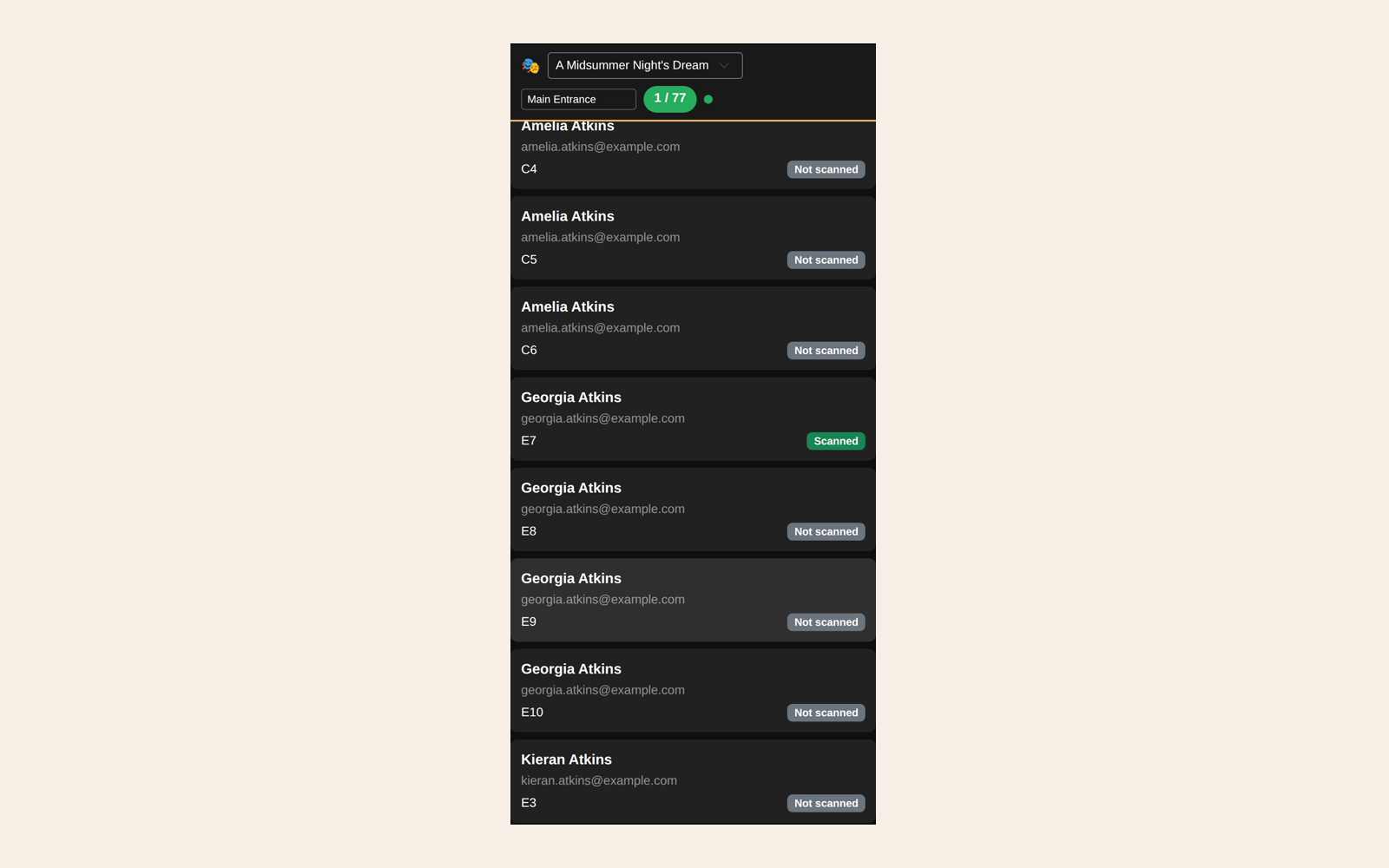
If someone can't find their ticket, tap Can't find QR? Search by name or email at the bottom of the scanner and type their name or email address. Matching tickets are listed with their seat and whether they've been scanned, so you can check them in by hand.
5. Keep going if the Wi-Fi drops
The coloured dot next to the counter shows whether the scanner is online. If the connection drops, scans are saved on the phone with a Saved Offline message and sent automatically when the connection comes back, so you can keep the queue moving.
6. Watch arrivals live
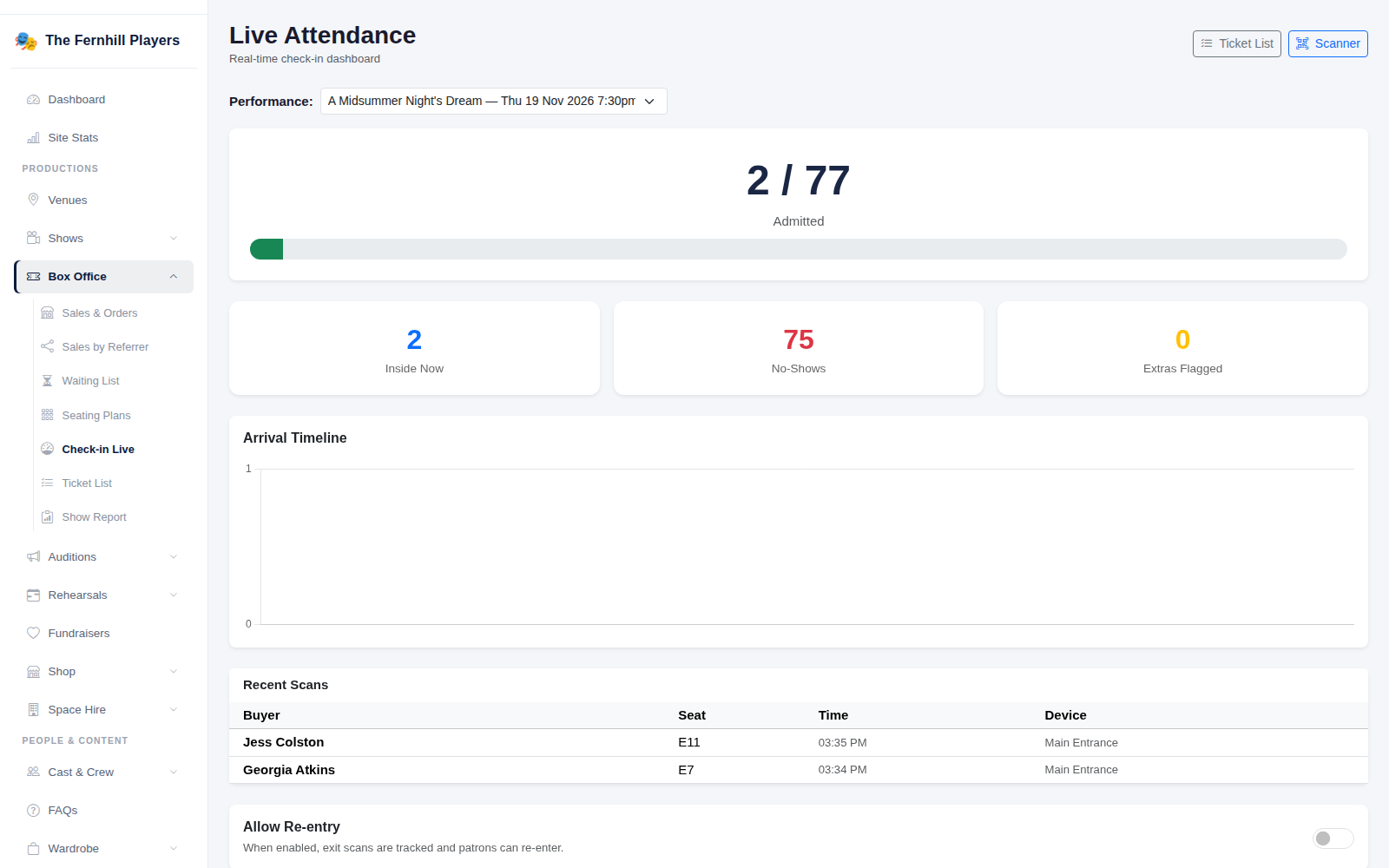
Back in the admin, Live Attendance shows the house filling up in real time: how many have been admitted out of the total, no-shows, extras still to collect, an arrival timeline and the most recent scans. If your performance has an interval or people need to step out, switch on Allow Re-entry so the scanner can record exits and let people back in.
Tip: do a quick test with one ticket before doors open, and keep the printed check-in list nearby in case a phone runs out of battery.