Moving a booking to another performance, and refunds
Move a customer's tickets to a different night, keep or change their seats, and record refunds correctly.
Plans change. A customer can't make their night, or you have to move a performance and everyone with it. TheatreHQ moves a whole booking to another performance in a few clicks, and their tickets update so they scan on the right night. This guide also explains how refunds work.
1. Open the order
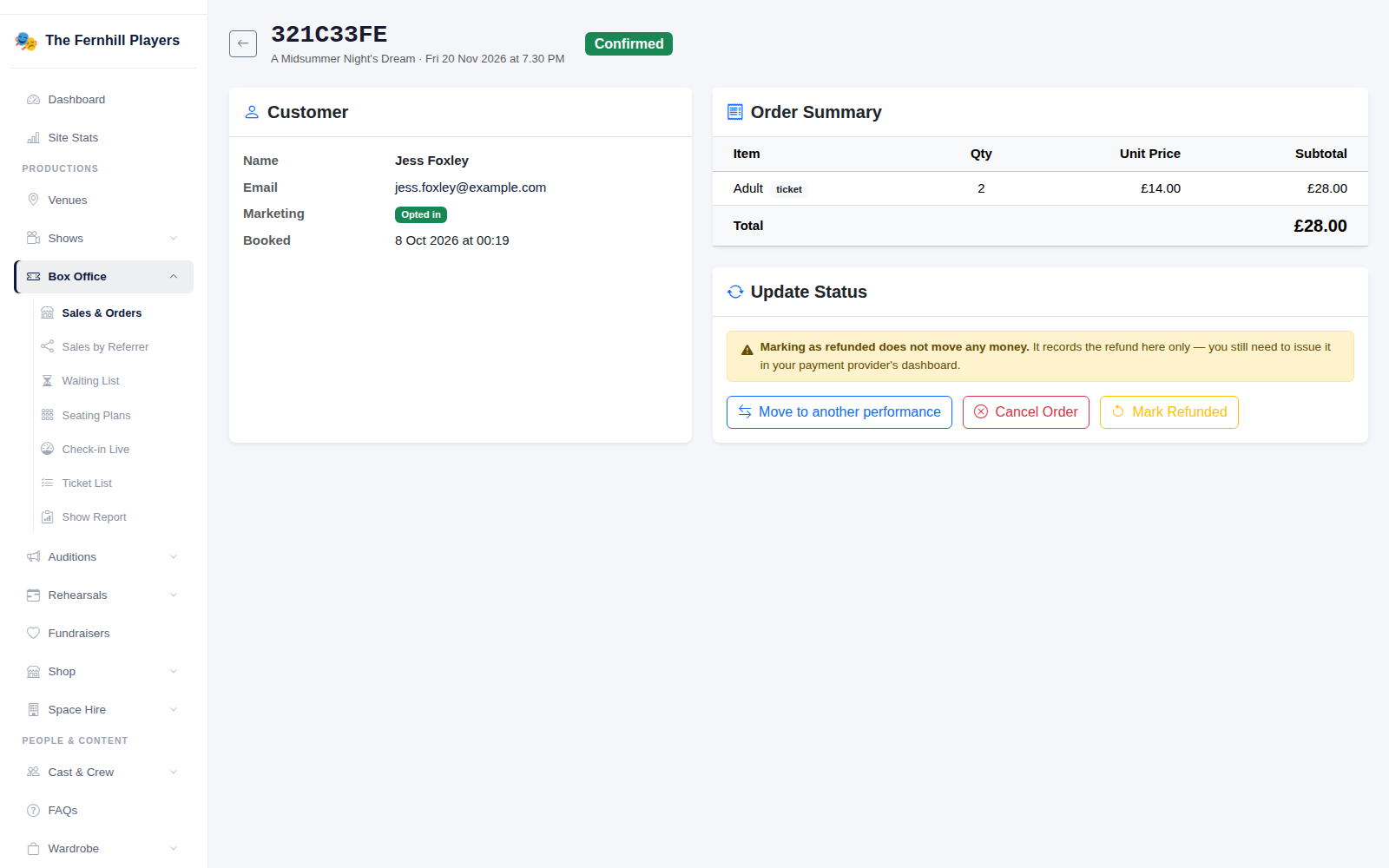
Go to Box Office > Sales & Orders, search for the customer and open their order. You'll see the customer's details, the Order Summary and the options under Update Status.
2. Move it to another performance
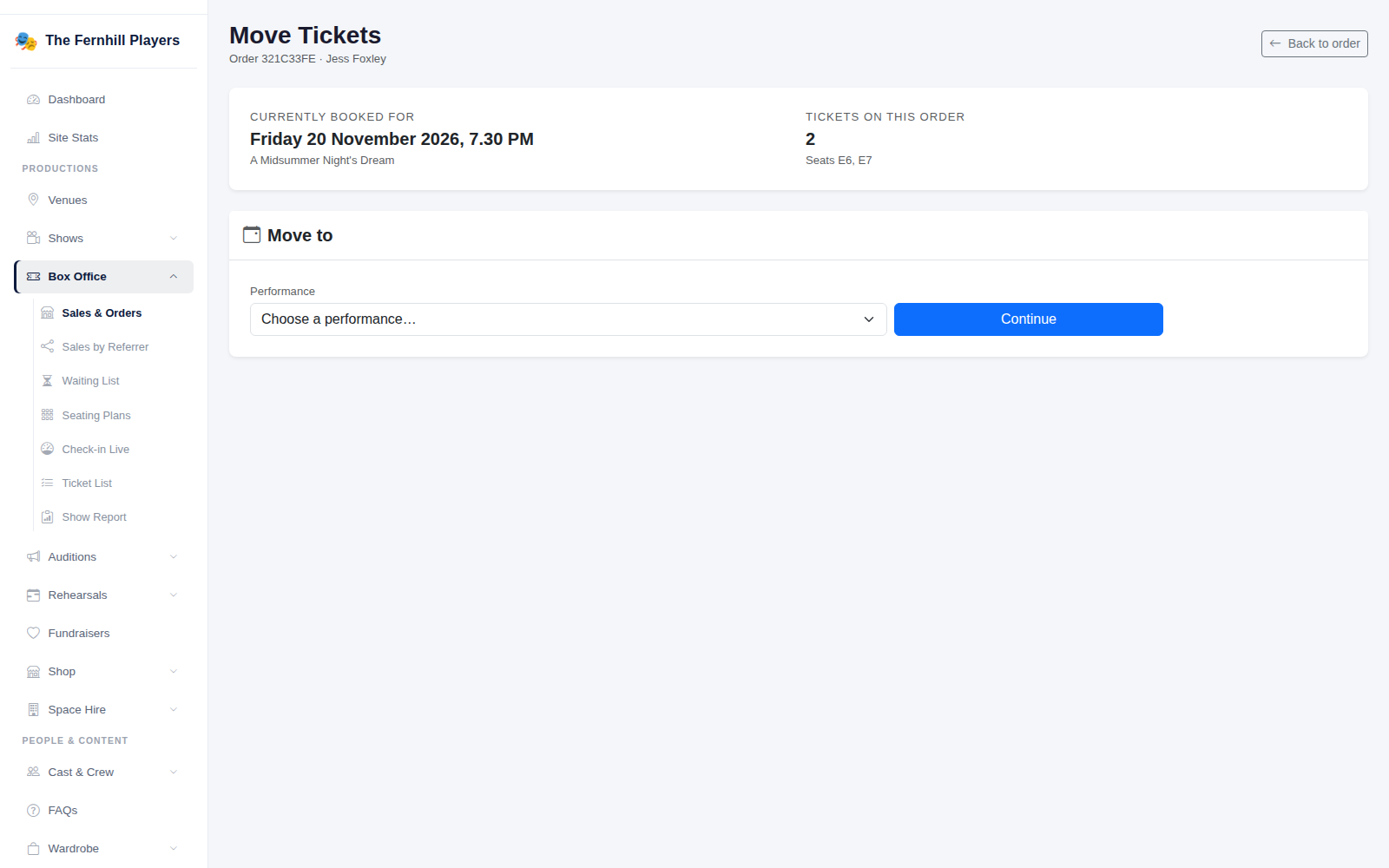
Click Move to another performance. Choose the new performance from the list — you can move to any upcoming scheduled performance of the same show that has room.
If the customer's original seats are free on the new night you can Keep the same seats; otherwise, Choose different seats on the plan. Then confirm the move.
3. What happens next
- The whole order moves together, so a group isn't split across two nights.
- Their tickets keep the same number and link, but now scan on the new night — and no longer scan on the old one.
- The customer is sent a confirmation email with the new date. If it can't be sent, you'll be warned so you can contact them yourself.
- Tickets that have already been checked in can't be moved, because they were used on the night they were scanned.
Refunds
If a customer needs their money back, issue the refund in your payment provider's dashboard — Stripe, PayPal or GoCardless — and then mark the order as refunded in TheatreHQ. Marking an order as refunded in TheatreHQ does not move any money on its own; it records what you've done so your figures and ticket list are right.
Tip: offering to move a booking to another night is often better for everyone than a refund — the customer still sees the show, and you keep the sale.