Adding your venues and rooms
Add the places you perform and the rooms inside them, so show pages have the right address and rooms can be hired out.
Venues are the places you perform, and rooms are the spaces inside them: the main hall, a studio, a green room. Set them up once and every show you add can use them. The address appears on your show pages, and any room you mark as available for hire shows up in Space Hire.
1. Open Venues
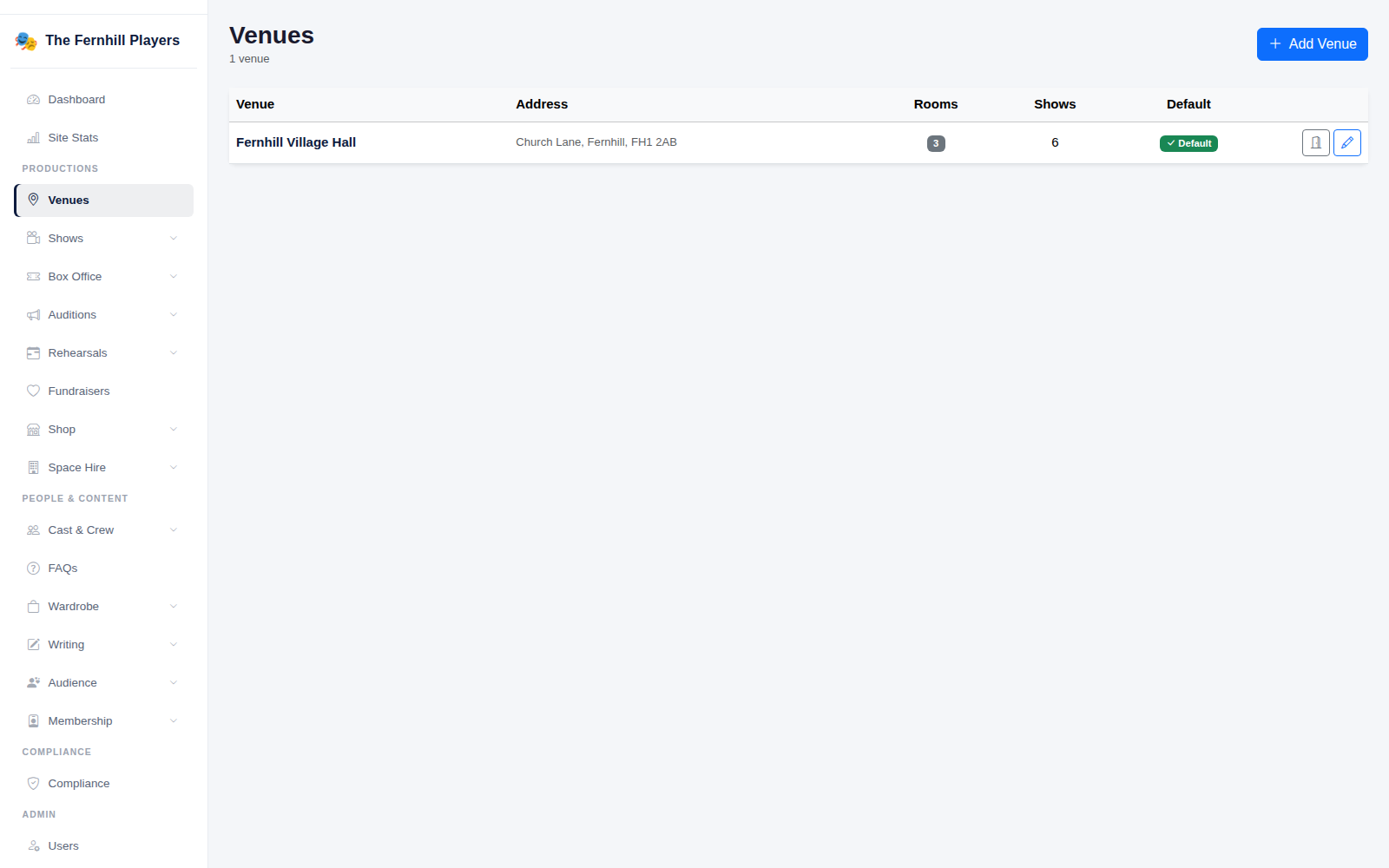
Go to Venues in the admin menu, under Productions. You'll see each venue with its address, how many rooms it has and how many shows have been held there. Your main venue is marked Default. Click Add Venue to add another.
2. Add the venue's details
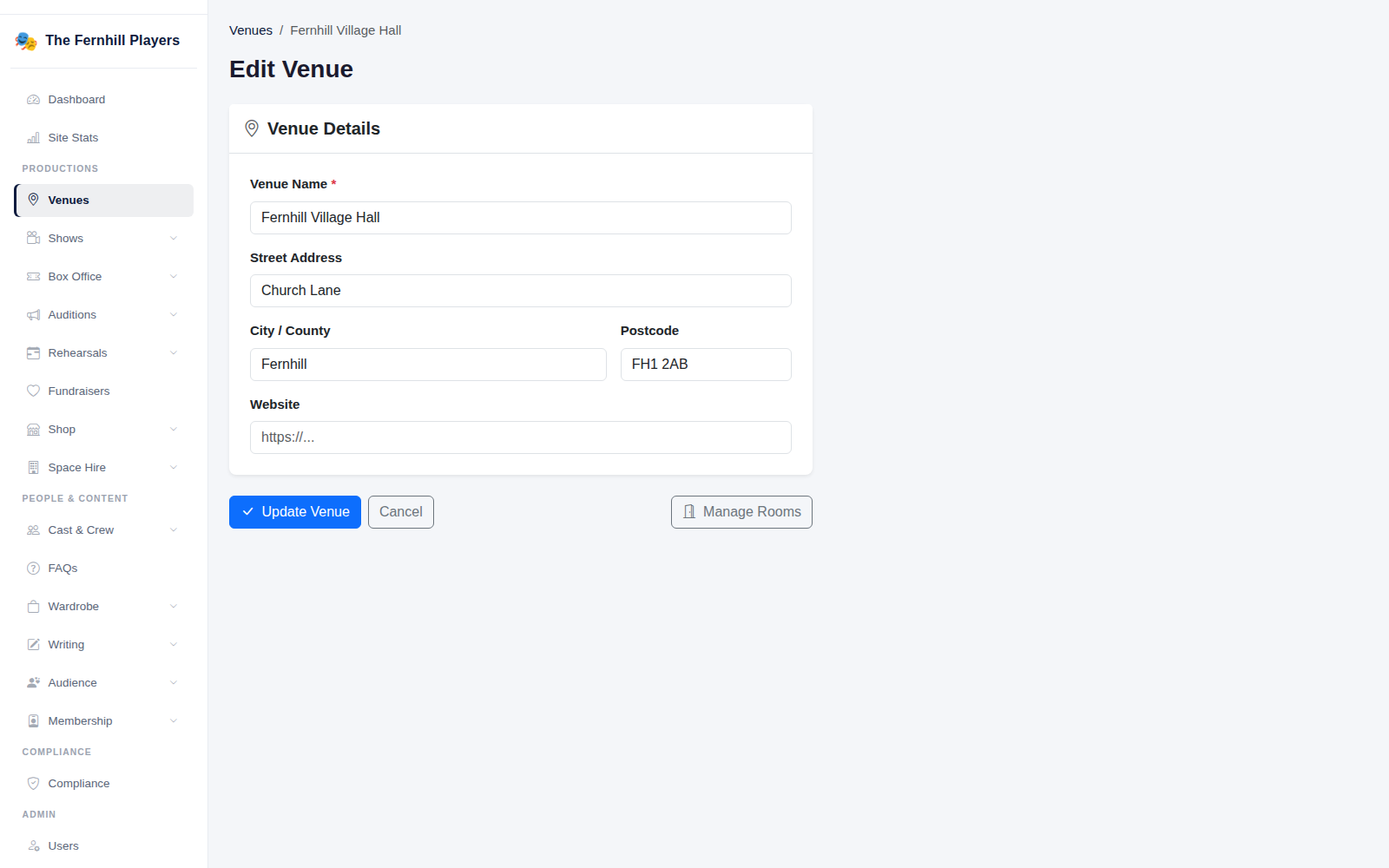
Enter the Venue Name, the Street Address, City / County and Postcode, and the venue's own Website if it has one. Take care over the postcode: it's what your audience will put into their sat nav. Click Update Venue (or Save for a new one).
If you sometimes perform somewhere else, such as a church, a school or an open air site in summer, add that as a venue too, even if you only use it once.
3. Add the rooms
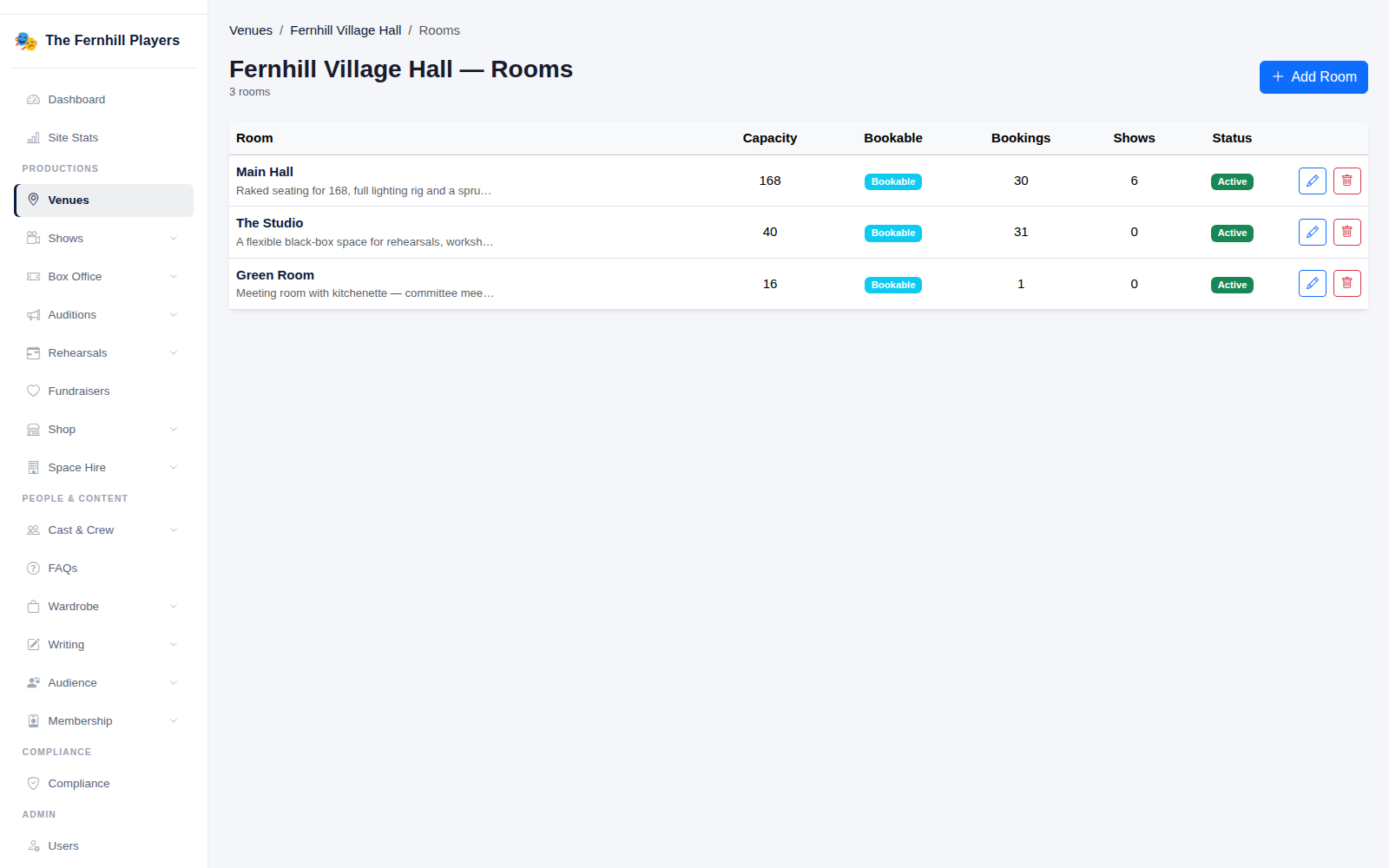
Click Manage Rooms. Each room is listed with its capacity, whether it can be booked, how many bookings and shows it has had, and whether it's active. Click Add Room for a new one, or the edit button to change an existing room.
4. Set up a room
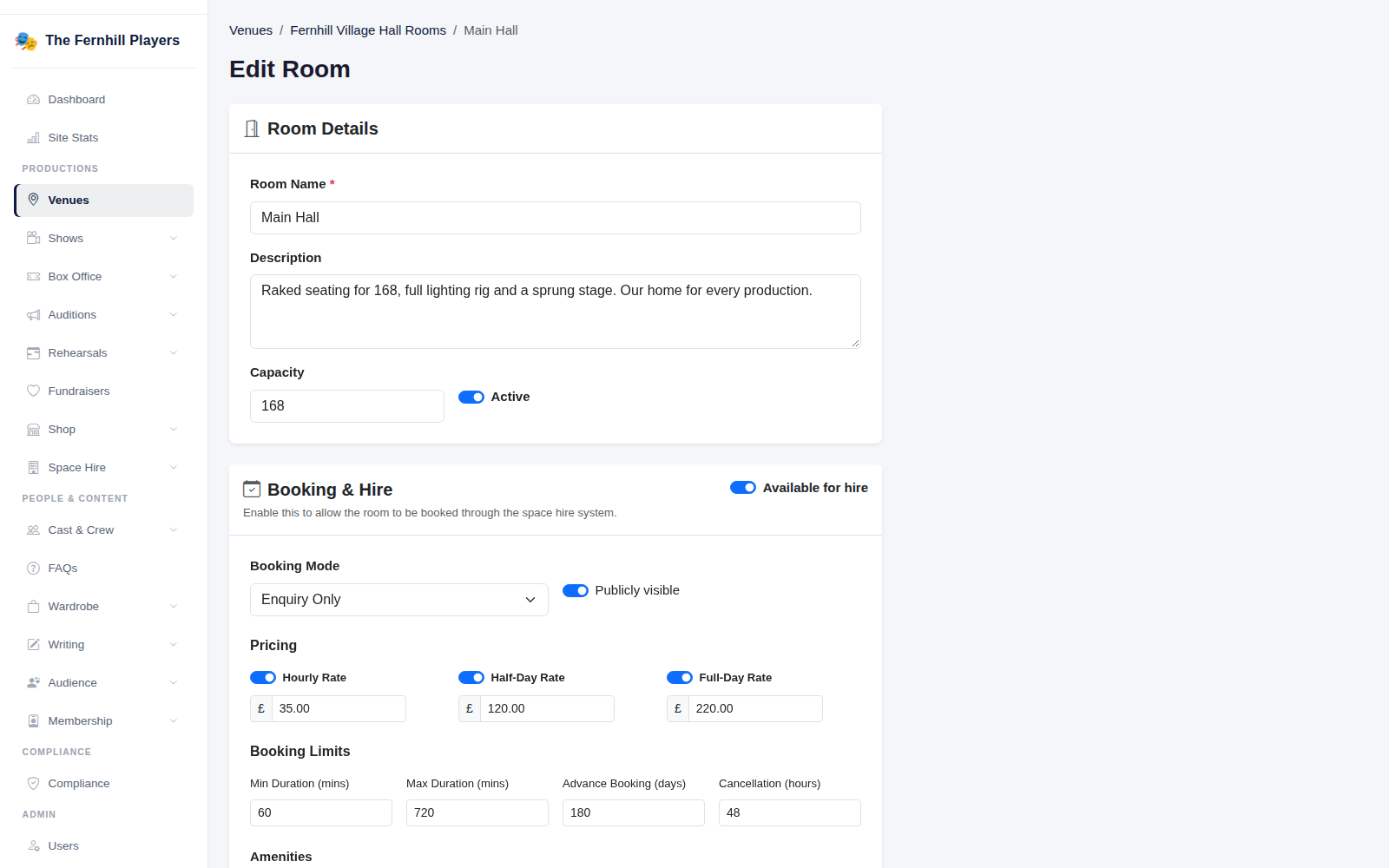
Give the room a Name, a short Description and its Capacity. If you want to hire it out, switch on Available for hire under Booking & Hire, then choose the booking mode, whether it's publicly visible, its hourly, half day and full day prices, and any limits on how long or how far ahead it can be booked. The room will then appear in Space Hire (see Hiring out your hall and rooms).
A room that's only used for your own shows can stay with hire switched off.
5. Use the venue for a show
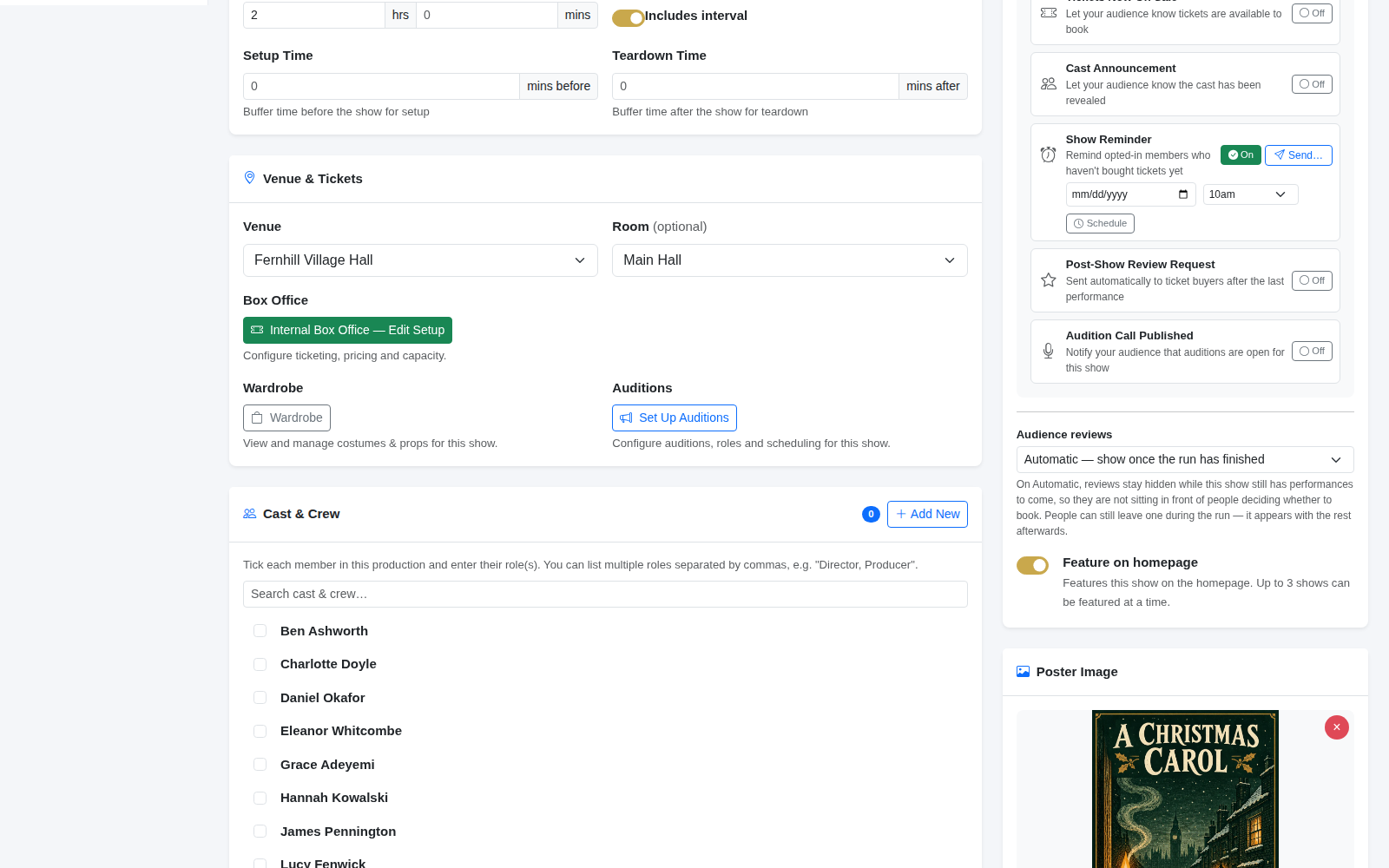
When you add or edit a show, the Venue & Tickets section asks for the Venue and, if you like, the Room. Choosing them puts the right address and venue details on the show page.
Tip: if a room isn't in use any more, switch off Active rather than deleting it. Past shows and bookings keep their history.