AGM minutes and attendance: what TheatreHQ writes for you
Copy the attendance and motion results into your minutes, attach the minutes to the meeting and send them to members.
After the meeting, TheatreHQ has most of your minutes ready for you. This guide is part of the free course Running membership in TheatreHQ.
1. Attendance for the minutes
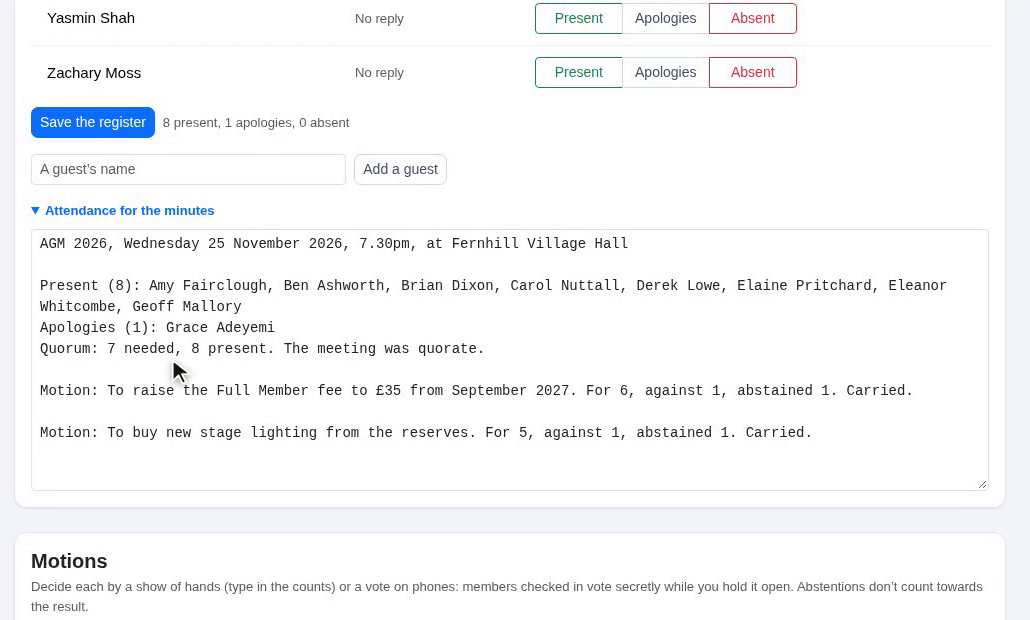
Under the register, open Attendance for the minutes. It lists who was present and who sent apologies, whether the meeting was quorate, and the result of every motion, ready to copy into your minutes.
2. Attaching the minutes
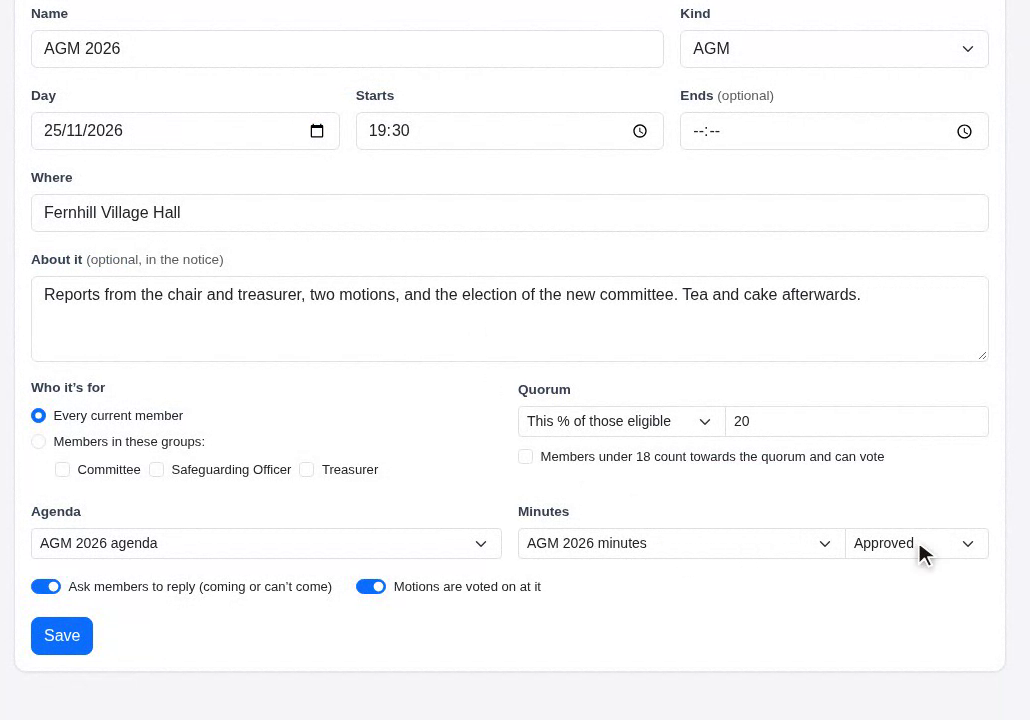
When the minutes are written, upload them to Documents. Then, in the activity's Details, pick them under Minutes, mark them Draft, or Approved once they're agreed, and click Save. They show under Papers.
3. Sharing them with members
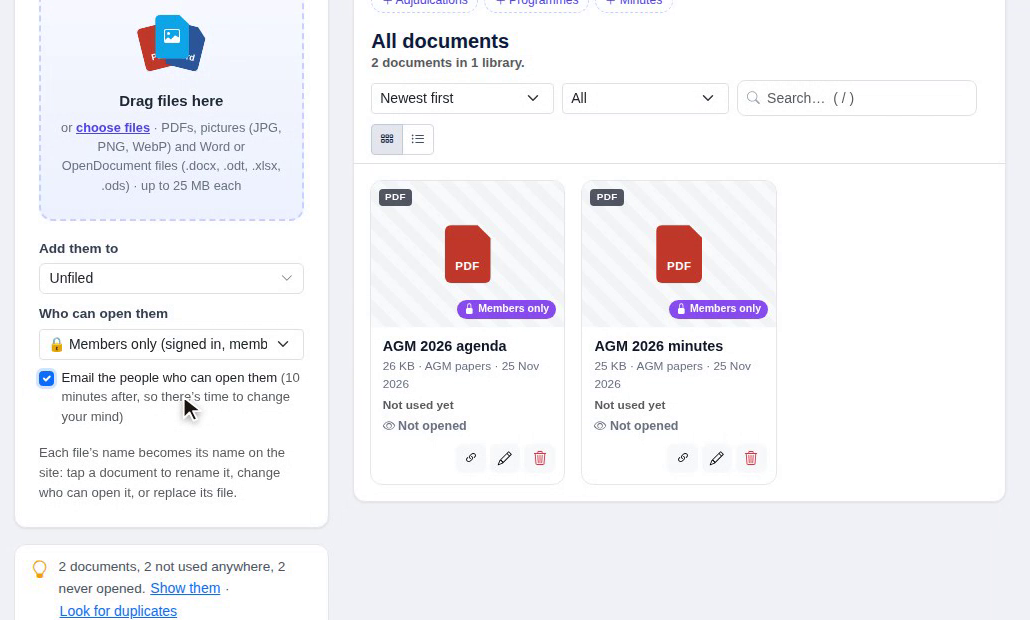
Members see the agenda with the meeting in My activities, but not the minutes. To send the minutes out, upload them in Documents with Who can open them set to Members only, and tick Email the people who can open them. The email goes ten minutes later, so there's time to change your mind.
Past meetings are kept under Past, in Activities.
Track your progress
Make a free account to take the quick quiz after each guide, keep your place in the course and get a certificate when you finish.