The casting board, offers and the cast list
Make offers and email them, sign off a director's offer, see answers arrive, share feedback and publish the cast list. Then rehearsal clashes, analytics, removing candidates' details and your privacy policy.
This guide shows how to use the casting board to make your offers, sign them off, share feedback and publish your cast list, and then wrap up: clashes, reports and tidying away candidates' details. The video above shows the same steps, using the demo audition for Abigail's Party.
1. The board
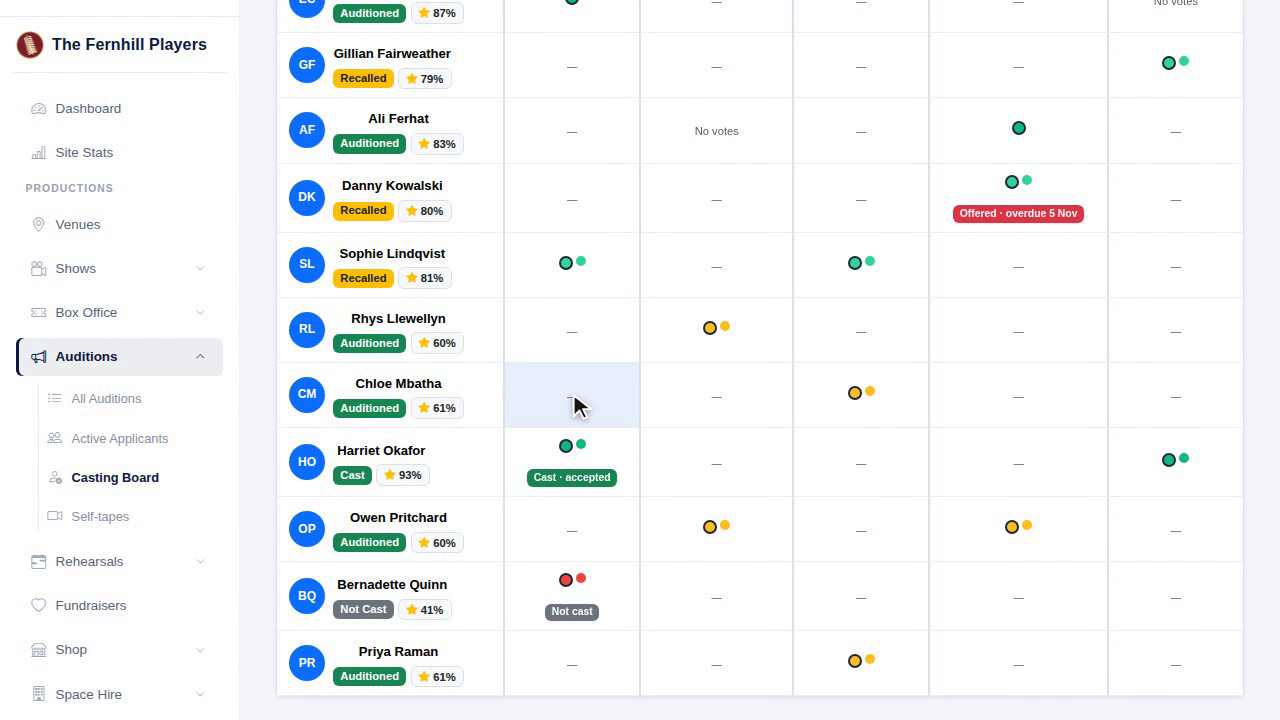
The board shows every candidate against every role, with everyone's votes and each candidate's average score. If a panel member declared an interest, you'll see it here, and their scores for that person don't count.
2. Making an offer
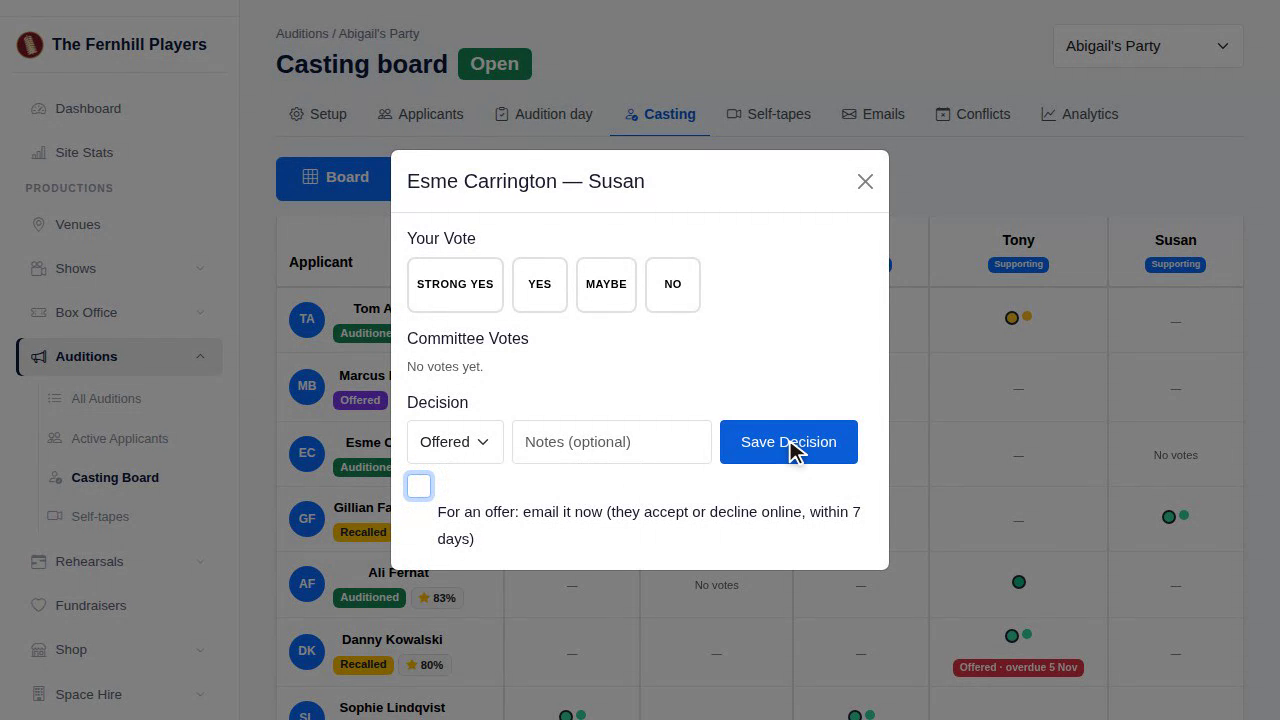
To make an offer, click the cell for that candidate and role, choose Offer, and tick to email it now. They hear straight away, with a link to answer.
3. Sign-off
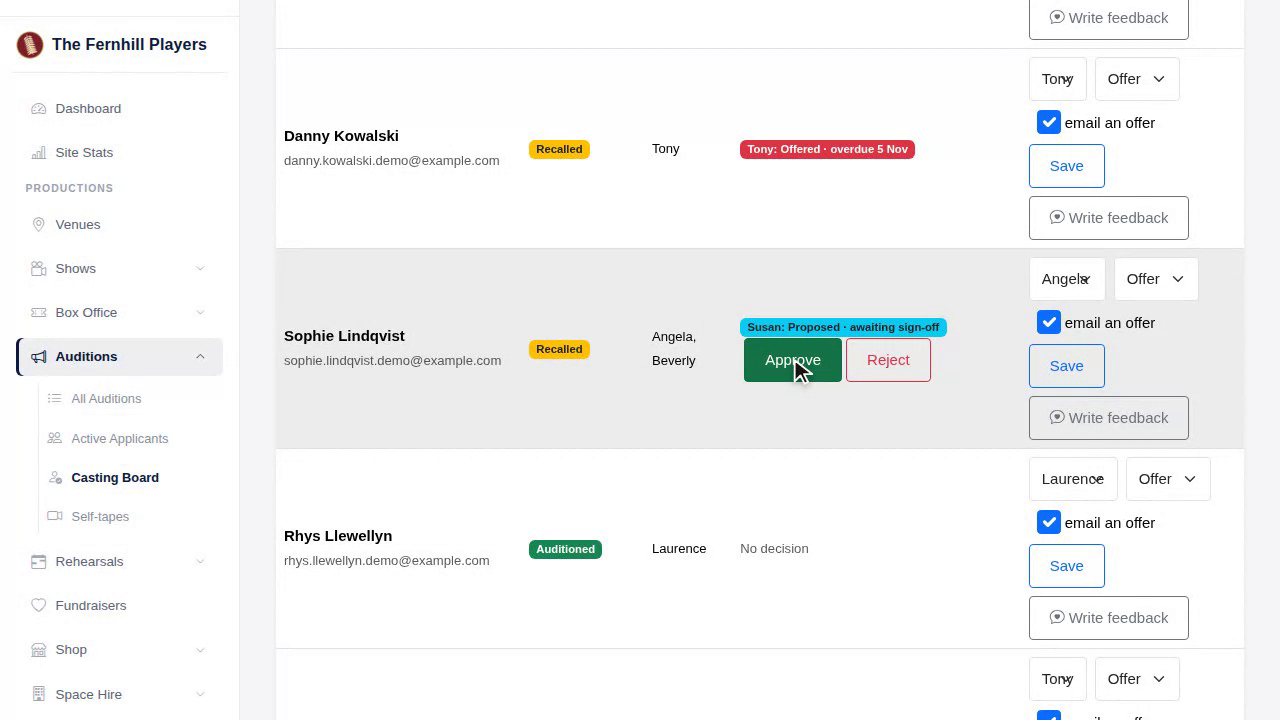
If you've chosen sign-off, a director's offer shows as proposed, awaiting sign-off, and the candidate hears nothing yet. Someone on the committee presses Approve, and then it goes.
4. Answers
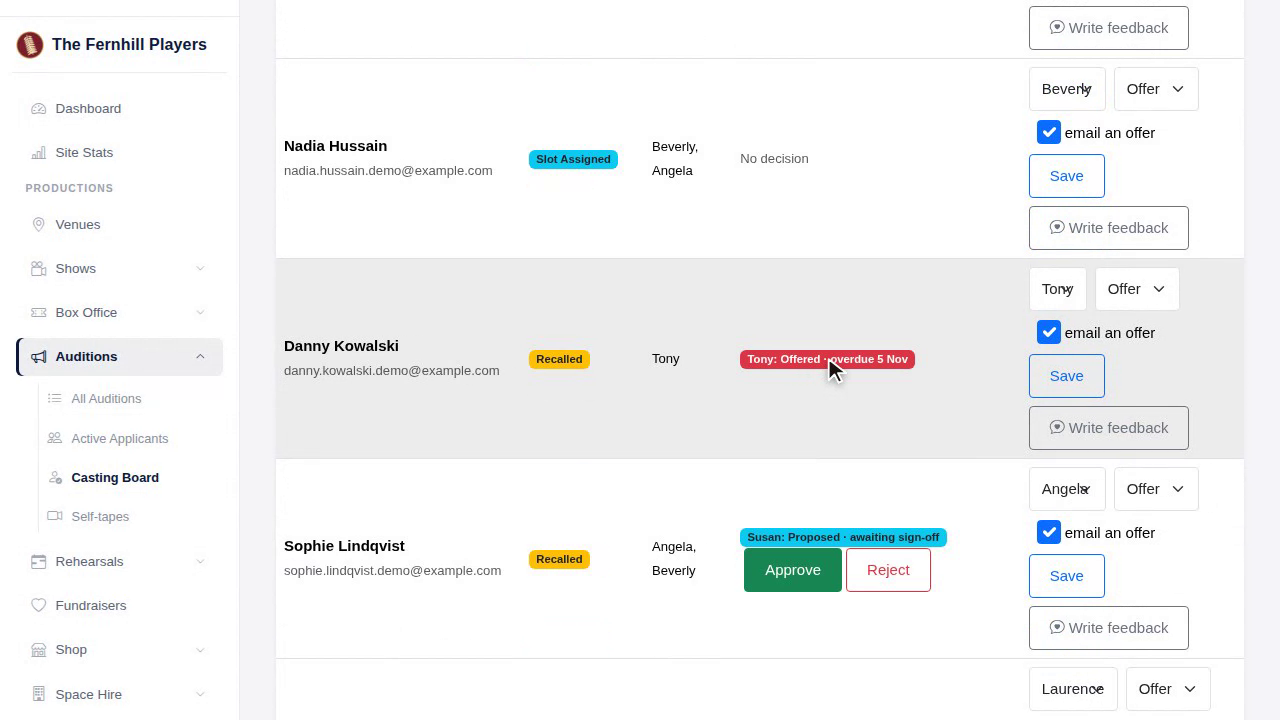
As candidates answer, you see it here: accepted, or declined. Offers past their answer-by date are marked overdue, so you know who to chase.
5. Membership
If your cast must be members, each person shows a badge. Anyone who isn't a member yet can be sent an invitation to join with one click.
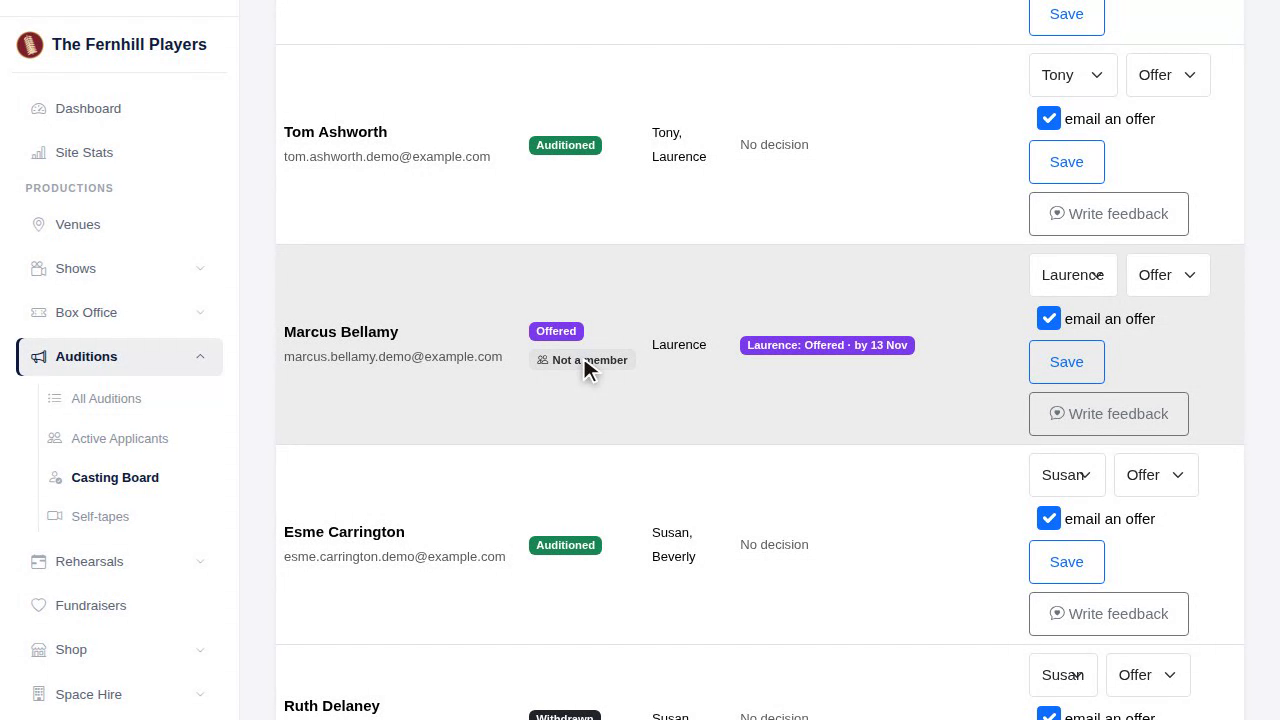
6. Feedback
You can write feedback for each candidate as you go. When casting is done, press share, and everyone who has feedback can read it on their page.
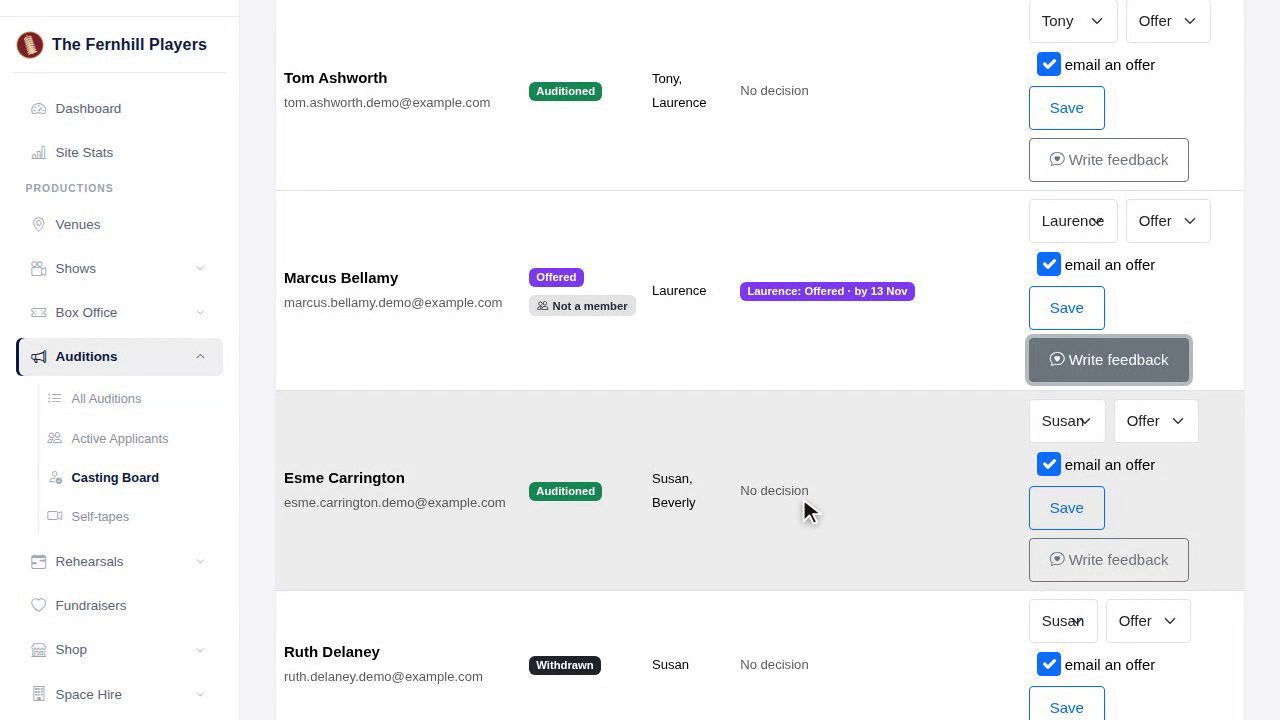
7. Bulk decisions
To tell everyone else your decisions, send them all at once from here.
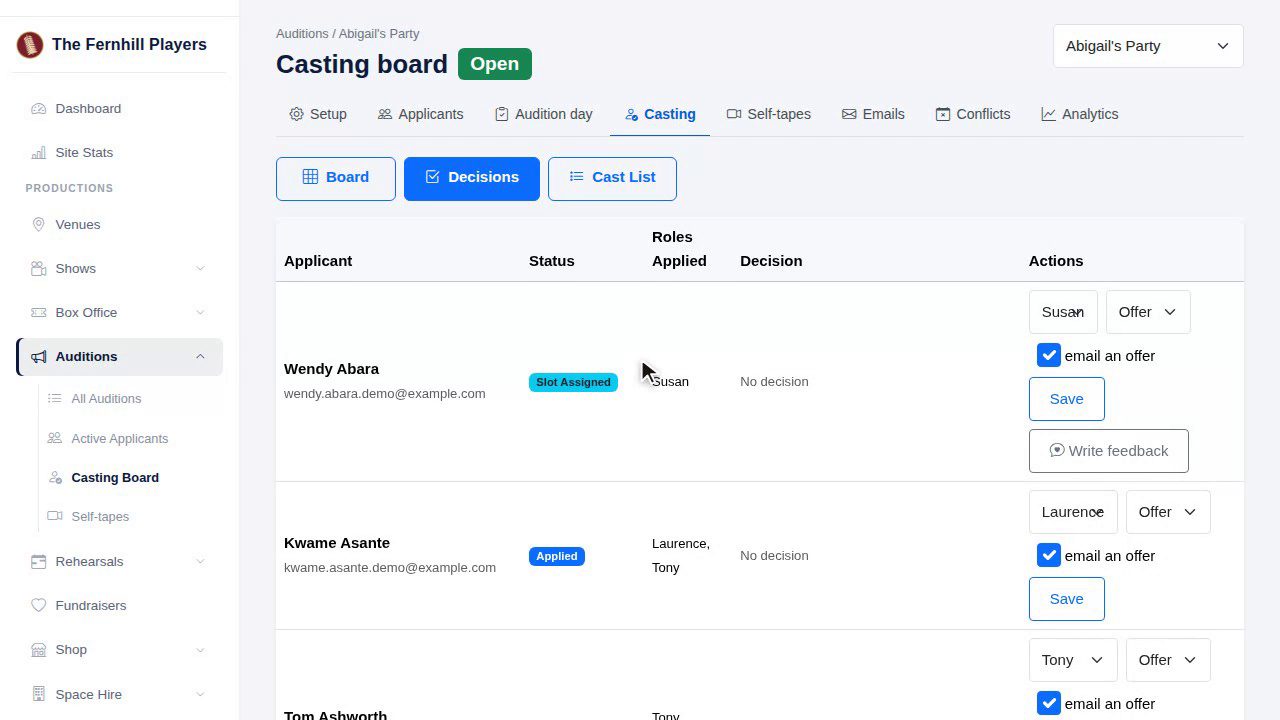
8. The cast list
Finally, the Cast List. Add your cast to the show's cast and crew in one go, so they appear on the show page, then publish the cast list. Publishing can't be undone, so check it first.
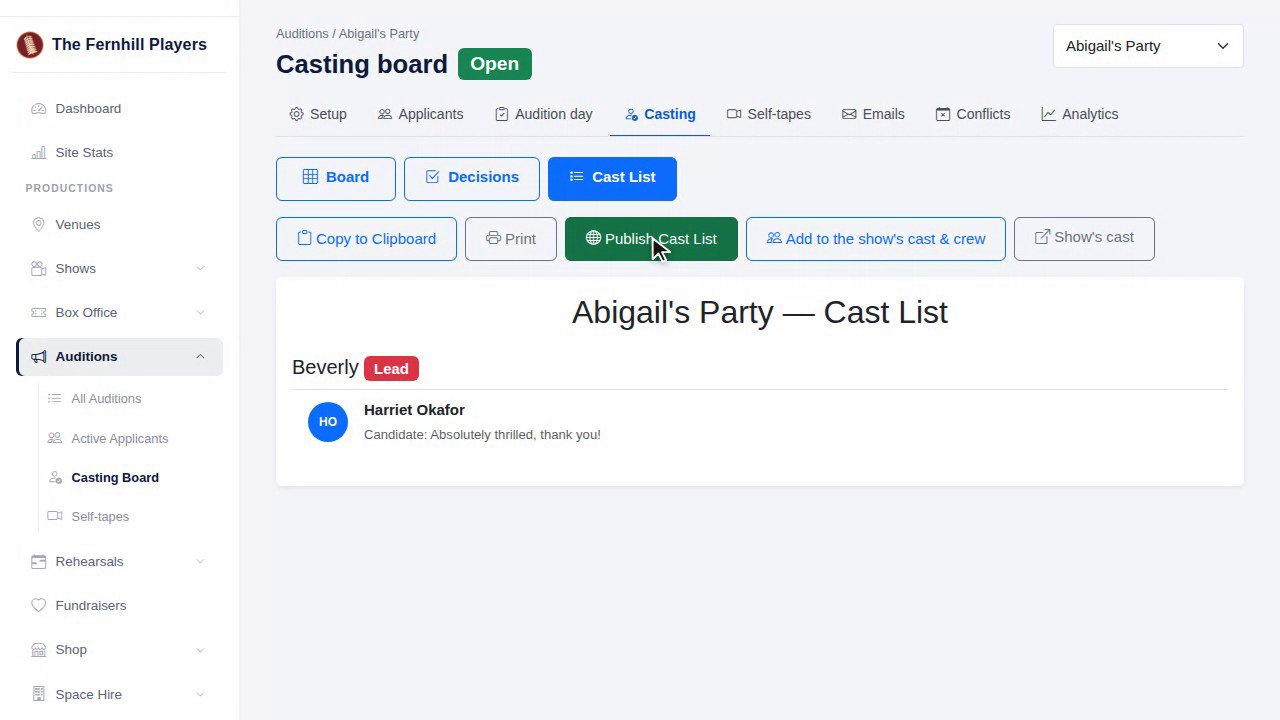
9. Conflicts
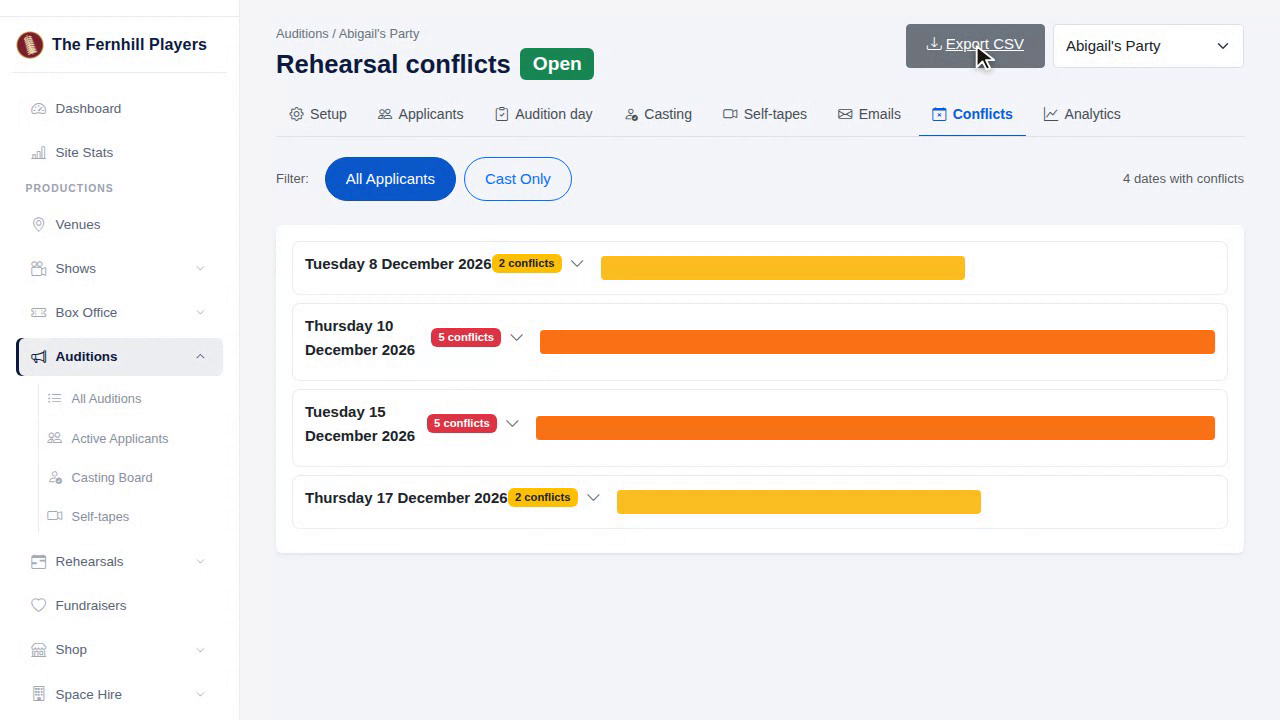
Once your show is cast, it's time to wrap up. The Conflicts tab shows every rehearsal date someone can't make, so your stage manager can plan around them. Export it as a spreadsheet to share.
10. Analytics
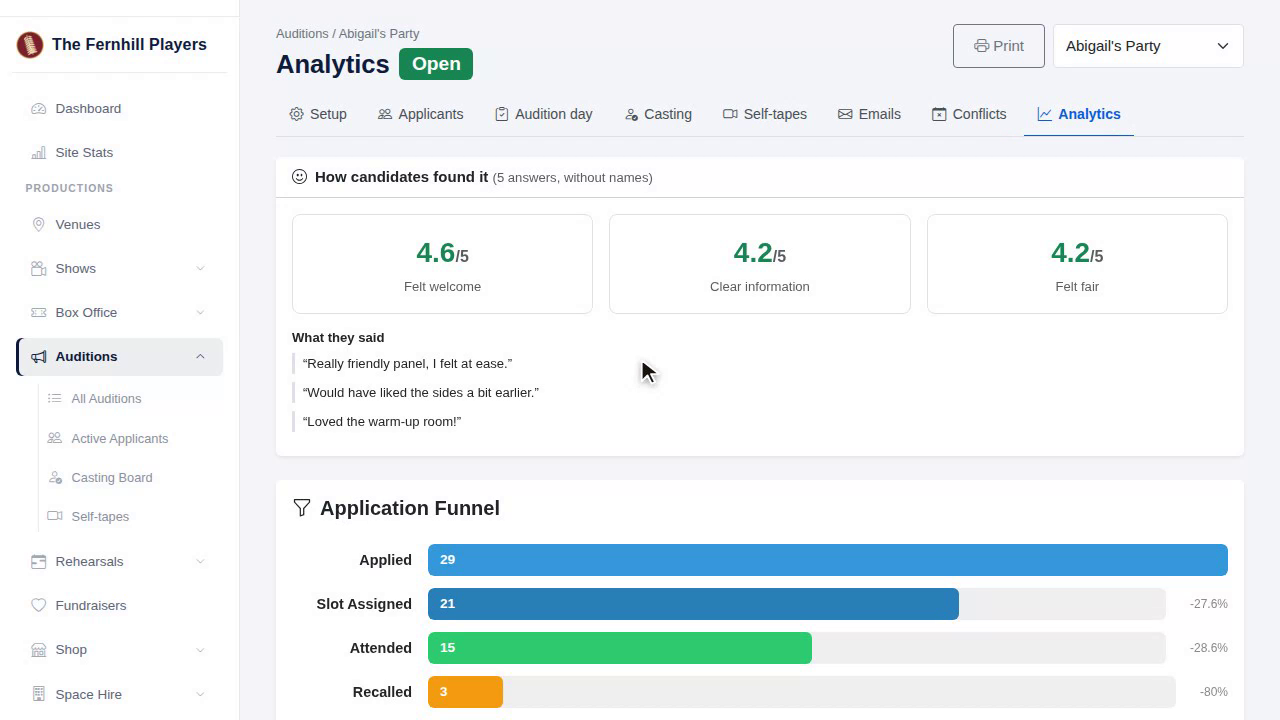
Analytics shows how your auditions went: how many people applied, booked, came and were cast, which roles were popular, and how people heard about you.
11. Survey
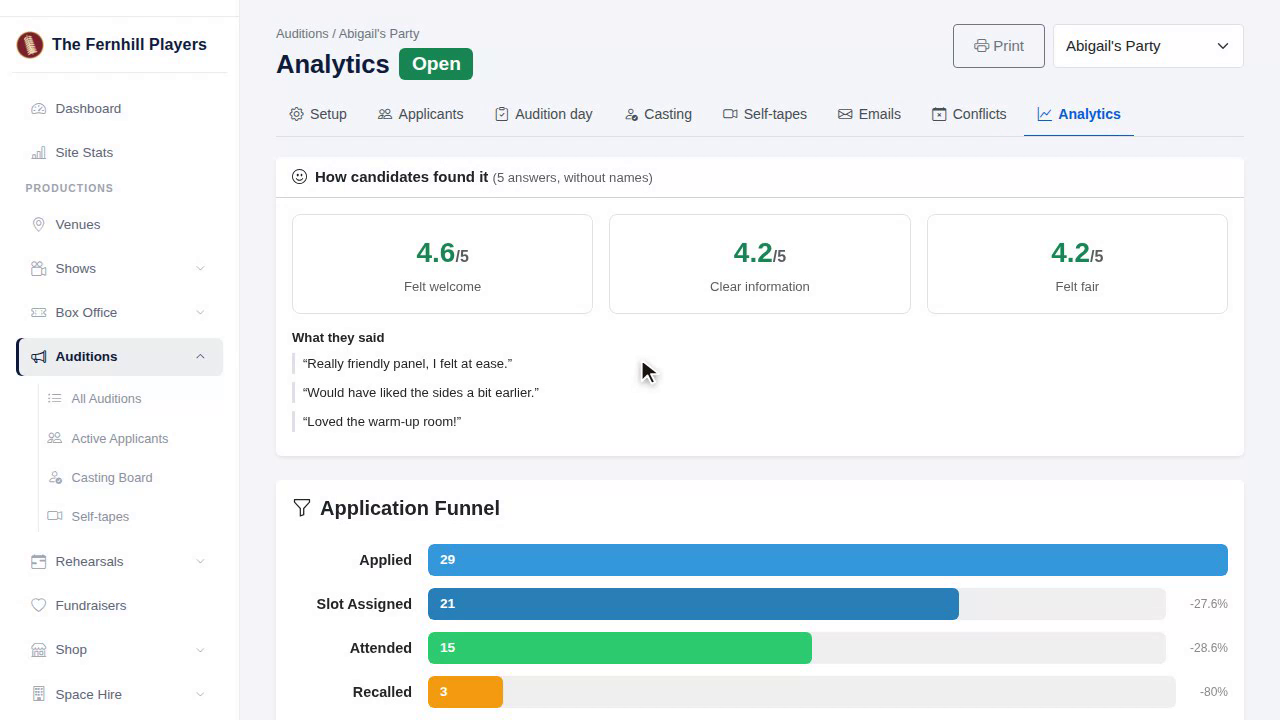
And the survey answers, together and without names, so you can see what candidates thought, and do even better next time.
12. Data
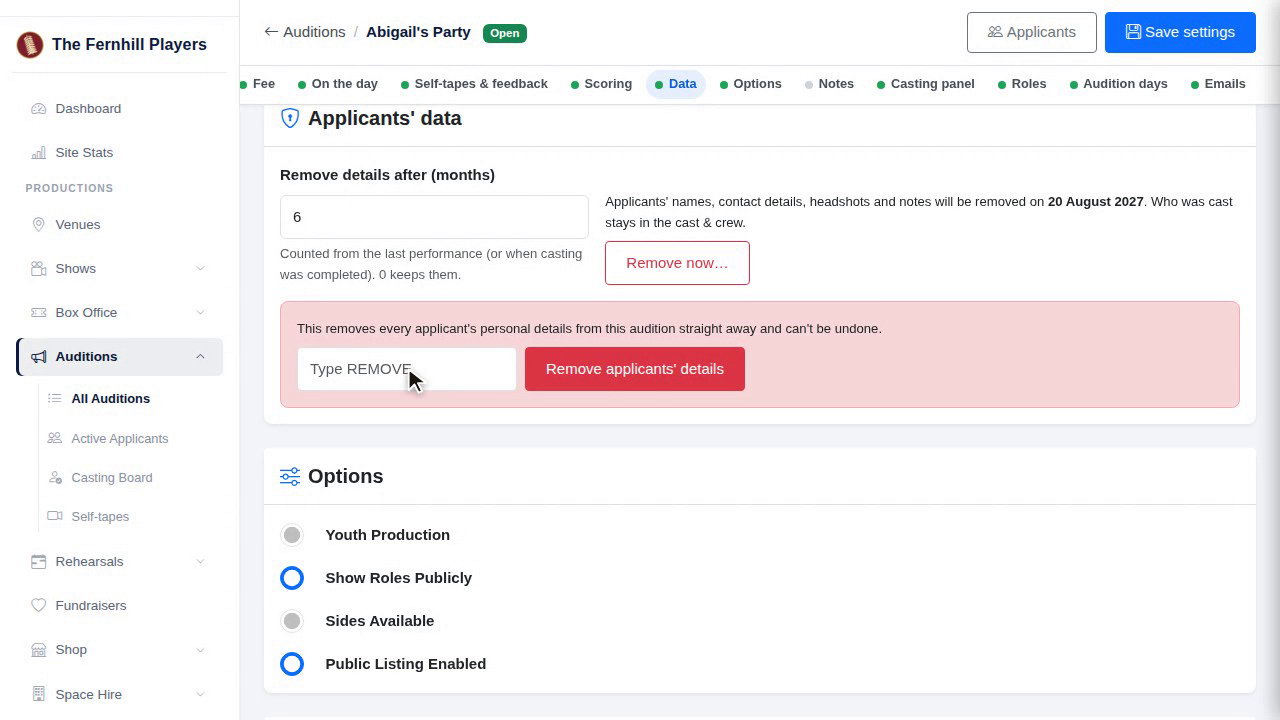
Candidates' details are removed automatically after the number of months you chose. If you'd rather do it sooner, use Remove now.
13. Privacy policy
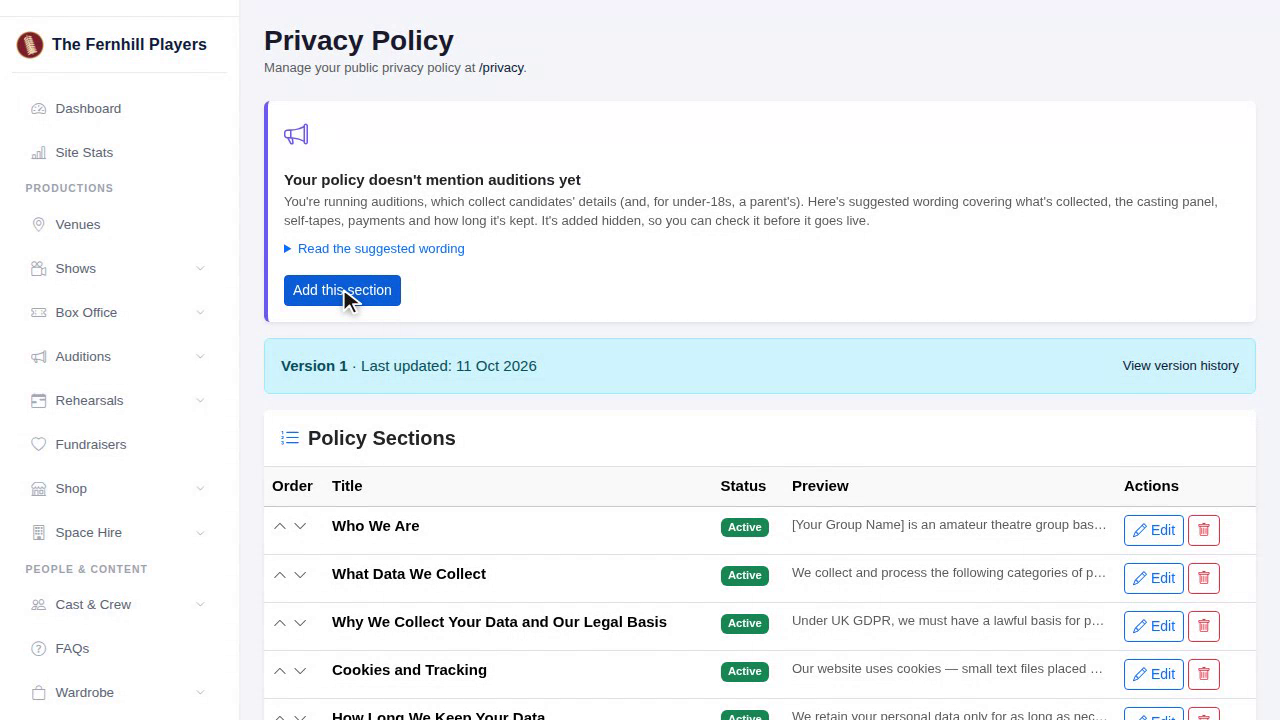
Under Compliance, your privacy policy offers ready-written wording for an auditions section. Check yours has it.
14. Fee income
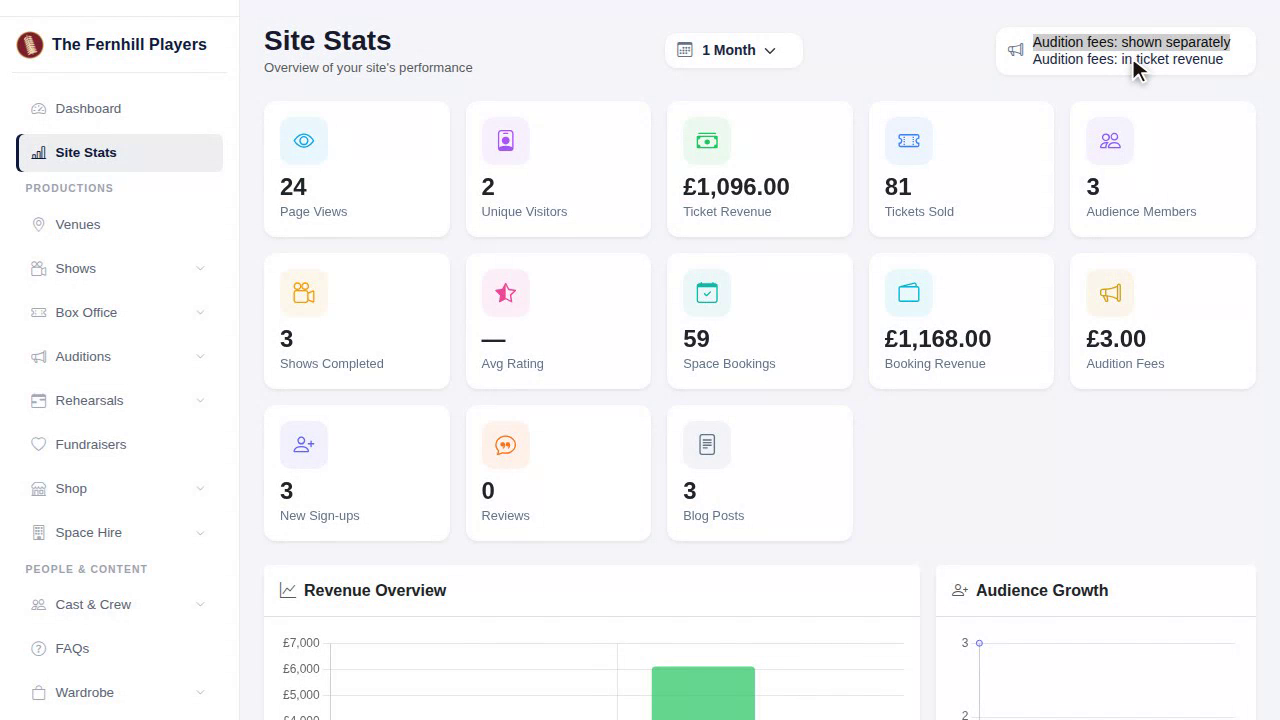
And on your stats page, audition fees can be shown separately, or counted with your ticket income, whichever your treasurer prefers.
That's the whole journey, from first application to cast list. That's the end of the course. Next season, remember Start from a previous audition, in Setting up an audition, and it'll take half the time.
This guide is part 9 of 9 in the Running auditions in TheatreHQ course.
Track your progress
Make a free account to take the quick quiz after each guide, keep your place in the course and get a certificate when you finish.