Changing your website's design
Choose a theme, set your colours and banner, and make your society's website look like yours.
Your website should look like your society. TheatreHQ gives you a choice of themes and lets you set your own colours, banner and homepage cards without touching any code. This guide shows where everything is.
1. Choose a theme
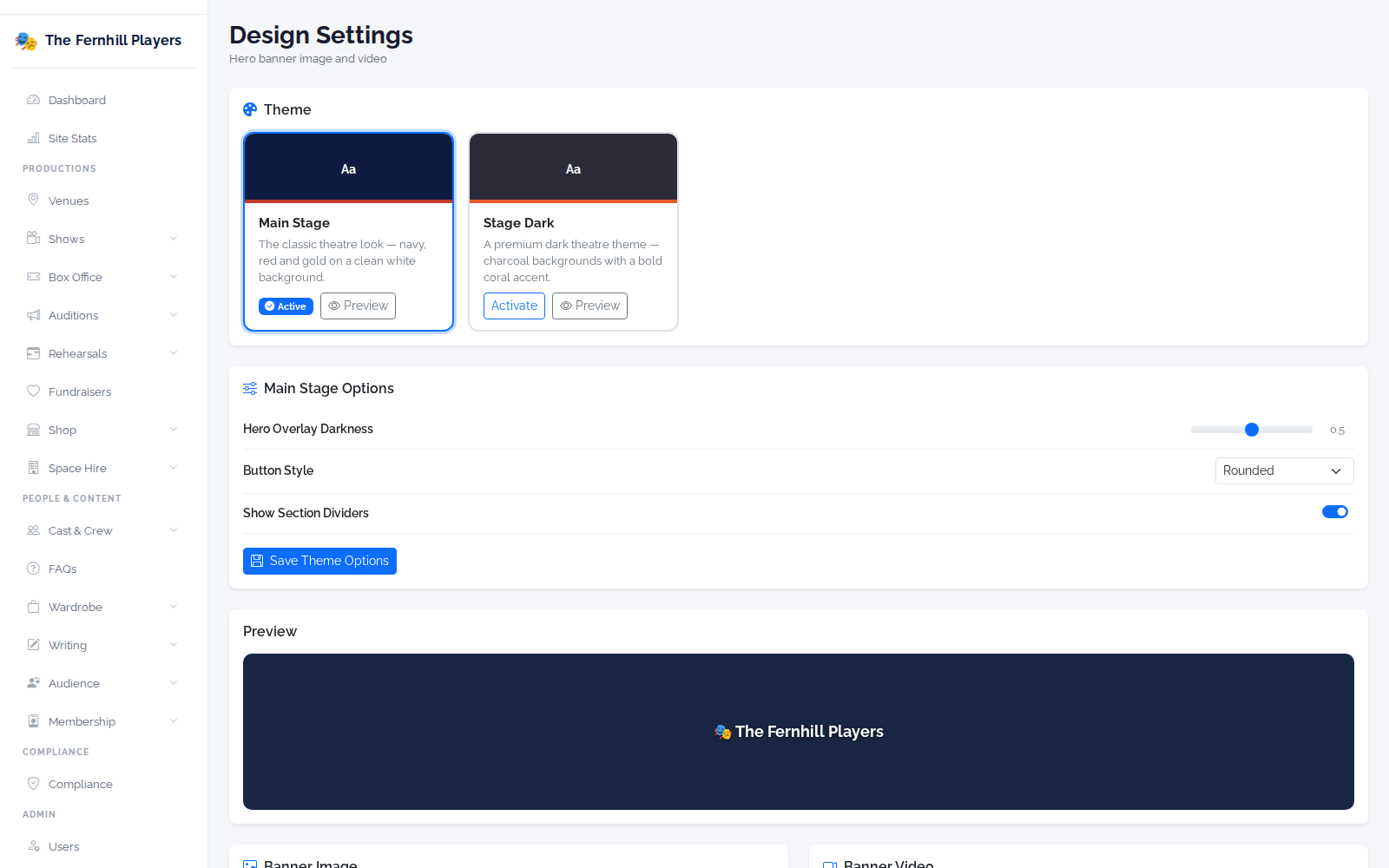
Go to Settings > Design. Under Theme, choose between Main Stage (navy, red and gold on white) and Stage Dark (charcoal with a coral accent). Use Preview to try one before clicking Activate.
Each theme has options of its own, such as how dark the banner overlay is, the button style (Rounded, Square or Pill) and whether to show section dividers. Click Save Theme Options when you're happy.
2. Set your colours
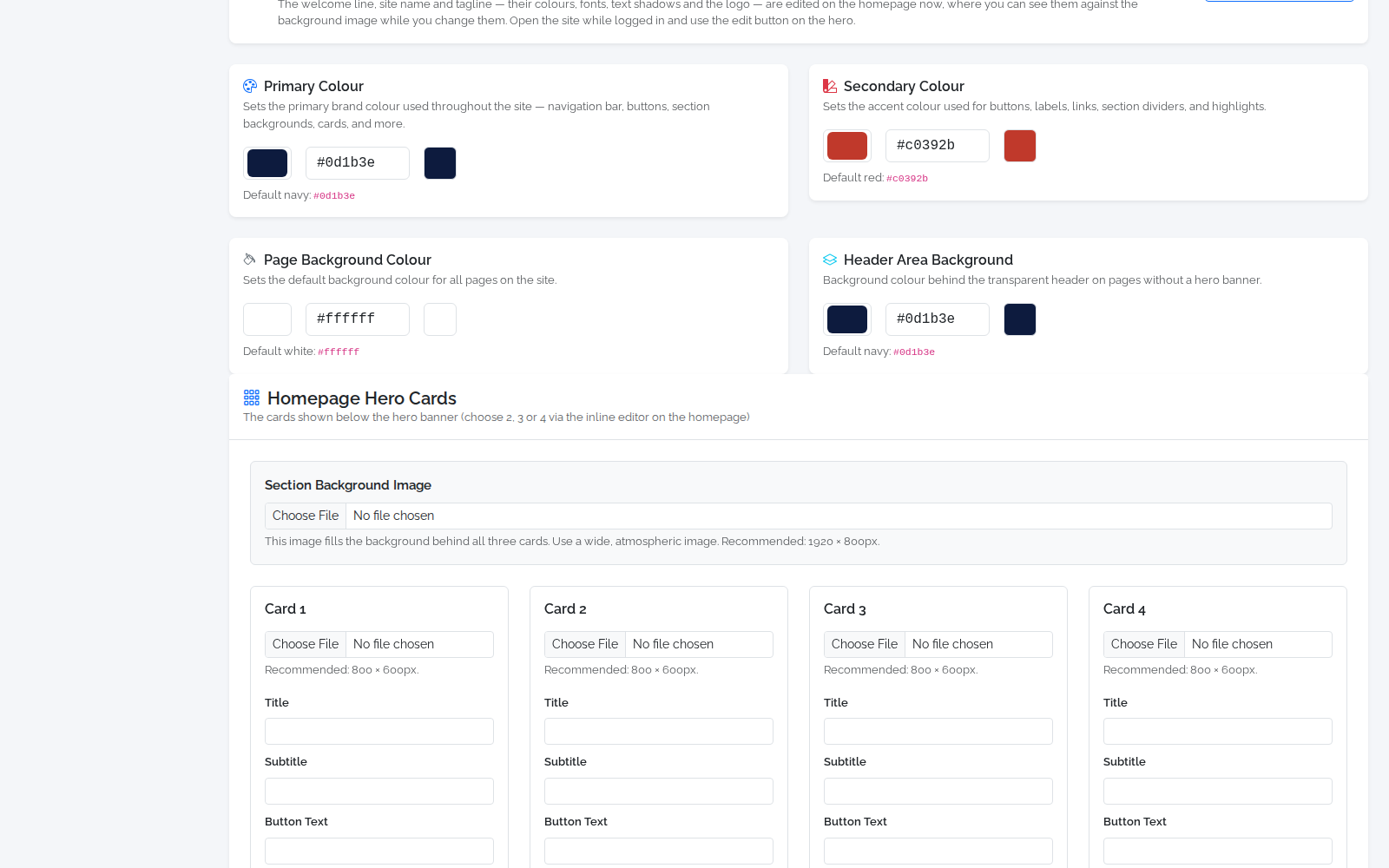
Further down, set the Primary Colour (navigation, buttons and section backgrounds), Secondary Colour (accents, links and highlights), Page Background Colour and Header Area Background. Each shows the default, so you can always go back.
3. Banner and homepage cards
Upload a Banner Image for the top of your homepage (at least 1920 × 800 pixels). A banner video and the welcome text, logo and fonts are edited directly on the homepage — use Open the homepage. The Homepage Hero Cards section sets the background image and the cards shown below the banner.
Tip: keep to one or two brand colours from your posters and programmes — a consistent look makes your society instantly recognisable.