Creating an AGM: inviting members and attaching the agenda
Set up your AGM as an activity, choose who it's for and the quorum, attach the agenda and send the notice.
TheatreHQ can run your AGM, from sending the notice to taking the register and counting the votes. This guide sets it up. This guide is part of the free course Running membership in TheatreHQ.
1. A new activity
Under Membership, open Activities and click New activity. Give it a Name, like AGM 2026, and choose the Kind: AGM, general meeting, committee meeting, directors' meeting, workshop, social, meeting or other.
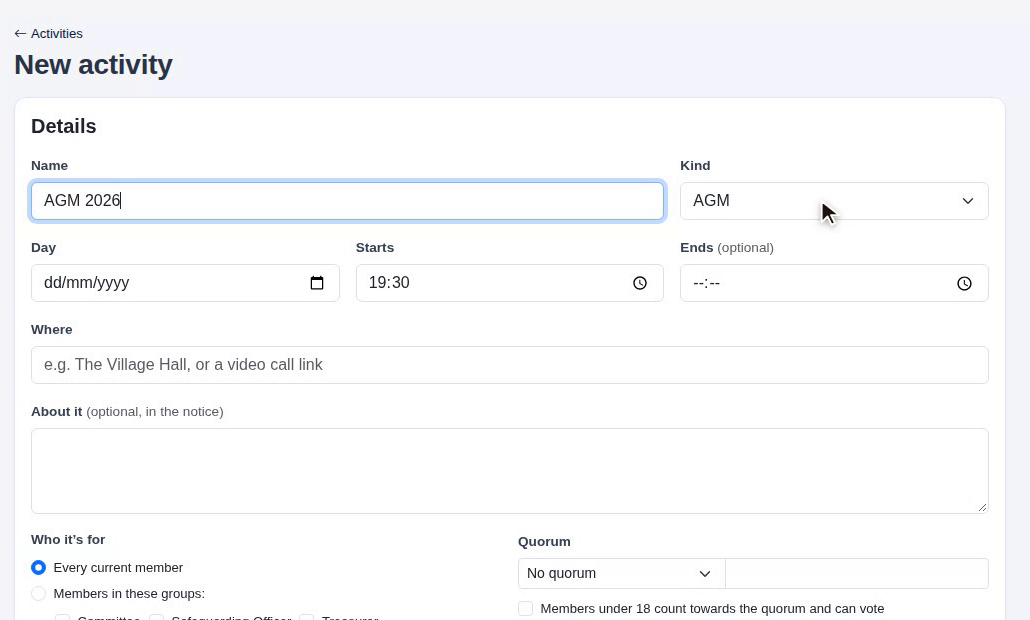
Set the Day, the Starts time (and Ends, if you like) and Where it is. About it is a few words for the notice.
2. Who it's for, and the quorum
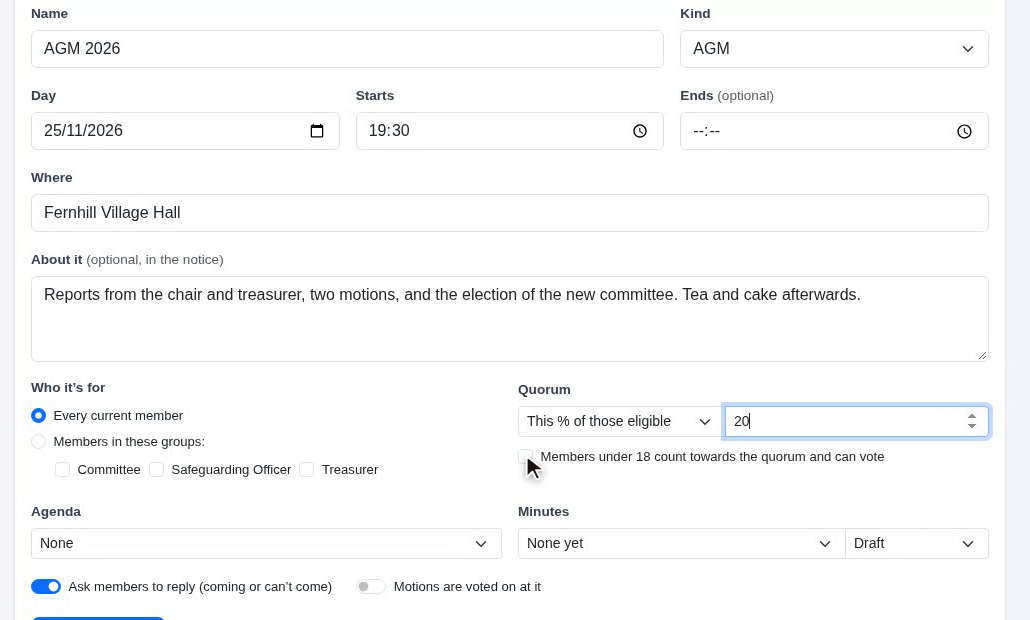
Under Who it's for, choose Every current member or Members in these groups. For the Quorum, pick No quorum, This many people or This % of those eligible, and tick Members under 18 count towards the quorum and can vote if your constitution says so.
3. The agenda, and motions
Upload the agenda to Documents first, then pick it under Agenda. Leave Ask members to reply (coming or can't come) on, switch on Motions are voted on at it if there are any, and click Add the activity.
4. Sending the notice
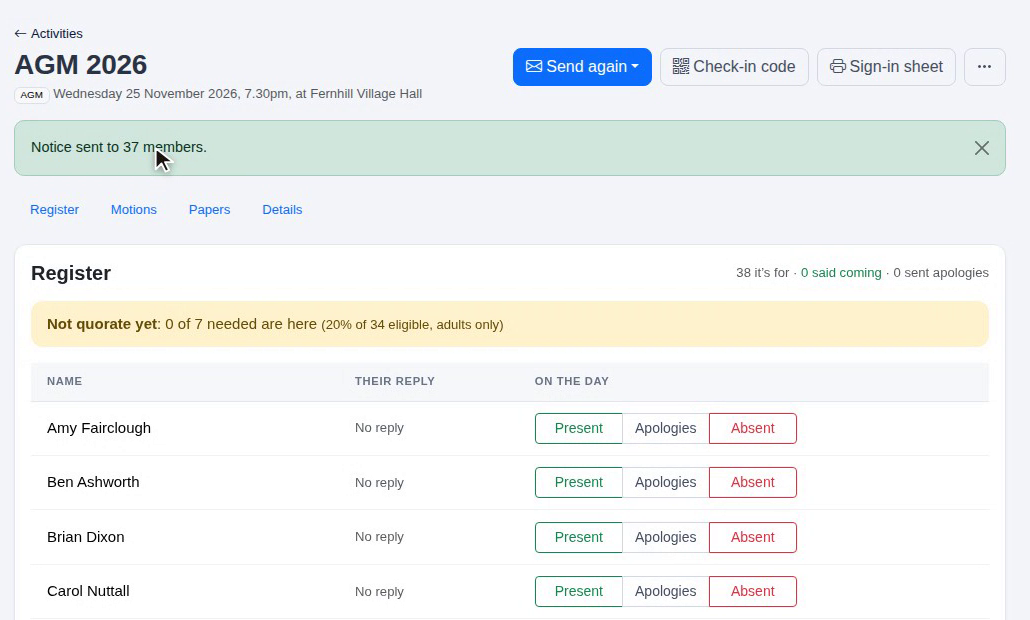
When you're ready, click Send the notice. Everyone it's for gets an email with the details and the agenda, and can reply I'm coming or I can't come straight from the email. You can add a note, and later use Send again for a reminder.
5. Replies
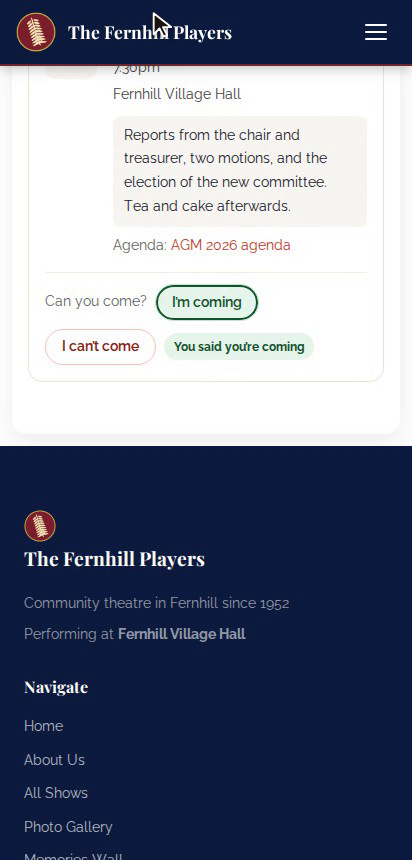
Members can also reply in My activities, in the members' area. Every reply shows on the register, under Their reply, with how many said they're coming and how many sent apologies.
Track your progress
Make a free account to take the quick quiz after each guide, keep your place in the course and get a certificate when you finish.