Edit your members as a grid: changing cells, copy and paste, fill down, undo
Edit every member like a spreadsheet: change cells as you go, paste columns from Excel or Google Sheets, fill down, drag to fill and undo.
Edit as a grid shows every member as a row, like a spreadsheet, only quicker and safer: every change is checked, saved as you go, and recorded on the member's History tab. This guide is part of the free course Running membership in TheatreHQ.
1. Open the grid
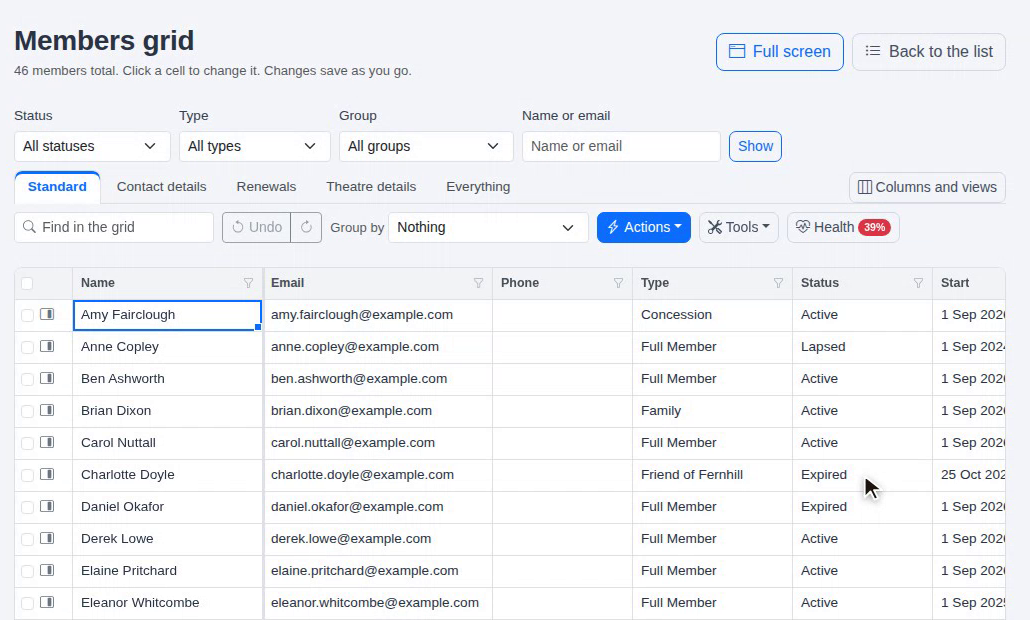
On All members, click Edit as a grid. Each column is a detail. The tabs along the top switch between ready-made sets of columns: Standard, Contact details, Renewals, Theatre details and Everything. Colours show end dates passed, ends within 30 days, emails used twice, needed but empty, and cells just changed by someone else.
2. Change a cell
Click a cell and type, then press Enter. It saves straight away. If another admin changes a member while you're working, their change appears in front of you, and the grid won't overwrite a change someone else made since you opened it: it asks whether to Keep theirs or Use mine.
3. Paste from Excel or Google Sheets
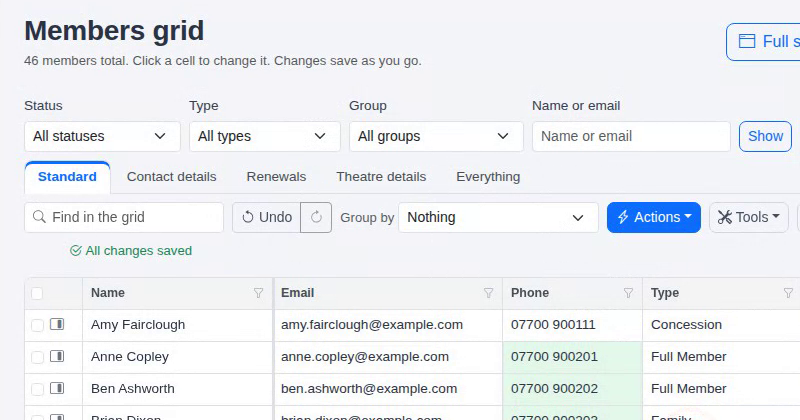
Copy a column (or a block) in your spreadsheet, click the first cell in the grid, and paste with Ctrl+V. Check before saving lists every change, from what's there Now to what it Will be. Click Save these changes. You can copy cells out of the grid into Excel the same way.
4. Fill down
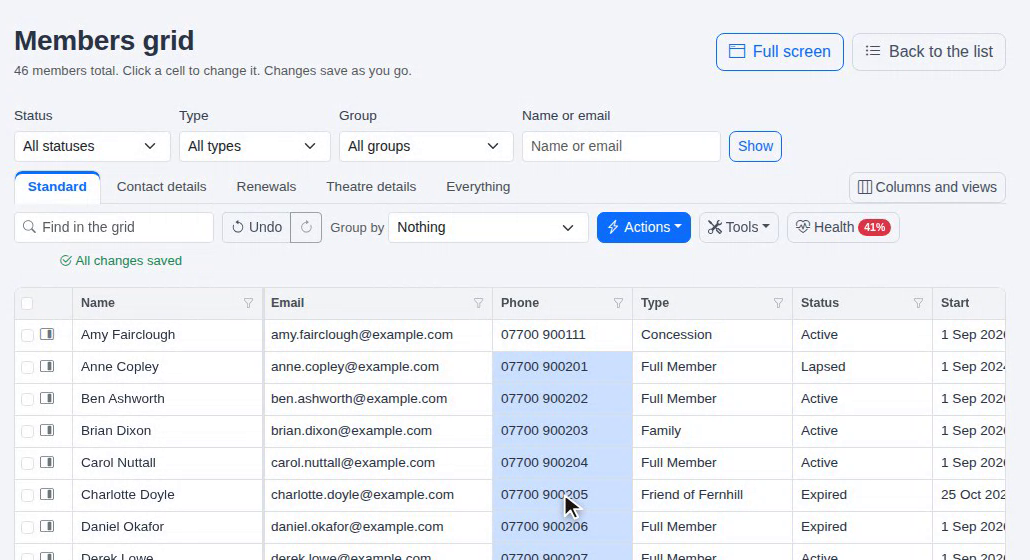
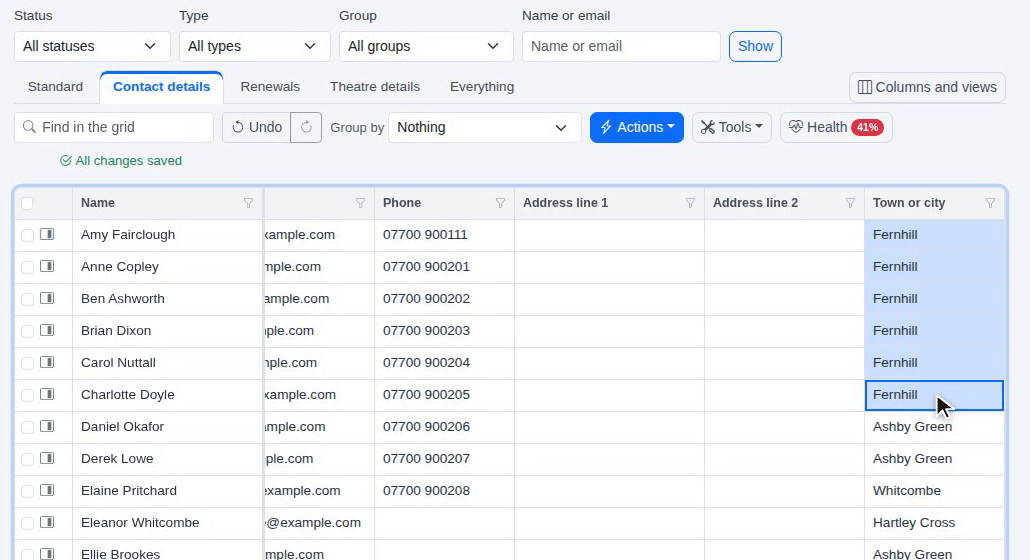
To copy a value down, pick the cells (click the first, Shift-click the last) and press Ctrl+D, or drag the small square on the corner of a cell, just as in Excel.
5. Undo, redo and the right-click menu
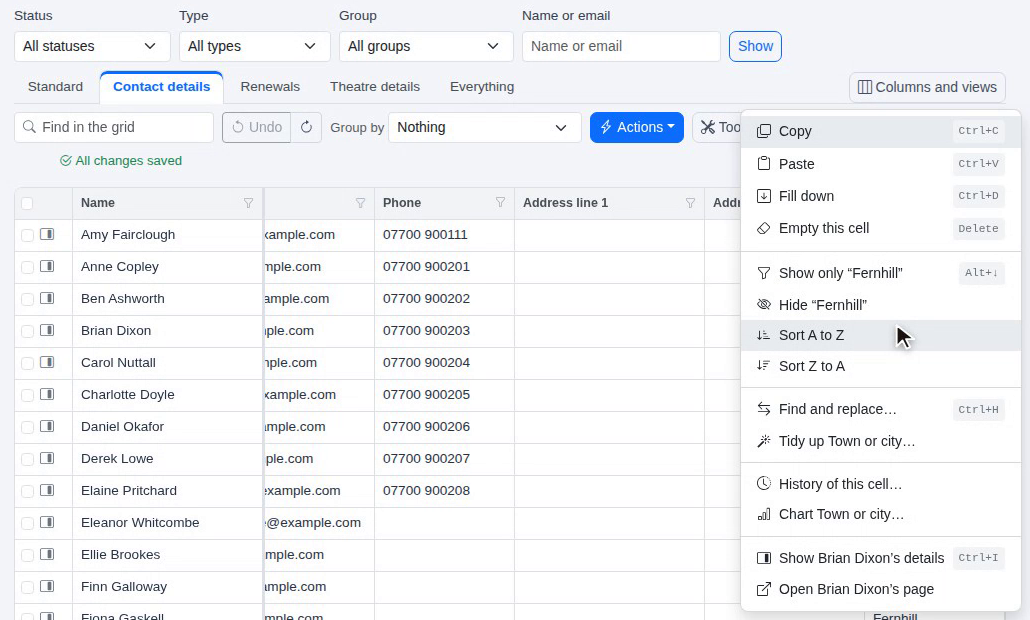
Undo (Ctrl+Z) puts a change back, and redo (Ctrl+Y) puts it back again. Right-click a cell for Copy, Paste, Fill down, Empty these cells, quick filters and sorts, Find and replace, History of this cell and more. Tools > Keyboard shortcuts lists them all.
Track your progress
Make a free account to take the quick quiz after each guide, keep your place in the course and get a certificate when you finish.