How candidates apply, and their audition page
What your candidates see, on a computer and on a phone: finding your auditions, applying, and their own audition page with slots, fees, pieces, the On the day guide, a lost link, the emailed code and the guardian view.
This guide shows how to see auditions from the candidate's side: finding them on your website, applying, and their own audition page. It works the same on a computer and on a phone, so we'll show you both. The video above shows the same steps, using the demo audition for Abigail's Party.
1. The auditions page
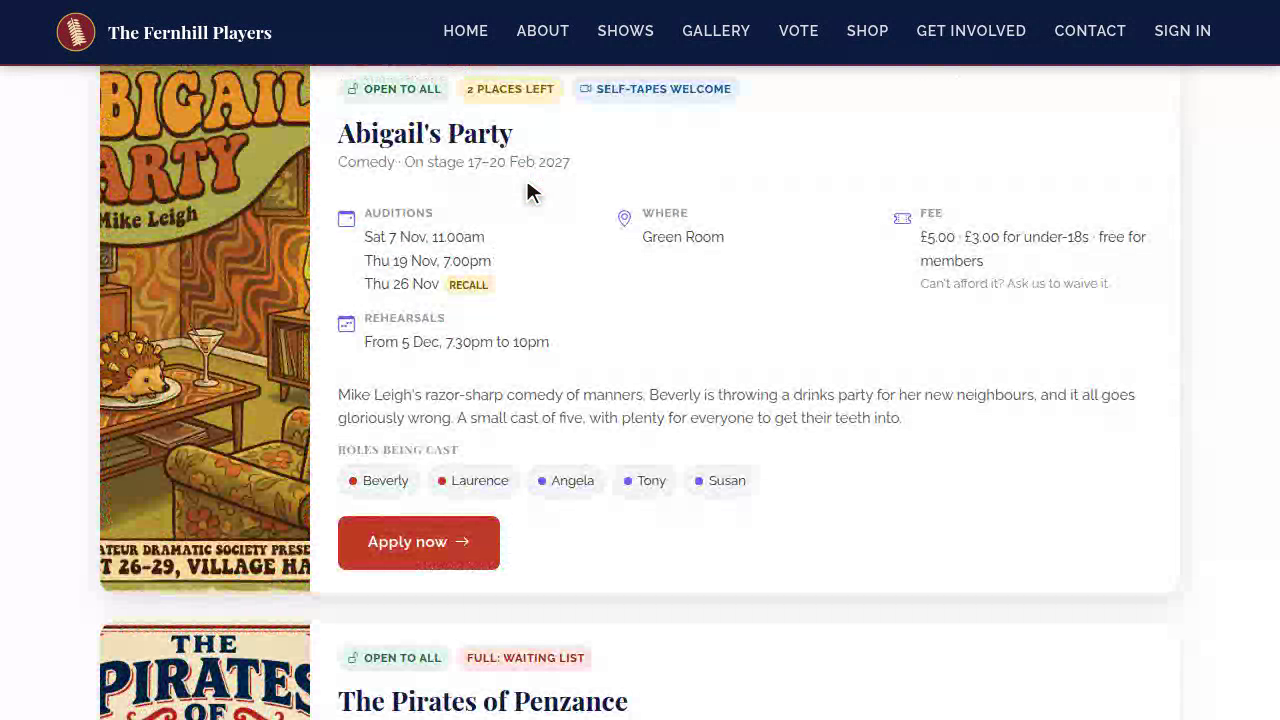
Your Auditions page lists every open audition, with the dates, the venue, the fee and the roles being cast. Labels show at a glance who it's for, whether self-tapes are welcome, and if places are running out.
2. About you
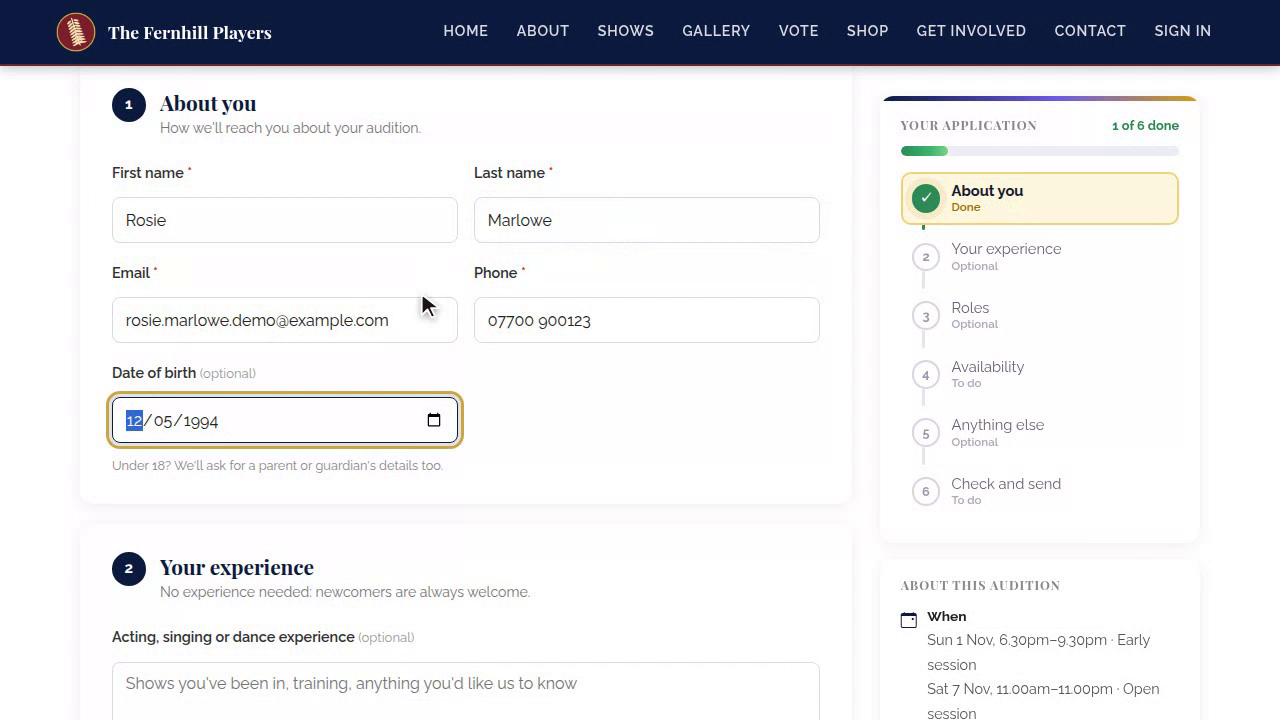
The form starts with their details. The panel down the side shows every step, and ticks each one off as it's done.
3. Experience
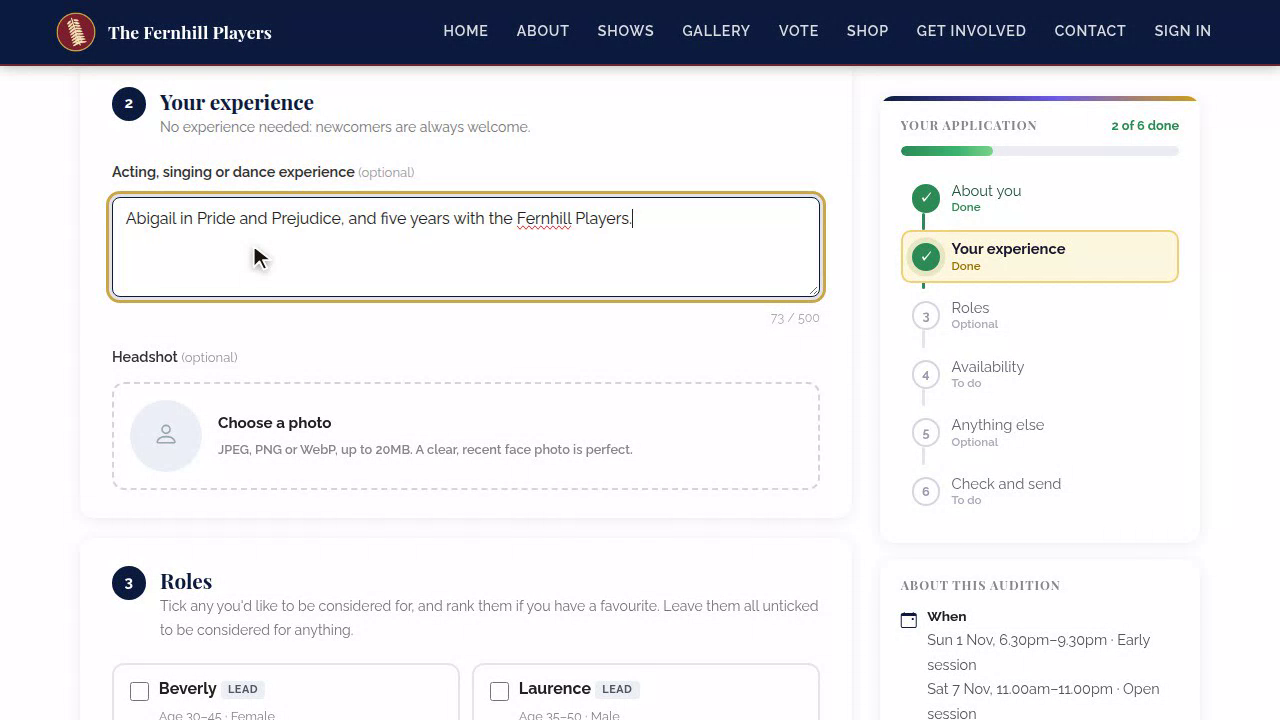
Next, a little about their experience, and a headshot photo, straight from their phone or computer.
4. Roles
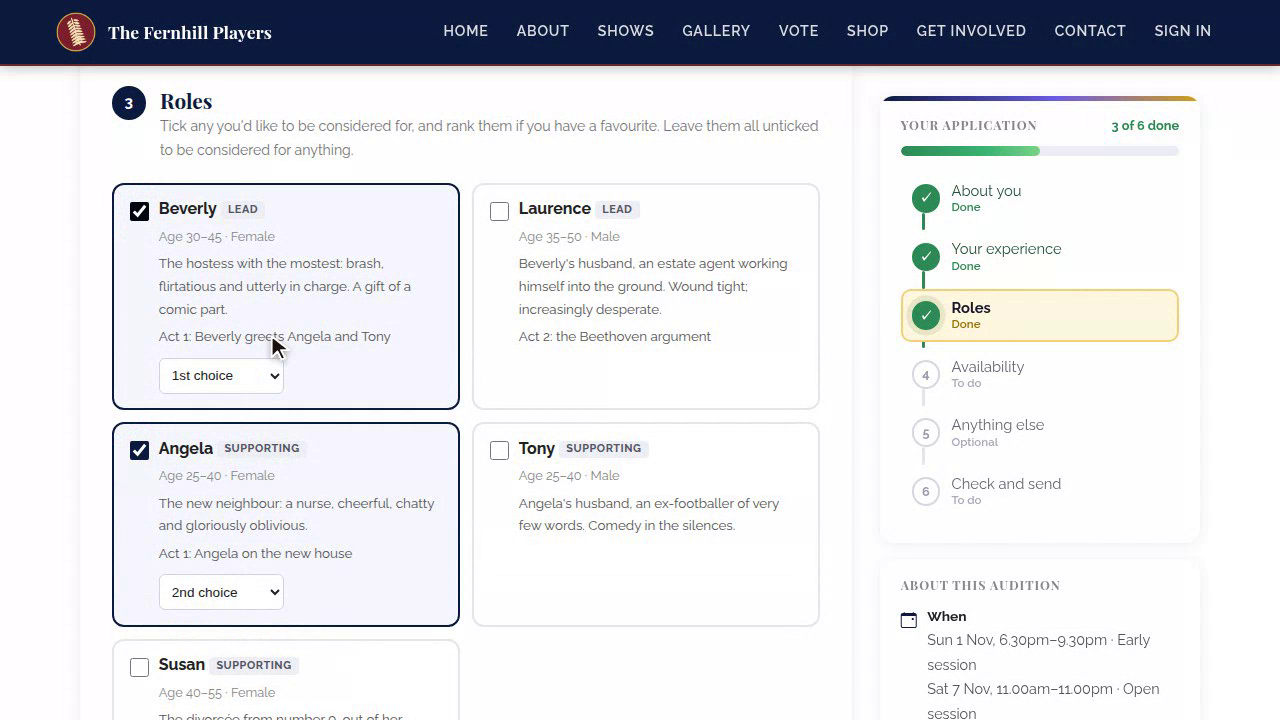
Then the roles. They tick the parts they'd like, and put them in order. The sides for each role appear, ready to download.
5. Availability
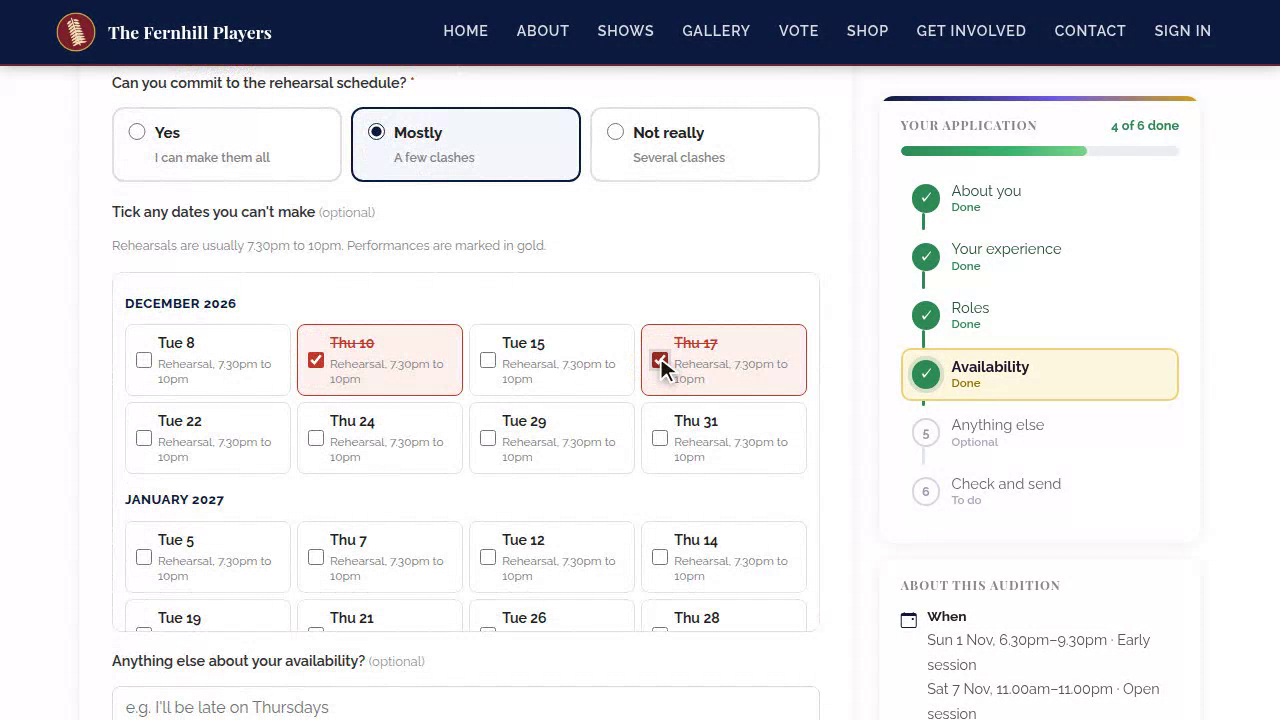
Under Availability, they tick any rehearsal dates they can't make. You'll see every clash in one place before you cast.
6. Anything else
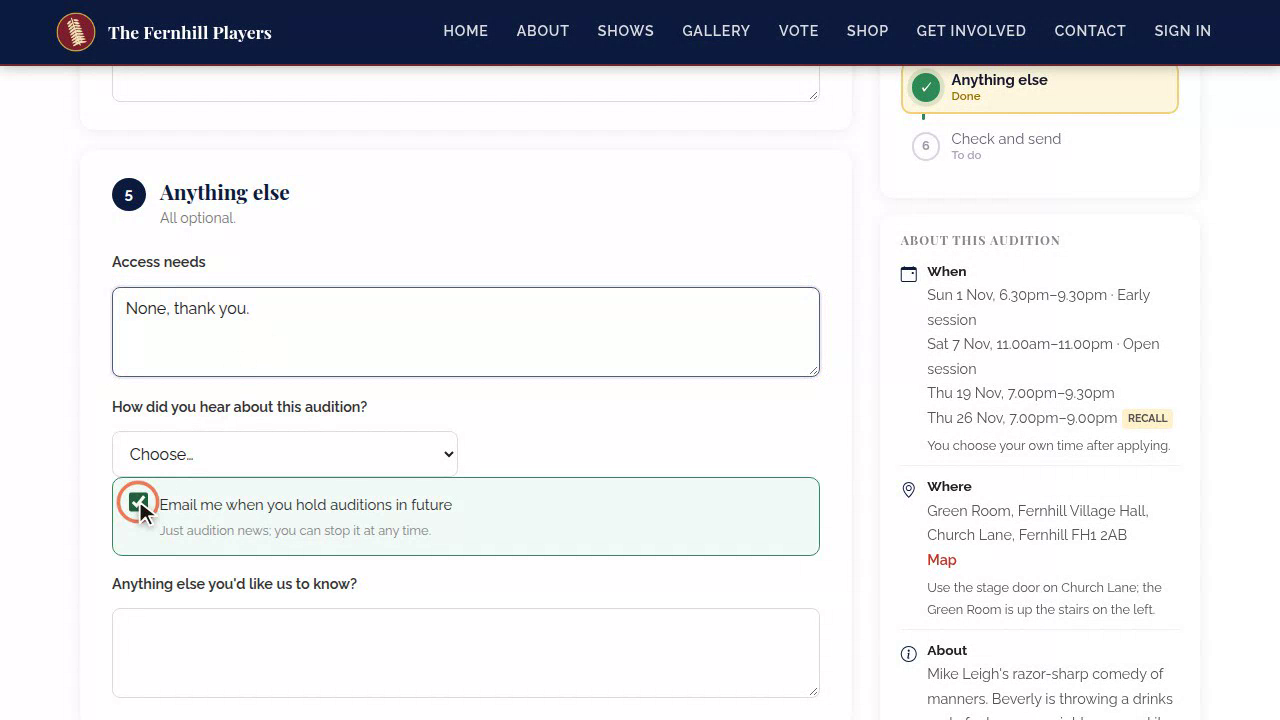
Anything else is for access needs, and they can ask to hear about future auditions, too.
7. Check and send
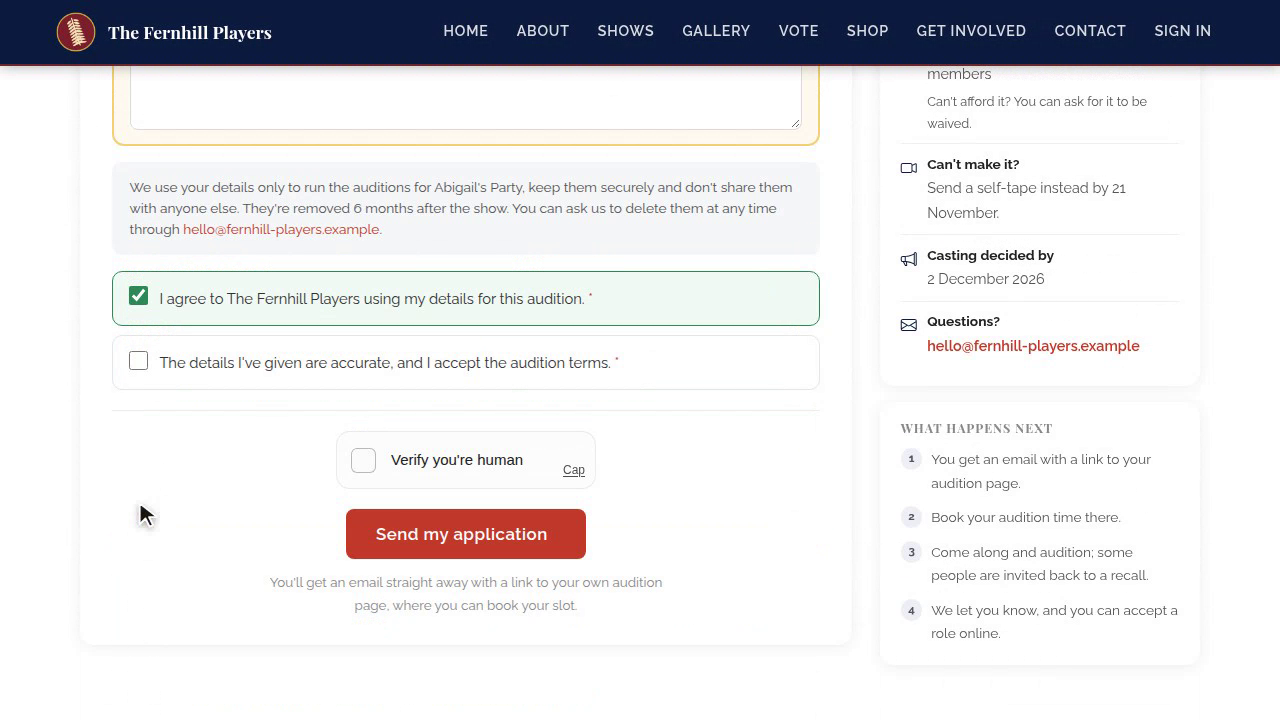
Finally, they check everything, see the fee, and agree to the privacy notice. If the fee's a problem, they can ask for it to be waived, here. When it's all done, the curtain comes up, with a round of confetti.
8. Send and confirmation
They press Send my application, and they're done. They see Application received, with a link to their own audition page, and the same link arrives by email.
9. Waiting list
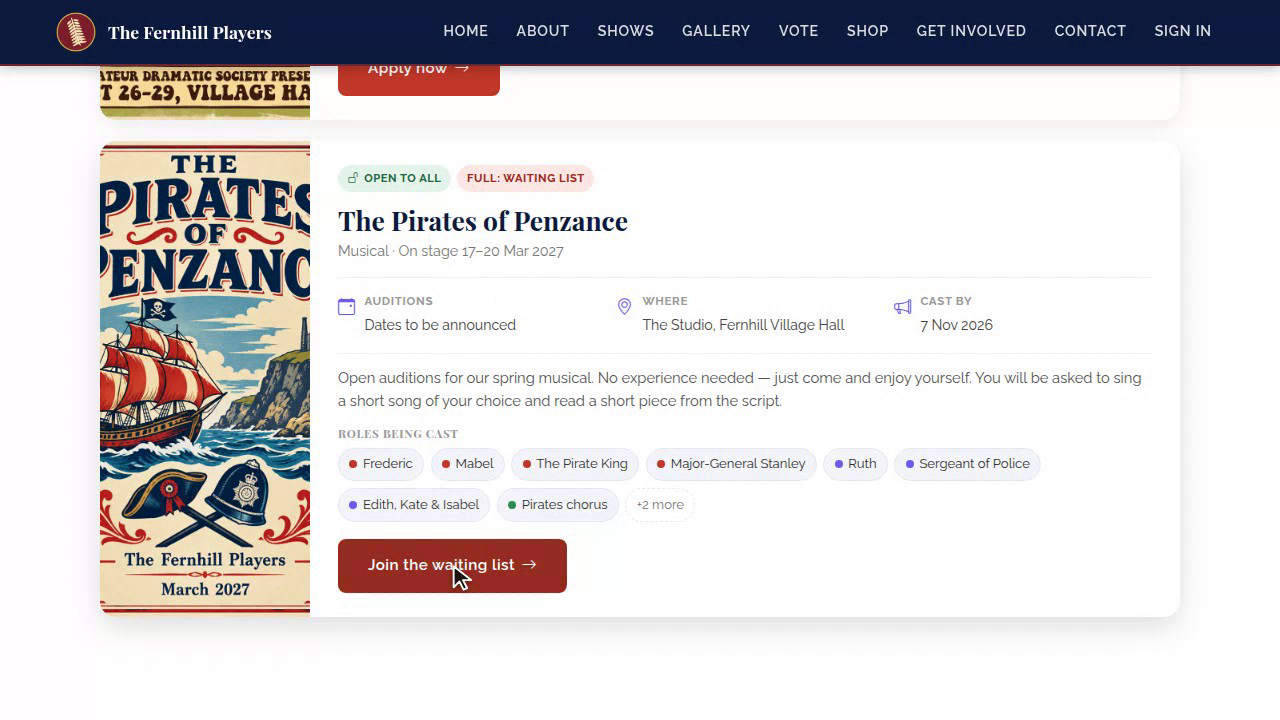
If an audition is full, the button says Join the waiting list instead, and they're told if a place comes up.
10. Opening it
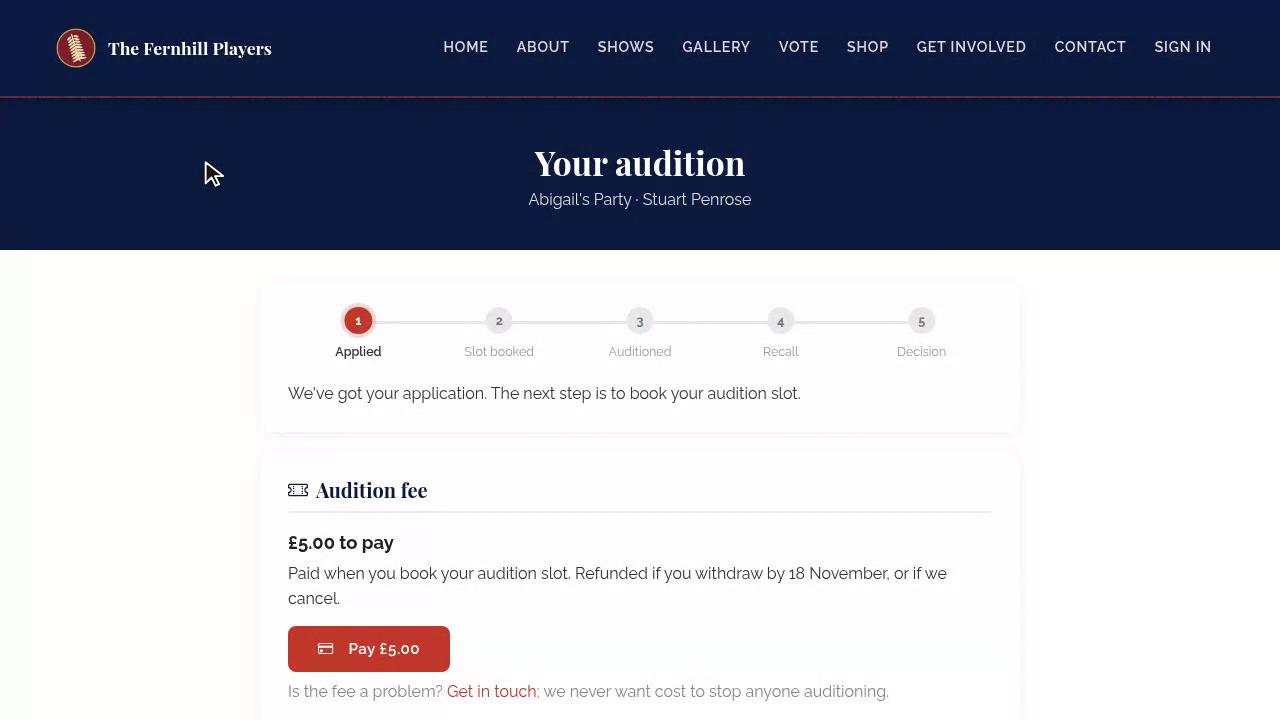
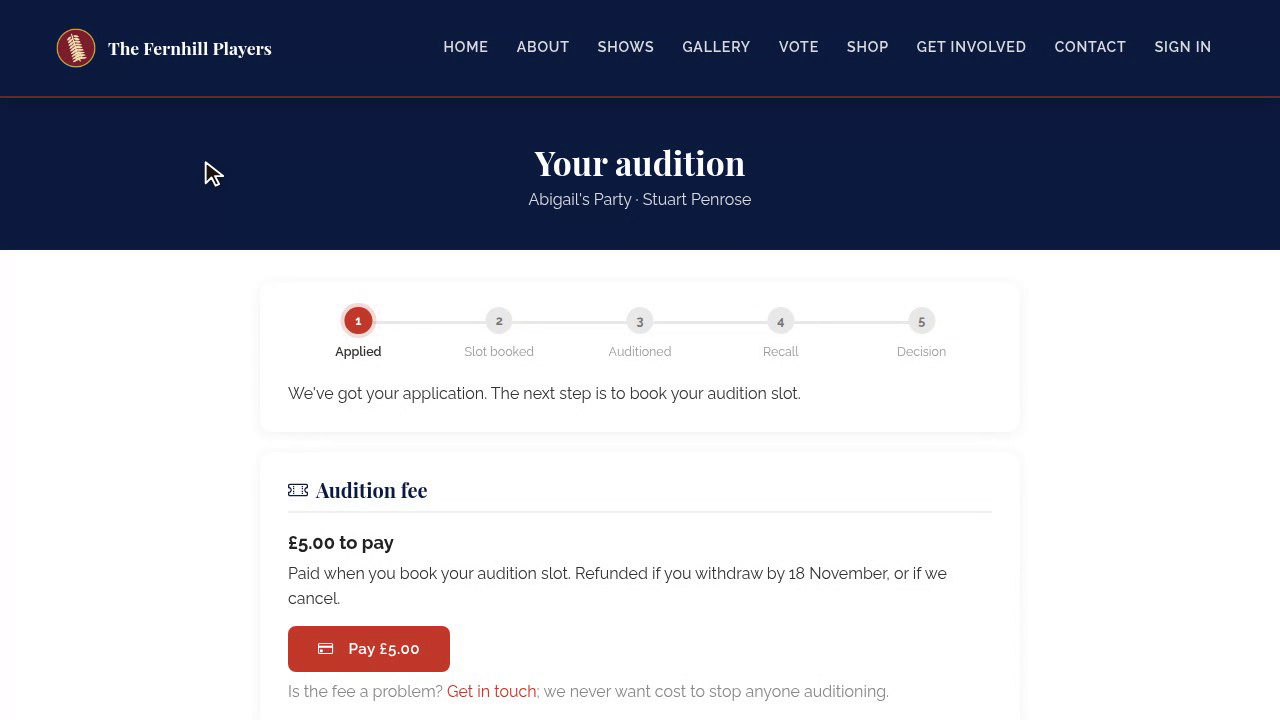
Once they've applied, they have their own audition page. The link is in every email they get from you. It opens their audition page, with their progress across the top: applied, slot booked, auditioned, recall and decision.
11. Fee and slot
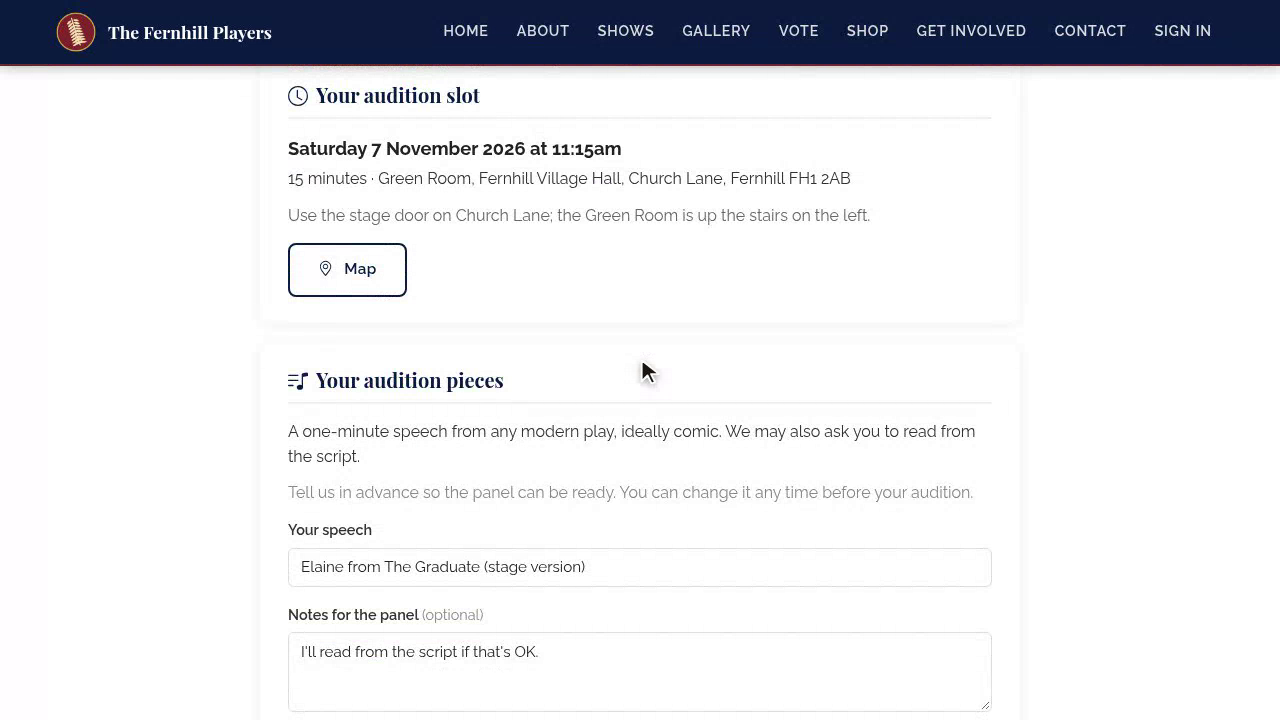
If there's a fee, they pay it here. Then they book their slot, choosing a time that suits them, add it to their calendar, and open a map to the venue. If nothing suits, they can ask to be told when a slot frees up.
12. Pieces
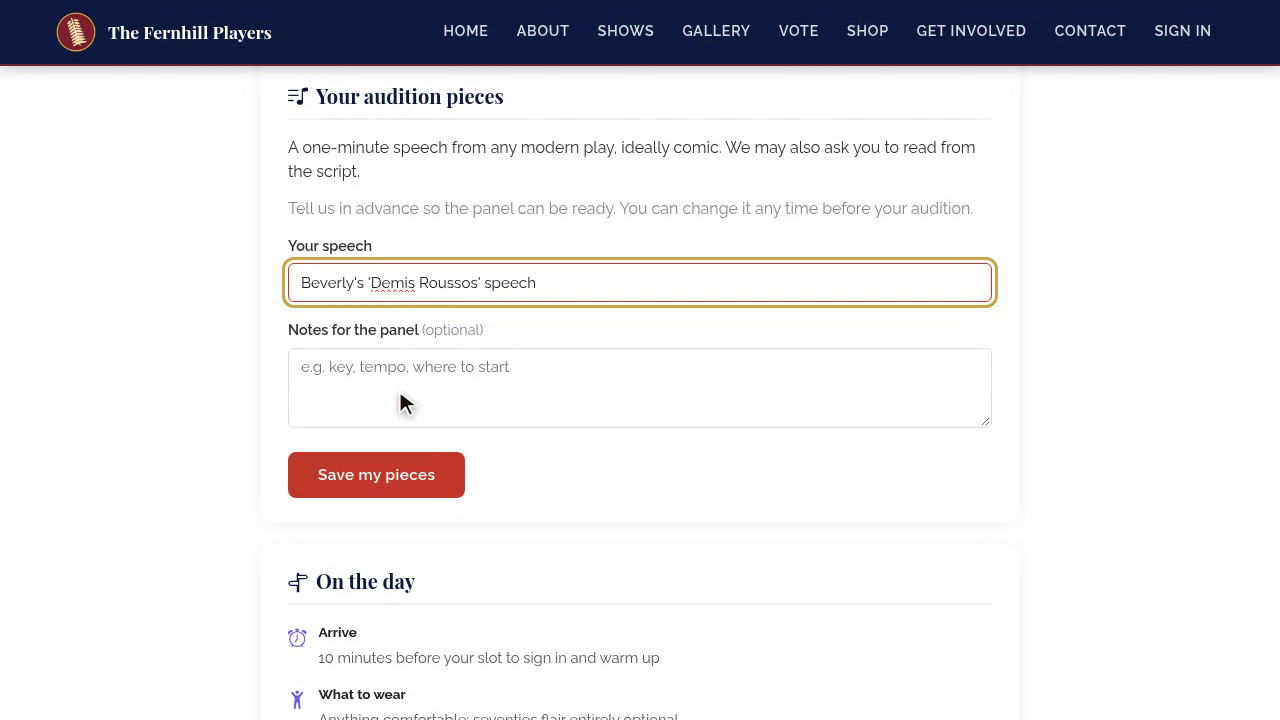
Under Your audition pieces, they tell you their song and speech, and upload sheet music or a backing track for your pianist.
13. On the day and sides
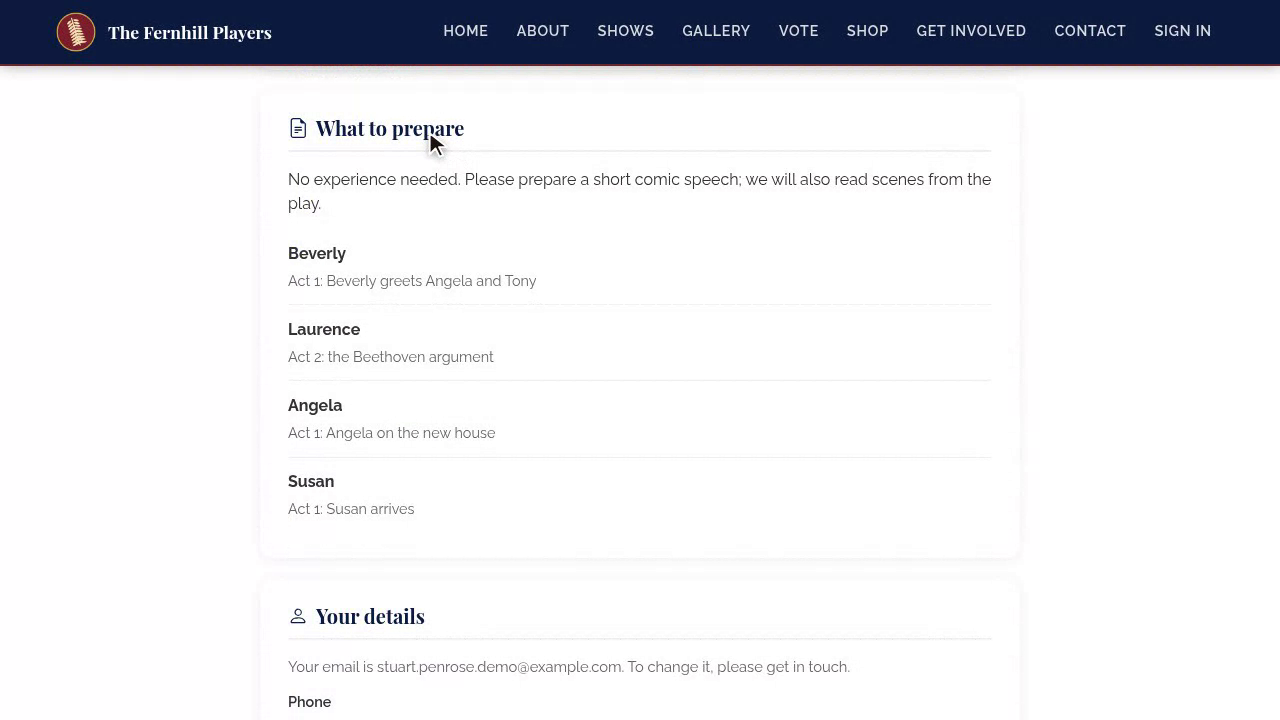
The On the day guide tells them when to arrive, what to bring, and where to park, and What to prepare has the sides for the roles they chose.
14. Details and withdraw
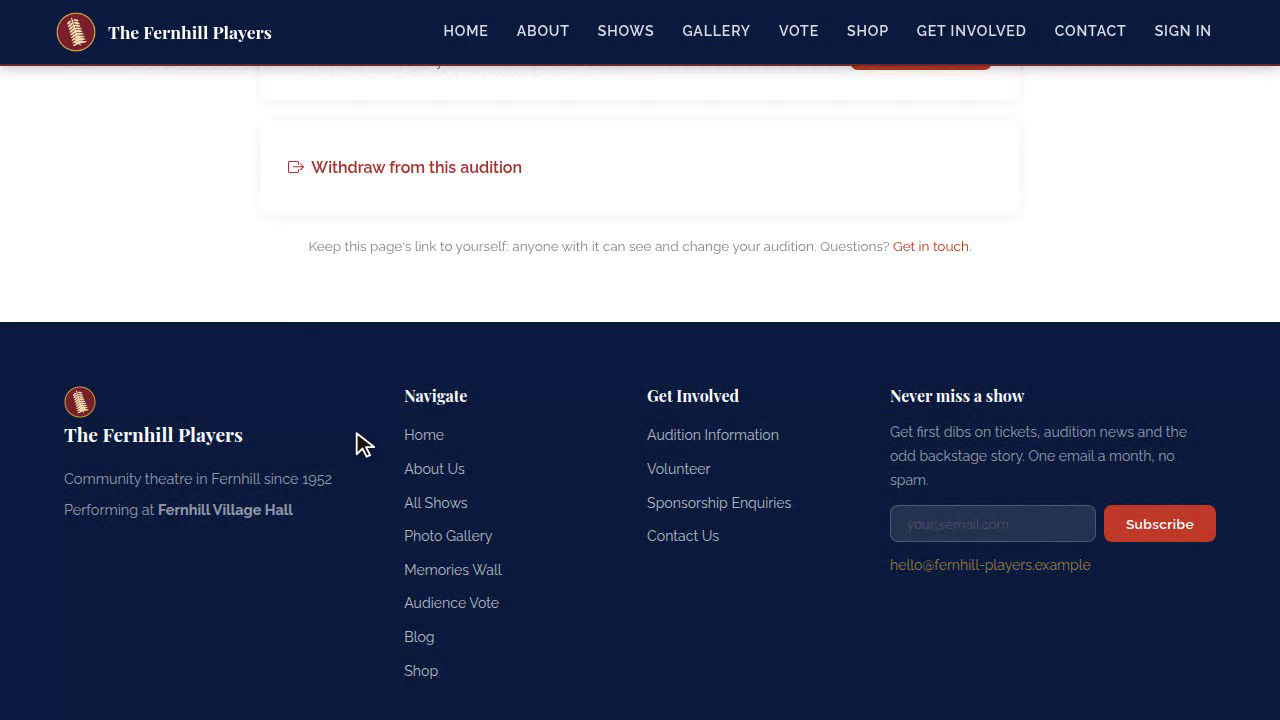
They can update their details at any time, and if they can no longer make it, withdraw, which frees up their slot for someone else.
15. Lost the email
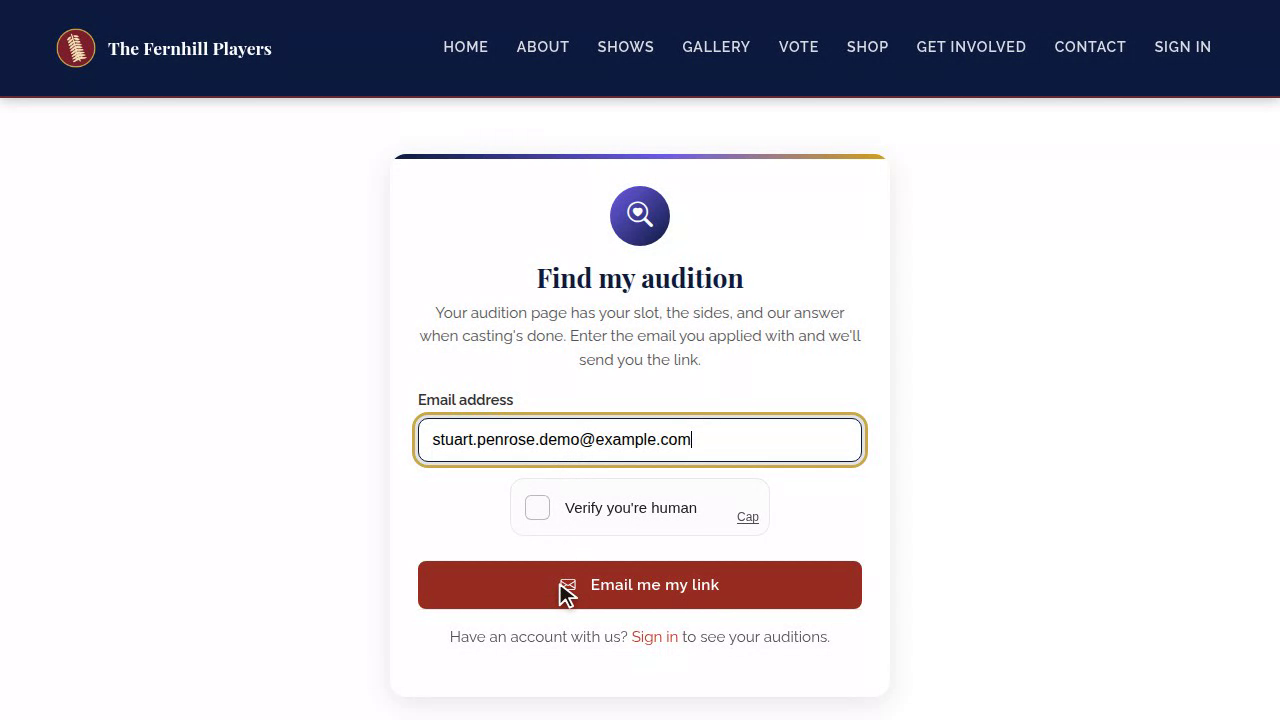
Lost the email? On your Auditions page, Find my audition sends their link again. It says the same thing whether or not they've applied, so it never gives anything away.
16. The emailed code
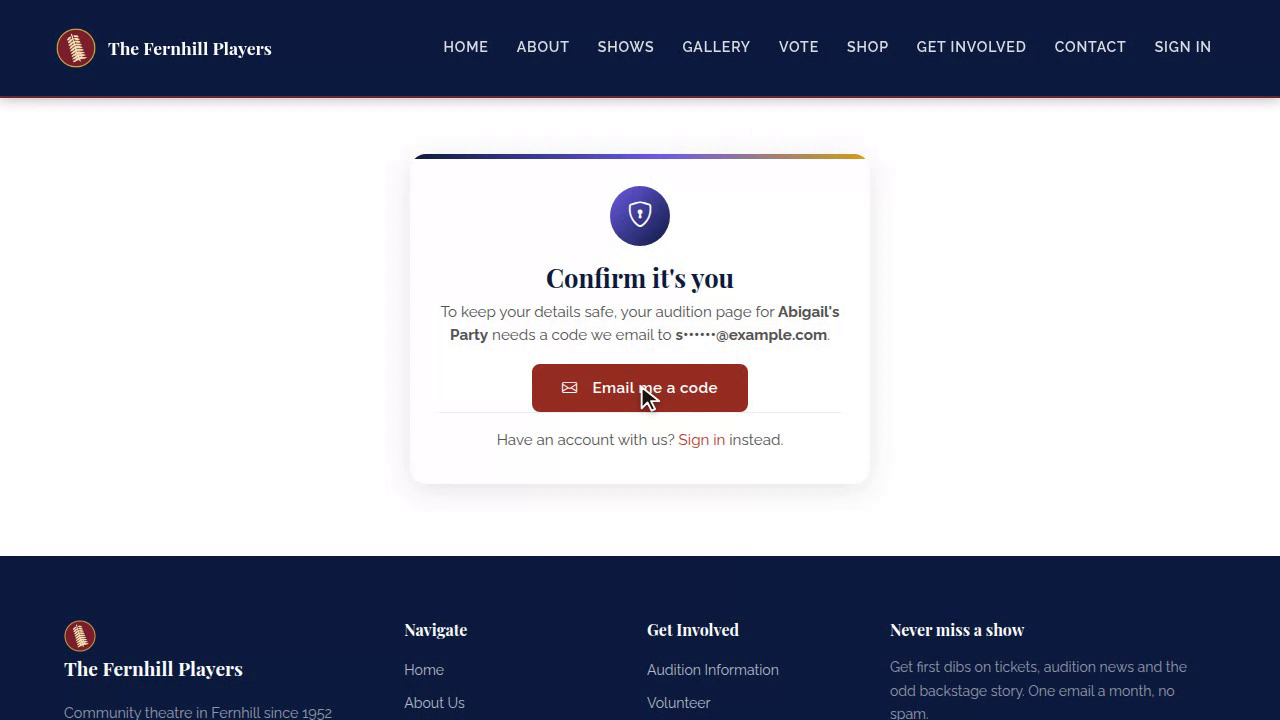
If you've chosen the emailed code, which is good for youth productions, they're sent a six-digit code before the page opens. Anyone signed in to their account skips this step.
17. Parent or guardian
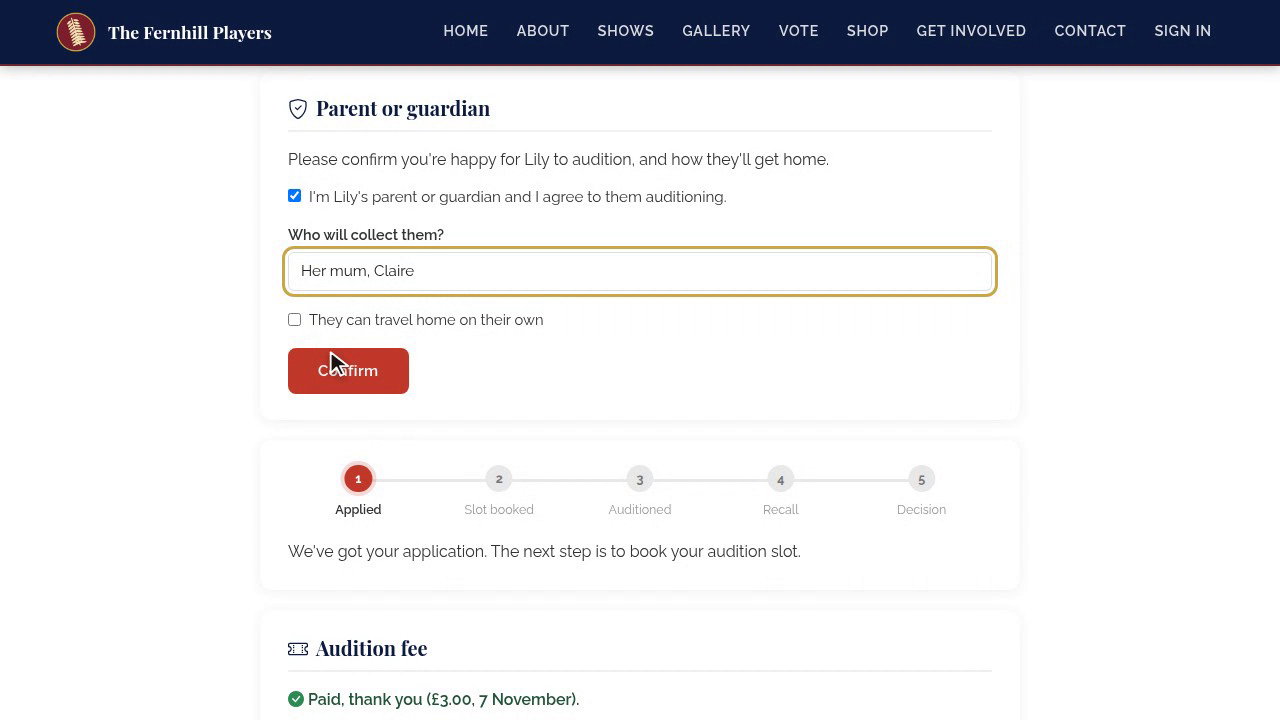
For under-eighteens, their parent or guardian gets their own link, and a copy of every email. On it, they give their consent, and tell you who will collect them, or that they can travel home on their own.
Next in the course: Audition day and offers: what candidates see.
This guide is part 5 of 9 in the Running auditions in TheatreHQ course.
Track your progress
Make a free account to take the quick quiz after each guide, keep your place in the course and get a certificate when you finish.