Importing members from a spreadsheet or Membermojo
Bring your members across from a spreadsheet or a Membermojo export, check every row before it is saved, and keep families and Gift Aid declarations.
Moving from a spreadsheet, or from Membermojo? You can bring all your members across in one go. Nothing is saved until you've checked it, and nobody is emailed unless you choose to. This guide is part of the free course Running membership in TheatreHQ.
1. Upload your file
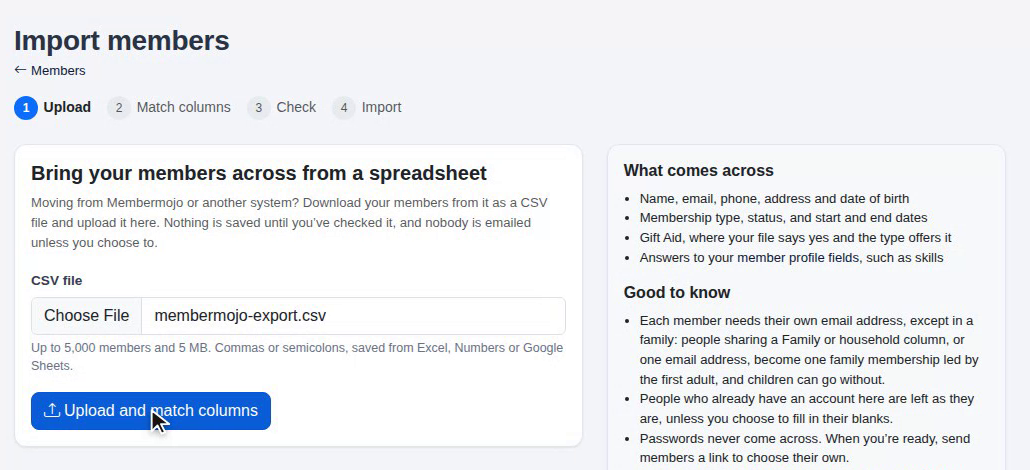
Save your members as a CSV file (from Excel, Numbers, Google Sheets, or Membermojo's members export). Go to Membership > Import members, choose the CSV file and click Upload and match columns. Up to 5,000 members and 5 MB; commas or semicolons both work.
2. Match the columns
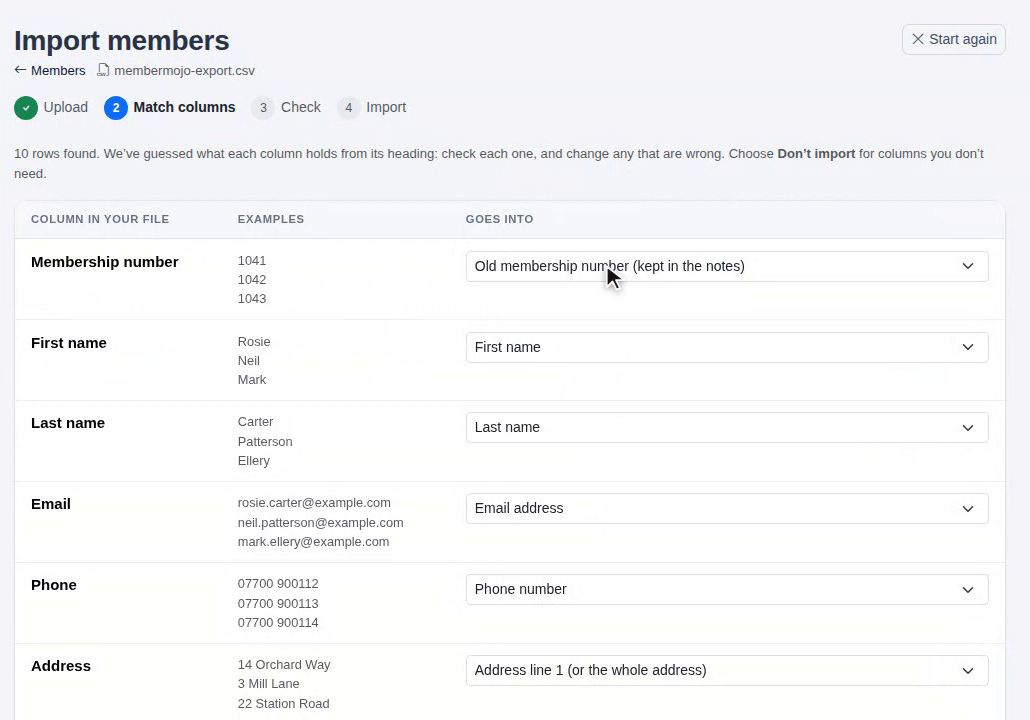
TheatreHQ guesses what each column holds from its heading, with a few examples from your file. Check each one under Goes into, change any that are wrong, or choose Don't import. Your own member profile fields, such as Skills, can be filled in too, and an old membership number is kept in the notes. Click Next: check the members.
3. Check
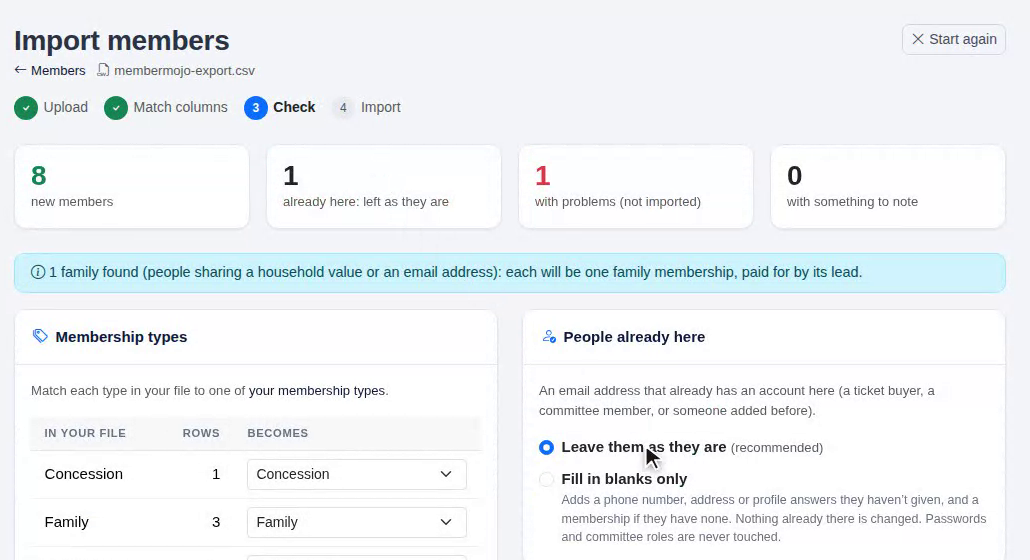
The check shows what will happen before anything is saved: how many new members, who's already here, rows with problems, and rows with something to note. Under Membership types, match each type in your file to one of yours, and choose what happens to rows with no type.
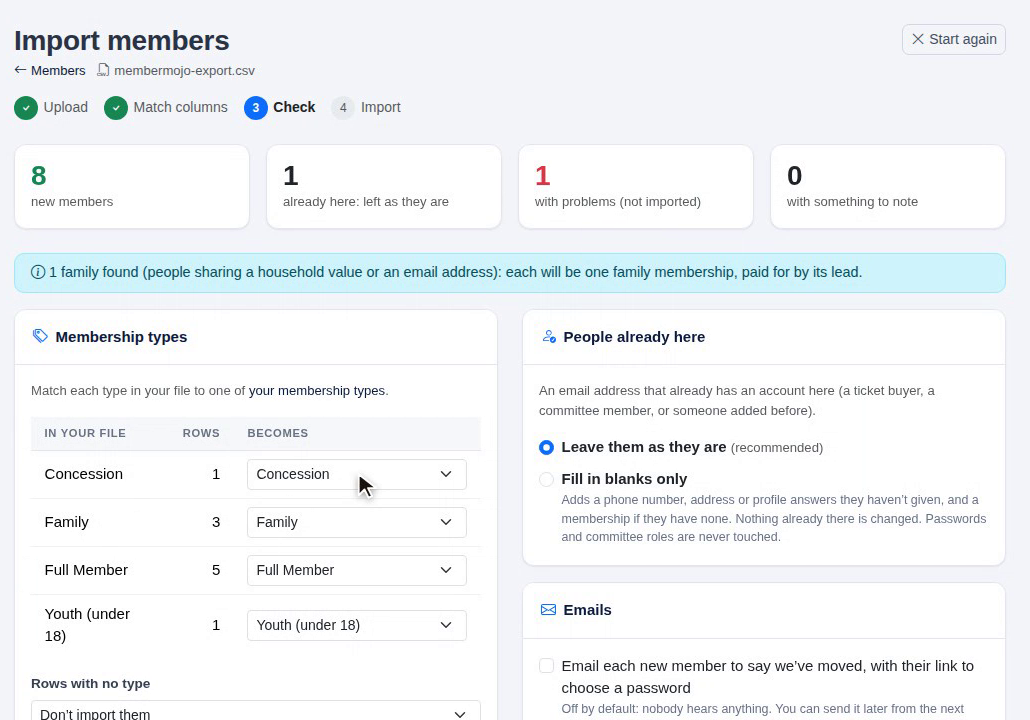
- Families: rows that share a Family or household value, or an email address, become one family membership led by the first adult. Children can come in without an email of their own.
- Gift Aid: a yes or no, and the declaration date, come across where the type offers Gift Aid.
- Dates: day-first dates (31/08/2027) are read correctly, and so are clearly month-first ones. Where a row has no end date, it's worked out from the type.
- People already here: left as they are (recommended), or choose Fill in blanks only to add a phone number, address or profile answers they haven't given, and a membership if they have none. Passwords and committee roles are never touched.
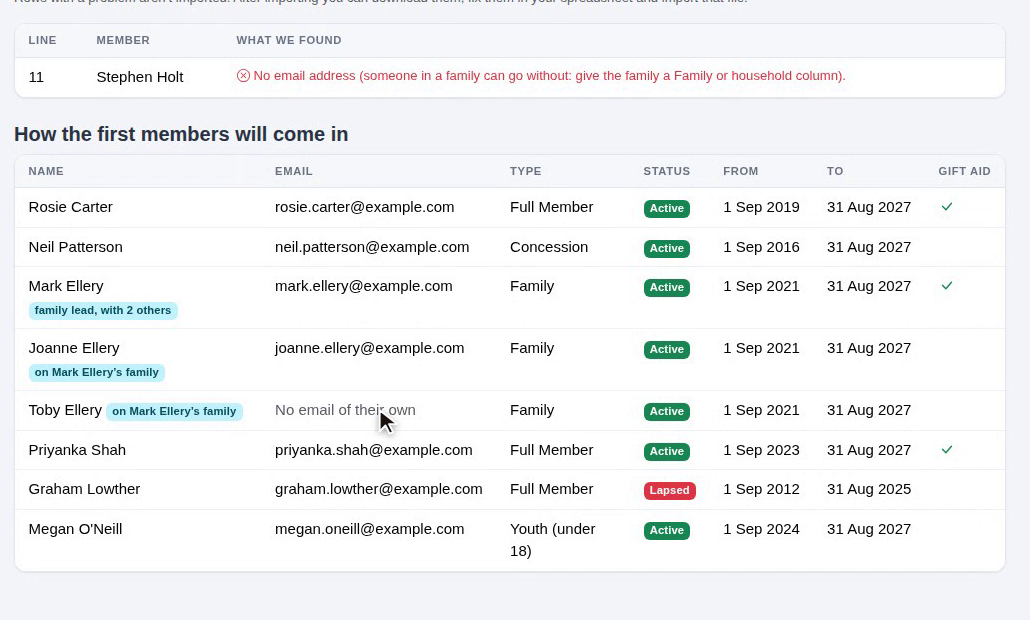
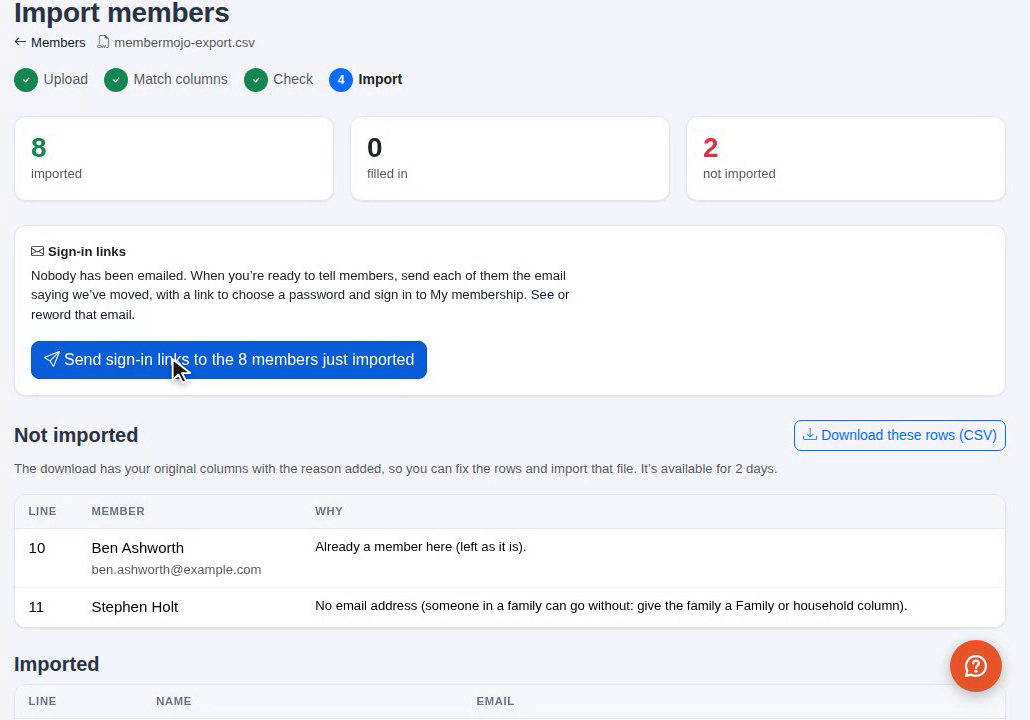
Rows that need a look lists anything that won't come in, such as a member with no email address who isn't in a family. You can download those rows after importing, fix them, and import that file.
4. Import
Leave Email each new member to say we've moved unticked if you're not ready to tell anyone, and click Import. You'll see how many were imported, filled in and not imported. When you're ready, click Send sign-in links to the members just imported; the email it sends is Membership Brought Across in Member emails, which you can reword.
Tip: importing the same file again leaves the members already here as they are, so it's safe to run it twice.
Track your progress
Make a free account to take the quick quiz after each guide, keep your place in the course and get a certificate when you finish.