Membership consents and your own joining questions
Ask new members for the permissions you need, like photos, and your own questions, like what they would like to help with, and see who gave each consent and when.
When people join, you'll want their permission for things like photos, and to ask your own questions, like what they'd like to help with. Both are set up under Membership. This guide is part of the free course Running membership in TheatreHQ.
1. Consent types
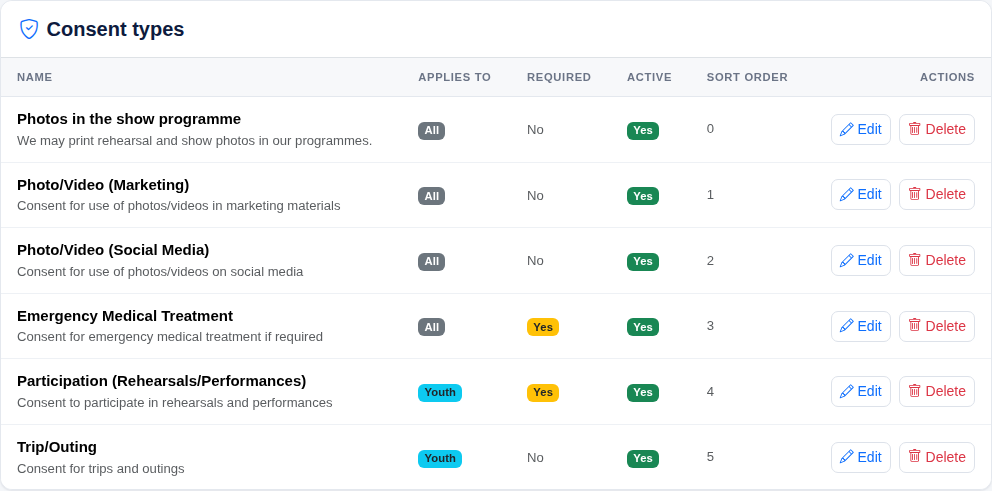
Go to Membership > Consent types. Each consent is something members are asked to agree to, such as photos for marketing, photos on social media or emergency medical treatment. Required means they must tick it to join.
2. Add a consent
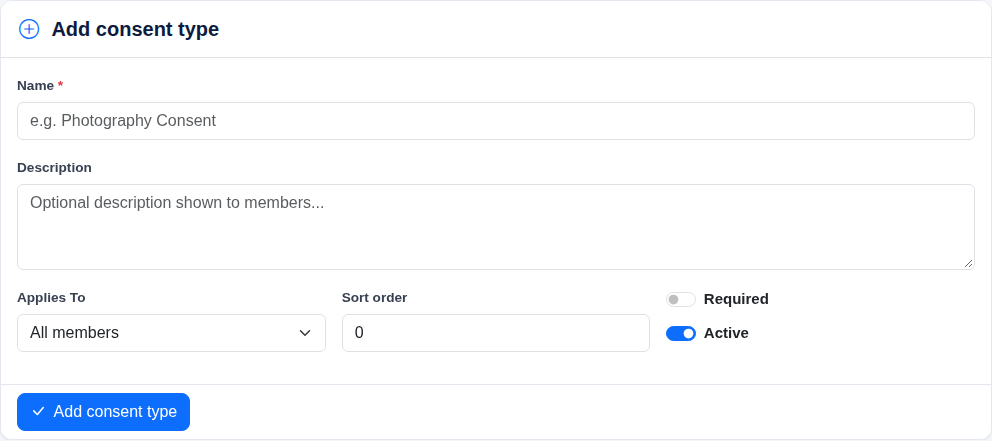
Under Add consent type, give it a Name and a Description members will see. Applies To chooses All members, Youth only or Adults only, so consents for under 18s, like taking part in rehearsals or going on trips, are only asked about young members. Switch on Required if needed, and click Add consent type.
3. Consents on a member's record
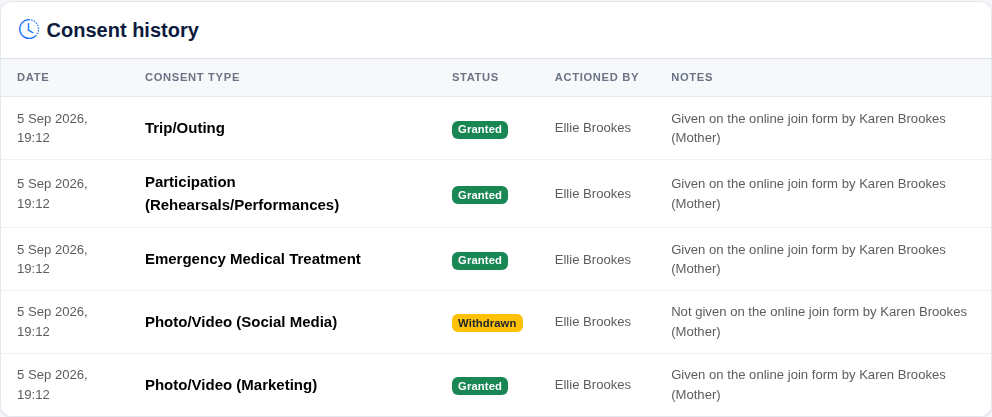
Every answer is kept on the member's profile, on the Consents tab, with who gave it and when. On the join form, a consent left unticked is recorded as not given. For a young member, the parent or guardian answers, and their name is recorded too. Staff can update a consent on the same tab; for a young member they note who gave it.
4. Your own questions
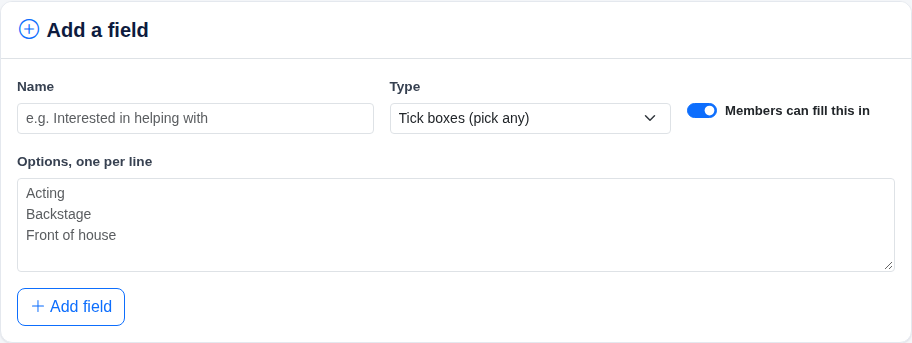
Your own questions are Member profile fields: on the Membership types page, click Member profile fields. Each field has a Name and a type: Tick boxes (pick any), Dropdown (pick one), Short text or Long text. Answers appear on each member's profile under Theatre, and tick-box and dropdown fields can be used to filter the members list.
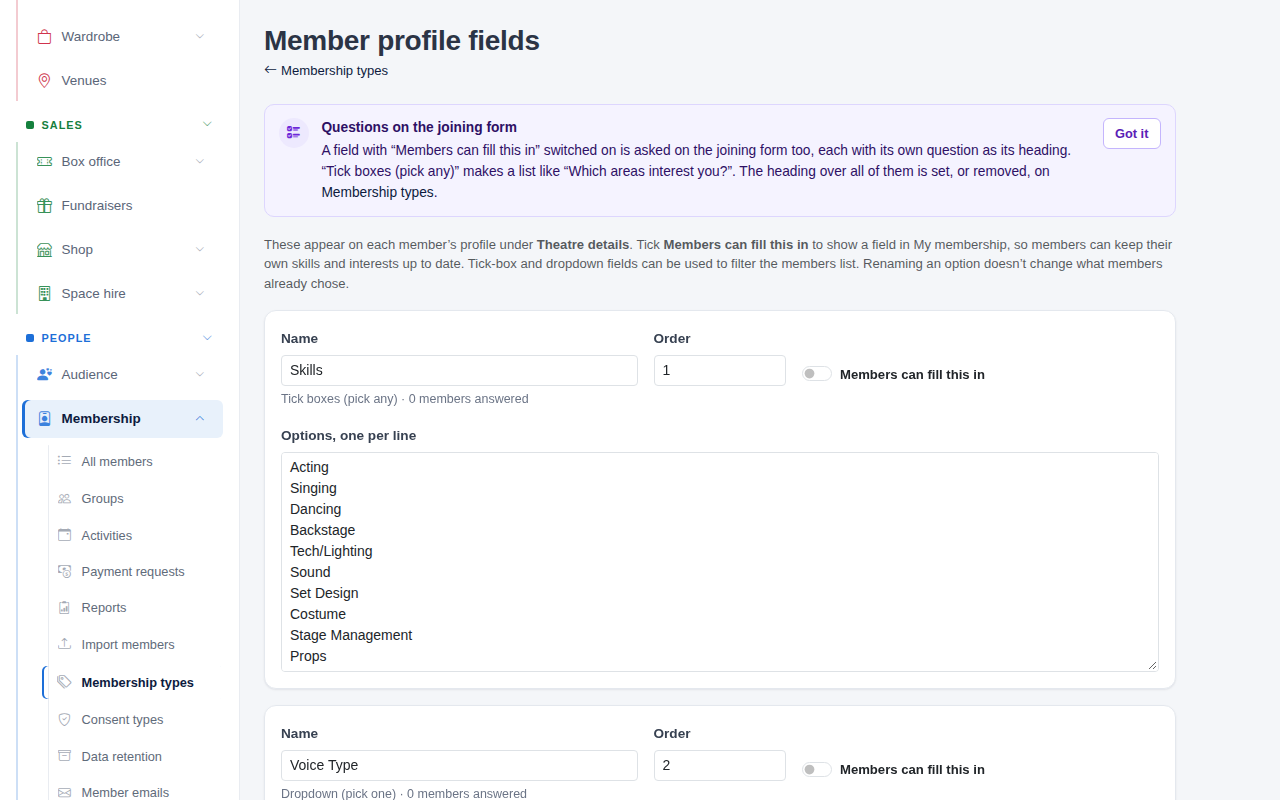
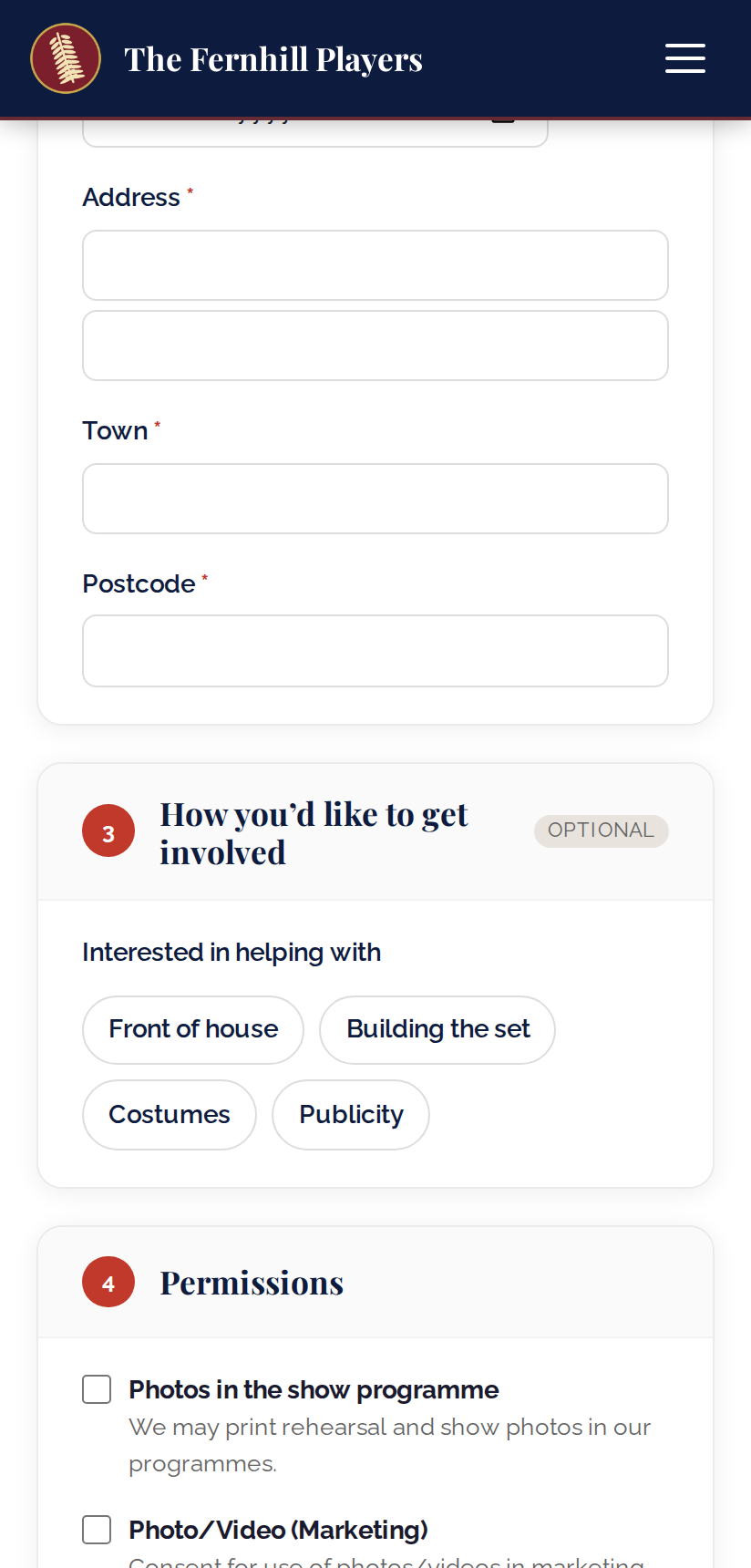
Switch on Members can fill this in and the field is asked on the joining form too, with its name as the question, and members can change their answer in My membership. To add one, fill in Add a field at the bottom, with Options, one per line, and click Add field.
5. The heading and Keep in touch
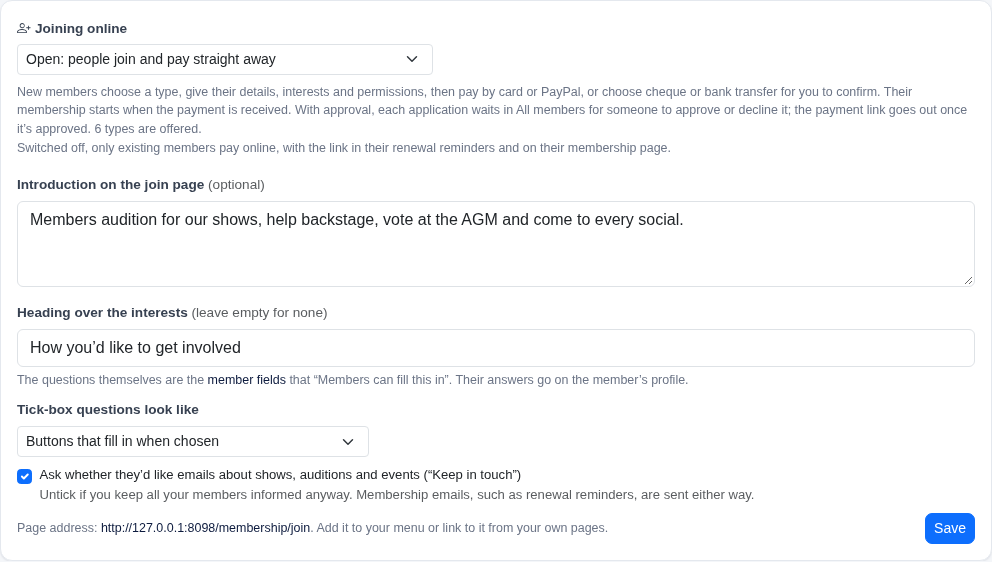
Back on Membership types, under Joining online, the Heading over the interests goes above your questions on the form (leave it empty for none), and Tick-box questions look like chooses buttons or plain tick boxes. Ask whether they'd like emails about shows, auditions and events ("Keep in touch") adds that question to the form. Membership emails, such as renewal reminders, are sent either way.
Track your progress
Make a free account to take the quick quiz after each guide, keep your place in the course and get a certificate when you finish.