Membership welcome emails and renewal reminders
Change the wording of the emails TheatreHQ sends members, set renewal reminders for each membership type, invite lapsed members back and get a regular summary.
TheatreHQ sends your members emails for you: a welcome when they join, a receipt when they pay, a thank you when they renew, and reminders before their membership runs out. Here's where to change what they say. This guide is part of the free course Running membership in TheatreHQ.
1. Member emails
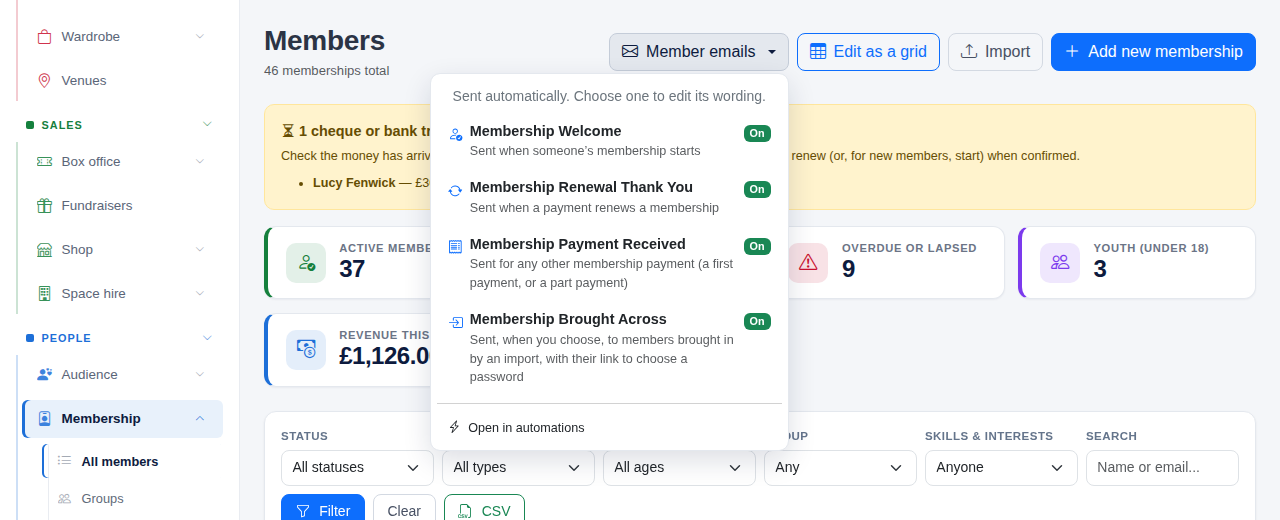
On All members, click Member emails. These are sent automatically: Membership Welcome, Membership Renewal Thank You, Membership Payment Received (for a first payment or a part payment), and Membership Brought Across, which goes, when you choose, to members you've imported, with their link to choose a password. Each shows whether it's On or paused. Choose one to edit its wording, or Open in automations to see them all.
2. Edit an email
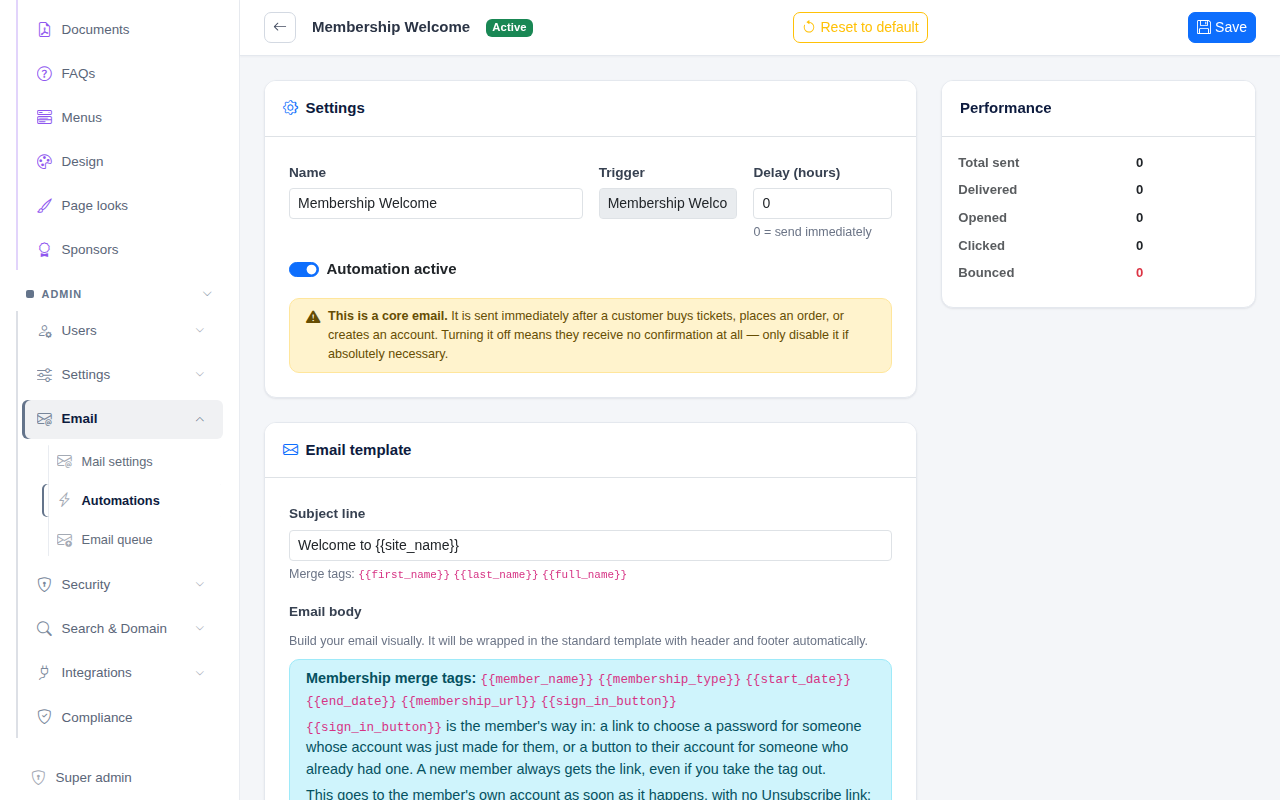
Each one opens in the email editor, like every other automated email. Change the Subject line and the words, and use the membership merge tags, such as {{member_name}}, {{membership_type}}, {{end_date}} and {{sign_in_button}}, to add the member's details. Click Save. To stop an email going, switch off Automation active, or pause it in the list.
3. Renewal reminders
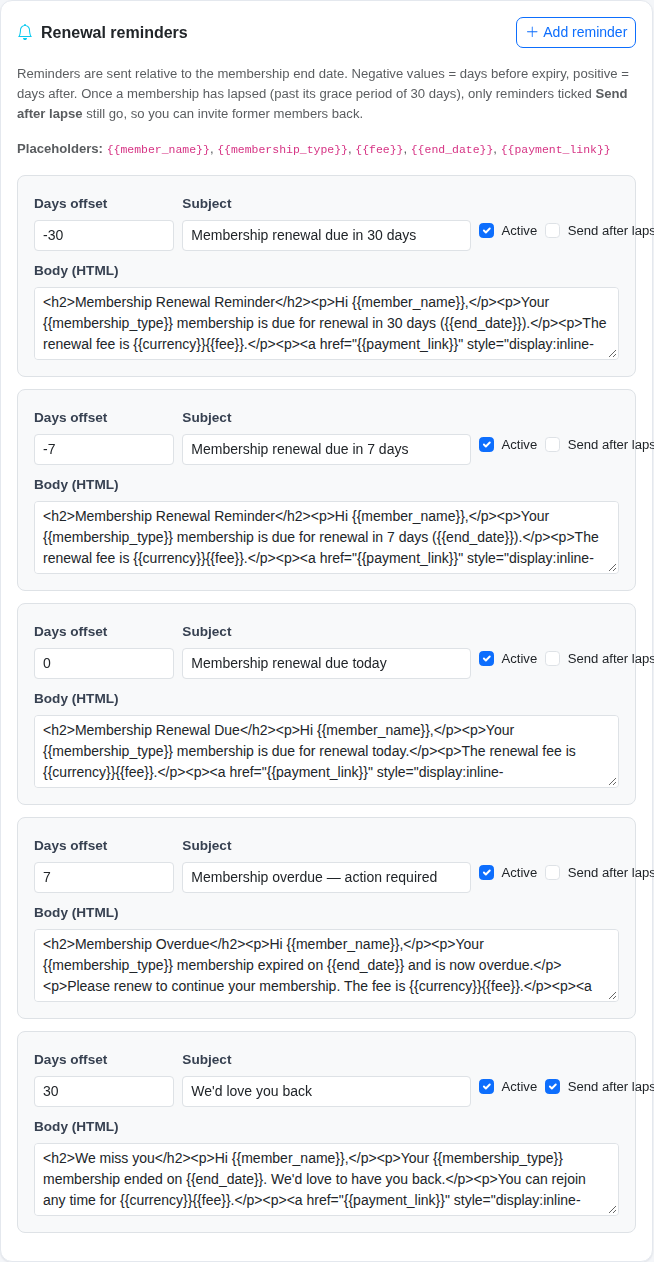
Renewal reminders belong to each membership type. Go to Membership types, click the pencil beside a type, and scroll to Renewal reminders. A new type starts with four reminders and a re-enrol email; click Add reminder for another.
- Days offset counts from the membership's end date: -30 sends it 30 days before, 0 on the day, and 7 a week after.
- Subject and Body (HTML): use the placeholders
{{member_name}},{{membership_type}},{{fee}},{{end_date}}and{{payment_link}}. The payment link takes them straight to their payment page. - Active switches a reminder on or off.
4. Invite lapsed members back
Once a membership has lapsed (past its grace period), only reminders ticked Send after lapse still go. Add re-enrol email adds a ready-made one for a month after the membership ended, inviting them back. Click Save changes.
5. Emails that look after themselves
If someone applies online but hasn't paid after three days, they're sent one email, headed Still want to join?, with their link to pay. Its wording is fixed, so there's nothing to set up.
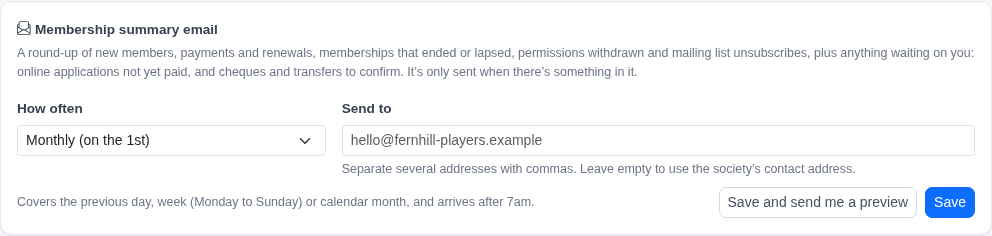
At the top of Membership types, the Membership summary email sends you a round-up of new members, payments and renewals, memberships that ended, and anything waiting on you, such as applications not yet paid and transfers to confirm. Choose How often and Send to, and click Save. It's only sent when there's something in it.
Track your progress
Make a free account to take the quick quiz after each guide, keep your place in the course and get a certificate when you finish.