Opening online joining: open, closed or with approval
Let new members join on your website: choose closed, open or open with approval, choose which types can be joined, and approve or decline applications.
Your website can take new members for you: they choose a membership, give their details and pay. You decide whether anyone can join straight away, or whether you approve each application first. This guide is part of the free course Running membership in TheatreHQ.
1. Choose how joining works
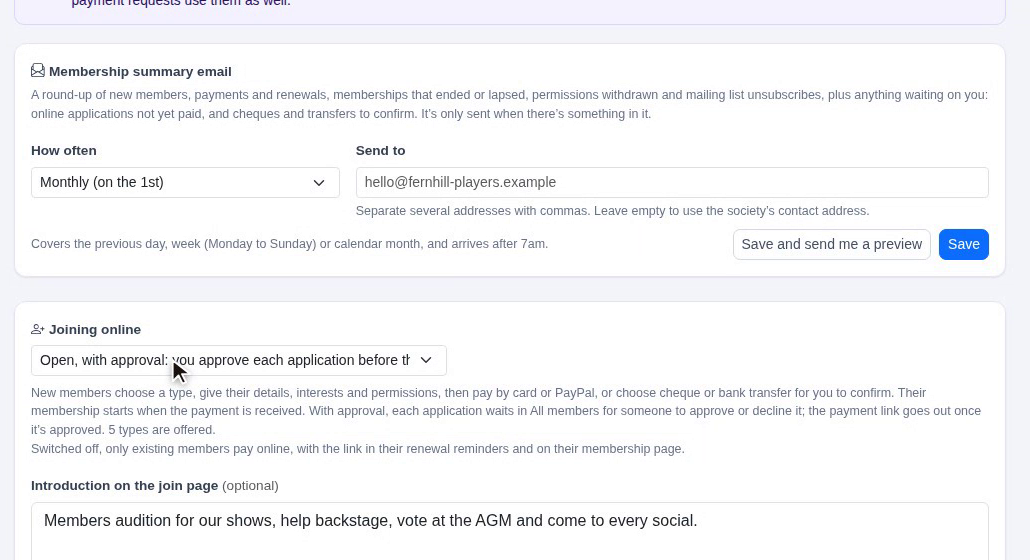
On Membership types, find Joining online and choose:
- Closed: no one can join online. Existing members still pay online, from their renewal reminders and membership page.
- Open: people join and pay straight away.
- Open, with approval: you approve each application before they pay.
Click Save.
2. Choose which types can be joined
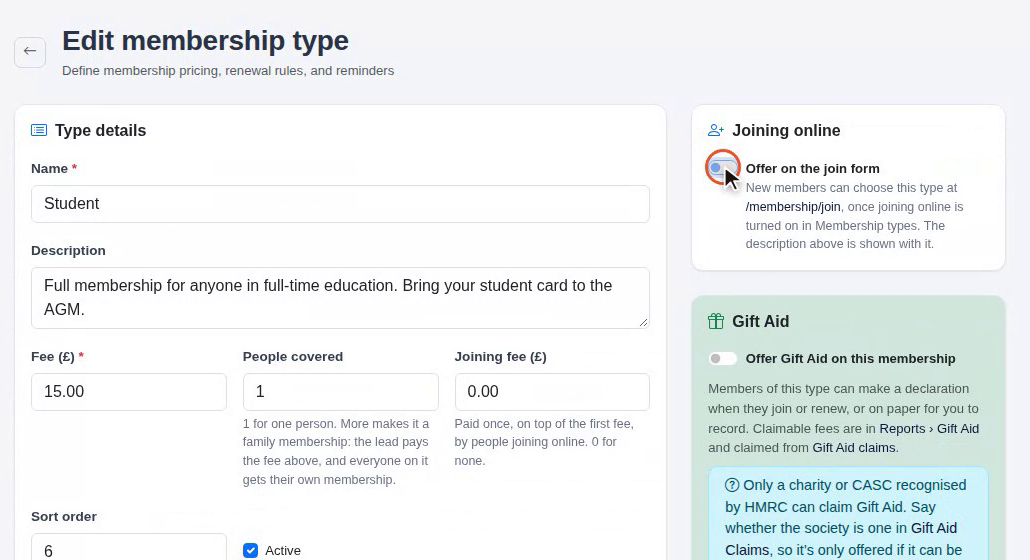
Each type people can join needs Offer on the join form switched on: click the pencil beside the type, switch it on, and click Save changes. Types you don't offer, such as an honorary membership, can still be added by hand.
3. The join page
Add an Introduction on the join page if you like. The Page address (your website followed by /membership/join) is shown underneath: add it to your menu or link to it from your pages. To see what new members see, read What a new member sees when they join.
4. Approve or decline applications
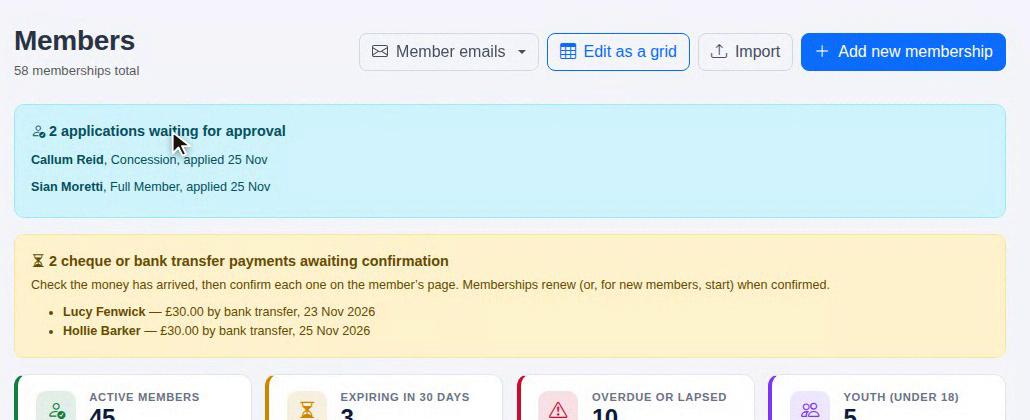
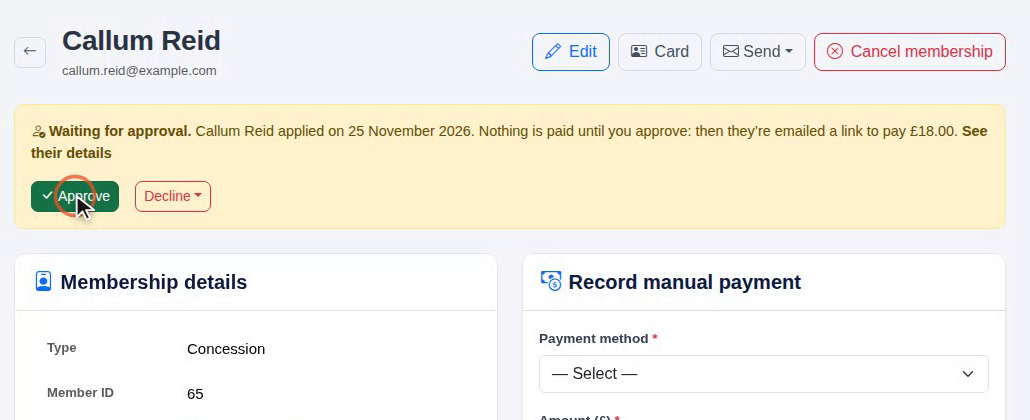
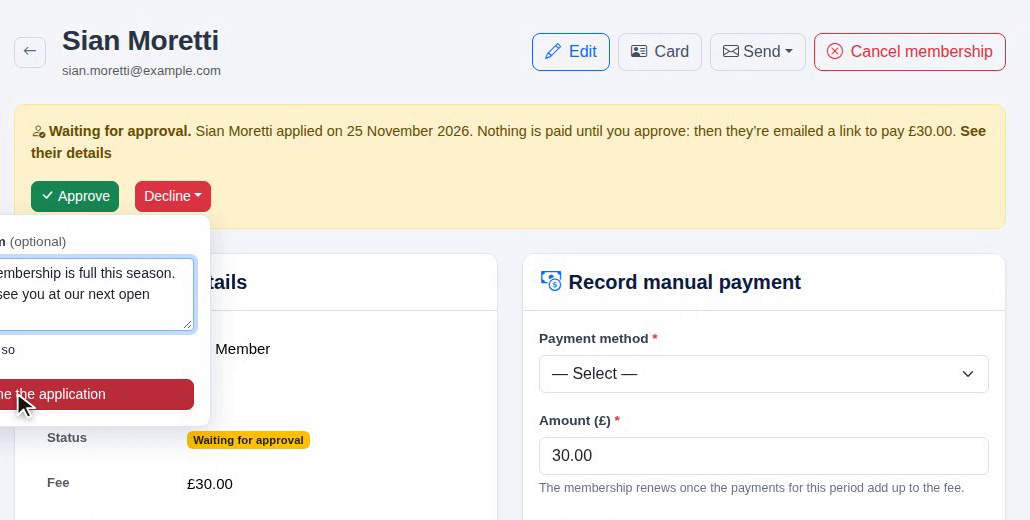
With approval on, applications wait for you. All members shows how many are waiting for approval. Open one: the yellow Waiting for approval banner has See their details, Approve and Decline.
- Approve: they're emailed a link to pay straight away.
- Decline: add A message for them if you like, choose whether to Email them to say so, and click Decline the application.
5. After they pay
Once a new member pays, their membership starts and the Membership Welcome email goes out with a link to set up their account. If someone hasn't paid three days after applying (or after being approved), they're sent one Still want to join? email with their payment link. Someone who already has an account is emailed with what to do next, so the form never reveals who has an account.
Track your progress
Make a free account to take the quick quiz after each guide, keep your place in the course and get a certificate when you finish.