Running audition day on a tablet
The audition day page: the schedule, checking people in with their code, telling candidates you're running late, scoring with a tap, votes, notes, Mark as seen and the live activity feed.
This guide shows how to run audition day from a tablet on the panel's table. It's designed for an iPad, but any tablet or laptop works. The video above shows the same steps, using the demo audition for Abigail's Party.
1. The three panels
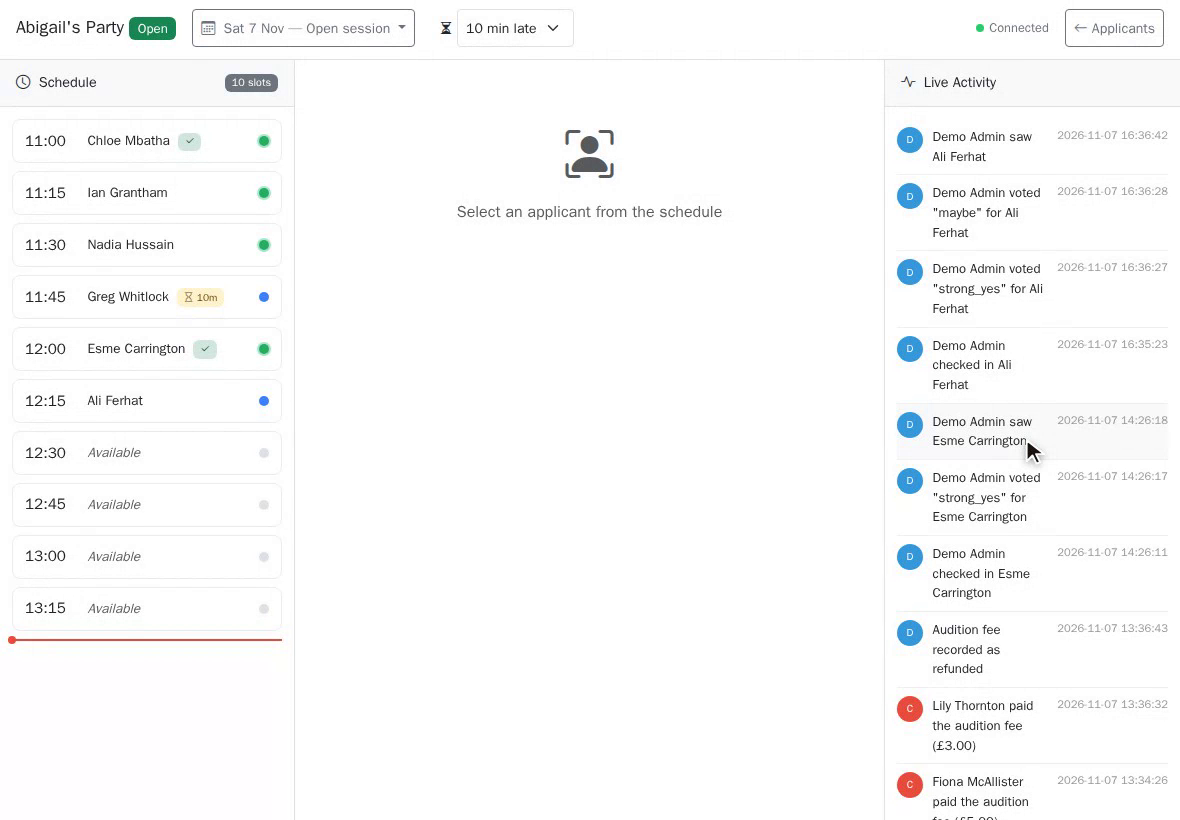
The page has three panels. The schedule shows the day's slots. The middle panel shows the candidate you've selected. And live activity shows everything as it happens.
2. Checking in
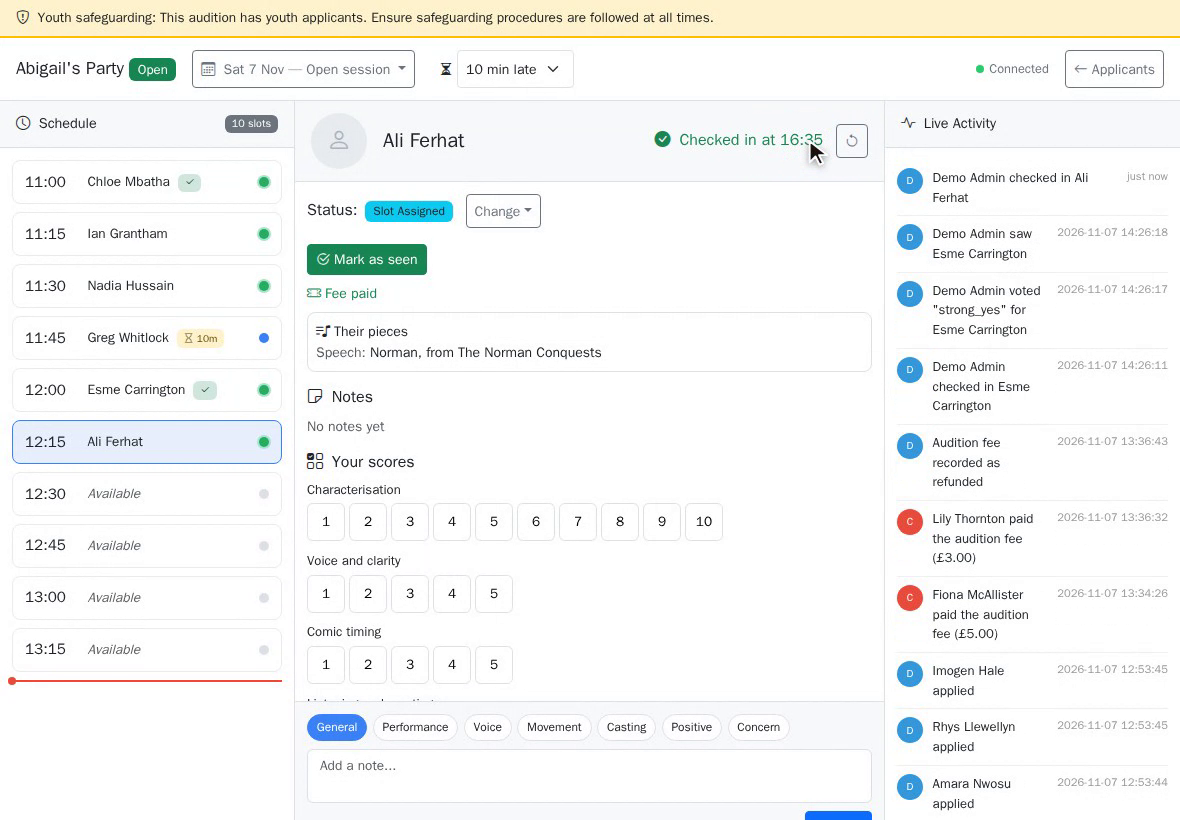
As candidates arrive, they show their check-in code at the door. Scan it with the camera on your phone, and they're checked in on the tablet. Or tap Check In. If they tapped I'm here on their own phone, it's already done.
3. Running late
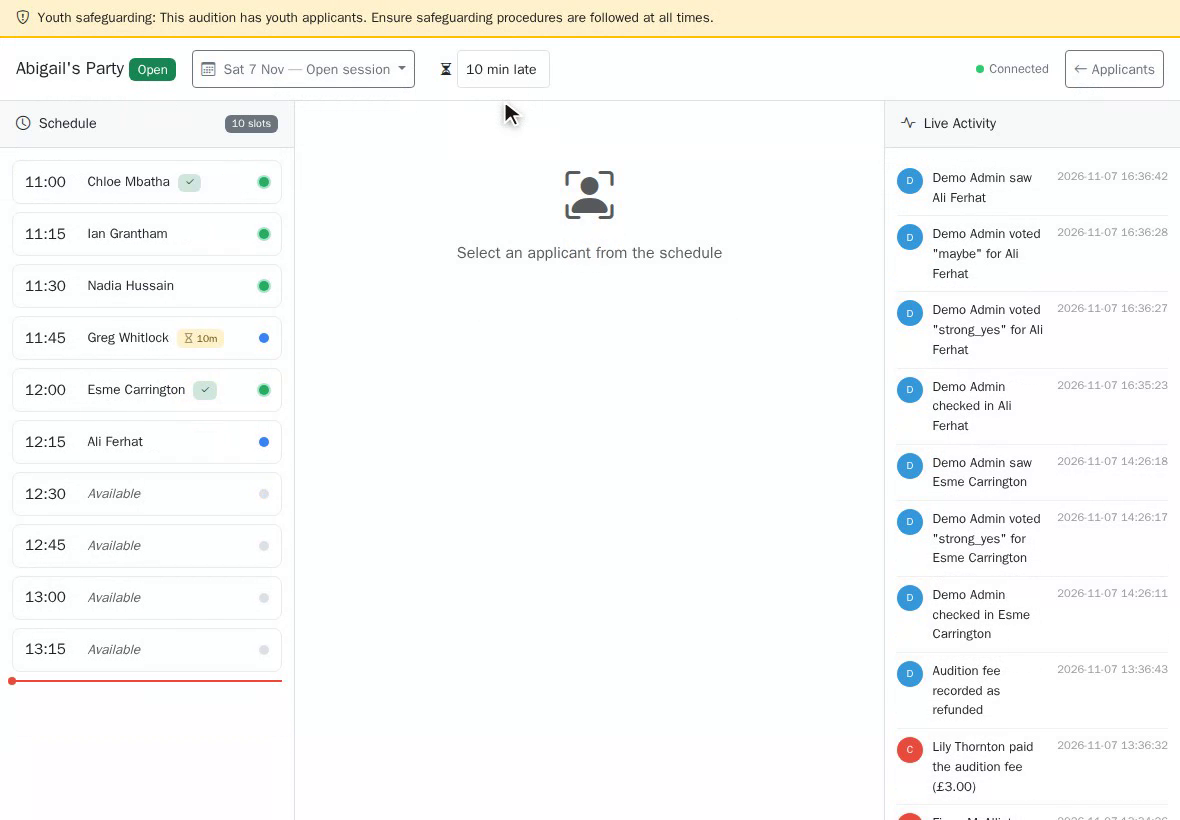
Running behind? Set how late you're running at the top, and every candidate waiting sees it on their phone, with their new expected time.
4. The candidate
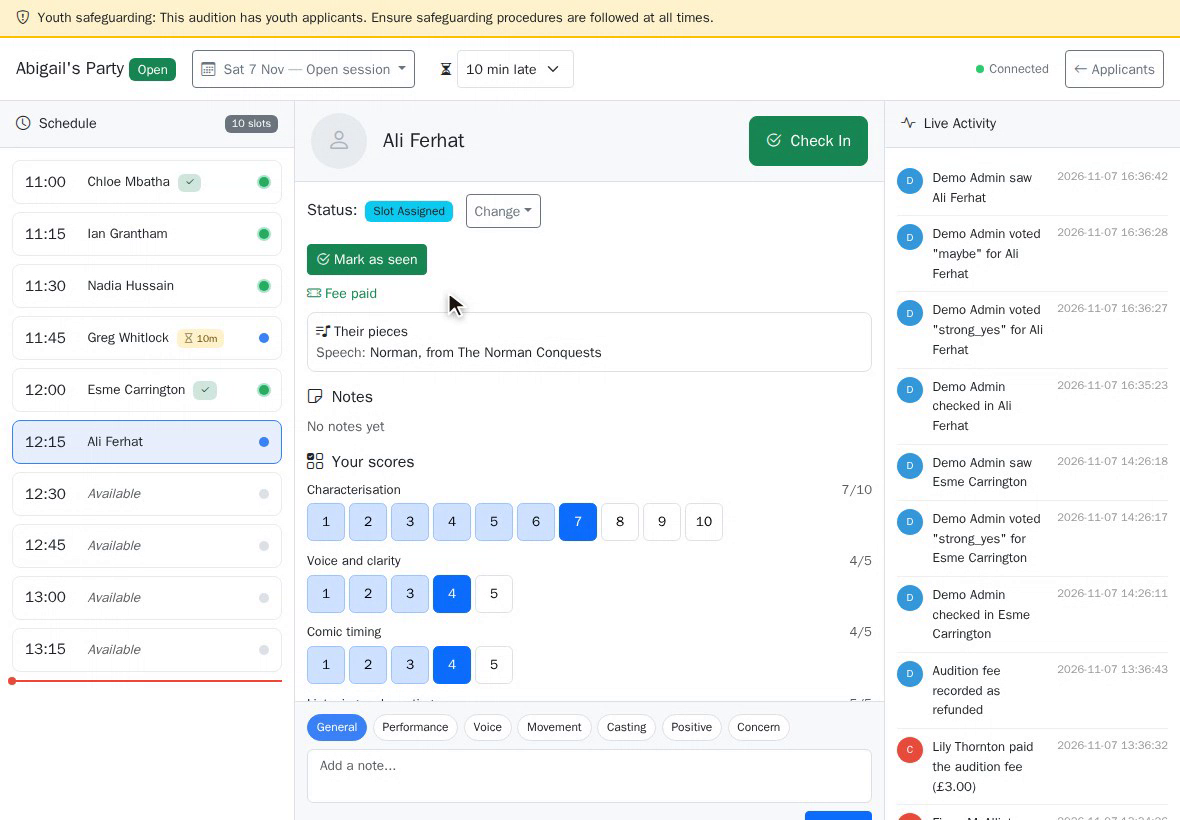
Tap a candidate to see everything about them: their song and speech, their music for the pianist, any access needs, and whether their fee is paid. If not, they can pay at the door, and you mark it here.
5. Scoring
Score them by tapping the numbers on your scoring sheet. Several panel members can score at once, each on their own tablet or phone. Everyone's scores are kept separately, and averaged on the casting board.
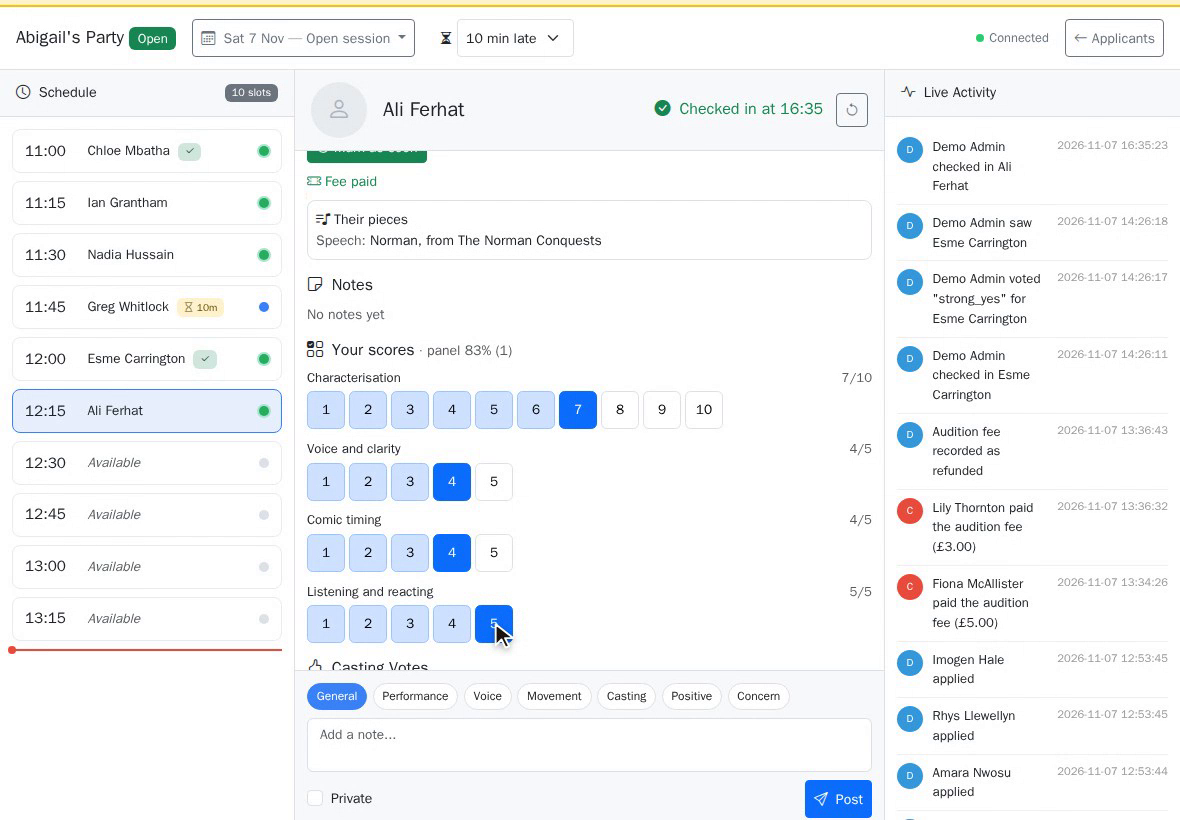
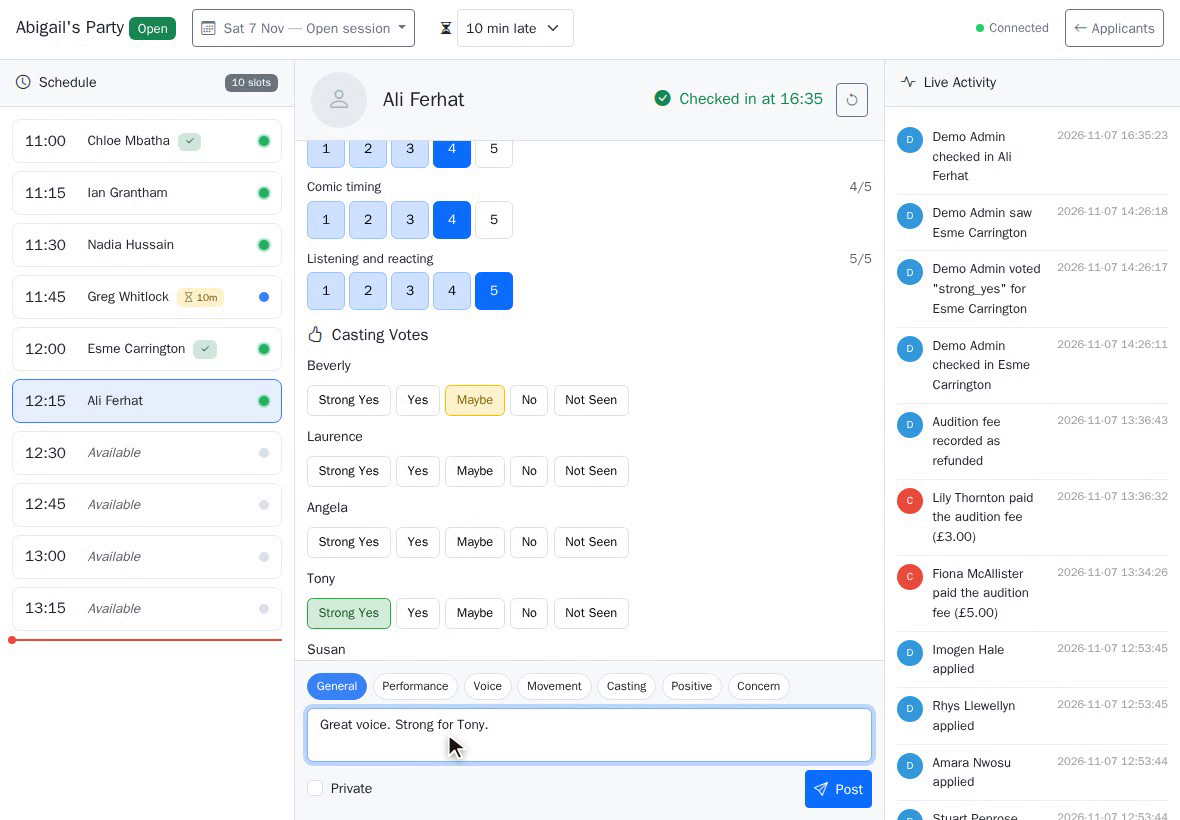
6. Votes and notes
Vote for the roles they could play, from strong yes to no, and add notes, such as voice or movement. Tick private for a note only you can see.
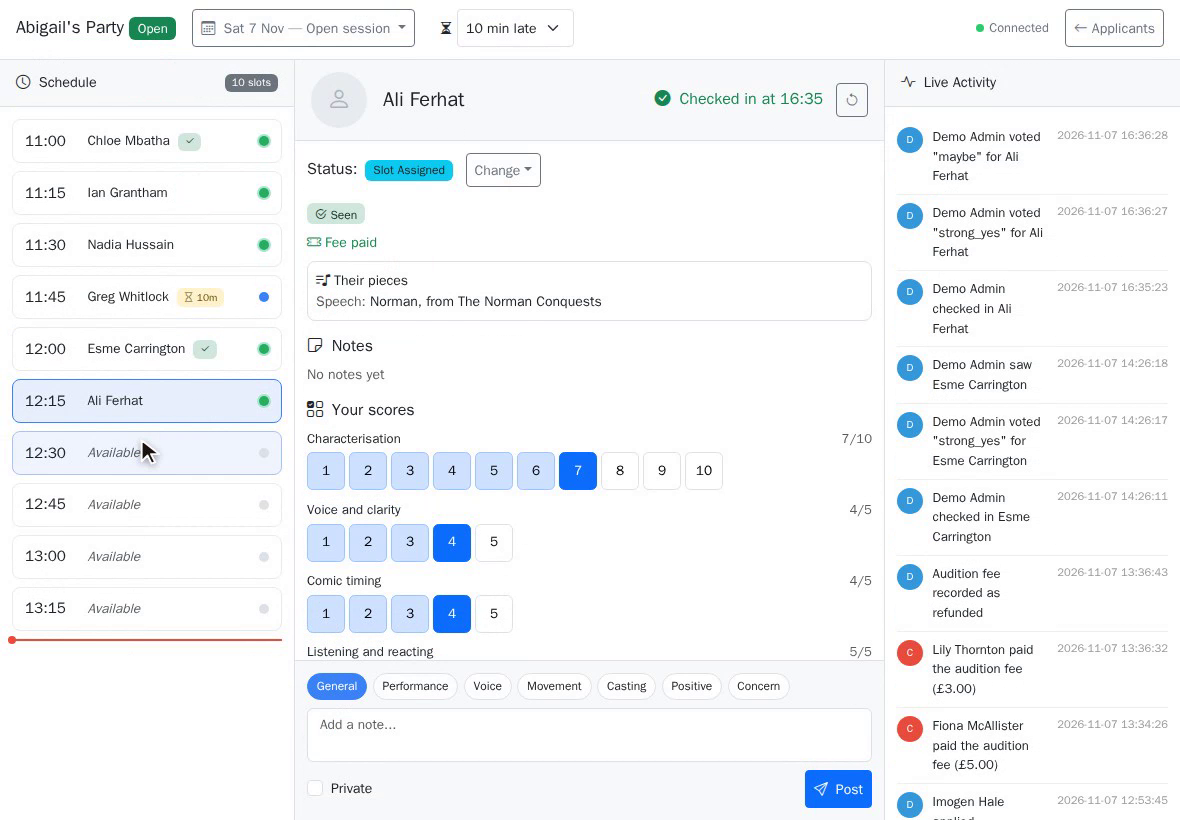
7. Mark as seen
When they're done, press Mark as seen. The queue moves on, and everyone still waiting sees their expected time update.
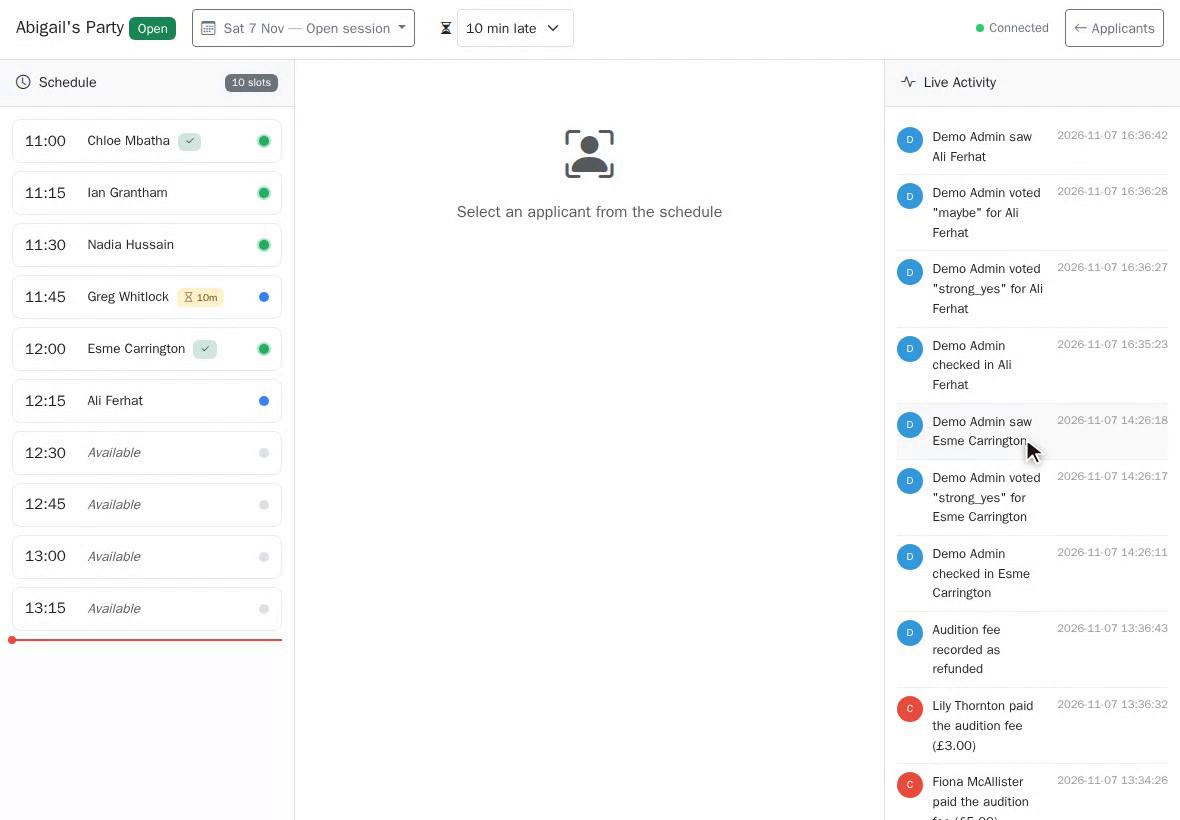
8. Live activity
Live activity keeps the whole panel in step: who's arrived, who's running late, and who's been scored, as it happens.
That's audition day. Next in the course: The casting board, offers and the cast list.
This guide is part 8 of 9 in the Running auditions in TheatreHQ course.
Track your progress
Make a free account to take the quick quiz after each guide, keep your place in the course and get a certificate when you finish.