Taking membership payments: card, PayPal, Direct Debit, transfers and cheques
Connect your payment providers, choose the methods each membership type allows, add your bank and cheque details, and confirm transfers when they arrive.
Members can pay you by card, PayPal, Direct Debit, bank transfer or cheque, or in cash at rehearsals. You choose which of these each membership type allows. This guide is part of the free course Running membership in TheatreHQ.
1. Connect your online payments
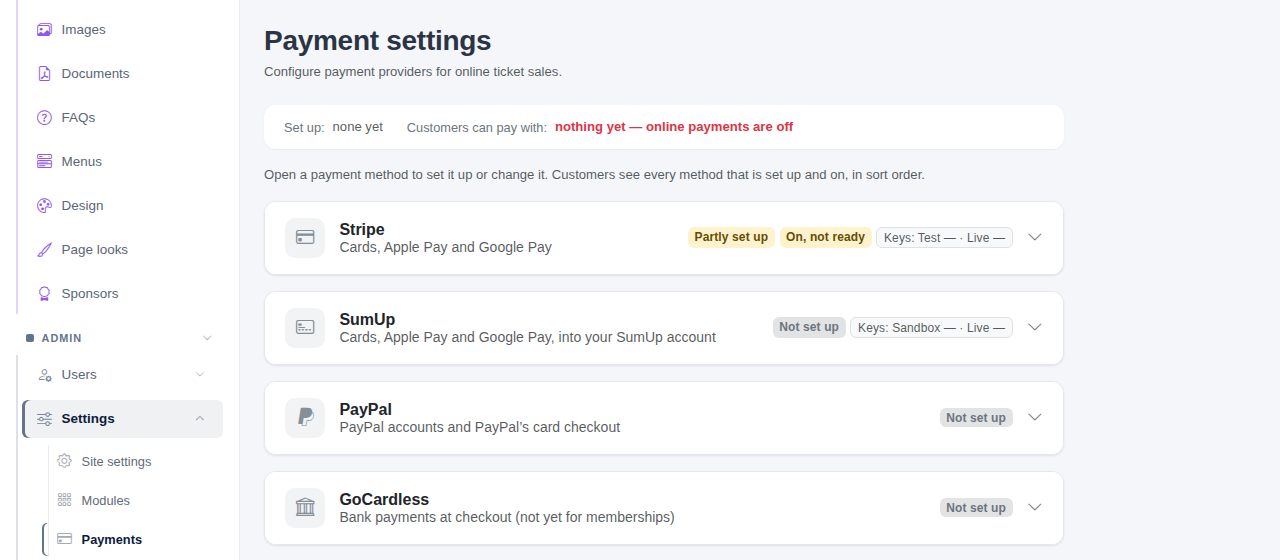
Online payments are connected once, under Settings > Payments. Open a provider and follow its steps: Stripe or SumUp for cards, Apple Pay and Google Pay, PayPal, or GoCardless for Direct Debit. Each shows whether it's set up.
2. Choose the methods for each type
In Membership > Membership types, edit a type and tick its Allowed payment methods. Card, PayPal and Direct Debit only appear on the payment page once they're set up. Cash is recorded by you. Cheque and Bank transfer payments wait for you to confirm the money has arrived.
3. Add your bank and cheque details
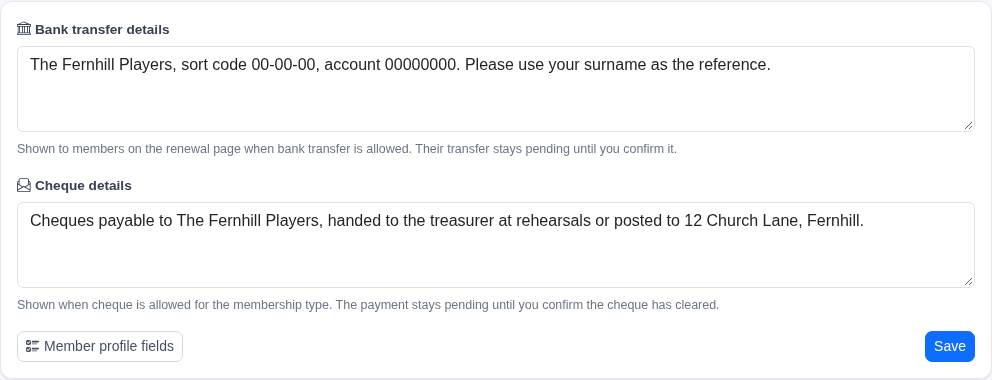
Further down the Membership types page, fill in Bank transfer details (account name, sort code, account number, and the reference members should use) and Cheque details (who to make cheques payable to, and where to send them). Click Save. Payment requests use these details too.
4. What members see
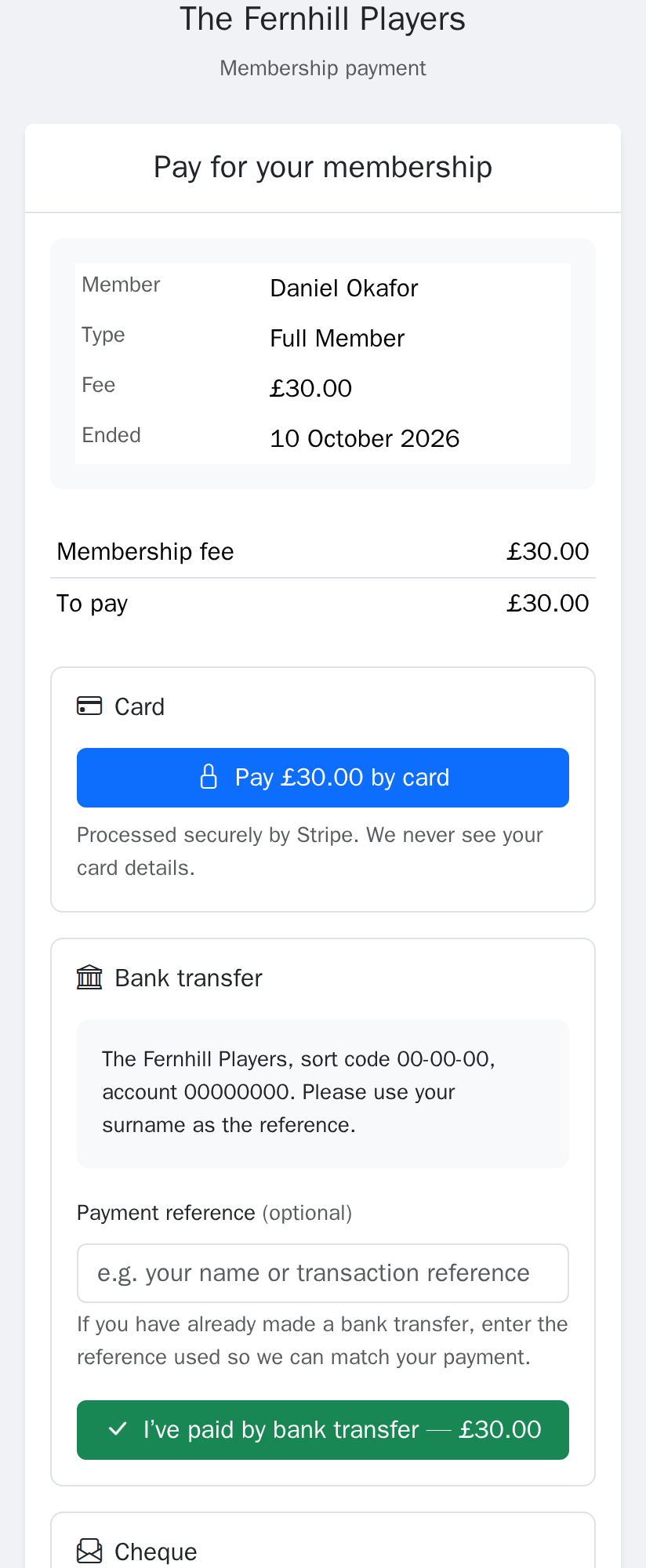
Renewal reminders and the joining form send members to their payment page. It shows what's due (the fee, plus the joining fee on a first payment, less any discount codes, plus any donation) and a button for each way they can pay. Choose bank transfer or cheque and your details are right there; the payment then shows as on its way until you confirm it.
5. Confirm a transfer or cheque
When the money arrives, open the member's page. The payment is waiting in Payment history as Pending: click Received, and the membership renews once its payments for the period cover the fee. If it never arrives, click Not received. The All members page also tells you how many cheque or bank transfer payments are awaiting confirmation.

6. Direct Debit
With Direct Debit (GoCardless), the member sets up a mandate once from their payment page, and each renewal is then collected for them automatically. On their page you can collect a payment now, or cancel the Direct Debit. Cancelling a membership cancels its Direct Debit too.
Recording cash: use Record manual payment on the member's page, choosing who received the cash. Part payments add up: the membership renews once they cover the fee.
Track your progress
Make a free account to take the quick quiz after each guide, keep your place in the course and get a certificate when you finish.