What the Membership module does: a quick tour
A tour of TheatreHQ's Membership module: where your members, payments, meetings, imports and emails live, and what your members see on their side.
TheatreHQ's Membership module looks after everything to do with your members: who they are, what they've paid, when they renew, and the meetings they come to. This guide is a quick tour, so you know where everything lives before you start setting it up. This guide is part of the free course Running membership in TheatreHQ.
1. Switch Membership on
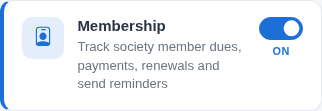
If you can't see Membership in your admin menu, go to Settings > Modules, switch on Membership in the People section, and click Save module settings.
2. The Membership menu
Membership sits under People in the admin menu. Open it and you'll find:
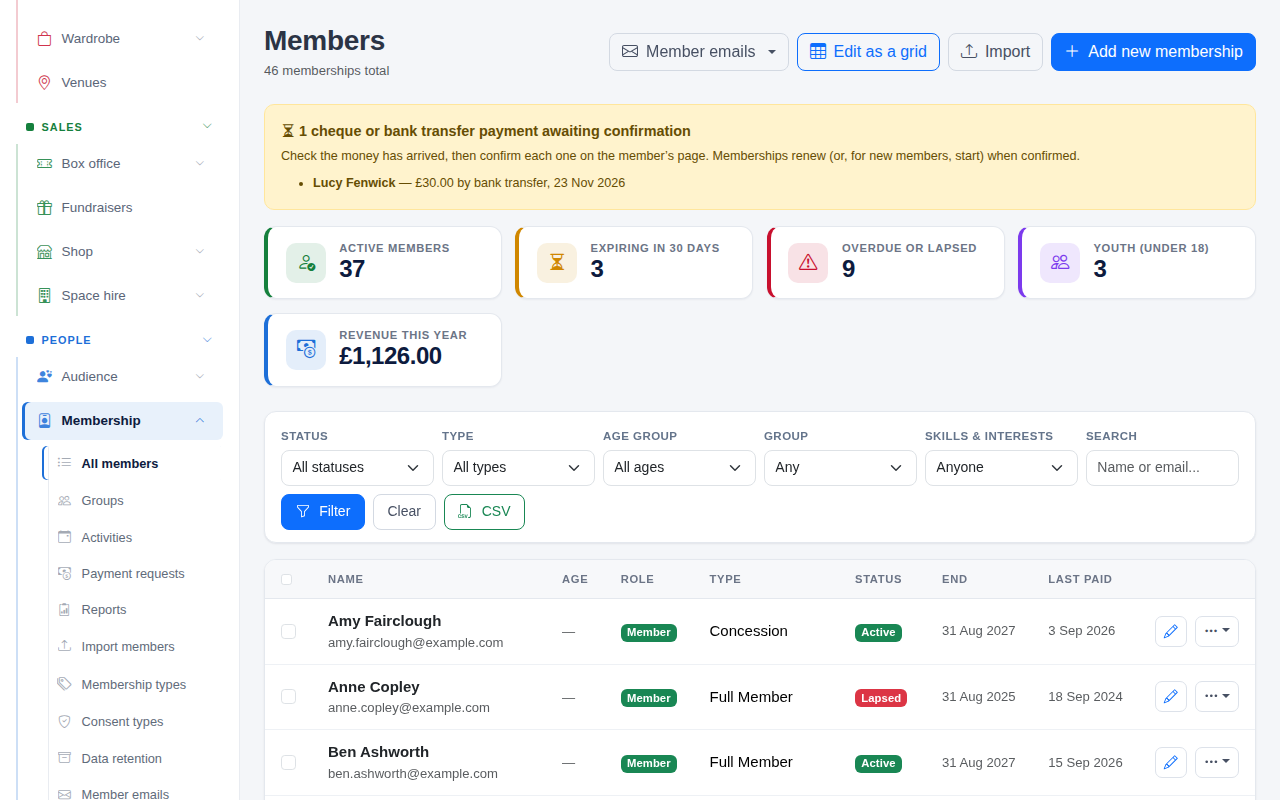
- All members: the list of everyone, with filters, and the buttons for Edit as a grid, Import, Member emails and Add new membership.
- Groups: teams such as the committee, the youth section or the backstage crew.
- Activities: your AGM, general and committee meetings, workshops and socials.
- Payment requests: ask anyone, member or not, to pay for anything with a link.
- Reports: compliance reports for missing details, consents, youth members, DBS and Gift Aid.
- Import members: bring people in from a spreadsheet, such as a Membermojo export.
- Membership types: your types and fees, plus joining online, bank and cheque details, the member directory, and the buttons for Membership card and Discount codes.
- Consent types and Data retention: what members agree to, and how long former members' data is kept.
- Member emails: the automatic welcome, receipt, thank-you and brought-across emails.
- My membership: your own membership, as a member sees it.
3. All members
The page is headed Members. The tiles at the top count your Active members, who's Expiring in 30 days, who's Overdue or lapsed, your Youth (under 18) members and Revenue this year. Filter by status, type, age group, group or skills and interests, or search by name or email. Anything waiting on you, such as an application to approve or a transfer to confirm, shows in a yellow box above the tiles.
4. A member's page
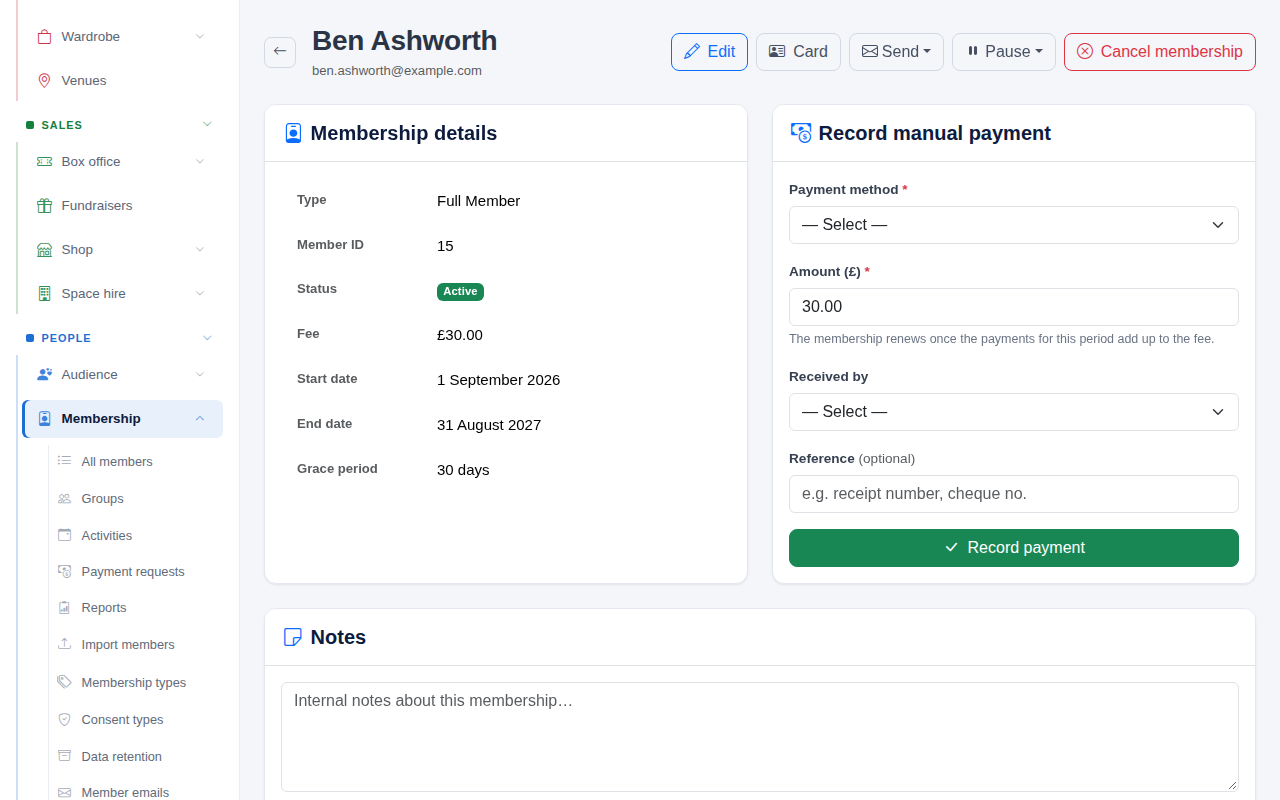
Click a member's name to open their page. Membership details shows their type, status, fee and dates. On the right, Record manual payment takes cash, cheque or bank transfer payments, and Payment history lists every payment they've made. Along the top are Edit, Card, Send, Pause and Cancel membership.
5. Your members' side
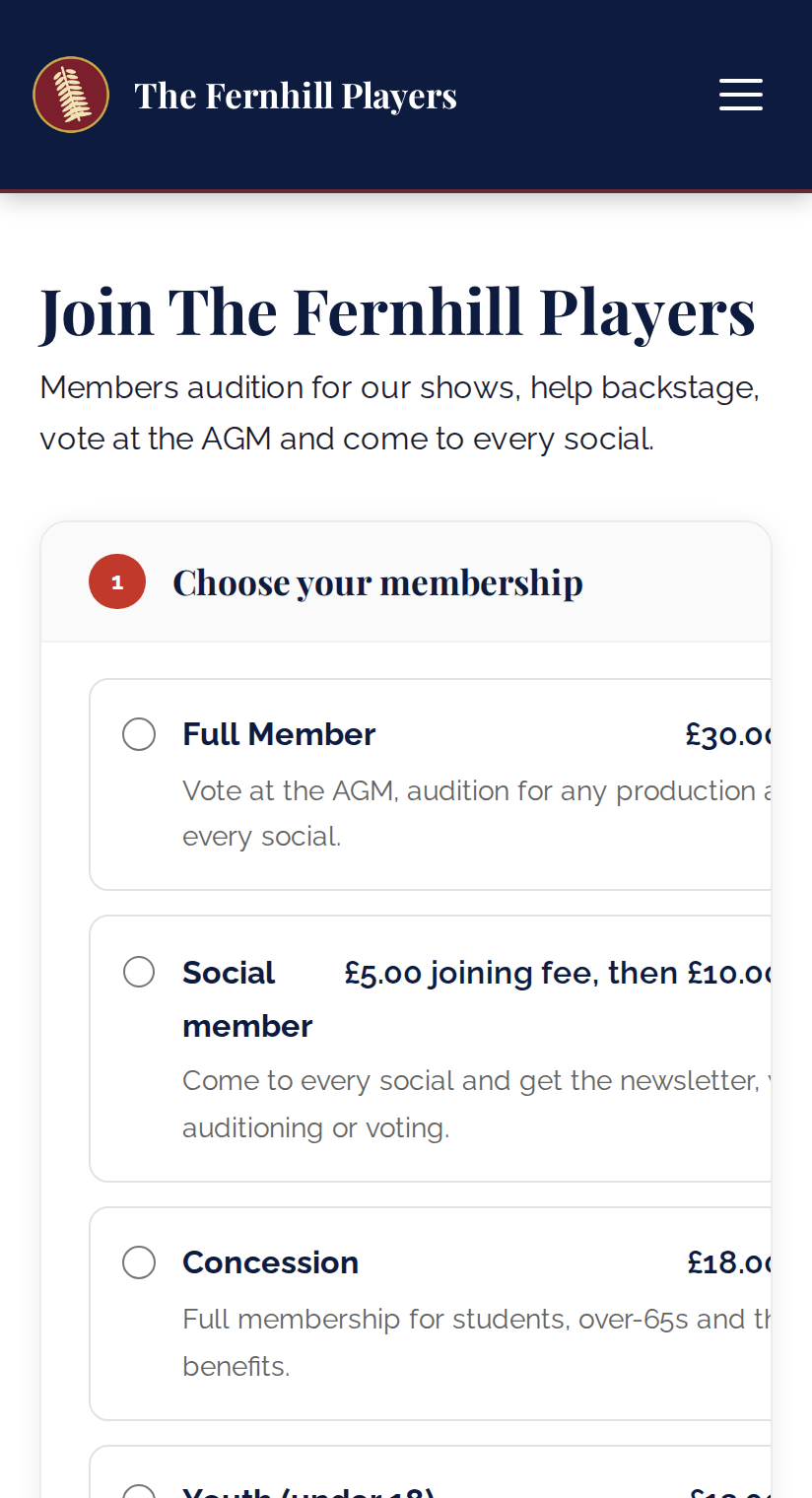
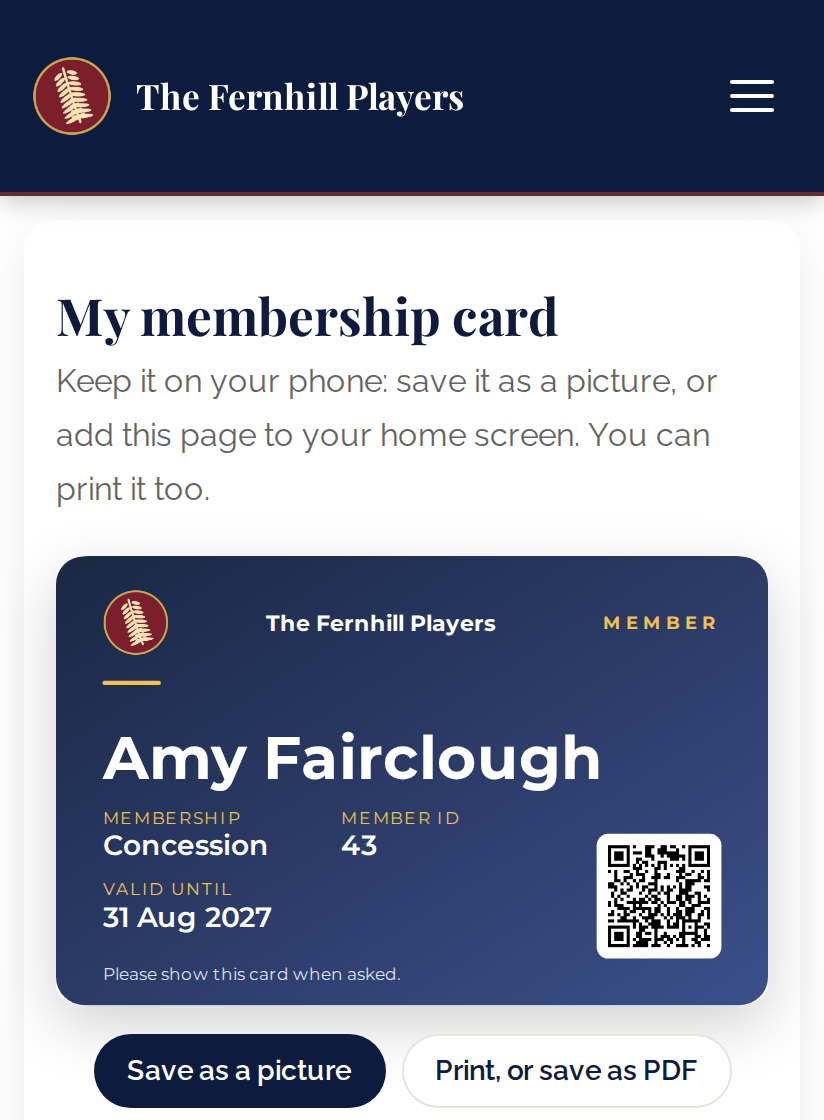
Members have their own side too. Your join page, at /membership/join on your website, lets new members choose a membership, give their details and permissions, and go straight on to pay (once you've opened joining online). Once they've joined, My membership shows their status and renewal date, lets them pay or renew and keep their details up to date, and My card shows their membership card on their phone.
Track your progress
Make a free account to take the quick quiz after each guide, keep your place in the course and get a certificate when you finish.