Adding cast and crew profiles
Build a directory of your company, link people to the shows they've been in, and show their profiles on your website.
Your cast and crew are the heart of your society. TheatreHQ keeps one directory of everyone who has performed or worked backstage, linked to every show they've been part of, and shows their profiles on your website. Add someone once and their record builds up season after season.
1. Open Cast & Crew
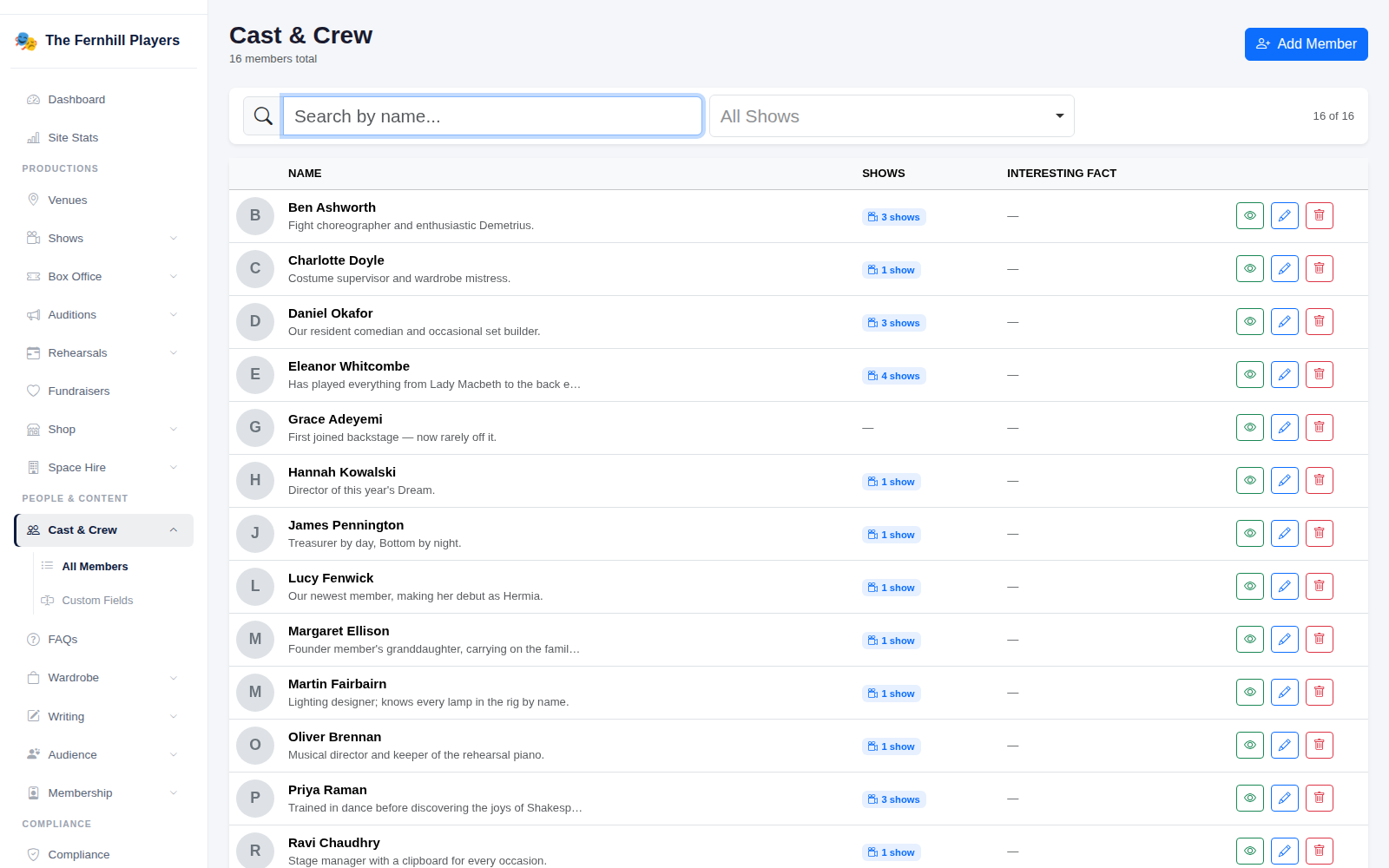
Go to Cast & Crew in the admin menu. You'll see everyone in your directory with a short line about them and how many shows they've been in. Search by name, or filter by show, to find someone quickly. Click Add Member to add a new person.
2. Add their details
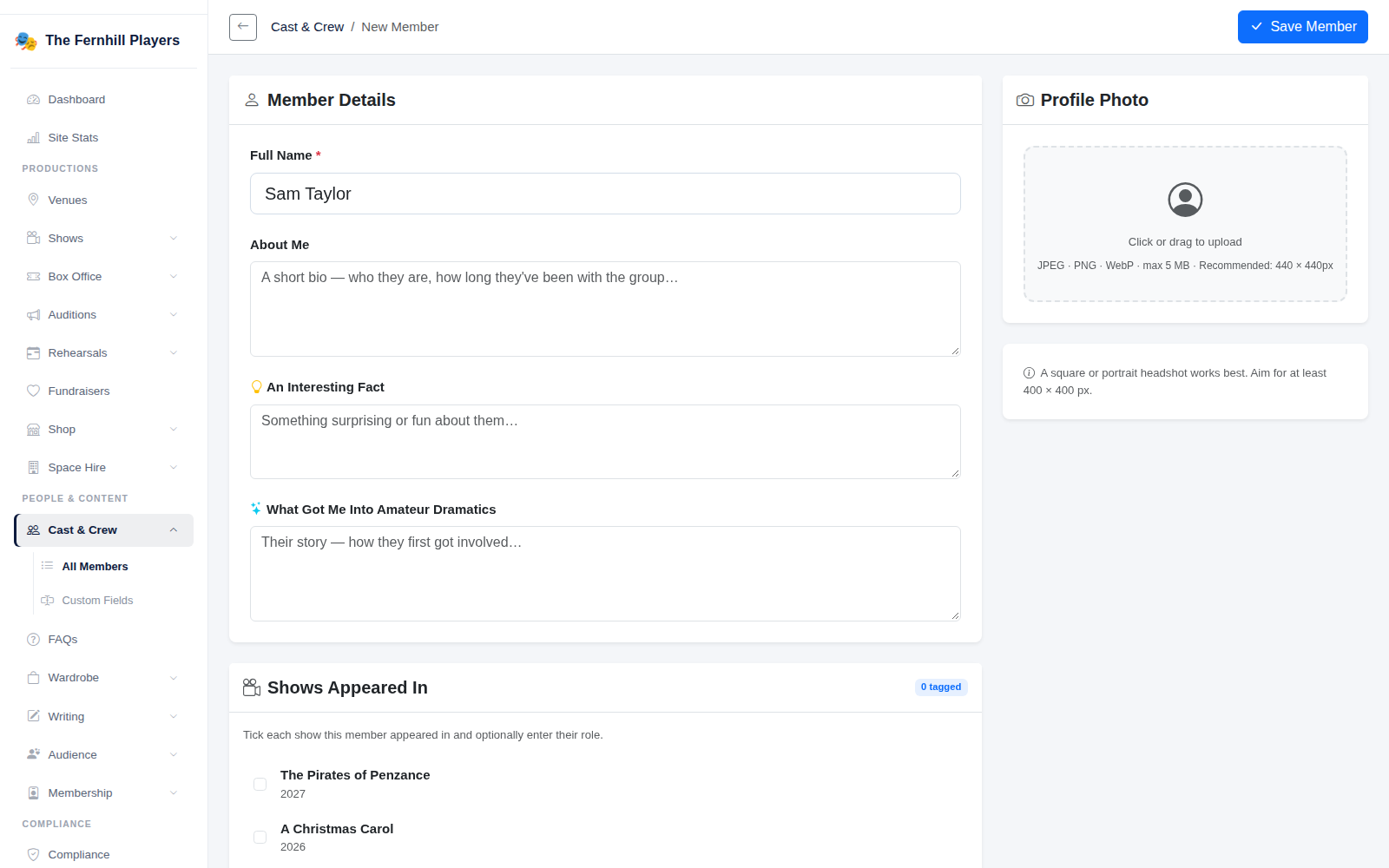
Enter their Full Name, then fill in as much of their profile as you like: About Me, An Interesting Fact and What Got Me Into Amateur Dramatics make for friendly, readable profiles. Upload a Profile Photo — a square or portrait headshot works best, at least 400 × 400 pixels.
Under Shows Appeared In, tick each production they were part of and, if you like, type their role — Bottom, or Lighting, or Director. Click Save Member.
3. See the directory on your website
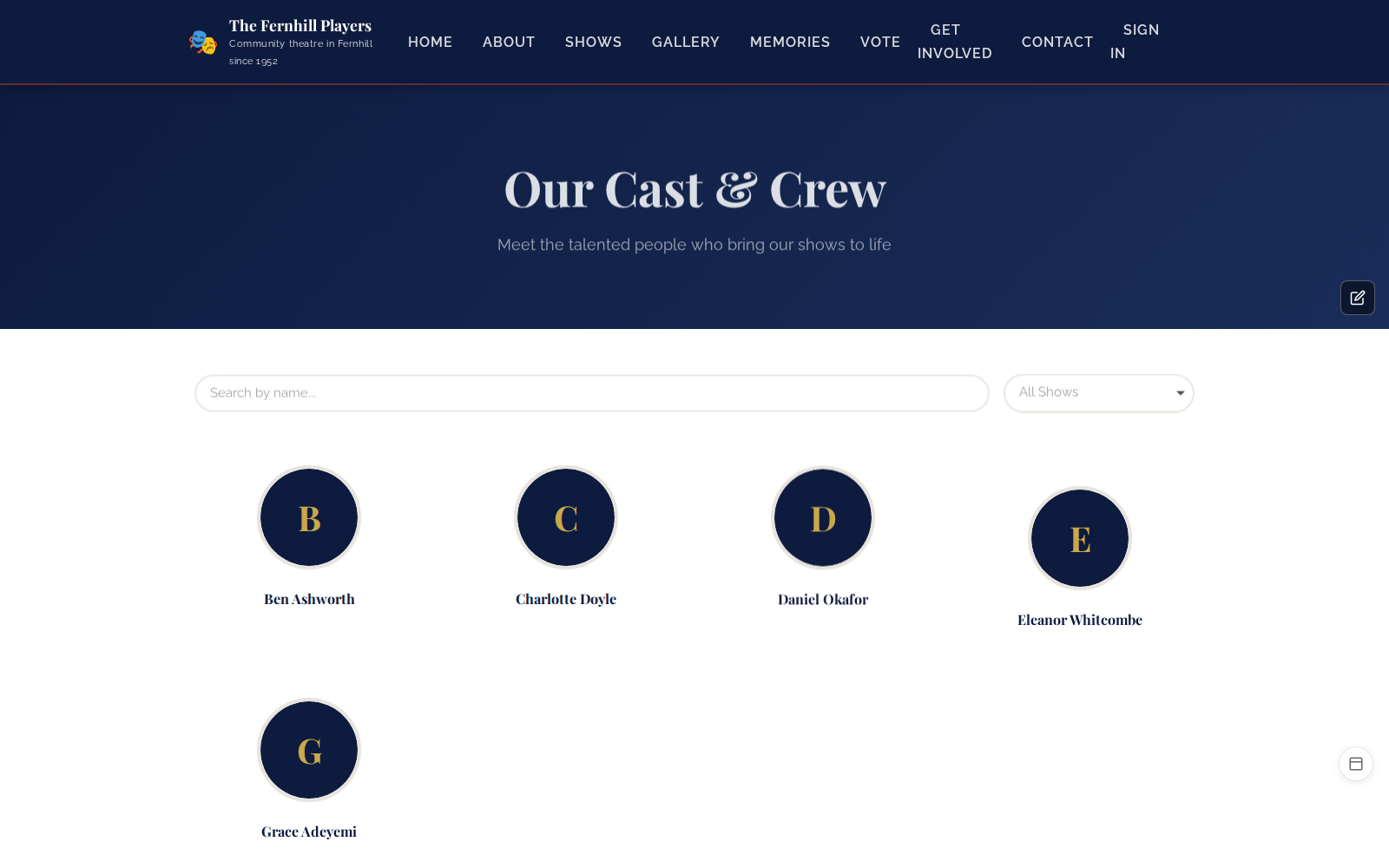
Your website's Cast & Crew page shows everyone with their photo, and each person has their own profile page listing the shows they've been in. Show pages list their company too, so the links work both ways.
Tip: photos make a big difference — they're used on the cast page, on show pages and in Audience Choice Award voting. Ask cast to send a headshot when they're cast, rather than at the last minute.