Adding events to your website
Add concerts, workshops, quiz nights and other events that aren't full productions, so they show on your website and book out the room.
Not everything that happens in your building is a full production. Concerts, workshops, quiz nights, open days and visiting groups all deserve a place on your website too. Events are for exactly that: each one gets its own page, appears in your list of upcoming events and books out the room so nothing clashes.
1. Open Events
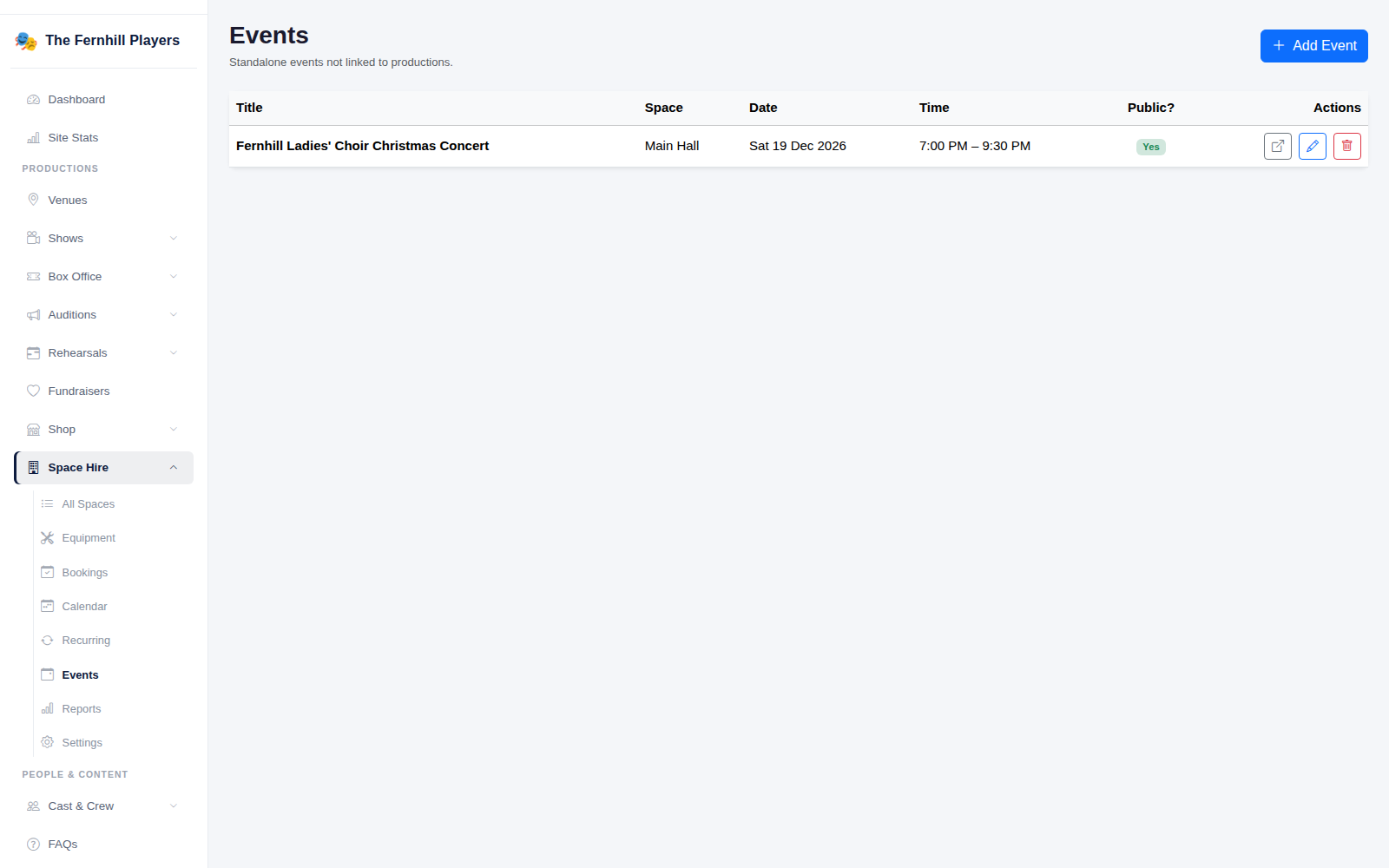
Go to Space Hire > Events. Your events are listed with the room, date, time and whether they're public. Click Add Event to add one.
2. Add the details
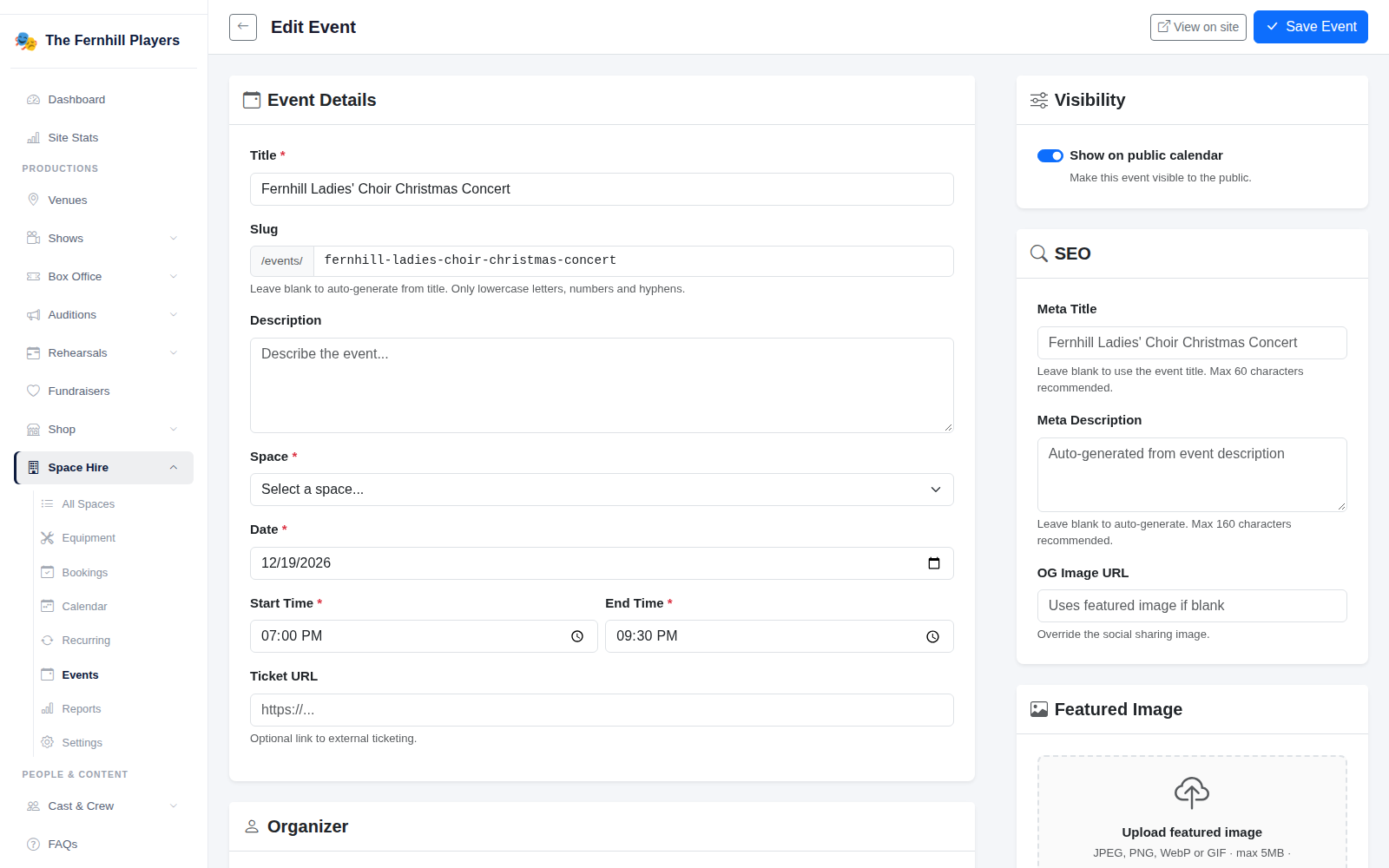
Enter the Title and a Description that tells people what to expect. The Slug (the end of the web address) is made from the title if you leave it blank.
Choose the Space, then the Date, Start Time and End Time. The room is booked out for that time, so it can't be hired over the top. If tickets are sold somewhere else, such as by a visiting choir, put the link in Ticket URL and a button to it appears on the event page.
Under Organizer you can note who's running it and how to contact them, and Admin Notes are only seen by your team.
3. Make it look good
Switch on Show on public calendar to put the event on your website. Add a Featured Image (600 by 400 pixels is ideal) and, after the event, a Photo Gallery. The SEO section lets you set the title and description search engines show; leave them blank and they're filled in for you.
Click Save Event, then View on site to check it.
4. What visitors see
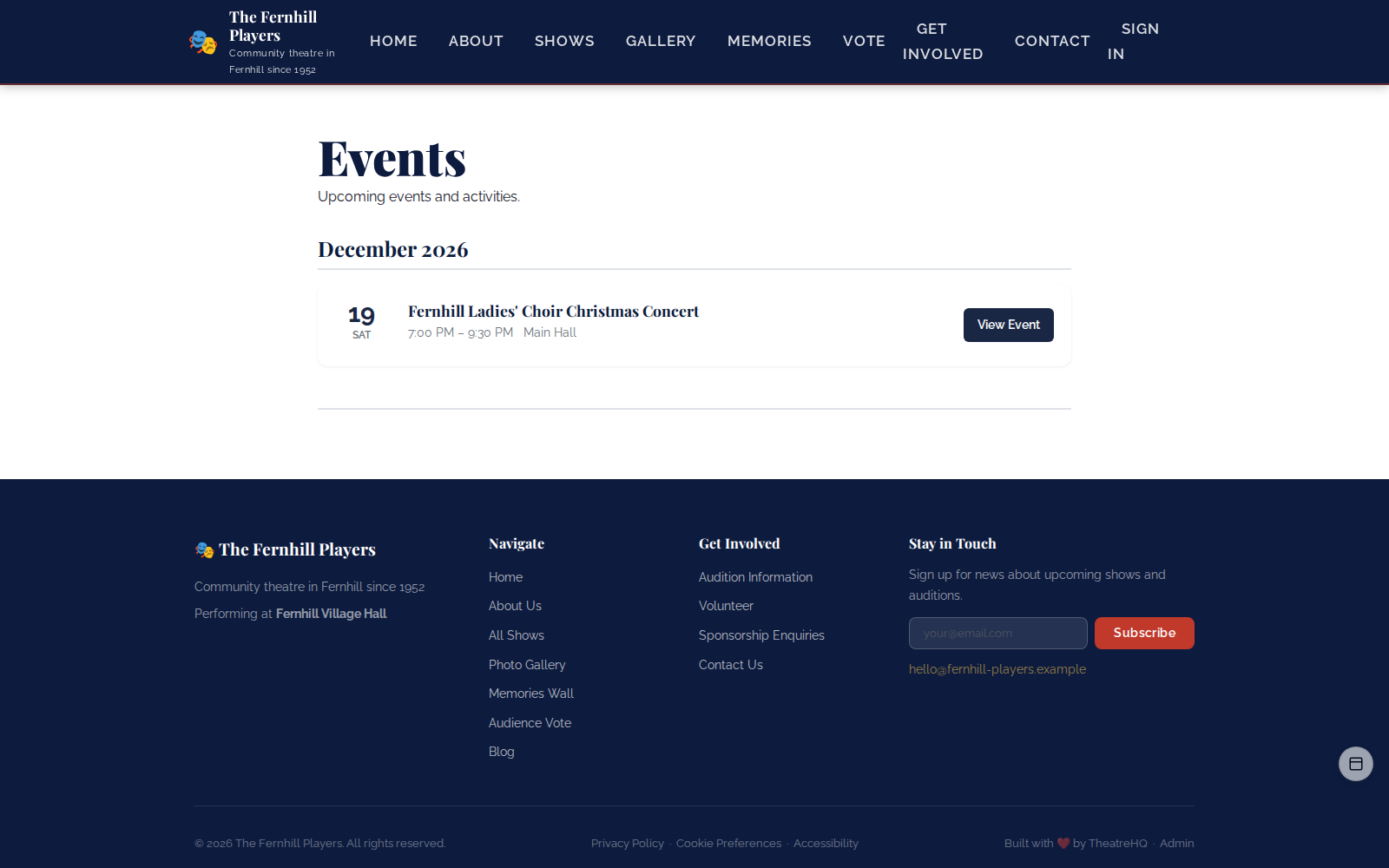
Your website's Events page lists everything coming up by month, and each event has its own page with the details, picture and ticket link.
Tip: use events for things that bring new people through the door, then invite them to your next show while they're there. A choir concert audience is a ready made audience for your Christmas production.