Adding your own fields to shows, cast and wardrobe
Add the extra details your society keeps, such as a show's licensing company or an actor's playing age, as fields on every form.
Every society keeps a few details that nobody else does. Perhaps you record which company licensed each show, an actor's playing age, or the purchase price of a costume. Custom fields let you add those to the forms you already use, so the information lives with everything else instead of in a separate spreadsheet.
You can add custom fields in three places: shows, cast and crew and wardrobe items.
1. Add a field to your shows
Go to Shows > Custom Fields. Type a Label, such as Licensed by, and choose the Field Type. Tick Show on front end if you want it shown on the show's page on your website, then click Add. Fields marked Public appear on the website; the rest are only seen by your team.
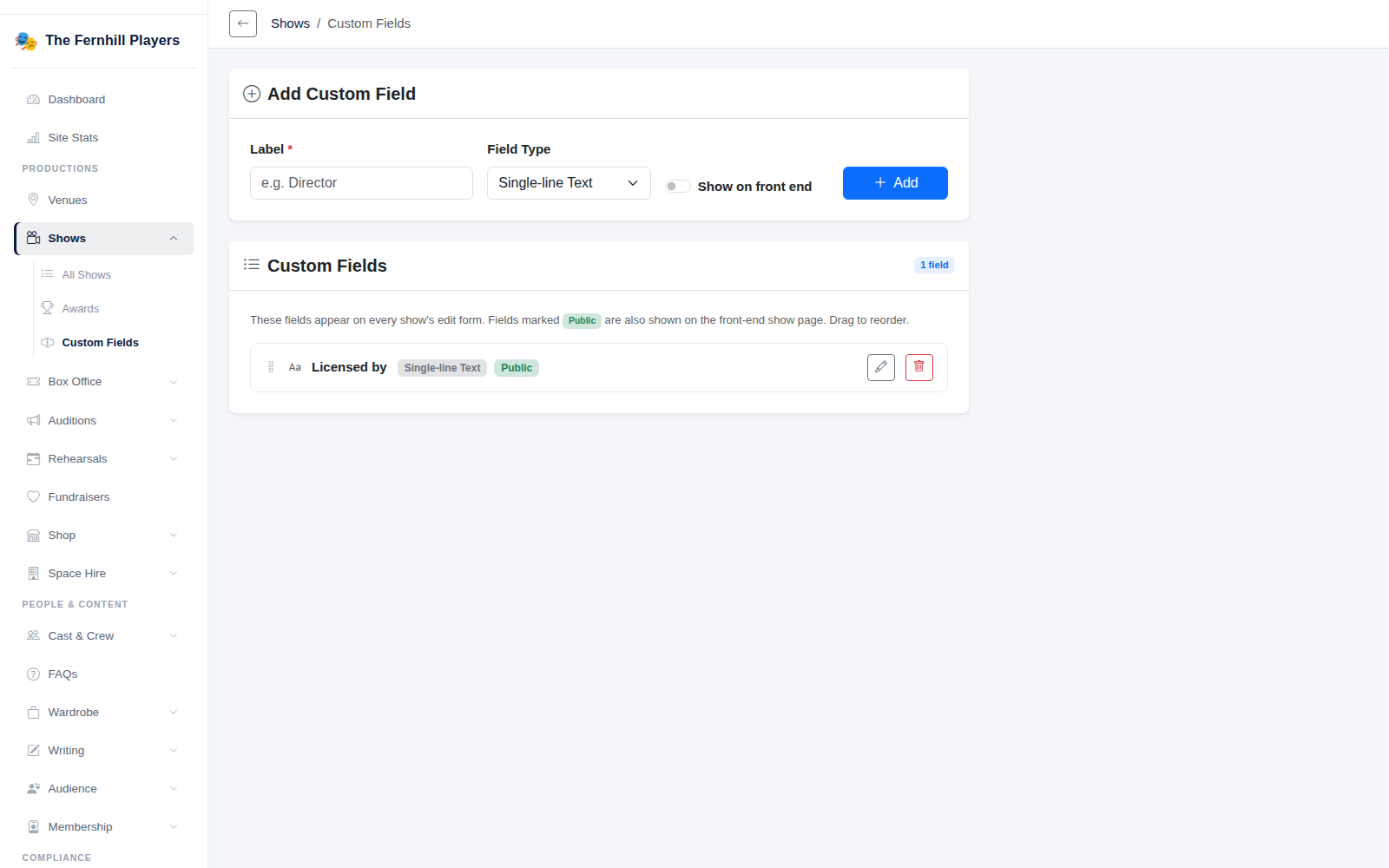
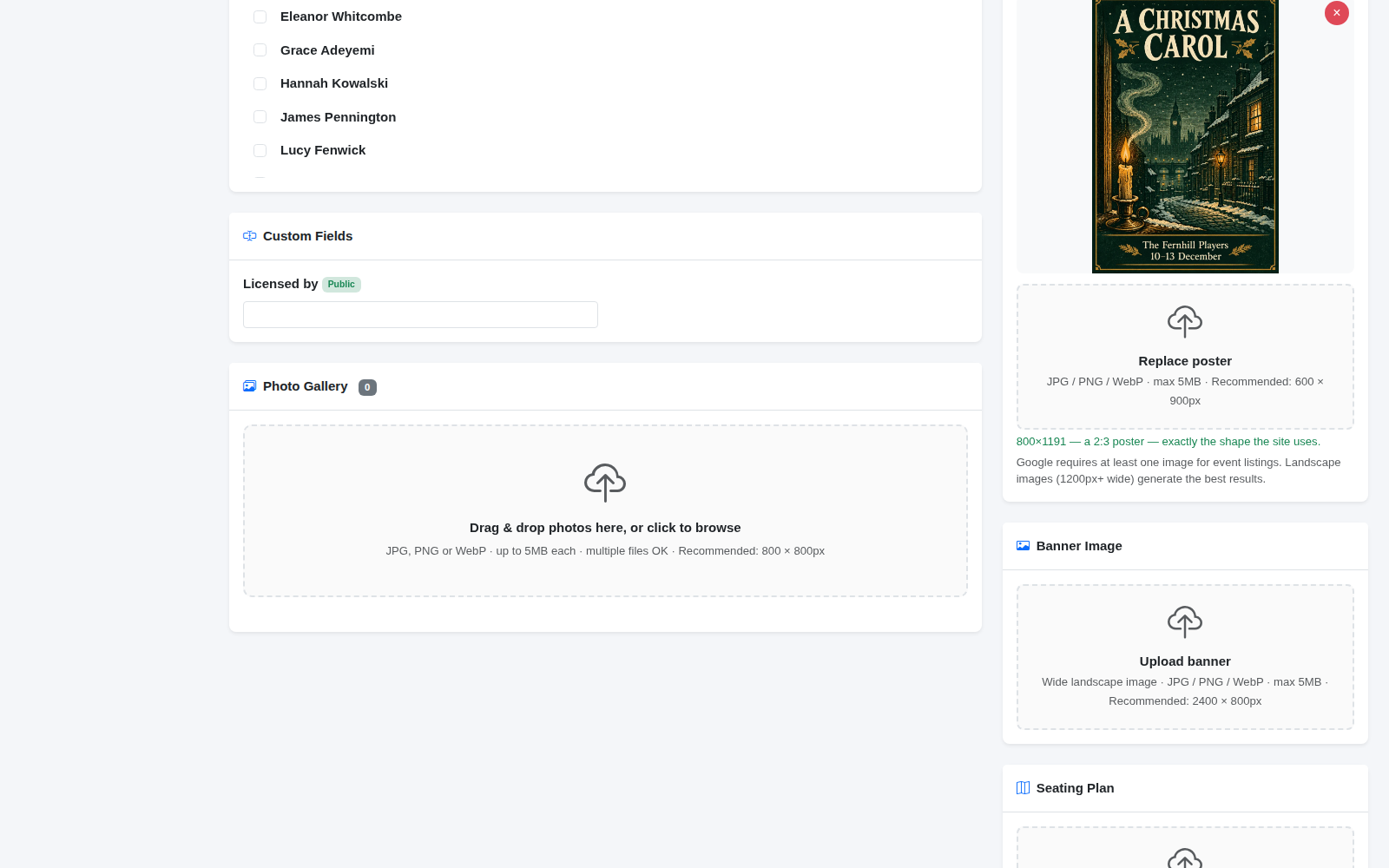
The new field appears in the Custom Fields section of every show's form, ready to fill in.
2. Add a field to cast and crew
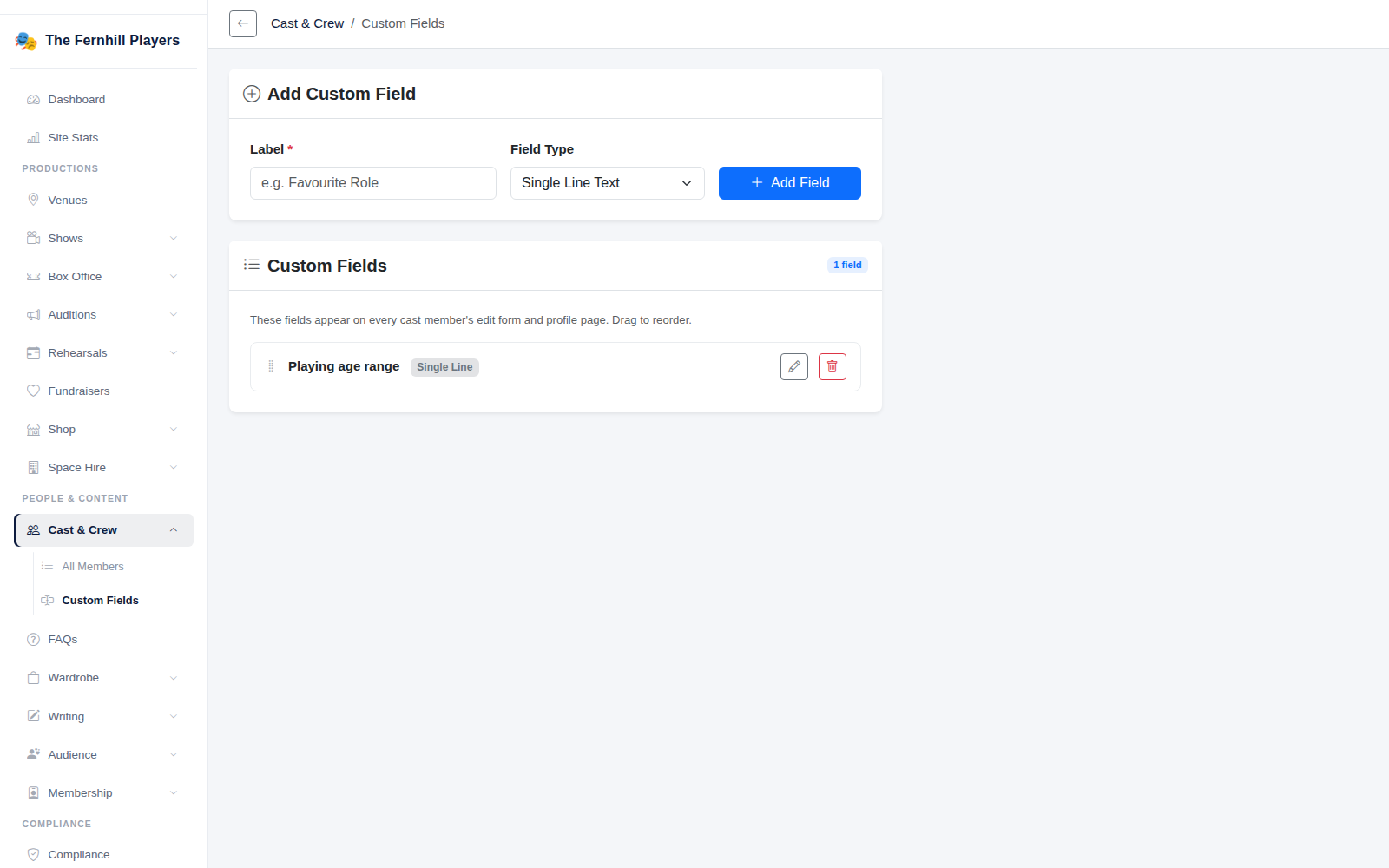
Go to Cast & Crew > Custom Fields and add fields the same way. They appear on every cast member's form and profile. Good uses include Playing age range, Instruments played or Skills such as stage combat or lighting.
3. Add a field to wardrobe items
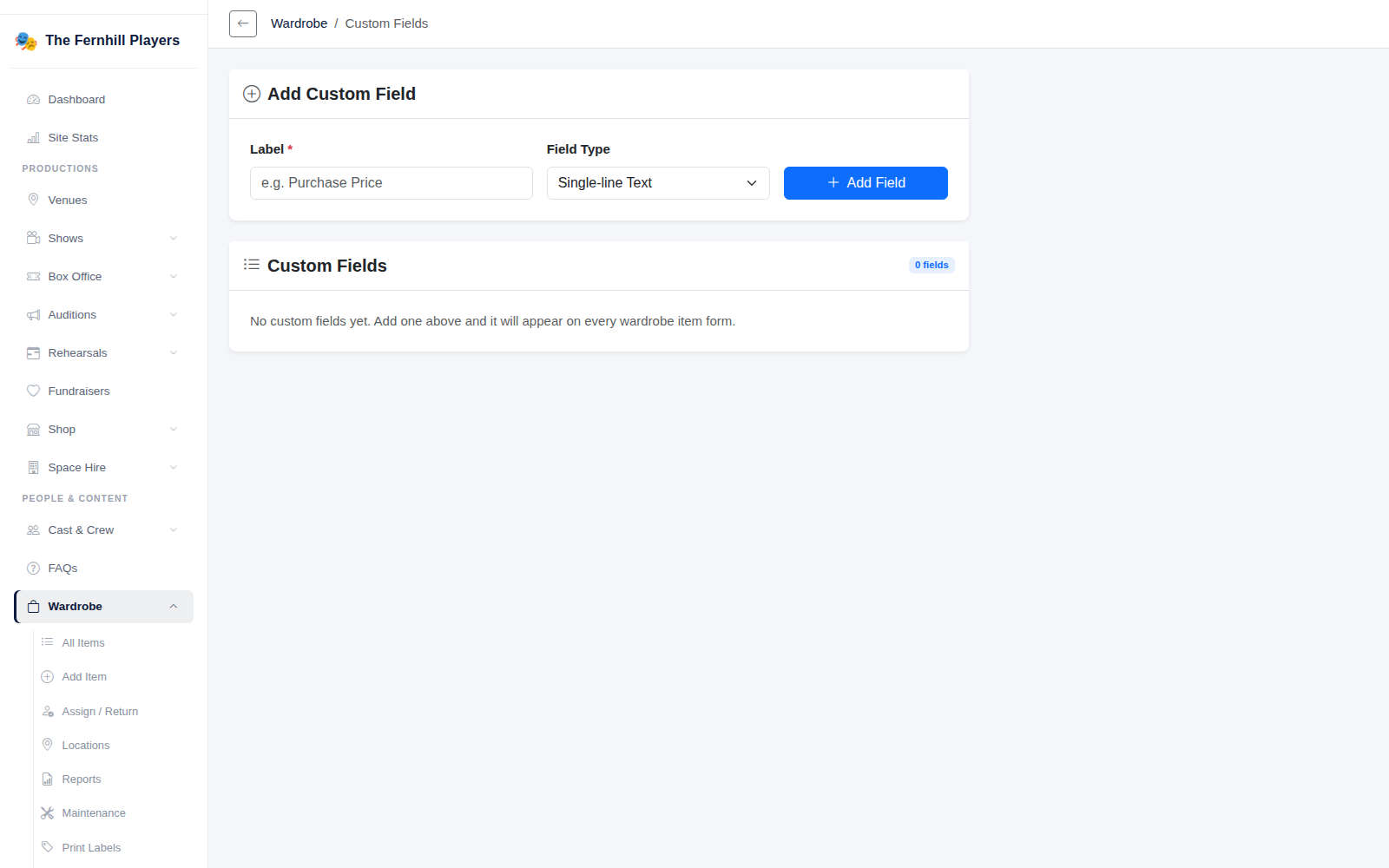
Go to Wardrobe > Custom Fields. Wardrobe has the widest choice of field types, including number, currency, dropdown, date, image upload, colour picker, dimensions and barcode or QR code, so you can record things like the purchase price, sizes or which production an item was made for.
Choosing the right field type
- Use a Dropdown or Radio Buttons when there's a fixed list of answers. It keeps things consistent, and you can sort and filter by it.
- Use Number or Currency for anything you might want to add up.
- Use Multi-line Text only for notes; it's hard to search a paragraph.
Drag fields in the Custom Fields list to change the order they appear in, and use the edit button to rename one.
Tip: think before adding personal details to cast profiles. Only record what you need, and leave Show on front end off for anything private.