Redirects and broken links: keeping old links working
Fix broken links and send old web addresses to the right page, and why redirects matter whenever you change your website.
Every page on your website has an address, and those addresses end up everywhere: in people's bookmarks, in Google's search results, on other websites, in old Facebook posts, in emails, and printed on posters and programmes as QR codes. When a page moves or an address changes, all of those links break. A redirect quietly sends anyone using the old address to the right page instead. This guide shows how to set them up in TheatreHQ, and why they're worth the few minutes they take.
Why redirects matter when you change your website
If you're moving to TheatreHQ from another website, renaming a page or reorganising your menus, some old addresses will stop working. Without redirects, people following those links land on a “page not found” error, and many will simply give up — including people who were trying to buy tickets.
- Visitors keep finding you. A redirect turns a dead end into the page they wanted, whether they came from a bookmark, an old email or a QR code on last year's poster.
- You keep your place in Google. Search engines rank pages partly by the links pointing at them. A permanent redirect tells Google the page has moved, so the new address inherits the old one's standing instead of starting again from scratch.
- Links from other websites keep working. Local listings, newspaper articles and partner sites rarely update their links. A redirect means you don't need them to.
- You see what's broken. TheatreHQ records every address that didn't exist, so you can spot problems you'd never have known about.
1. Open Redirects & Broken Links
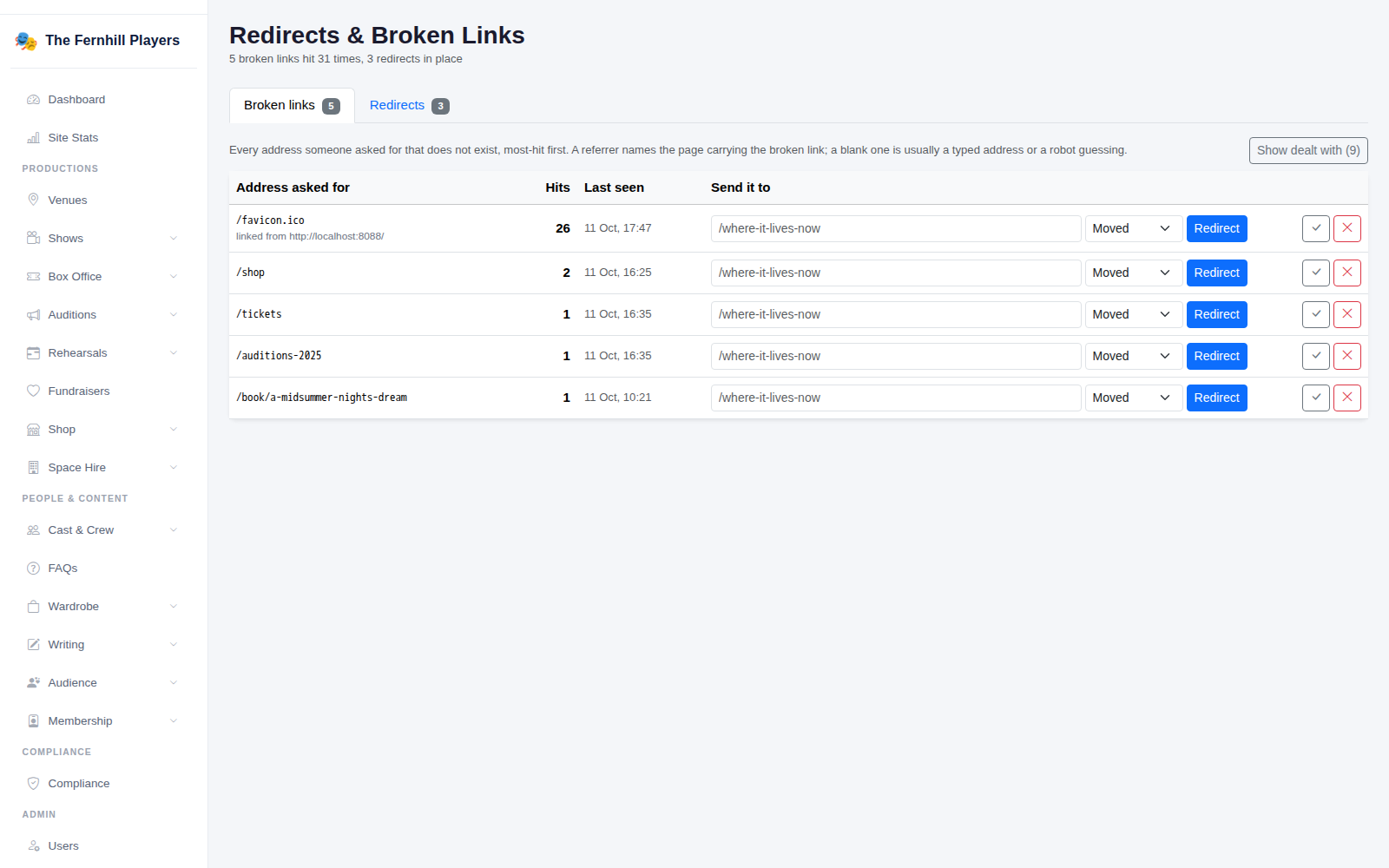
Go to Settings > Redirects & 404s. The summary at the top tells you how many broken links have been hit and how many redirects are in place. The Broken links tab lists every address someone asked for that doesn't exist, most-hit first, with how often and when it was last seen. If it shows linked from, that's the page carrying the broken link; a blank one is usually a typed address or a search engine guessing.
2. Redirect a broken link
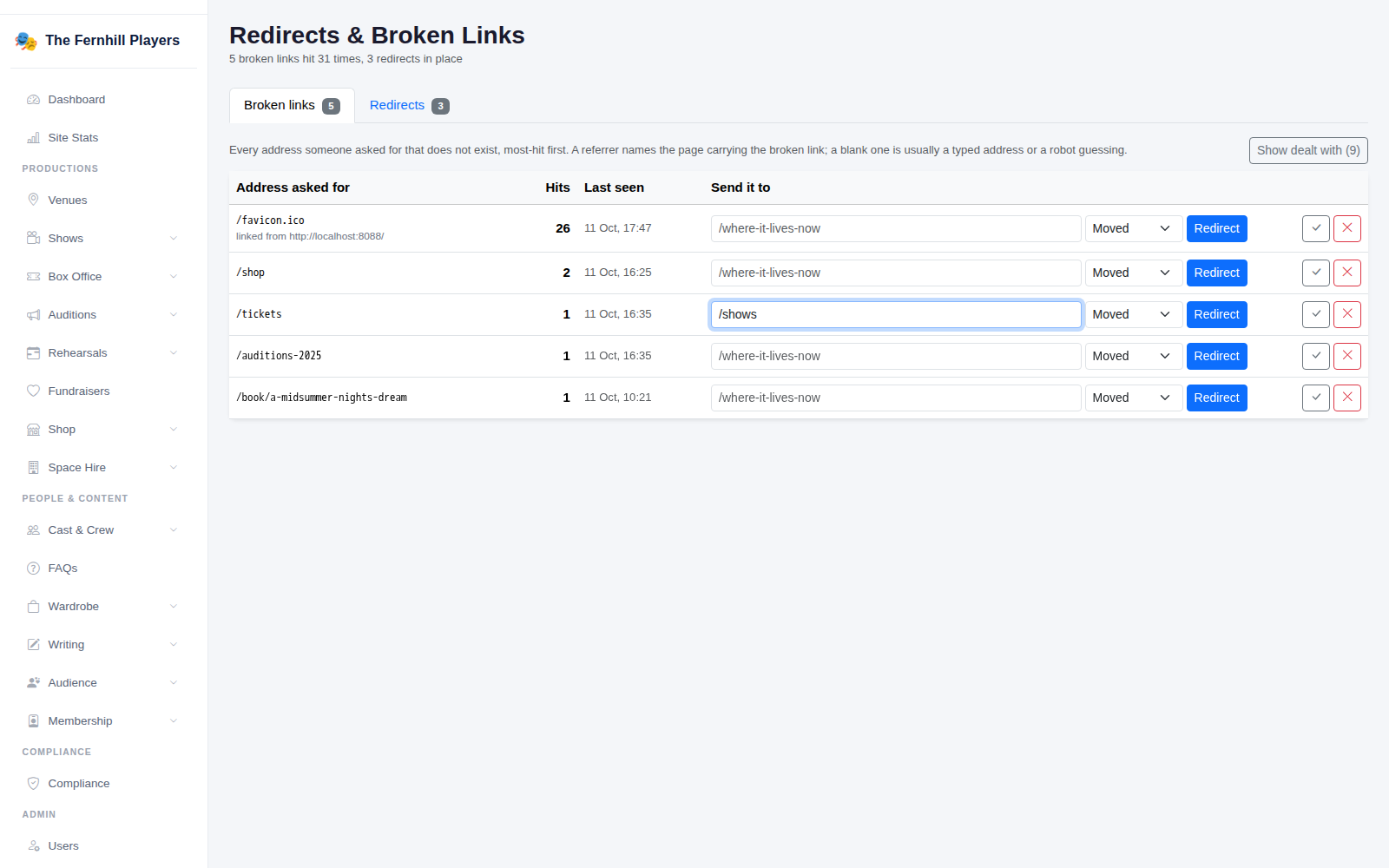
On the broken link's row, type where it should go in Send it to — a page on your site such as /shows, or a full web address. Choose Moved or Temporary and click Redirect. From then on, anyone asking for the old address is taken straight to the new one.
If a broken link isn't worth fixing — a robot guessing at addresses, or something no one will ask for again — use the tick to mark it dealt with. It's hidden unless it happens again. Show dealt with brings those back into view.
3. Add a redirect yourself
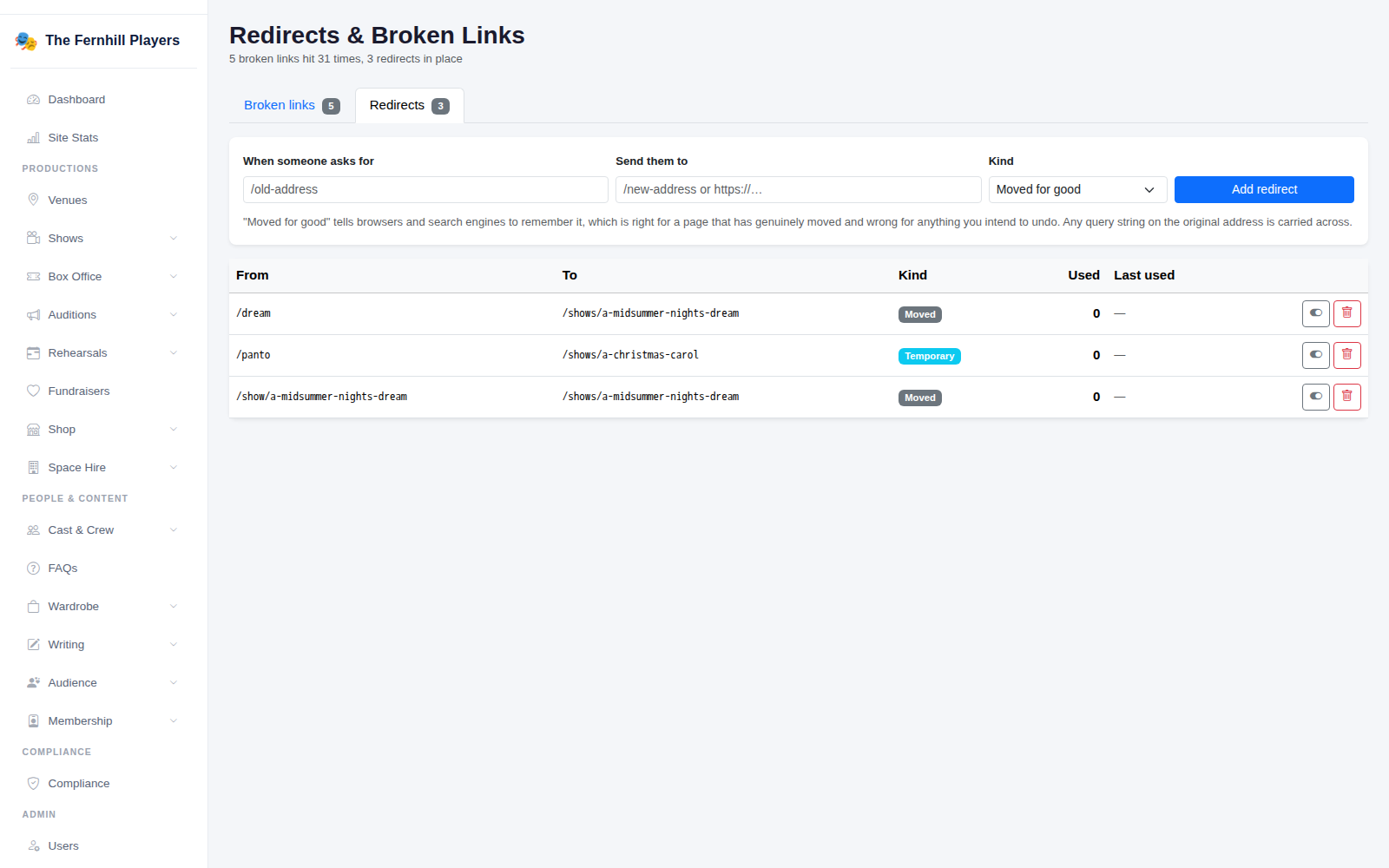
You don't have to wait for something to break. On the Redirects tab, fill in When someone asks for (the old address) and Send them to (the new one), choose the Kind and click Add redirect. This is useful for short, memorable addresses too — /panto pointing to this year's pantomime makes a tidy web address for a poster.
The list shows every redirect with how many times it's been used and when it was last used, and you can switch one off or delete it at any time. Anything after a question mark in the old address is carried across to the new one.
Moved for good, or temporary?
Moved for good tells browsers and search engines to remember the change permanently. It's right for a page that has genuinely moved and won't come back, and it's the one that carries your Google ranking across. Temporary is for anything you intend to change again — like /panto, which will point to a different show next year. If in doubt, use Temporary: browsers can remember a permanent redirect for a long time, so it's harder to undo.
General advice
- Plan before you switch. If you're moving from an old website, make a list of its main addresses — the homepage, shows, tickets, membership, contact, any pages people link to — and set up redirects for them on the day you switch.
- Send people somewhere relevant. Redirect an old show page to that show or your shows list, not to your homepage. Landing on the homepage when you wanted tickets is nearly as frustrating as an error.
- Avoid chains. If you move a page twice, point the original address straight at the final page rather than through the middle one.
- Keep addresses stable. Every rename creates a link someone, somewhere, will follow. Choose simple, lasting addresses and change them only when you need to.
- Check the Broken links tab. Look at it weekly for the first month after any big change, then every now and then. The most-hit entries at the top are the ones worth fixing first.
- Fix your own links too. A redirect is a safety net. If one of your own pages or menu items links to an old address, update the link itself.
- Mind your print. Before printing posters and programmes, check the address or QR code works, and keep it working for at least the length of the run — ideally longer, as programmes get kept.
Tip: you'll often see /favicon.ico near the top of the broken links list. Browsers ask for it automatically to show a small icon in the tab, so it isn't a broken link anyone has followed — you can mark it dealt with.