Logging In
When you sign up for TheatreHQ, you receive a subdomain such as yourtheatre.theatrehq.com. This article explains how to find the admin login from your public site and sign in to the TheatreHQ admin panel.
When you sign up for TheatreHQ, you receive a subdomain such as yourtheatre.theatrehq.com. This article explains how to find the admin login from your public site and sign in to the TheatreHQ admin panel.
1. Open your TheatreHQ site
Go to your TheatreHQ subdomain, such as yourtheatre.theatrehq.com or demo.theatrehq.com. The public homepage will load.
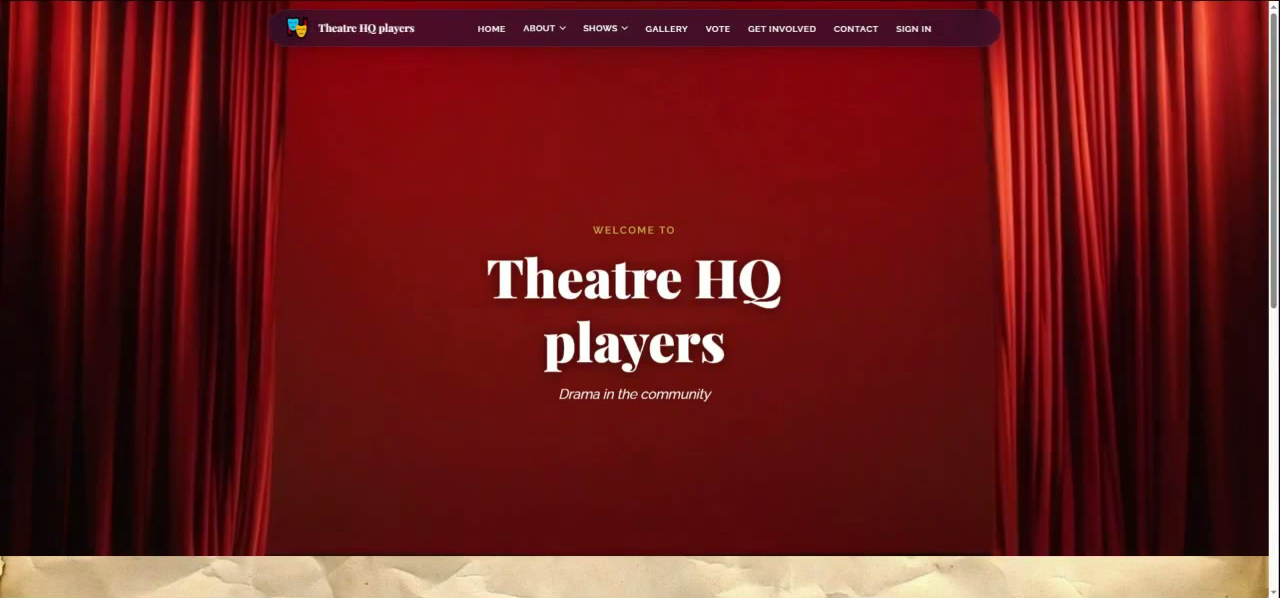
2. Scroll to the bottom of the page
Scroll down to the footer at the bottom of your site. The footer contains navigation and contact links, plus the admin access link.
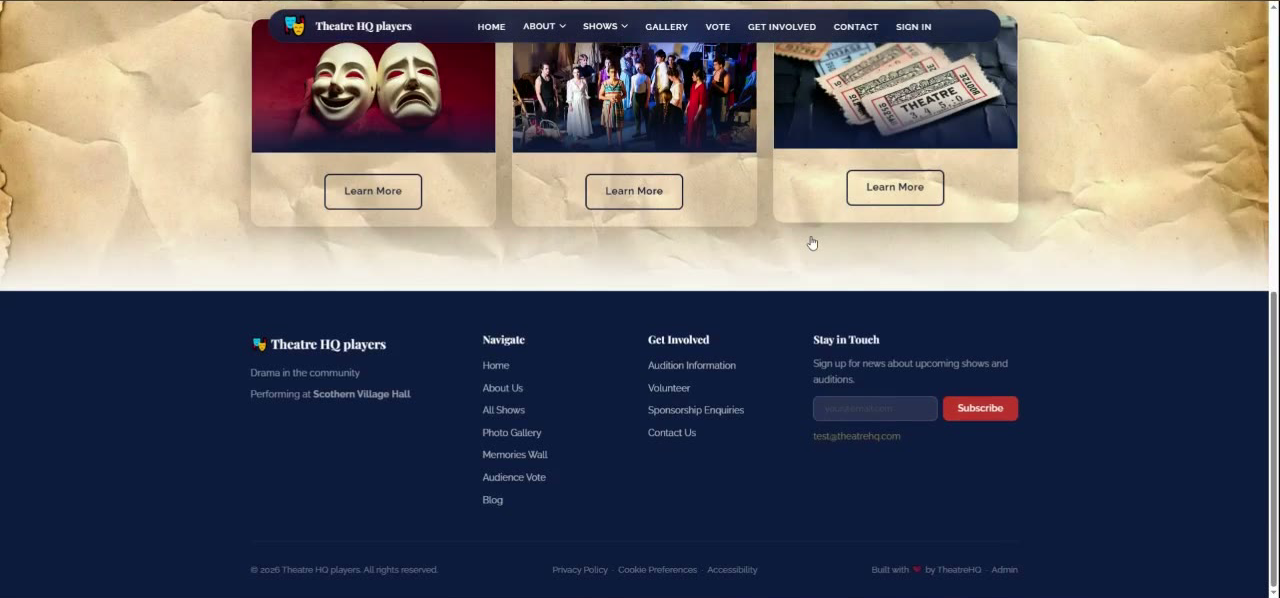
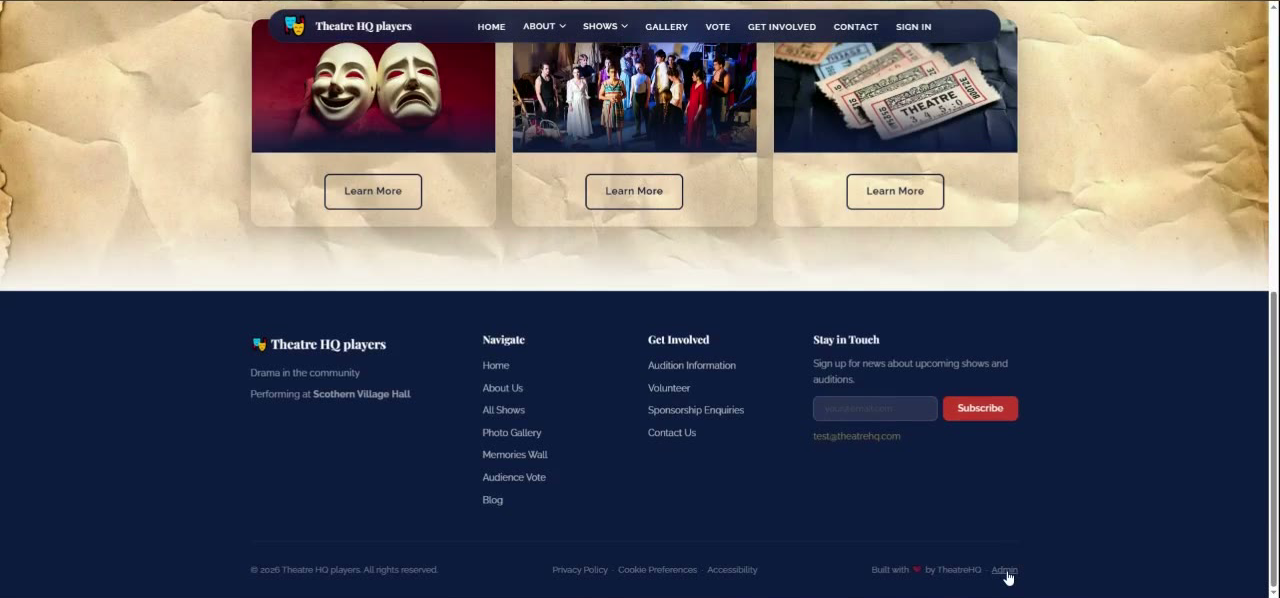
3. Click Admin
In the bottom-right corner of the footer, click Admin. This opens the TheatreHQ login page.
4. Open the sign-in page
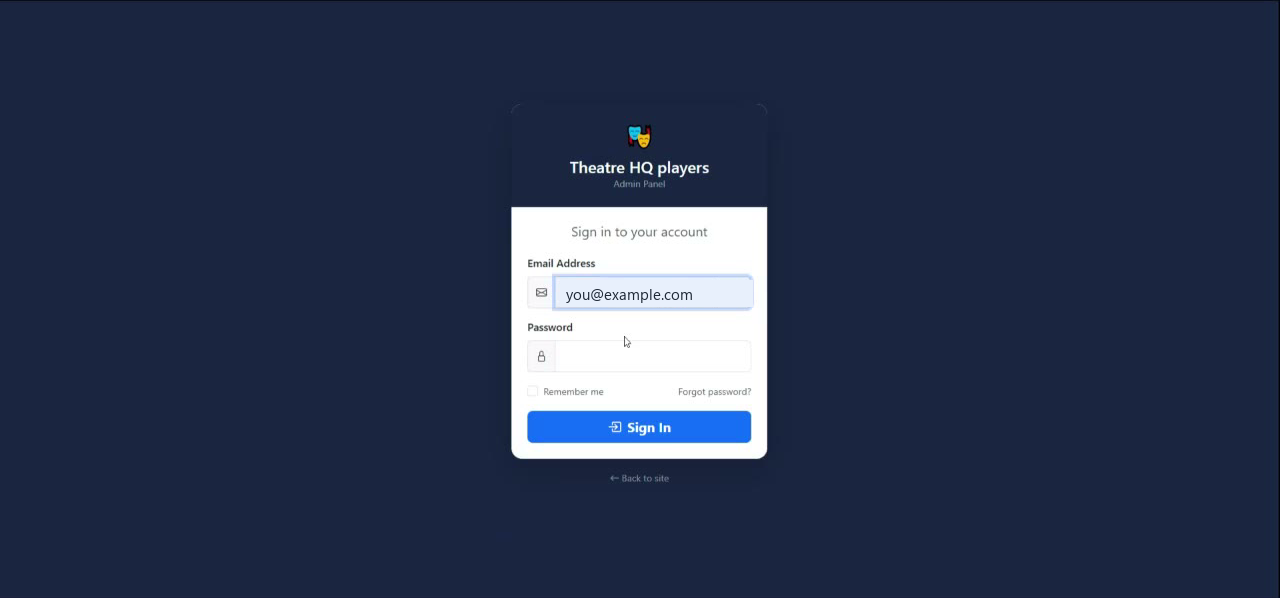
Use the Admin link to open the TheatreHQ Admin Panel sign-in page. The page shows fields for your email address and password.
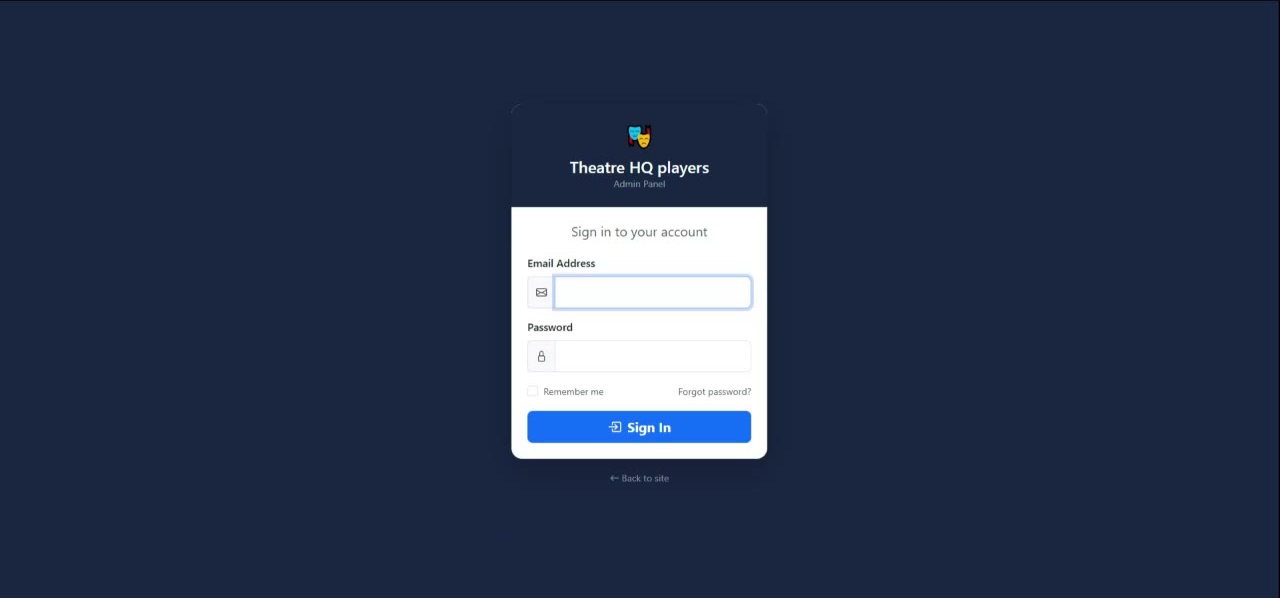
5. Enter your email address
Enter the email address that was provided when you signed up for TheatreHQ. It goes in the Email Address field.
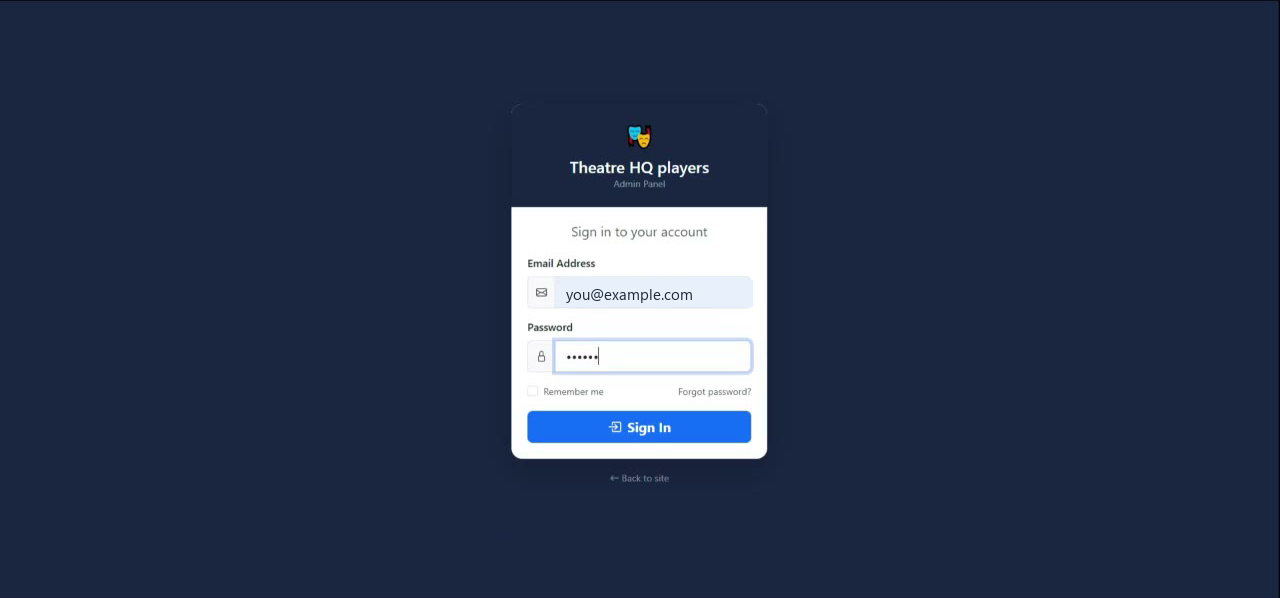
6. Enter your password and sign in
Type your password into the Password field. Tick Remember me if you want the browser to remember your login, then click Sign In.
7. Access your dashboard
Sign in to open the TheatreHQ dashboard. You are now logged into the admin system.
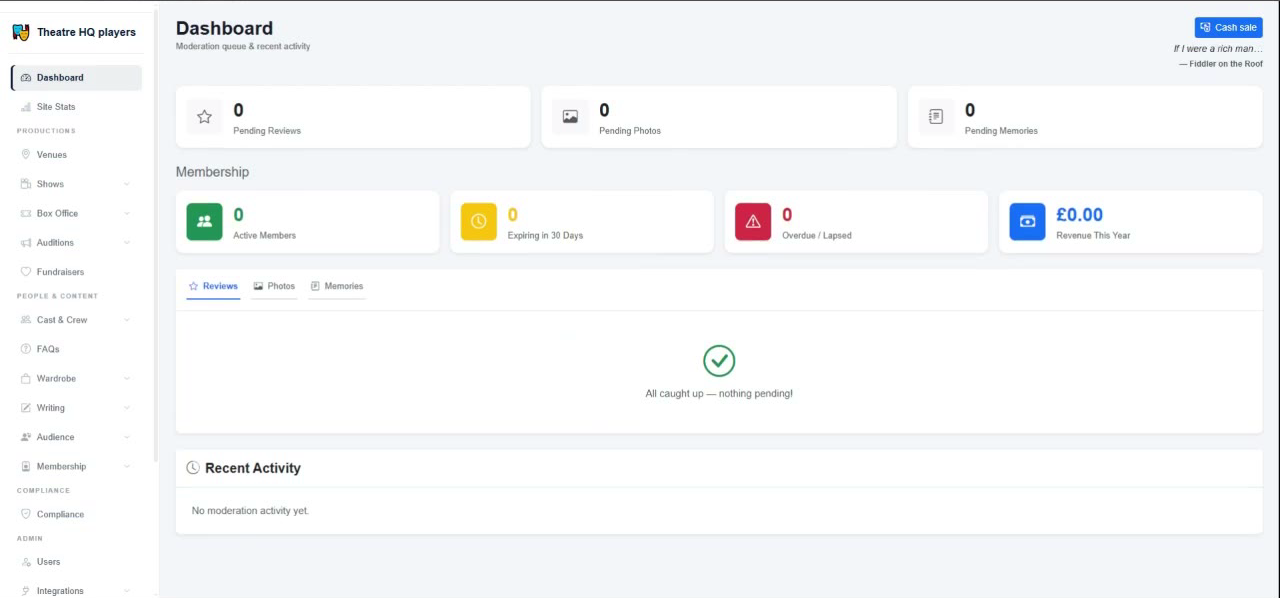
You can now manage your TheatreHQ site from the admin dashboard. If you sign out later, return to your site, scroll to the footer, and use the Admin link to sign in again.