Setting up an audition
Switch on auditions, see who can see what, then set up an audition: the show, status and type, location, slots and booking, rehearsal dates, roles and sides, and your audition days.
This guide shows how to switch on auditions, see who can see what, and set up an audition from start to finish: the basics, the roles you're casting with their sides, and your audition days and slots. The video above shows the same steps, using the demo audition for Abigail's Party.
1. Modules
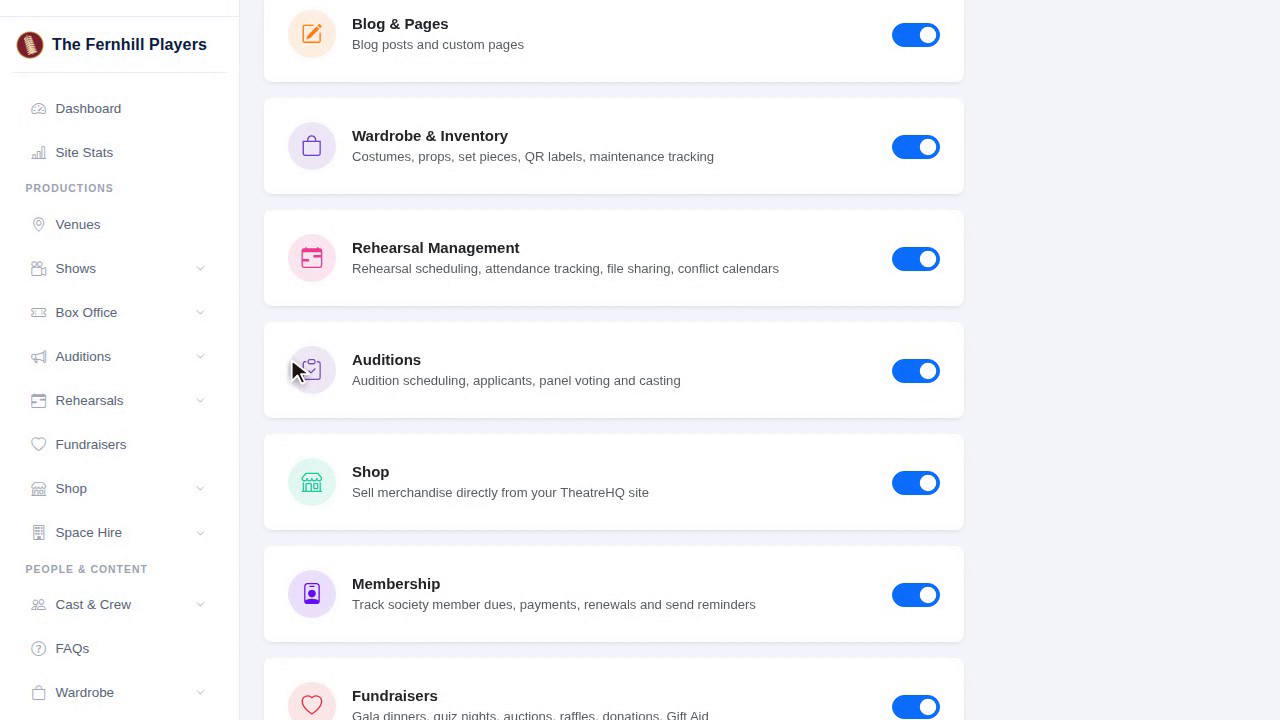
Auditions is a module, so it can be switched on and off. Go to Modules in your settings, find Auditions, and switch it on. Auditions then appears in the menu on the left.
2. The committee
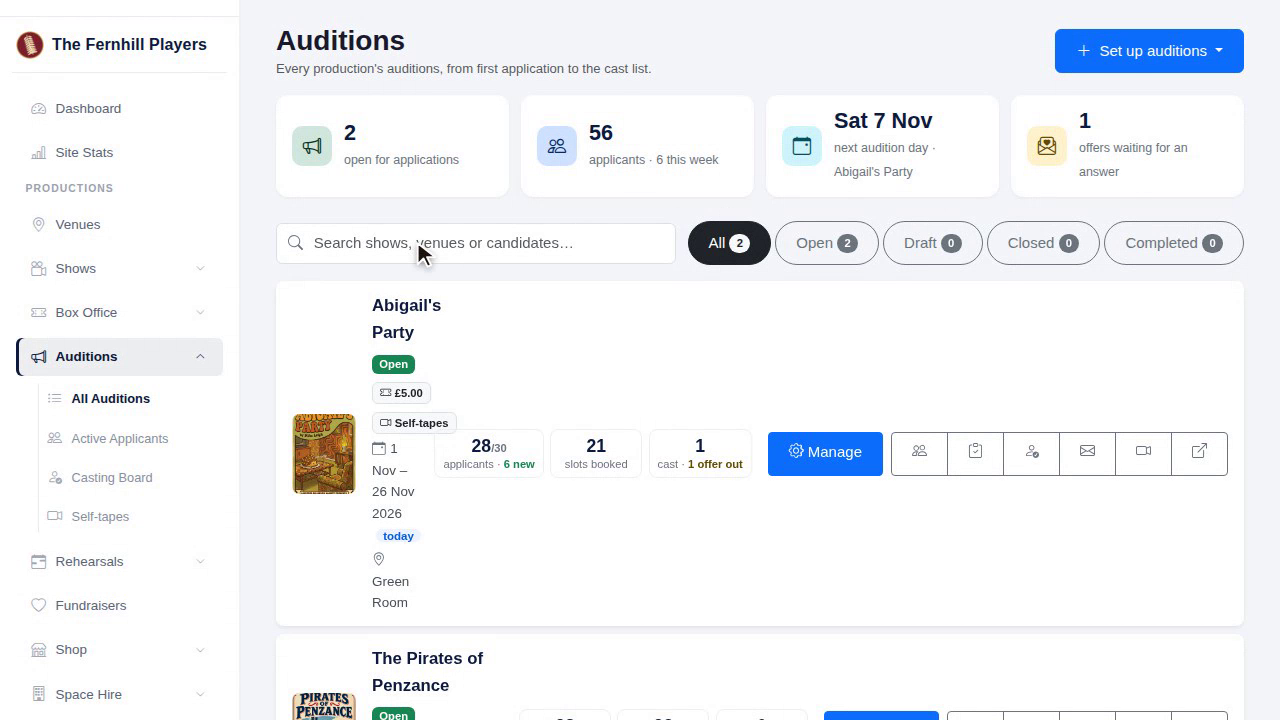
Your admins, together called the committee, see every audition. They can set up new auditions, manage each casting panel, and sign off offers. This is the list they see, with every production's auditions in one place.
3. The casting panel
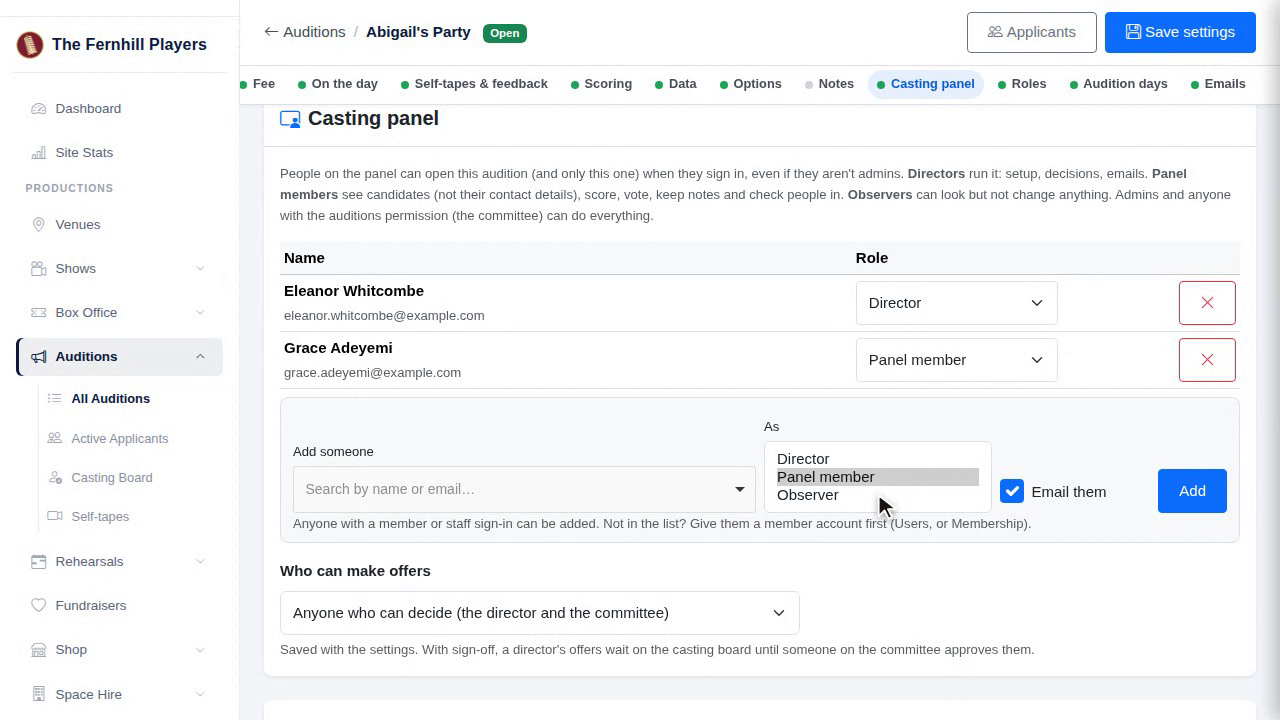
Everyone else gets in through an audition's casting panel. A director runs that one audition. Panel members score, vote and make notes. Observers can look but not change anything. And none of them can see your other auditions.
4. A panel member signs in
Panel members sign in with their usual society account. The Auditions menu then shows only the auditions they're on. In our example, just Abigail's Party.
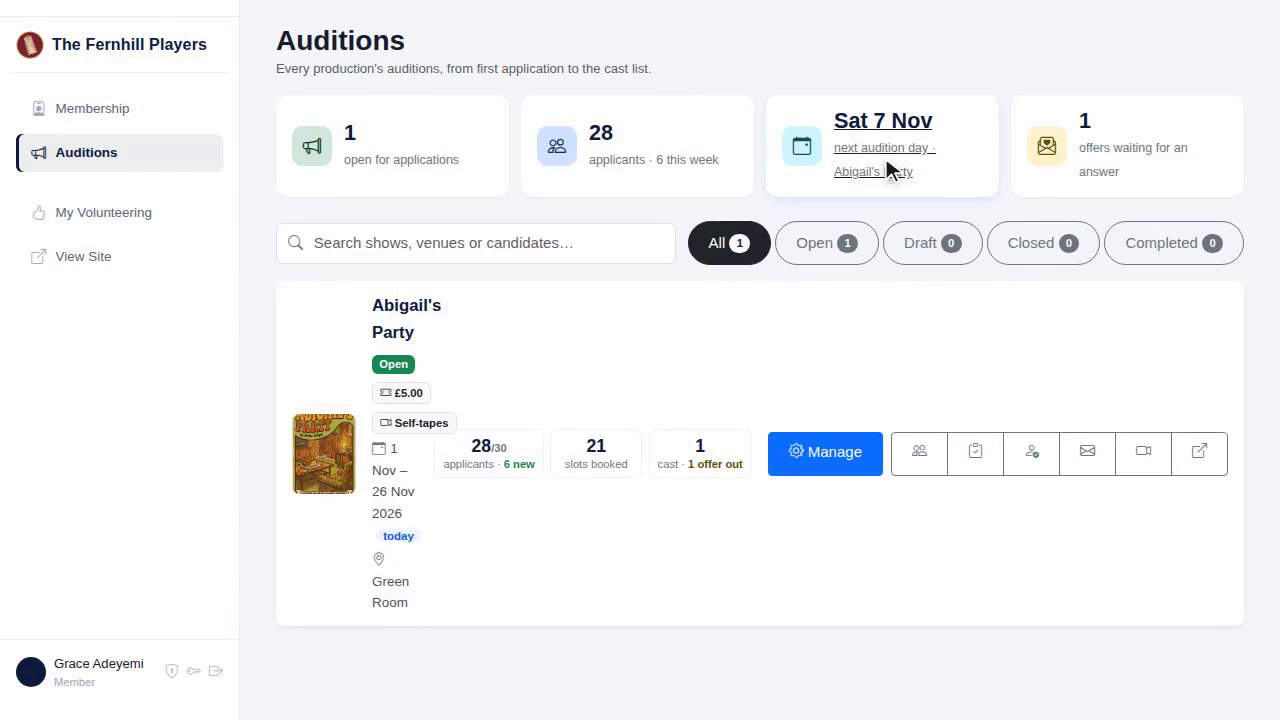
That's who can see what. We'll add people to a casting panel in the casting panel guide. Now, let's create an audition.
5. Set up auditions
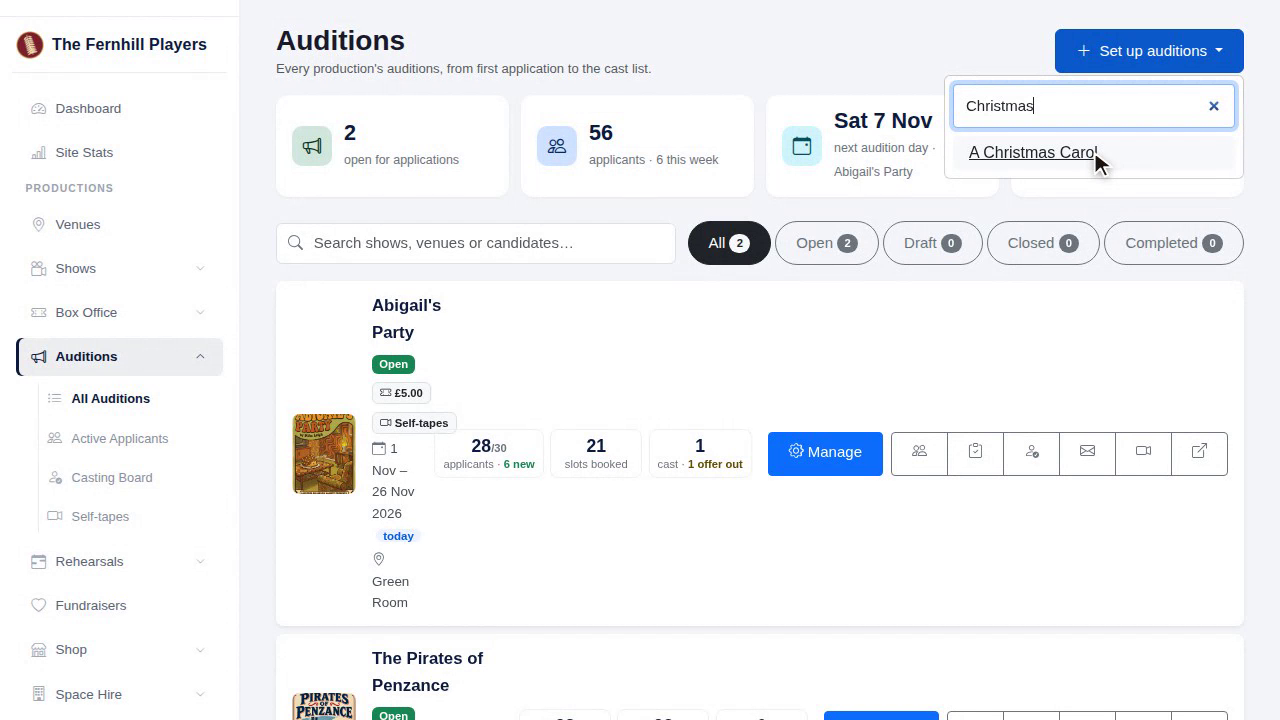
On the Auditions page, click Set up auditions, and choose the show. Only shows marked Draft or Upcoming are listed, so if yours is missing, check its status first.
6. Start from a previous audition
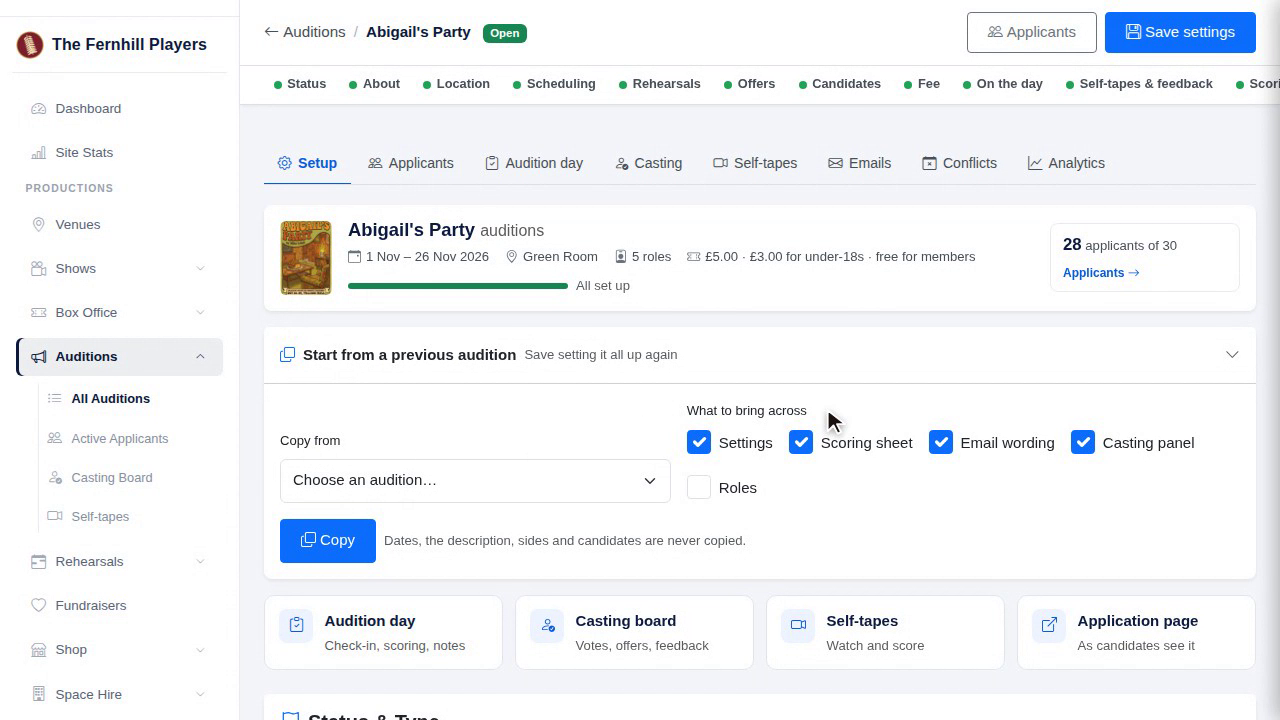
At the top there's Start from a previous audition. Next season, this copies your settings, scoring sheet, email wording, casting panel and roles from last time. For our first audition, we'll start from scratch.
7. Status and type
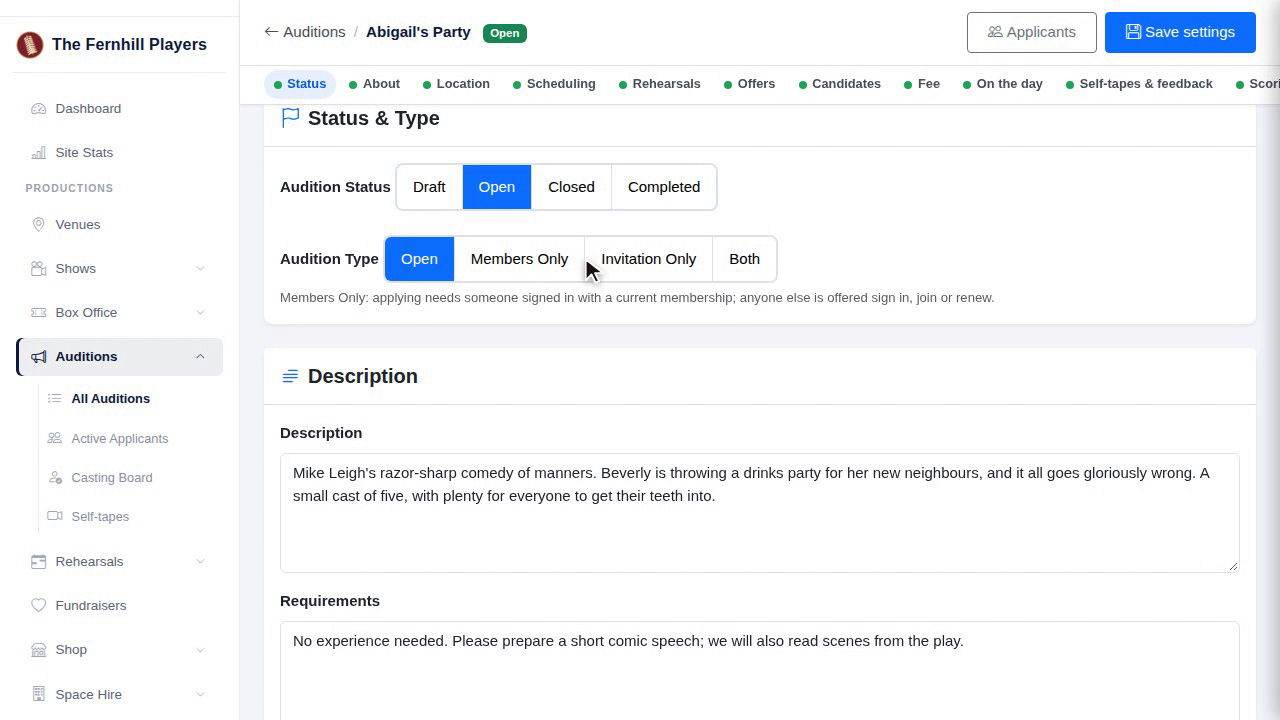
First, status. Leave it at Draft while you set up: nobody can see or apply until you open it. Then the type. Open is for anyone. Members Only asks people to sign in as members. And Invitation Only is for people you've invited.
8. About
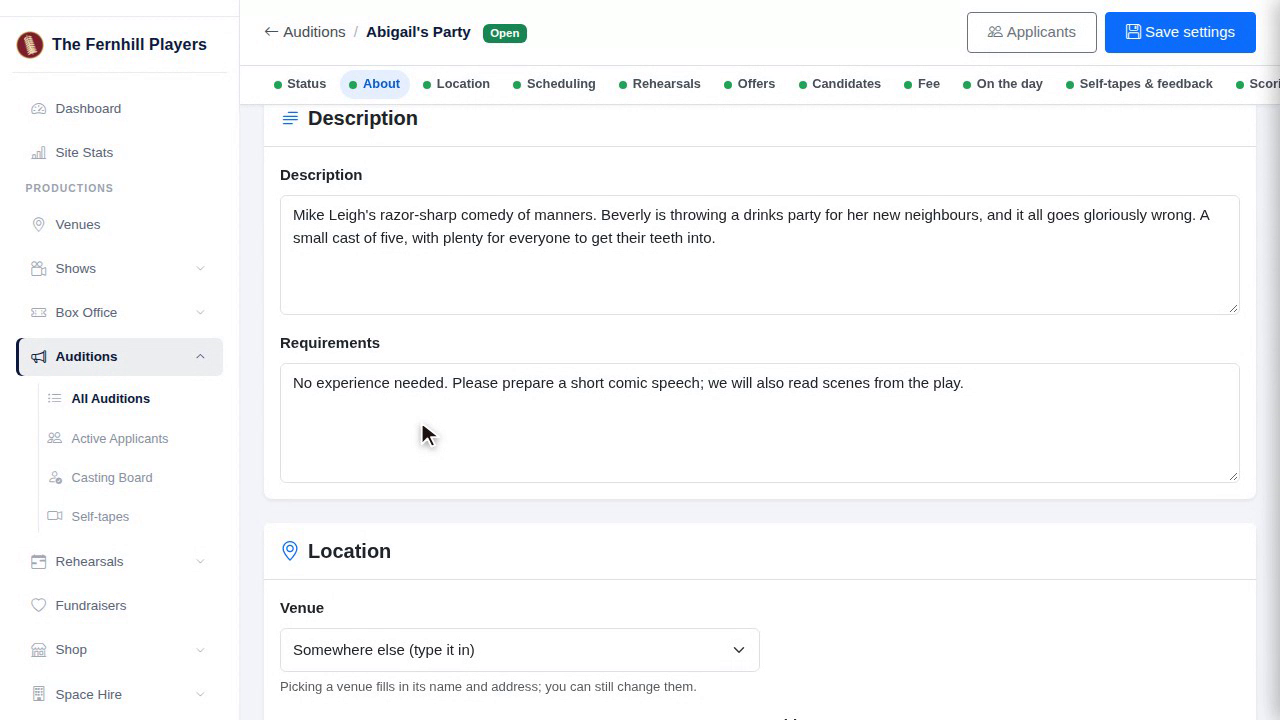
Under Description, say a little about the production and what you're looking for. Requirements is for anything candidates must be able to do, such as being free for the whole run.
9. Location
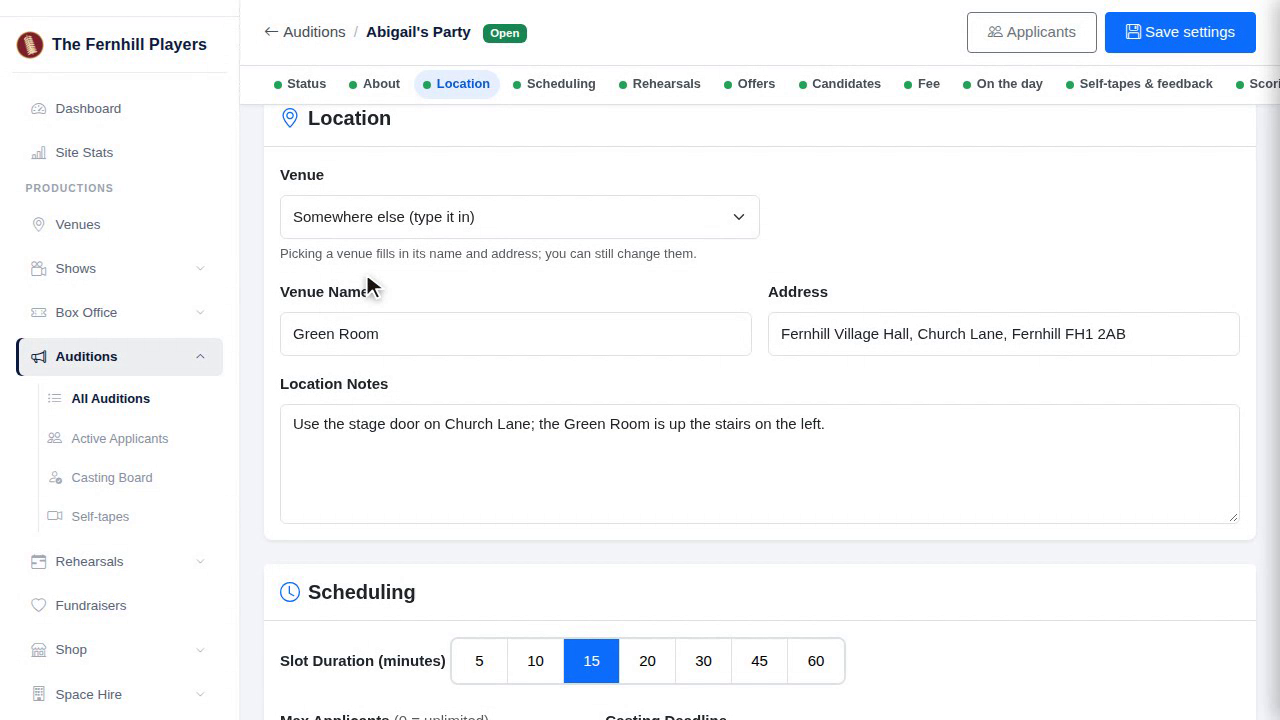
For the location, pick one of your venues from the list, and the address and map come with it. If you're holding auditions somewhere new, choose Somewhere else and type it in.
10. Scheduling
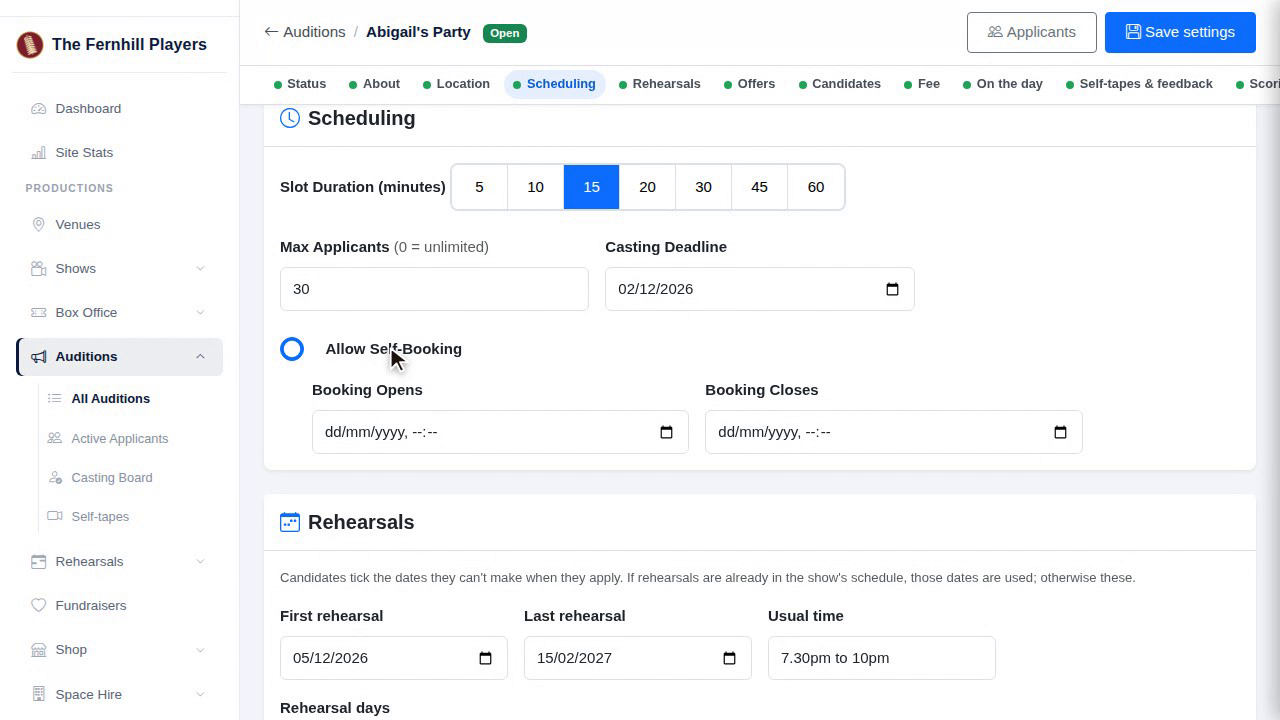
Under Scheduling, choose how long each audition slot is, from five minutes to an hour. Set a maximum number of applicants if you need one; nought means no limit. And switch on Allow Self-Booking to let candidates choose their own slot, between the dates you set.
11. Rehearsals
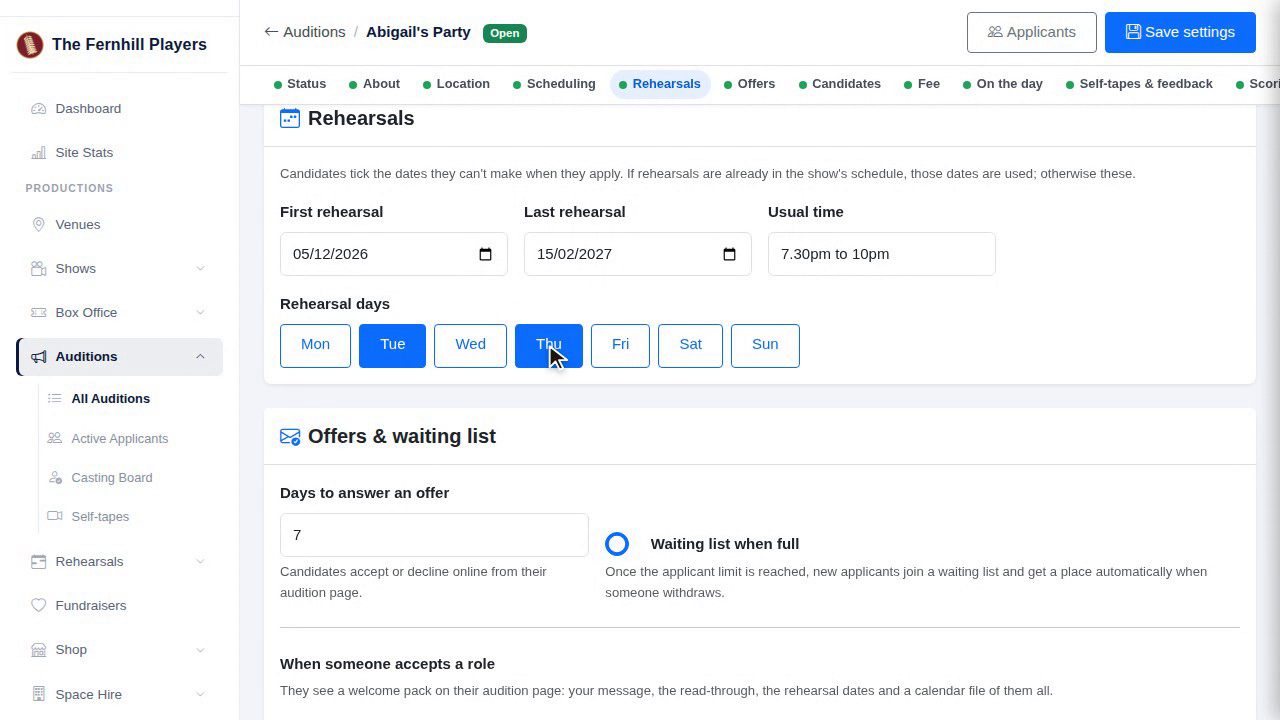
Then the rehearsals: the first and last dates, the usual time, and which days you rehearse. Candidates see these dates on the form and tick the ones they can't make, so you know about clashes before you cast.
12. Save and the dots
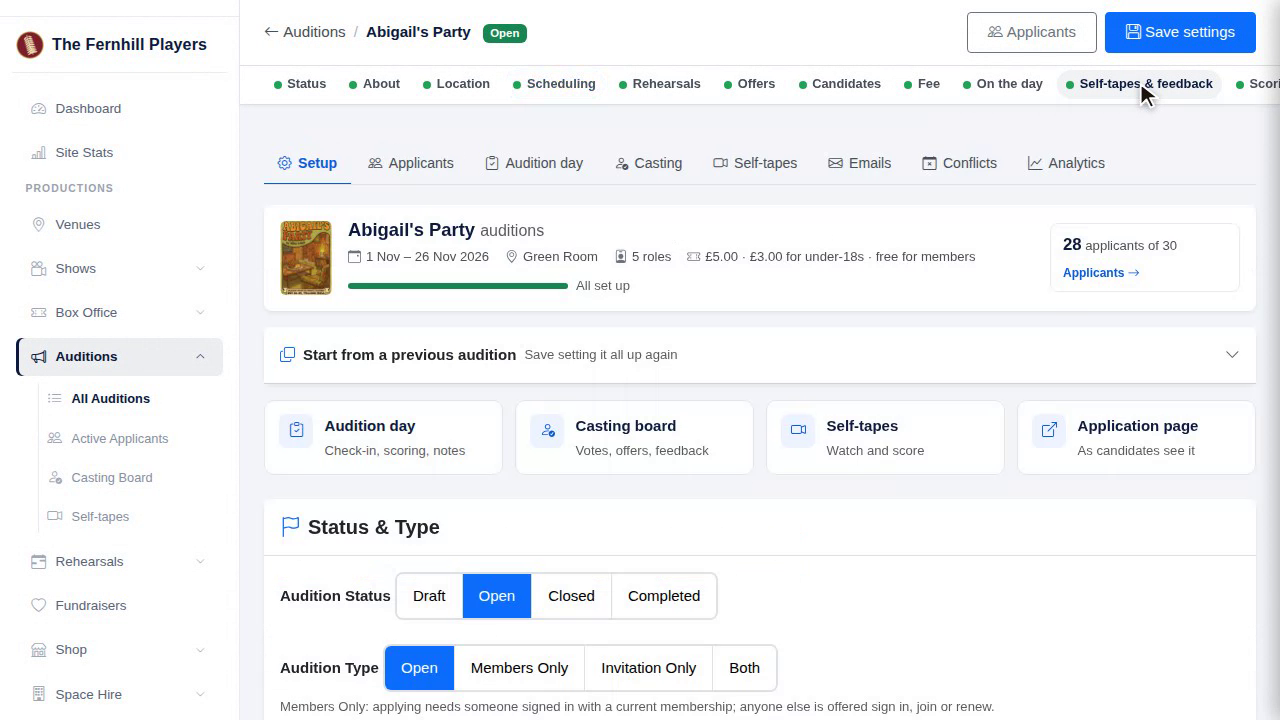
Click Save settings. The jump menu down the side shows how far you've got. Green is done, amber needs attention, and grey is optional and switched off. The amber dots tell you what's left.
That's the basics. Now let's add the roles you're casting, and the sides for each one.
13. Add a role
Under Roles, click Add Role. Give it a name, choose the type, from a lead to the chorus, and write a line or two about the character.
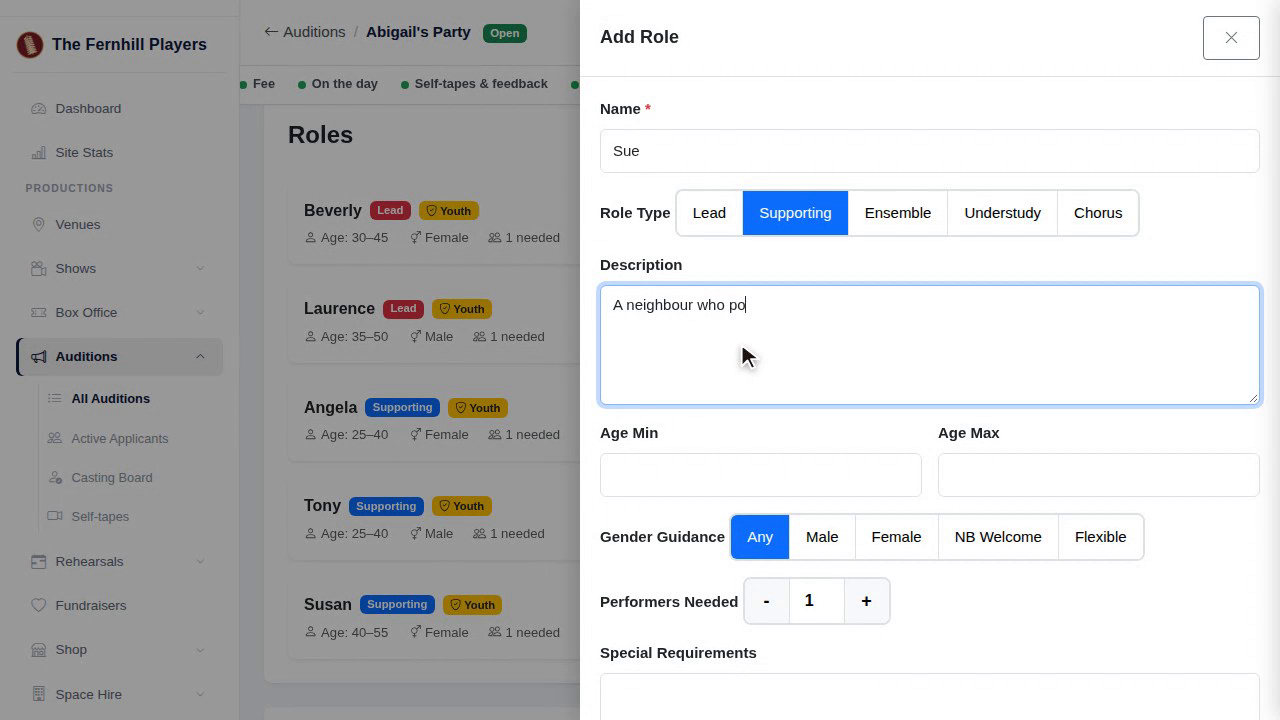
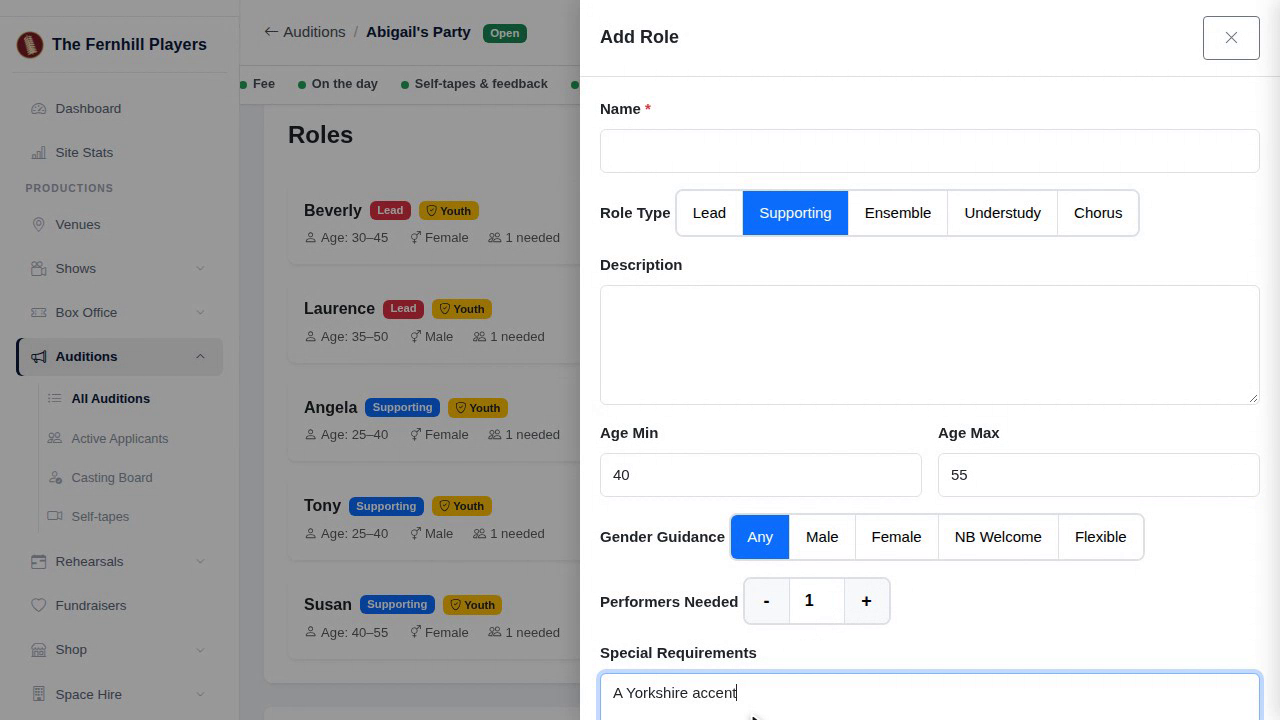
14. Details
Then add the playing age, any guidance on gender, and how many people you need for the part. Special Requirements is for things like singing or an accent, and Youth Eligible lets under-eighteens apply for it.
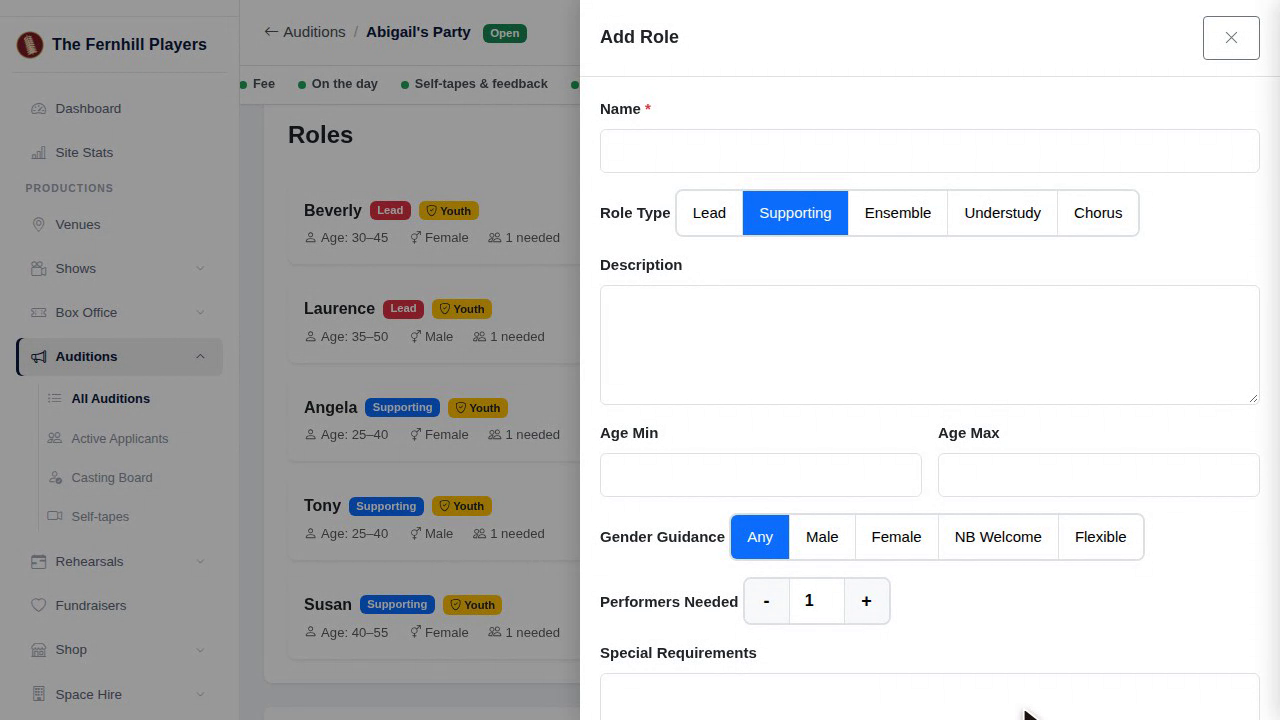
15. Sides
Now upload the sides for this role as a PDF, and add a note for candidates, such as learn the Act One scene.
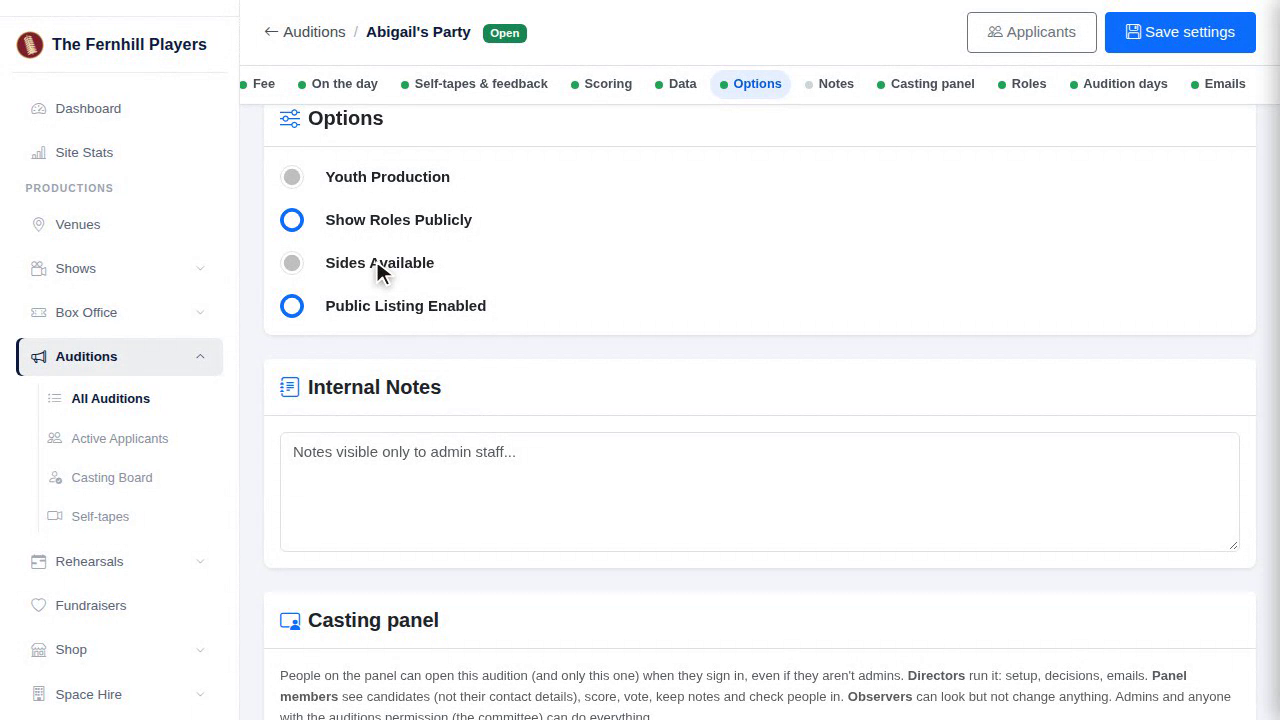
16. General sides
If there's a piece for everyone, put it under Options instead, as general sides.
17. What candidates see
Candidates see the sides for the roles they pick, on the application form and on their own audition page, ready to download.
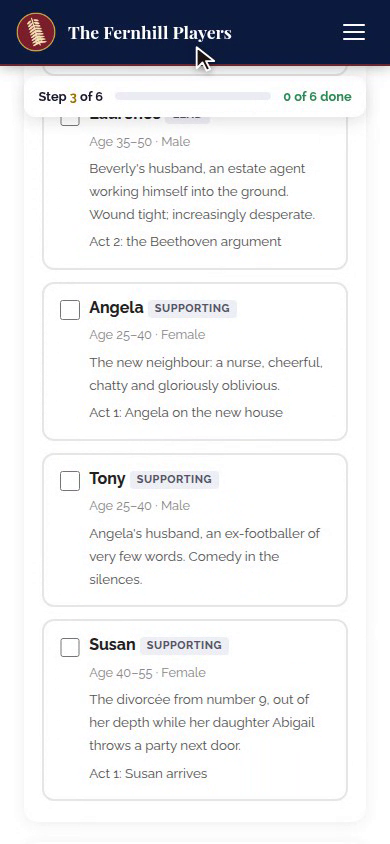
Now let's add the audition days, and make the slots for people to book.
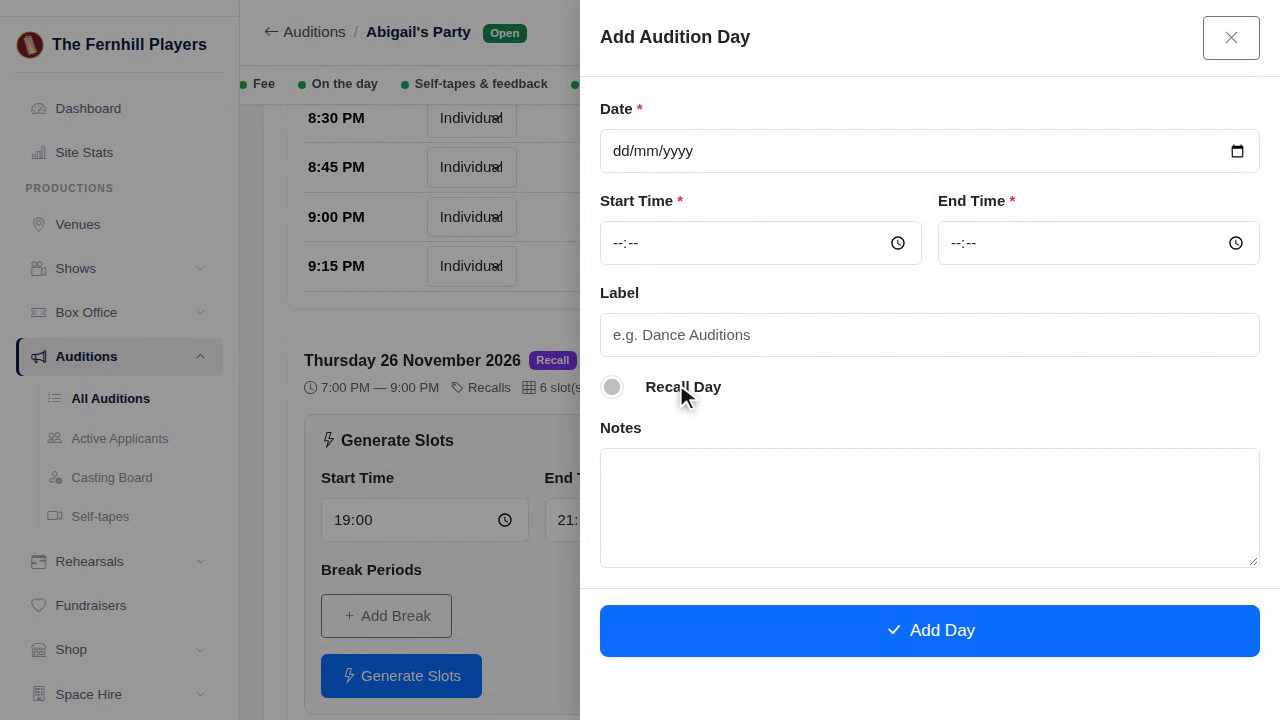
18. Add a day
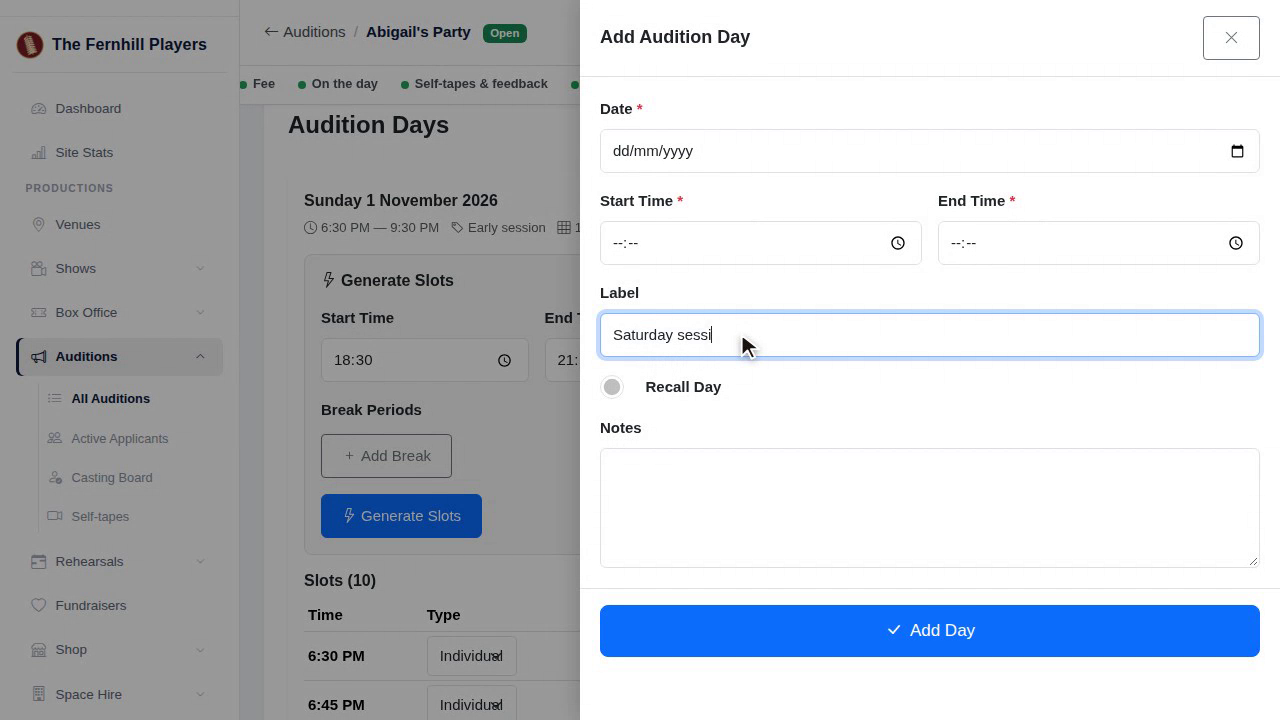
Under Audition days, click Add Day. Choose the date, the start and end times, and give it a label your panel will recognise, like Saturday session.
19. Generate slots
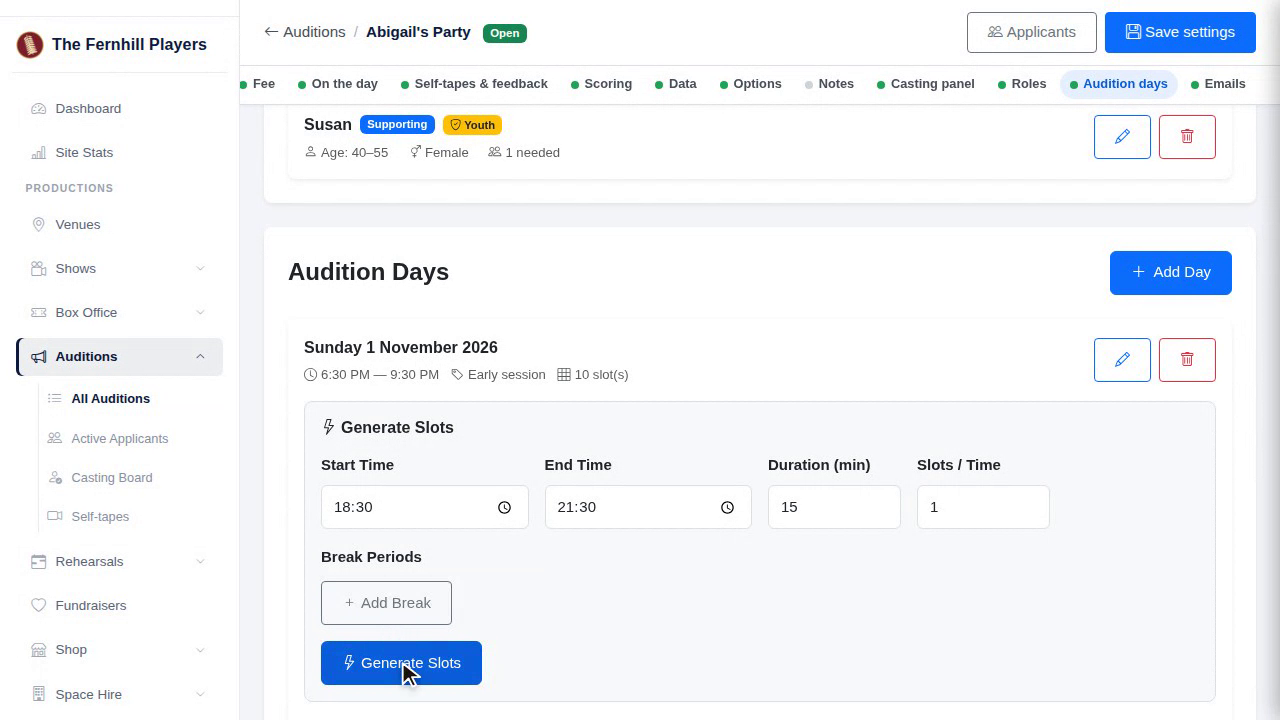
Then click Generate Slots. Set the start and end times and the length of each slot, add any breaks, such as lunch, and generate. Every slot is made for you in one go.
20. The slots
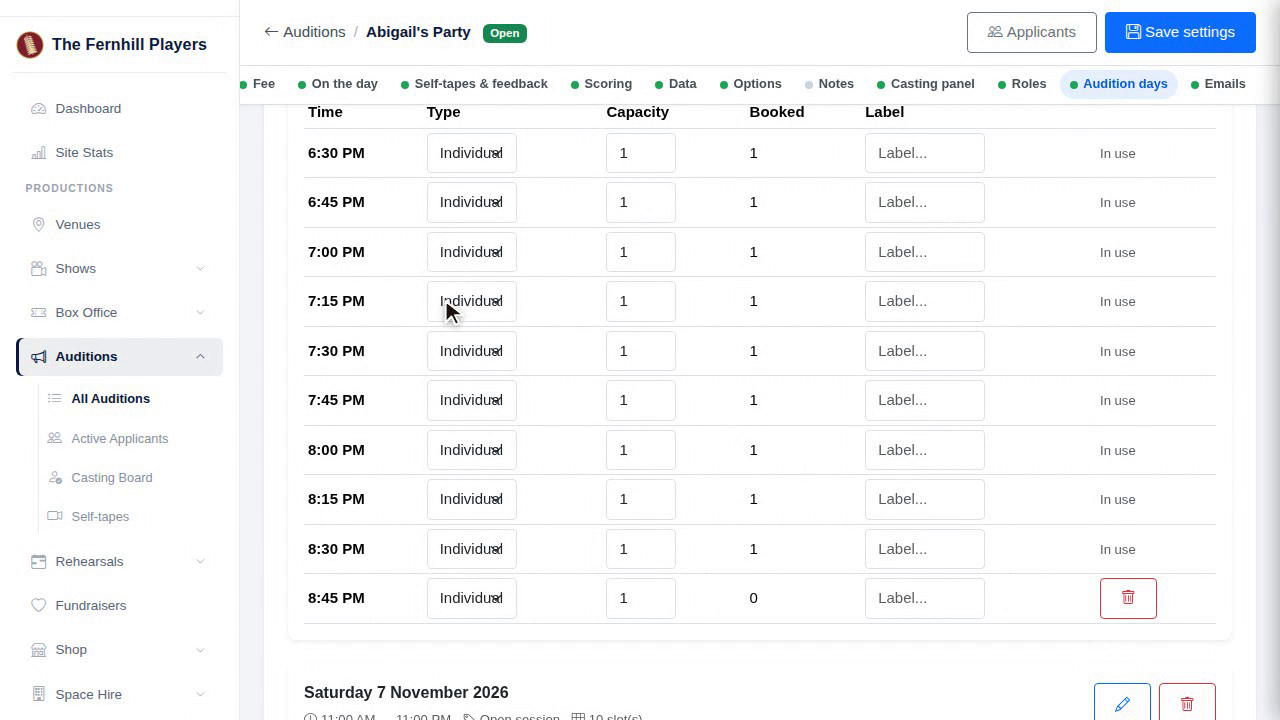
You can change any slot's time, or remove one you don't need. Slots can be individual, for a group, or a break.
21. Recall day
For recalls, add another day and tick Recall Day. Recall days are kept separate, so booking someone's recall never undoes their first-round slot.
That's your audition set up. Next in the course: Audition fees, offers and going live.
This guide is part 2 of 9 in the Running auditions in TheatreHQ course.
Track your progress
Make a free account to take the quick quiz after each guide, keep your place in the course and get a certificate when you finish.