Table seating for a fundraising dinner
Set up tables and seats for a dinner or gala, see who is sitting where, give free seats to guests, hold tables back and move people around.
For a dinner, a gala or a quiz night, a seating plan saves a scramble for tables on the night. TheatreHQ builds the tables and seats for you and keeps track of who's sitting where, who's still to pay and which seats are free.
1. Turn on the seating plan
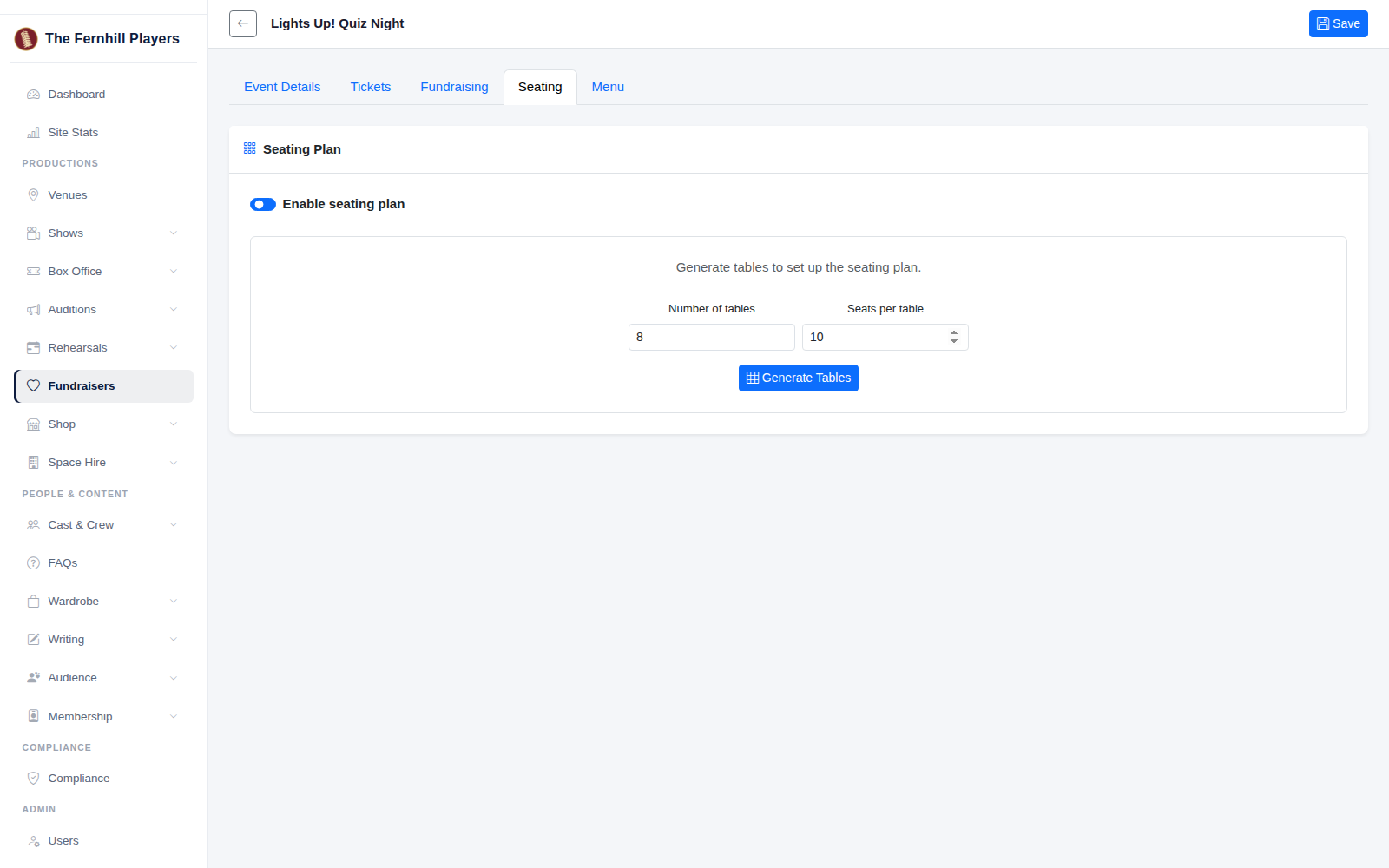
Go to Fundraisers, click the edit button for your event and open the Seating tab. Turn on Enable seating plan.
2. Generate your tables
Enter the Number of tables and the Seats per table, then click Generate Tables. TheatreHQ creates every table and seat, with the seats on each table lettered A, B, C and so on.
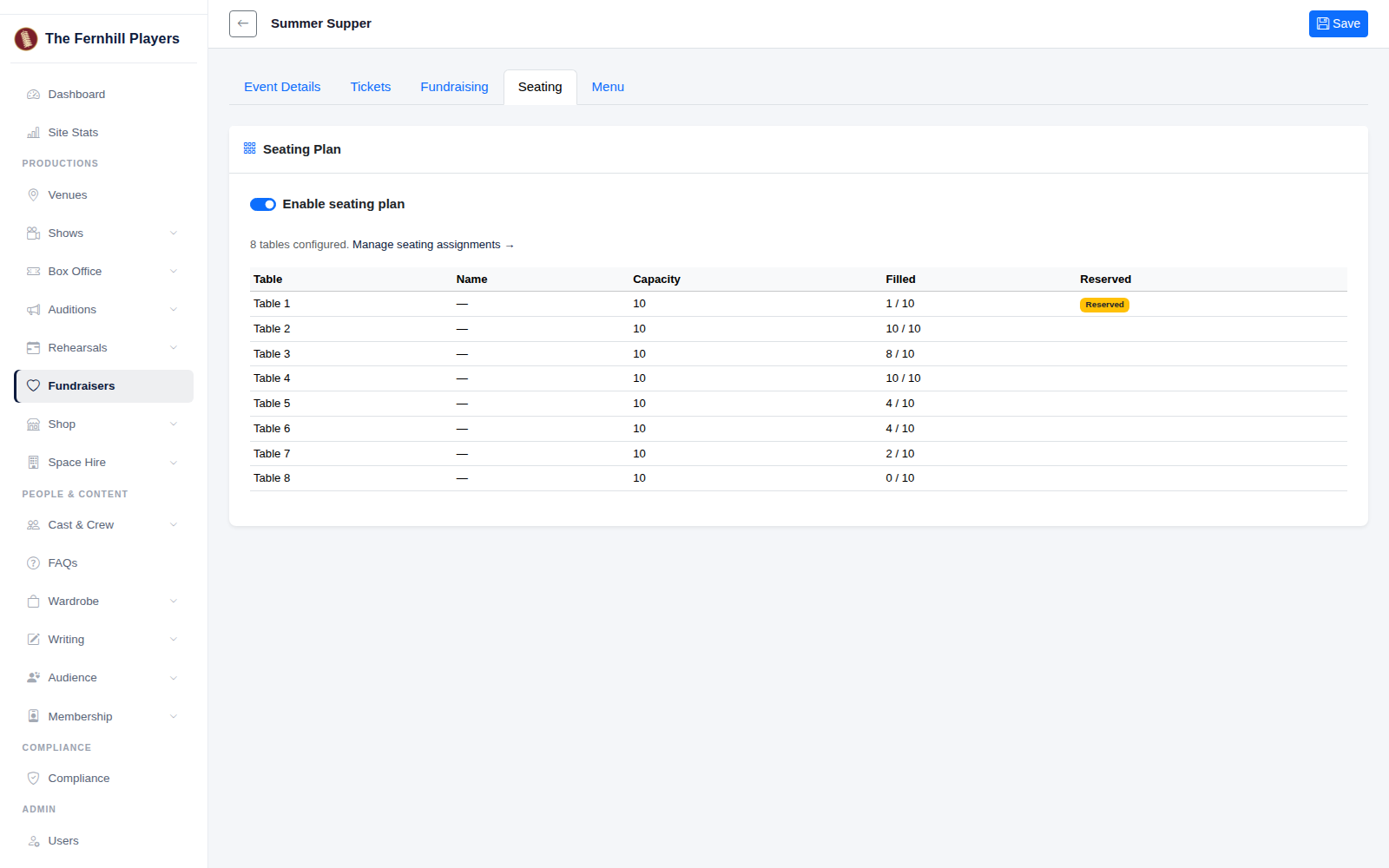
The Seating tab then lists each table with how many seats are filled.
3. Open the seating plan
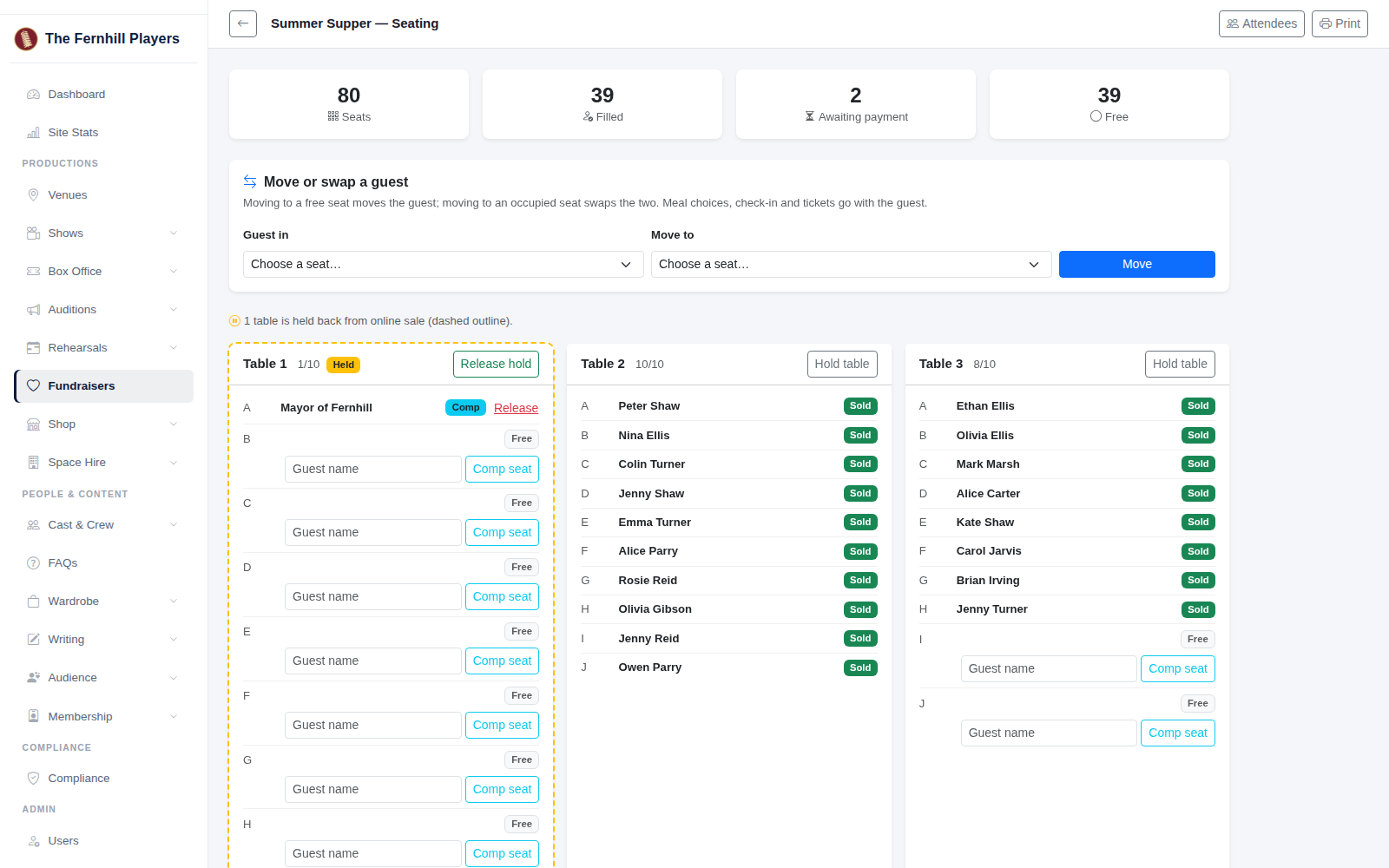
Click Manage seating assignments. The boxes at the top show your total seats, how many are filled, how many are waiting for payment and how many are free. Below, each table shows who's in each seat.
4. Give a free seat to a guest
To give a seat to someone who isn't paying, such as your patron or the mayor, type their name next to a free seat and click Comp seat. If plans change, click Release to free the seat again.
5. Hold a table back
To keep a whole table off online sales, perhaps for a sponsor or the cast, click Hold table. Held tables have a dashed outline. Seats already booked on that table stay as they are. Click Release hold when you're ready to sell it.
6. Move or swap guests
If someone needs to move, use Move or swap a guest at the top. Choose their seat under Guest in and the new seat under Move to, then click Move. Moving to a free seat moves the guest; moving to an occupied seat swaps the two. Meal choices, check-in and tickets go with them.
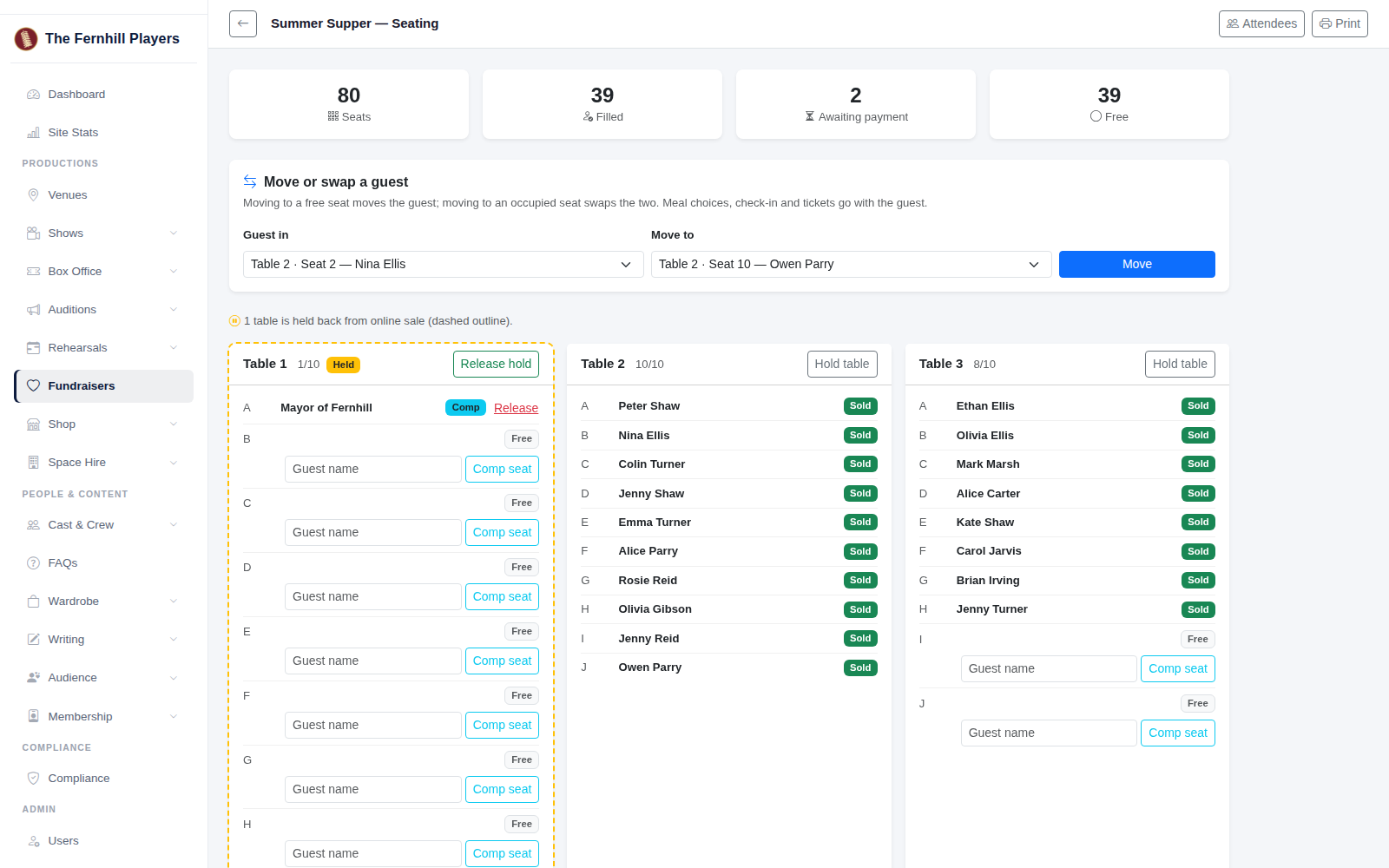
When you're happy, click Print for a copy to take on the night.
Tip: if you're collecting meal choices, see Adding a menu and meal choices to a fundraiser, so the kitchen knows what each table is having.