Taking donations when people book tickets
Add an optional donation step to your booking form, with suggested amounts and Gift Aid, and see every donation in one report for your treasurer.
Lots of people are happy to give a little extra when they book. TheatreHQ can add an optional Support step to your booking form: people choose an amount, it's paid with their tickets, and if your society is a charity or a CASC, they can add Gift Aid. This guide shows how to switch it on and where to find the donations.
1. Open the show's box office settings
Donations are switched on show by show. Open the show, click the Venue & tickets tab, and click the Box office tile. Then click the Donations & email tab.
2. Switch on donations
Switch on Ask for a donation at checkout. Then:
- Prompt: a line saying what the money is for. Something specific works best, such as "Help us buy new stage lighting for the village hall."
- Suggested amounts: up to six, separated by commas, such as 3,5,10,20. People can always type in their own amount instead.
3. Gift Aid
If your society is a registered charity or a CASC recognised by HMRC, tick Offer Gift Aid. The booking form then shows the HMRC declaration and asks the donor for their full name, home address and postcode, which an HMRC claim needs. Only a society that can claim Gift Aid should turn this on; set your charity details on the Gift Aid Claims page first (see Can your society claim Gift Aid?).
Click Save settings. The donation step is live on the booking form straight away.
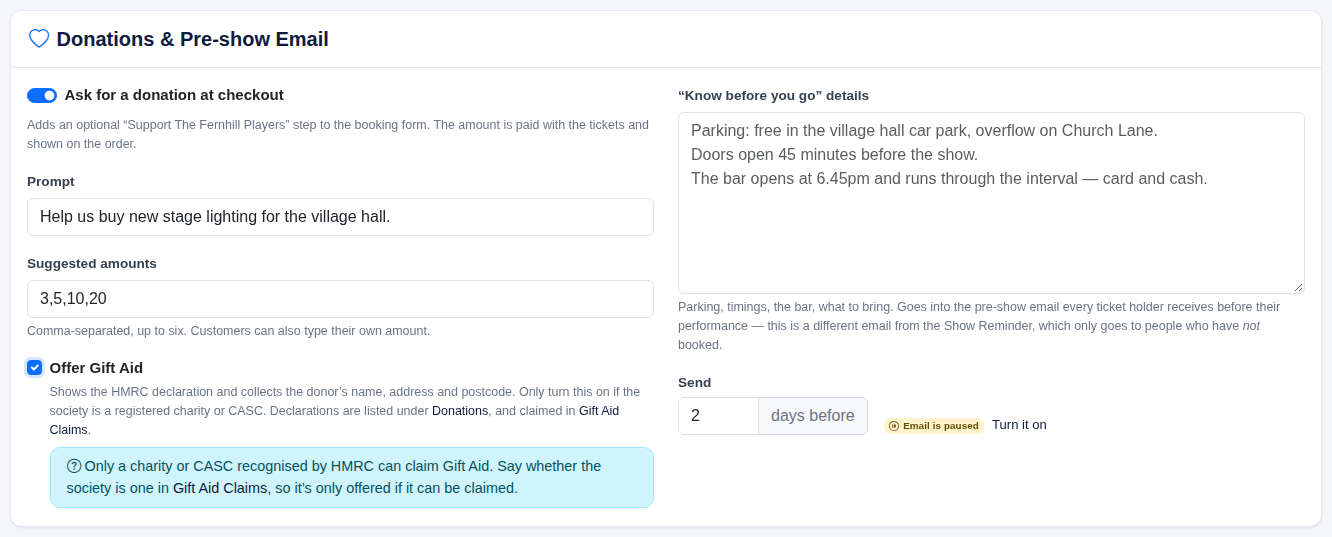
The same card also has the Know before you go details for the pre-show email, which is separate from donations.
4. What people see when they book
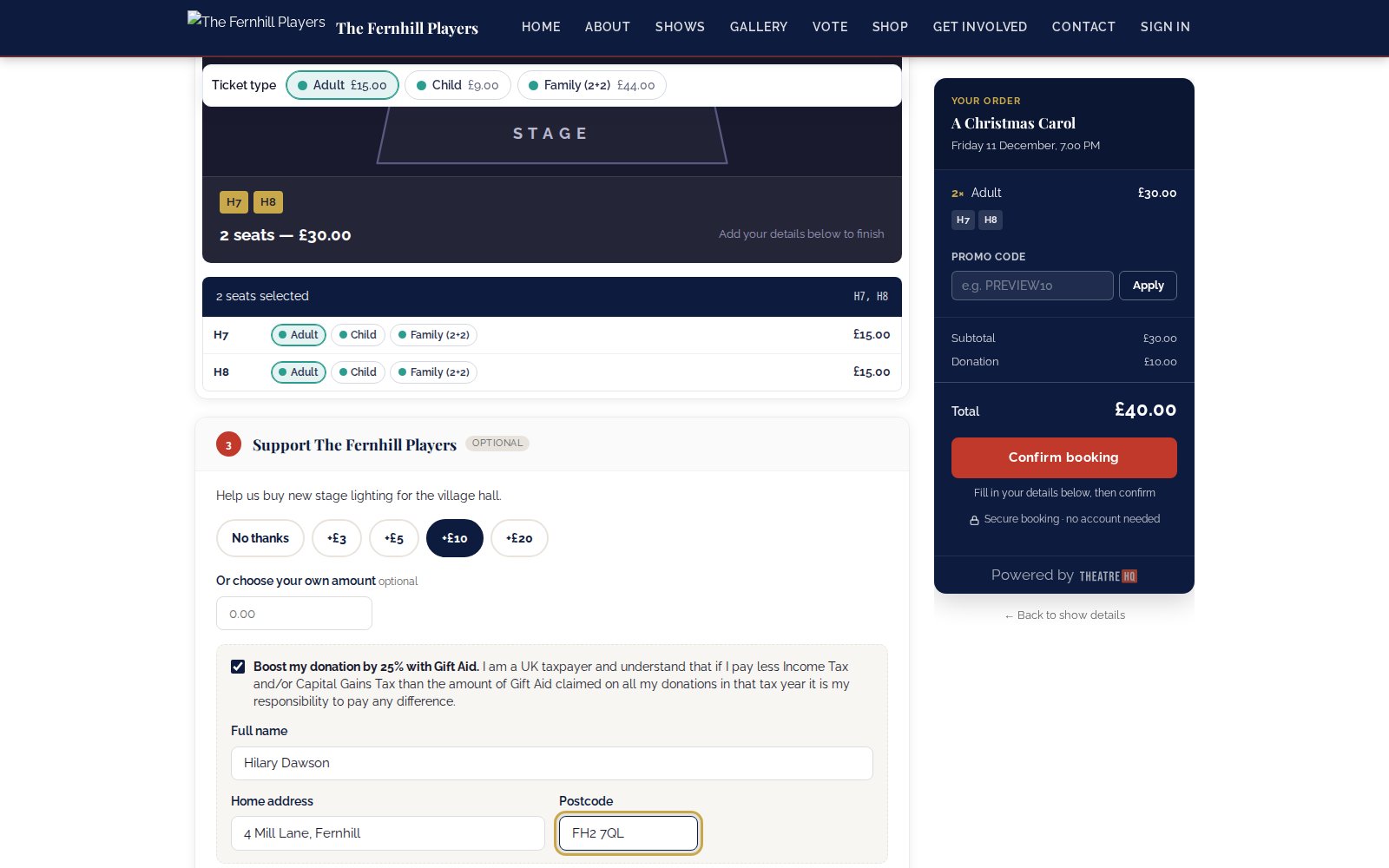
After choosing their seats, people see Support with your society's name, marked optional. They choose No thanks, one of your amounts, or type their own, and the donation is added to their total. With Gift Aid on, a UK taxpayer can tick Boost my donation by 25% with Gift Aid and add their name, address and postcode. The donation is paid with the tickets and shown on the order.
5. See every donation
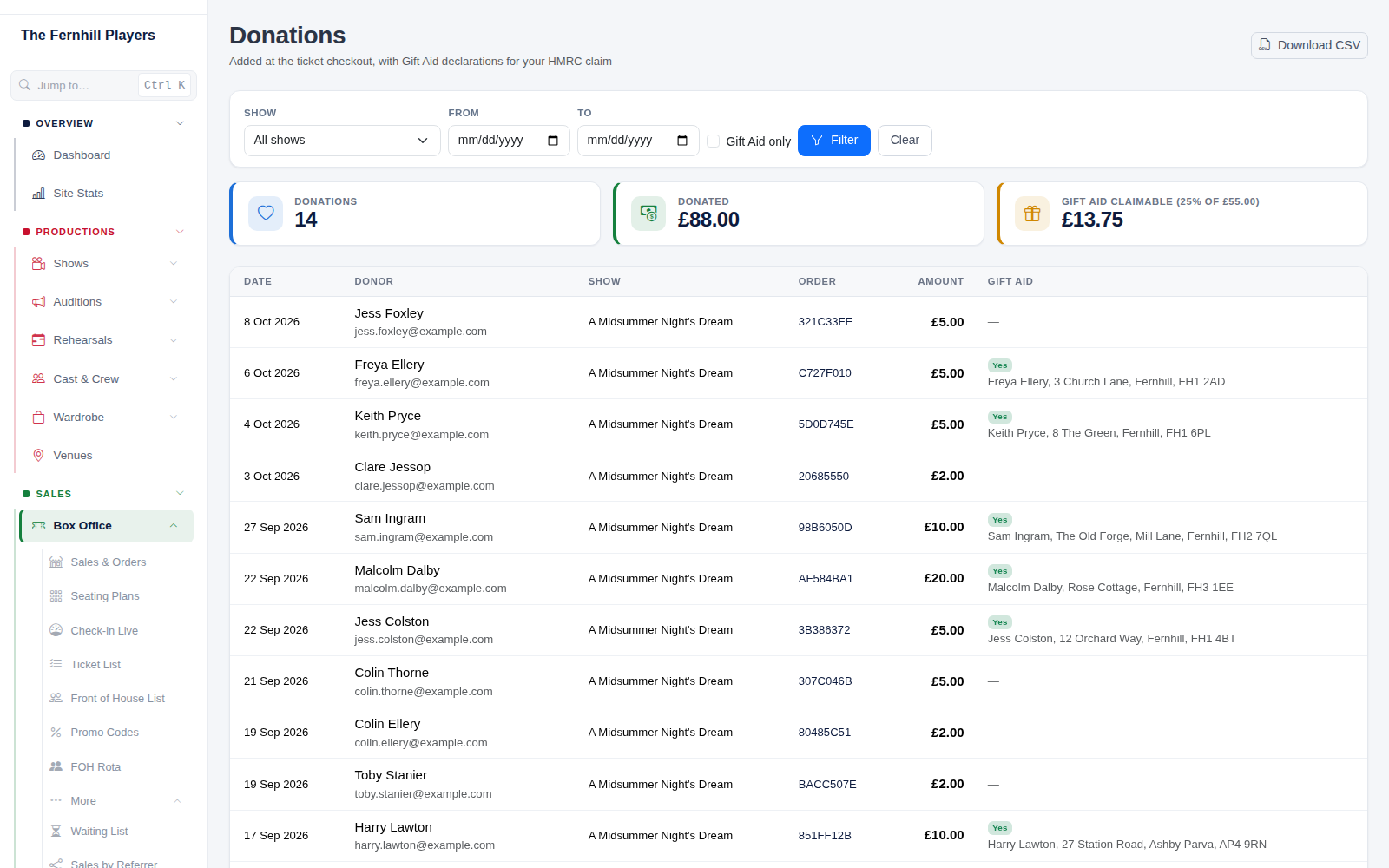
In the admin menu, go to Sales > Box Office, click More, then Donations. At the top you'll see how many donations there have been, how much was donated, and how much Gift Aid you can claim. Each donation is listed with the donor, the show, the order and the amount, and for Gift Aid donations, the name and address from the declaration.
Filter by show, by dates, or tick Gift Aid only, then click Filter. Download CSV gives your treasurer the list as a spreadsheet.
6. Claim the Gift Aid
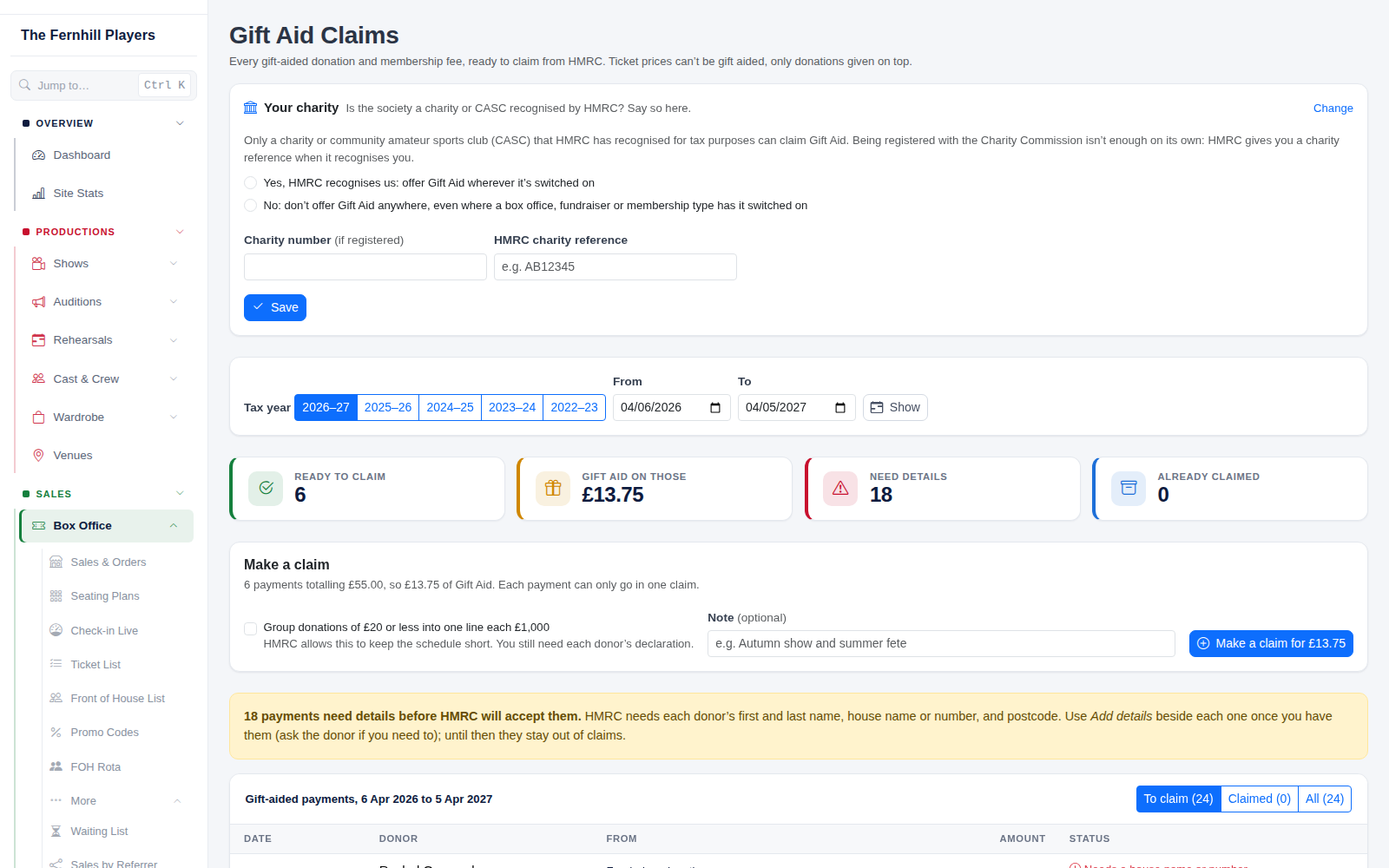
When you're ready, claim the Gift Aid from HMRC under Sales > Box Office > More > Gift Aid Claims. Donations made when booking are included alongside your other Gift Aid donations. See Claiming Gift Aid from HMRC for the steps.
Tip: fundraisers have their own donations, under the fundraiser itself. This report is just for donations made when booking tickets.