The members list: filters, statuses and finding people
What the tiles on All members tell you, what each membership status means, and how to filter, search and download your members.
All members (headed Members) is where you'll spend most of your time. Here's how to find anyone quickly, and what each status means. This guide is part of the free course Running membership in TheatreHQ.
1. The tiles
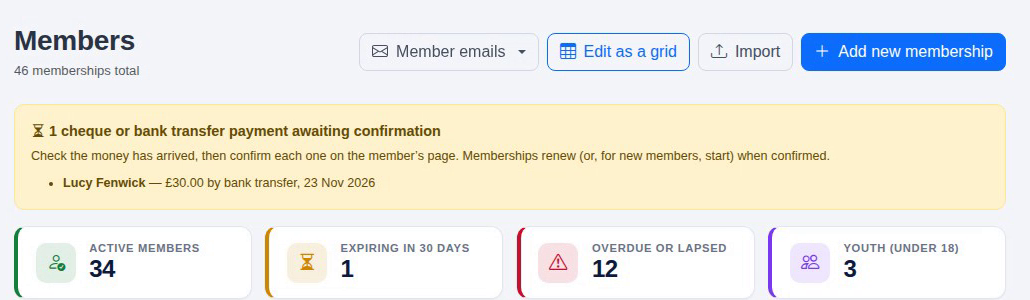
Across the top: Active members, Expiring in 30 days, Overdue or lapsed, Youth (under 18) and Revenue this year. Anything waiting on you, such as applications to approve or transfers to confirm, shows in a box above them.
2. Statuses
- Awaiting payment: they've applied but not paid yet.
- Active: paid up.
- Expired: past the end date, but still within the type's grace period.
- Lapsed: past the grace period.
- Paused: taking a break (see A member's page).
- Cancelled: ended; it can be reinstated.
3. Filter and search
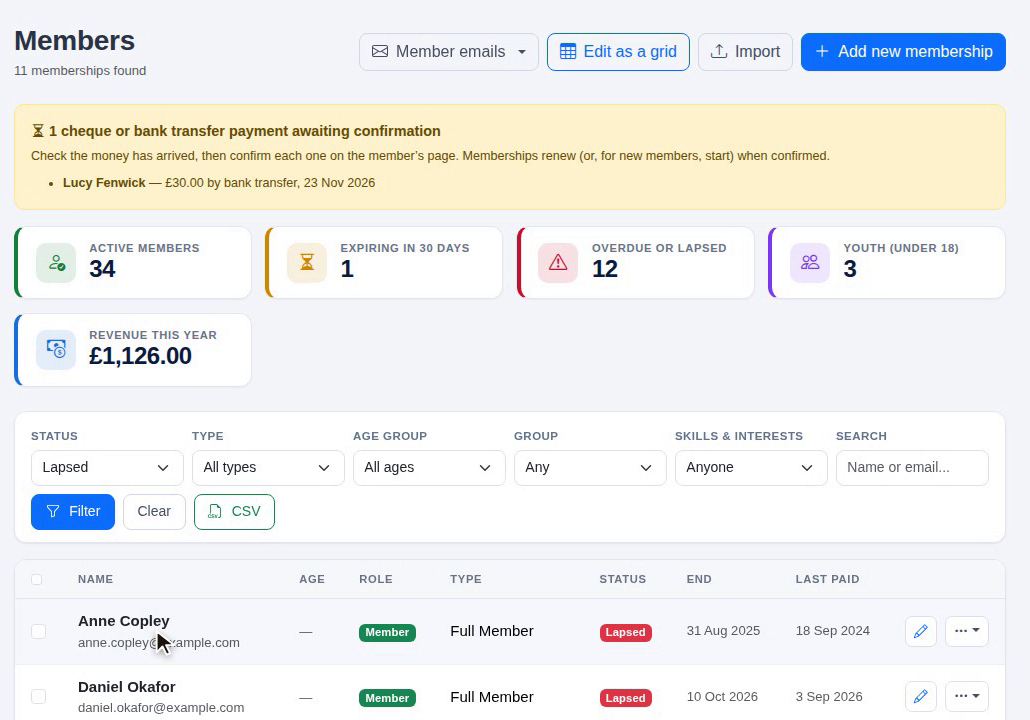
Filter by Status, Type, Age group, Group or Skills & interests, or type part of a name or email in Search, then click Filter. Clear puts the whole list back. For example, choose Lapsed to see everyone to chase up.
4. Download and row actions
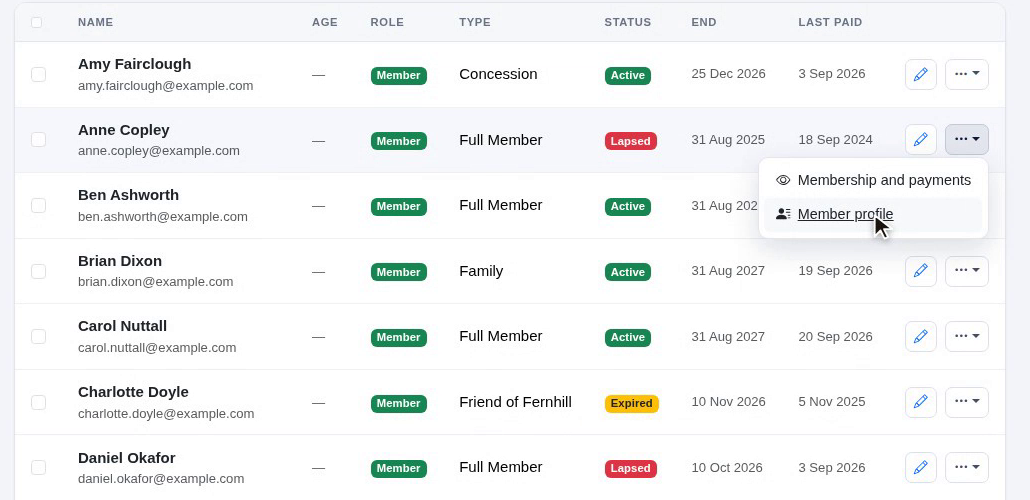
CSV downloads exactly what's showing. Each row has an edit button and a ⋯ menu with Membership and payments and Member profile.
5. Ticking members
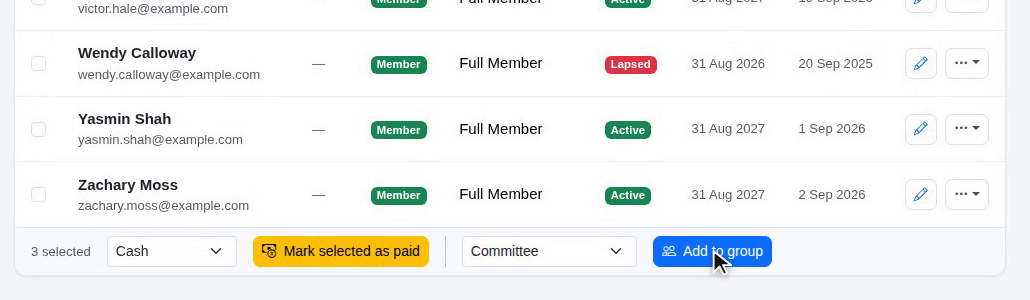
Tick members and use the bar at the bottom to Mark selected as paid (choosing cash, bank transfer or cheque) or Add to group. See Recording cash and cheques, and bulk mark as paid.
Track your progress
Make a free account to take the quick quiz after each guide, keep your place in the course and get a certificate when you finish.