Turning on two-factor sign-in
Protect your admin account with a code from your phone, or sign in with Face ID or a passkey.
Your admin account can see your audience's details and your society's takings, so it's worth protecting with more than a password. Two-factor sign-in means that after your password you also enter a short code from your phone — so a stolen password on its own isn't enough to get in.
1. Get an authenticator app
Install an authenticator app on your phone if you don't have one. Google Authenticator, Microsoft Authenticator, Authy and 1Password all work, as does any app that supports standard six-digit codes.
2. Turn it on
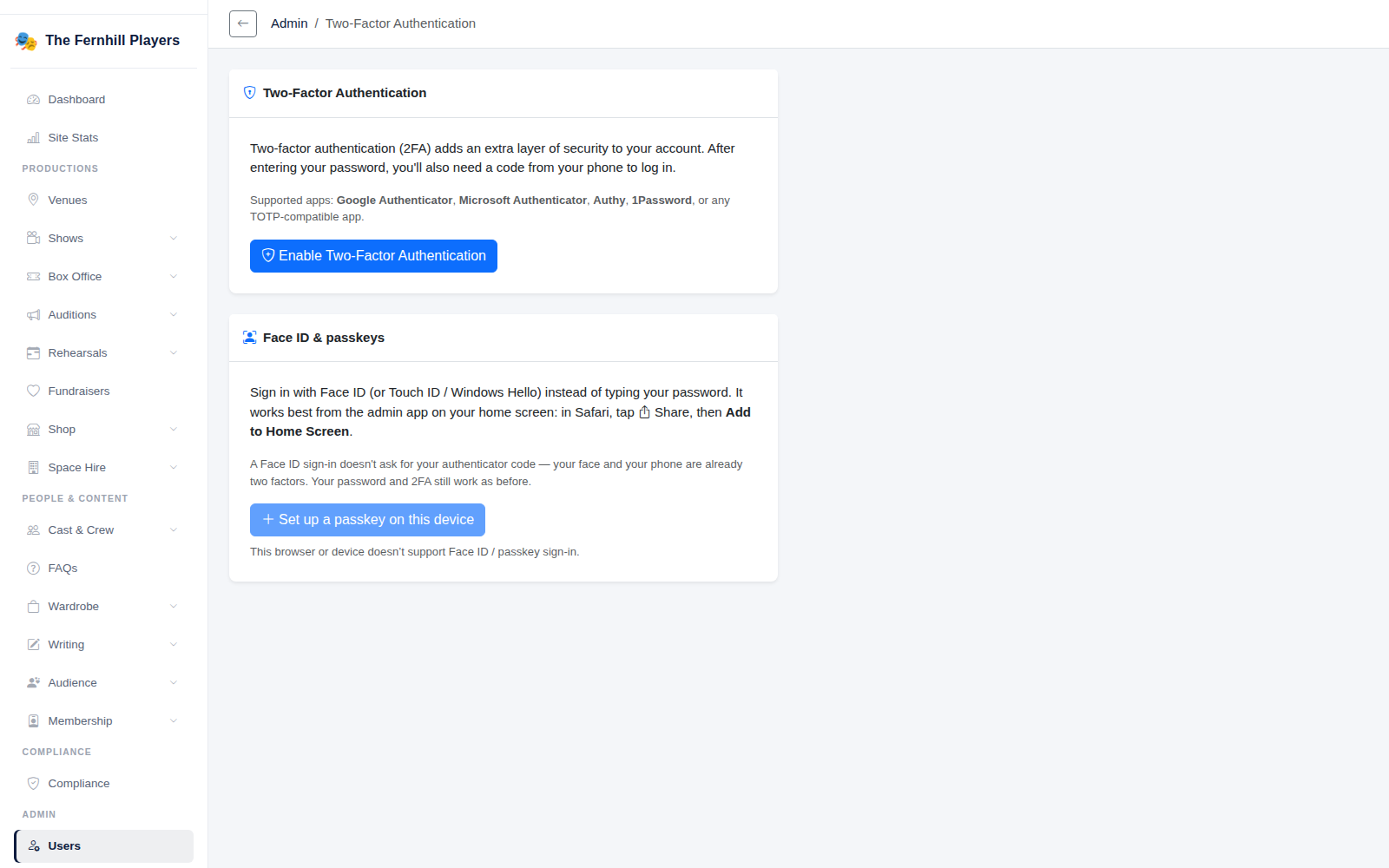
In the admin, open Two-Factor Authentication from your account and click Enable Two-Factor Authentication. Scan the QR code with your authenticator app, then type in the six-digit code it shows to confirm it's working.
3. Keep your recovery codes
When you turn it on you're shown a set of recovery codes, once. Save them somewhere safe — a password manager is ideal. If you lose your phone, you can sign in with a recovery code instead of a code from the app. You can make a fresh set later, but you'll need a current code to do it.
4. Face ID and passkeys
On a phone or computer that supports it, you can also Set up a passkey on this device and sign in with Face ID, Touch ID or Windows Hello instead of typing your password. Because your device and your face or fingerprint are already two factors, a passkey sign-in doesn't ask for a code. Your password and two-factor still work as before.
For the committee
Ask everyone with admin access to turn this on. Administrators can see who has it on in the 2FA column on the Users page.
Tip: if someone loses their phone and their recovery codes, an administrator can reset their two-factor so they can set it up again.