Adding committee members and choosing what they can access
Give each committee member their own login, the right permission level, and access to just the modules they need.
Every committee member should have their own login rather than sharing one. TheatreHQ lets you give each person a permission level and choose which parts of the admin they can open, so your box office manager sees the box office and your wardrobe mistress sees the wardrobe. This guide shows how.
1. Open the Users page
Go to Users in the admin menu. You'll see everyone with access, their role, whether their account is active and whether two-factor authentication is switched on. You can search and filter by role, status and 2FA. Click Add User to add someone.
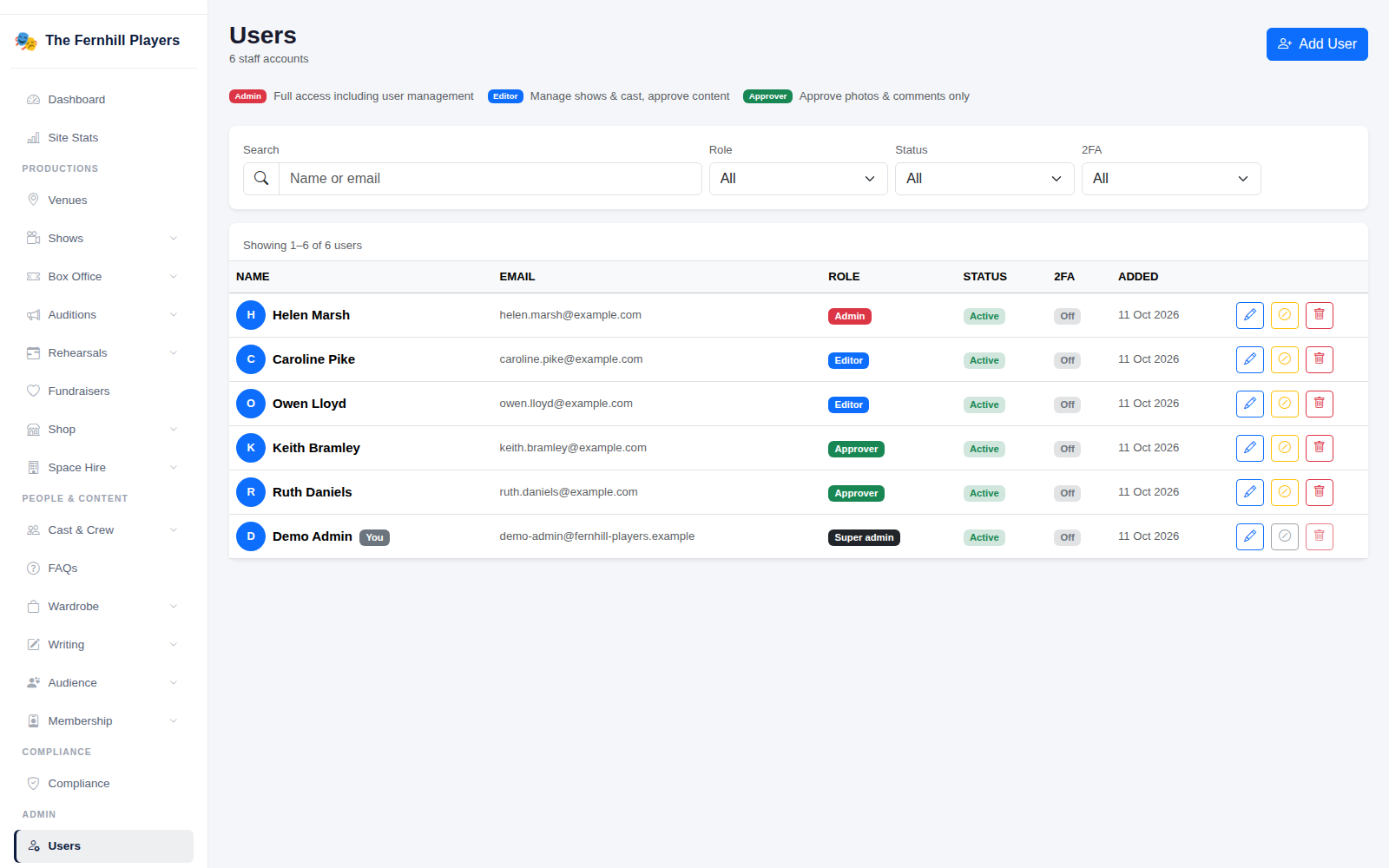
2. Enter their details and choose a permission level
Enter their Display Name and Email Address, then choose a Permission Level:
- Administrator — full access, including managing other users.
- Editor — manages shows and cast and moderates submitted content, but can't manage users.
- Approver — can only approve or reject photo submissions and audience comments.
- Member — a society member with limited access to their own membership and auditions.
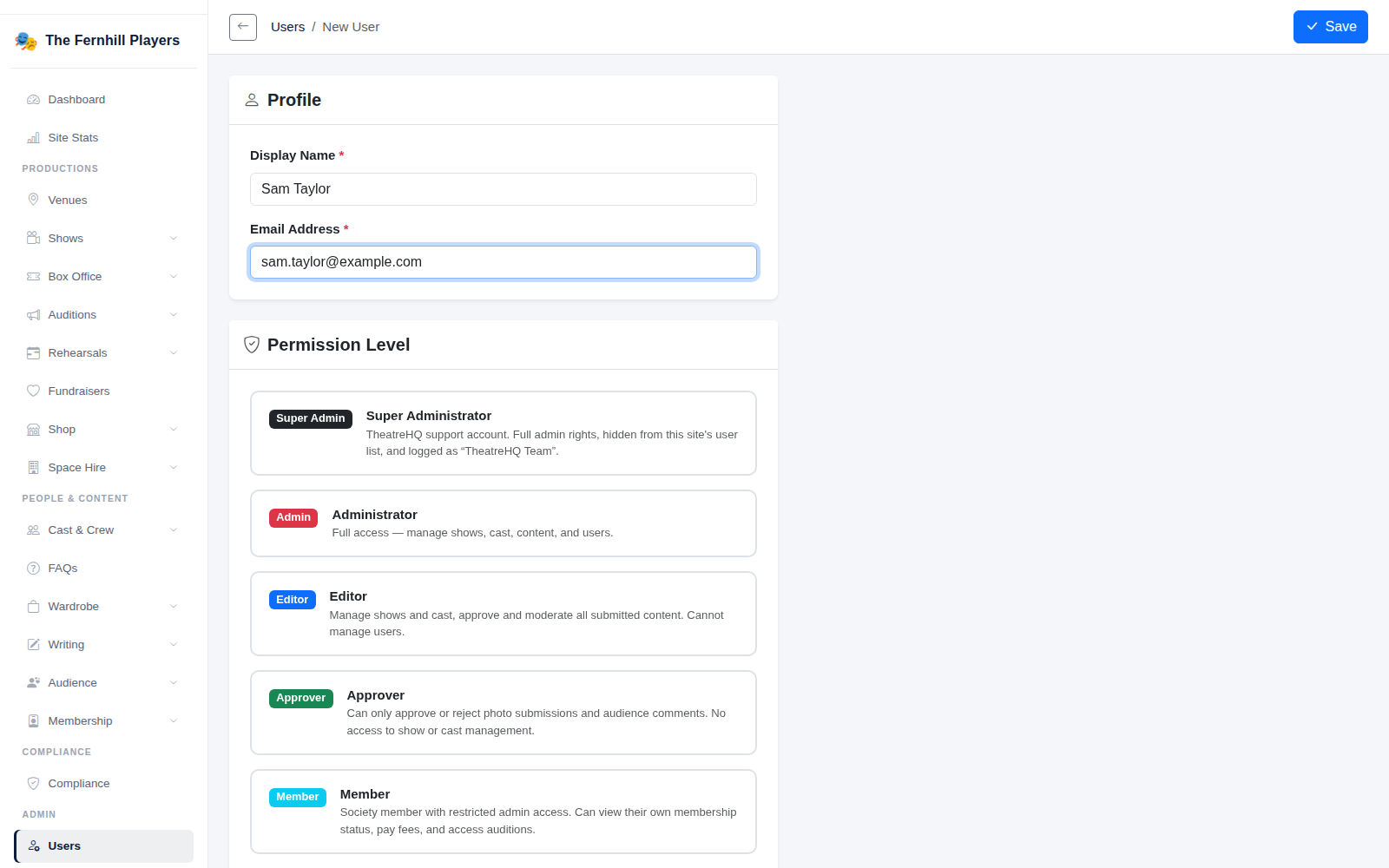
3. Choose their modules and how they'll sign in
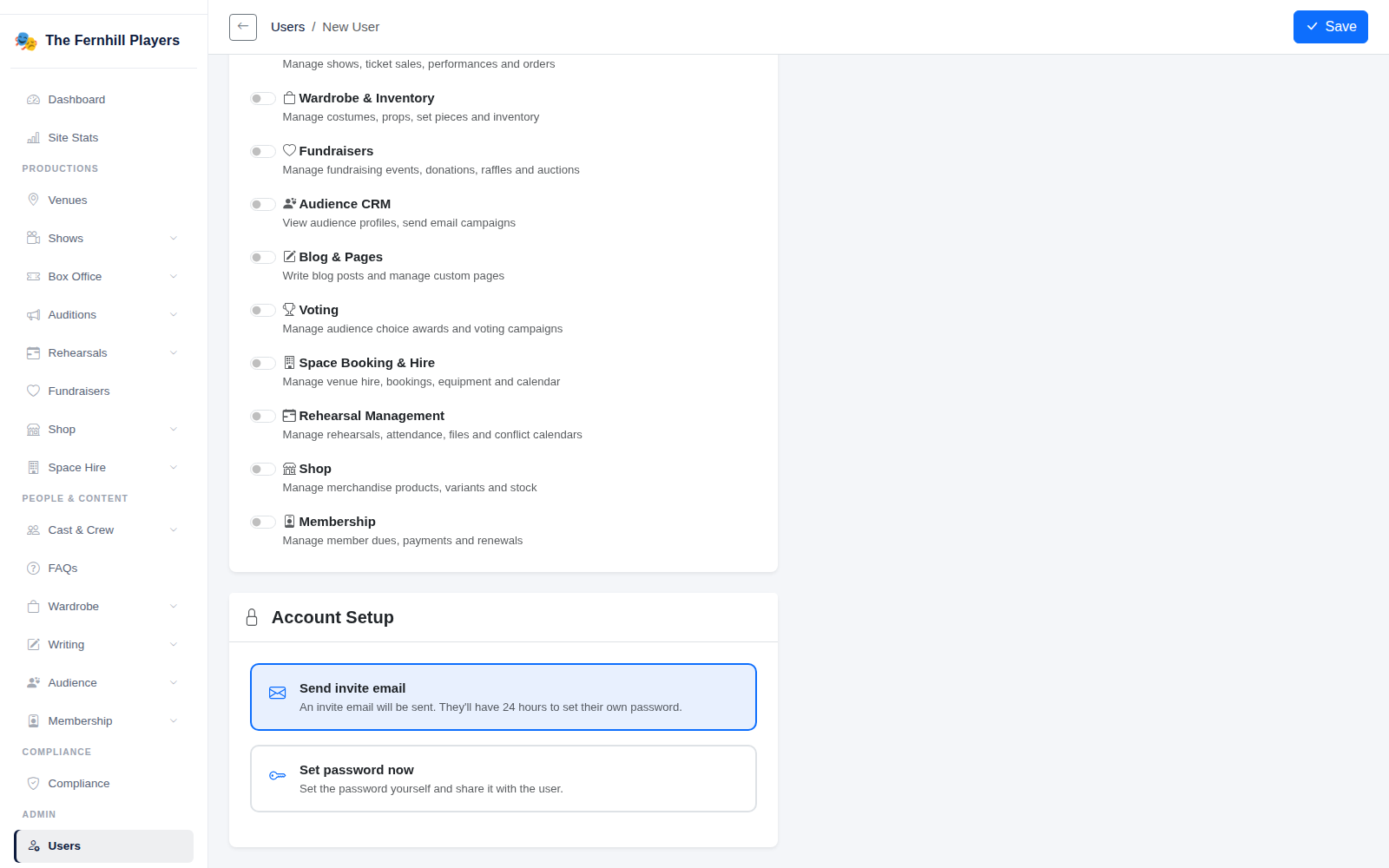
Administrators can open everything. For editors and approvers, tick the Module Access boxes for the areas they need — for example Box Office & Ticketing for your box office manager, or Wardrobe & Inventory for wardrobe.
Under Account Setup, choose Send invite email and they'll get an email with 24 hours to set their own password — or Set password now to choose one yourself and pass it on. Click Save.
4. When someone leaves the committee
On the Users page, use the disable button on their row. They can no longer sign in, but everything they did stays on record — it is listed in the audit log — and you can enable them again from the same place if they come back.
Tip: encourage everyone to turn on two-factor authentication — the 2FA column on the Users page shows who has.