Roles & Permissions
Give every committee member their own login and the right role, choose which modules they can open, and see who changed what in the audit log.
Key Features
Clear roles
Administrator, Editor, Approver and Member, each described on screen so you know what you are handing over.
Module-by-module access
Tick the areas an editor or approver can open, from Box Office & Ticketing to Wardrobe & Inventory.
Invite or set a password
Send an invite email with a 24-hour link, or set a password yourself and pass it on.
Two-factor sign-in
Staff can protect their login with an authenticator app, and you can make 2FA compulsory for each role.
Lockouts and login locks
Repeated failed sign-ins bring up a CAPTCHA and then a lock, and administrators can see and lift locks.
An audit log
Changes made in the admin are logged with who made them, when and from which IP address.
A login for every committee member
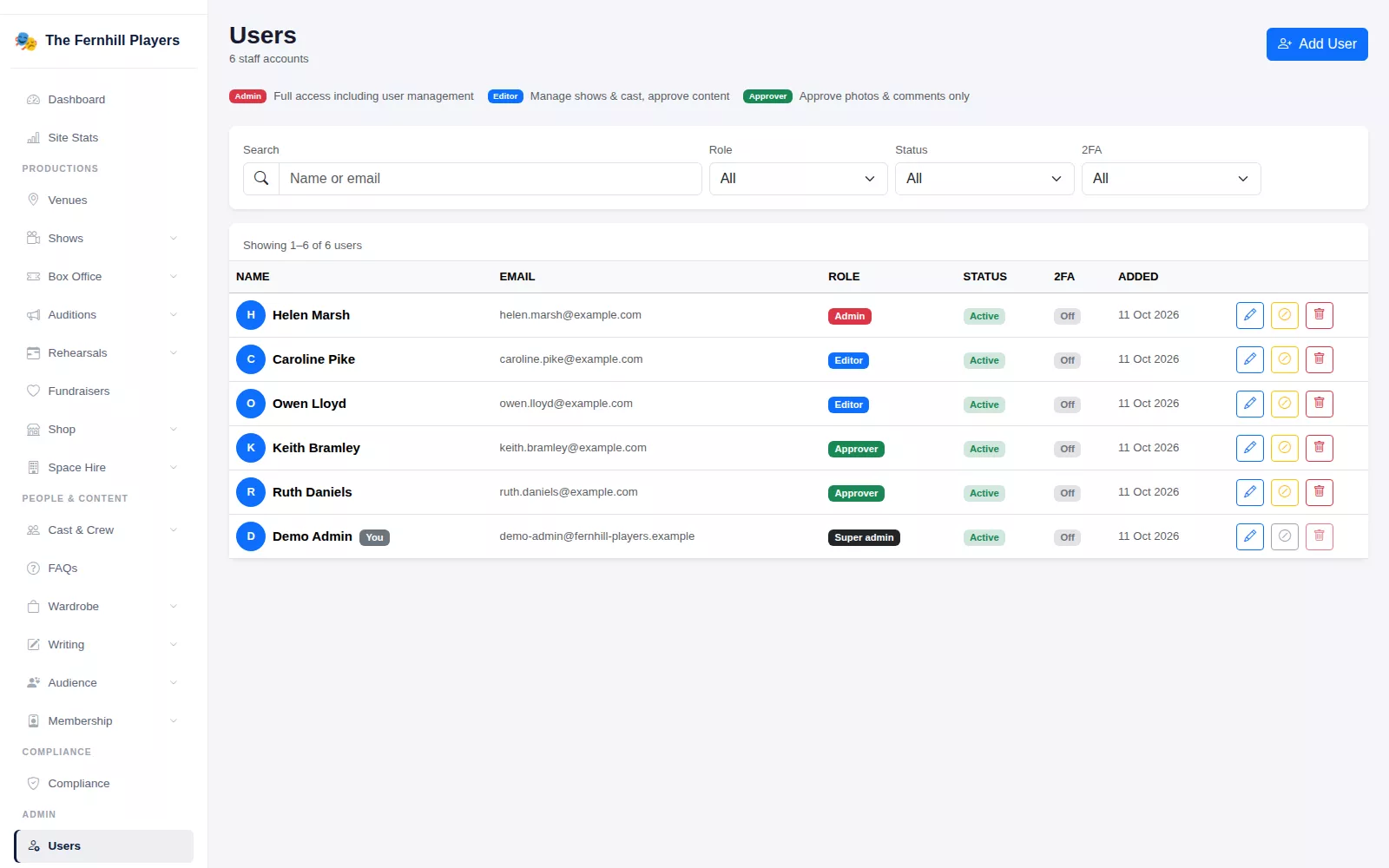
Sharing one password between the chair, the treasurer and the box office manager makes it impossible to tell who did what, or to take access away when someone steps down. In TheatreHQ each person has their own account. The Users list shows everyone's role, whether they are active and whether two-factor authentication is switched on, and you can search by name or email and filter by role, status and 2FA.
When someone leaves the committee, disable their account with one click. Their history stays intact and you can enable them again if they come back.
Pick a role, then pick the modules
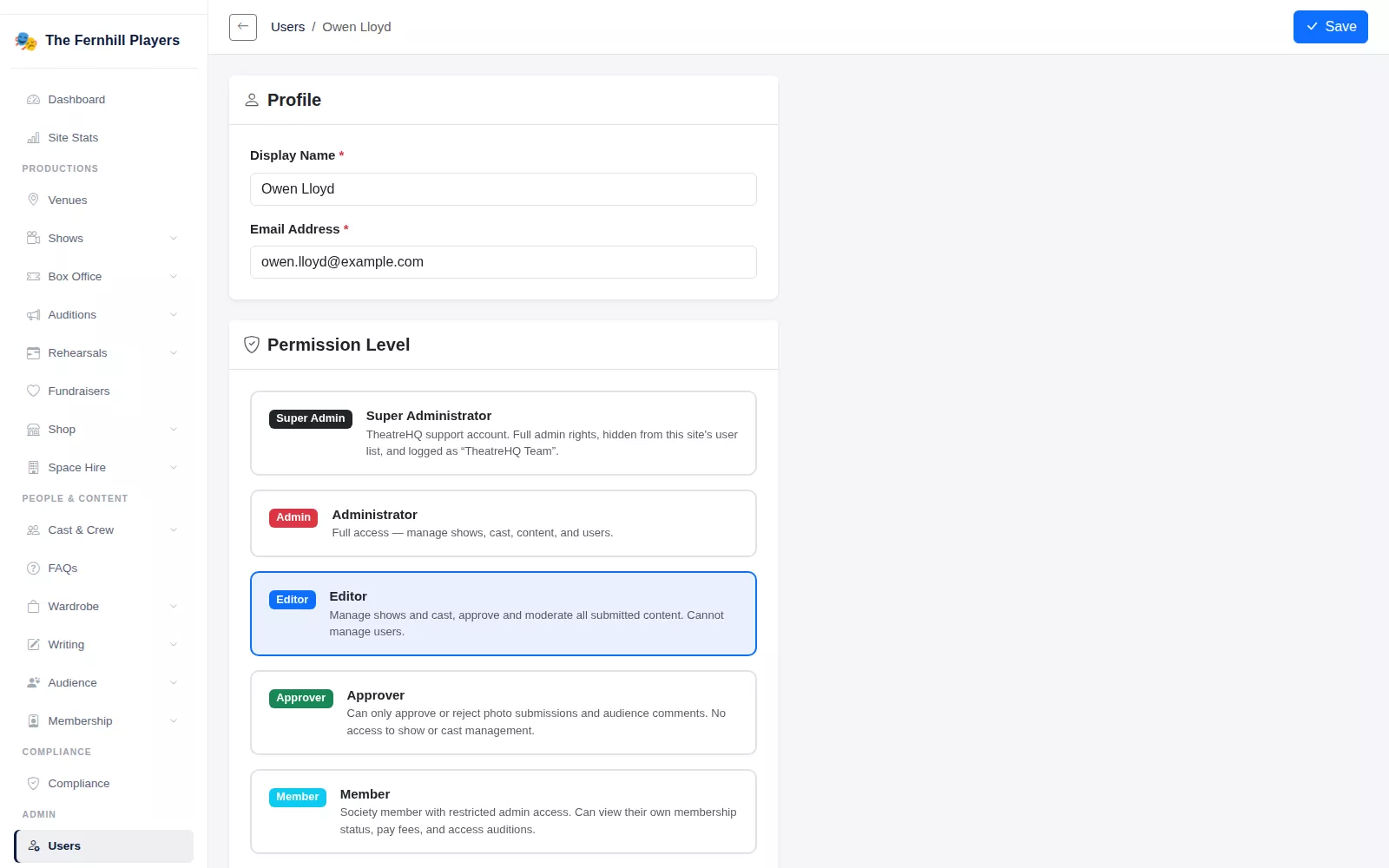
Every account has a Permission Level. An Administrator has full access, including users and settings. An Editor manages shows and cast and moderates submitted content, but cannot manage users. An Approver can only approve or reject photo submissions and audience comments. There is also a Member level for society members, who can view their own membership, pay fees and access auditions.
For editors and approvers, Module Access narrows things further. Tick Box Office & Ticketing for your box office manager, Blog & Pages for your publicity officer and Wardrobe & Inventory for the costume team, and leave the rest unticked. Administrators always see everything.
A new person can be sent an invite email, giving them 24 hours to choose their own password, or you can pick Set password now and pass it on yourself.
Signing in safely
Staff can turn on two-factor authentication with an authenticator app such as Google Authenticator, Microsoft Authenticator, Authy or 1Password, and are given one-time recovery codes in case they lose their phone. They can also set up Face ID sign-in on their phone. In Security Settings you can make 2FA compulsory for administrators, editors or approvers; anyone in that role without it is sent to the setup page when they next sign in.
After a few failed attempts the sign-in page asks for a CAPTCHA, and repeated failures lock that address out for a while. Login Locks lists locked IP addresses and the last hour's failed attempts, with an Unlock button for the member who has simply forgotten their password.
See who changed what
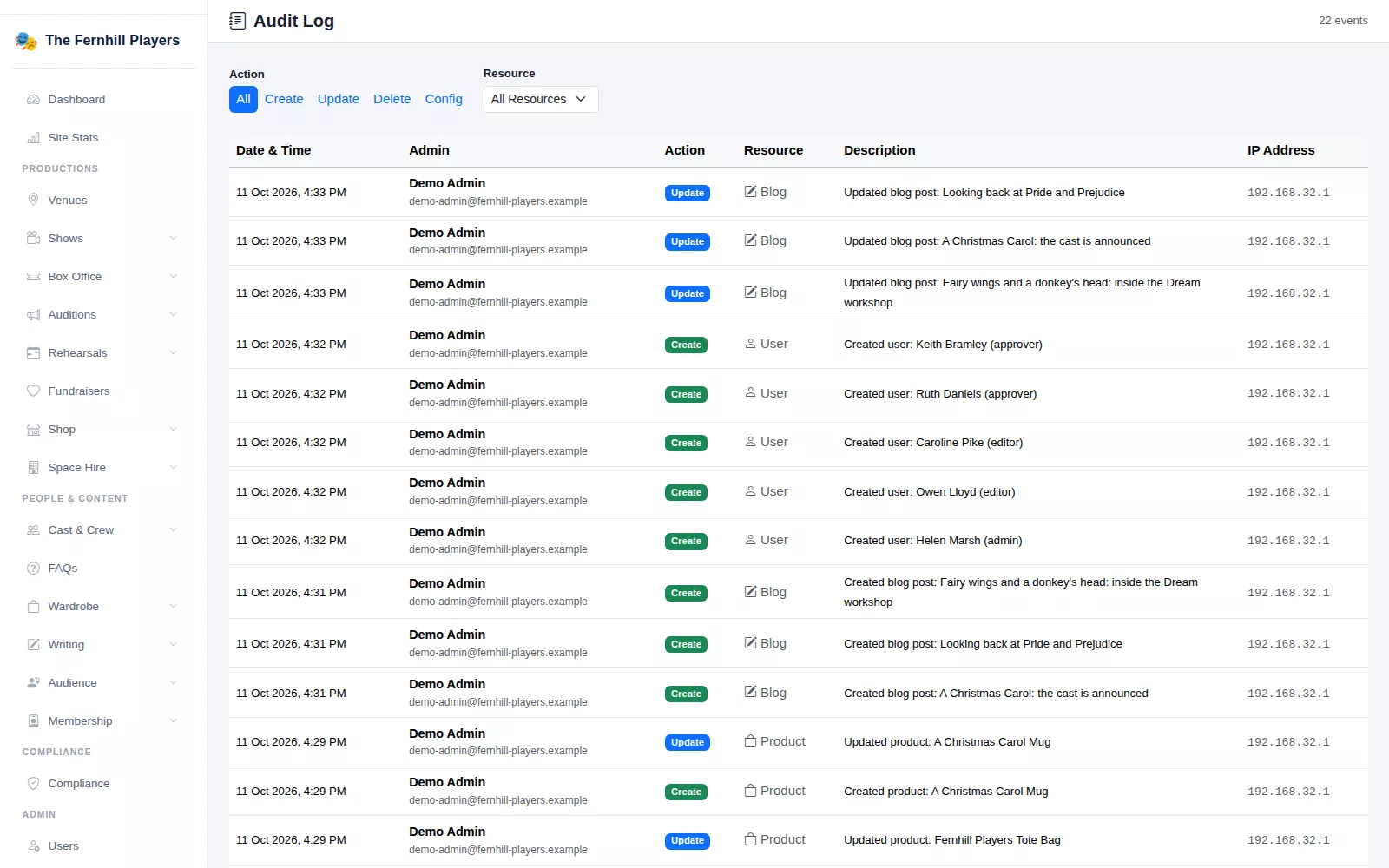
The Audit Log records what happens in the admin: the date and time, who did it, the kind of action, what it affected, a description and the IP address. Filter by action or resource when you need to know who refunded an order or edited a show's details.
Frequently asked questions
How-to guides
Step by step, with screenshots
Ready to get started?
Join groups across the UK already on TheatreHQ. No card, no commitment.
Start your trial →