Using your own domain name
Point your society's own web address at your TheatreHQ site, choose which address is the main one, and keep your sitemap up to date.
Every TheatreHQ site starts with its own address ending in theatrehq.com. If your society already has a domain name, such as fernhillplayers.co.uk, you can point it at your TheatreHQ site so that's the address your audience sees. Your theatrehq.com address keeps working alongside it, which is handy for getting into the admin if anything goes wrong with the domain.
1. Open Domain & Sitemap
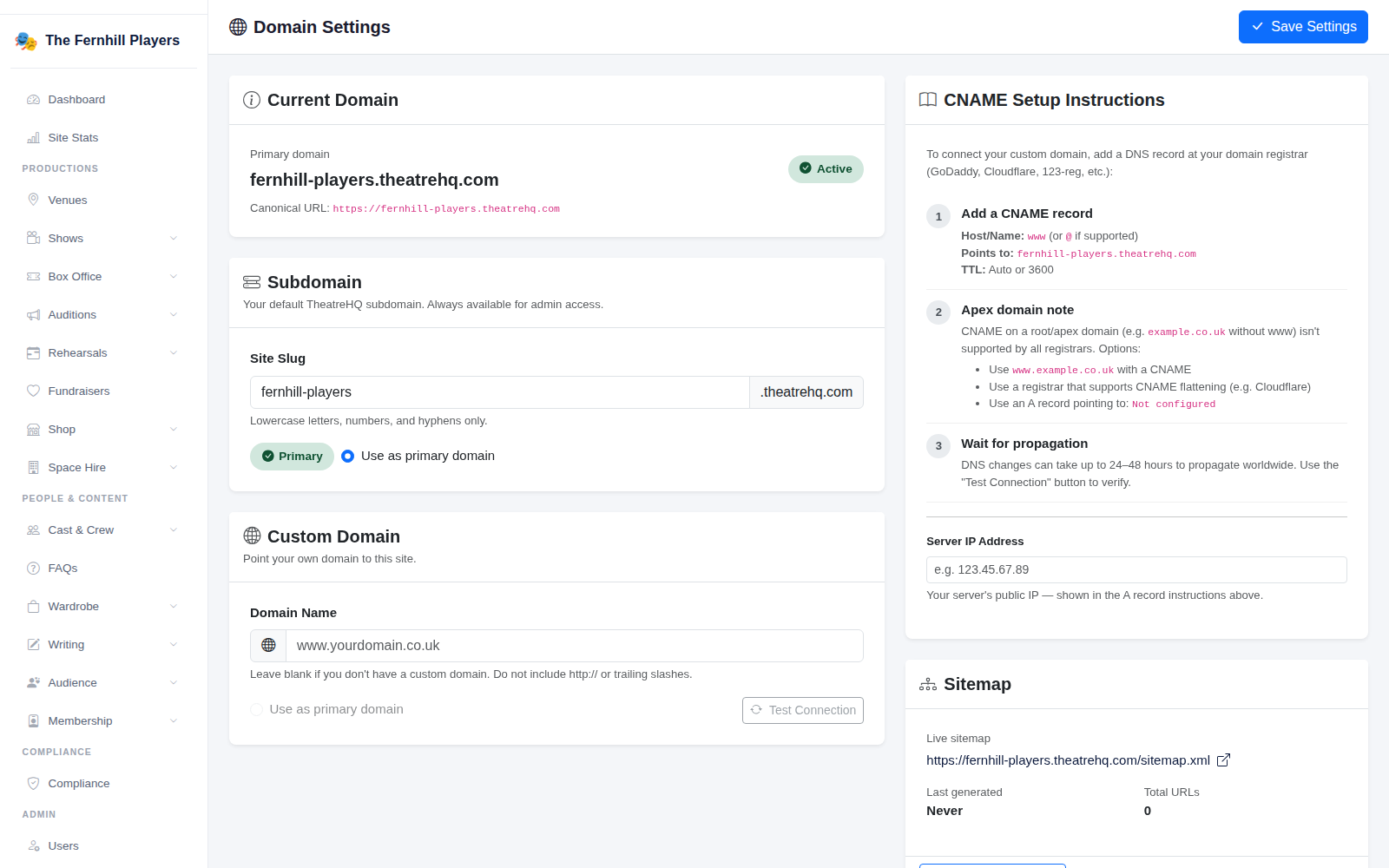
Go to Settings > Domain & Sitemap. Current Domain at the top shows the address your site is using as its main one, and its Canonical URL, which is the address search engines are told to list.
Under Subdomain you'll see your theatrehq.com address. You can change the Site Slug, but think twice: any links people have saved to the old address will stop working.
2. Add a record at your domain company
Log in to wherever you bought your domain (GoDaddy, 123 Reg, Cloudflare, IONOS and so on) and find the DNS settings. Add a CNAME record:
- Host or Name: www
- Points to or Value: your theatrehq.com address, exactly as shown in the instructions on the page
- TTL: leave it on Auto, or 3600
A CNAME works for the www version of your address. Not every company lets you add one to the bare domain (fernhillplayers.co.uk without the www). If yours doesn't, the page lists your options: use the www address, use a company that supports "CNAME flattening" such as Cloudflare, or add an A record pointing to the server address shown.
3. Add the domain to TheatreHQ
Back in Domain & Sitemap, type your address into Domain Name under Custom Domain, without http:// and without a slash at the end. Click Save Settings, then Test Connection.
Don't worry if the test fails straight away. DNS changes can take anything from a few minutes to a day or two to reach everyone. Try again later. Once it passes, tick Use as primary domain and save, and your own address becomes the main one.
4. Check your sitemap
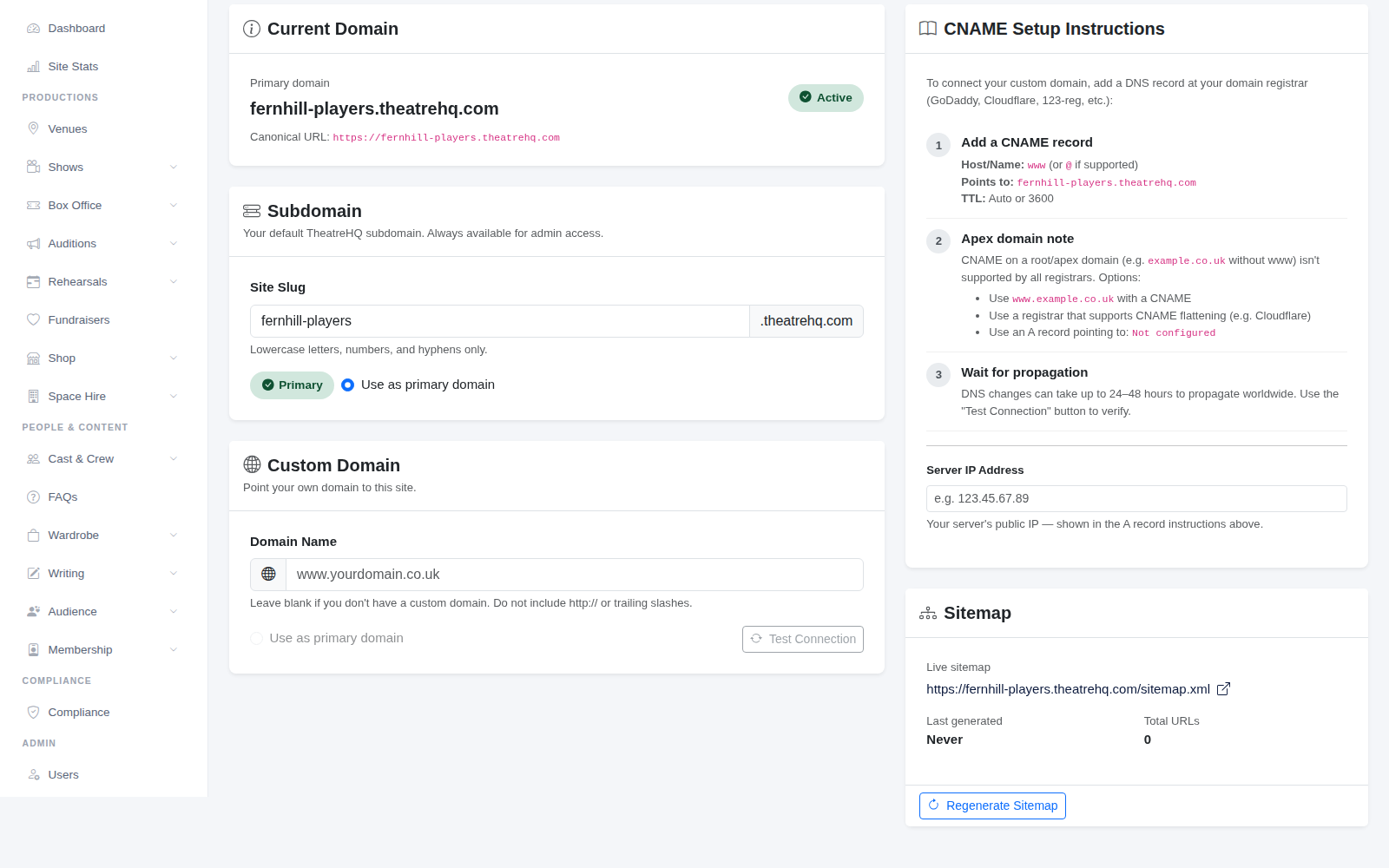
The Sitemap section shows the address of your sitemap, a list of every page on your site that search engines read to find your shows. It updates as you add content, and you can click Regenerate Sitemap to refresh it straight away.
If you're moving from an old website
- Set up redirects from your old page addresses before you switch, so links from Google and other sites keep working. See Setting up redirects.
- Tell Google about your new address and sitemap through Google Search Console. Getting your shows found on Google covers this.
- Update the address on your posters, social media profiles and email signatures.
Tip: make sure the domain is registered to the society, not to one member's personal account, and note down when it renews. A domain that lapses can be bought by someone else.