Ever typed every night of a two-week run in by hand? Or opened a show to check one thing and scrolled past ten boxes to find it? The show editor is where your society sets up each production, and it's usually done by a volunteer in the evening after work. It had grown one feature at a time into a long, crowded form, so we've rebuilt it around how societies actually set up a show.
It's coming soon to every TheatreHQ site. Here's what's changing, and why.
A summary of your show, first
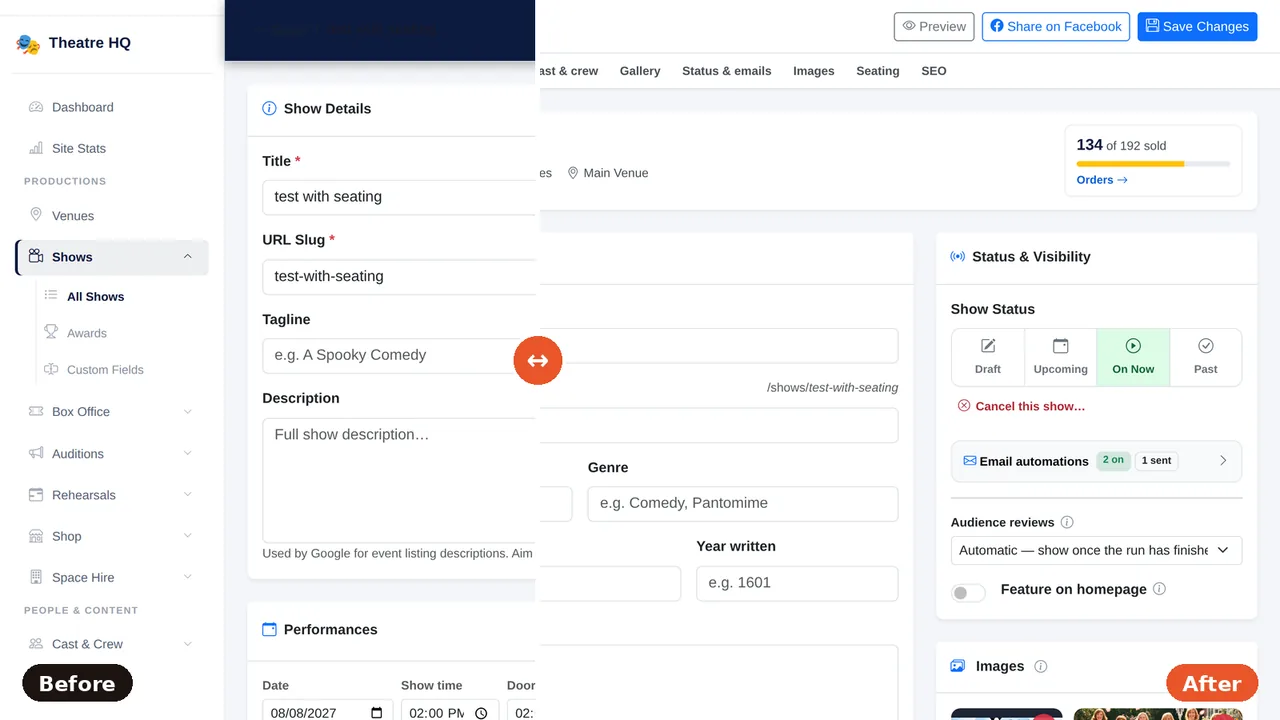
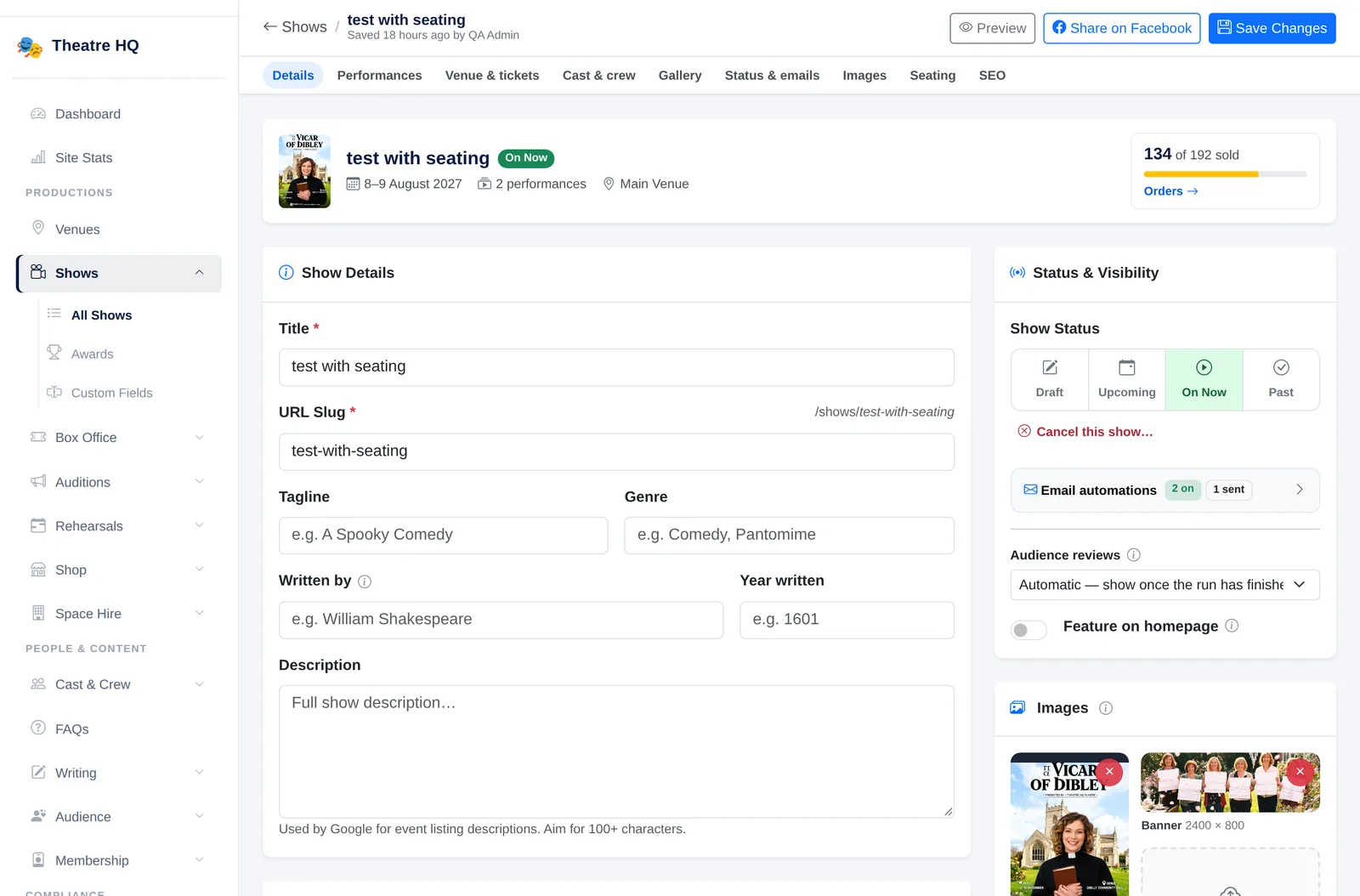
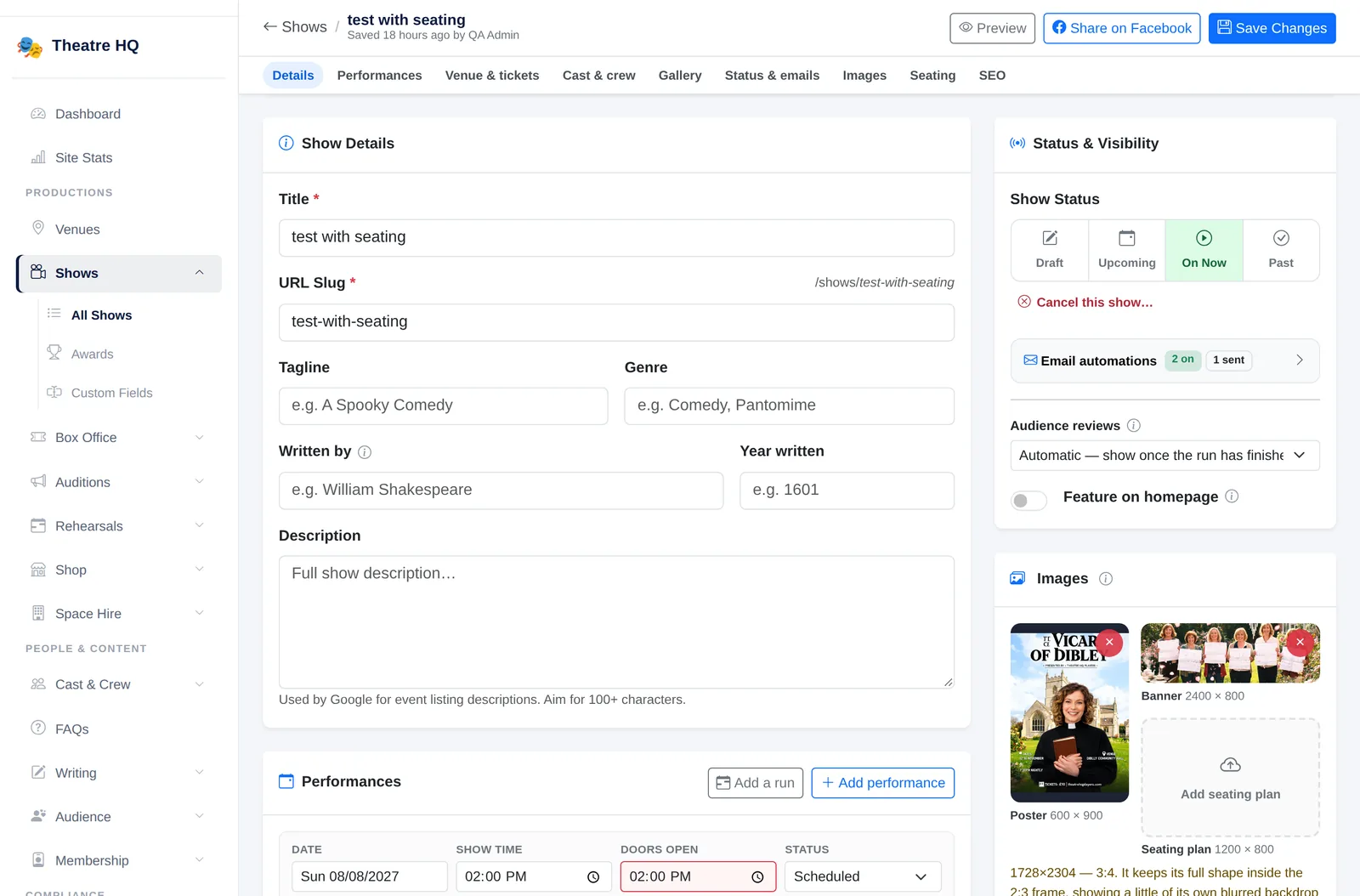
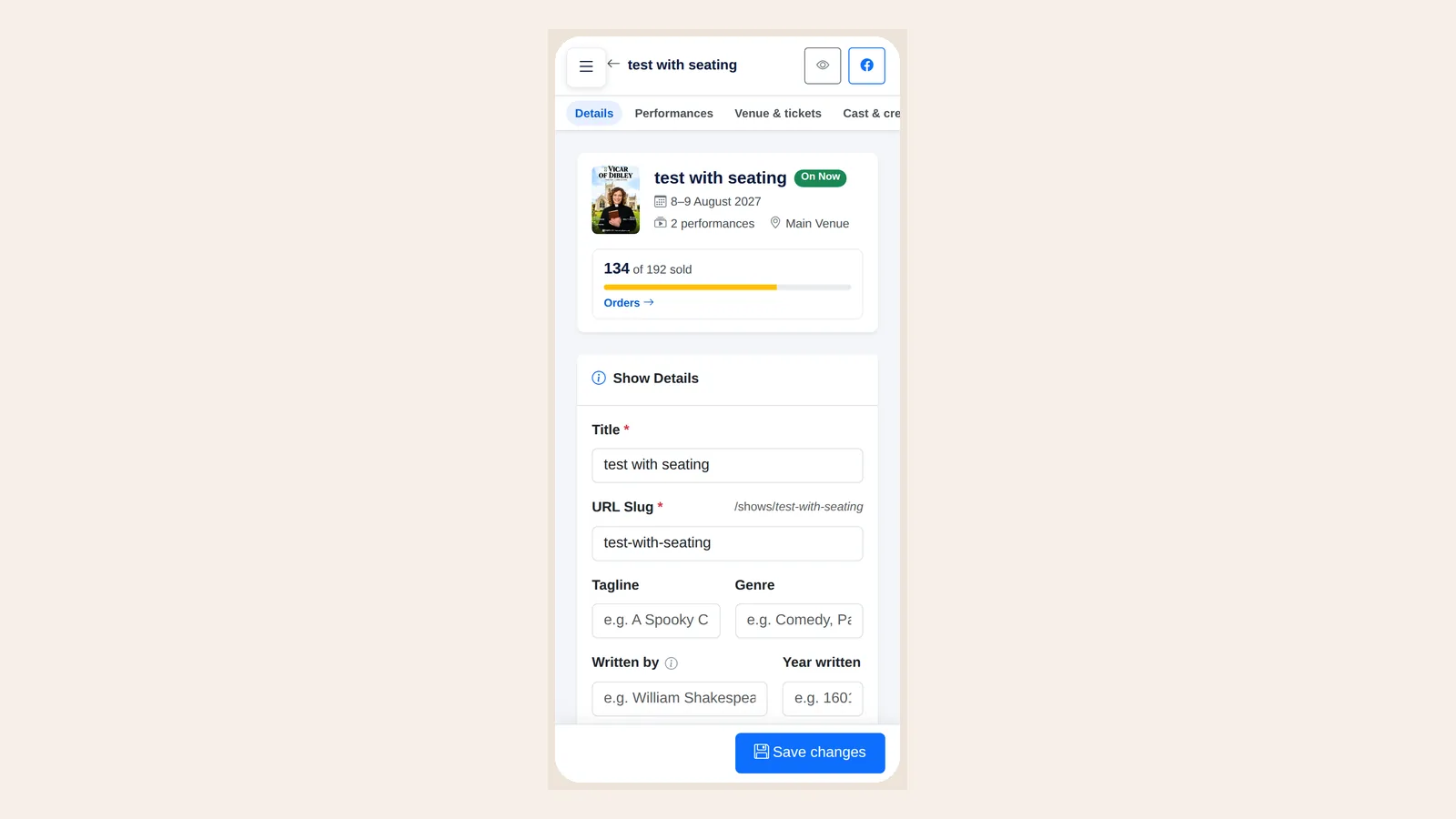
Most visits to a show are to check or tweak something, not to type it from scratch. So the page now opens with a summary: the poster, title and status, the dates, how many performances there are, the venue, and how many tickets you've sold, with a link straight to the show's orders. The top bar is easier to read and tells you when the show was last saved and by whom, so the committee knows who touched it last.
Under the top bar, a row of links takes you straight to any section: details, performances, venue and tickets, cast and crew, gallery, status and emails, images, seating and search engines. The section you're in is highlighted, so you always know where you are.
Add a whole run in one go
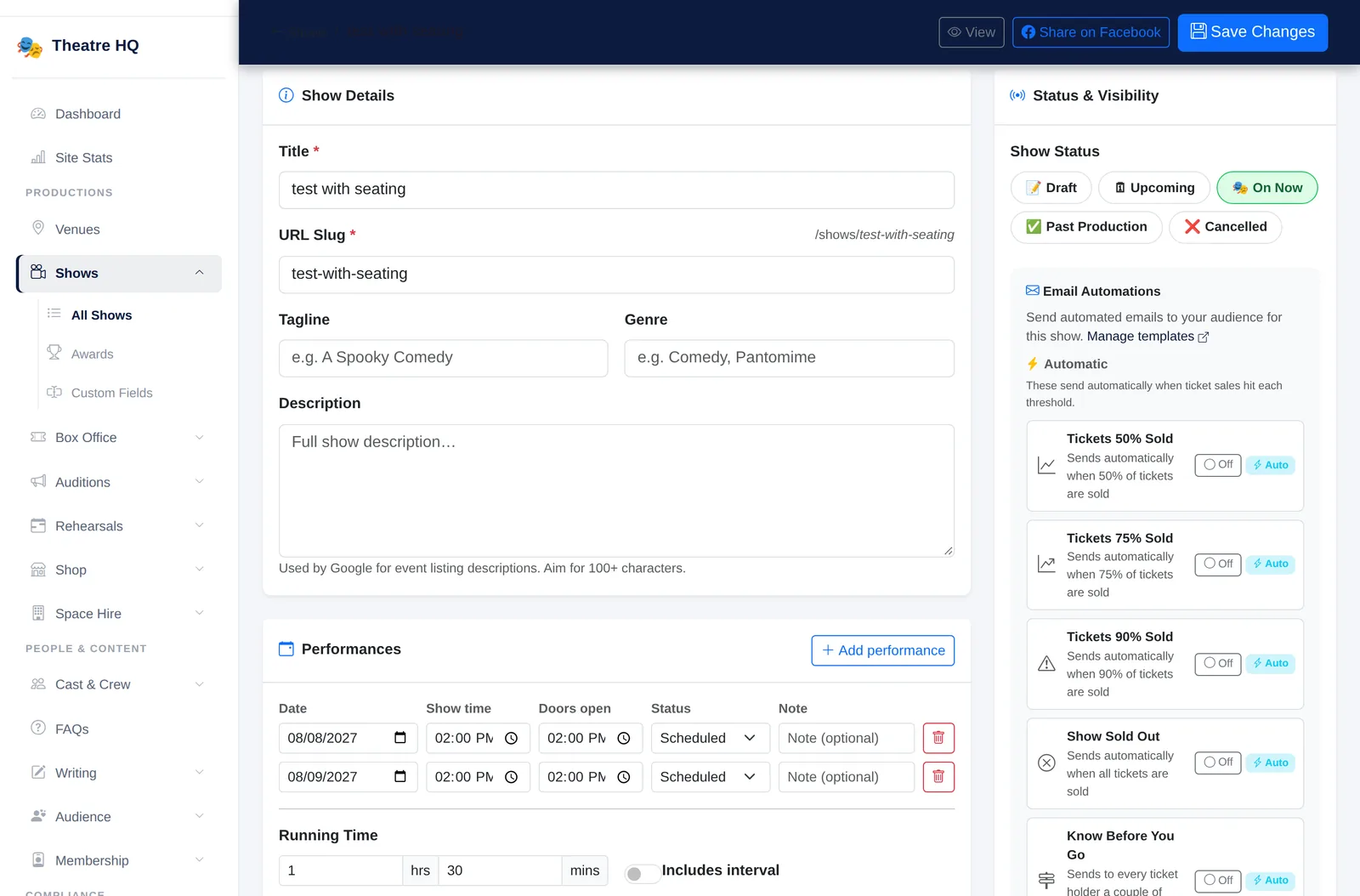
Setting up a two-week run used to mean entering every night by hand. Now Add a run asks for the first and last night, the evening time and which days (Monday to Saturday are ticked to start with), and whether you want matinees too (Saturday at 2.30pm to start with). It shows how many performances it's about to add, skips any already listed, and adds the lot. In our test, 10 to 21 August added 13 performances in one click: 11 evenings and 2 Saturday matinees, in date order.
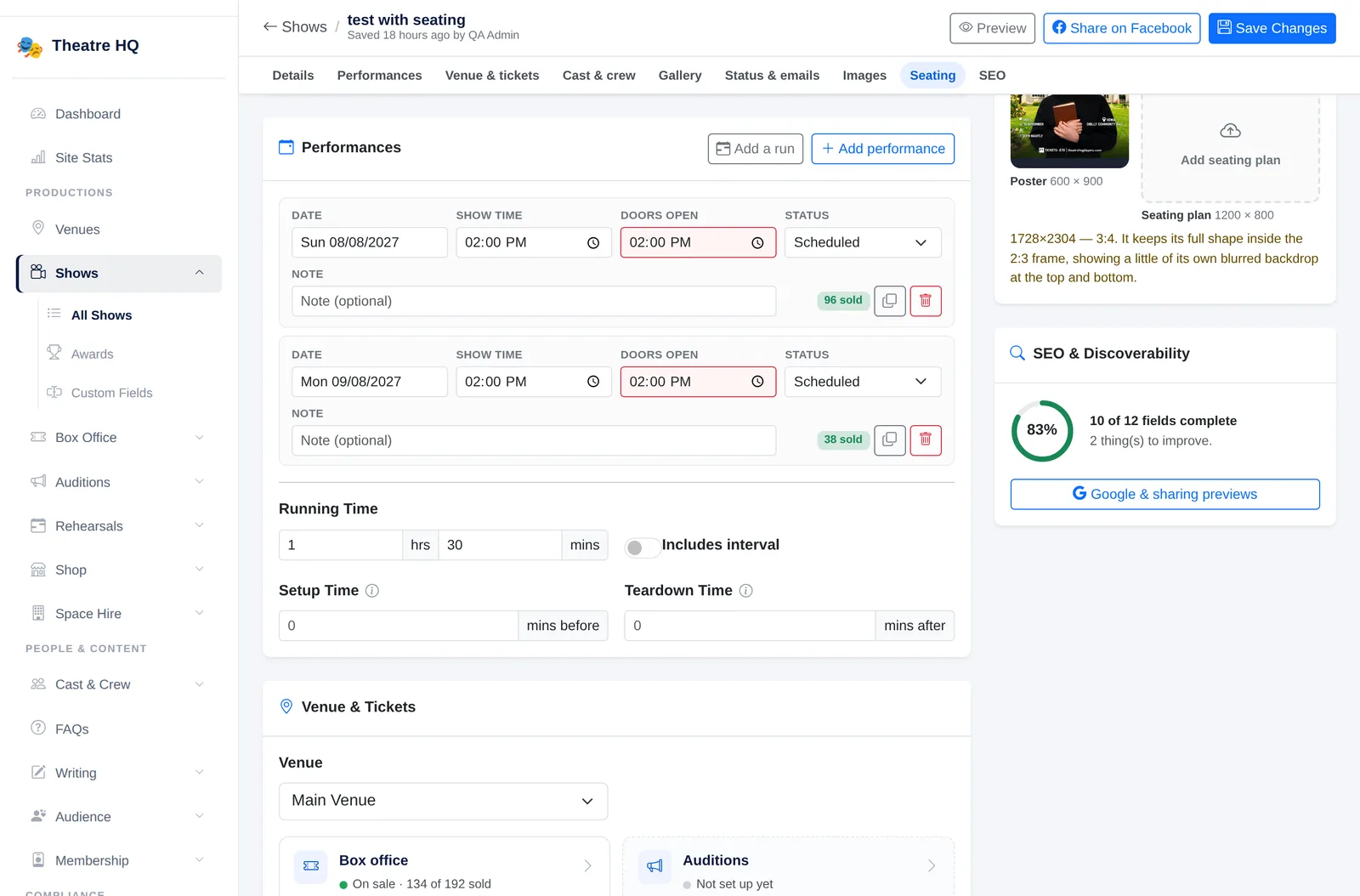
If a run is the same time every night, Duplicate copies a performance onto the next free night, skipping any night that already has a performance at that time. The doors time fills itself in at 30 minutes before curtain-up and follows the show time if you change it, until you type your own. Doors at or after curtain-up are outlined in red, because that's almost always a mistake. Each performance also shows how many tickets it has sold, and removing one that has sales asks you to confirm first.
Dates the British way
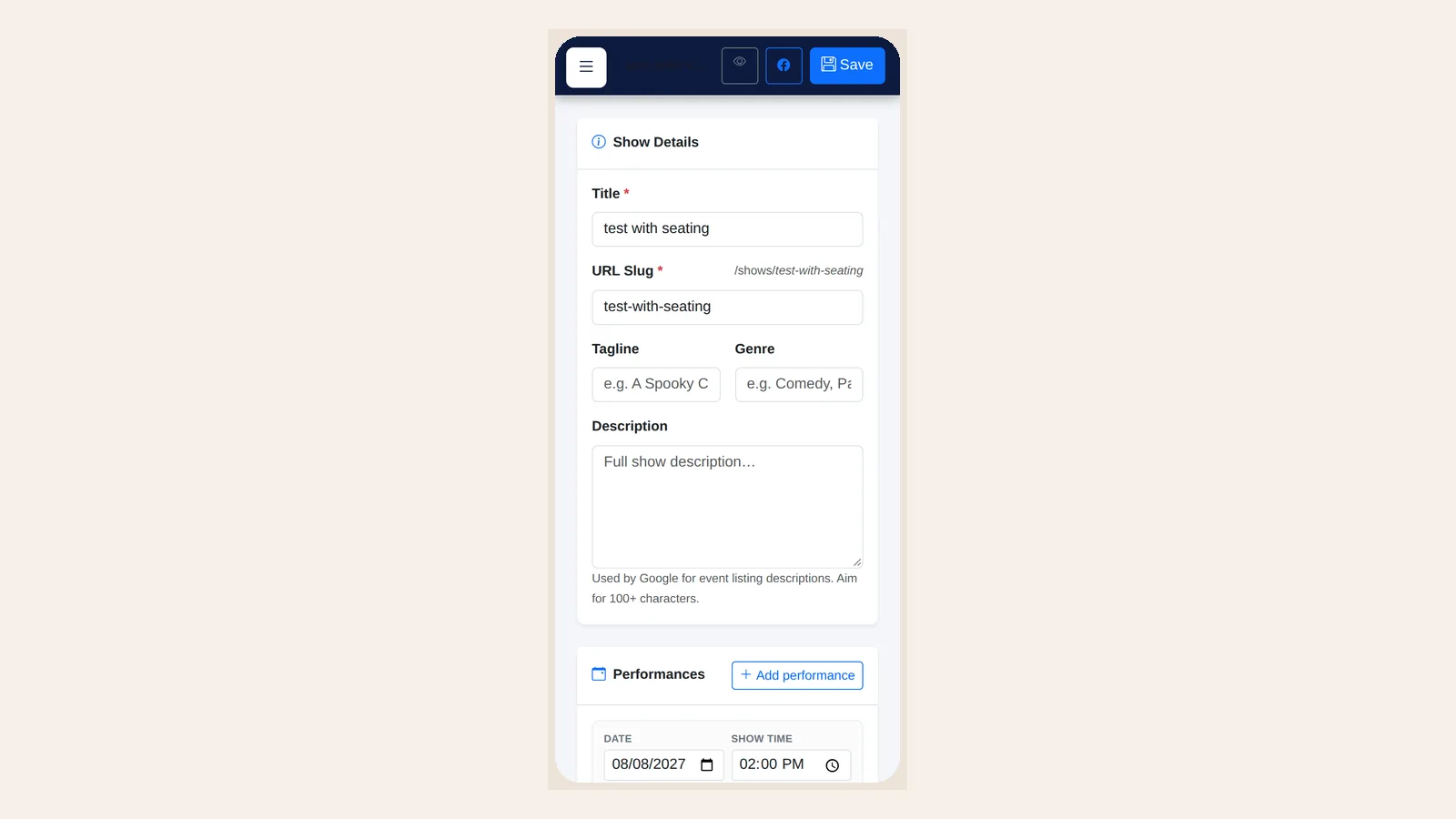
Dates now read like "Sun 08/08/2027", and you can type them as 12/12/2026. Click a date and a proper calendar opens, starting on Monday, on a computer or a phone. No more wondering whether 08/09 is the 8th of September or the 9th of August.
Everything in its place
The poster, banner and seating plan used to be three tall cards, mostly taken up by upload boxes. They're now one Images card with three tiles side by side. Hover to replace an image, or drop a file straight onto a tile, and it uploads as soon as you pick it.
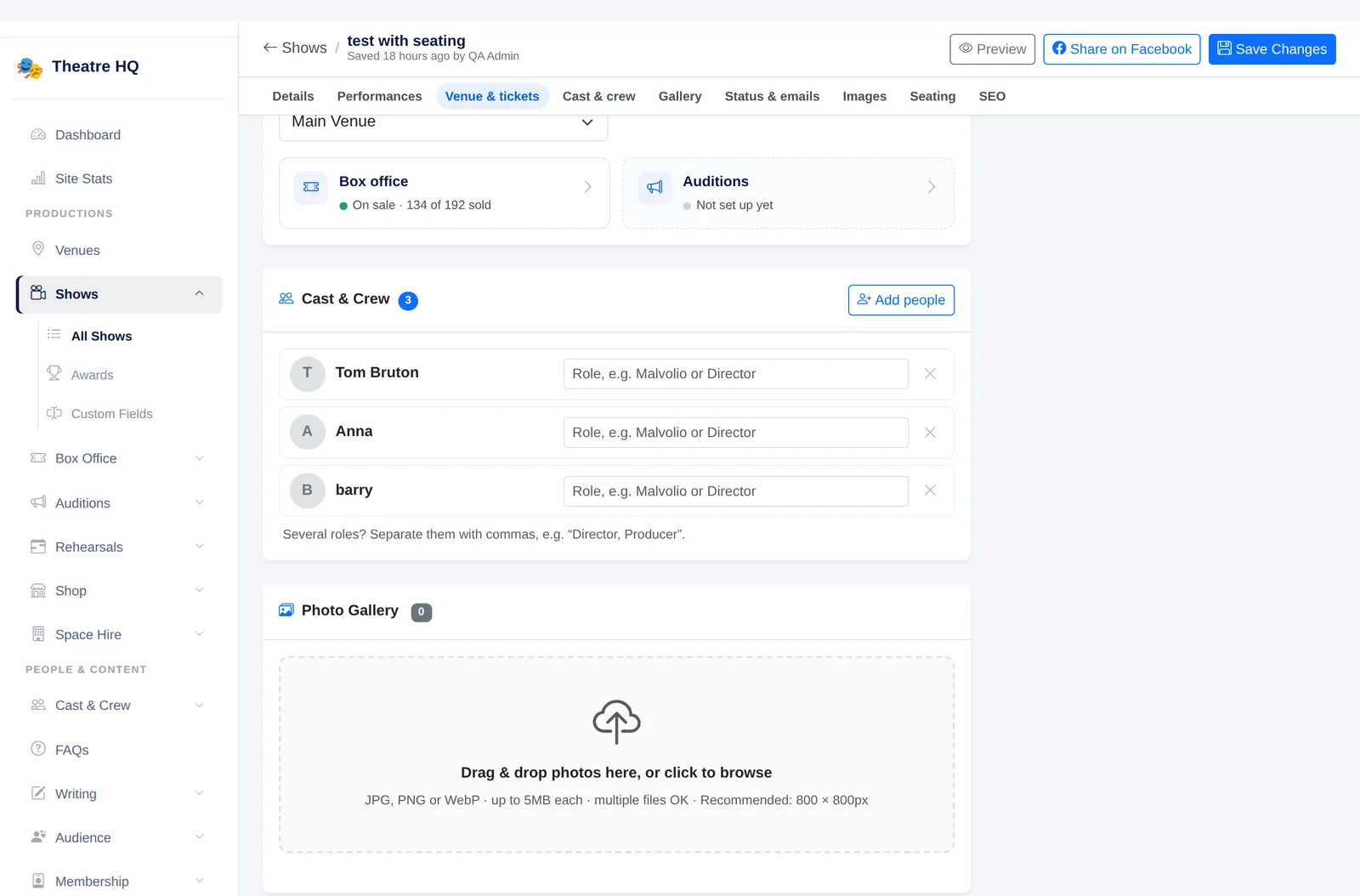
Box office, wardrobe and auditions now appear as matching tiles that tell you how things stand, such as "On sale · 134 of 192 sold" or "Open · 8 applications". The wardrobe and auditions tiles only appear if your society uses them. A show's status is drawn as the track it follows: Draft, Upcoming, On Now, Past. Cancelling sits on its own and asks you to confirm, because it's a serious step.
Tools that slide out when you need them
The detailed tools now slide out from the side, so they have room to breathe without crowding the page:
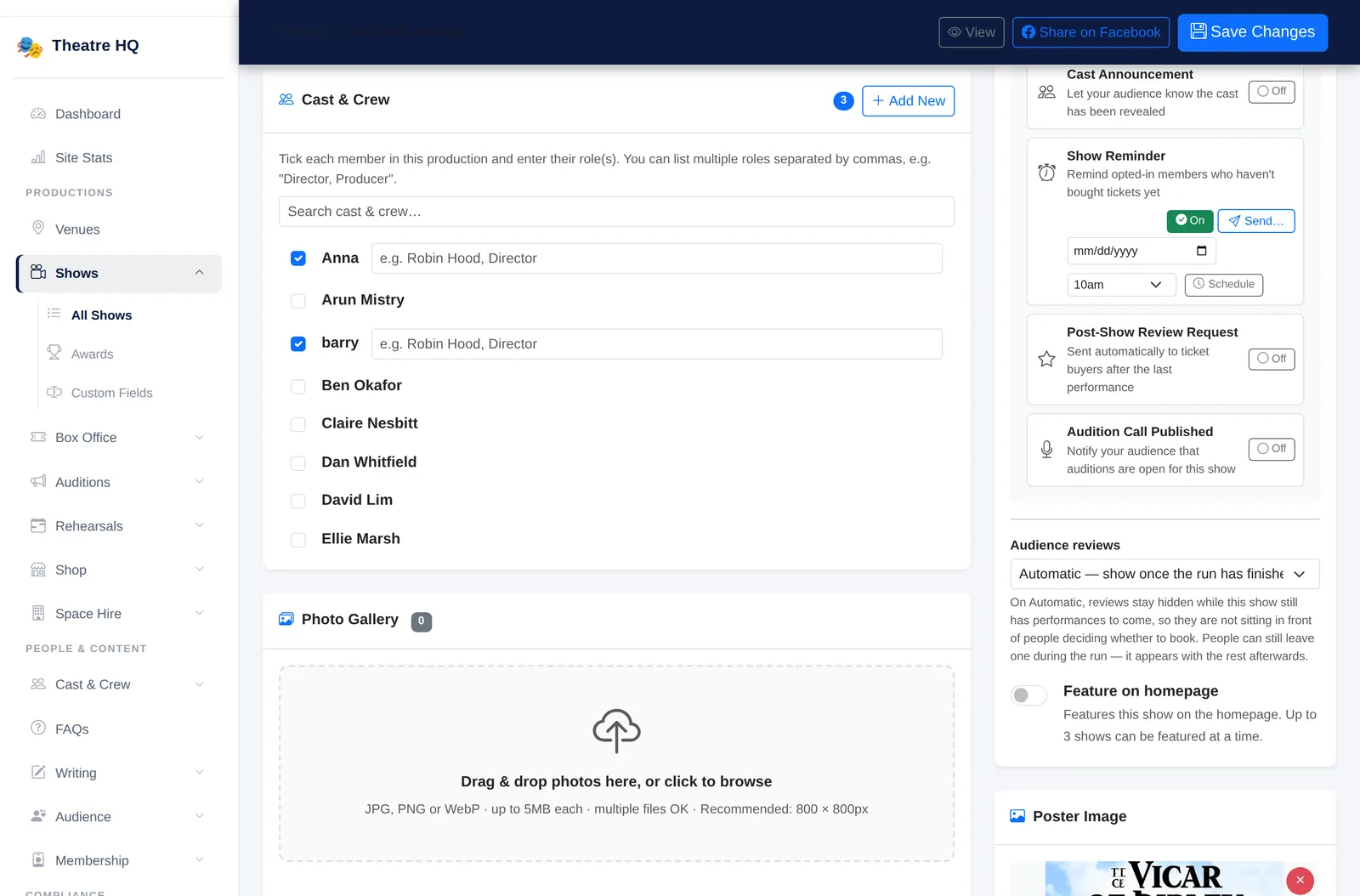
- Cast and crew. The card lists only the people in this show, each with their photo and role. Add people opens a panel with search, and Someone new adds a new person to the show in one step.
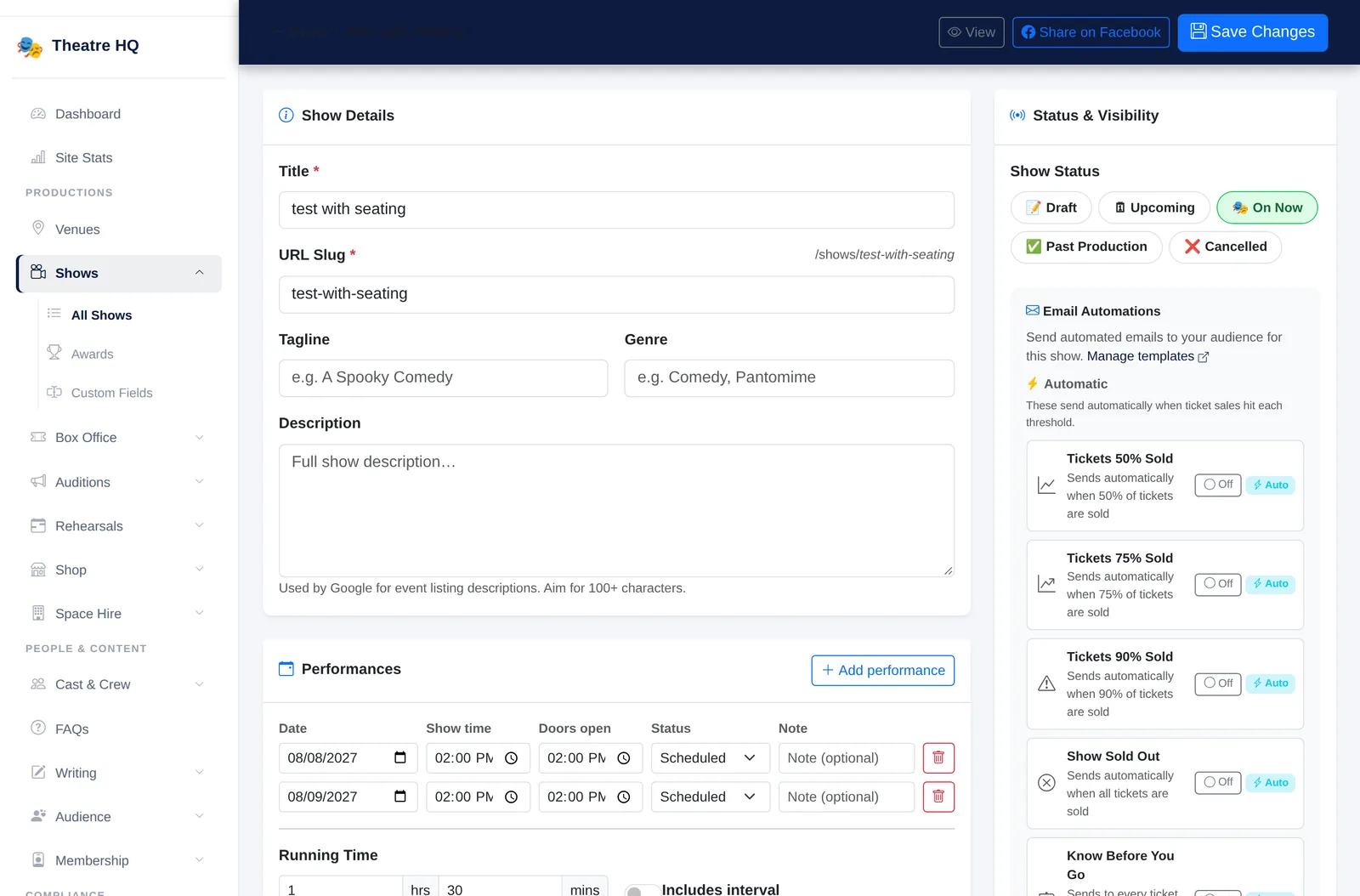
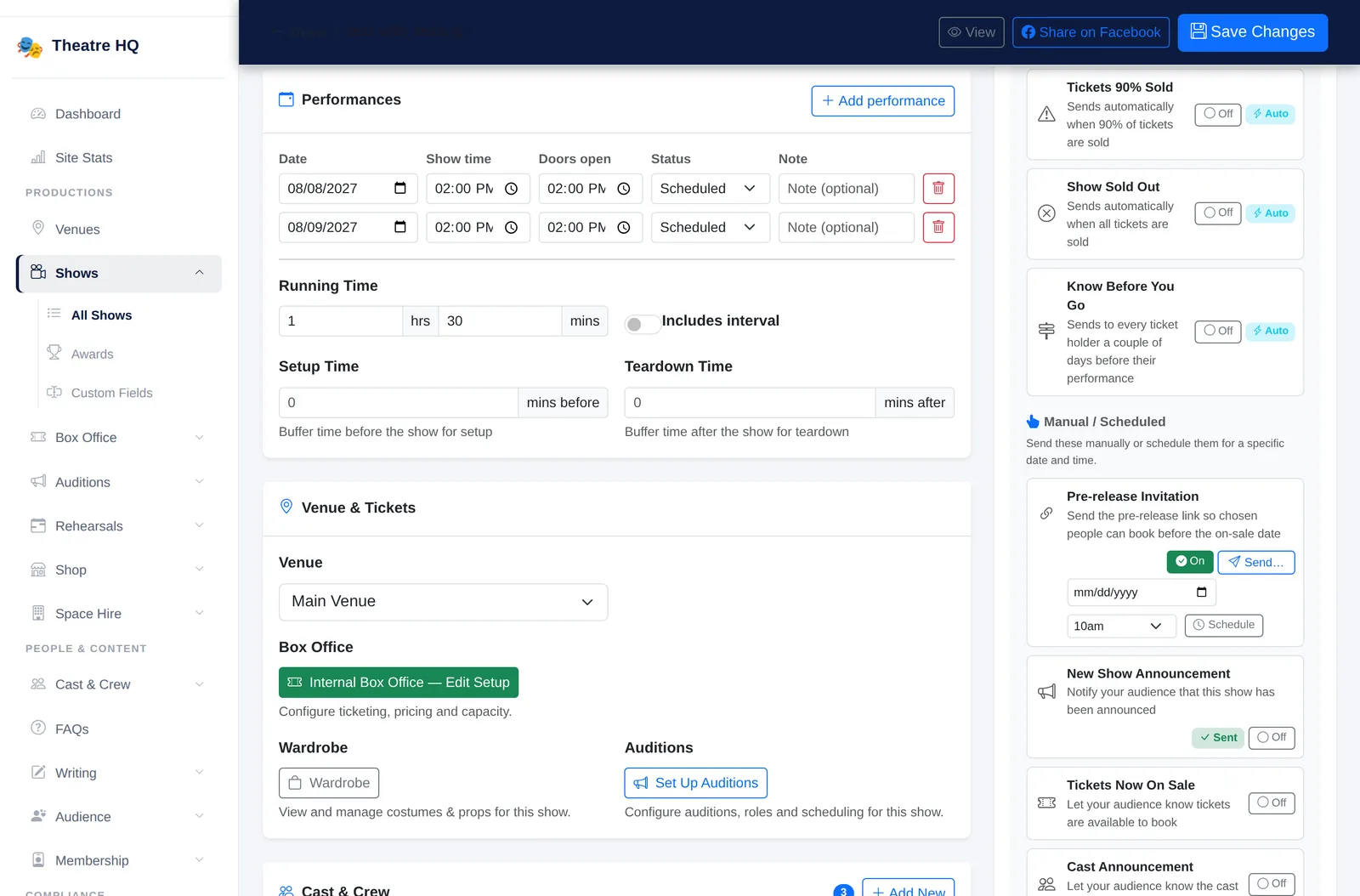
- Audience emails. Your show's automations, such as ticket milestones, the show reminder and the review request, each get their own row, with on and off, send, schedule and what has already gone out. The card itself just says, for example, "2 on · 1 sent".
- Google and sharing previews. A mock Google result and a mock Facebook post update as you type the title, web address and description, alongside a checklist that takes you to each field.
- Live preview. See the public show page in a side panel, on a computer or phone-sized, even while the show is still a draft. It shows the last saved version (and says so if you have unsaved changes), and draft previews are only visible to your team.
Harder to get wrong
- Unsaved changes. You're warned before leaving with edits that haven't been saved, and an "Unsaved changes" marker shows at the top. Typing a letter and deleting it doesn't count.
- No double saves. Save changes to "Saving…" and can't be pressed twice. Ctrl+S (or Cmd+S on a Mac) now saves the show.
- Two people, one show. If someone else on the committee saved the show after you opened it, your save is held with a message saying who and when. Your edits stay in the form, and you choose whether to save over theirs. (It catches each other's saves; it isn't live co-editing.)
- Web addresses keep working. Change a show's web address and you'll see a warning with a "Put it back" link. The old address is remembered and sends people to the new one, for the show page and for booking links, so links on Facebook, in emails and on printed QR codes keep working.
- Cancelling really stops sales. A cancelled show can no longer be booked or paid for online, and staff cash sales are refused too. The public page says the show has been cancelled. Ticket holders aren't emailed or refunded automatically: you contact them and refund from the Box Office. Set the show back to Upcoming and booking reopens.
Credits and phones
There are new fields for who wrote the play and when. The author appears as "by William Shakespeare" under the title on your show page, and any year can be entered, so Shakespeare, Sheridan and Wilde are no longer a problem. Most performing licences ask for the author to be credited, and it helps audiences and search engines too.
Every new feature was checked at phone size. On a phone, Save sits in a bar at the bottom of the screen, where your thumb is, with an "Unsaved" marker when you've made changes.
When can I use it?
The new show editor is coming soon to every TheatreHQ site. When it arrives, your existing shows open in it with their details, performances and cast in place, and we'll update the knowledge base guides at the same time.
Want to see it on your own shows? Get a free demo site, or get in touch and we'll show you around.