Audition fees, offers and going live
Shape the candidate's journey: the audition fee, offers and the welcome pack, the emailed code, what to prepare, self-tapes, feedback, scoring and data. Then open your audition and tell people.
This guide shows how to choose what candidates are asked for and see along the way, from the fee to feedback, and then open the audition for applications. Everything here is optional, so switch on what suits your society, and leave the rest. The video above shows the same steps, using the demo audition for Abigail's Party.
1. Fee
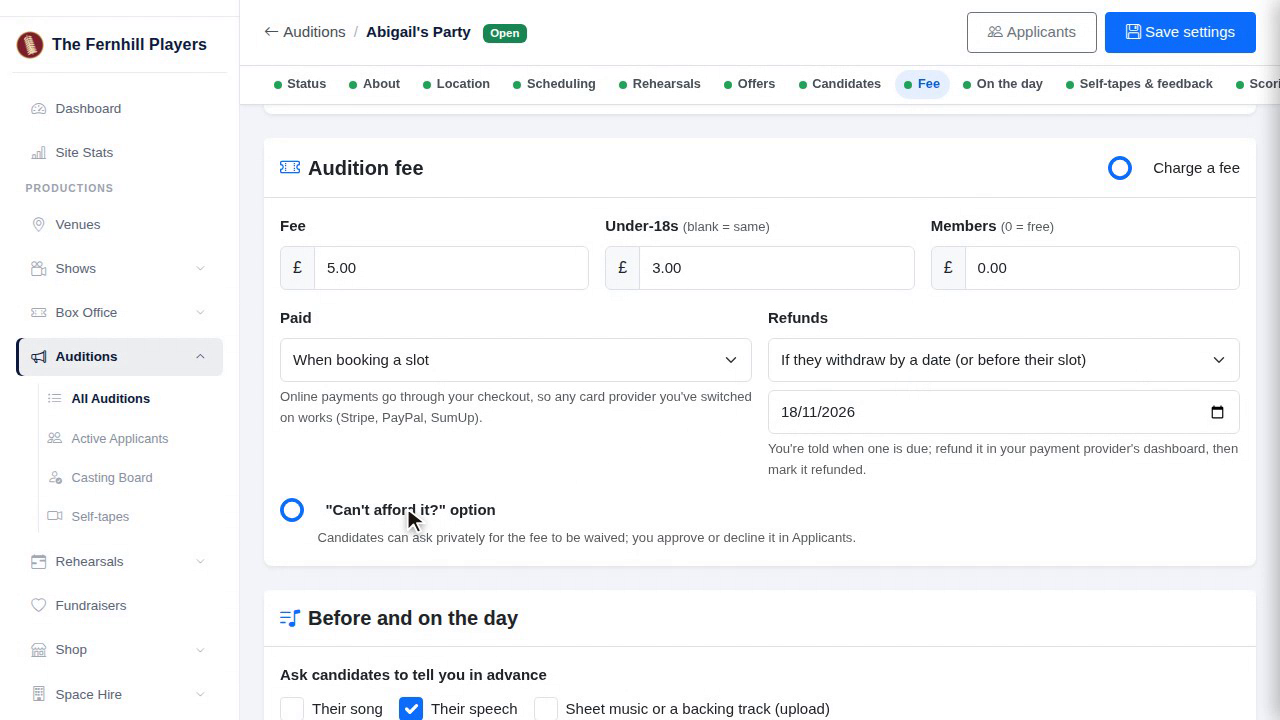
Start with the fee. Tick Charge a fee and set the amount, with lower prices for under-eighteens and for members if you like. Candidates pay online with the payment providers you already use, such as Stripe, PayPal or SumUp.
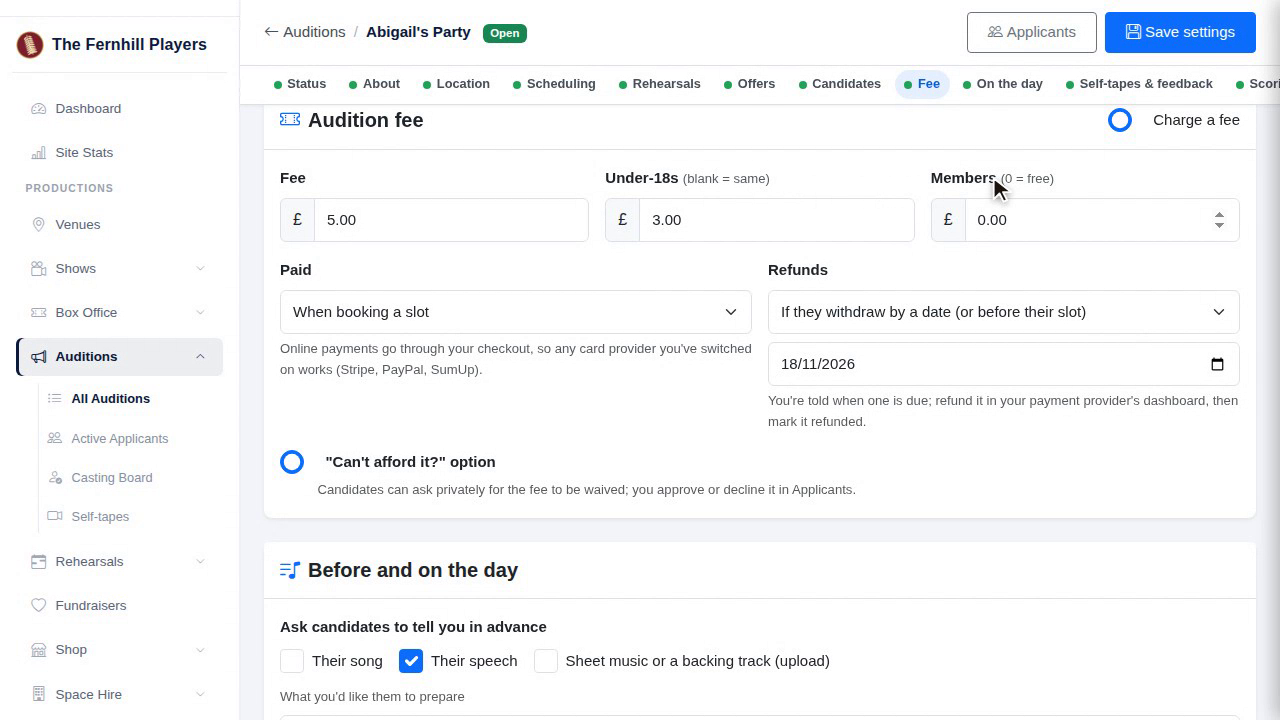
2. When it's paid, refunds, can't afford it
Choose when it's paid: when they apply, when they book a slot, or on the day at the door. Then your refund rule. Refunds are made in your payment provider's dashboard and recorded in TheatreHQ. And the Can't afford it option lets candidates ask for the fee to be waived, quietly, on the form.
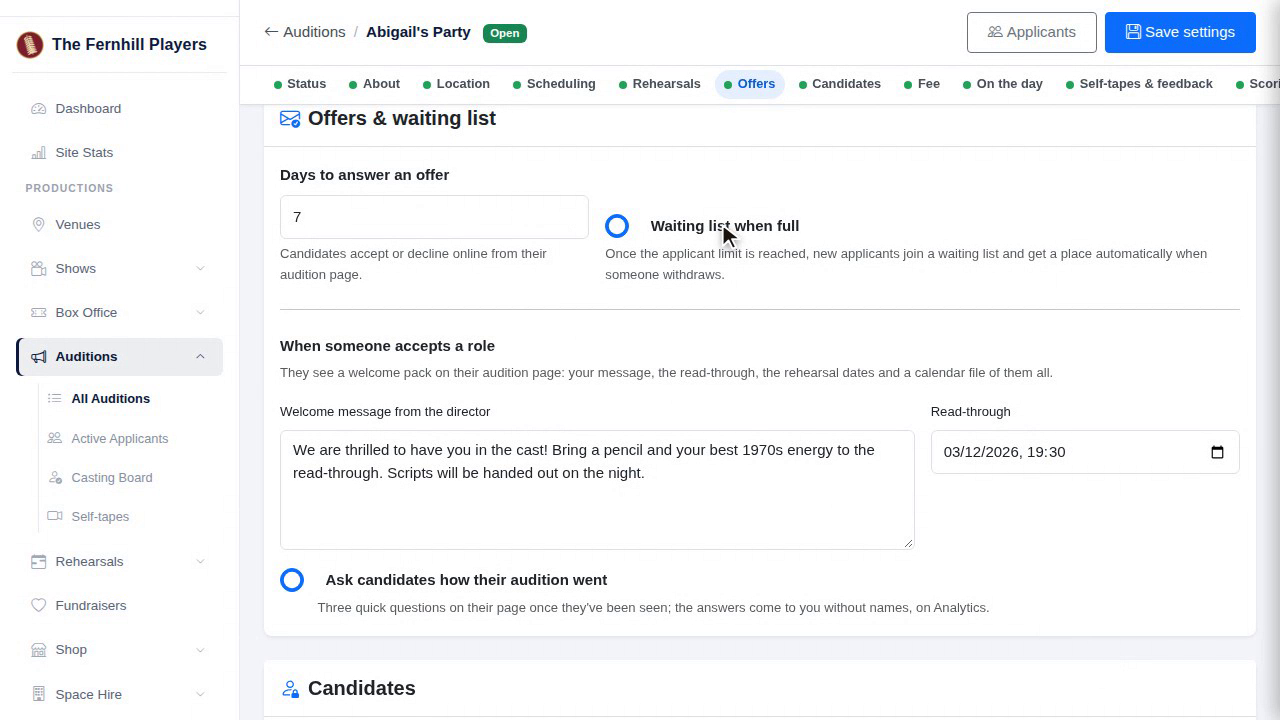
3. Offers
Under Offers, set how many days people have to answer an offer, and whether to keep a waiting list when you're full.
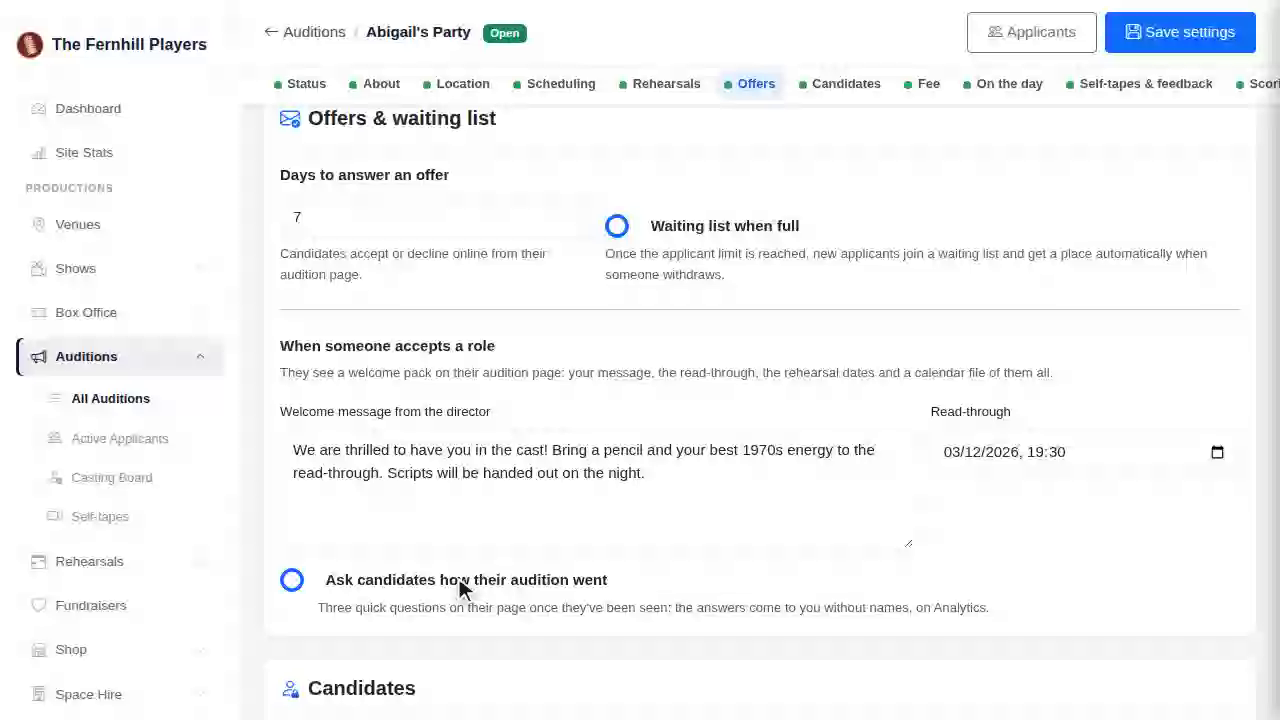
4. Welcome pack and survey
When someone accepts a role, they get a welcome pack. Add a message from the director and the date of the read-through, and the pack fills in the rehearsal and performance dates for you. You can also ask candidates how their audition went, with a short survey.
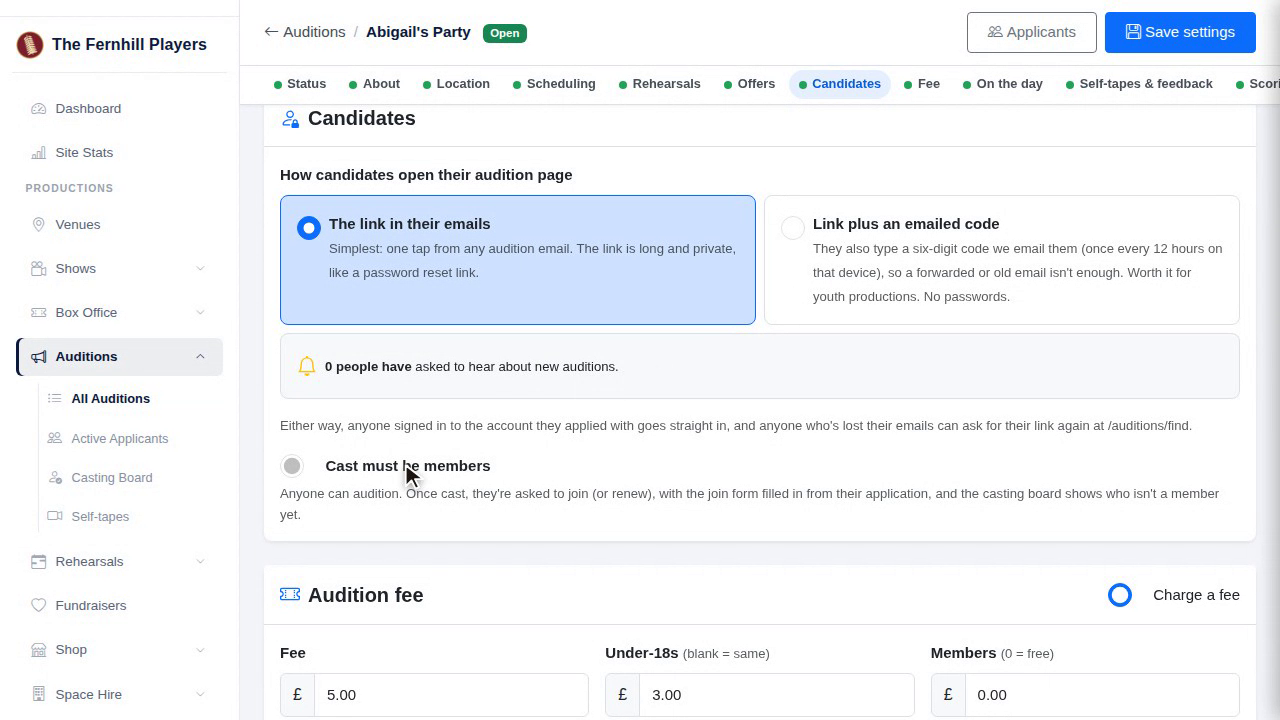
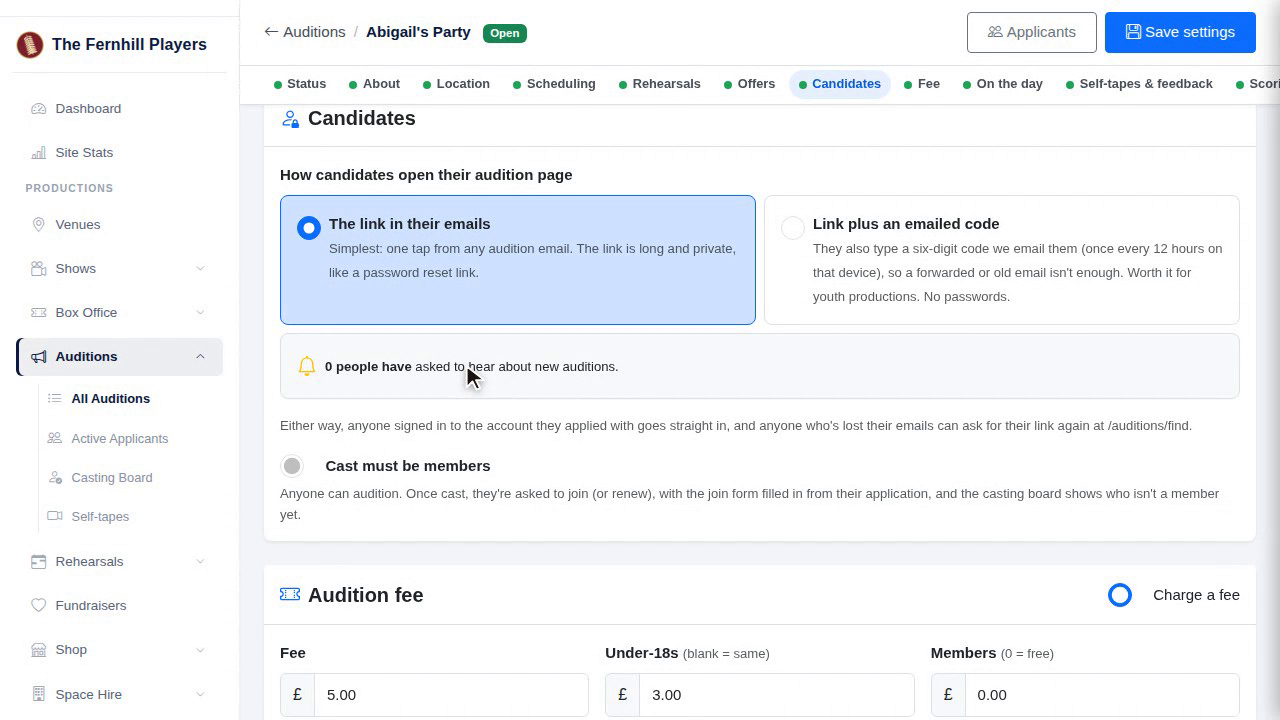
5. Candidates
Under Candidates, choose how people open their audition page. Normally it's the link in their emails. For youth productions, choose link plus an emailed code: they're sent a six-digit code before the page opens. And if your cast must be members, tick it here, and anyone offered a part is invited to join or renew.
6. On the day
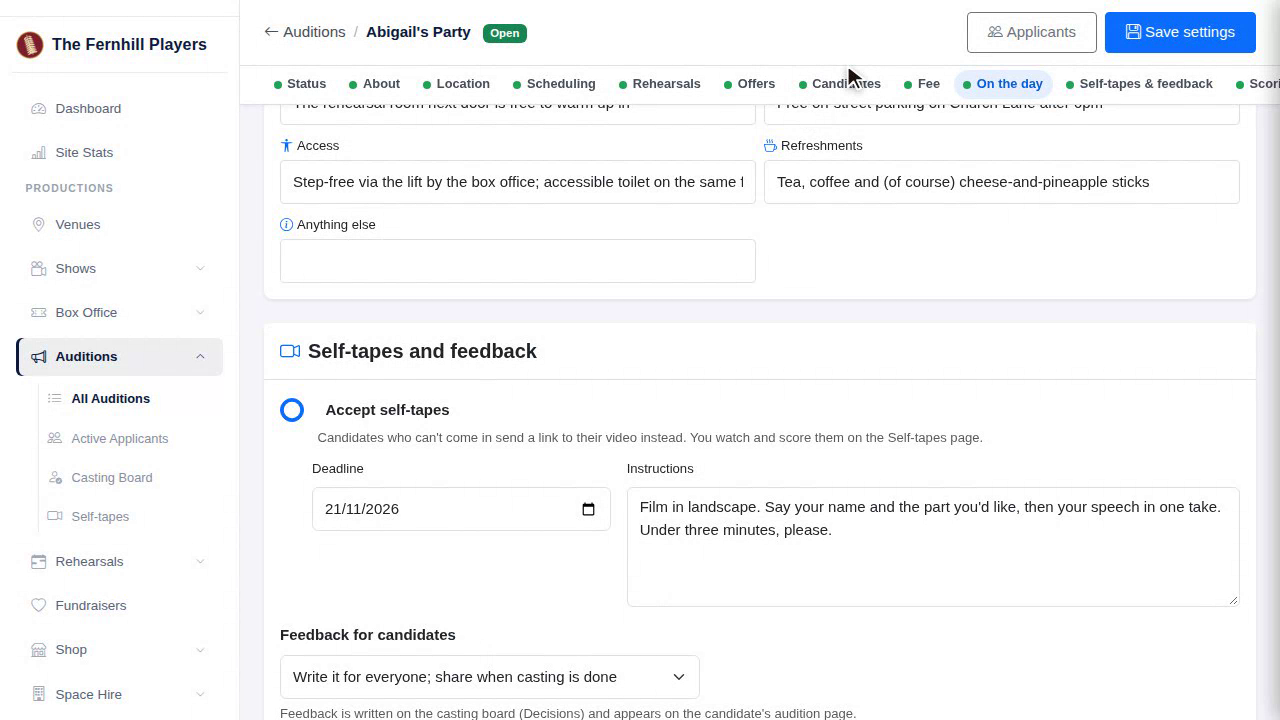
Under Before and on the day, choose what to ask for: their song, their speech, and sheet music or a backing track. Then fill in the On the day guide: when to arrive, what to wear and bring, parking, access and refreshments. Candidates see it on their page.
7. Self-tapes and feedback
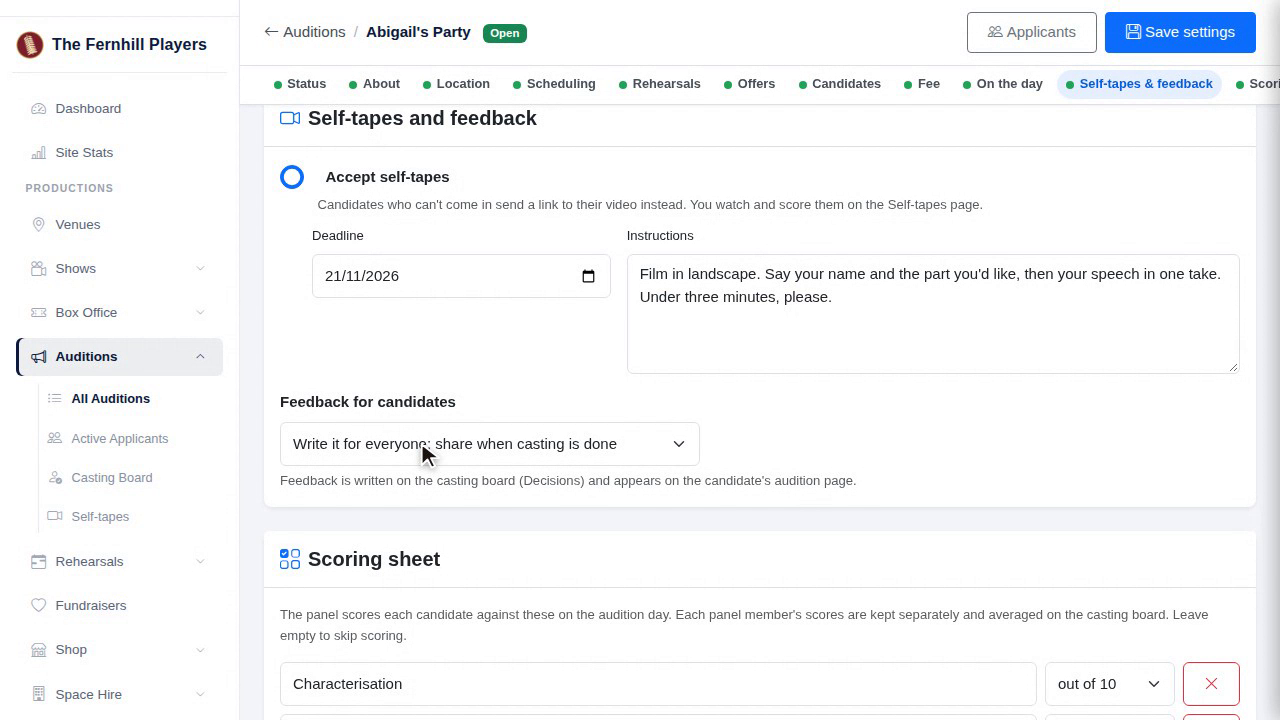
Tick Accept self-tapes to let people send a video link if they can't come in person. And choose how you give feedback: not at all, when a candidate asks, or written for everyone and shared when casting is done.
8. Scoring
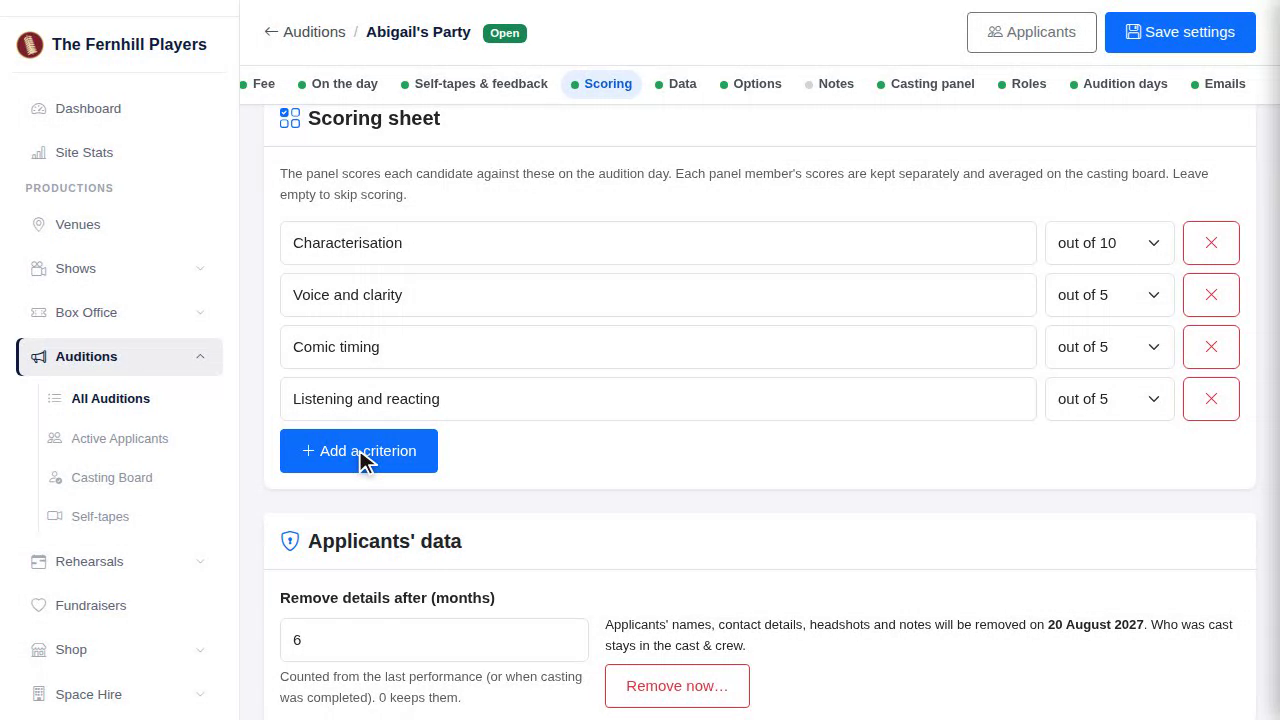
The scoring sheet is what your panel fills in on the day. Add the things you're scoring, such as voice or acting, and choose out of three, five or ten.
9. Data
Finally, under Applicants' data, choose when candidates' details are removed after the audition, such as six months. That keeps you on the right side of data protection law, with no reminders to remember.
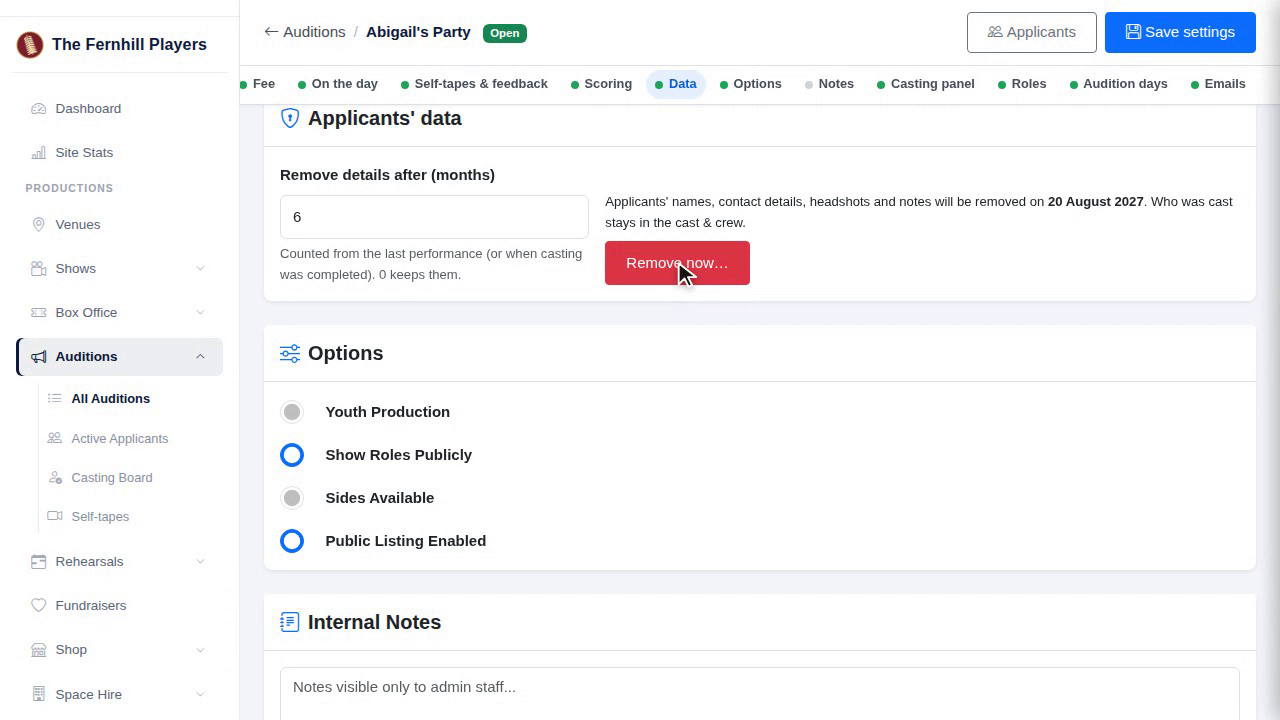
Save your settings. Now let's open the audition for applications, and let everyone know.
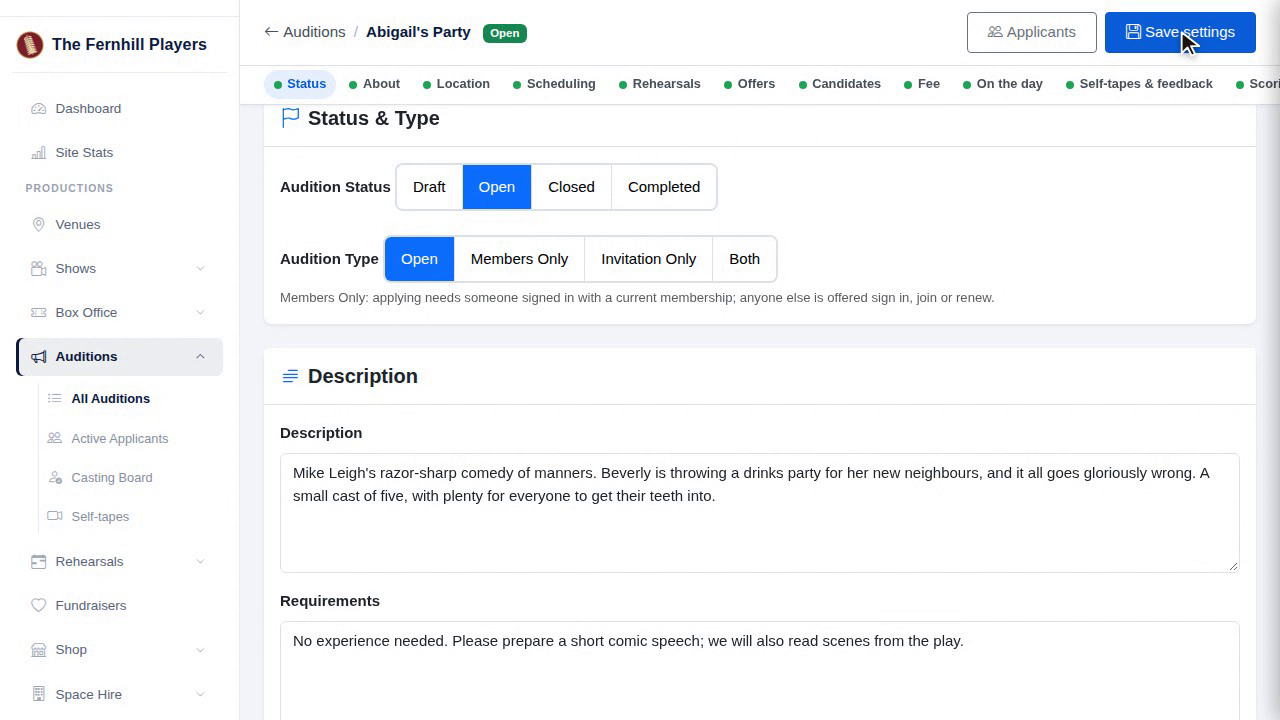
10. Open it
When you're ready, set the status to Open and save. The audition now appears on your Auditions page, and people can apply.
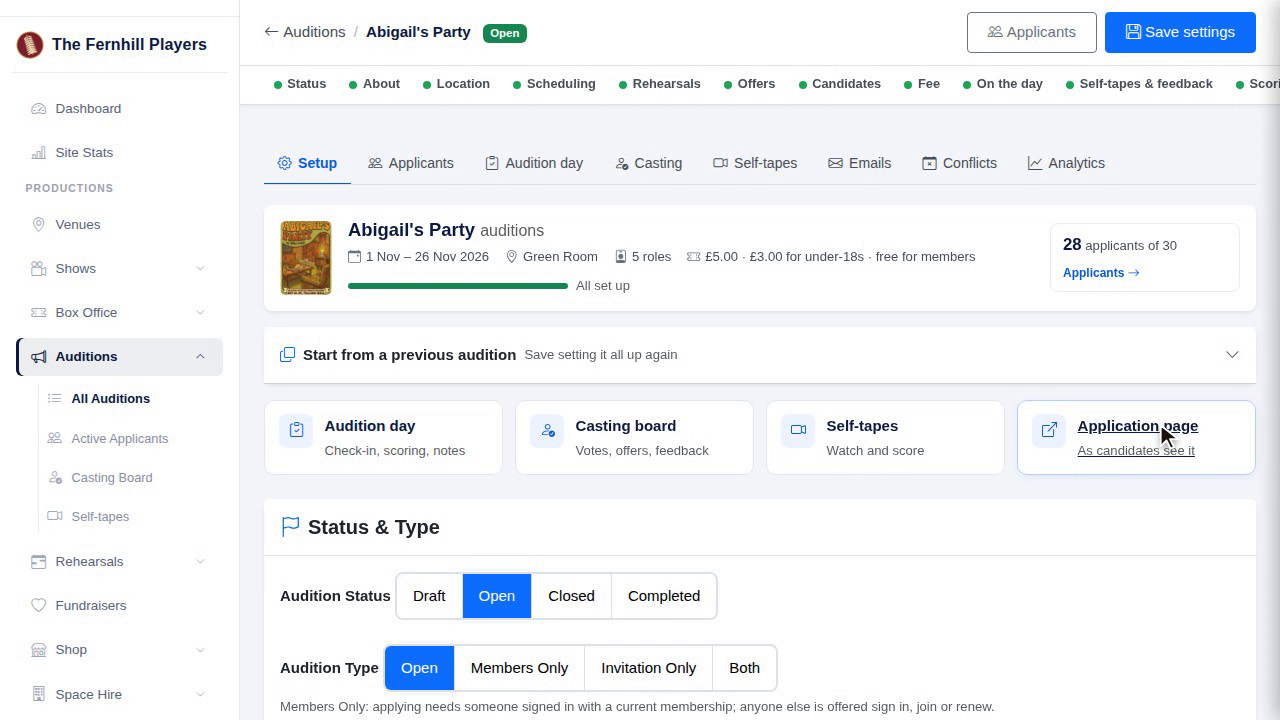
11. Check the public page
Click the Application page tile to see it exactly as candidates will: the dates, venue, fee and roles, and the application form.
12. Tell them
People who asked to hear about future auditions are counted under Candidates. Click Tell them auditions are open, and they're all sent a note, with a link to apply.
13. Emails
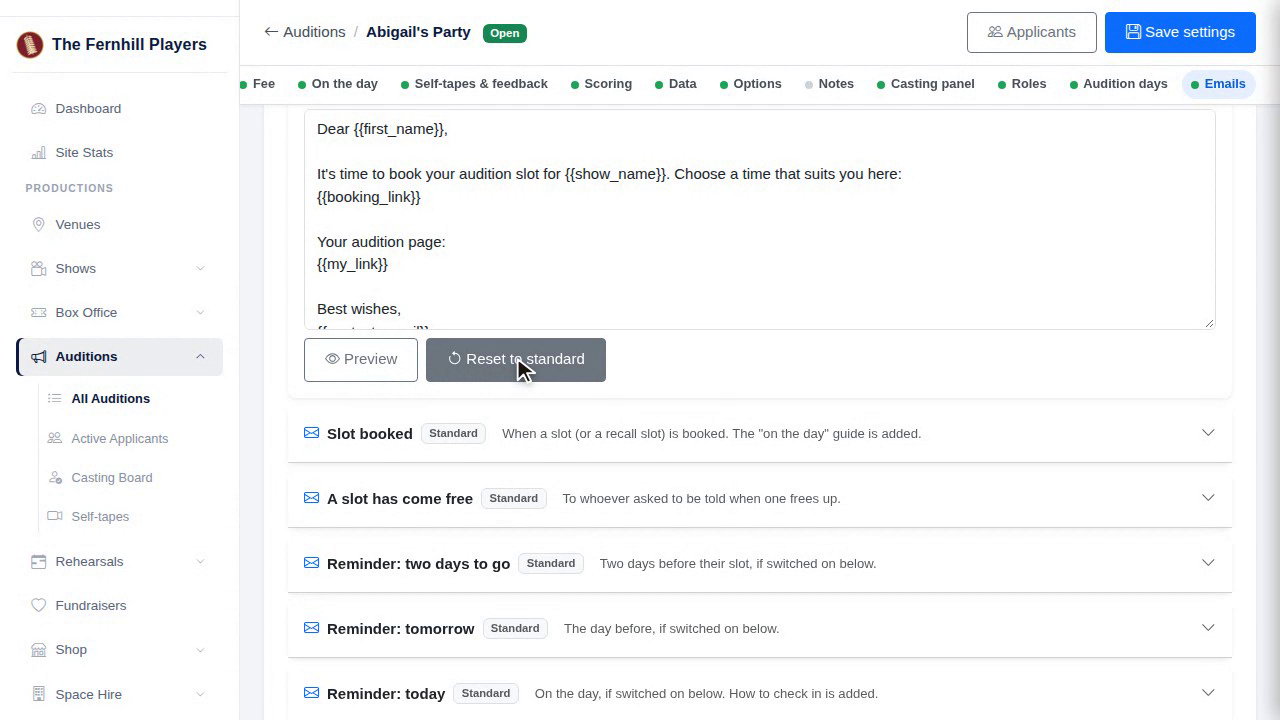
Every email candidates get is under Emails, and you can change the wording of any of them. Preview shows how it looks, and Reset to standard puts it back if you change your mind.
You're open for applications. Next in the course: Your casting panel: who sees what.
This guide is part 3 of 9 in the Running auditions in TheatreHQ course.
Track your progress
Make a free account to take the quick quiz after each guide, keep your place in the course and get a certificate when you finish.