Connecting your payment providers (Stripe, PayPal, GoCardless)
Connect Stripe, PayPal or GoCardless so you can take card payments, PayPal and Direct Debit online.
To take payments online — tickets, memberships, shop orders and fundraisers — connect at least one payment provider. TheatreHQ works with Stripe for card payments, PayPal, and GoCardless for Direct Debit. Each has a step-by-step setup guide built into the settings page; this article walks through it.
Before you start
- Set up the account with the provider first, in your society's name.
- Every provider has a test (or sandbox) mode. Connect with test details first, make a test booking, and only then switch to live.
- Keys and secrets are like passwords: paste them straight into TheatreHQ and don't share them by email.
1. Connect Stripe
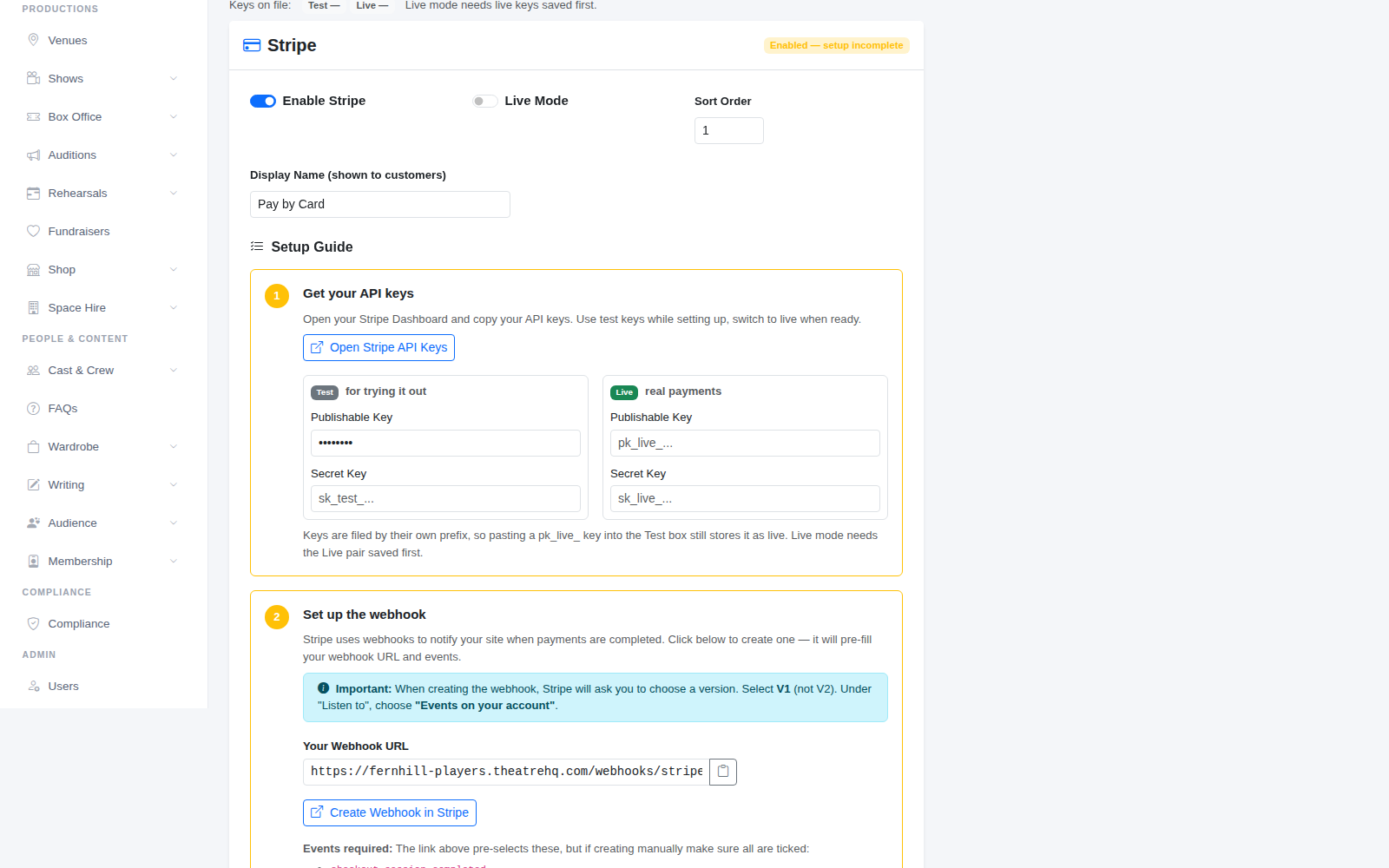
Go to Settings > Payments. Under Stripe, use Open Stripe API Keys to open your Stripe dashboard, and copy your Publishable Key and Secret Key into the Test boxes. When you're ready for real payments, add the Live pair too. You can also set the Display Name customers see at checkout.
2. Set up the webhook
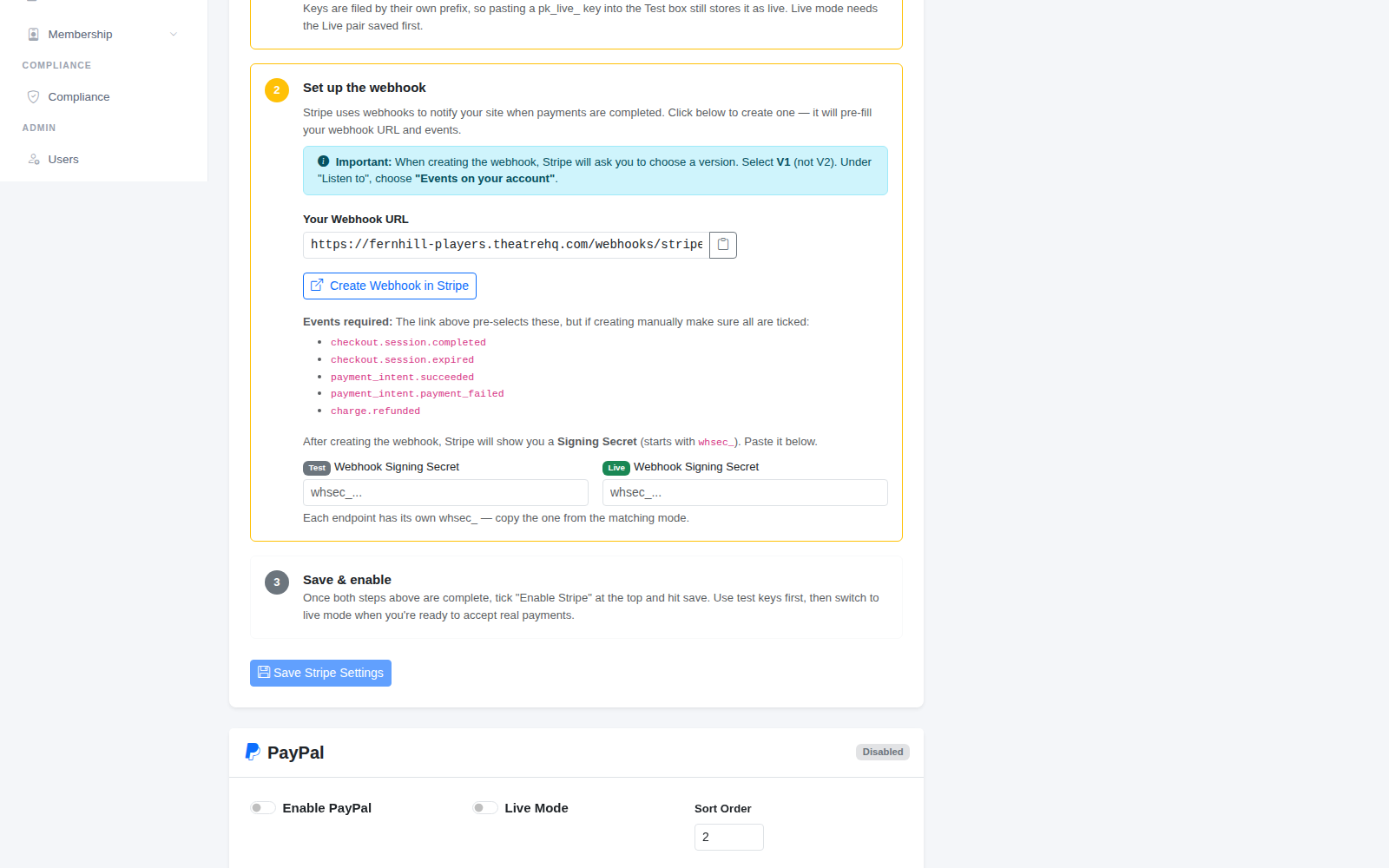
A webhook is how Stripe tells your site that a payment has gone through. Click Create Webhook in Stripe — it pre-fills your webhook address and the events needed. When Stripe asks for a version, choose V1, and under Listen to choose Events on your account. Stripe then shows a Signing Secret starting whsec_: paste it into the matching test or live box.
3. Save and switch on
Tick Enable Stripe and click Save Stripe Settings. Make a test booking with Stripe's test card numbers. When everything works, turn on Live Mode — it needs the live keys saved first.
PayPal and GoCardless
PayPal works the same way: create a REST API app in the PayPal Developer Dashboard (choose Merchant), copy the Client ID and Client Secret, add the webhook with the events listed on the page, then enable and save.
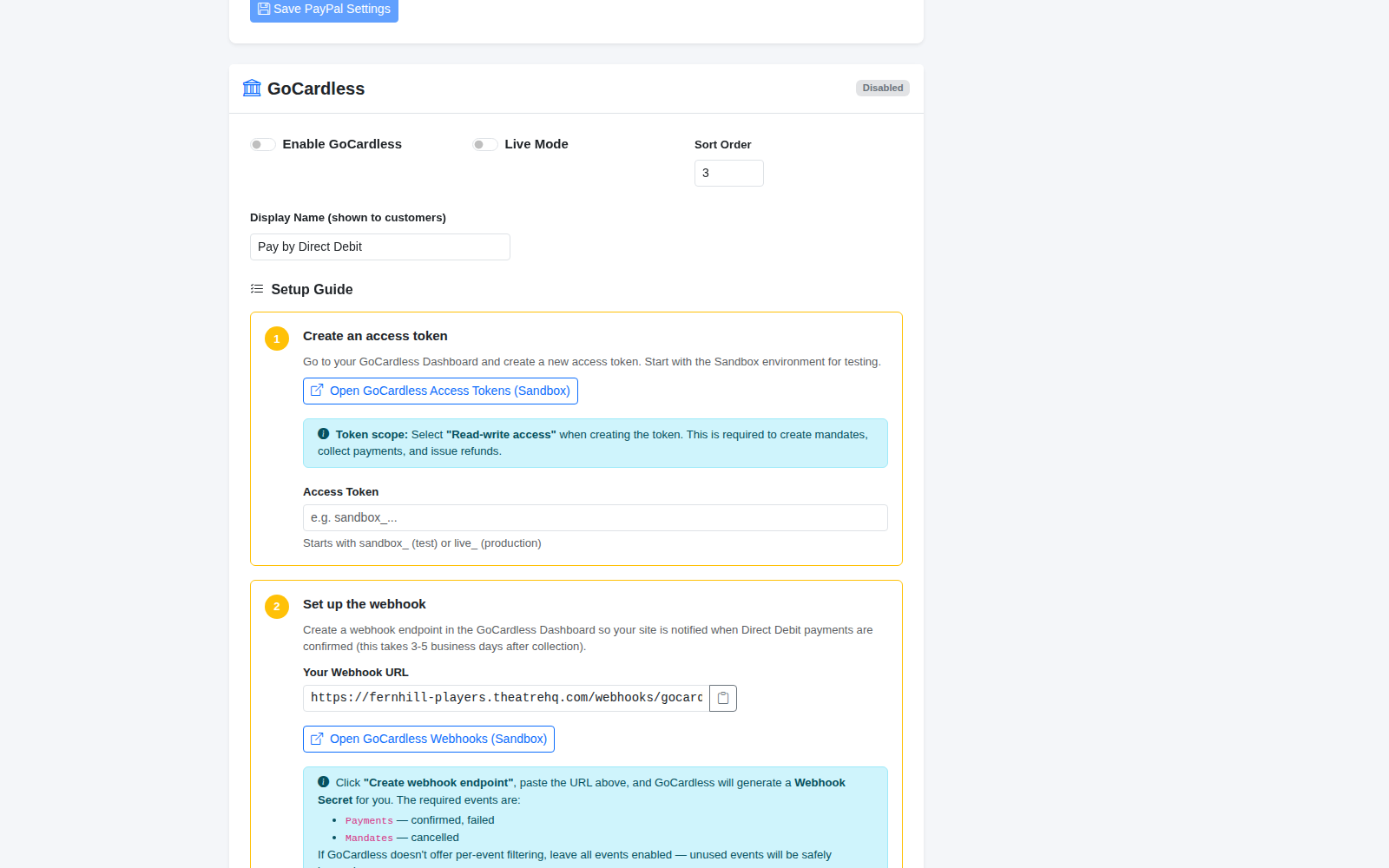
GoCardless collects Direct Debit, ideal for membership fees. Create an access token with Read-write access in your GoCardless dashboard, add the webhook it needs and paste in the Webhook Secret it generates. Direct Debit payments take a few working days to confirm.
Tip: if a payment shows as taken in your provider's dashboard but not in TheatreHQ, the webhook is usually the cause — check its address and signing secret match.