Managing applicants and self-tapes
The applicants pipeline and table, everything in a candidate's drawer (fees, access needs, guardians, notes and slots), bulk emails, and watching and scoring self-tapes.
This guide shows how to manage your applicants: seeing where everyone's up to, dealing with fees, access needs and slots, emailing everyone at once, and watching the self-tapes. The video above shows the same steps, using the demo audition for Abigail's Party.
1. Pipeline
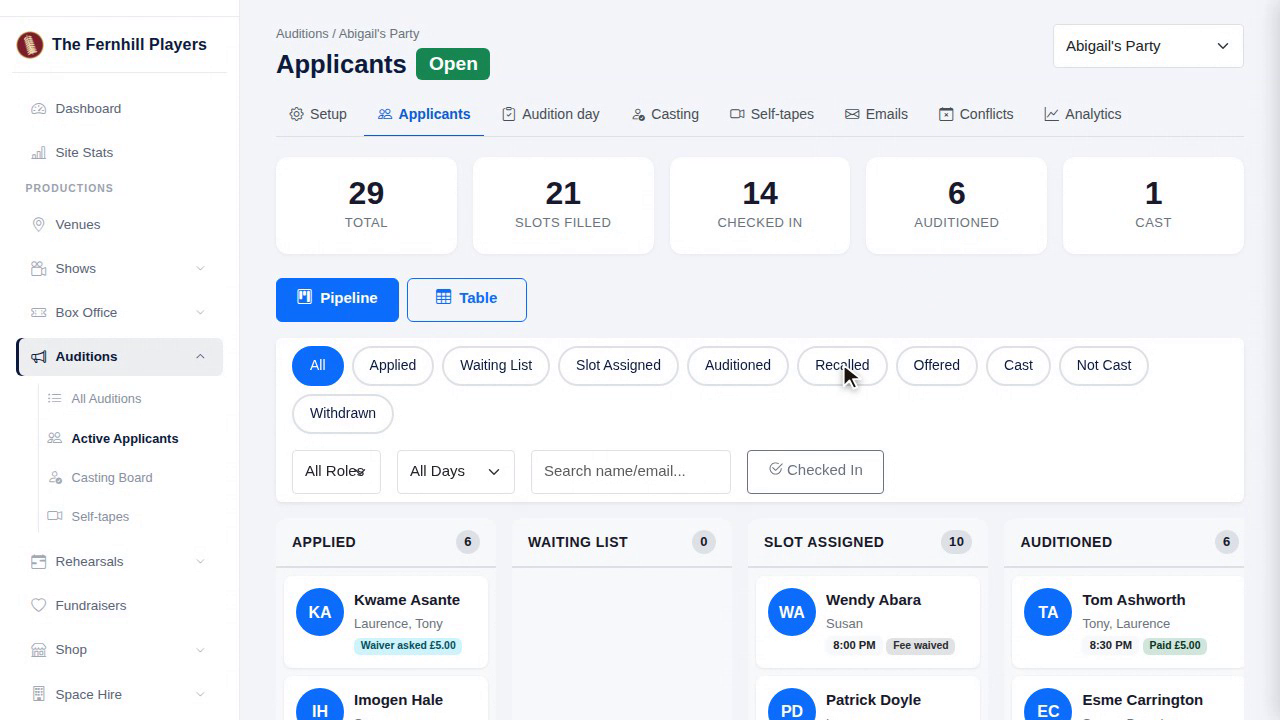
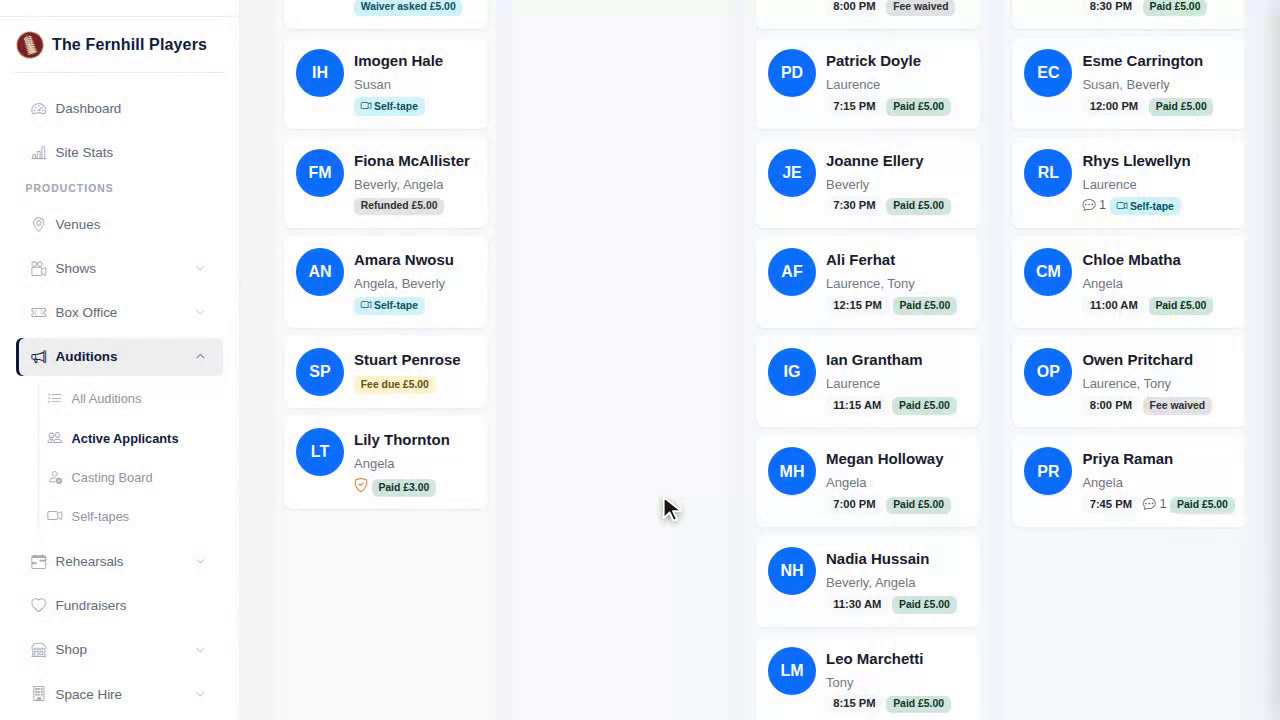
The Applicants tab opens on the pipeline, with a column for each stage: applied, slot assigned, auditioned, recalled, offered, cast and so on. Everyone's where they're up to, at a glance.
2. Table, filters, search
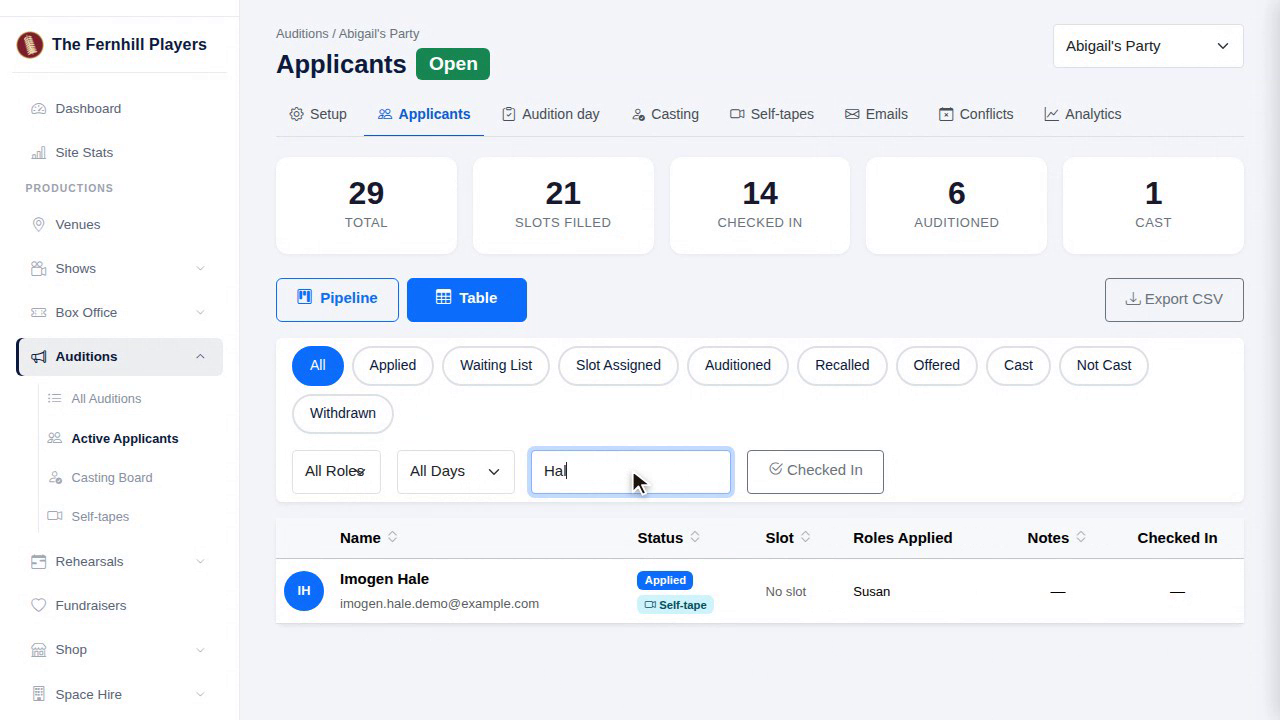
Prefer a list? Switch to the table. Filter by status, role or day, or search for a name, and export the lot as a spreadsheet if you need to.
3. The drawer
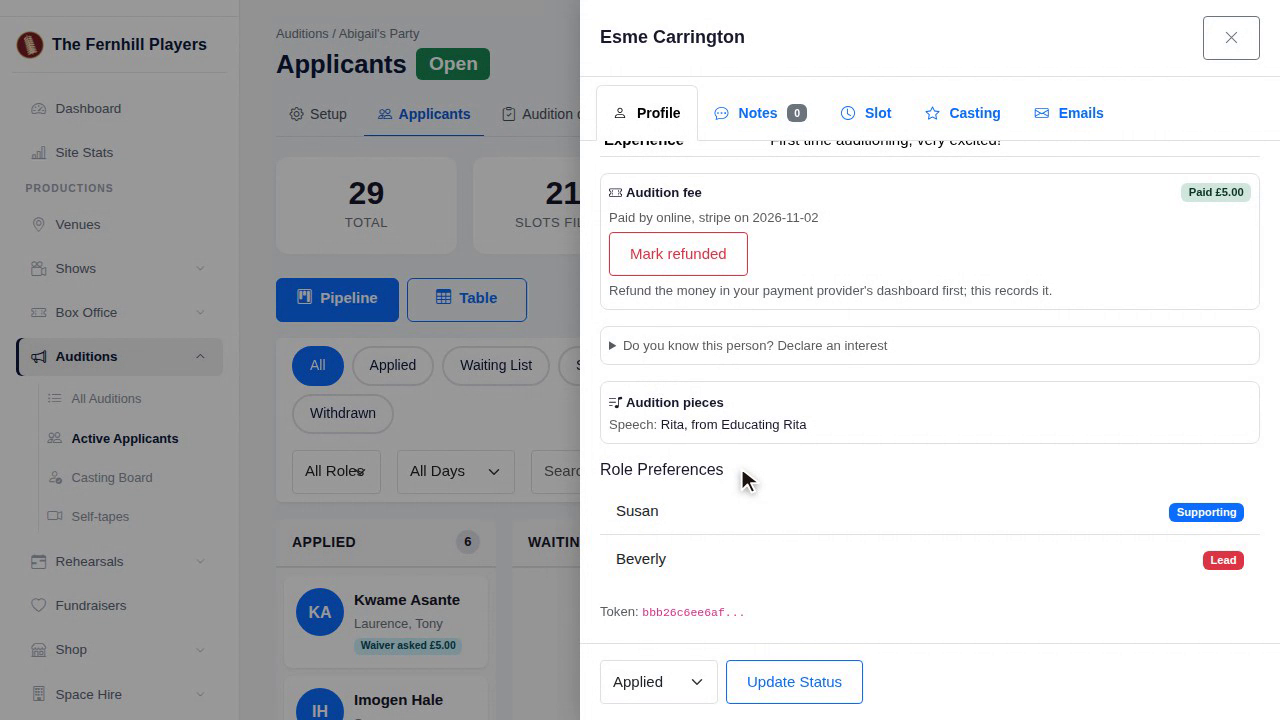
Click a candidate to open their drawer. The Profile tab has their details, roles, experience, rehearsal clashes and pieces, all in one place.
4. Fees
Fees are here too. Kwame has asked for his fee to be waived, so we approve it. If someone pays cash, mark it as paid. And if you've refunded someone in your payment provider's dashboard, record it with Mark refunded.
5. Access needs
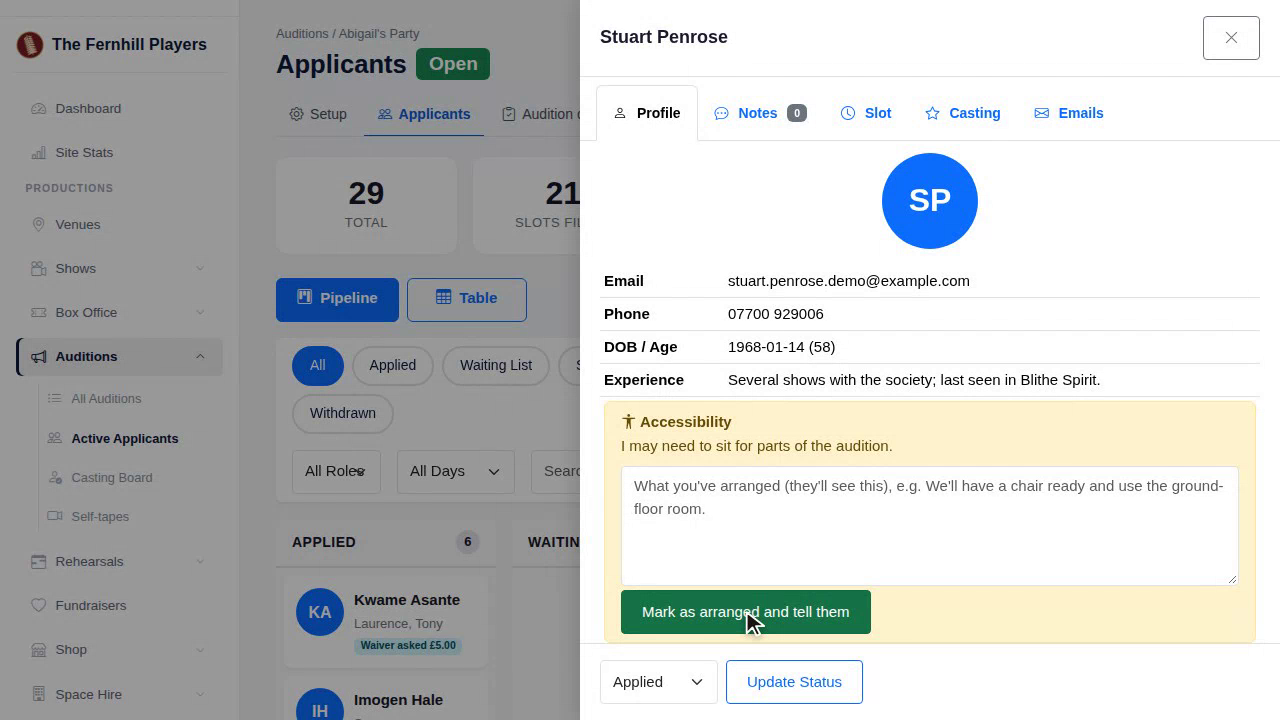
If a candidate has told you about access needs, sort them out, then press Mark as arranged and tell them. They get a note to say it's done.
6. Guardians
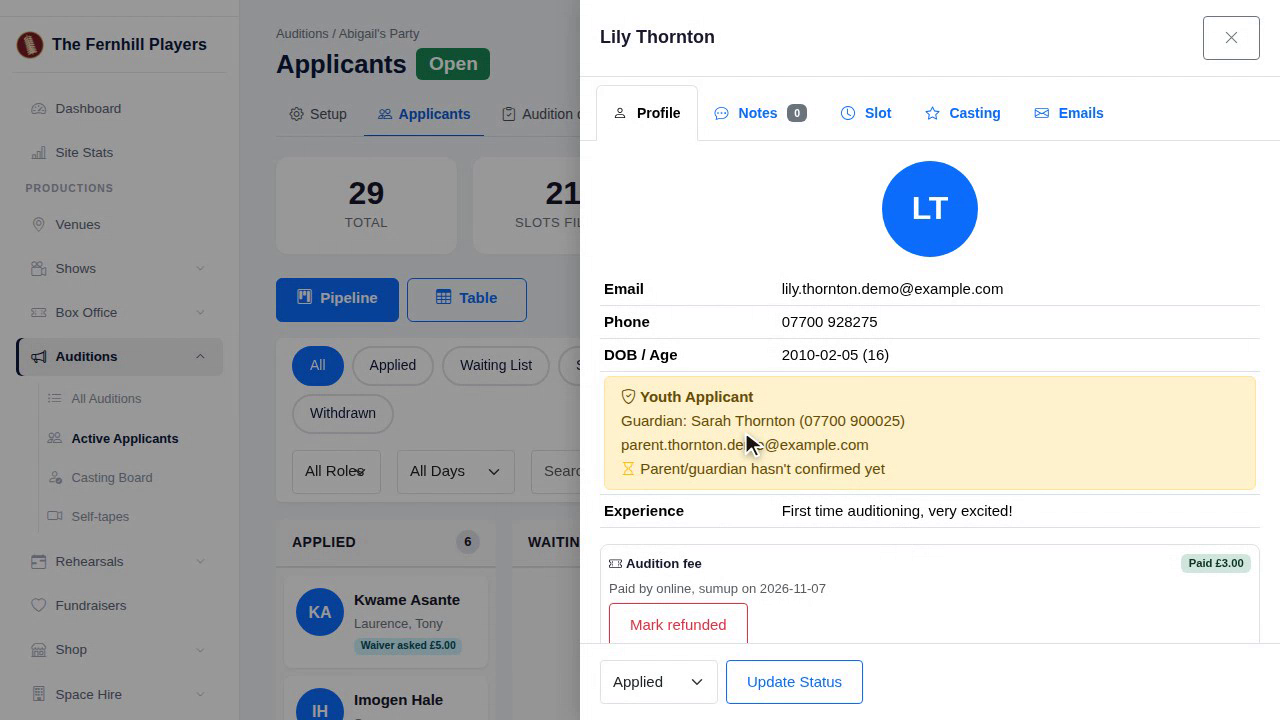
For under-eighteens, you can see that their parent or guardian has confirmed, and who's collecting them.
7. Notes
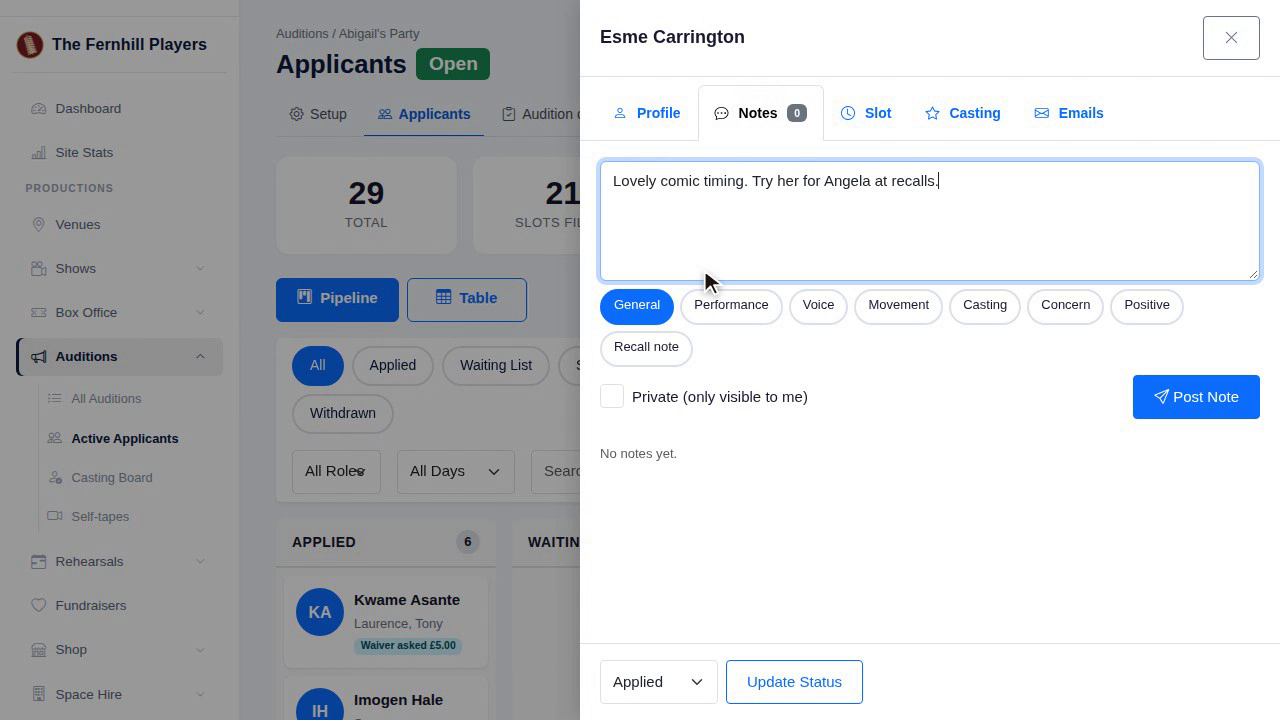
Under Notes, the panel can leave notes for each other, or tick private to keep a note to yourself.
8. Slots
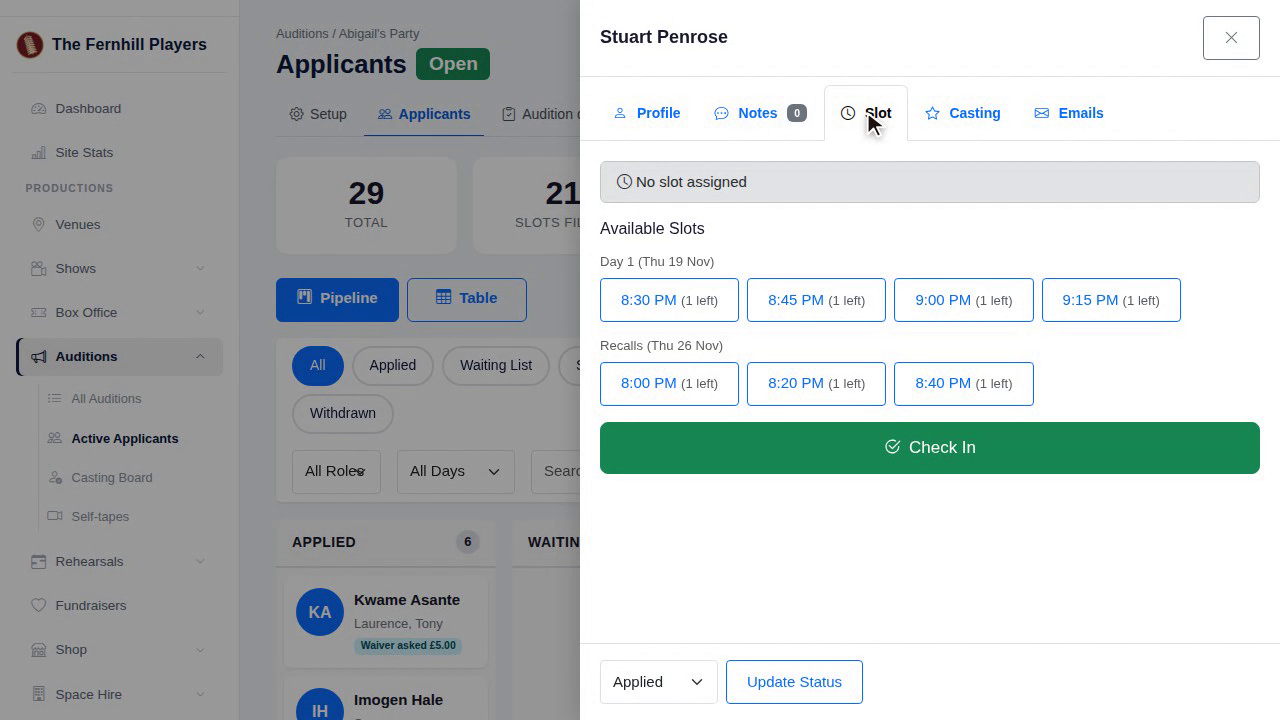
And under Slot, you can book someone into a slot yourself, if they've asked you to.
9. Bulk emails
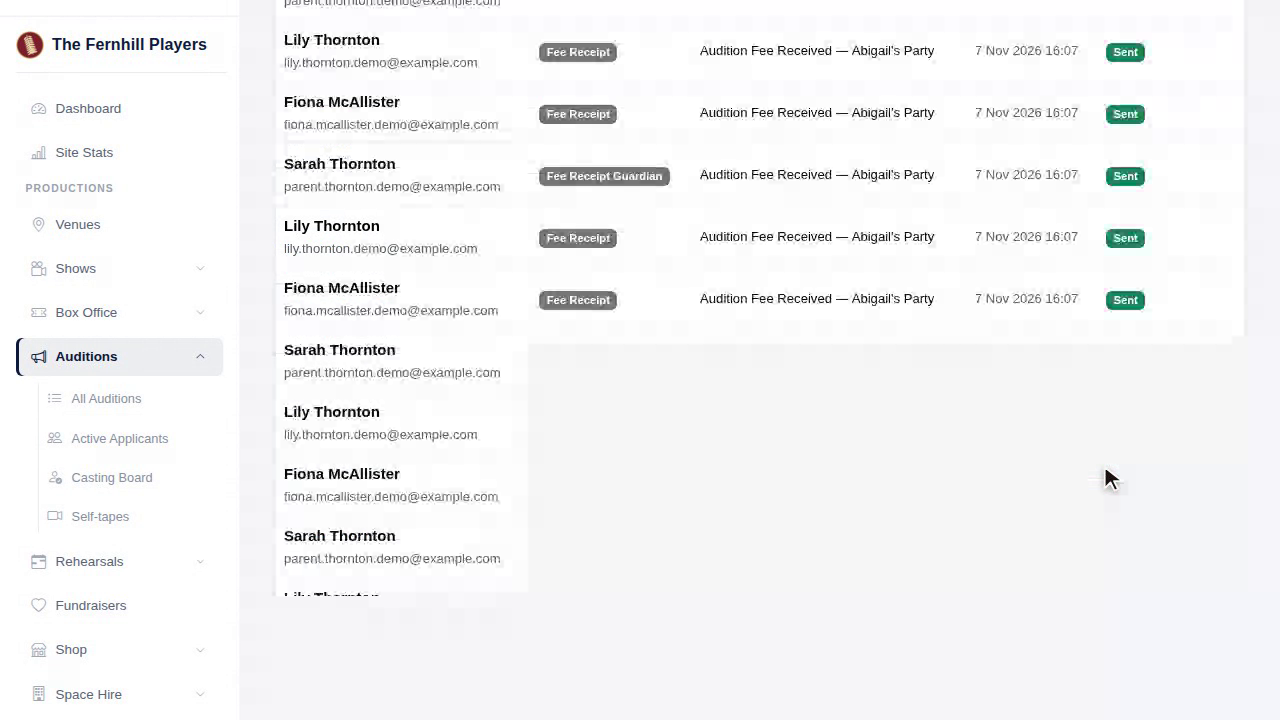
For everyone at once, use the Emails tab. Send reminders, ask people to book a slot, invite recalls, or send casting decisions in one go, and see every email in the log below.
10. The lists
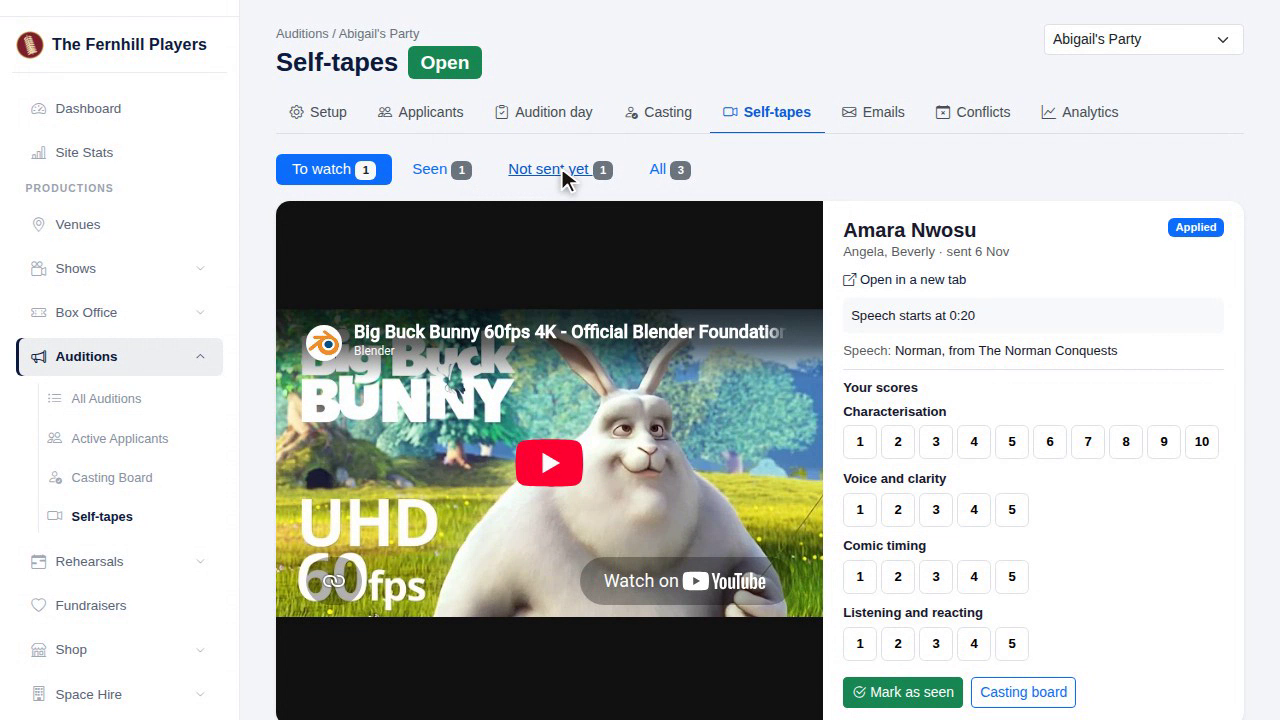
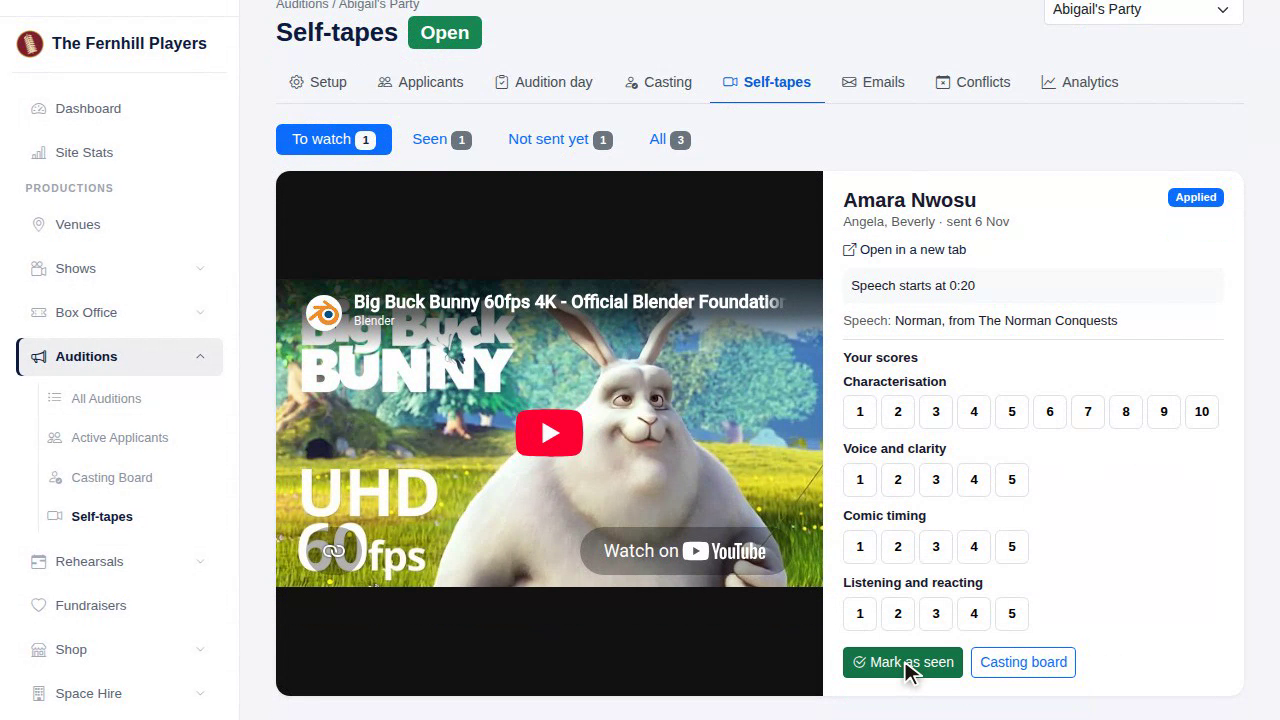
The Self-tapes tab sorts them for you: the ones to watch, the ones you've seen, and the candidates who chose a self-tape but haven't sent it yet.
11. Watching
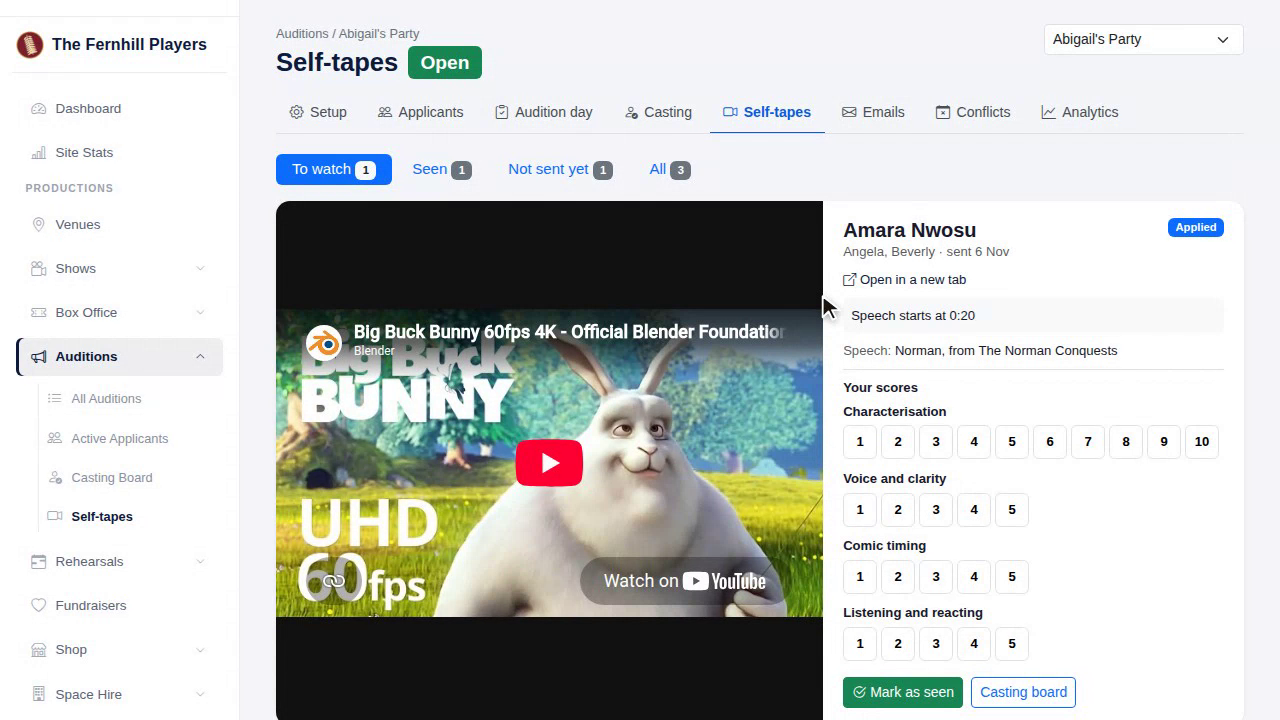
Choose a candidate, and their video plays right there on the page, next to their details and the roles they want.
12. Scoring
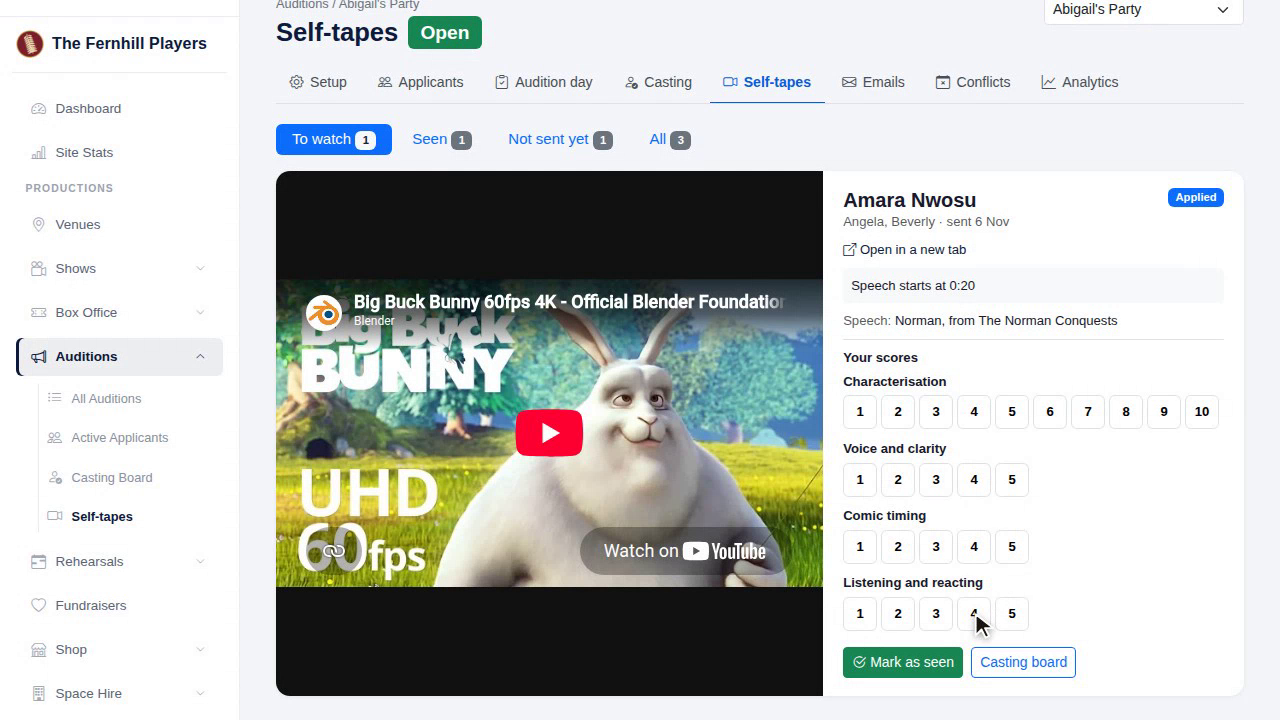
Score them on the same sheet as everyone else, so self-tapes and in-person auditions are judged side by side on the casting board.
13. Mark as seen
When you've watched it, press Mark as seen, and it moves to the seen list.
Next in the course: Running audition day on a tablet.
This guide is part 7 of 9 in the Running auditions in TheatreHQ course.
Track your progress
Make a free account to take the quick quiz after each guide, keep your place in the course and get a certificate when you finish.