Running audition day
Run audition day from one screen: check people in as they arrive, take notes, vote on roles and keep the whole panel in step with a live activity feed.
Audition day is busy. People arrive early or late, the panel are scribbling on bits of paper, and afterwards nobody can remember who sang what. The audition day screen gives your whole panel one place to work from, on a laptop or a tablet, so everyone sees the same schedule, notes and votes as they happen.
1. Open the day view
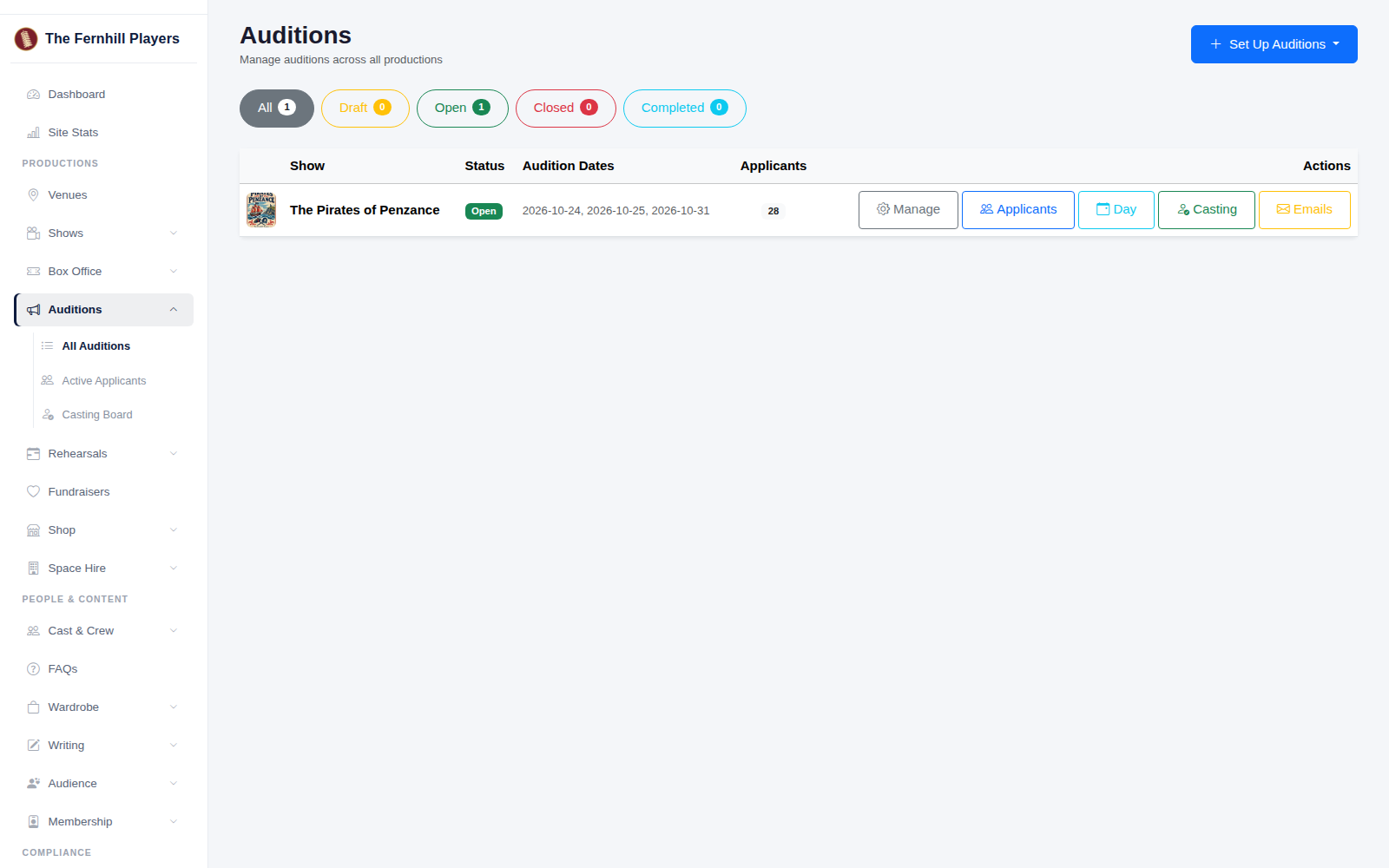
Go to Auditions and click Day next to your show.
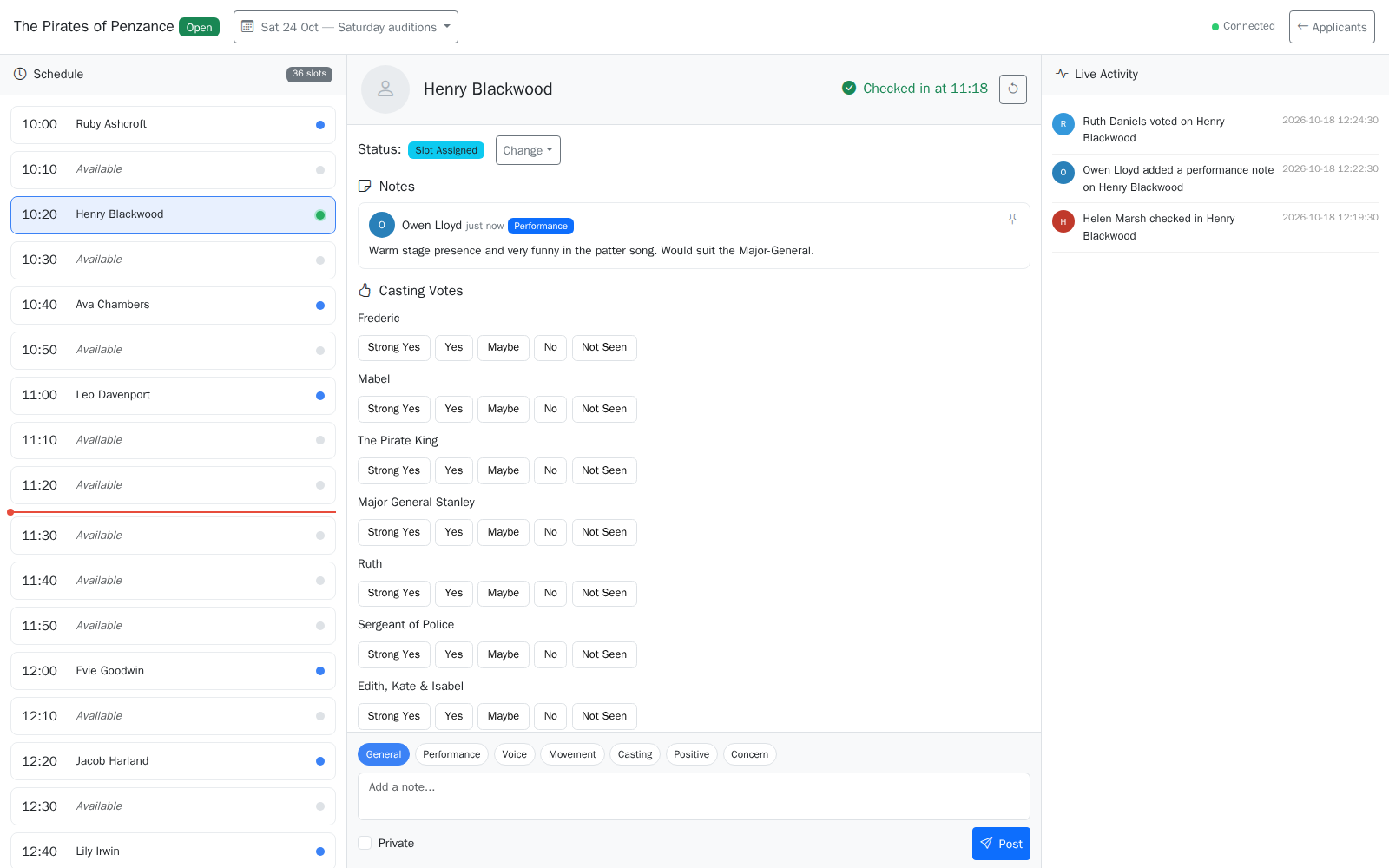
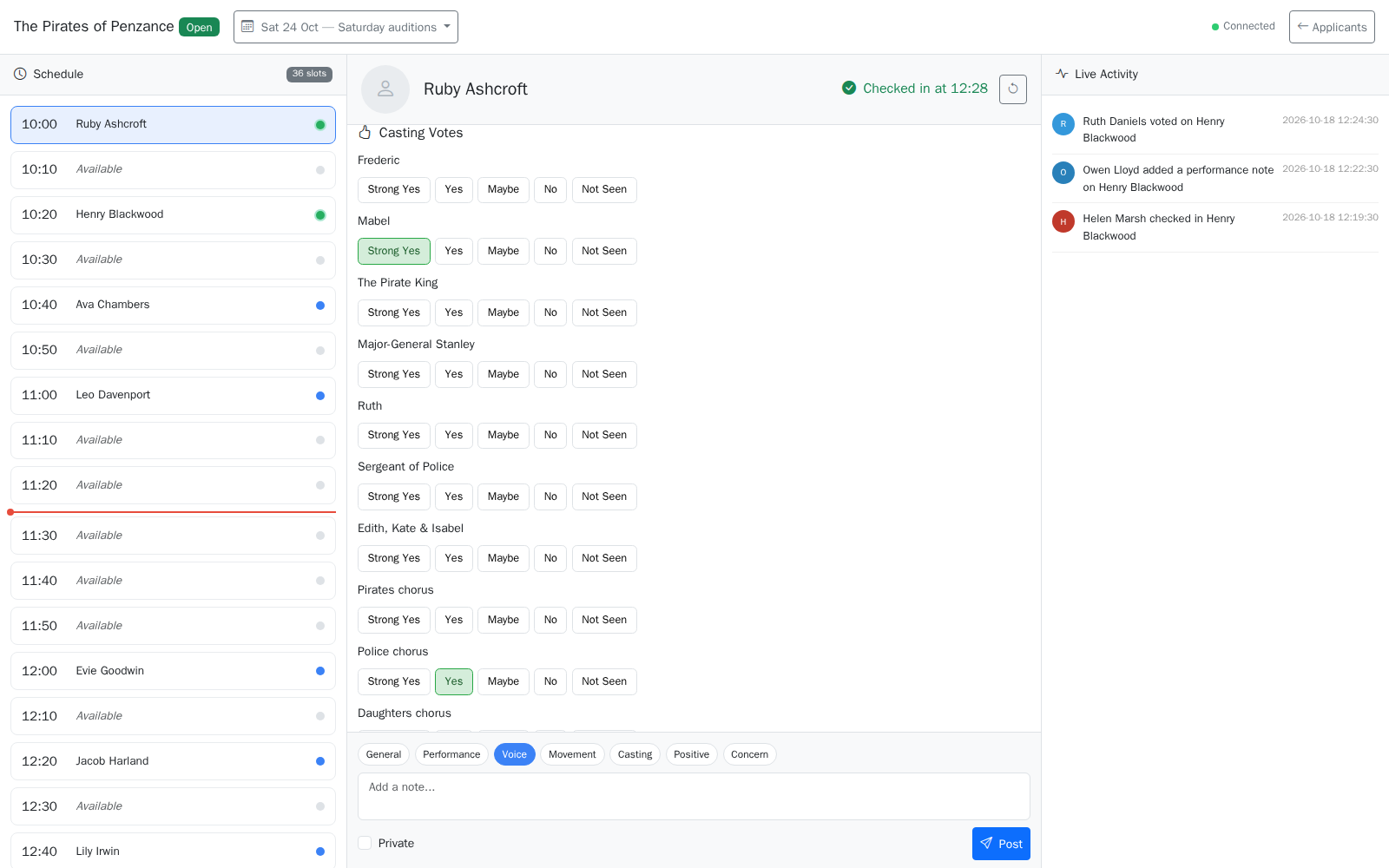
The schedule for the day is on the left, with each time slot and who's booked into it. The menu at the top switches between your audition days, including any recall day. The person you select opens in the middle, and the Live Activity feed is on the right.
2. Check people in
When someone arrives, click their slot and press Check In. The time is recorded and their slot turns green, so whoever is on the door and the panel in the room always know who's here and who's running late.
3. Take notes
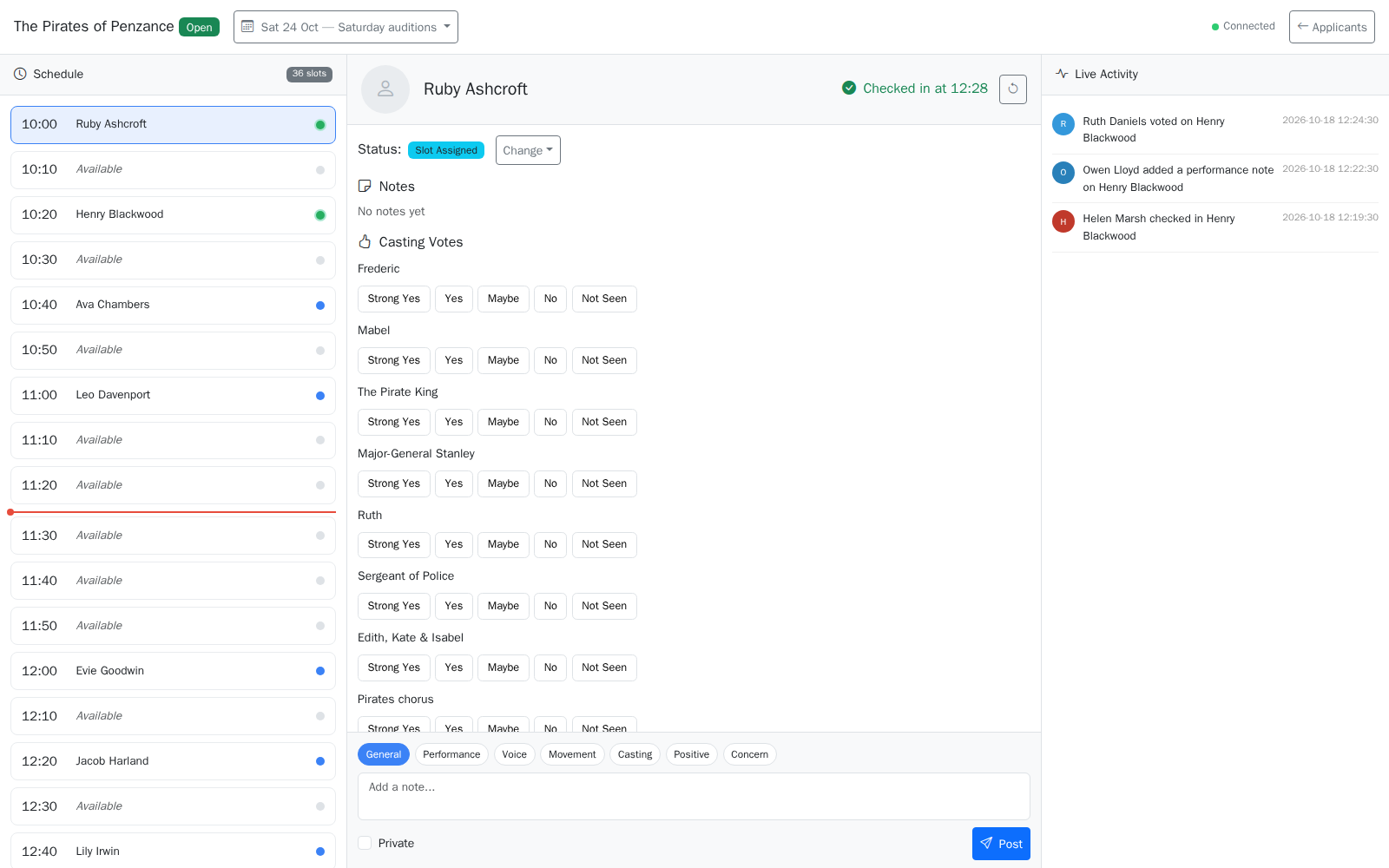
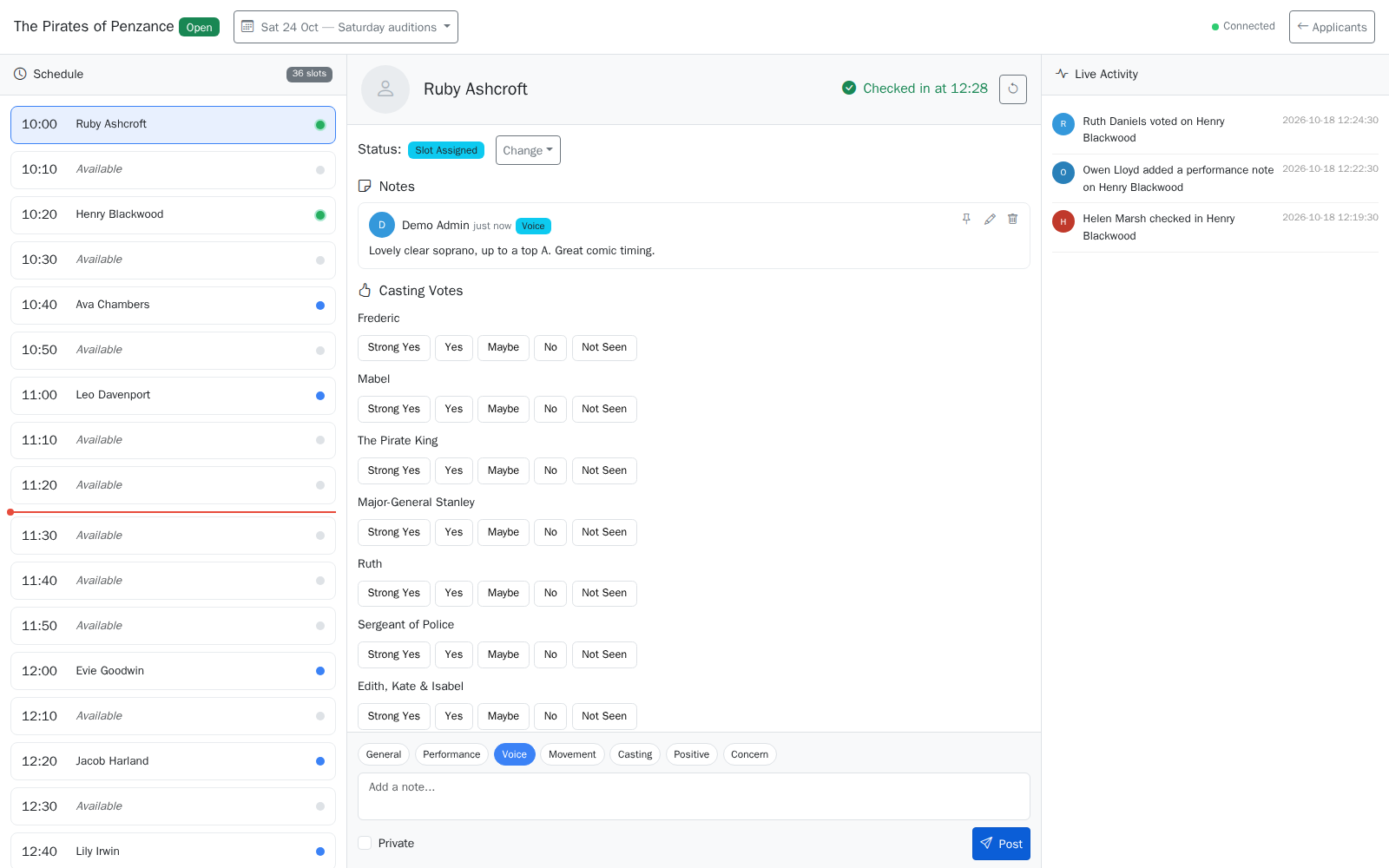
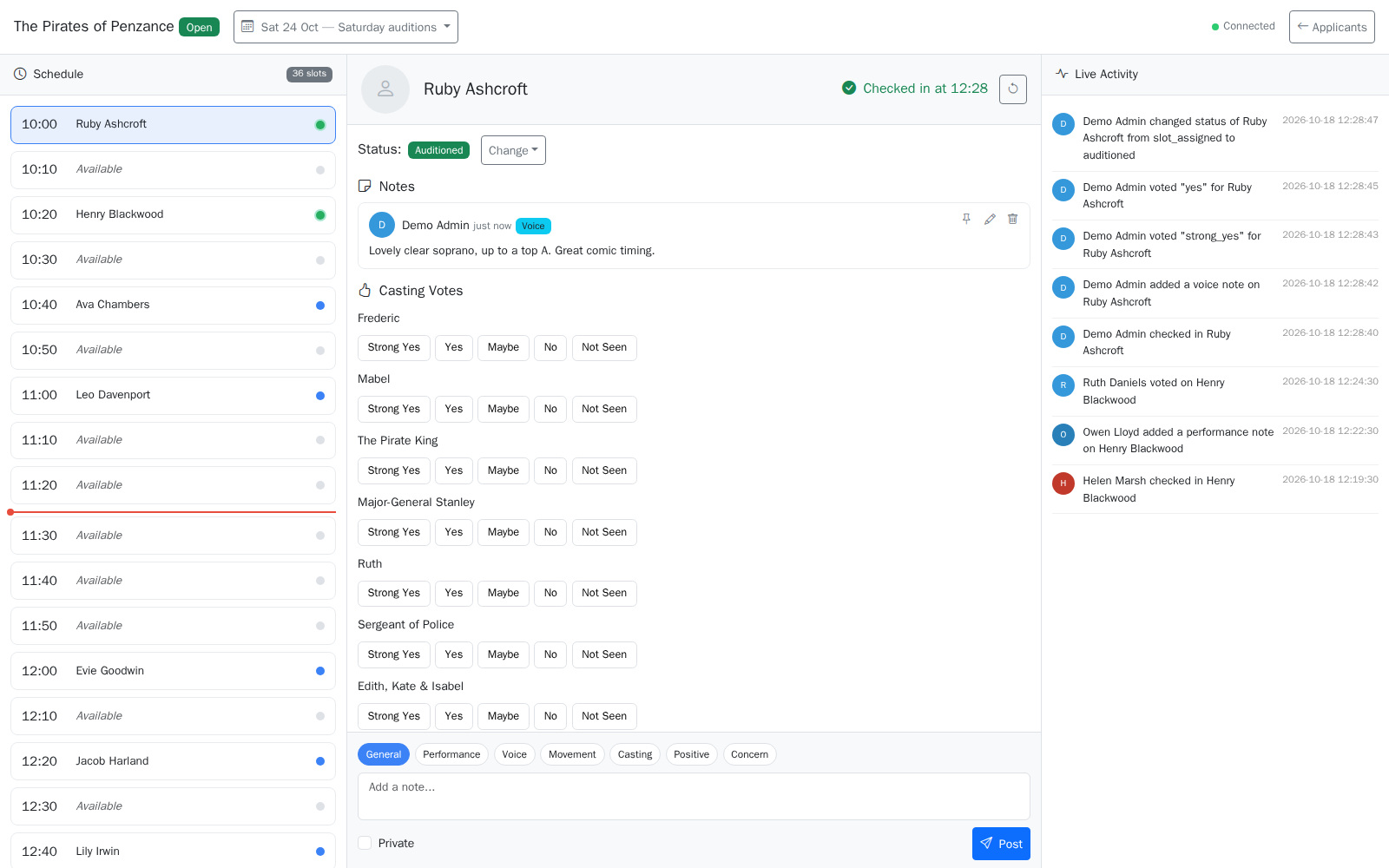
While they audition, choose a note type at the bottom, such as Voice, Performance, Movement or Concern, type what you saw and click Post. Tick Private if the note is just for you. Notes appear under the person's name straight away for everyone on the panel.
4. Vote on roles
Under Casting Votes, give your view for each role you saw them for: Strong Yes, Yes, Maybe, No or Not Seen. Each member of the panel votes separately, so nobody is swayed by the loudest voice in the room, and all the votes are kept for when you sit down to cast.
5. Mark them as auditioned and keep an eye on the feed
When they've finished, use Change next to their status and choose auditioned. The Live Activity feed on the right shows check-ins, notes, votes and status changes from everyone on the panel, so if your door volunteer checks someone in, you'll see it without leaving your seat.
Tip: agree before the day what each vote means for your society, for example that a strong yes means you'd happily cast them, so everyone's votes mean the same thing.