Adding your own HTML and CSS to your home page (custom code blocks)
Add up to three blocks of your own HTML and CSS to your home page, switch them on and drag them into place from the Homepage Sections menu.
Coming soon: custom code blocks are on their way to every TheatreHQ site, in the next release.
Custom code blocks let you put anything you can build in HTML and CSS onto your home page, as a section of its own, alongside the hero, cards, shows and gallery. Each site has three. This tutorial builds a simple "tickets on sale" banner from start to finish, and the video above shows the same steps.
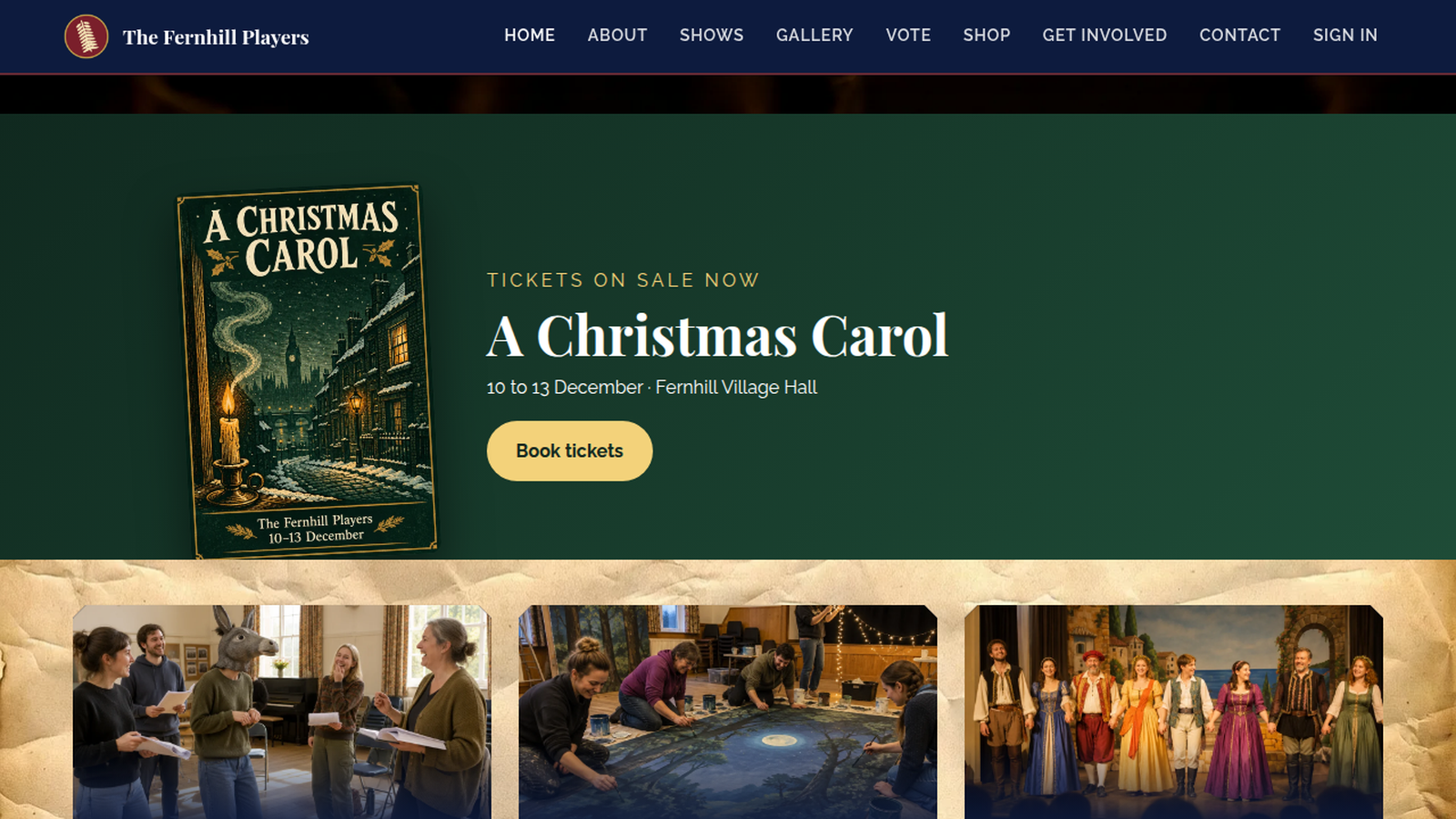
You'll need to be an admin, and to be comfortable copying and changing a little code. If you'd rather not touch code, the built-in options on each section already cover a lot: see Front-end editing. For inspiration, watch six custom code blocks in action.
1. Open the code editor
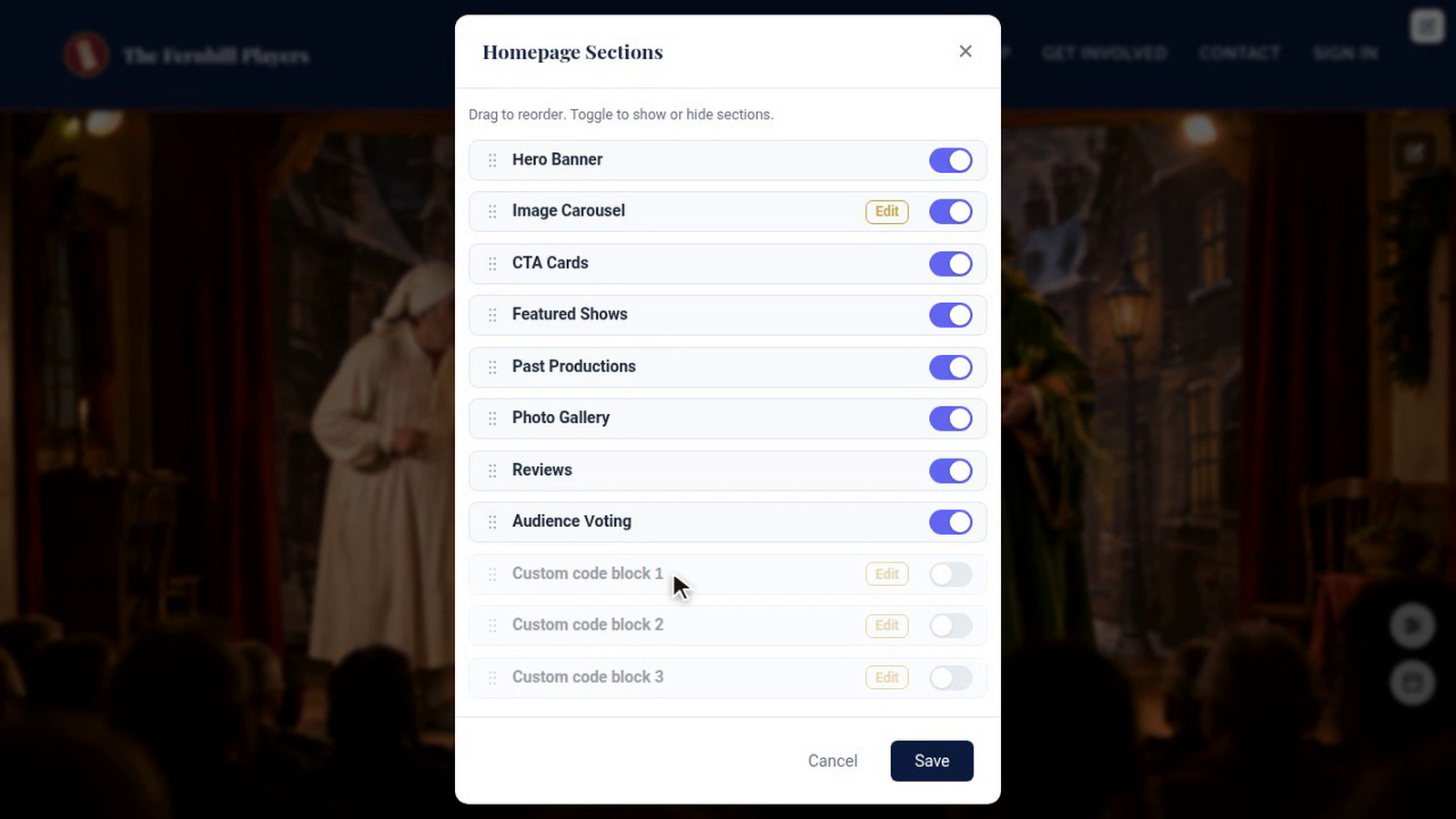
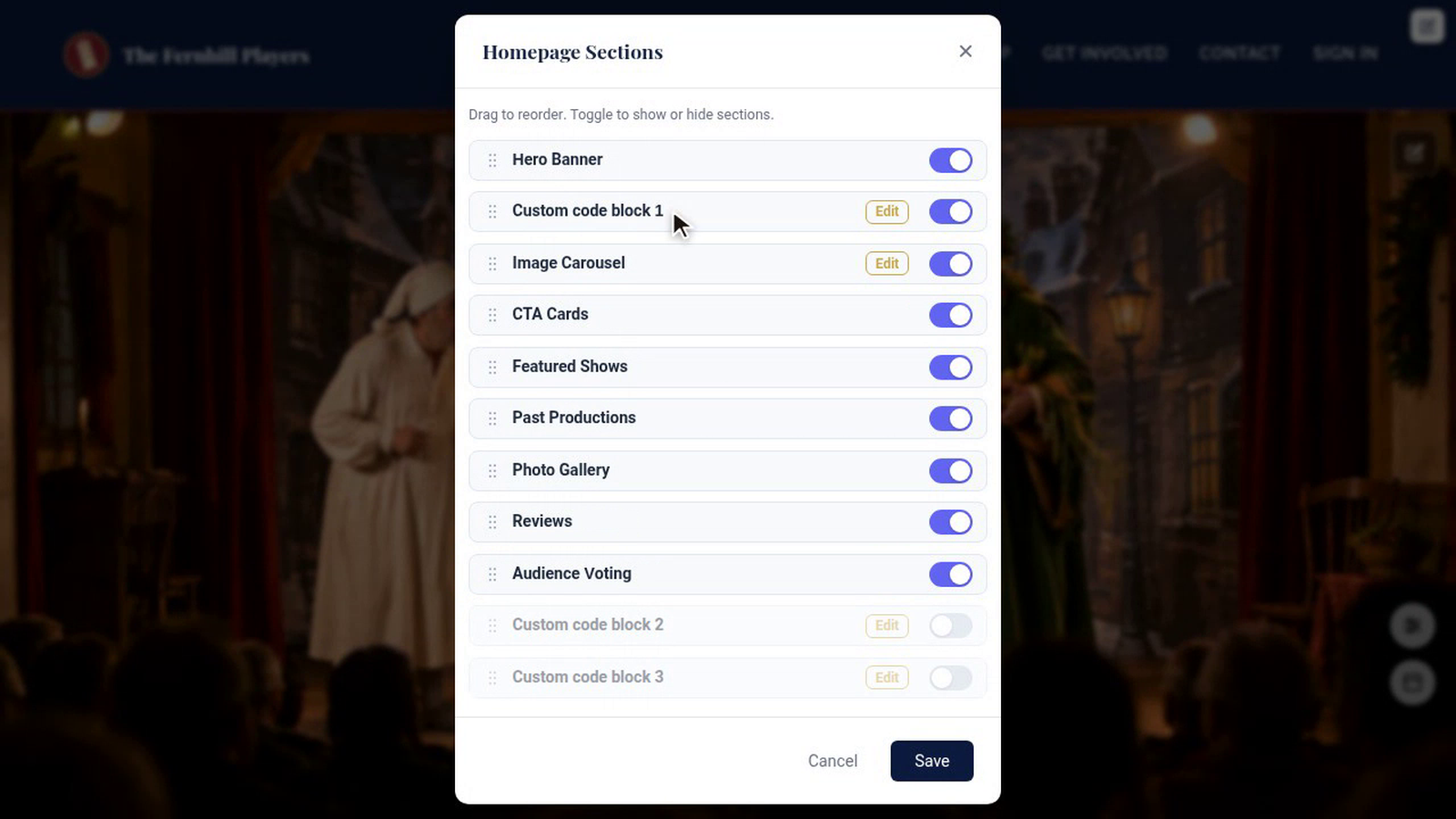
Sign in as an admin and go to your home page. Press the round button with three lines, at the bottom right, to open Homepage Sections. Custom code block 1, 2 and 3 are at the bottom of the list, switched off. Press Edit on the first one.
2. Name the block and add the HTML
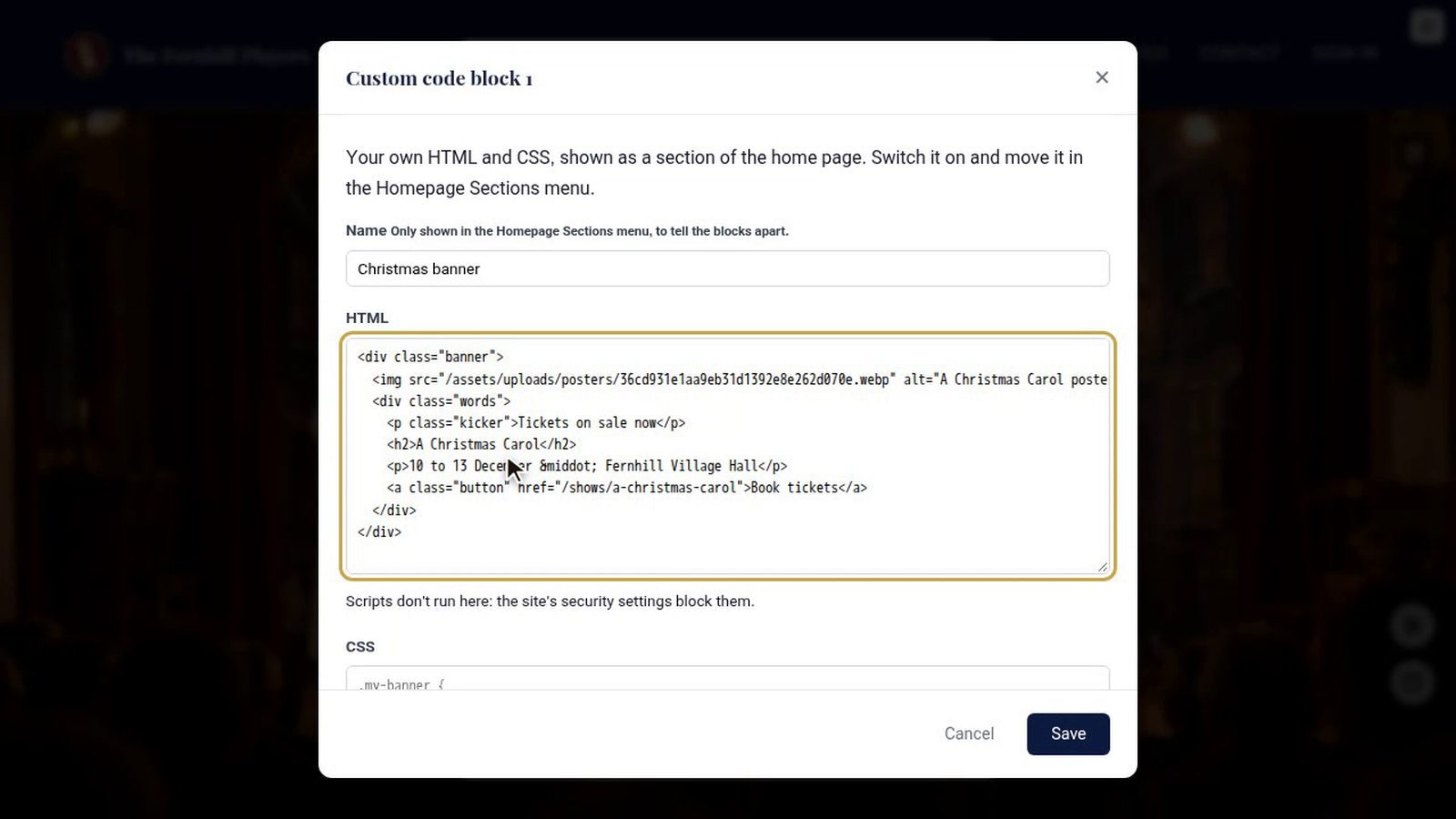
Give the block a Name, such as "Christmas banner". Only you see it, in the Homepage Sections menu, to tell your blocks apart. Then copy this into the HTML box:
<div class="banner">
<img src="/assets/uploads/posters/36cd931e1aa9eb31d1392e8e262d070e.webp" alt="A Christmas Carol poster">
<div class="words">
<p class="kicker">Tickets on sale now</p>
<h2>A Christmas Carol</h2>
<p>10 to 13 December · Fernhill Village Hall</p>
<a class="button" href="/shows/a-christmas-carol">Book tickets</a>
</div>
</div>
It's a poster, a short line above the heading, the heading, the dates and a button. To use it for your own show, change the words, the link in href, and the picture in src. To find a picture's address, open it on your website (for example your show's poster), right-click it and copy the image address, then keep the part from /assets onwards.
3. Add the CSS
Copy this into the CSS box, and leave Keep the CSS to this block ticked:
padding: 4rem 1.5rem;
background: linear-gradient(135deg, #10291f, #1f4d38);
color: #fff;

.banner {
  max-width: 960px;
  margin: 0 auto;
  display: flex;
  align-items: center;
  gap: 3rem;
}
img {
  width: 220px;
  border-radius: 10px;
  box-shadow: 0 20px 40px rgba(0, 0, 0, .5);
  transform: rotate(-3deg);
  transition: transform .3s;
}
img:hover {
  transform: rotate(0) scale(1.05);
}
.kicker {
  color: #f3d27a;
  letter-spacing: .2em;
  text-transform: uppercase;
}
h2 {
  margin: .3rem 0;
  font-size: 3rem;
  color: #fff;
}
.button {
  display: inline-block;
  margin-top: 1rem;
  padding: .8rem 1.6rem;
  border-radius: 999px;
  background: #f3d27a;
  color: #10291f;
  font-weight: bold;
  text-decoration: none;
}
@media (max-width: 640px) {
  .banner { flex-direction: column; text-align: center; }
  h2 { font-size: 2.2rem; }
}
With Keep the CSS to this block on, these styles only affect this block. That's why img and h2 are safe to use: they style only the picture and heading inside the banner, not the rest of your site. The first three lines have no selector, so they style the block itself: its padding, its green background and its white text. The last part, starting @media, stacks the poster above the words on a phone.
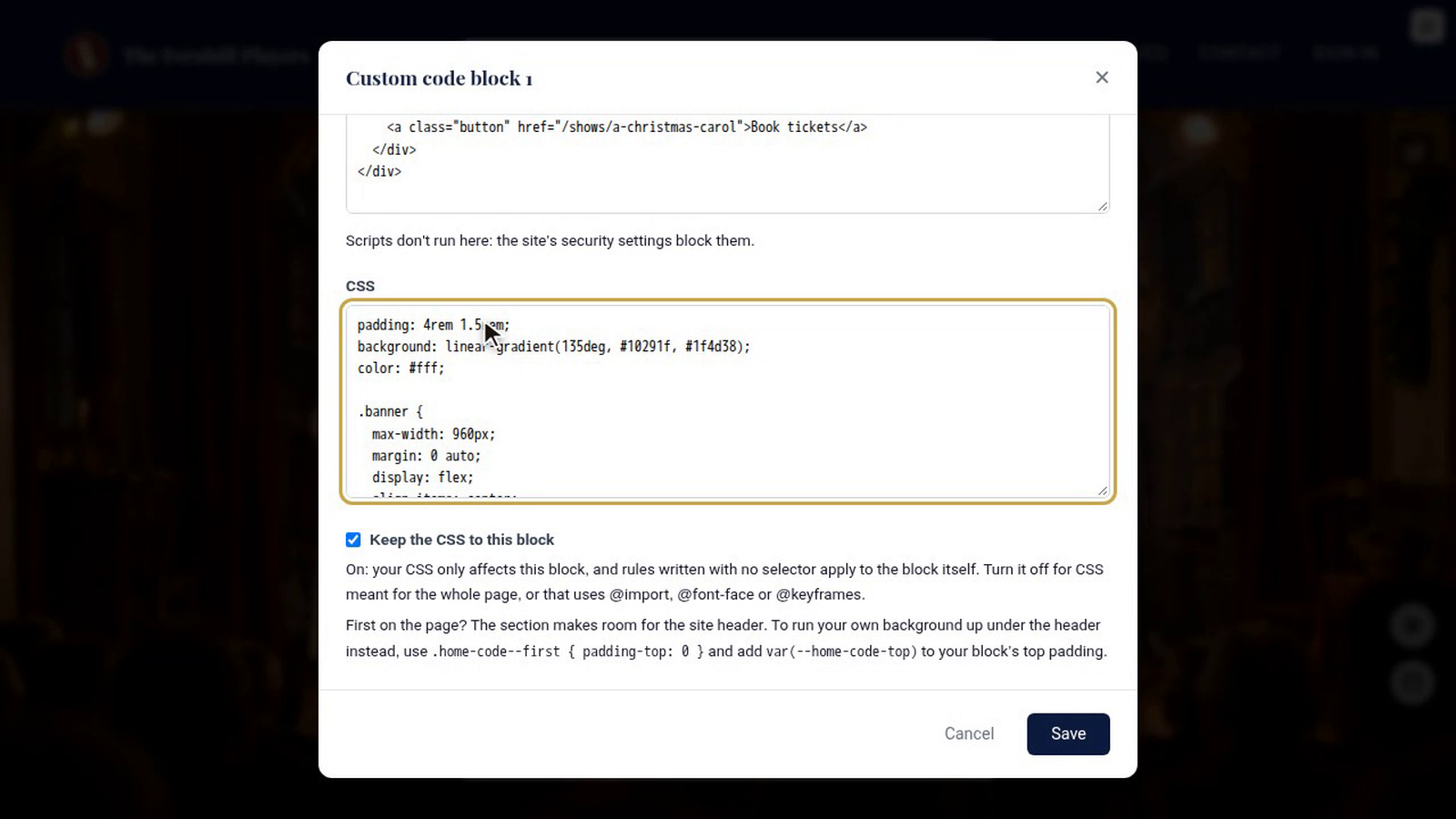
Press Save. The page reloads with your code saved, but the block isn't showing yet.
4. Switch it on and place it
Open Homepage Sections again. Switch Custom code block 1 on, then drag it by the dots on its left to where you want it: here, just under the Hero Banner. Press Save.
Your banner is now part of your home page. Hover over the poster and it straightens up. Check it on a phone too.
5. Change it later
To change the words or the look, open Homepage Sections and press Edit on the block again. To take it off the page without losing it, switch it off. If you switched a block on before pressing Edit, saving the code keeps that switch.
What works, and what doesn't
- Scripts don't run. A
<script>tag is kept but never runs: the site's security settings block it. Anything that moves has to move with CSS, like the hover on the poster. - Pictures must come from your own site: your uploads, posters and gallery photos, or
data:images. Pictures from other websites are blocked. - Live information, such as a ticking countdown or ticket sales as they happen, isn't possible without scripts. Type your dates into the HTML and update them when they change.
- HTML is printed exactly as written, so SVG and links all work.
- Size: up to 50,000 characters of HTML and 20,000 of CSS in each block.
Animations and Google Fonts
@keyframes animations, @import (for Google Fonts) and @font-face can't sit inside a block's own styles. If your CSS uses them, untick Keep the CSS to this block. Your rules then apply to the whole page as written, so start every class name with a prefix of your own, such as .fh-banner instead of .banner, and don't style plain img or h2: write .fh-banner img instead.
A block at the very top
A block placed first on the page gets the same room under your site header as the hero would, whatever your header style, so a floating header won't cover it. To run your block's background up under the header instead, add .home-code--first { padding-top: 0 } and add var(--home-code-top) to your block's own top padding.
Tips
- Check your block on a phone, and make sure nothing makes the page scroll sideways.
- Wrap animations in
@media (prefers-reduced-motion: reduce)to stop them for visitors who've asked their device for less movement. - Scroll-driven effects (
animation-timeline) need a current Chrome, Edge or Safari. Give other browsers a timed animation instead, so nothing breaks. - Keep a copy of your HTML and CSS somewhere safe before you change them.