Custom roles: giving volunteers just the access they need
Make a role for each job, such as box office volunteer, treasurer or photographer, and choose exactly which parts of the admin it can open, change and delete.
Not everyone who helps out needs the keys to everything. A custom role is a member with extra permissions: someone on one has everything a member has (their own membership, fees and auditions), plus exactly the parts of the admin you choose for that job. This guide shows how to make a role, give it to someone, and what they'll see when they sign in.
Custom roles sit alongside the built-in roles. Administrators, Editors, Approvers and Members all work as they did before (see Adding committee members and choosing what they can access). Only Administrators can make roles or give them to people.
1. Open Custom roles
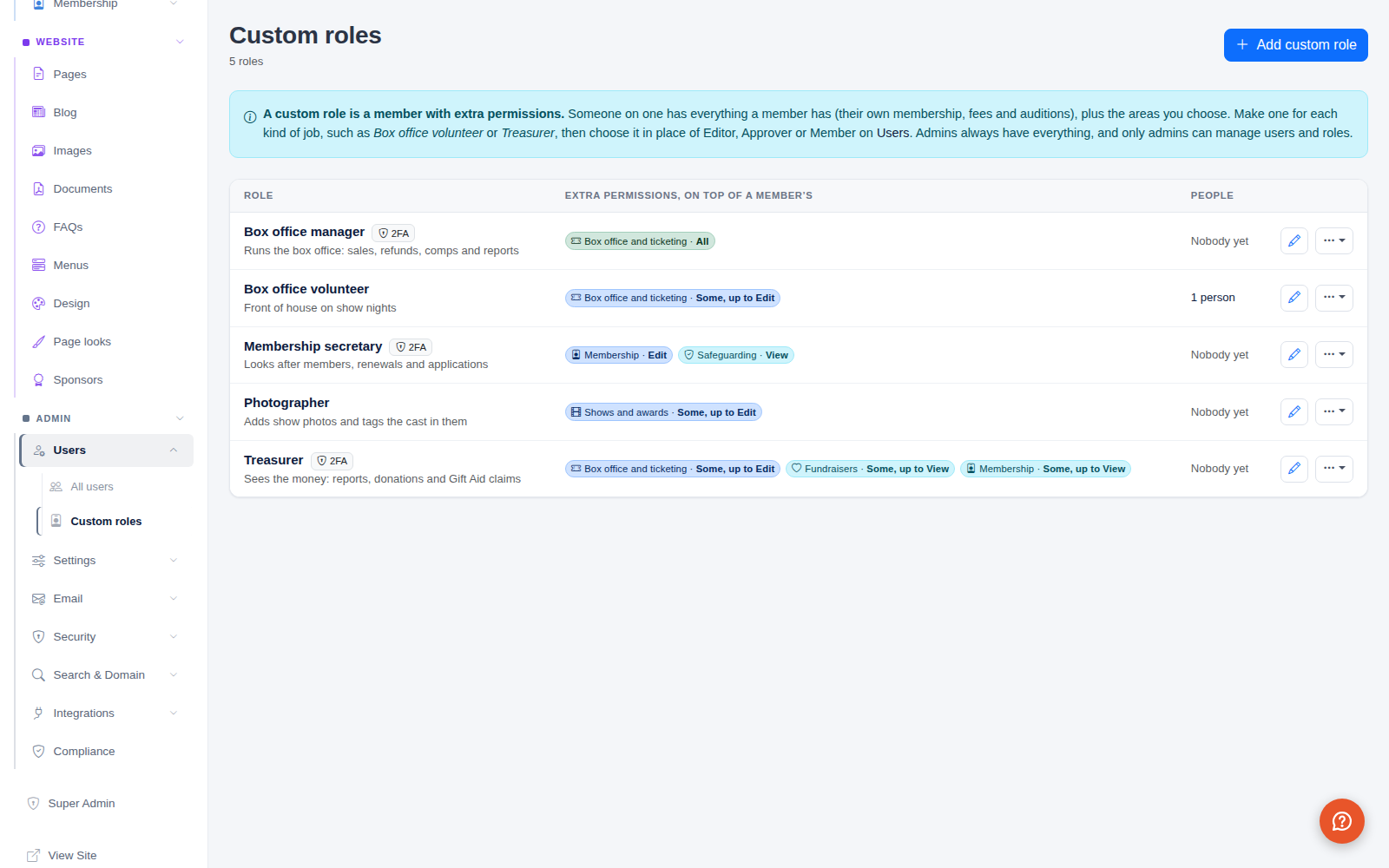
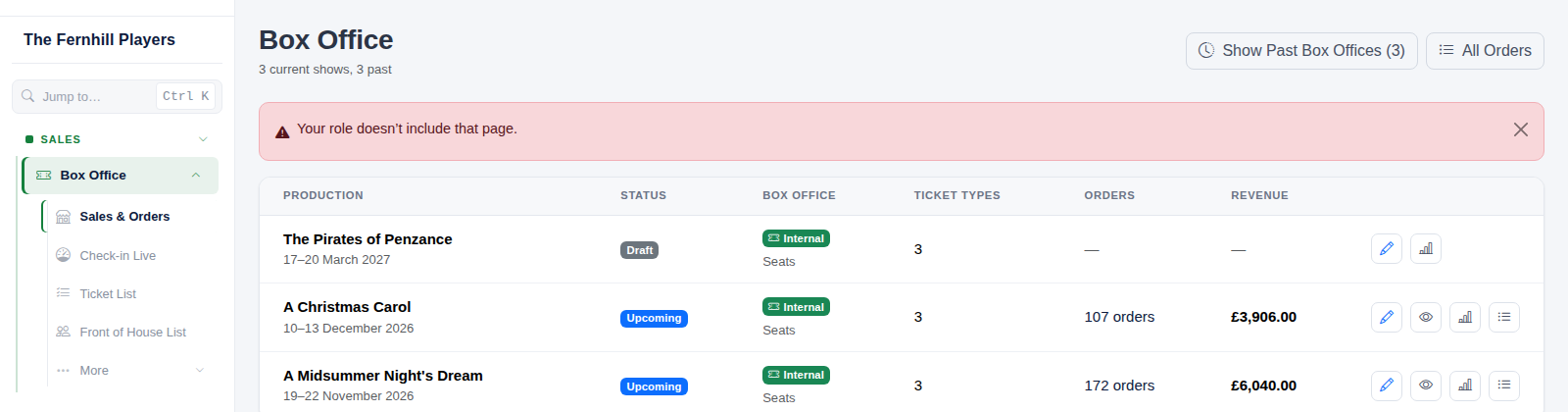
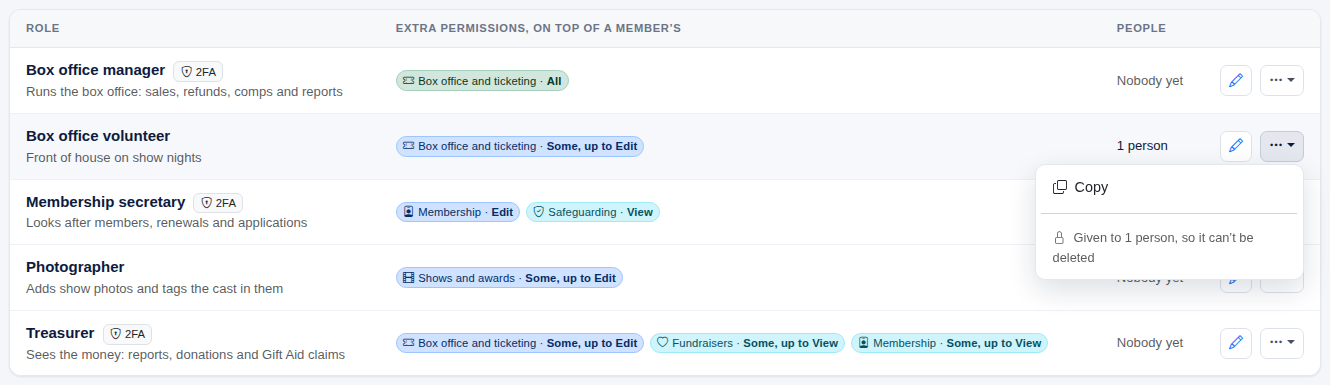
In the admin menu, go to Admin > Users > Custom roles. Each role is listed with what it can do and how many people have it. Click Add custom role, or click a role's name to change it.
2. Name the role and choose its levels
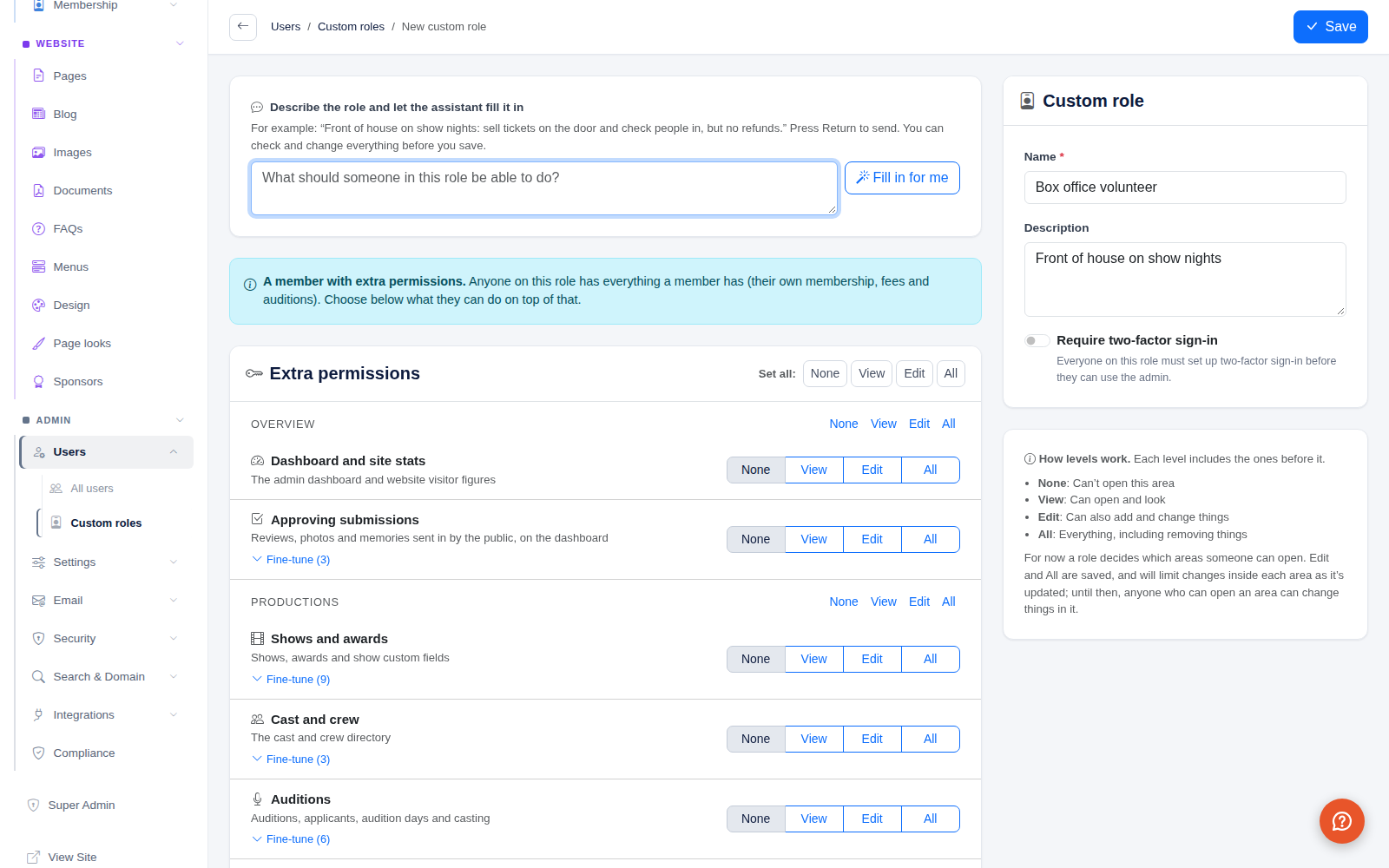
Give the role a Name, and a Description saying who it's for, so the right one gets picked later. Then, under Extra permissions, choose a level for each area of the admin. The areas are grouped the same way as the admin menu. Each level includes the ones before it:
- None: they can't open it, and it isn't in their menu.
- View: they can open it and look, but not change anything.
- Edit: they can also add and change things.
- All: everything, including removing or deleting things.
Set all at the top, and the None, View, Edit and All links on each group heading, set many areas at once. An area whose module is switched off shows Module off.
3. Fine-tune an area
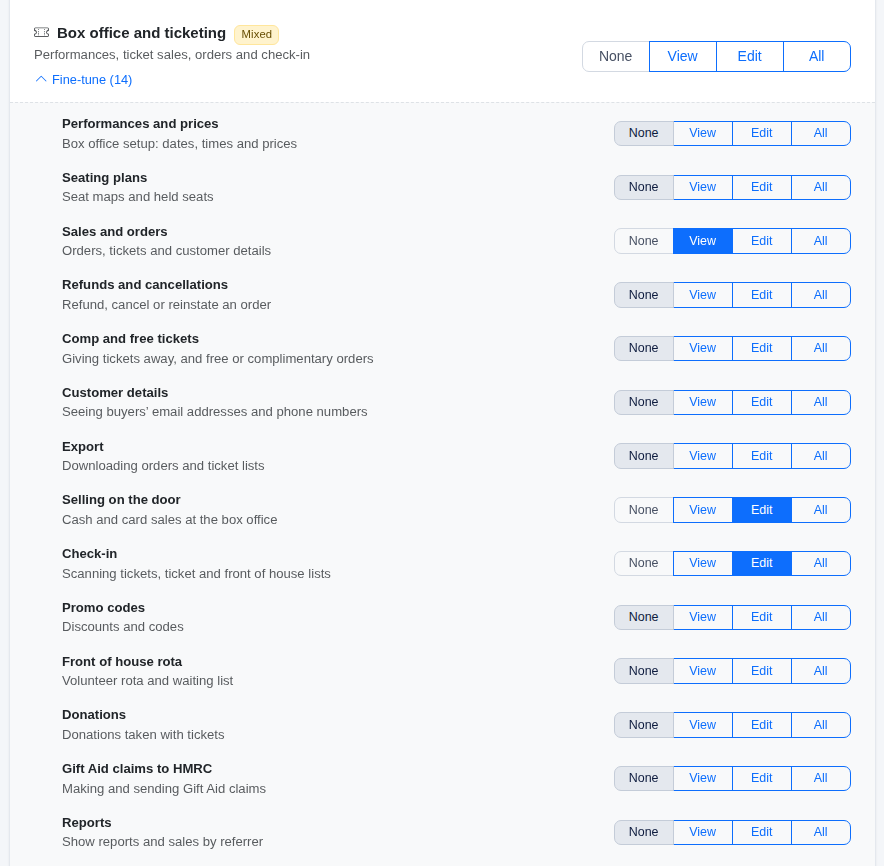
Most areas have parts inside them. Click Fine-tune under an area to set each part on its own. Choosing a level for the whole area sets all of its parts; changing one part marks the area Mixed.
Here, a box office volunteer can check people in and sell tickets on the door (Edit), and can look at orders (View). Everything else in the box office is left at None, so they can't give refunds, give tickets away, or see customers' email addresses and phone numbers.
Some parts are worth knowing about:
- Box office > Refunds and cancellations: without it, the order page has no Cancel, Mark refunded or Reinstate buttons.
- Box office > Customer details: without it, buyers' email addresses and phone numbers are hidden.
- Box office > Comp and free tickets: without it, the till has no Complimentary option.
- Blog and pages > Publish: without it, someone can write and save posts and pages, but not put them live.
- Audience > Send campaigns: separate from writing them, so someone can draft an email for you to check and send.
- Membership > Mark as paid: recording a payment, without being able to change member details.
- Export, in most areas: downloading lists and spreadsheets needs this part.
- Safeguarding can never be higher than Membership.
4. Or let the assistant fill it in
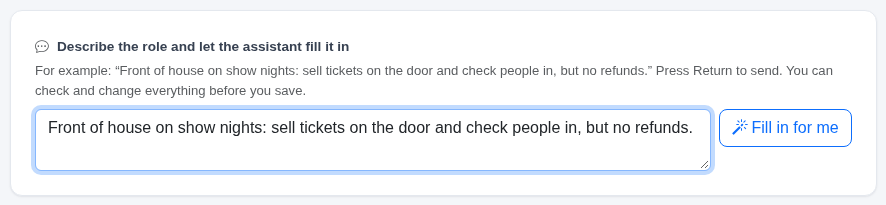
At the top of the role page, describe the job in your own words, for example "Front of house on show nights: sell tickets on the door and check people in, but no refunds", and click Fill in for me. The assistant fills in the name, description and levels, and the rows it changed light up briefly. Check its work before you save: it won't always get it right.
5. Two-factor sign-in, and Save
If the role reaches personal or money details, such as membership, safeguarding, customer details, refunds or exports, switch on Require two-factor sign-in. Everyone on the role then has to set up two-factor before they can use the admin (see Turning on two-factor sign-in). Nothing is saved until you click Save.
6. Give the role to someone
Go to Admin > Users and click Add New User, or the pencil next to someone already on the list. In the Role box, your custom roles are listed under the built-in ones, each with its description and what it allows. Pick one, set up their account as usual, and click Save.
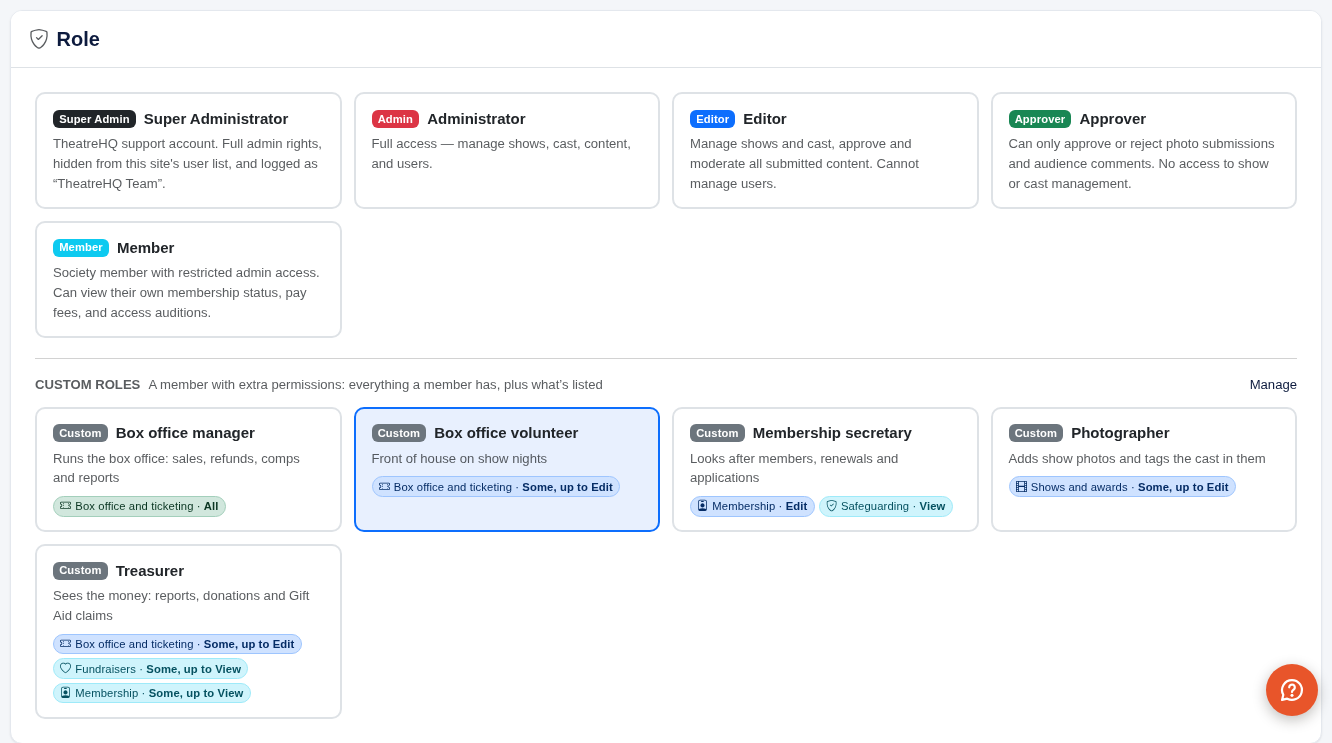
On the Users page they're shown with the name of their role. Moving someone back to Editor, Approver or Member takes the custom role away, and their access changes at once.
7. What they see
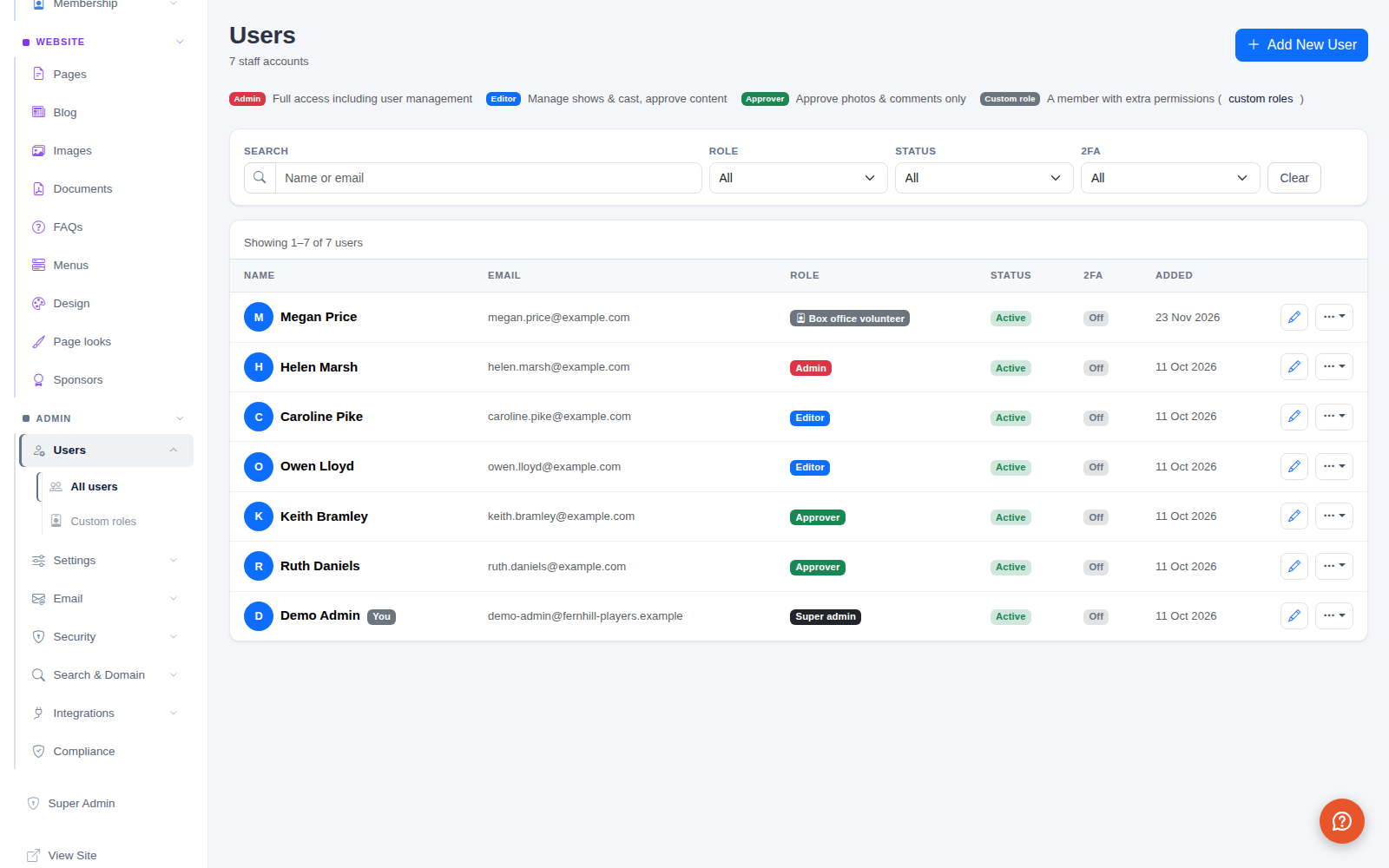
When they sign in, the menu shows only what they need. Whole sections they have nothing in disappear, and inside a section they only see the pages their role covers. Our box office volunteer sees Sales & Orders, Check-in Live, the Ticket List and the Front of House List, and nothing else.
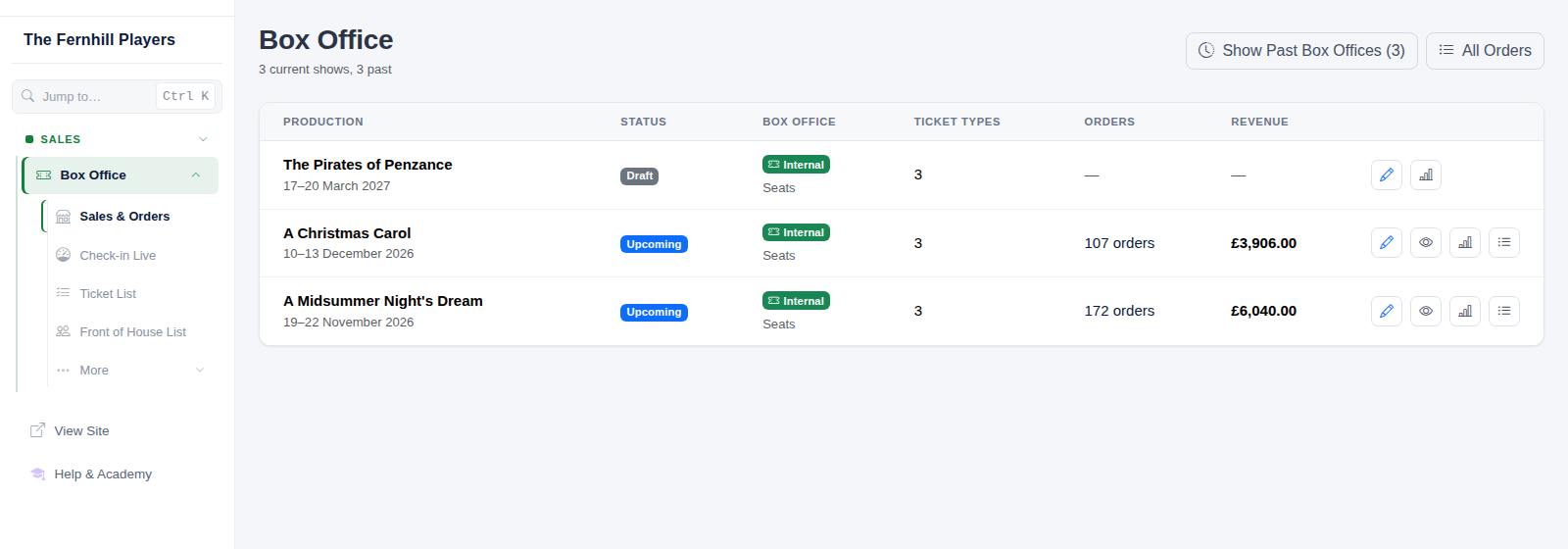
Typing a page's address doesn't get round it. They're sent back with a message:
- A page their role doesn't include: "Your role doesn't include that page."
- Trying to save with View: "Your role lets you look at this page, not change it."
- Trying to delete without All: "Your role lets you change things here, not delete them."
- Trying to download without Export: "Your role doesn't include downloading this."
8. Copying, changing and deleting roles
Any change to a role applies to everyone on it straight away. To make a similar role, open the ⋯ menu on its row and click Copy, then rename and adjust the copy. A role can only be deleted once nobody has it. Changes to roles, and to who has them, are written to the audit log.
Roles you might set up
- Box office volunteer: Check-in and Selling on the door at Edit, Sales and orders at View.
- Box office manager: Box office at All, which includes refunds, comps, customer details and exports.
- Treasurer: Box office reports and donations at View, Gift Aid claims at Edit, Membership dues and payments at View, Fundraiser reports at View.
- Membership secretary: Membership at Edit, Safeguarding at View, with two-factor sign-in required.
- Photographer: Shows and awards, with Photos and videos and Tagging people at Edit.
- Moderator: Approving submissions, with Photos and Reviews at Edit.
- Web volunteer: Blog and pages, with Posts and Pages at Edit but not Publish, and Images and documents at Edit.
- Campaign writer: Audience, with Campaigns at Edit but not Send campaigns.
What always stays with your administrators
No custom role can be given users and custom roles, site settings and modules, payments, mail server settings, security, or the domain settings. Because a custom role can never manage users or roles, nobody can promote themselves.