Sharing scripts and files with your cast
Upload scripts, scores, rehearsal tracks and notes for a production, choose who can see each file, and upload new versions when things change.
Scripts, scores, rehearsal tracks and blocking notes all change during a production. Emailing them round means someone always ends up learning from an old copy. Rehearsal files keep the latest version of everything in one place, and only the right people can see each file.
1. Open the files for your production
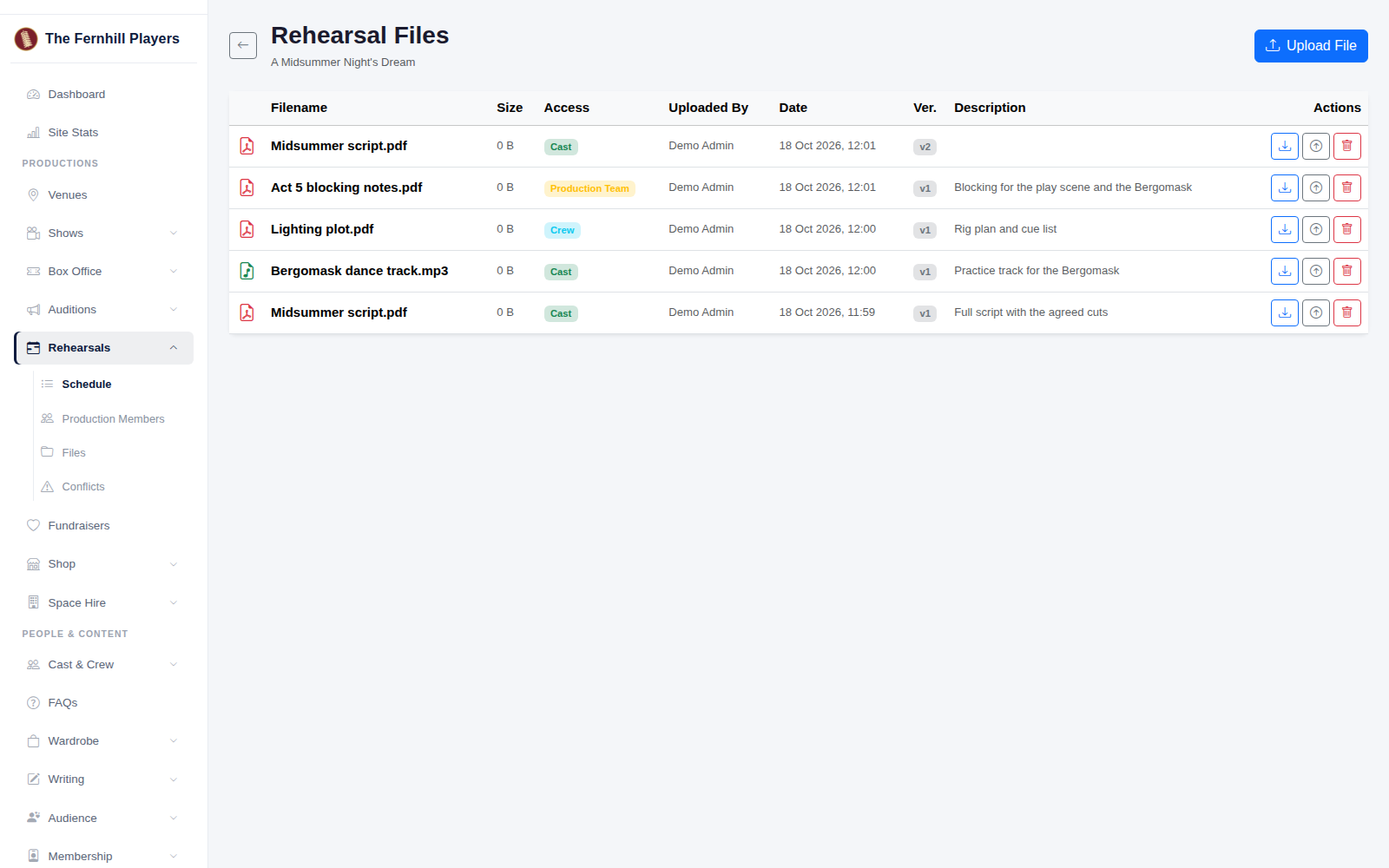
Go to Rehearsals > Files and choose your production. You'll see every file with who uploaded it, the date, who can see it and its version number.
2. Upload a file
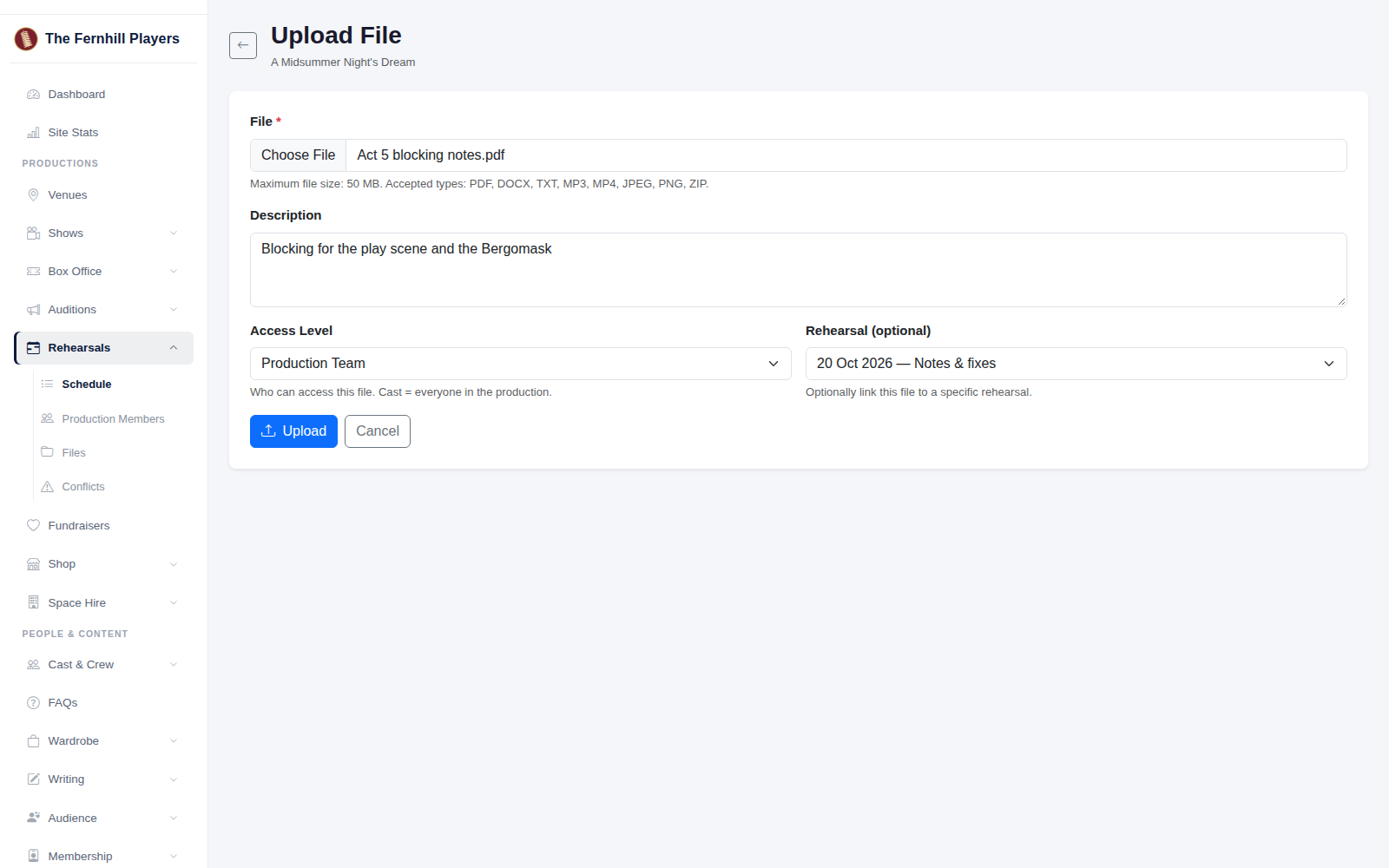
Click Upload File and choose the file. You can upload PDFs, Word documents, text files, MP3s, MP4s, JPEG and PNG images, and zip files, up to 50 MB each. Add a short description so people know what it is, and if it's only for one rehearsal, choose it under Rehearsal.
3. Choose who can see it
Use Access Level to decide who sees the file:
Cast: everyone in the production.
Crew: crew, the production team, directors and stage managers.
Production Team: the production team, directors and stage managers.
Admin: directors and stage managers only.
Click Upload.
4. Upload a new version
When the script changes, don't upload it as a new file. Click the new version button next to the old one in the list and upload the update. The version number goes up, so everyone can see they have the latest copy, and the earlier versions are still there if you need to look back.
5. How members get their files
Members find their files when they sign in, under their rehearsal downloads. They only see the files their role in the production allows.
Tip: put the date or the change in the description when you upload a new version, for example "Act 2 cuts agreed 14 October", so people know what's different.