Adding a whole run of performances in one go
Add every night of a run, and its matinees, in one step, then use Duplicate for extra nights. Doors times fill themselves in.
Most runs are the same time every night, so there's no need to type each performance in. Add a run adds them all at once, and Duplicate copies a single performance onto the next free night.
1. Open Add a run
Open the show, go to Performances and click Add a run.
2. Choose the nights
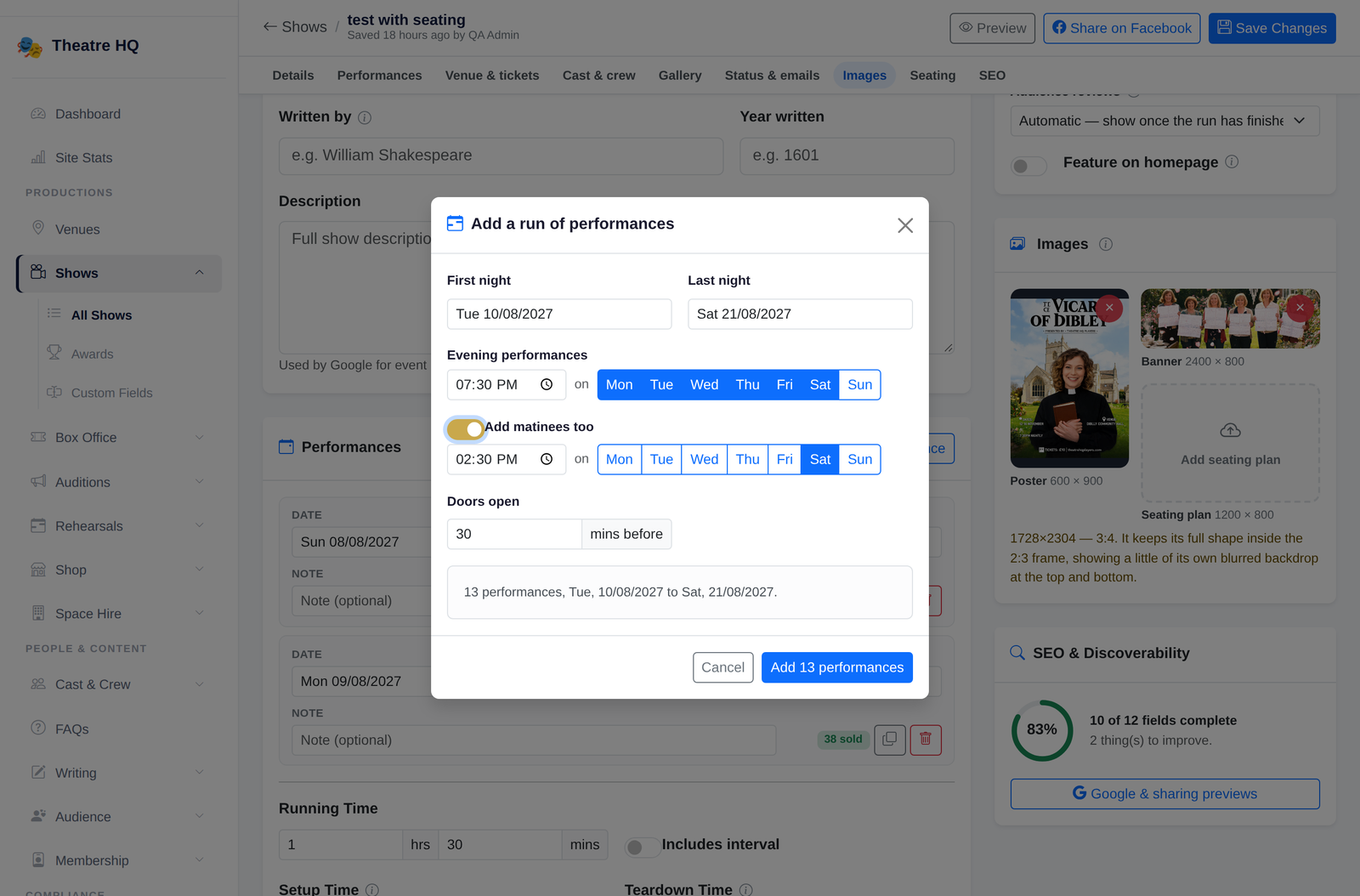
Pick the First night and Last night, the evening start time, and which days the show is on. Monday to Saturday are ticked to start with; click a day to change it.
Tick Add matinees too to add daytime performances as well. Saturday at 2.30pm is set to start with, and you can change the time and the days. Doors open is set to 30 minutes before each performance.
3. Check and add
The box at the bottom says how many performances will be added and between which dates, for example "13 performances, Tue, 10/08/2027 to Sat, 21/08/2027". Any night already listed at the same time is skipped. Click Add and the performances appear in date order. You can add up to 100 at a time.
4. Extra nights and changes
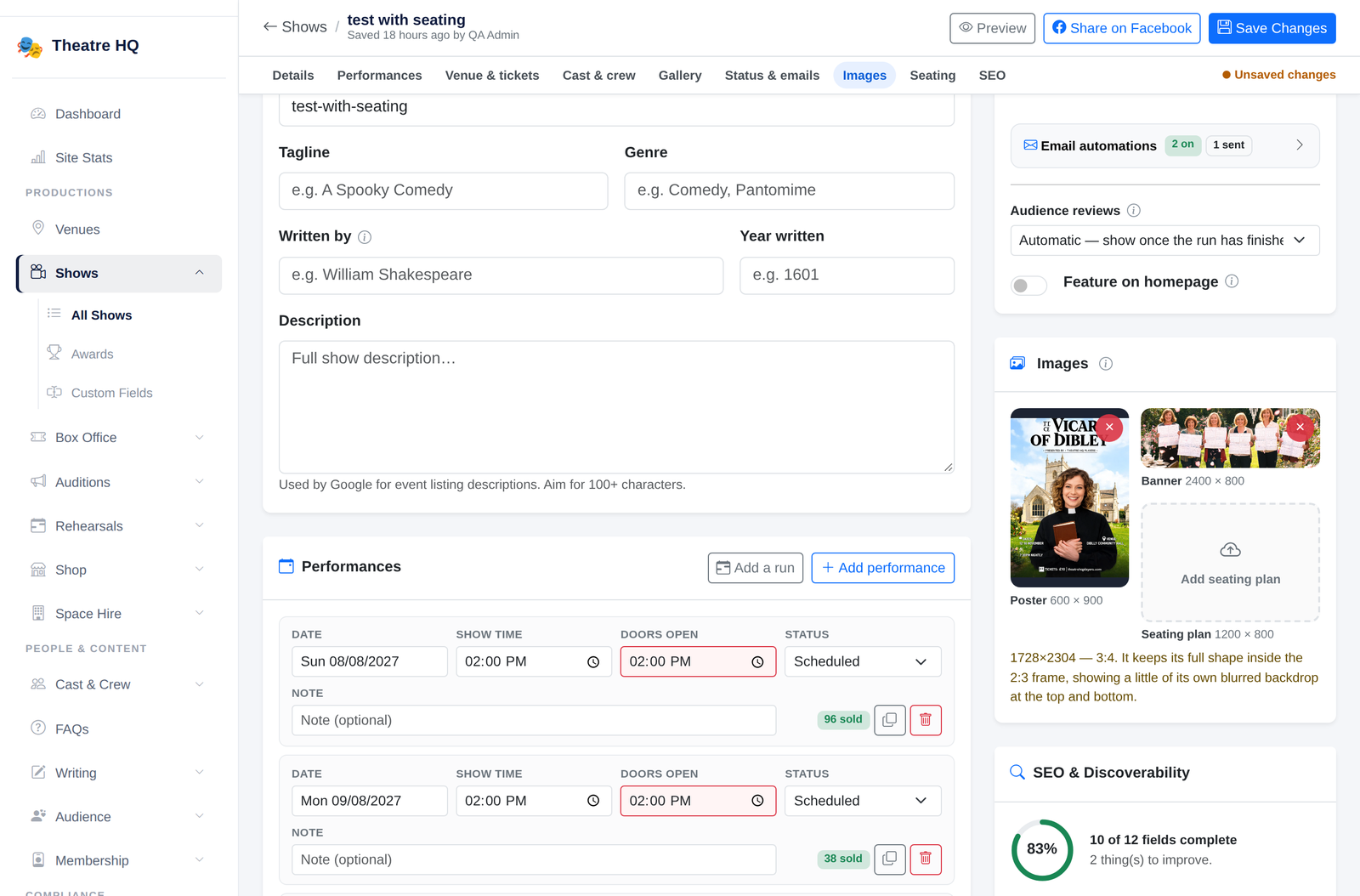
To add one more night, click Duplicate on a performance. It copies the time, doors and note onto the next free night; if that night already has a performance at the same time, it moves on to the following one.
To change a date, click it and choose from the calendar, or type it as dd/mm/yyyy. If you change a show time, its doors time follows it, until you type a doors time of your own. A doors time at or after the show time is outlined in red.
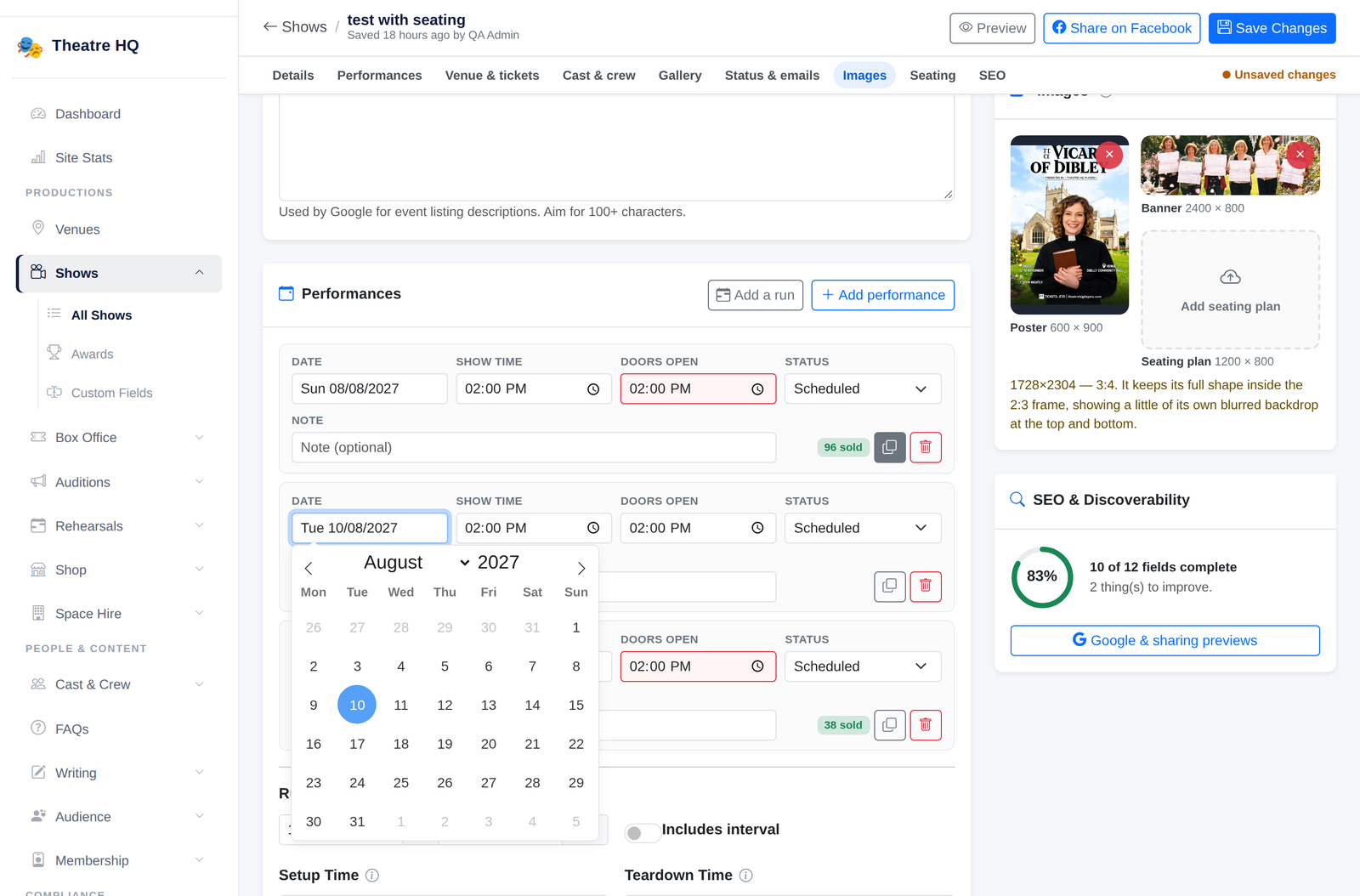
When you're happy, click Save Changes.