Cancelling a show
What happens when you cancel a show, what your audience sees, and how to contact and refund ticket holders.
Sometimes a show can't go ahead. Cancelling it in TheatreHQ stops ticket sales straight away and tells your audience on your website. It doesn't contact ticket holders or refund them for you, so this guide covers that too.
1. Cancel the show
Open the show and find Status & Visibility. Under the status track, click Cancel this show…. You'll be asked to confirm, with a reminder of what happens next. Then click Save Changes.
2. What happens
- Online booking for the show stops, and anyone part-way through paying is told the show has been cancelled and that they haven't been charged. Seats they were holding are released.
- Staff can't sell tickets for the show at the box office either.
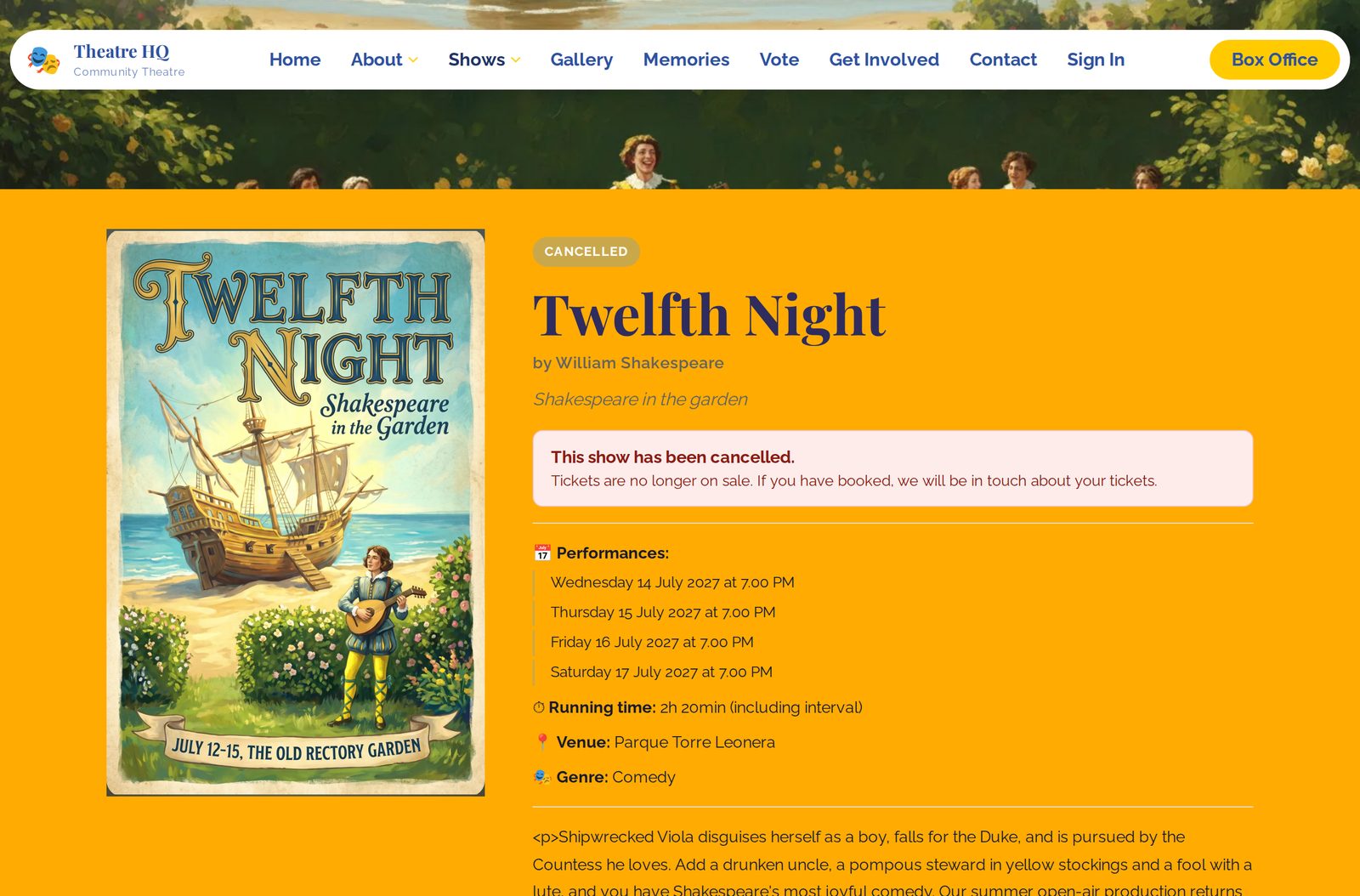
- The show's page on your website shows a "This show has been cancelled" notice, and the show is labelled Cancelled on your homepage.
3. Contact and refund ticket holders
Ticket holders aren't emailed or refunded automatically, so you can decide what to offer first: a refund, or a move to a rescheduled date. Then contact them. You'll find every booking under Box Office then Sales & Orders.
To move someone to a rescheduled date, open their order and use Move to another performance. To refund them, issue the refund in your payment provider's dashboard (Stripe, PayPal or GoCardless), then mark the order as refunded in TheatreHQ. Both are explained in Moving a booking to another performance, and refunds.
4. If the show is back on
Set the status back to Upcoming and save. Online booking reopens and the notice comes off the show page.