Editing your contact form, and sending each subject to the right people
Change the wording of your contact form, send each subject to its own email addresses, add your own questions and make the form match your website.
Coming in TheatreHQ 4.19: the contact form editor in this guide is on its way to every TheatreHQ site. Until it reaches yours, messages from your contact form go to the contact email in Admin → Settings.
Your contact form is often the first conversation someone has with your society. You can change what it says, add your own questions, and send each kind of message straight to the right person: ticket enquiries to the box office, audition questions to the director and producer. The video above shows it in under two minutes.
1. Open the form editor
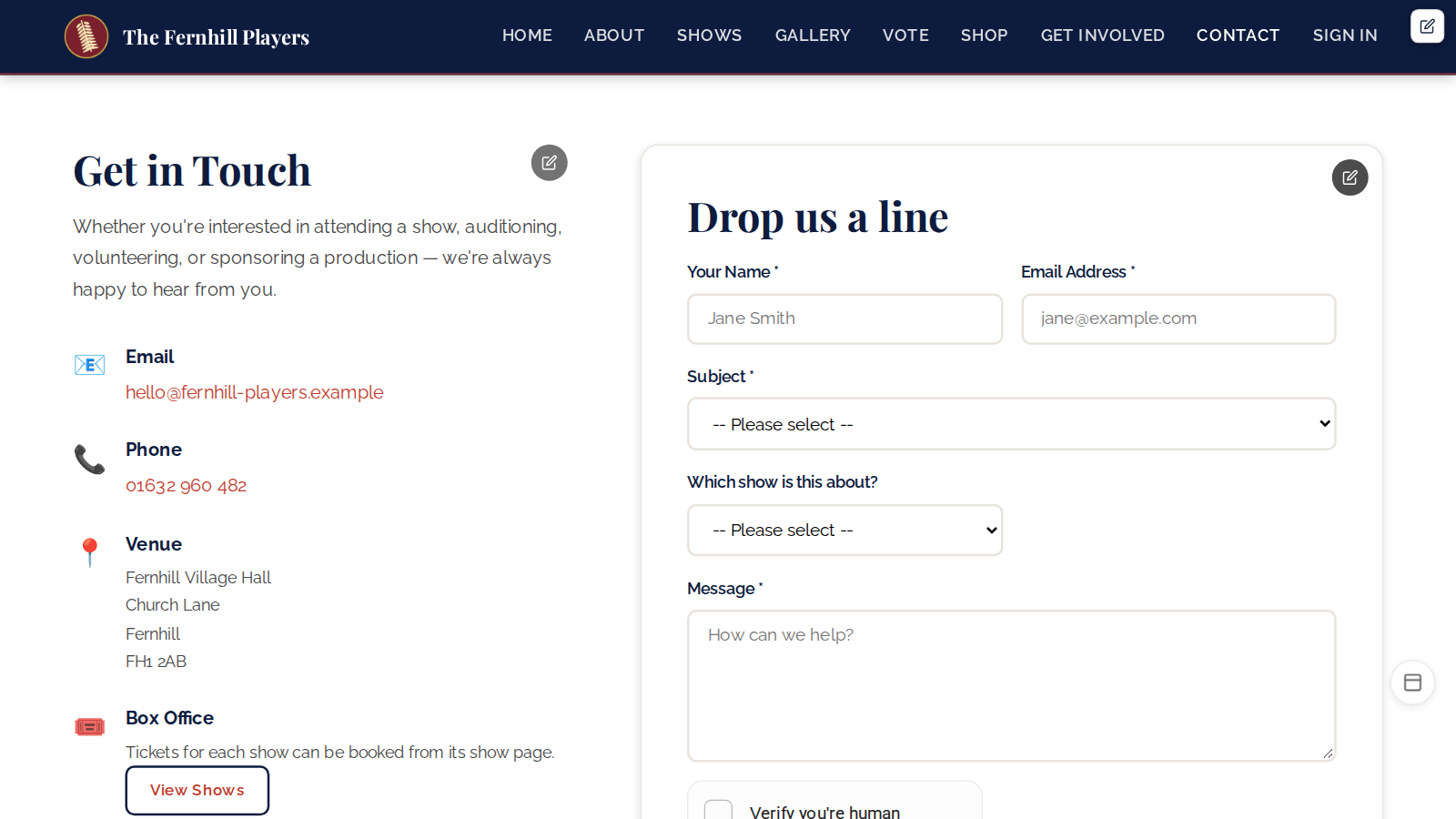
Sign in, open your website's Contact page and press the round pencil at the top right of the form. A panel opens with two tabs: Content and Styling.
2. Change the wording
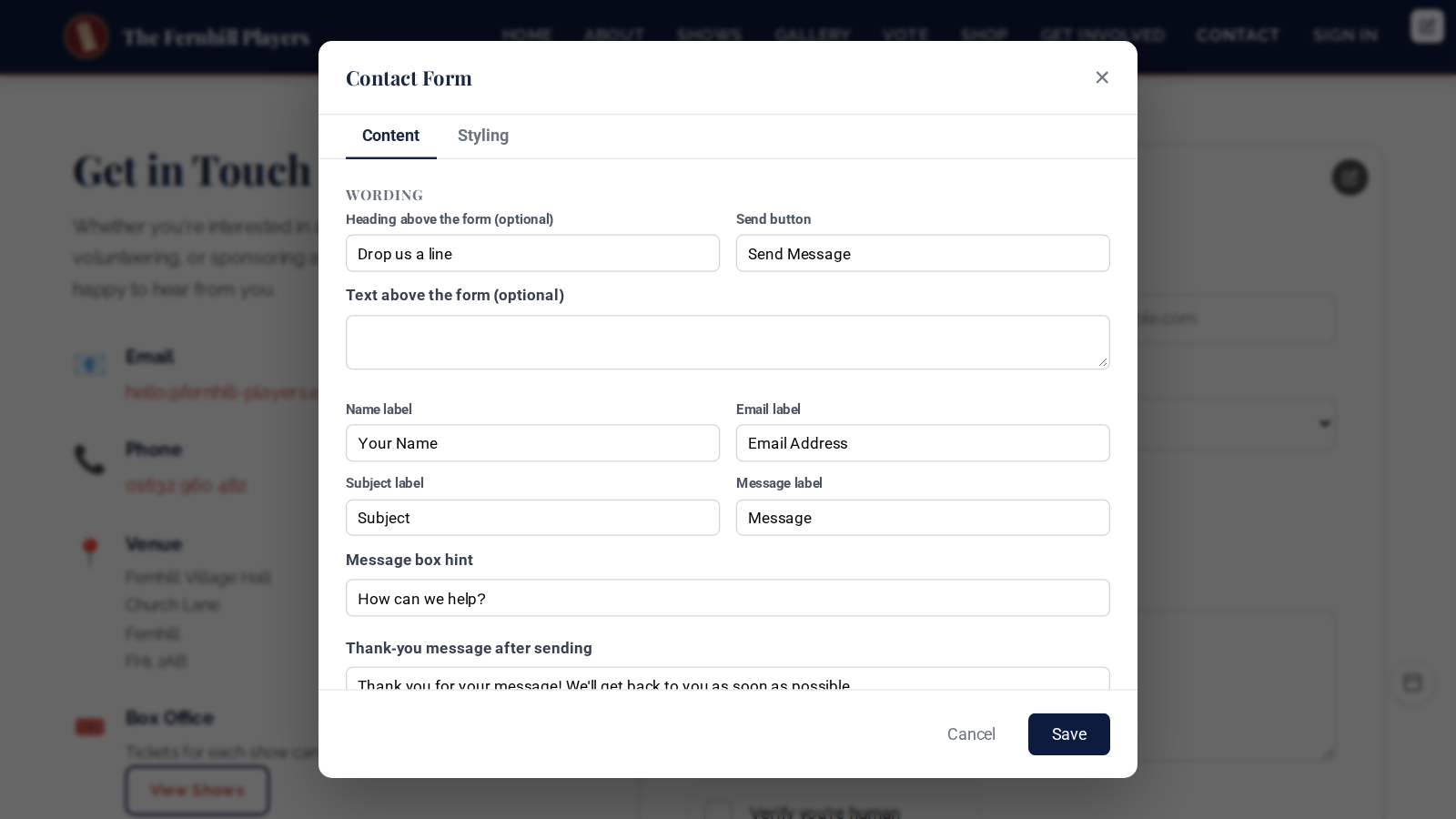
Under Wording you can change the heading above the form and the text under it (both optional), the labels for name, email, subject and message, the hint inside the message box, the button, and the thank-you message people see once they've sent their message.
3. Choose who receives each subject
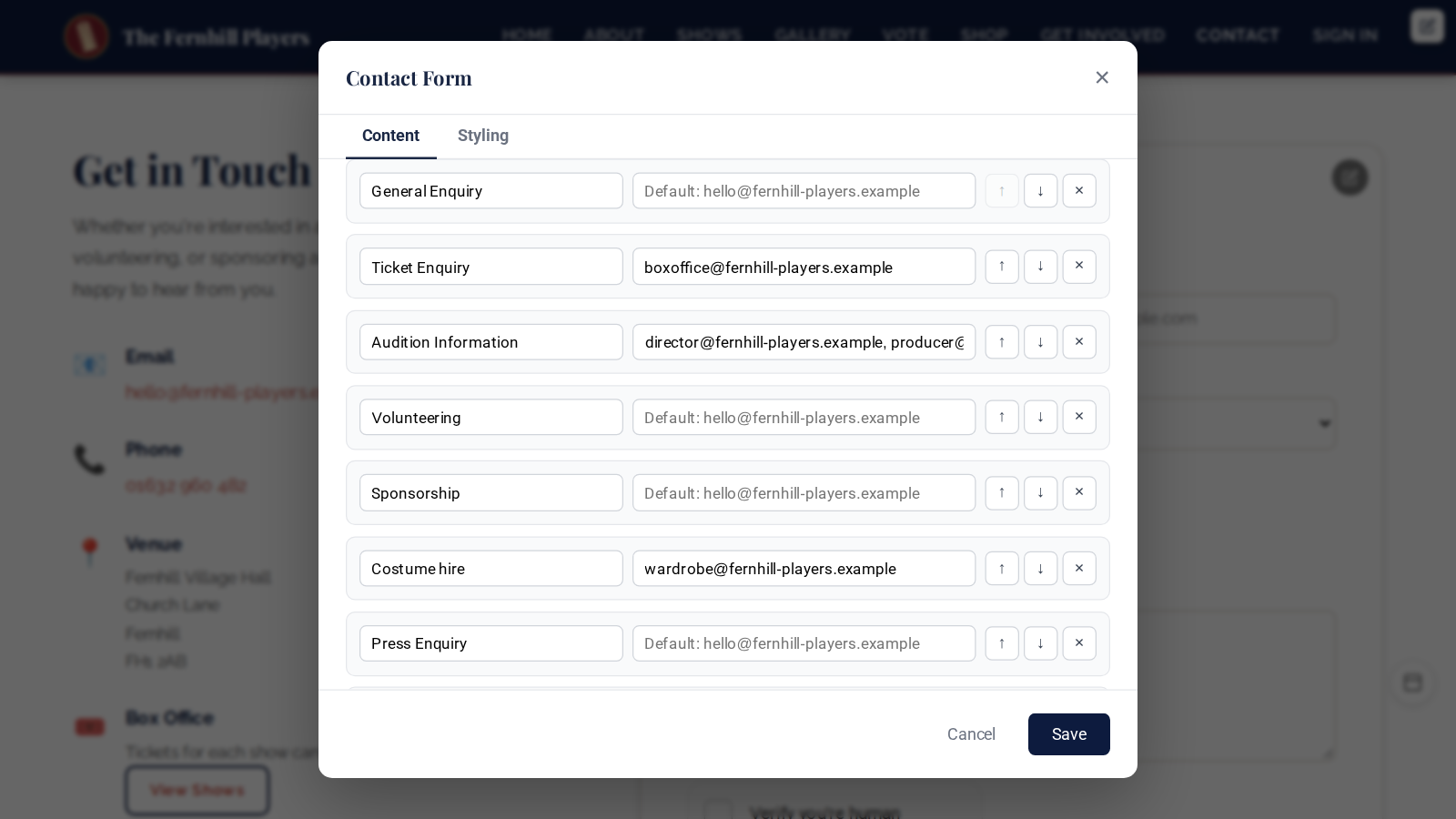
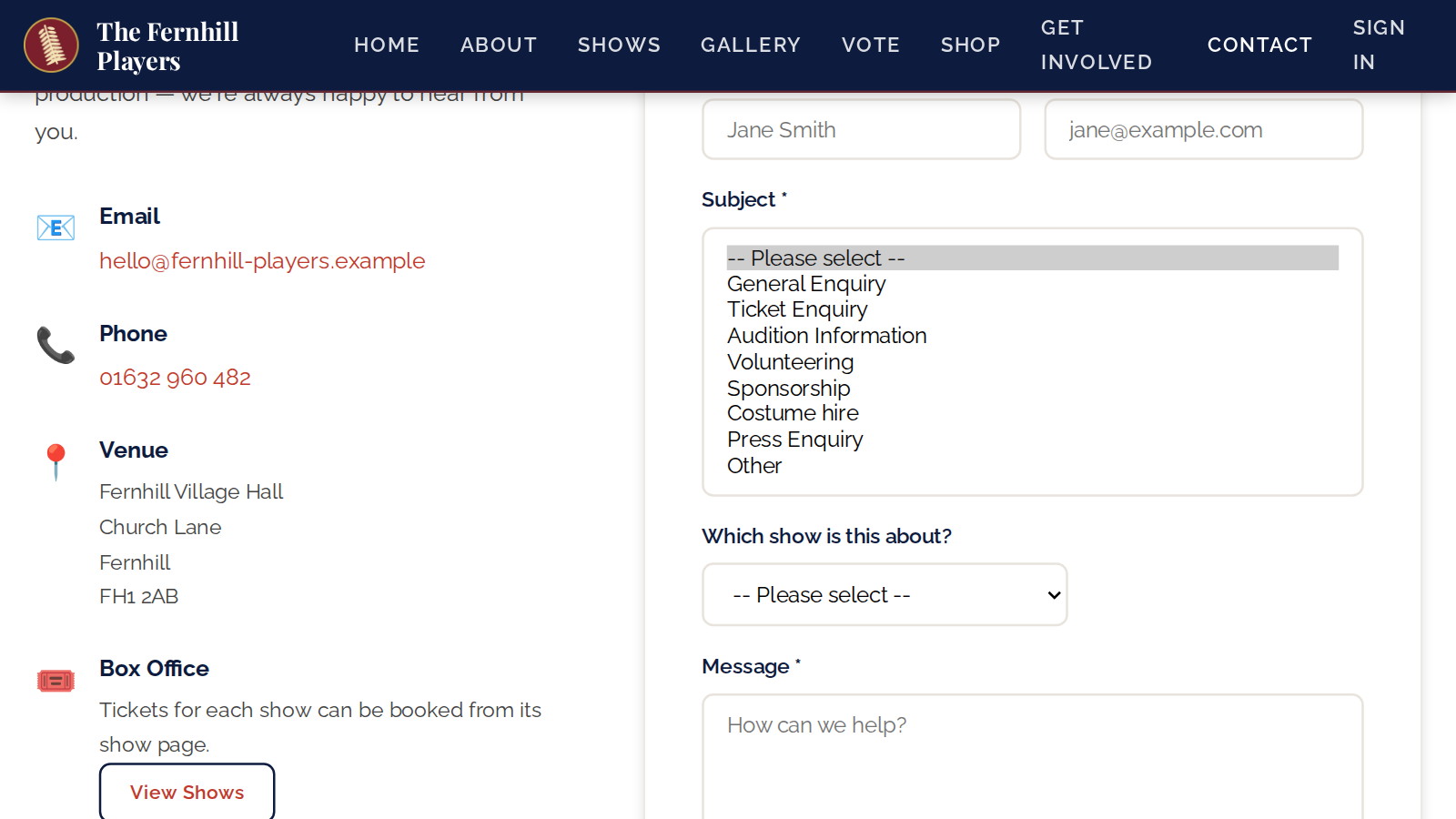
Scroll down to Subjects and who receives them. Each row is one choice in the form's Subject list, with the email address it's sent to beside it. Visitors have to choose a subject, and the subject decides who gets the message.
- To send a subject to one person, type their address, for example your box office address beside Ticket Enquiry.
- To send it to several people, separate the addresses with commas, for example the director and the producer beside Audition Information. Up to five people can receive each subject.
- Leave the address blank and the message goes to your site's main contact email, shown in grey in the box. You set that in Admin → Settings.
When you open a message and press Reply, your reply goes to the person who sent it. If an address isn't valid, or a subject is listed twice, you'll be told when you save.
4. Add, reorder and remove subjects
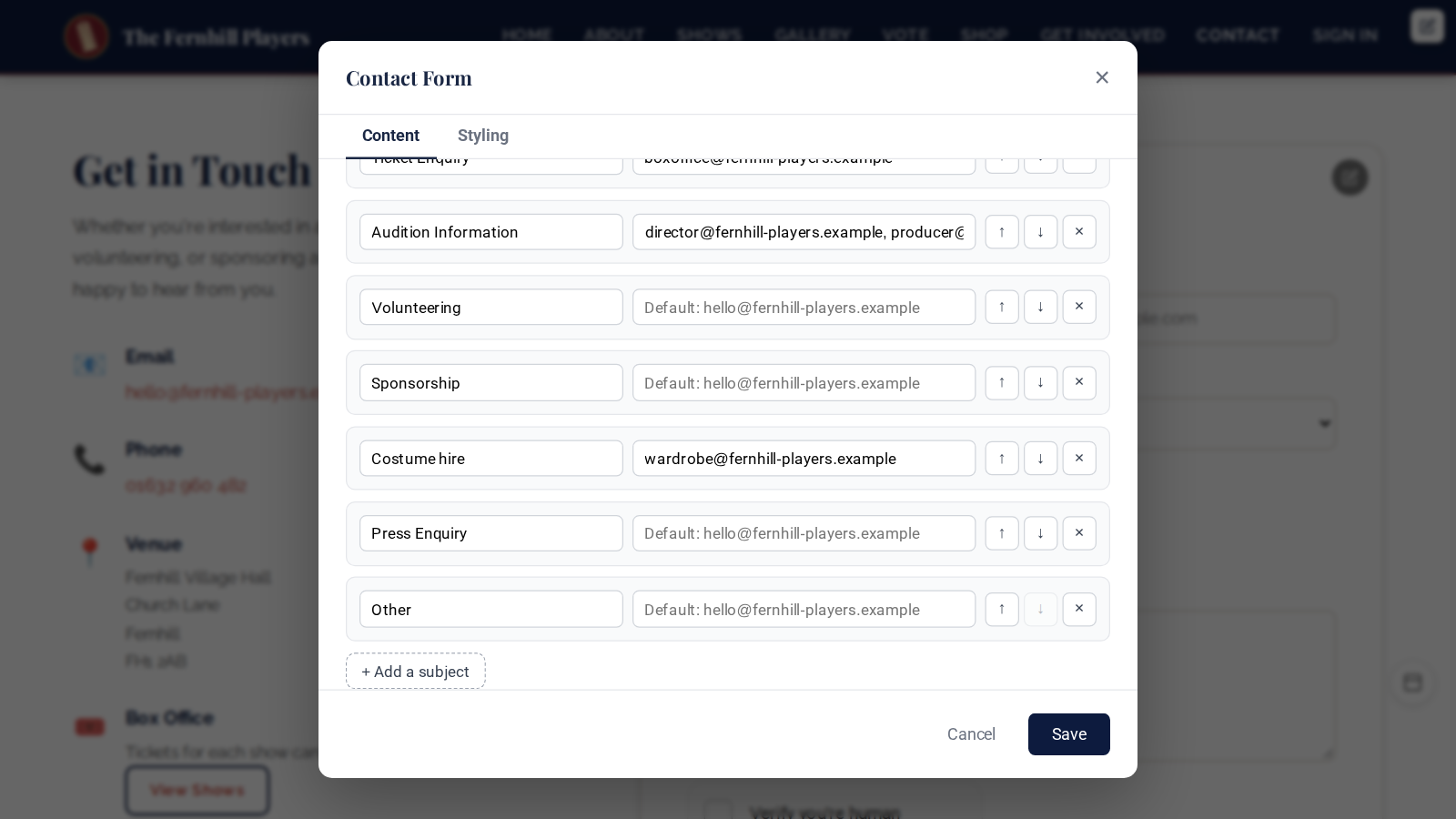
Press + Add a subject to add another, such as Costume hire, then give it a name and an address. Use the arrows to move a subject up or down the list, and the cross to remove it. You can have up to 20 subjects, and you need at least one.
5. Add your own questions
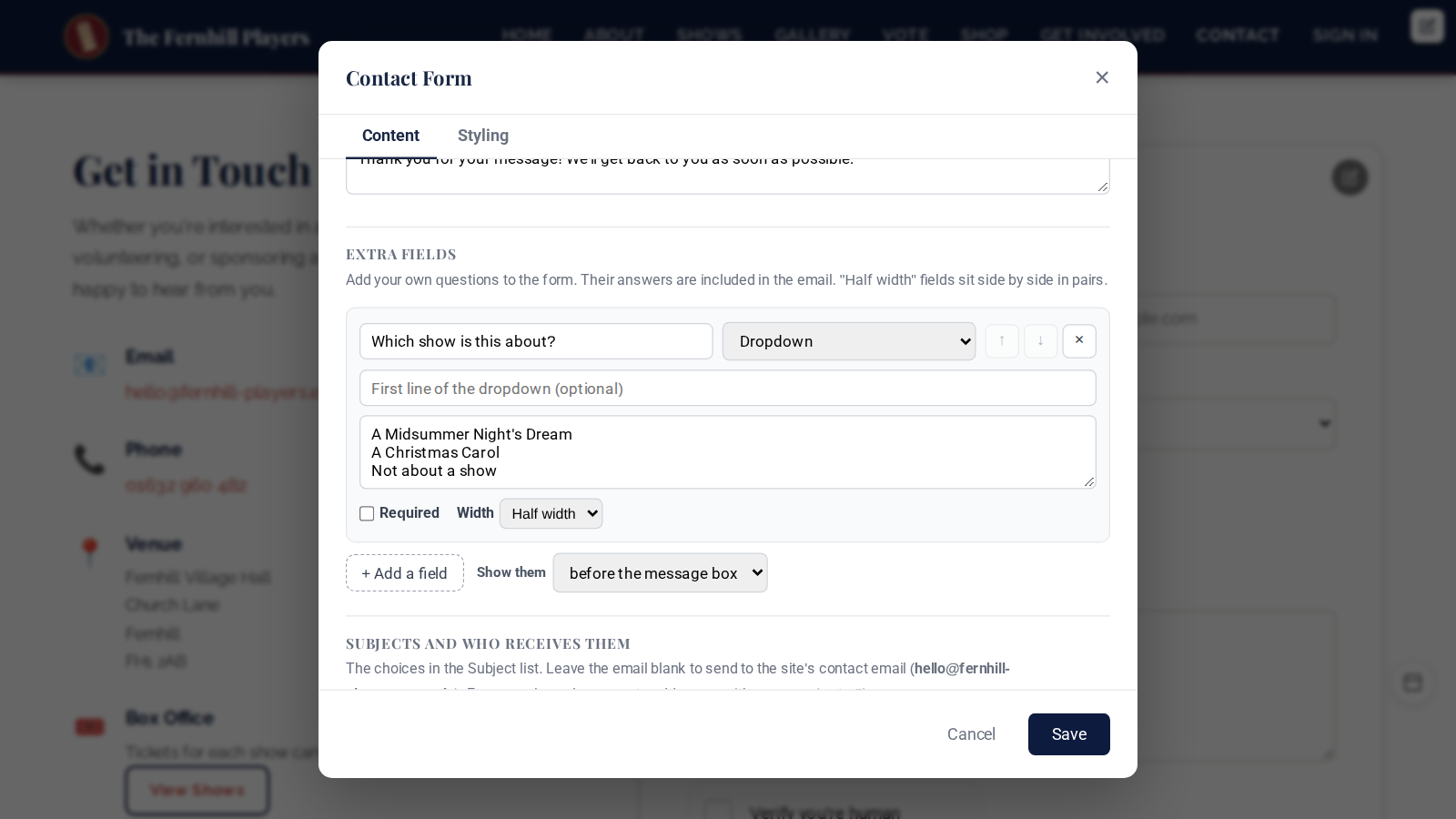
Under Extra fields, press + Add a field to ask something of your own, such as which show someone is writing about or how many are in their group. You can add up to 15.
- Give the question a name and choose its type: short text, long text, email address, phone number, number, date, dropdown, choice (one of a list) or tick box.
- For a dropdown or a choice, type the options one on each line. You can also set the first line of a dropdown, such as "Please choose…".
- Tick Required if it must be answered, and choose Full width or Half width. Half-width fields sit side by side in pairs.
- Show them puts your questions before or after the message box.
Answers are checked when the form is sent, with plain messages if something's missing, and they're included in the email you receive.
6. Make it match your website
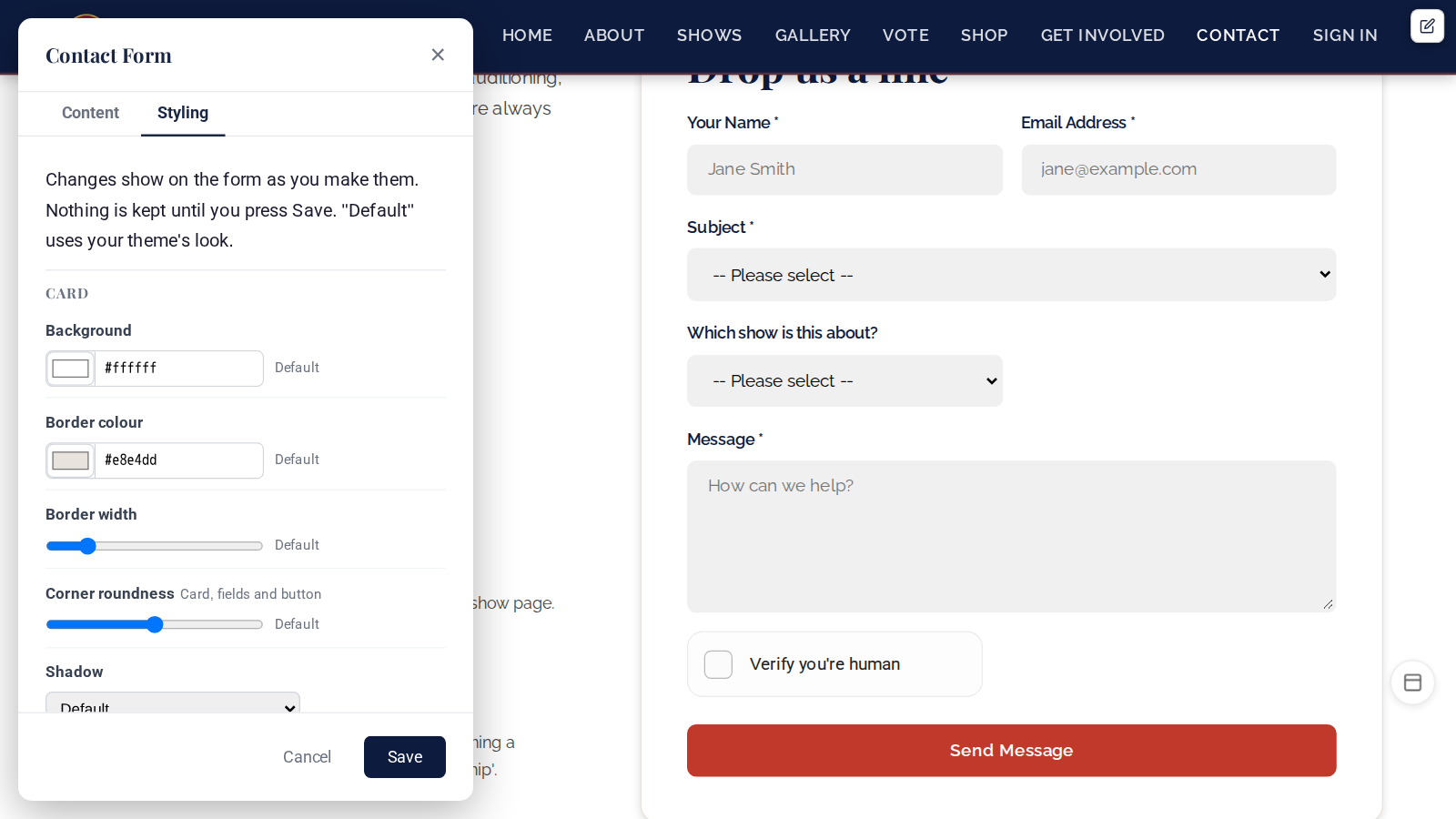
On the Styling tab, the panel moves to the side so you can see the form change as you go. There are options for the card (background, border, corners, shadow and spacing), the text, the fields (including boxed, underlined or filled) and the button (colour, style, size and position). Reset puts one option back, and Reset all styling puts them all back.
7. Save
Press Save. Nothing changes on your website until you do, and Cancel puts everything back. Your visitors then see your subjects and questions on the form.
Who can change what
Admins and editors can change the wording, the questions and the look. Only admins can change the subjects and who receives them. Ordinary members never see the pencils.
The text beside the form
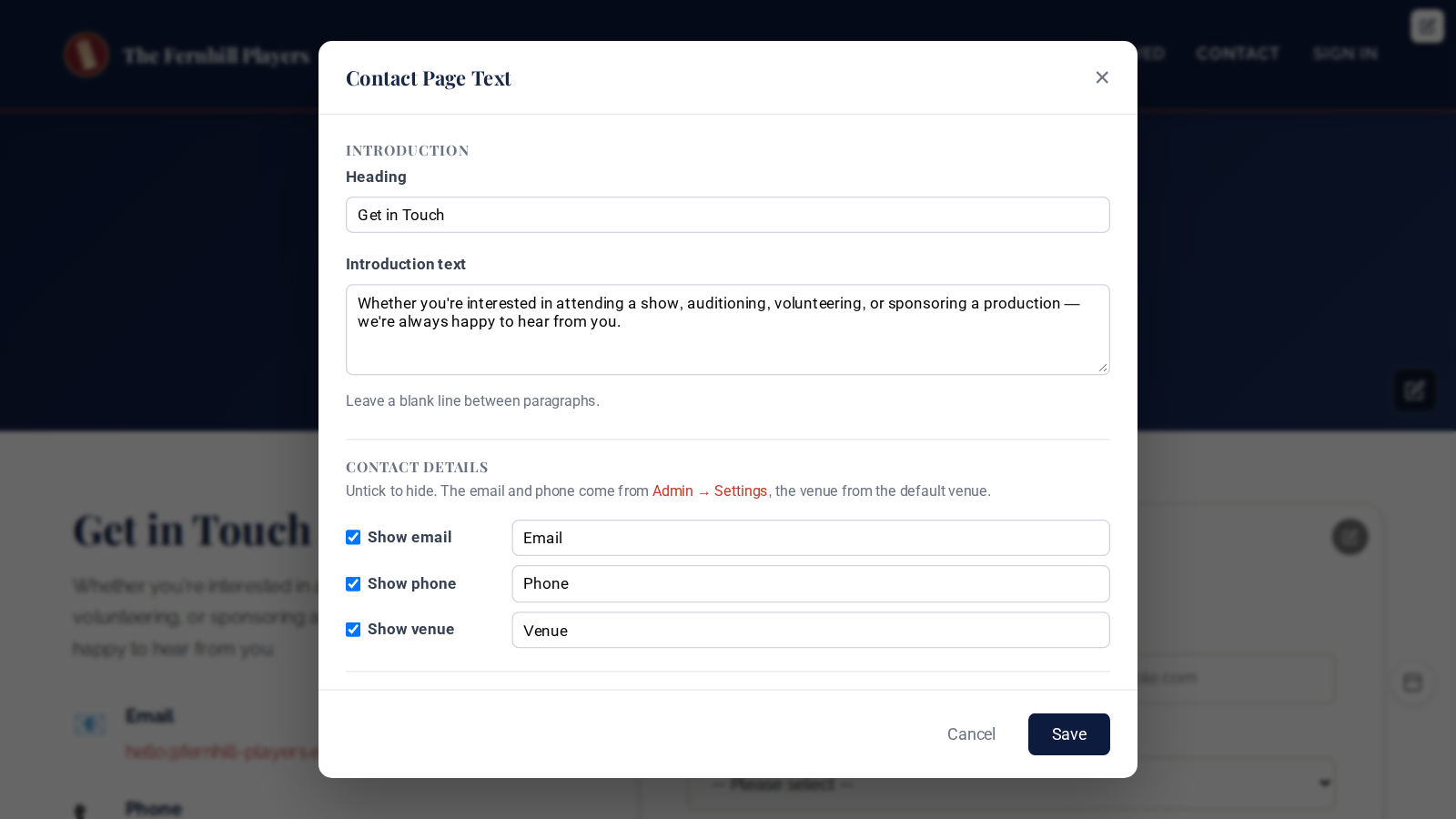
The other pencil, next to the heading beside the form, changes the page text: the heading and introduction, whether your email, phone and venue are shown and what they're called, and up to eight information blocks such as Box Office, Auditions or Parking, each with an optional button. See also Front-end editing.
Tip: after saving, send a test message under each subject to check it arrives where you expect. If messages don't arrive at all, check how your emails are sent.