Your society's name, logo and contact details
Set your society's name, tagline, logo, favicon, contact details and default venue, which appear across your whole website.
A few details appear all over your website: your society's name and logo in the header, your contact details in the footer and on the Contact page, and your main venue on show pages. They're all set in one place, so it's worth getting them right early on.
1. Your name and logo
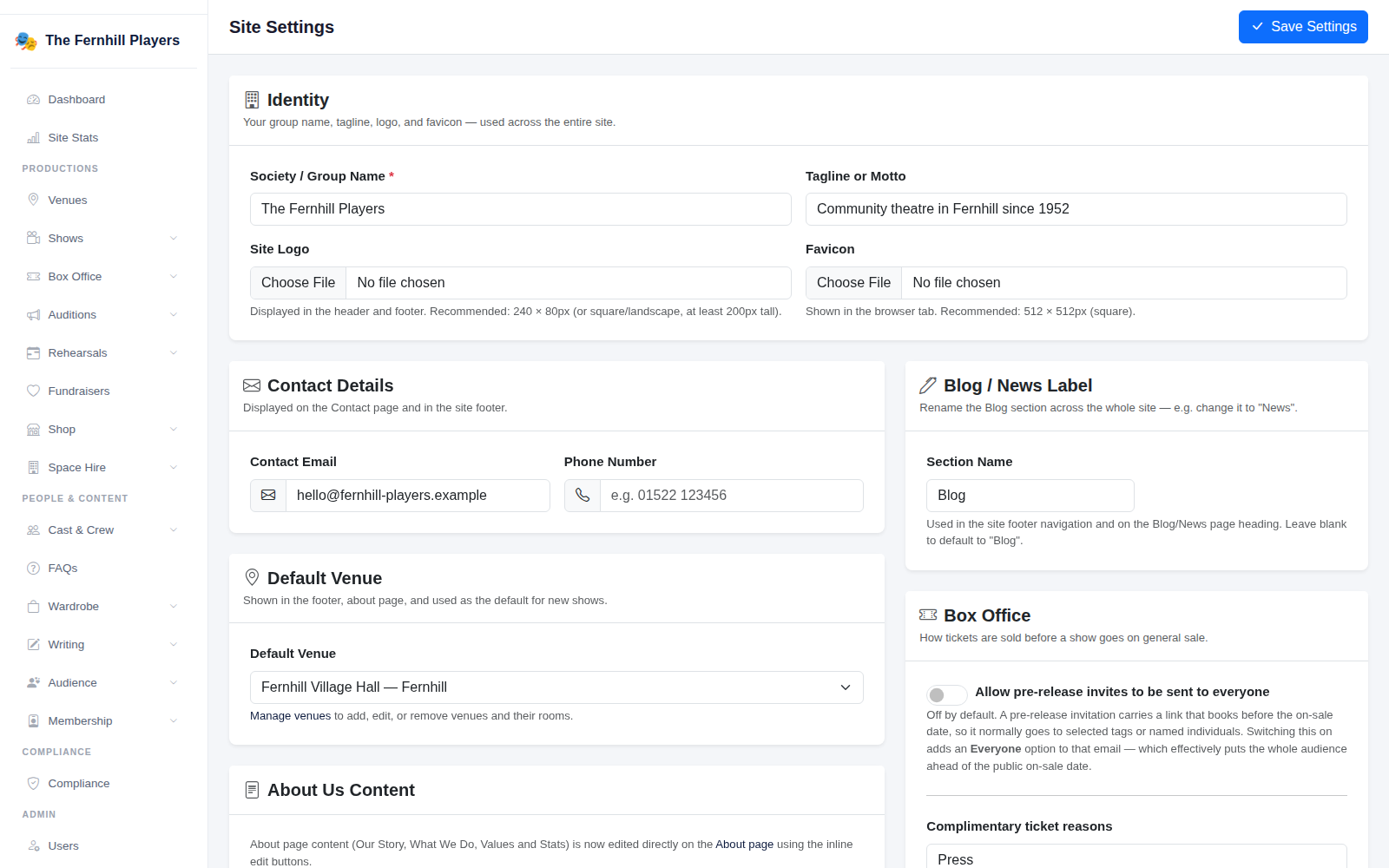
Go to Settings > Site Settings. Under Identity, enter your Society / Group Name exactly as you'd like it shown, and a short Tagline or Motto if you have one, for example "Community theatre in Fernhill since 1952".
Upload your Site Logo. A wide logo around 240 by 80 pixels works well, or a square one at least 200 pixels tall. Then add a Favicon, the little icon in the browser tab: a square image of 512 by 512 pixels.
2. Contact details and venue
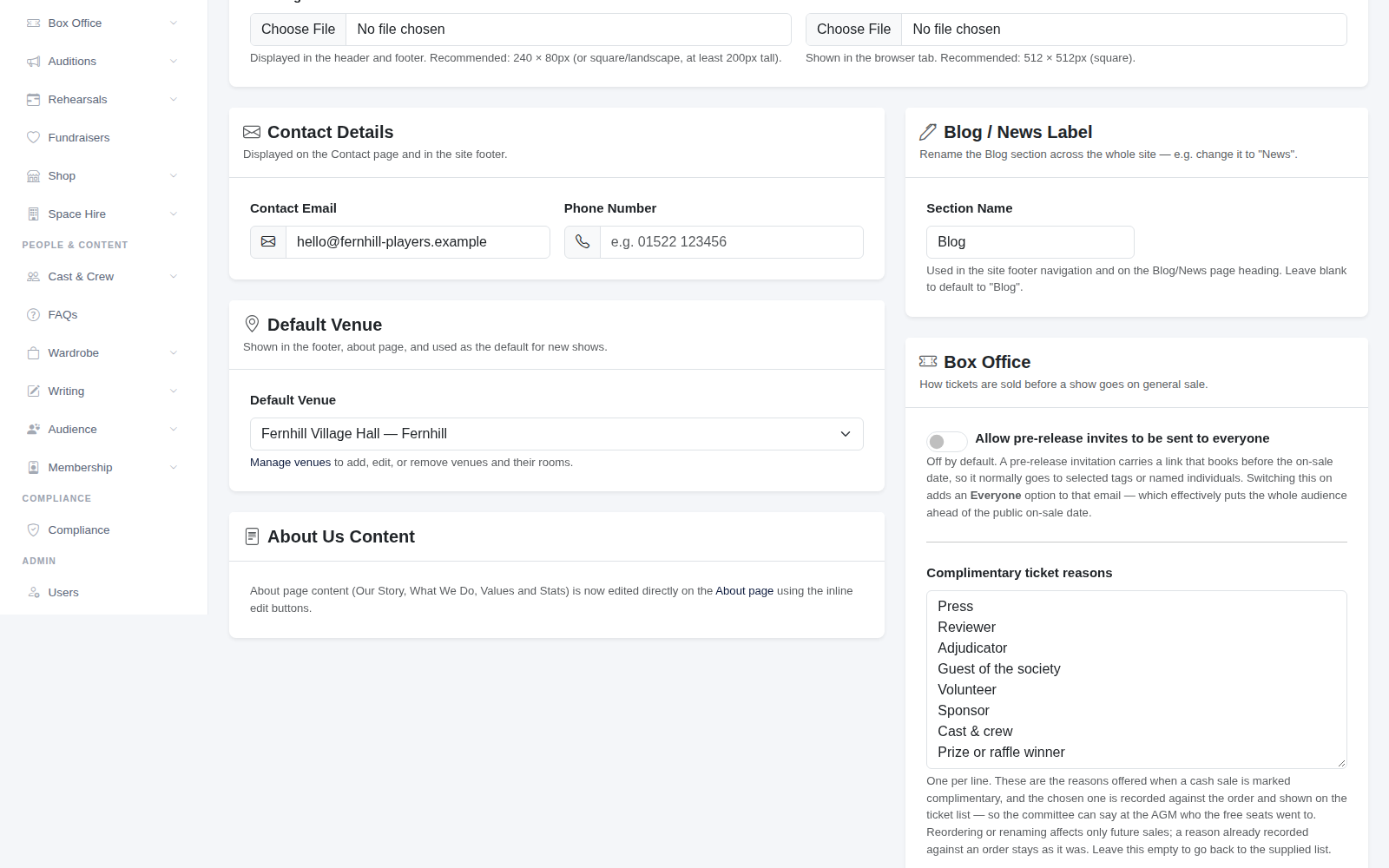
Under Contact Details, add the Contact Email and Phone Number you want the public to use. A shared address such as hello@ or tickets@ is better than a personal one, because it doesn't change when the committee does.
Choose your Default Venue. It appears in the footer and on the About page, and is filled in for you when you add a new show. To add or change venues, see Adding your venues and rooms.
3. A few other options
- Blog / News Label: rename the Blog section across your whole site. Many societies prefer "News".
- Box Office: whether pre-release invitations can be sent to your whole audience. See Letting members book first.
- Complimentary ticket reasons: the list of reasons you choose from when you give away a free ticket, such as Press, Reviewer or Sponsor, one per line.
Click Save Settings at the top when you're done.
The About page
Your About page (your story, what you do, your values and a few numbers) isn't edited here. Open the About page on your website while signed in and use the edit buttons on the page itself. See Front-end editing.
Tip: check your logo on a phone as well as a computer. A logo with a lot of fine detail or small text can be hard to read in the header on a small screen.